
Check which player is controlling playback, then turn off that player’s repeat setting. In vMix, the List input and the separate PlayList feature have different Loop controls. In YouTube, playlist Loop repeats the whole playlist, while the Loop icon marked “1” repeats only the current video.
First identify what is playing the video
“Playlist” can refer to three different things: a vMix List input containing media, vMix’s separate PlayList feature for sequencing inputs, or a playlist in YouTube’s own player. The control that causes a repeat depends on which one is active.
- The same local file plays again in vMix: check the List input’s entries and Loop setting.
- vMix returns to the first input in a sequence: check Loop in the PlayList window.
- A video repeats in YouTube: check whether YouTube is looping the current video or the whole playlist.
- A different video starts after the current one: check Autoplay, not repeat.
Stop a vMix List input from looping
- Open the relevant List input and its editing controls.
- Check Loop. vMix describes this setting as starting the list from the beginning when it reaches the end. Turn it off if the list should stop after its last entry.
- Inspect the entries and their enabled state. Remove unintended duplicates or enable any item that should play but is disabled.
- Check the list’s length. If it contains just one video, playing that video again may be the expected result of the list’s configuration rather than a YouTube playlist problem.
- Retest from the start of the list and watch whether playback advances to the next enabled entry.
In vMix List, Auto Next governs automatic movement to the next entry and is enabled by default; it is separate from Loop. Randomise shuffles playback order. If the symptom is “it never advances,” investigate Auto Next and the entries; if the list finishes and starts again, investigate Loop. The official vMix help pages consulted describe List in version 26.
Stop the vMix PlayList from restarting
- Open the PlayList window using the cog button next to PlayList.
- Review the ordered inputs and identify the point where the sequence appears to repeat.
- Turn off Loop if the sequence should stop after its final input. vMix defines this option as “Start PlayList from the beginning again when completed.”
- Inspect individual items’ starting positions, durations, transitions and transition durations if one item appears to restart before the sequence reaches its end.
- Play the sequence from the beginning to confirm that it advances in the intended order and stops at the end.
vMix PlayList is distinct from the List input and has its own Loop setting. The official PlayList help page consulted is for version 23, so labels or layout may differ in another installed version.
Do these 3 things before closing this tab:
1Repair Windows errors before they cause bigger problems2Fix the driver behind crashes, sound loss and screen glitches3Clear out junk files and repair common Windows errors#1 Best Overall

- 【Rich Connection Ports】 The Osee GoStream Deck video switcher comes with 4 HDMI inputs and 2 HDMI outputs, allowing you to connect four different media sources and two displays for MultiView and monitoring. It also includes 2 Type-C ports (input/output) for webcam input/output, SSD connection, and PC connectivity, 1 Ethernet port for live streaming, 2 audio inputs and 1 headphone output for monitoring audio quality or recording, and 1 SD card slot for recording or playing files directly.
- 【Audio Control, Recording and Playback 】 The Osee GoStream Deck video switcher features various audio control buttons and adjustable knobs. It comes with headphone and microphone input for your live-streaming audio system. Additionally, it provides professional audio effects, including EQ, Limiter, Fader, etc. The GoStream Deck can record your PGM to an SD card or USB SSD while simultaneously playing back MP4 files for intros, breaks, etc.
- 【3 Streaming & Landscape / Portrait streaming】 This live streaming video switcher can simultaneously stream to 3 platforms like YouTube, Facebook, Zoom, or any RTMP server via the Ethernet port. Alternatively, you can use the USB output to stream through PC software like OBS or vMix. In addition, it supports both landscape and portrait modes to suit your various needs.
- 【Efficient Control】 The GoStream Deck features a hard control panel with PVW/PGM buses, T-Bar, and Macros - perfect for broadcast-quality streaming in education, conferences, worship, live events, and weddings. With its built-in menu system, you can control your live production without a PC. Additionally, we provide free PC control software and a companion control module for expanded functionality.
- 【Convenient Graphics Overlay】 This video mixer supports MultiSource functionality with dual video windows, background options, and graphics overlay - ideal for church broadcasts, podcasts, online meetings, panel discussions, and TV-quality live productions. Downstream keyer for logo and lower-third overlays. Upstream keyer supporting green screen, chroma key, PIP (Picture-in-Picture), and pattern effects.
Stop a video or playlist from repeating in YouTube
If only the current video repeats
While a video in the playlist is playing, expand the playlist box and inspect its Loop control. If the Loop icon has a “1” in its center, YouTube is set to repeat the current video. Use the Loop control again to leave that single-video repeat state.
If the entire playlist repeats
Turn off the playlist’s Loop control in the expanded playlist box. With playlist Loop enabled, the playlist starts over after its final video; YouTube Help describes this as the playlist repeating continuously.
Rank #2

- Flexible TAO Cloud Activation – Unlock premium functions via monthly or lifetime plans (not exceeding $100 total lifetime cost). Choose and pay only for the features you need, including PTZ control, Record and Chroma key, logo overlay .
- Step for ACTIVATION – Upgrade your Mini V3 to the LASTEST FRIMWARE before use. Connect the device to the internet with a Ethernet network cable. On the menu of Mini V3, go to Settings → IP Setting, enable DHCP, and wait for the device to receive an IP address. Then go to Settings → TAO Cloud, follow on‑screen instructions to get a verification code, log in to your TAO Cloud account, and bind the Mini V3. For full details, see the USER MANUAL.
- Compact 4K Video Switcher – Mini V3 features 4× HDMI inputs, 2 x1080P HDMI output, a 2.1" touch screen, and professional T-bar control, making it the ideal video switcher for live streaming and multi-cam productions.
- Dual HDMI Output & UVC Webcam Mode – Stream with dual HDMI outputs for program and preview, or connect via UVC for instant webcam recognition on YouTube, Facebook, and other platforms. Perfect as an HDMI switcher and 4K switcher. NOTE: For stable UVC streaming with OBS on Mac or PC, use the included USB 3.0 cable.
- HD Recording & Creative Effects – Record directly to USB drives up to 2TB, add PIP layouts, chroma key overlays, and 15 transition effects. Recording and selected advanced features are activated via optional TAO Cloud licensing. A versatile video switcher with touch screen 2.1" for entry-level content creation.
If a different video starts instead
Check YouTube’s Autoplay setting. Autoplay plays another related video after a video ends; it is not the same as repeating the current video or cycling through the same playlist. YouTube’s control layout varies by device, so on a phone, TV or console look for the equivalent playback or playlist control rather than assuming the desktop layout applies.
Retest and pinpoint what is still repeating
- Return to the beginning of the relevant sequence after changing a setting.
- Note whether the same file or input is duplicated, the current item restarts before the next entry, or the whole sequence starts again at its first item.
- Match that symptom to the control: inspect entries for duplicates, item duration or playback settings for an early restart, and the relevant List, PlayList or YouTube Loop setting for a sequence that cycles at its end.
Common causes and fixes
| What you see | Likely place to check | What to do |
|---|---|---|
| The same vMix media item plays again after the list ends | List input | Turn off Loop if the list should stop; inspect enabled entries and duplicates. |
| A vMix sequence returns to its first input | PlayList window | Turn off Loop and verify the ordered inputs. |
| A YouTube playlist video repeats with a “1” on the Loop icon | YouTube player | Use the Loop control again to exit single-video repeat. |
| The YouTube playlist starts over after its last video | YouTube playlist controls | Disable playlist Loop. |
| A related video plays after the current one ends | YouTube Autoplay | Adjust Autoplay; it controls what plays next, not repeat behavior. |
Or let it run in the cloud
If your separate goal is keeping uploaded videos live on a YouTube channel around the clock, StreamNeo is a cloud service that plays uploaded videos; it does not change vMix or YouTube’s repeat controls. The setup is three steps:
Recommended Free Tools
Rank #3

- Elevate Your Live Production - The RGBlink Mini is more than just a video switcher. With the ability to stream a 6-picture preview or program from any of its 4 high-definition 2K HDMI inputs, you can broadcast live in style. Whether you're using OBS, Vmix or another third-party streaming software, the Mini ensures your live broadcasts stand out
- Solo Streaming Simplified - Designed with simplicity in mind, the Mini packs a punch for solo streamers. With 14 built-in transition effects, 9 picture-in-picture layouts, and a tripod-ready screw hole, managing multiple signals has never been easier—or more professional
- Connectivity That Counts - The USB 3.0 output of RGBlink mini connects to any computer and is identified as a webcam, so it can work for all streaming software of social media platforms! And with up to 4 HDMI inputs, multi-camera setups are a breeze
- Versatility at Its Best - Along with seamless switching, there are other outstanding features such as audio embedding, de-embedding, and automatically identifying color depth of RGB4:4:4, YUV4:4:4, YUV4:2:2, YUV4:2:0. For onboard recording, please choose Mini-Pro or higher models
- Control On-the-Go - Whether you're on your phone or computer, remote control is a cinch. Just connect the LAN port, and you're good to go—no additional software required. It's as intuitive as using the switcher itself
- Upload a recording or build a playlist.
- Add your YouTube stream key once.
- Go live; StreamNeo loops the upload from the cloud, so your computer and home connection do not have to stay on.
Each slot supports the uploaded quality up to 4K 60fps at one flat price per slot, with no re-encode or quality tiers, and includes automatic recovery if YouTube drops the stream. The first day is free with no card, one free day per account. Monthly pricing is $9.99 per month. UPI and cards are available in India; card checkout is available worldwide. Learn more at StreamNeo, or start the free first day.
Quick Recap
Best Value

- Enriched inputs selection: unlimited inputs select from 4*SDI, 4*HDMI and USB-type C, NDI HX source and SD/SSD playback. Supports landscape and portrait for both inputs and outputs.
- Multiple control methods: control your live event via GoStream built-in GUI & GoStream computer software (both for MAC and Win) & Bitfocus Companion.
- Rich key effects and transitions: Multisource, Luam Key, Chroma Key, Pattern Key, PIP, DSK. Transition with MIX, DIP, WIPE and T-Bar.
- Highly compatible live streaming methods: Up to 3 streaming platforms at one time. Streaming directly via Ethernet or Smart Phone hotspot(via USB cable). Or you can connect to all streaming software, like OBS, Vmix to streaming.
- Affordable Professional Streaming Solution: A GoStream Duet equals a GoStream Deck + 4 HDMI & SDI converter + a FREE NDI HX LICENSE(need to download the latest firmware to unlock free NDI) as a gift.
Rank #4
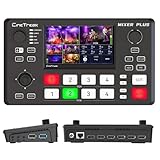
- BUILT-IN 4.5-INCH MULTIVIEW DISPLAY: Monitor all four HDMI inputs, Program, Preview, resolution status, and audio levels directly on the integrated screen. The compact all-in-one design reduces the need for a separate production monitor.
- 4-CHANNEL HDMI SWITCHING: Connect and switch between up to four HDMI video sources with 30 adjustable transition effects, including Mix and DIP. Landscape and portrait production modes support traditional broadcasts and vertical social media content.
- PTZ CONTROL AND PRODUCTION TOOLS: Control up to four compatible PTZ cameras through VISCA over IP, with four position presets available for each camera. Chroma key, luma key, PIP, DSK, and logo overlay tools help create polished live productions.
- USB 3.0 UVC LIVE STREAMING: Send uncompressed HD video to a computer through the USB 3.0 UVC connection for use with OBS and other UVC-compatible streaming or conferencing software. No separate USB capture card is required.
- FLEXIBLE VIDEO AND AUDIO WORKFLOW: Assign the AUX HDMI output to IN1–IN4, PGM, Clean PGM, PVW, Clean PVW, PAT, or Multi View for recording and monitoring. Two 3.5 mm audio inputs and a headphone output support external audio sources and real-time monitoring.
Product prices and availability are accurate as of the date/time indicated and are subject to change. Any price and availability information displayed on Amazon at the time of purchase will apply.

