
Windows Errors? Fix Them Before They Spread
Repair common Windows errors and clear accumulated junk for a smoother, more stable PC - no reinstall needed.Free scan · no reinstallOutdated Drivers Are Slowing You Down
One free scan finds every outdated or missing driver and matches the right update for your exact hardware.Free scan · exact hardware matchiTechGuides is reader-supported. When you buy through links on our site, we may earn an affiliate commission. As an Amazon Associate I earn from qualifying purchases. Learn more
To share an eSIM data connection, turn on hotspot or tethering on the phone or tablet that contains the eSIM, then connect your laptop or second tablet to it. On iPhone, the feature is called Personal Hotspot; on Android, it is usually Hotspot or Hotspot & tethering. Wi-Fi is the simplest option, while Bluetooth and USB are alternatives. The eSIM does not create a separate laptop connection by itself: the host device uses its cellular data and passes that connection to the other device.
What eSIM hotspot sharing actually does
An eSIM is a digital SIM profile that lets a compatible phone or cellular tablet access a mobile network. When you enable hotspot or tethering, that device becomes the host. Your laptop or tablet connects to the host over Wi-Fi, Bluetooth, or USB, and the host forwards internet traffic through its cellular-data line.
This means the host device must have cellular internet access, remain powered on, and stay close enough for the chosen connection method. Hotspot traffic also uses the host plan’s data allowance. A plan or carrier can disable tethering, limit it, or charge an additional fee, even when ordinary phone data works.
Recommended Free Tools
Apple describes the feature this way: “When you share a Personal Hotspot from your iPhone, it uses cellular data for the internet connection.” Google similarly states that Android phones can use mobile data to connect another phone, tablet, or computer to the internet.
Popular on Amazon

- [Bi-Directional Transfer & Right-Angle Design] Unlike traditional USB Active Optical Cables (AOC) that require strict directional plugging, our innovative fiber optic USB cable features a truly bi-directional design, plug either end into your camera or host without confusion. The right-angle connector effectively mitigates strain on your high-end camera's Type-C port, preventing accidental leverage damage and securing your expensive investment during intense shooting sessions.
- [10Gbps High-Speed Data Sync for Tethered Shooting] Engineered for professional photographers and videographers, this tether cable delivers up to 10Gbps data transfer. Enjoy zero-latency & zero data loss, real-time image preview and seamless file syncing with top tethering software (like Capture One, Lightroom). Say goodbye to signal drops, frame loss, or lag during high-pressure commercial shoots.
- [Industrial-Grade Durability] Encased in a premium zinc alloy shell for elite heat dissipation and impact resistance, this link cable integrates the German SiliconLine Chip. It completely eliminates signal attenuation and electromagnetic interference (EMI) over long distances, ensuring stable and fast operation in the rigorous demands of professional studio and outdoor shoots.
- [PD 60W Fast Charging & Reliable Power] Equipped with an intelligent SiliconLine chip, this usb c fiber optic cable supports Power Delivery up to 60W. It continuously powers your DSLR, mirrorless camera, or high-performance VR headset during long sessions, ensuring your devices stay charged and stable without interrupting your creative workflow.
- [Versatile Connectivity for SSDs & VR Gaming] This long fiber optic cable is not only suitable for camera tethering, but also for high-bandwidth external SSDs, hard drives, and VR headsets. Experience lightning-fast file backups, smooth data transmission, and an immersive, stutter-free VR gaming experience.
Choose the best sharing method
| Method | Best use | What you need | Important trade-off |
|---|---|---|---|
| Wi-Fi hotspot | Most laptops and tablets; quick, wireless setup | A hotspot-capable eSIM plan and the host device’s Wi-Fi hotspot feature | Uses more host battery than a wired connection and can be affected by distance or interference |
| Bluetooth tethering | Low-power connections where speed is less important | Bluetooth enabled and paired on both devices | More pairing steps and radio overhead; the computer must support Bluetooth networking |
| USB tethering | A stable connection or simultaneous charging | A compatible, data-capable USB cable; Windows iPhone/iPad connections also need Apple Devices or iTunes | The devices must remain physically connected |
| Direct cellular connection on a Windows laptop | A laptop with its own SIM/eSIM hardware | Built-in cellular hardware and a suitable mobile-data plan | Requires compatible laptop hardware and a separate or supported data plan, but does not depend on a nearby phone |
Share an iPhone or cellular iPad over Wi-Fi
Use these steps when the eSIM is installed on an iPhone or an iPad (Wi-Fi + Cellular).
- Open Settings and select Personal Hotspot. On some software versions, use Settings > Cellular or Settings > Mobile Data > Personal Hotspot.
- Turn on Allow Others to Join.
- Read the Wi-Fi password displayed on the Personal Hotspot screen. Keep this screen available if you need to confirm the network name or password.
- On the laptop or tablet, open its Wi-Fi settings and select the iPhone or iPad’s name.
- Enter the Personal Hotspot password. Devices signed in to the same Apple Account may use Instant Hotspot and connect without manually entering the password, subject to Apple’s account and device requirements.
- Open a webpage on the second device to confirm that the connection works.
- When finished, turn off Allow Others to Join to reduce unnecessary battery and data use.
The iPhone or iPad must have cellular data enabled and be able to browse on its own. If the Personal Hotspot screen is absent or the switch cannot be enabled, check the carrier and eSIM plan before changing other settings.
Use an iPhone or iPad with USB or Bluetooth
USB tethering
- On the iPhone or iPad, open Settings > Personal Hotspot and turn on Allow Others to Join.
- Connect the device to the laptop with a matching USB cable that supports data, not only charging.
- Unlock the iPhone or iPad and respond to any Trust This Computer, Allow, or similar prompt.
- On a Windows laptop, install or update Apple Devices or iTunes if the USB network connection does not appear. Apple requires one of these applications for an iPhone or iPad connected to Windows by USB.
- Wait for the computer to recognize the phone as a network connection, then test a webpage.
USB is useful when Wi-Fi is unstable or when you want the cable to help keep the host device charged. It still consumes cellular data and remains subject to the eSIM plan’s tethering rules.
Free tools Windows power users keep installed
One-click scans. No signup required.
Also popular on Amazon

- [Finder’s Red]: Quickly identify your Data-Sync cable in a tangle of different functions wires. No more guessing: Red = Fast Charge = Data Sync". Lab study: Red data cables reduce‘wrong unplugging’ by 62%. Spotted 3X faster than black in bags/offices. Ideal for travel, meetings, and late-night charging.
- [Lock-Tight C Port & Zero Interruption]: Super Snug USB-C data cable. No Loose/Wobble, Stable Rapid Charging & Data Sync. Tested to withstand 50,000+ bends and 10000+ Plug-in. Withstands long-term use without loosening. No more annoying ‘disconnected’ alerts.
- [Phenomenal Superspeed+ 10Gbps Data Transfer Speed]: Wherever you are, access your games, photos, and videos quickly. With read speeds up to 10Gb/s, you can load files up to 2x faster than most usb 3.0 a to c cables, 20x faster than usb 2.0 cables, and 800x faster than USB 1.0 cables. This incredible performance will give you an ultra-fast experience like never before.
- [High Quality Nylon]: The upgraded USB C 3.1 data cable features military-grade double-braided nylon that outperforms cheap plastic coatings. The tight 1200D nylon weave resists cuts, pet bites, daily wear, and ensure stable 10Gbps high speed data transfer and 3.1A fast charging."(LDLrui Lab Certified: 10+ years lifespan at 8 bends/day).
- [The Only Charge Cable You Need]: Say goodbye to your old usb a to c charge cables. LDLrui usb charger cable has the unrivaled charging speed you need to fast charge your phone, tablet, and USB-C notebook. Charge Samsung S10 to 50% in just 30 minutes—that’s up to 30% faster than with other 2.4A charger cable.
Bluetooth tethering
- Turn on Bluetooth on both devices.
- Pair the laptop or tablet with the iPhone or iPad in the Bluetooth settings on each device.
- On the computer, choose the paired iPhone or iPad as the network connection. The exact command or menu name depends on the operating system.
- Confirm that the host has cellular internet and test the connection.
Bluetooth avoids creating a Wi-Fi network, but it has more setup steps and can provide a less convenient experience than Wi-Fi for a laptop or tablet.
Apple notes that Personal Hotspot is not available with every carrier and that additional fees may apply. A working eSIM data plan therefore does not guarantee that tethering is included.
Share an Android phone’s eSIM data
Android menu names vary by manufacturer and software version. Look for Hotspot, Mobile Hotspot, or Hotspot & tethering in Settings.
Also popular on Amazon

- Compatible with a range of USB standards including USB 3.1, USB 3.0, and USB 2.0, as well as compliant with USB Type-C Rev 2.2 and USB PD 3.0 standards, ensuring versatility and broad device compatibility. Additionally, this cable supports high-resolution DP 1.4 video signal transmission for an enhanced visual experience.
- This USB-C cable features high-speed data transfers and rapid charging capabilities, with a 20Gbps data transmission rate and supports 100W power delivery.
- Delicately crafted with silicone materials, maintaining cable flexibility while ensuring a comfortable experience.
- Boasting aluminum alloy connectors, this cable is built for resilience and long-lasting durability, providing a reliable connection every time.
- Complete with a practical cable tie for easy storage, keeping your cable neat and tidy when not in use.
Android Wi-Fi hotspot
- Open Settings and find Hotspot, Mobile Hotspot, or Hotspot & tethering.
- Open the Wi-Fi hotspot controls and turn the hotspot on.
- Review the displayed network name and password. Change the password only if the phone provides that option and you need a different one.
- On the laptop or tablet, open Wi-Fi settings and select the Android hotspot network.
- Enter the password shown on the phone.
- Test a webpage or another internet service, then turn the hotspot off when finished.
Google’s Android Help says most Android phones can share mobile data through Wi-Fi, Bluetooth, or USB. The exact switches and labels are manufacturer-specific, so use the Settings search field for “hotspot” if you cannot find them.
Android Bluetooth tethering
- Open the phone’s hotspot or tethering settings and enable Bluetooth tethering.
- Enable Bluetooth on the laptop or tablet.
- Pair the two devices.
- Use the computer’s Bluetooth network option to select the Android phone as its internet connection.
Android USB tethering
- Connect the Android phone to the laptop with a data-capable USB cable.
- Open Settings > Hotspot & tethering (or the equivalent manufacturer menu).
- Turn on USB tethering.
- Wait for the laptop to create the network connection and then test internet access.
If USB tethering is greyed out, check that the cable is connected correctly and supports data. The carrier can also restrict tethering regardless of the cable or computer.
Connect a Windows laptop to mobile data directly
A Windows laptop with built-in cellular hardware and an eSIM or physical SIM can connect to a mobile operator without using a phone as an intermediary. This is direct cellular access, not phone tethering. It lets the laptop remain online when the phone is absent and avoids draining the phone’s battery as a hotspot host.
Also popular on Amazon
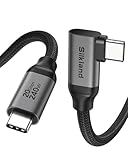
- 【8K/5K/4K for USB C Monitors】 Silkland usb cdisplay cable right angle supports 8K@30Hz, 5K@60Hz and 4K@144Hz, 1080p@240Hz resolution video output from USB C laptops to USB C monitor,compatible for LG 4k, HP EliteDisplay, Dell USB-C Monitors U2520D, S2719DC, U2421HE, P2419HC, and HP E273d, E27d G4 and more.
- 【USB C 3.2 for USB C Laptops】 The usb c 3.2 gen 2 cable 90 degree fits virtually all USB-C/Thunderbolt 4/3 Laptops (Note: the port is fully inserted into the device), such as MacBook 2016/2017/2018, MacBook Air 2018/2019, MacBook Pro 13'' /15'' /16'', Dell XPS 15, Dell Alienware 17 and the Dell Precision 17, Aspire V15, S5-391-6419 Nitro / V17 Nitro, Predator 17, ROG G752VL / GX700VO / ZenBook Pro UX501VW, Clevo P870DM, ThinkPad P70, MSI GT80 , VAIO S11 and more. NOTE: The video function only works for devices with USB-C ports that support DP Alt Mode.
- 【Excellent for Portable Monitors】This usb c video cable angle works with most usb c portable monitors, support output 4K@60/30Hz and full HD 1080P. Compatible for KYY, MNN, ARZOPA, InnoView, ViewSonic, ZenScreen MB16AC or AOC i1601fwux and more brands. NOTE: The video function only works for devices with USB-C ports that support DP Alt Mode.
- 【USB C 3.2 20Gbps Data Transfer】 This usb c data cable elbow is USB 3.2 Gen 2 compliant and can quickly send or receive HD movies, audio and 4K video signals, backing up 10GB files in less than 10s. Support connecting USB C port hub, docking station, SSD and other USB C port devices, plug and play, rest assured and reliable. (Note: avoid excessive swaying that could cause transmission interruptions.)
- 【Flexible & Organized】This usb c monitor cable right angle solves the problem of cables being bent and ports being frayed, ensuring a longer service life and a more convenient use experience. Reduces port stress, easy to manage and prevents tangles and knots. Ideal for use in a variety of tight spaces, such as corner outlets or car charging. Enjoy a comfortable and tidy setup for both entertainment and office use. This 90 degree usb c data cable is durable and reliable for everyday use!
To use it, open the laptop’s cellular controls, select the mobile operator, and connect with a suitable data plan. The laptop must actually include compatible cellular hardware; a normal Wi-Fi-only laptop cannot add eSIM service through a Windows setting alone. Plan eligibility and cost depend on the operator and the laptop’s supported cellular configuration.
Independent reader supportYour contribution helps us test, update, and keep practical guides available for everyone.Use Windows Mobile hotspot to share an existing connection
Windows can also share a connection that already reaches the laptop, such as Wi-Fi, Ethernet, or cellular service. This is different from connecting the laptop to a phone’s hotspot.
Do these 3 things before closing this tab:
1Clear out junk files and repair common Windows errors2Fix the driver behind crashes, sound loss and screen glitches3Repair Windows errors before they cause bigger problems- Open Settings > Network & internet > Mobile hotspot.
- Under the source or connection-sharing option, choose the connection Windows should share.
- Choose Wi-Fi or Bluetooth as the sharing method.
- Set the network name and password shown in the Mobile hotspot settings.
- Turn on Mobile hotspot, then connect the other laptop or tablet using the name and password.
For the common eSIM scenario, the phone remains the cellular host and the Windows laptop joins the phone’s Wi-Fi hotspot. Use Windows Mobile hotspot only when Windows itself already has the connection you want to redistribute.
Carrier, eSIM, and dual-SIM requirements
- Cellular data must be active: The host phone or tablet must be able to load a webpage using its own eSIM data connection before another device can use it.
- Tethering must be allowed: A carrier or plan can hide the hotspot control, block tethering, impose a limit, or apply an extra charge.
- Remaining data matters: A laptop can join the hotspot but fail to browse when the plan has exhausted its allowance or the host has no usable mobile data.
- Select the intended line: On an iPhone with two SIMs, verify that the selected cellular-data line is the eSIM you intend to use for hotspot traffic.
- Check regional and plan terms: Hotspot availability is a plan feature, not a property guaranteed by the eSIM format itself.
Troubleshoot a missing or unusable hotspot
The hotspot option is missing
- Turn on cellular data and confirm that the host device can browse without another Wi-Fi network.
- Check the carrier or eSIM plan’s tethering policy. If the plan excludes hotspot use, only the carrier can add or enable the feature.
- On a dual-SIM iPhone, verify that the eSIM line is selected for cellular data.
- On Android, search Settings for hotspot because the menu may be under a manufacturer-specific heading.
The laptop sees the network but cannot browse
- Test the host phone or tablet itself. If it cannot browse, the problem is cellular service, signal, plan allowance, or the selected data line rather than the laptop.
- Confirm that the eSIM plan still has data available and permits tethering.
- Disconnect and reconnect the laptop to the hotspot after correcting the host connection.
USB tethering fails on Windows with an iPhone or iPad
- Install or update Apple Devices or iTunes.
- Replace the cable with one that supports data.
- Unlock the iPhone or iPad.
- Accept Trust This Computer or any Allow prompt.
- Reconnect the cable and check Windows network connections again.
Wi-Fi hotspot is unstable
- Move the laptop or tablet closer to the host.
- Temporarily disable battery-saving restrictions that may limit hotspot operation.
- Switch to USB tethering when a physical connection is practical.
- Turn the hotspot off and back on, then reconnect the client device.
Reduce battery and data surprises
Hotspot sharing can use the host’s battery and cellular allowance faster than ordinary phone use because the host is maintaining a connection for another device. Keep the host connected to power when practical, especially during long laptop sessions. Turn hotspot off as soon as the laptop or tablet no longer needs it.
Use the method that matches the job: Wi-Fi for the fastest setup, Bluetooth when low-power wireless sharing is more important than convenience, and USB when stability or charging outweighs the need for a cable-free connection. Regardless of method, monitor the eSIM plan’s remaining data because the connected laptop may consume data through updates, cloud synchronization, or other background activity.
Quick Recap
Which setup should you use?
- Choose Wi-Fi hotspot when you need to connect a laptop or tablet quickly and the devices can remain near each other.
- Choose USB tethering when you need the most dependable physical link, can keep the cable connected, or Wi-Fi is unreliable.
- Choose Bluetooth tethering when you want wireless sharing with less emphasis on speed and are comfortable pairing the devices.
- Choose direct Windows eSIM service when the laptop has cellular hardware and should work without a nearby phone.
Product prices and availability are accurate as of the date/time indicated and are subject to change. Any price and availability information displayed on Amazon at the time of purchase will apply.
The Tool Desk
Outbyte PC Repair FREEClear out junk files and repair common Windows errorsFree Scan →Outbyte Driver Updater FREEScan for outdated or missing drivers - takes under a minuteDriver Scan →
