
The Tool Desk
Outbyte Driver Updater FREEFix the driver behind crashes, sound loss and screen glitchesFind Drivers →Outbyte PC Repair FREEClear out junk files and repair common Windows errorsFree Scan →iTechGuides is reader-supported. When you buy through links on our site, we may earn an affiliate commission. As an Amazon Associate I earn from qualifying purchases. Learn more
To set up a VPN on your router, confirm that the exact model and firmware support VPN-client mode, import a compatible OpenVPN or WireGuard profile, enter any required credentials, activate the profile, and assign all or selected devices to it. Use VPN-server mode instead only when you need remote access to your home network.
A router-level VPN is useful for devices that cannot run VPN applications themselves, including some smart TVs and set-top boxes. The setup is not universal: manufacturers expose different protocols, menu names, profile formats, and routing controls.
- VPN client: Connects the router to an external VPN provider and routes household internet traffic through the tunnel.
- VPN server: Lets an away-from-home device connect back to the home network and normally requires a publicly reachable WAN IP.
Key takeaways
- A router must support a VPN client in its specific model and firmware; Wi-Fi capability alone does not provide VPN support.
- A VPN client sends selected or all home-network devices through an external VPN provider, while a VPN server lets remote phones and laptops connect back to the home network.
- OpenVPN usually requires a provider-supplied
.ovpnfile, while WireGuard usually requires an imported or generated WireGuard configuration. - ASUS commonly places the client controls under
Advanced Settings > VPN > VPN Client, while supported TP-Link routers useAdvanced > VPN Client. - A router VPN server normally requires a publicly reachable WAN IP; CGNAT or another upstream router can prevent direct inbound connections.
How do I set up a VPN on my router?
Setting up a VPN on a router normally means configuring the router as a VPN client: sign in to a supported router, open its VPN-client page, import an OpenVPN or WireGuard profile from your VPN provider, enter any required credentials, activate the profile, and assign all or selected devices to the tunnel. The exact menus and supported protocols depend on the router model and firmware.
Do these 3 things before closing this tab:
1Fix the driver behind crashes, sound loss and screen glitches2Clear out junk files and repair common Windows errors3Scan for outdated or missing drivers - takes under a minuteBefore changing settings, decide whether you need a VPN client or a VPN server:
Popular on Amazon
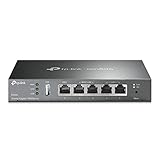
- 【Five Gigabit Ports】1 Gigabit WAN Port plus 2 Gigabit WAN/LAN Ports plus 2 Gigabit LAN Port. Up to 3 WAN ports optimize bandwidth usage through one device.
- 【One USB WAN Port】Mobile broadband via 4G/3G modem is supported for WAN backup by connecting to the USB port. For complete list of compatible 4G/3G modems, please visit TP-Link website.
- 【Abundant Security Features】Advanced firewall policies, DoS defense, IP/MAC/URL filtering, speed test and more security functions protect your network and data.
- 【Highly Secure VPN】Supports up to 20× LAN-to-LAN IPsec, 16× OpenVPN, 16× L2TP, and 16× PPTP VPN connections.
- Security - SPI Firewall, VPN Pass through, FTP/H.323/PPTP/SIP/IPsec ALG, DoS Defence, Ping of Death and Local Management. Standards and Protocols IEEE 802.3, 802.3u, 802.3ab, IEEE 802.3x, IEEE 802.1q
| Your goal | Correct feature | What happens |
|---|---|---|
| Send household internet traffic through a VPN provider | VPN client | The router connects outward to the VPN provider and routes some or all home devices through the tunnel. |
| Reach your home network while away | VPN server | The router accepts an incoming VPN connection from your phone, laptop, or another remote device. |
These functions are not interchangeable. A router configured as a VPN client does not automatically become a remote-access server, and a VPN server does not route the whole household through a commercial VPN provider.
Can I put a VPN on my Wi-Fi router?
You can put a VPN on a Wi-Fi router only when the exact router model and installed firmware support the required VPN function. The presence of Wi-Fi does not prove that the router can run a VPN client. ASUS, TP-Link, and GL.iNet document VPN support for particular models, firmware interfaces, and protocols rather than for every router in a product family.
Check the model and firmware first
- Find the exact model number on the router label, in the router app, or in the web-management interface.
- Record the hardware revision if the manufacturer lists one. Two revisions with similar names may have different firmware.
- Open the router’s status or administration page and record the firmware version.
- Search the manufacturer’s official support site for the exact model plus VPN Client, VPN Fusion, WireGuard, or OpenVPN.
- Confirm whether the documentation describes a client, a server, or both.
ASUS documents VPN-client setup through its web interface and notes that some newer firmware uses VPN Fusion rather than the older VPN Client label. ASUS also documents PPTP, L2TP, OpenVPN, and WireGuard support across particular interfaces and supported models; WireGuard availability is model- and firmware-dependent. Read the documentation for the exact router rather than assuming that every ASUS model has the same options. See ASUS’s VPN-client setup documentation.
Quick wins for a faster PC:
Repair Windows errors before they cause bigger problemsFix Now →Scan for outdated or missing drivers - takes under a minuteDriver Scan →TP-Link likewise limits VPN-client and WireGuard functionality to supported routers. GL.iNet documents built-in OpenVPN and WireGuard client and server functions for its supported router platforms, but its menu names vary by router generation and firmware. If the current router has no VPN-client feature, an optional VPN-capable router may be a more practical hardware path—but verify the exact model’s firmware support before buying.
What do you need before configuring a router VPN?
You need a supported router, access to its administration interface, and connection information that matches the protocol supported by both the router and the VPN provider.
- Router access: Connect to the router over Ethernet or Wi-Fi and know the administrator username and password.
- Provider credentials: Have the VPN username and password available if the provider requires separate router credentials.
- OpenVPN material: Download the provider’s router-compatible
.ovpnconfiguration file. The file may refer to certificates, keys, or authentication details that the provider also supplies. - WireGuard material: Obtain a WireGuard configuration or profile, or the individual values requested by the router’s WireGuard interface.
- Routing decision: Decide whether every device should use the VPN or whether only selected devices should use it.
Do not assume that a normal desktop or phone VPN profile will import successfully into a router. Router firmware may require a provider profile intended specifically for router use, and field names differ between manufacturers. ASUS explicitly describes entering provider authentication information and uploading an .ovpn file for OpenVPN. TP-Link similarly describes using credentials and/or a provider-supplied configuration file; consult the TP-Link VPN-client setup guide before preparing the profile.
A category-level option worth researching is a VPN provider with router support. Choose one only after checking that the provider supplies current OpenVPN or WireGuard router profiles, supports the intended router, operates in the reader’s geography, and provides instructions for the relevant firmware. No provider, price, plan, or affiliate availability is established by the manufacturer documentation cited here.
Also popular on Amazon

- 【DUAL BAND WIFI 7 TRAVEL ROUTER】Products with US, UK, EU, AU Plug; Dual band network with wireless speed 688Mbps (2.4G)+2882Mbps (5G); Dual 2.5G Ethernet Ports (1x WAN and 1x LAN Port); USB 3.0 port.
- 【NETWORK CONTROL WITH TOUCHSCREEN SIMPLICITY】Slate 7’s touchscreen interface lets you scan QR codes for quick Wi-Fi, monitor speed in real time, toggle VPN on/off, and switch providers directly on the display. Color-coded indicators provide instant network status updates for Ethernet, Tethering, Repeater, and Cellular modes, offering a seamless, user-friendly experience.
- 【OpenWrt 23.05 FIRMWARE】The Slate 7 (GL-BE3600) is a high-performance Wi-Fi 7 travel router, built with OpenWrt 23.05 (Kernel 5.4.213) for maximum customization and advanced networking capabilities. With 512MB storage, total customization with open-source freedom and flexible installation of OpenWrt plugins.
- 【VPN CLIENT & SERVER】OpenVPN and WireGuard are pre-installed, compatible with 30+ VPN service providers (active subscription required). Simply log in to your existing VPN account with our portable wifi device, and Slate 7 automatically encrypts all network traffic within the connected network. Max. VPN speed of 100 Mbps (OpenVPN); 540 Mbps (WireGuard). *Speed tests are conducted on a local network. Real-world speeds may differ depending on your network configuration.*
- 【PERFECT PORTABLE WIFI ROUTER FOR TRAVEL】The Slate 7 is an ideal portable internet device perfect for international travel. With its mini size and travel-friendly features, the pocket Wi-Fi router is the perfect companion for travelers in need of a secure internet connectivity on the go in which includes hotels or cruise ships.
How do you set up a VPN client on a router?
The generic router VPN-client process is to add a compatible profile, provide the required authentication data, activate the connection, and assign the devices that should use it.
- Connect locally. Join the router’s network. Ethernet is preferable during configuration because a failed VPN or routing change is less likely to interrupt the administration session.
- Open the router interface. Browse to the router’s local management address and sign in. The address and labels vary by manufacturer.
- Find the VPN-client section. Look for VPN Client, VPN Fusion, VPN, or a similar label. Do not choose VPN Server unless remote access to the home network is your goal.
- Create a profile. Select OpenVPN or WireGuard, depending on what the router and provider support.
- Enter the connection data. Upload the provider’s
.ovpnfile for OpenVPN or import the WireGuard profile. Enter usernames, passwords, certificates, keys, or other values only when the provider and router documentation require them. - Save the profile. Give it a recognizable name, such as the provider and server location.
- Activate the profile. Wait for the router interface to report a connected or active state.
- Choose routing scope. If the firmware supports policy-based routing, select all clients or only the devices that should use the tunnel.
- Test the result. Check a device included in the VPN policy, confirm internet access, and verify that necessary local-network services still work.
What is the ASUS router VPN-client setup path?
On the ASUS interface documented by ASUS, open Advanced Settings > VPN > VPN Client > Add profile, choose the connection type, enter the required information or upload the provider’s .ovpn file, save the profile, and select Activate. A tick icon indicates a successful connection in the documented interface. Newer ASUS firmware may use VPN Fusion, so the exact path can differ; check the current ASUS instructions for the model and firmware.
What is the TP-Link router VPN-client setup path?
On supported TP-Link routers, open Advanced > VPN Client, enable the VPN-client feature, add a server profile, enter the protocol details or import the supplied configuration, save the profile, and enable the desired profile. TP-Link says its VPN client can route selected devices through a third-party VPN server without installing VPN software separately on each device. The available protocols and controls are model-dependent; TP-Link’s official setup procedure shows the supported interface.
How does VPN setup work on a GL.iNet router?
GL.iNet documents pre-installed OpenVPN and WireGuard client and server functions on supported routers. Open the router’s VPN area, choose the client function, import the provider profile, and follow the labels for the installed firmware. GL.iNet’s documentation covers a particular router-documentation generation, so use the guide matching the router’s model and firmware rather than copying labels from a different generation; see GL.iNet’s VPN documentation.
Recommended Free Tools
What is the difference between WireGuard and OpenVPN on a router?
WireGuard and OpenVPN are two practical protocol paths documented for supported VPN routers, but the better choice is the protocol that both the router firmware and provider support reliably.
| Decision factor | WireGuard | OpenVPN |
|---|---|---|
| Typical router input | Imported or generated WireGuard profile/configuration | Provider-supplied .ovpn file, often with credentials |
| Router availability | Available on selected models and firmware | Available on supported routers with OpenVPN-client support |
| Setup shape | Usually a concise profile containing the required peer and key settings | May involve a configuration file plus certificates, credentials, and authentication settings |
| Best starting point | Use when the router and provider both support WireGuard and provide a compatible profile | Use when the router supports OpenVPN and the provider supplies a compatible .ovpn profile |
| Performance conclusion | The supplied research does not establish a controlled cross-router speed winner; avoid choosing on an unsupported universal speed claim. | |
GL.iNet describes WireGuard as “an extremely simple yet fast and modern VPN.” That sentence is a manufacturer description, not an independent benchmark, and actual throughput depends on the router processor, firmware, network, server, encryption overhead, and provider. The TP-Link WireGuard guide separately documents client and server setup on supported TP-Link routers.
How do you use a VPN on all devices?
To use a VPN on all devices, configure the router as a VPN client and select whole-network routing if the firmware provides that option. The router then becomes the VPN connection point for devices that use the router’s network, including equipment that cannot install a VPN app, such as some smart TVs and set-top boxes.
Also popular on Amazon
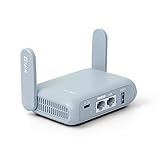
- 【DUAL BAND AX TRAVEL ROUTER】Products with US, UK, EU Plug; Dual band network with wireless speed 574Mbps (2.4G)+2402Mbps (5G); 2.5G Multi-gigabit WAN port and a 1G gigabit LAN port; USB 3.0 port; Wi-Fi 6 offers more than double the total Wi-Fi speed with the MT3000 VPN Router.
- 【VPN CLIENT & SERVER】OpenVPN and WireGuard are pre-installed, compatible with 30+ VPN service providers (active subscription required). Simply log in to your existing VPN account with our portable wifi device, and Beryl AX automatically encrypts all network traffic within the connected network. Max. VPN speed of 150 Mbps (OpenVPN); 300 Mbps (WireGuard). *Speed tests are conducted on a local network. Real-world speeds may differ depending on your network configuration.*
- 【OpenWrt 21.02 FIRMWARE】The Beryl AX is a portable wifi box and mini router that runs on OpenWrt 21.02 firmware. It supports more than 5,000 ready-made plug-ins for customization. Simply browse, install, and manage packages with our no-code interface within Beryl AX's Admin Panel.
- 【PROTECT YOUR NETWORK SECURITY】Our pocket wifi, unlike other vulnerable portable wifi hotspot for travel purposes supports WPA3 protocol–Preventive measures against password brute-force attacks; DNS over HTTPS & DNS over TLS–Protecting domain name system traffic and preventing data eavesdropping from malicious parties; IPv6–Built-in authentication for privacy protection, eliminating the need for network address translation.
- 【VPN CASCADING AT EASE】Surpassing the mediocre performance of most VPN routers for home usage, the Beryl AX is capable of hosting a VPN server and VPN client at the same time within the same device, enabling users to remote access local network resources like Wi-Fi printers or local web servers, and accessing the public internet as a VPN client simultaneously.
Whole-network routing is not always the best policy. Some services, work systems, games, printers, banking sites, or local devices may work better when they use the ordinary ISP connection. If the router supports device-selection or VPN-policy controls, route only the intended devices through the tunnel.
Free tools Windows power users keep installed
One-click scans. No signup required.
| Routing choice | Use it when | Important limitation |
|---|---|---|
| All clients | Most household devices should use the same VPN connection. | A single VPN failure or incompatible service can affect the whole network. |
| Selected clients | Only certain devices need the VPN, or local/ISP routing is needed for the rest. | You must maintain the device-selection policy and verify which devices are included. |
| Per-device VPN apps | Different devices need different VPN locations or settings. | Devices must support and be configured for individual VPN software. |
How do you set up WireGuard on your router as a VPN server?
To make the router a VPN server, enable the router’s server feature, create a client profile, export the resulting configuration or QR code, and import that profile on the remote phone or laptop. This setup is for reaching the home network while away, not for routing the household through an external VPN provider.
On the ASUS procedure documented for WireGuard, open the router’s VPN Server area, enable WireGuard, create a profile, and export the configuration or QR code for the remote device. The exact menu and availability depend on the ASUS model and firmware; follow ASUS’s WireGuard-server documentation.
Does a router VPN server need a public IP address?
A router VPN server normally needs a publicly reachable WAN IP address so an incoming connection can find the home network. ASUS identifies a public WAN IP from the ISP as a prerequisite for its VPN-server setup, and GL.iNet identifies CGNAT as a limitation. A private WAN address, an upstream modem/router, or ISP-level CGNAT can prevent direct inbound access.
Check the WAN address shown by the router and compare it with the public address reported by a trusted internet service. If the router is behind another router, or if the ISP uses CGNAT, the connection may not be directly reachable. Port forwarding, dynamic DNS, or an alternative architecture may be relevant in some networks, but no single workaround solves every ISP and CGNAT arrangement. GL.iNet’s server requirements are described in its WireGuard-server documentation.
How do you verify that the router VPN works?
Verify the router status, the routing policy, device connectivity, and the resulting network path instead of relying only on an “enabled” switch.
- The router reports the selected profile as active or connected.
- The intended test device is included in the VPN policy, if the firmware supports policy-based routing.
- The test device can browse the internet through the expected connection.
- The public-facing IP or VPN status on an included device reflects the expected VPN connection.
- Required local resources—such as the router interface, printers, storage, or other local devices—still work as intended.
- If split routing is configured, an excluded device behaves differently from an included device.
- You have recorded the router model, firmware version, profile name, protocol, and provider location for future troubleshooting.
These checks are a practical verification checklist, not a claim of hands-on testing on a particular router. VPN status indicators and routing controls differ by manufacturer and firmware.
Also popular on Amazon
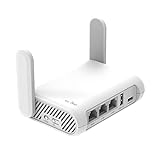
- 【AC1200 Dual-band Wireless Router】Simultaneous dual-band with wireless speed up to 300 Mbps (2.4GHz) + 867 Mbps (5GHz). 2.4GHz band can handles some simple tasks like emails or web browsing while bandwidth intensive tasks such as gaming or 4K video streaming can be handled by the 5GHz band.*Speed tests are conducted on a local network. Real-world speeds may differ depending on your network configuration.*
- 【Easy Setup】Please refer to the User Manual and the Unboxing & Setup video guide on Amazon for detailed setup instructions and methods for connecting to the Internet.
- 【Pocket-friendly】Lightweight design(145g) which designed for your next trip or adventure. Alongside its portable, compact design makes it easy to take with you on the go.
- 【Full Gigabit Ports】Gigabit Wireless Internet Router with 2 Gigabit LAN ports and 1 Gigabit WAN ports, ideal for lots of internet plan and allow you to connect your wired devices directly.
- 【Keep your Internet Safe】IPv6 supported. OpenVPN & WireGuard pre-installed, compatible with 30+ VPN service providers. Cloudflare encryption supported to protect the privacy.
Why is my router VPN not working?
Router VPN failures usually fall into four areas: unsupported firmware, an incompatible profile, incorrect connection details, or a routing or reachability problem. Work through the branch that matches the symptom.
The VPN option is missing
- Confirm the exact model, hardware revision, firmware version, and region-specific firmware.
- Search the manufacturer’s support site for VPN Client, VPN Fusion, WireGuard, and OpenVPN.
- Check whether the router supports only a VPN server and not a VPN client.
- Look for a renamed interface. ASUS notes that some newer firmware uses VPN Fusion instead of the older VPN Client label.
- Do not install third-party firmware or change advanced settings unless the manufacturer and the exact device support that procedure.
The OpenVPN profile will not import
- Obtain a fresh profile from the provider and confirm that it is intended for router use.
- Confirm that the file is a compatible
.ovpnconfiguration rather than a desktop-app export that the router cannot parse. - Check whether the profile depends on certificates, keys, or authentication methods unsupported by the router.
- Confirm that the router’s firmware supports OpenVPN client mode.
ASUS and TP-Link both identify a provider-supplied configuration file as part of OpenVPN router setup, but neither source makes every provider profile universally compatible. A profile that works in one router interface may still require changes or may be unsupported on another.
The profile saves but does not connect
Recheck the VPN username and password, certificates, keys, server address, and protocol settings. Also check the router’s date and time, firmware version, provider requirements, and whether the selected server is currently available. No single cause is universal, so record the router’s error message before changing several settings at once.
Some devices use the VPN and others do not
Open the router’s client list or VPN policy page and confirm that the affected device is included. TP-Link specifically documents selected-device routing, while other firmware may use names such as policy routing, client selection, or VPN Fusion. Also check whether the device is connected through a separate access point, mesh node, guest network, or second router that bypasses the policy.
Remote access to the home VPN server fails
Confirm that the router has a public WAN IP and is not blocked by CGNAT or an upstream router. Check the router’s WAN address, the network topology, and the server profile on the remote device. A VPN-client profile cannot solve an unreachable inbound VPN-server connection.
The connection drops
Check firmware, the provider’s current requirements, router resources, the server profile, and whether the exact model supports automatic reconnection. Do not assume that every router has a kill switch, DNS-leak prevention, or automatic reconnection. ASUS notes that its documented VPN client does not automatically reconnect in at least one server-off/server-on situation, so test the behavior of the exact model rather than relying on a generic feature list.
When should you replace the router?
Consider replacing or adding a router when the exact current model has no VPN-client feature, lacks the protocol required by the provider, cannot route the needed devices, or has firmware that no longer receives suitable support. Choose a router with built-in VPN client support only after checking the exact model, firmware, WireGuard/OpenVPN availability, client-versus-server functions, and whether the router will be the primary router, an access point, or a travel router.
Also popular on Amazon

- 【Flexible Port Configuration】1 2.5Gigabit WAN Port + 1 2.5Gigabit WAN/LAN Ports + 4 Gigabit WAN/LAN Port + 1 Gigabit SFP WAN/LAN Port + 1 USB 2.0 Port (Supports USB storage and LTE backup with LTE dongle) provide high-bandwidth aggregation connectivity.
- 【High-Performace Network Capacity】Maximum number of concurrent sessions – 500,000. Maximum number of clients – 1000+.
- 【Cloud Access】Remote Cloud access and Omada app brings centralized cloud management of the whole network from different sites—all controlled from a single interface anywhere, anytime.
- 【Highly Secure VPN】Supports up to 100× LAN-to-LAN IPsec, 66× OpenVPN, 60× L2TP, and 60× PPTP VPN connections.
- 【5 Years Warranty】Backed by our 5-years warranty and free technical support from 6am to 6pm PST Monday to Fridays
| Situation | Most practical path | What to verify |
|---|---|---|
| Current router supports the required client protocol | Configure the existing router. | Profile format, credentials, routing controls, and firmware instructions. |
| Current router has VPN server but no VPN client | Use the server only for remote home access, or add a supported VPN-client router. | Whether the goal is outbound household routing or inbound remote access. |
| Current router lacks both required protocol and client controls | Consider a VPN-capable replacement or a compatible additional router. | Exact-model support, firmware longevity, network placement, and throughput requirements. |
| Only a few devices need a VPN | Use router policy routing if available, or configure supported devices individually. | Device compatibility and whether local services need ordinary routing. |
What should you remember about router VPN setup?
The reliable approach is model-first rather than brand-first: identify the exact router and firmware, confirm VPN-client support, obtain a compatible OpenVPN or WireGuard profile, activate the connection, select the intended devices, and verify the result. Keep VPN-client setup separate from VPN-server setup, because whole-home outbound routing and remote access to the home network solve different problems.
Frequently Asked Questions
Can any Wi-Fi router run a VPN client?
A router needs model- and firmware-specific VPN-client support to connect to an external VPN provider. Wi-Fi capability alone does not mean that a router can run a VPN client.
What is the difference between a router VPN client and VPN server?
A VPN client sends selected or all home-network traffic outward through a VPN provider. A VPN server accepts incoming connections so a remote phone or laptop can reach the home network.
Does a router VPN server require a public IP address?
A router VPN server normally needs a publicly reachable WAN IP. ISP-level CGNAT or an upstream router can prevent direct inbound access, and the correct workaround depends on the network and ISP.
Do I need an OpenVPN or WireGuard configuration file for my router?
OpenVPN router setup commonly uses a provider-supplied .ovpn file plus credentials when required. WireGuard router setup commonly uses an imported or generated WireGuard configuration, but both the router and provider must support the protocol.
The Bottom Line
Bottom line: A supported router can place selected or all home devices behind a VPN provider without installing an app on every device. Confirm model and firmware support first, use the provider’s compatible OpenVPN or WireGuard profile, and choose VPN server mode only when you need remote access to the home network. A public WAN IP may be required for server access.

