
The Tool Desk
Outbyte PC Repair FREERepair Windows errors before they cause bigger problemsFix Now →Outbyte Driver Updater FREEScan for outdated or missing drivers - takes under a minuteDriver Scan →Set client expectations and mute alerts as two separate tasks: publish when you’re available using calendar working hours, a status message, or an out-of-office reply, then schedule when each app may notify you. A quiet-time setting usually changes alerts on your devices; it does not tell clients when you’ll respond.
Decide what clients should see—and what your devices should mute
Choose a client-facing signal first. Calendar working hours can indicate when you generally work; a profile or status message can explain when you expect to reply; and an out-of-office reply suits a short absence of hours or days. Then set notification schedules separately in the email and messaging apps you use.
Give clients three practical details: your usual response days and hours, an expected response window, and an alternate route for genuinely urgent matters. These are useful service expectations, not a response-time standard prescribed by the apps.
Set working hours in Google Calendar
- On a computer, open Google Calendar and select Settings → General → Working hours.
- Enable working hours, then choose your working days and start and end times. You can add more than one time period in a day; each period’s start must be earlier than its end.
- Review any suggested hours. Calendar may suggest a schedule based on your time zone, country work patterns, and calendar schedule; accept, decline, or edit the suggestions.
When an invitation falls outside the hours you set, the meeting organizer sees a notice. Google’s guidance also points to a Gmail out-of-office autoresponder for an absence lasting a few hours or days. These settings communicate availability; the guide does not say that Calendar working hours silence Gmail inbox notifications. Google Workspace Learning Center: Stay connected when working remotely.
Recommended Free Tools
#1 Best Overall

- ✅ SCIENTIFICALLY STRUCTURED FOR ADHD - Designed specifically to combat ADHD-related challenges, our "ADHD Task Hub" uses color-coded sections and categorized tasks (calls, emails, appointments, to-dos) to reduce overwhelm, enhance focus, and improve daily productivity.
- ✅ BOOST MOTIVATION & CLARITY - Features dedicated sections for "Today's Wins" to celebrate achievements, "Random Thoughts" to capture creative ideas and reduce anxiety, ensuring you stay motivated and organized throughout your day.
- ✅PREMIUM QUALITY & DURABILITY - This A5 (5.9 x 8.5 inch) planner boasts a sturdy plastic cover for protection, 100gsm thick paper to prevent bleed-through, and a durable spiral binding, ensuring it withstands daily use.
- ✅ COMPREHENSIVE TASK MANAGEMENT - With 102 undated ADHD task templates, this planner provides ample space to manage all aspects of your life, from daily tasks and appointments to research goals and follow-ups, making organization effortless.
- ✅ REDUCE ANXIETY & THRIVE DAILY - By providing a clear, visual roadmap for your day, this planner helps you prioritize effectively, minimize mental clutter, and transform your daily routine into a streamlined, stress-free experience, helping you "Stay Organized, Thrive Daily."
Schedule recurring notifications in Slack
- On desktop, select your profile picture → Preferences. On mobile, select your profile picture → Notifications.
- Find the working-hours or notification-schedule section. Choose Every day, Weekdays, or Custom, then set the notification start and end times.
- Check that your local time zone is correct so the schedule matches your intended hours.
Slack says, “With a schedule in place, you’ll only receive notifications during certain hours on days that you choose.” Outside the selected schedule, notifications pause. An individual schedule can override a workspace or organization default. Work-hour custom profile fields, which can make hours visible to colleagues, are available to workspace owners and admins on paid plans. Slack Help Center: Set up Slack for work hours; Slack Help Center: Pause your Slack notifications.
Use a temporary pause for a one-off break
For a short break rather than a recurring schedule, pause notifications for a selected period. Slack says other people see a snooze icon. A direct-message sender can override the pause to notify you about an urgent message once per day, under the conditions Slack documents on its help page.
Rank #2

- BOOST YOUR PRODUCTIVITY - This undated weekly productivity planner notepad focus on the important work and get organized. Weekly to do list notepad allowing you to categorize and prioritize your tasks effectively. Whether you're a small business owner, project manager, freelancer, academicians or master multitasker, the weekly to do list pad will be your new favorite daily office productivity tool.
- UNDATED WEEKLY PLANNER - This weekly planner start any time with 54 weeks, Weekly planner notebook has plenty of space to write your goal plan, work plan, student plan or personal schedule, keep track of priorities, and write notes on the back. This versatile planner allows you to stay organized in 2026, 2027, or even as far ahead as 2028!
- FEATURES - Weekly Theme and Highlights for at-a-glance planning Top 3 Priorities for the week 6 Focus Areas to segment and list tasks for goals, projects, or clients Daily Tracker for healthy habit-tracking and routine-tracking.
- HIGH QUALITY - This weekly desk planner size of 8.5" x 11", it offers ample space for writing and planning your tasks, just the perfectly size to fit in your backpack. Is used to high quality 100gsm pure white paper, elastic band and a back pocket for extra space.
- FUNDTIONAL DESIGN - This weekly deskpad planner will completely change how you structure your work: by segmenting your tasks by area and tracking the most important details, you'll feel less scattered and more organized.We believe in helping you be fulfilled with your life and productive at the same time by using a weekly to do list notepad.
Set quiet hours in Microsoft Teams mobile
- In Teams mobile, open the profile menu and select Notifications → Block notifications → Block during quiet hours.
- Choose specific quiet hours, or set all-day quiet periods for selected days.
- If appropriate, use the cross-app option to sync quiet time with Outlook mobile on devices signed in to the same account.
Teams quiet hours use your device’s local time, so the schedule adjusts if the device time changes while you travel. During quiet time, Teams sends no sound or push notifications, but messages and activity remain visible inside the app. Other people are not told that you have muted alerts; use a status message to say when you are unavailable or returning. Microsoft Support: Quiet time in Microsoft Teams for mobile devices.
Understand Outlook mobile’s account and notification limits
Microsoft’s Outlook/Teams mobile cross-app Quiet Time option is available only for Microsoft 365 enterprise accounts. Where enabled, the schedule applies to Outlook and Teams mobile apps on devices signed in with the same account; it is not a promise of one schedule across every app or desktop client. The support page lists iPhone, iPad, Apple Watch, and Android devices.
What’s actually slowing this PC down?
Pick the symptom - the matching free tool is one click away.
Rank #3
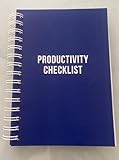
- ✅ Write down your priorities that need to be accomplished — feel the joy of finally crossing them off!
- ✅ 180 pages — one checklist per day to fuel six months of boosted productivity
- ✅ Separate sections for work, personal life, and self-improvement — make progress in every part of your life
- ✅ Clean, simple layout that helps you stay focused on what matters
- ✅ Daily savings tracker to help you save more, spend smarter, and build wealth faster
Quiet time mutes Outlook mail notifications, but Outlook calendar notifications continue to appear. Check the actual behavior on each device you use. Microsoft Support: How can I learn more about using Quiet Time across devices with Outlook mobile.
Independent reader supportYour contribution helps us test, update, and keep practical guides available for everyone.What changes when your organization manages devices
For managed iOS/iPadOS and Android devices, administrators can use Microsoft Intune quiet-time policies to mute Outlook email and Teams notifications on date ranges or selected days and hours. Intune describes an all-day mute on selected days as “a full 24 hours.”
Rank #4

- Helps Boost Your Productivity - Nothing beats the satisfaction of staying on top of your daily tasks and goals. Use our chic focus planner to prevent procrastination whether at work or in school. It contains daily and monthly sheets to keep you organized.
- Make Your To-Do List Accessible - Remember all important deliverables when you list them on your minimalist project management planner. Each time journal is designed with different planning and task categories, which help cultivate focus and good habits.
- Promotes Mindfulness - Aside from encouraging productivity, our daily planners with quotes support mindful living and self-awareness. These inspirational planners have ample space for note-taking, scribbling, and habit and water tracking.
- Fully Customizable, Minimalist Planner - Our planner and goal tracker are ideal for planning daily to-dos and even major . They also feature inspirational quotes to constantly motivate you as you tackle your day-to-day responsibilities.
- Ideal Gift for Loved Ones - Help a loved one stay organized and motivated daily. Gift them a time schedule planner. This minimalist weekly planner is the perfect companion, so they never lose sight of their goals. From the creators of The Five Minute Journal.
Intune’s non-working-time policy is specifically for Teams and requires the tenant to integrate with the Working Time API. Microsoft warns that configuring the policy without that integration could result in missed Teams app notifications because the managed account lacks working-time status. The documentation lists Intune quiet-time policies as unsupported in GCC, GCC High, DoD, and Azure operated by 21Vianet; administrators should confirm current deployment guidance for their environment. Microsoft Learn: Create Quiet Time Policies in Microsoft Intune.
Quick Recap
Check the result on every device you rely on
- Confirm that the schedule uses the intended days, hours, and time zone.
- Check that clients can see your availability or return-time message; muting alerts alone does not communicate it.
- Test whether alerts are muted on each phone, tablet, or computer you use. Teams messages remain visible in the app during quiet time, and Outlook calendar push notifications continue even when mail notifications are muted.
- Review account eligibility and organization settings if a cross-app option or administrator control is missing.
Product prices and availability are accurate as of the date/time indicated and are subject to change. Any price and availability information displayed on Amazon at the time of purchase will apply.
Quick wins for a faster PC:
Fix the driver behind crashes, sound loss and screen glitchesFind Drivers →Clear out junk files and repair common Windows errorsFree Scan →Scan for outdated or missing drivers - takes under a minuteDriver Scan →
