
Recommended Free Tools
iTechGuides is reader-supported. When you buy through links on our site, we may earn an affiliate commission. As an Amazon Associate I earn from qualifying purchases. Learn more
How to replace ISP router with your own depends on identifying whether the ISP device is a router, modem, or gateway. Keep the modem or fiber ONT when required, connect the ISP Ethernet handoff to your router’s WAN port, and use direct connection, bridge mode, or IP Passthrough to avoid double NAT.
The procedure is not universal. Cable, fiber, DSL, and fixed-wireless services expose different handoffs, while television, voice, security, hotspot, and managed-Wi-Fi features may require the ISP gateway. The safest approach is to map the existing setup first, choose the least complicated supported topology, and keep the original equipment until the replacement has passed every test.
Key takeaways
- A cable gateway may contain both a DOCSIS modem and a router, while fiber service commonly retains an ONT and DSL service may require PPPoE, IPoE, bridging, or VLAN settings.
- The cleanest replacement is an Ethernet connection from the modem or ONT to the new router’s WAN/Internet port, with the new router handling routing, NAT, firewall, DHCP, and Wi-Fi.
- Bridge mode disables an ISP gateway’s routing function, while IP Passthrough or DMZplus sends the gateway’s WAN address to one customer router without being identical to a true bridge.
- Replacing the routing layer can disable provider TV, voice, security, hotspot, extender, or managed-Wi-Fi features, so bundled services must be checked before disconnecting the gateway.
- A new router cannot automatically increase the subscribed internet speed; the access line, plan, modem or ONT, Ethernet port, client device, and congestion can all remain limiting factors.
What are you actually replacing: a router, modem, gateway, or ONT?
The first step in how to replace ISP router with your own is identifying which part of the ISP equipment performs each job. “ISP router” is often used for several different devices, but the replacement procedure changes substantially depending on the access technology.
| Service type | Device commonly supplied by ISP | What normally remains | What the customer-owned router needs |
|---|---|---|---|
| Cable | Separate cable modem or combined cable gateway using coaxial cable | A compatible, activated cable modem unless the gateway can be fully replaced | Ethernet WAN port; the modem must be certified for the provider and subscribed speed tier |
| Fiber | ONT or fiber jack, sometimes paired with a router | The ONT or fiber handoff that converts the provider’s fiber connection to Ethernet | Ethernet WAN port, unless the provider uses a different supported handoff |
| DSL | DSL modem/router gateway connected to a phone line | The DSL termination function, unless the provider supports a fully compatible replacement | WAN support for DHCP, PPPoE, IPoE, transparent bridging, and any required VLAN configuration |
| Fixed wireless or 5G home internet | Provider-specific outdoor unit, modem, or gateway | Usually the provider gateway or radio equipment unless the account supports a documented Ethernet handoff | Ethernet WAN port and a provider-approved direct, bridge, passthrough, or access-point arrangement |
A cable modem connects the home to the provider’s network, while a router distributes that connection to local devices. Cox’s explanation of modems and customer-owned cable equipment is a useful example of this distinction. Fiber commonly uses an ONT instead of a modem; Frontier’s fiber equipment guidance describes a customer-owned router connecting to the ONT through Ethernet.
Popular on Amazon

- NO NEW CABLE PROVIDER ACTIVATIONS. Not compatible with Verizon, AT&T, CenturyLink, DirecTV, DISH, or bundled voice plans.
- CABLE INTERNET AND WIFI MADE FOR YOUR HOME: This two-in-one cable modem and WiFi router puts every setting in your hands, from your WiFi names and passwords to how your network runs, so it works the way your household needs.
- GET THE FULL SPEED OF PLANS UP TO 800 MBPS: DOCSIS 3.0 delivers plenty of speed for HD and 4K streaming, online gaming, and video calls across your home. Actual speeds vary by plan and provider.
- AC1900 WIFI COVERAGE FOR THE WHOLE HOME: Stay connected in every room with dual-band AC1900 WiFi covering up to 1,800 sq ft and Beamforming+ for stronger signal to mobile devices. Real-world coverage depends on home size, layout, and building materials.
- WIRED CONNECTIONS FOR YOUR FASTEST DEVICES: Four Gigabit Ethernet ports keep gaming consoles, desktops, and streaming devices hardwired for the lowest latency and the most stable connection in your home.
Do not buy a cable modem simply because the ISP supplied a box labeled “router.” A fiber customer may need to retain the ONT, and a DSL customer may need provider-specific authentication or VLAN transport. A fixed-wireless or 5G gateway may not offer the same replacement choices as cable or fiber.
What should you check before buying a replacement router?
Before buying hardware, confirm the ISP’s handoff, equipment policy, service bundle, and WAN requirements. A router that is technically powerful can still be unusable if the provider requires credentials, a VLAN, activation, or an ISP gateway for television or telephone service.
- Identify the access technology. Coaxial cable usually indicates cable service; an ONT or fiber jack with Ethernet indicates fiber; a phone-line connection indicates DSL; and an antenna or provider-specific gateway may indicate fixed wireless or 5G service.
- Check customer-equipment rules for the exact provider, plan, and market. Cable providers may require a certified modem and may tie certification to a speed tier. Cox’s customer-owned modem guidance says the customer is responsible for ensuring compatibility and notes that support is more limited for non-Cox equipment.
- List every bundled service. Check television set-top boxes, digital voice, managed Wi-Fi extenders, home security, provider hotspots, and provider-specific applications. A routing change can leave internet access working while another service stops working.
- Confirm the WAN handoff. The new router normally needs an Ethernet WAN/Internet port. The ISP may require DHCP, PPPoE credentials, IPoE, a VLAN ID, static addressing, MAC registration, or an activation process.
- Check the port speed. A multi-gigabit plan can be bottlenecked by a router with only a 1GbE WAN port. Match the router’s WAN port to the service and to the Ethernet port on the modem, ONT, or gateway.
- Record the old configuration. Photograph cable locations and write down the old LAN subnet, Wi-Fi name and password, port forwards, reserved addresses, DNS settings, parental controls, and any ISP credentials.
CenturyLink’s WAN settings documentation illustrates why guessing is risky: DSL arrangements can use PPPoE, IPoE, static or dynamic addressing, transparent bridging, and an area-dependent VLAN setting. Do not guess a VLAN ID or PPPoE password; obtain the value from the provider or the current service documentation.
Do these 3 things before closing this tab:
1Scan for outdated or missing drivers - takes under a minute2Repair Windows errors before they cause bigger problems3Fix the driver behind crashes, sound loss and screen glitchesWhich replacement topology should you use?
The best topology is the one that leaves only one device routing traffic. Use a direct modem-or-ONT connection when the ISP permits it, true bridge mode when the ISP gateway must remain, or IP Passthrough/DMZplus when the gateway does not support bridging.
| Topology | ISP equipment status | Device doing the routing | Best use | Main limitation |
|---|---|---|---|---|
| Direct replacement | Modem or ONT remains; ISP router is removed | Customer-owned router | Fiber Ethernet handoff or cable modem plus separate router | May require activation, modem certification, credentials, or a supported service bundle |
| Bridge mode | ISP gateway remains as the modem or access device | Customer-owned router | Gateway cannot be removed but supports true bridging | Gateway routing, private Wi-Fi, and some provider features are disabled |
| IP Passthrough or DMZplus | ISP gateway remains and hands its WAN address to one LAN device | Customer-owned router for the selected device’s network | Gateway features must remain or bridge mode is unavailable | Only one device is usually passed through, and the gateway’s firewall protection may be removed for it |
| Access-point mode | ISP gateway remains as the router | ISP gateway; secondary device supplies Wi-Fi and LAN ports | Adding wireless coverage without creating a second routed network | The secondary device does not control the WAN, NAT, or primary DHCP service |
| Ordinary router-behind-router | ISP gateway remains routing | Both devices route | Temporary setup or applications that tolerate double NAT | Inbound connections, VPNs, gaming, peer-to-peer traffic, and discovery can be more difficult |
How does a direct modem-or-ONT replacement work?
In a direct replacement, the modem or ONT supplies the ISP connection and the customer router performs routing, NAT, firewalling, DHCP, and Wi-Fi. Connect the Ethernet cable from the modem or ONT to the new router’s WAN or Internet port, then connect wired clients to the router’s LAN ports or to a switch.
This is usually the simplest arrangement because there is one routing layer. For fiber, the ONT generally stays in place; the router replaces the routing device behind the ONT rather than replacing the fiber termination itself. Verizon documents an ONT-to-Ethernet self-install path for certain Fios installations, while Frontier says its fiber customers can use a router with an Ethernet WAN port.
For cable, the modem must be compatible with the exact provider and speed tier and must be activated on the account. The customer may replace a rented modem/gateway with a certified cable modem plus a separate router, but a generic cable modem is not appropriate for fiber or DSL.
Quick wins for a faster PC:
Scan for outdated or missing drivers - takes under a minuteDriver Scan →Clear out junk files and repair common Windows errorsFree Scan →Fix the driver behind crashes, sound loss and screen glitchesFind Drivers →When the provider uses Ethernet between the ONT or modem and the router, a Cat6 Ethernet cable or Cat6A cable is a sensible accessory for the handoff. The cable does not raise the subscribed internet speed by itself; the cable, ports, and connected devices must support the target link speed.
Also popular on Amazon
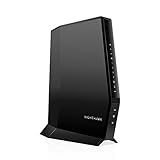
- CABLE INTERNET AND WIFI MADE FOR YOUR HOME: This two-in-one cable modem and WiFi router puts every setting in your hands, from your WiFi names and passwords to how your network runs, so it works the way your household needs.
- APPROVED FOR YOUR PROVIDER AND PLAN: Works with Xfinity internet plans up to 800Mbps, Spectrum up to 1Gbps, and Cox up to 1Gbps. Not compatible with Verizon, AT&T, CenturyLink, DirecTV, DISH, or bundled voice plans. ISP activation required after setup.
- GET THE FULL SPEED OF YOUR PLAN: DOCSIS 3.1 supports Gigabit+ cable internet plans, so large downloads finish faster and 4K streaming, gaming, and video calls can all run at once. Actual speeds vary by plan and provider.
- WIFI 6 COVERAGE FOR THE WHOLE HOME: Stay connected in every room with dual-band AX2700 WiFi 6 covering up to 2,000 sq ft and capacity for 25+ connected devices. Real-world coverage depends on home size, layout, and building materials.
- WIRED CONNECTIONS FOR YOUR FASTEST DEVICES: Four Gigabit Ethernet ports keep gaming consoles, desktops, and streaming devices hardwired for the lowest latency and the most stable connection in your home.
How does bridge mode work?
Bridge mode leaves the ISP gateway’s modem or access function active but disables its routing function, allowing the customer-owned router to become the routing device. The usual sequence is to enable bridge mode in the ISP gateway’s management interface or provider app, wait for the gateway to restart, and connect one Ethernet cable from the gateway to the new router’s WAN port.
- Connect a computer to the ISP gateway and open its management interface or provider app.
- Find
Bridge Mode,Modem Mode, or the provider’s equivalent setting. - Enable the setting and wait for the gateway to restart.
- Connect the gateway’s designated Ethernet port to the customer router’s WAN/Internet port.
- Configure the customer router for DHCP unless the ISP specifies PPPoE, static addressing, VLAN tagging, or another WAN method.
- Check the customer router’s status page for an established WAN connection and test a wired client.
Xfinity’s bridge-mode instructions state that bridge mode turns off the gateway’s routing capabilities and allows a personal router to connect by Ethernet. Xfinity also specifies that only one device can be connected to the gateway while bridge mode is enabled.
Bridge mode is not universal. A Google Fiber Community Specialist reported that the Network Box discussed in that guidance did not support bridge mode and directed customers who wanted their own router toward a service arrangement connecting customer equipment directly to the Fiber Jack. Because Google Fiber equipment and account arrangements can change, verify the current setup before disconnecting the Network Box.
What’s actually slowing this PC down?
Pick the symptom - the matching free tool is one click away.
What features can bridge mode disable?
Bridge mode commonly disables the ISP gateway’s private Wi-Fi and managed networking features. Xfinity says bridge mode makes Advanced Security unavailable and prevents use of Xfinity WiFi Extenders; Cox’s WiFi Pods guidance likewise limits Panoramic Wifi Pods to a rented gateway that is not in bridge mode.
Bridge mode can also affect provider voice, television, hotspot, security, or remote-management features. Check the service bundle before enabling it, and keep the original gateway available until internet, television, telephone, and other essential services have been tested.
When should you use IP Passthrough or DMZplus?
Use IP Passthrough, DMZplus, or a similar feature when the ISP gateway cannot be fully bridged or must remain for voice, television, activation, or provider management. The gateway assigns its dynamic WAN IP to one selected customer router, which must then provide the active firewall and NAT protection.
AT&T’s IP Passthrough documentation describes the feature as assigning the gateway’s dynamic WAN IP to a single LAN device. The documentation also warns that the selected passthrough device loses the firewall protection supplied by the AT&T gateway. Do not place multiple customer devices into passthrough simultaneously when the gateway supports only one selected device.
IP Passthrough is often better than ordinary router-behind-router operation, but it is not always identical to a true bridge. The ISP gateway may still perform some functions, and troubleshooting can be more complicated. If the customer router receives a private address from the ISP gateway instead of the expected public or provider-routed address, double NAT may still be present.
Also popular on Amazon

- FAST, RELIABLE WIFI: Delivers fast, reliable WiFi across your apartment or small home for streaming, video calls, browsing, and smart home devices.
- WORKS WITH YOUR EXISTING INTERNET SERVICE: Pairs with your existing modem or gateway via ethernet. Compatible with most cable, fiber, DSL, and satellite providers. Some gateways and modem router combos may require bridge mode. No coax needed.
- SET UP AND MANAGE YOUR NETWORK WITH THE NIGHTHAWK APP: Download the free Nighthawk app on iOS or Android for guided setup. Manage WiFi, run speed tests, pause devices, and set up guest networks from anywhere. Active internet required.
- READY FOR THE DEVICES YOU ALREADY OWN: Your phones, laptops, and TVs work right out of the box. WiFi 6 delivers speeds up to 1.8 Gbps across 2.4 GHz and 5 GHz bands. Backward compatible with WiFi 5 and earlier.
- COVERAGE IN EVERY ROOM: Covers up to 1,500 sq. ft. for up to 20 connected devices. Walls, floors, and interference can reduce range. Larger or multi-story homes may benefit from a NETGEAR Orbi mesh WiFi system.
How do you avoid double NAT?
Double NAT occurs when the ISP gateway and the customer router both route and translate traffic. Double NAT can interfere with inbound connections, port forwarding, some VPNs, gaming, peer-to-peer applications, remote access, and local device discovery.
Use these options in order:
- Direct connection: connect the customer router to the modem or ONT and remove the ISP router function.
- True bridge mode: leave the ISP gateway’s modem function active but disable its routing function.
- IP Passthrough or DMZplus: send the WAN address to one customer router and make sure the customer router supplies firewall and NAT protection.
- Access-point mode: if neither direct connection nor bridge/passthrough is possible, configure the second device as an access point instead of a second router.
- Double NAT by choice: use it only when the household accepts the limitations and does not need inbound services, reliable port forwarding, or uncomplicated VPN and gaming behavior.
Router mode means the device creates a routed LAN with its own DHCP and NAT. Access-point mode means the device extends an existing LAN without creating another routed network. Bridge mode is different again: it normally applies to the ISP gateway and passes the upstream connection to a customer router. A secondary router used only to add Wi-Fi should normally be placed in access-point mode.
Which ISP-specific exceptions matter?
Provider procedures differ, especially when the internet plan includes television, telephone, security, or managed Wi-Fi. The following examples show why a universal “unplug the ISP router” procedure is unsafe.
Free tools Windows power users keep installed
One-click scans. No signup required.
| Provider or service | Documented arrangement | Important caveat |
|---|---|---|
| Xfinity | Personal router can be connected behind the wireless gateway in Bridge Mode | Routing and private Wi-Fi are disabled; only one device connects to the gateway, and Xfinity WiFi Extenders cannot be used in bridge mode |
| AT&T | IP Passthrough can assign the dynamic WAN IP to one selected LAN device | The selected device loses the AT&T gateway’s firewall protection and must provide its own protection |
| Verizon Fios | Some installations can move from MoCA/coax to an ONT-to-Ethernet arrangement | Fios TV equipment may require the Verizon router or a MoCA solution; community guidance is not a universal support guarantee |
| Google Fiber | A documented Network Box discussion described using a direct customer-router arrangement through the Fiber Jack instead of bridge mode | Network Box and plan policies can change, so verify the current account-specific arrangement |
| Cox | Compatible customer-owned cable modems are supported when certified for the network and speed tier | Support is more limited for non-Cox devices, and Panoramic Wifi features and Pods may not remain available |
| Frontier Fiber | Customer-owned routers with Ethernet WAN ports can be used with fiber service | Support is limited to Frontier-supplied equipment, and first activation may require the supplied router or modem |
| CenturyLink DSL | WAN configurations can include PPPoE, IPoE, static or dynamic addressing, transparent bridging, and VLAN settings | Transport mode and VLAN requirements vary by area; do not guess the VLAN value |
For Verizon Fios, distinguish official equipment instructions from community advice. Verizon Community guidance on using a personal router describes situations in which releasing the old router’s DHCP lease and moving the Ethernet connection to the new router can help, and it explains why Fios TV may need the Verizon router or MoCA. That procedure is specific operational guidance, not a universal requirement for every ISP or Fios account.
Frontier’s router guidance indicates that the supplied equipment may be needed for initial activation. Restore the supplied equipment if the provider cannot activate the service through the customer-owned router, then switch only after the ISP connection is confirmed.
What kind of replacement router should you buy?
Buy a router based on the ISP handoff, WAN speed, home layout, wired devices, and service bundle rather than on a single “best router” list. A customer-owned Wi-Fi router is the central product category for replacing the routing layer, but Wi-Fi 7 is optional rather than a universal requirement.
Readers with multi-gigabit internet or newer wireless clients can consider a multi-gigabit Wi-Fi router with a 2.5GbE, 5GbE, or 10GbE WAN port. TP-Link’s router catalog lists Wi-Fi 7 models with multi-gigabit Ethernet options, and the Archer BE9700 product specifications describe a tri-band Wi-Fi 7 router with Ethernet WAN/LAN capability and compatibility with earlier Wi-Fi generations. Those specifications do not make Wi-Fi 7 necessary for an ordinary broadband plan.
Cable customers replacing both gateway functions can consider a compatible cable modem only after checking the provider’s current certification list, plan compatibility, and required speed tier. A cable modem is not a substitute for an ONT on fiber or for the DSL functions required by a phone-line connection.
Also popular on Amazon

- MultiGig speed for today & tomorrow: DOCSIS 3.1 performance supports cable internet plans up to 2.5 Gbps, delivering ultrafast streaming, gaming, and downloads.
- Save on rental fees: Own your modem and avoid monthly equipment charges - check with your cable provider for plan compatibility.
- Compact, modern design: Space saving footprint with simple LED indicators for power, upstream/downstream, and online status.
- Easy setup: Connect cable, power on, and activate with your cable provider. Then join the default Wi-Fi or personalize your own Wi-Fi network name and password.
- Wi-Fi 6 Coverage: Includes dual-band W-Fi 6 (AX3000) delivering up to 3 Gbps wireless performance for your whole home.
If the router does not provide enough high-speed LAN ports, a 2.5GbE unmanaged switch can add wired ports without becoming another router. Use it as a LAN expansion device connected to the customer router, and confirm that the router port and connected devices support the desired speed.
A conditional accessory for Ethernet handoffs is a Cat6 Ethernet cable or Cat6A cable. A conditional accessory for a coax-dependent Fios TV or home network is a MoCA adapter, but only when the provider equipment and wiring actually require MoCA. A MoCA adapter is not a general replacement for a fiber ONT, cable modem, or DSL gateway.
How do you swap the ISP router safely?
Perform the swap in stages so the old configuration can be restored quickly if activation or bundled services fail.
Outdated Drivers Are Slowing You Down
One free scan finds every outdated or missing driver and matches the right update for your exact hardware.Free scan · exact hardware matchWindows Errors? Fix Them Before They Spread
Repair common Windows errors and clear accumulated junk for a smoother, more stable PC - no reinstall needed.Free scan · no reinstall1. Prepare before disconnecting anything
- Confirm whether the supplied device is a modem, router, gateway, ONT, or fiber jack.
- Verify customer-equipment rules and the provider’s requirements for activation, MAC registration, PPPoE, VLAN, static IP, telephone, television, security, and managed Wi-Fi.
- Check that the new router’s WAN port matches the handoff and subscribed speed, especially for multi-gigabit service.
- Photograph the old cabling and record the old router’s LAN subnet, Wi-Fi settings, port forwards, reserved addresses, DNS settings, parental controls, and credentials.
- Keep the old equipment, power supply, and cables available until the replacement has been stable and every required service has been tested.
2. Configure the new router
- Update firmware before final deployment if the router supports an internet-independent update path or the vendor setup process requires it.
- Set a unique administrator password that is not reused for Wi-Fi or other accounts.
- Configure the WAN type: DHCP, PPPoE, static IP, or the provider-specific VLAN and transport settings.
- Choose a LAN subnet that does not conflict with the upstream device or a remote VPN network. For example, do not reuse an upstream LAN range if the customer router is not actually bridged.
- Set the Wi-Fi network name and password. Reusing the old values can reconnect many devices automatically, but change them if the old password was widely shared or may be compromised.
- Recreate only the port forwards, DHCP reservations, DNS settings, parental controls, and other rules that are still needed.
3. Change the upstream device and connect the cables
- For a direct replacement, power down the old router while leaving the required modem or ONT in place.
- For bridge mode, enable bridge mode according to the ISP’s instructions and wait for the gateway to restart.
- For IP Passthrough or DMZplus, select only the customer router that should receive the WAN address and verify the gateway’s firewall behavior.
- Connect the modem, ONT, bridged gateway, or passthrough gateway to the new router’s WAN/Internet port. Do not use a LAN port for the upstream connection.
- Power on the upstream modem, ONT, or gateway first and wait until it reports an online connection.
- Power on the customer router, wait for WAN negotiation, and complete provider activation if prompted.
Some providers may retain a DHCP lease or require a modem restart. A Verizon Fios community procedure discusses releasing the old router’s DHCP lease for a particular Ethernet arrangement, but that is not a universal requirement. Follow the current ISP instructions and power-cycle the upstream device when the provider requires a fresh registration.
Independent reader supportYour contribution helps us test, update, and keep practical guides available for everyone.How should you test the new router?
Test a wired computer first, then Wi-Fi and household services. Wired testing separates an ISP or WAN problem from wireless coverage, channel, client, and placement problems.
- Check the router status page. Confirm that the WAN interface reports an established connection and shows the expected address type.
- Check a wired client. Confirm that the client receives a private LAN address from the new router rather than an address from an unintended upstream DHCP server.
- Test DNS and websites. Resolve names and reach several unrelated websites instead of relying on one destination.
- Run a wired speed test. Test over Ethernet before judging Wi-Fi performance, and compare the result with the plan without assuming the plan’s advertised rate is guaranteed at every moment.
- Test Wi-Fi clients. Confirm that phones, laptops, printers, cameras, smart-home devices, and other clients reconnect and receive addresses from the new router.
- Test IPv6 separately. If the previous service supported IPv6, verify IPv6 connectivity instead of assuming that a working IPv4 connection proves IPv6 is working.
- Test only the features that matter. Check port forwarding, VPN access, gaming, cameras, printers, remote access, and smart-home devices if the household uses them.
- Test television and voice before returning the old gateway. A working web browser does not prove that provider TV, telephone, MoCA, security, hotspot, or extender features still work.
A new router can improve wireless coverage, local throughput, network manageability, or latency under load, but a router swap does not automatically increase the ISP’s subscribed speed. The access line, plan, modem or ONT, router ports, Ethernet cabling, client hardware, Wi-Fi conditions, and provider congestion can all limit results.
What should you do when the swap fails?
| Symptom | Likely cause | Recovery step |
|---|---|---|
| No WAN link or no link light | Cable is in a LAN port, upstream device is offline, or equipment is not activated | Move the cable to the router’s WAN port, check link lights, reboot the modem or ONT, and confirm activation with the ISP |
| WAN address is private | Bridge mode is disabled, passthrough is misconfigured, or double NAT remains | Check the gateway’s operating mode, passthrough selection, and router WAN address; use direct connection or access-point mode where appropriate |
| PPPoE or authentication failure | Incorrect username, password, VLAN ID, or transport mode | Verify the credentials and settings with the provider; do not guess a DSL VLAN value |
| Internet works but TV or voice fails | Provider service depends on the original gateway, MoCA, or a supported topology | Restore the ISP gateway and follow the provider’s supported arrangement; Fios TV may require the Verizon router or MoCA connectivity |
| Wi-Fi is worse than before | Router placement, channel selection, client compatibility, or lack of wired backhaul | Reposition the router, select an appropriate channel, use wired backhaul where possible, and compare wired speed before blaming the WAN |
| Provider refuses to troubleshoot | Third-party equipment falls outside the ISP’s normal support boundary | Restore the original equipment, verify the ISP line, then isolate whether the fault is in the customer router or local network |
| Games, VPNs, cameras, or inbound services fail | Double NAT, CGNAT, blocked ports, IPv6 differences, or missing port forwards | Inspect the WAN address and routing layers, check port-forward rules, and ask the ISP whether CGNAT or inbound-port restrictions apply |
If a Windows Ethernet or Wi-Fi adapter is not recognized after the network change, first use the computer or adapter manufacturer’s official driver and Windows troubleshooting tools. A driver updater cannot configure the ISP, repair a modem, or remove double NAT, so hardware, cabling, router, and ISP causes should be ruled out before considering any third-party driver utility.
When should you restore the ISP equipment?
Restore the original gateway when the provider requires it for activation or diagnosis, when television or telephone service fails, or when the customer router cannot establish the required WAN authentication. Restoring the original equipment is also the fastest way to determine whether the ISP line works independently of the new router.
Also popular on Amazon

- CABLE INTERNET ONLY - NOT COMPATIBLE WITH: Fiber (Verizon FiOS, AT&T), DSL, Satellite, or Fixed Wireless. ONLY works with cable providers like Xfinity, Spectrum, Cox. Verify your internet type BEFORE purchase.
- NO WiFi INCLUDED - ROUTER REQUIRED: This is a modem ONLY. You MUST buy a separate WiFi router to get wireless internet. Without a router, only ONE device can connect via Ethernet cable. This does NOT replace your current WiFi router.
- CABLE INTERNET REQUIRED: Works EXCLUSIVELY with cable internet service (DOCSIS) from providers like Xfinity, Spectrum, or Cox. Will NOT work with fiber (Verizon FiOS, AT&T), DSL, satellite, or fixed wireless internet. Contact your ISP to confirm compatibility BEFORE purchasing.
- MULTI-GIG PERFORMANCE: Supports internet plans up to 2.5 Gbps with 2.5 Gbps Ethernet port. Designed for plans 1 Gbps and faster from certified providers: Xfinity (up to 2.33 Gbps), Spectrum (1 Gbps), Cox (2 Gbps). Verify your plan speed and provider compatibility.
- SETUP REQUIREMENTS: You need: (1) Cable internet service, (2) Separate WiFi router with 2.5 Gbps port for full speeds, (3) ISP activation. This modem cannot create WiFi networks or connect multiple devices without additional equipment.
Once the original equipment is online, compare the two arrangements one layer at a time: upstream link, WAN address, LAN DHCP, DNS, IPv6, Wi-Fi, and bundled services. After the customer-owned router works reliably, keep the old gateway and its power supply until the provider’s return or account procedure is complete.
What is the safest rule for replacing an ISP router?
Replace only the routing layer when possible. Retain the cable modem or fiber ONT that terminates the ISP connection, connect the new router through its WAN port, and use true bridge mode or IP Passthrough when the provider gateway must remain. The exact procedure depends on the access technology, provider, plan, and bundled services.
Xfinity documents bridge mode, AT&T documents IP Passthrough, Verizon documents ONT/Ethernet and MoCA-related Fios arrangements, Google Fiber documents a direct customer-router alternative where bridge mode is unavailable, Cox documents certified customer-owned cable modems, Frontier documents Ethernet-WAN routers for fiber, and CenturyLink documents several DSL WAN variations. Those provider-specific differences are why the ISP’s current equipment and service documentation should be checked before the old router is disconnected.
The Tool Desk
Outbyte Driver Updater FREEFix the driver behind crashes, sound loss and screen glitchesFind Drivers →Outbyte PC Repair FREERepair Windows errors before they cause bigger problemsFix Now →Frequently Asked Questions
Can I replace my ISP router without replacing the modem?
You may be able to replace the ISP router while retaining the modem or ONT. Cable service usually retains a compatible, activated modem; fiber commonly retains the ONT; DSL may require the provider gateway or specific PPPoE, IPoE, VLAN, or bridging settings.
What is the difference between bridge mode and access-point mode?
Bridge mode disables the ISP gateway’s routing function so a customer router can route the network. Access-point mode leaves the ISP gateway routing and turns the second device into a Wi-Fi and LAN extension; access-point mode is normally the safer choice when bridge mode is unavailable.
Why does my new router have a private WAN address?
A private WAN address usually means bridge mode is not enabled, IP Passthrough is misconfigured, or another router is still upstream. Check the gateway’s operating mode and router WAN address, then use direct connection, true bridge mode, or access-point mode as appropriate.
Will using my own router make my internet faster?
A new router does not automatically increase the ISP’s subscribed speed. A router can improve local Wi-Fi coverage, throughput, manageability, or latency under load, but the access line, plan, modem or ONT, router ports, clients, cabling, wireless conditions, and congestion still limit performance.

