
The Tool Desk
Outbyte PC Repair FREEClear out junk files and repair common Windows errorsFree Scan →Outbyte Driver Updater FREEScan for outdated or missing drivers - takes under a minuteDriver Scan →iTechGuides is reader-supported. When you buy through links on our site, we may earn an affiliate commission. As an Amazon Associate I earn from qualifying purchases. Learn more
To read your cable modem’s diagnostic page when something goes wrong, check registration status, channel locks, downstream power, SNR/MER, upstream transmit power, error-counter growth, and event-log timing. The page can expose signal or provisioning problems, but “Operational” and acceptable levels do not prove that Wi-Fi, routing, packet loss, or the ISP network are healthy.
A modem status page is best treated as evidence, not a verdict. A useful diagnosis comes from comparing the page with wired tests, timestamps, symptoms, and a second snapshot taken while the failure is happening.
Key takeaways
- A modem’s diagnostic page reports signal, channel bonding, registration, and errors; it is not a complete internet-speed or Wi-Fi test.
- NETGEAR’s current cable-modem guidance uses approximately −7 to +7 dBmV downstream and 38 to 48 dBmV upstream, but those are vendor-specific guidelines rather than universal DOCSIS pass/fail limits.
- Rapidly increasing uncorrectable errors, repeated lost locks, partial service, and correlated T3 or T4 events are more useful than a large lifetime error total.
- High upstream transmit power often points to loss in the return path, such as splitters, connectors, cable damage, or an outside-plant problem.
- A wired connection that works while Wi-Fi fails points toward the router or wireless network, not necessarily the cable signal.
- The ISP can measure information that many consumer modem pages cannot show, including conditions at the CMTS, tap, node, and upstream return path.
What can a cable modem diagnostic page tell you?
A cable modem diagnostic page can show whether the modem is locked onto provider channels, has completed registration, has plausible RF levels, is losing bonded channels, and is accumulating errors. The page can help separate a cable-line or provisioning problem from a router, Wi-Fi, Ethernet, DNS, or individual-device problem.
Recommended Free Tools
The diagnostic page usually cannot independently prove that the ISP’s neighborhood node is healthy, that the modem is receiving the subscribed speed, that Wi-Fi is working, or that packet loss is occurring beyond the modem. The page also may not show upstream SNR in a meaningful way; upstream signal quality is often measured at the provider’s CMTS rather than exposed on the customer modem interface, as discussed in this Xfinity technical discussion.
Popular on Amazon

- CABLE INTERNET ONLY - NOT COMPATIBLE WITH: Fiber (Verizon FiOS, AT&T), DSL, Satellite, or Fixed Wireless. ONLY works with cable providers like Xfinity, Spectrum, Cox. Verify your internet type BEFORE purchase.
- NO WiFi INCLUDED - ROUTER REQUIRED: This is a modem ONLY. You MUST buy a separate WiFi router to get wireless internet. Without a router, only ONE device can connect via Ethernet cable. This does NOT replace your current WiFi router.
- CABLE INTERNET REQUIRED: Works EXCLUSIVELY with cable internet service (DOCSIS) from providers like Xfinity, Spectrum, or Cox. Will NOT work with fiber (Verizon FiOS, AT&T), DSL, satellite, or fixed wireless internet. Contact your ISP to confirm compatibility BEFORE purchasing.
- MULTI-GIG PERFORMANCE: Supports internet plans up to 2.5 Gbps with 2.5 Gbps Ethernet port. Designed for plans 1 Gbps and faster from certified providers: Xfinity (up to 2.33 Gbps), Spectrum (1 Gbps), Cox (2 Gbps). Verify your plan speed and provider compatibility.
- SETUP REQUIREMENTS: You need: (1) Cable internet service, (2) Separate WiFi router with 2.5 Gbps port for full speeds, (3) ISP activation. This modem cannot create WiFi networks or connect multiple devices without additional equipment.
A modem can display “Operational” while the connection remains intermittently unhealthy. “Operational” generally means that registration succeeded at that moment, not that the connection has zero packet loss, clean upstream noise conditions, full speed, or reliable Wi-Fi.
What should you record before rebooting the modem?
Capture the modem page before rebooting whenever possible. A reboot may temporarily restore service and can reset useful error counters or remove the event history that explains the dropout.
- Write down the exact date and time, duration, and symptoms.
- Record whether all devices failed or only one device.
- Test one computer over Ethernet and compare it with Wi-Fi.
- Note whether downloads, uploads, latency, or packet loss were affected.
- Record modem-light behavior and whether a reboot restored service.
- Save screenshots of startup status, downstream channels, upstream channels, OFDM/OFDMA information, event logs, firmware, and hardware details.
- Record the modem model, ISP, service tier if known, and firmware version if displayed.
Two time-separated snapshots are usually more valuable than one screenshot. A single page shows conditions at one instant; a second page taken during or immediately after the failure can show lost locks, changing transmit power, or rapidly increasing error counters.
Outdated Drivers Are Slowing You Down
One free scan finds every outdated or missing driver and matches the right update for your exact hardware.Free scan · exact hardware matchWindows Errors? Fix Them Before They Spread
Repair common Windows errors and clear accumulated junk for a smoother, more stable PC - no reinstall needed.Free scan · no reinstallHow do you open the cable modem diagnostic page?
For many cable modems, open a browser on a device connected to the modem or the router serving the modem and try http://192.168.100.1. NETGEAR documents that address for many of its cable modems and places signal information under a menu called Cable Connection; other manufacturers use different addresses and labels.
- Connect a computer directly to the modem if practical, or connect it to the modem’s router.
- Open a browser and enter
http://192.168.100.1. - Look for Status, Cable Connection, Connection, Signal, Diagnostics, or Event Log.
- Record the model and firmware before changing settings.
Use the model’s manual when the address or menu is different. Do not expose the management page to the internet or weaken its security to gain access.
What if 192.168.100.1 does not load?
An inaccessible page does not identify one specific fault. A router may intercept the address, a modem may be in bridge mode, a computer may be connected to a guest network, or the modem may be offline.
- If the router login page appears, connect a computer directly to the modem temporarily or consult the modem manual.
- If a provider gateway hides the page, use the ISP’s app or support tools, or ask support to read the signal and event data remotely.
- If the page requires a login, use credentials supplied by the model’s manual or label; credentials are not universal.
- If the modem is completely offline or has lost power, the page may be unavailable because of the outage, a failed modem, or a severe RF problem.
How should you read the startup and registration section?
Read startup and registration status before studying individual signal numbers. A modem that cannot complete registration may have an activation, provisioning, signal, or provider-side problem that Wi-Fi troubleshooting will not fix.
What’s actually slowing this PC down?
Pick the symptom - the matching free tool is one click away.
| Field or status | What it means | What to look for |
|---|---|---|
| Acquire downstream channel | The modem is scanning for a usable downstream channel. | Locked or an equivalent successful state. |
| Connectivity or network access | The modem’s connection to the provider has progressed through authorization. | OK, Allowed, or equivalent. |
| Boot or initialization state | Whether startup completed. | Operational or equivalent. |
| Configuration file | Whether the provider delivered the service configuration. | OK or downloaded. |
| Security or BPI+ | DOCSIS security state. | Enabled is normally expected. |
| Partial service | Some required channels failed to lock. | Persistent partial service is a meaningful fault clue. |
Exact wording varies by manufacturer and ISP. Some status pages distinguish Operational from Partial Service (DS only), meaning downstream service is present while upstream service is incomplete; a real-world example of that display appears in this modem-status report.
What does downstream power mean?
Downstream power is the RF signal level arriving at the modem from the provider, normally measured in dBmV. Values near zero are generally reassuring, but downstream power must be read across channels and alongside SNR/MER, modulation, frequency, and error counters.
Also popular on Amazon
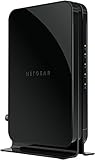
- Save monthly rental fees: Model CM500 replaces your cable modem, saving you up to $168/yr in equipment rental fees.
- Speeds by carrier plans: Xfinity (up to 200Mbps), Cox (up to 150Mbps).
- Works with any wifi router: Connect any WiFi router, separate unit, to this modem's Ethernet port to support all your wireless devices.
- Ethernet connections: 1 Gigabit Ethernet port connects to your computer or separate WiFi router.
- Modem technology: Engineered with 16x4 channel bonding and DOCSIS 3.0.
As a practical vendor example, NETGEAR’s cable-modem guidance lists approximately −7 to +7 dBmV downstream. NETGEAR’s range is not a universal DOCSIS law: acceptable limits depend on the modem, channel type, frequency plan, provider, and network design.
A broad, consistent offset across channels may indicate overall attenuation or amplification. One abnormal channel may indicate a frequency-specific problem. A large difference between low- and high-frequency channels can point toward cable loss, a poor connector, water ingress, or an equalization problem.
Free tools Windows power users keep installed
One-click scans. No signup required.
Do not assume that every positive reading is bad, that every channel must match exactly, or that a reading inside a guideline guarantees a healthy connection. Do not add an amplifier simply because a number looks low. An amplifier can increase level while worsening noise, distortion, return-path behavior, or channel balance.
What do downstream SNR and MER mean?
Downstream SNR is the signal-to-noise ratio, while MER is a related modulation-quality measurement that some interfaces display instead. Higher values generally indicate a cleaner signal, but SNR/MER must be interpreted with modulation, frequency, power, and error counters.
A channel with acceptable power but materially lower SNR than neighboring channels deserves attention. A declining SNR during a dropout is more useful than a static value recorded while service is working. A QAM256 channel and a DOCSIS 3.1 OFDM channel may not expose or report quality values in identical ways, so avoid applying one universal threshold to every row.
Modem pages commonly show QAM256 channels with SNR/MER in dB alongside power and error counters. Examples of those layouts appear in this QAM error-counter example and this signal-level example.
What does upstream transmit power tell you?
Upstream transmit power is the level the modem uses to reach the provider’s equipment. A high or rising value often means the modem is working harder to overcome loss in the return path between the home and the network.
Too many splitters, long coax runs, poor connectors, damaged cable, or an outside-line problem can force the modem to transmit at a higher level. Upstream trouble often appears first as poor uploads, latency, intermittent service, or failure to maintain upstream channel locks.
As a vendor-specific example, NETGEAR lists approximately 38–48 dBmV upstream for its cable modem products. The appropriate range varies with DOCSIS version, channel type, number of bonded channels, and frequency plan. Do not treat the NETGEAR range as a universal pass/fail standard.
Also popular on Amazon

- MAXIMIZE YOUR CABLE INTERNET: A dedicated DOCSIS 3.1 cable modem lets you pair any WiFi router or mesh system you choose, so you can build the home network you want and upgrade your WiFi anytime without replacing your modem.
- APPROVED FOR YOUR PROVIDER AND PLAN: Works with Xfinity, Spectrum, Cox, and most US cable providers on internet plans up to 2 Gbps. Not compatible with Verizon, AT&T, CenturyLink, DirecTV, DISH, or bundled voice plans. ISP activation required after setup.
- GET THE FULL SPEED OF YOUR PLAN: DOCSIS 3.1 supports plans up to 2 Gbps download and 1 Gbps upload, so sending large files and live streaming move nearly as fast as downloading. Actual speeds vary by plan and provider.
- FUTURE-PROOF YOUR HOME NETWORK: Two Gigabit Ethernet ports connect to a compatible router, with Link Aggregation combining both for speeds up to 2 Gbps. Ready for today's multi-gig plans and tomorrow's upgrades.
- SET UP AND MANAGE YOUR MODEM WITH THE NIGHTHAWK APP: Download the free Nighthawk app on iOS or Android for guided setup. Check modem status, run speed tests, and manage firmware updates from anywhere. Active internet required.
Do not try to “lower upstream power” with an attenuator. An attenuator usually reduces both downstream and upstream levels at the modem and can make a marginal return path worse. If upstream power is abnormal, inspect the home coax path conservatively and ask the ISP to test the return path.
What do channel lock, modulation, and bonding columns mean?
A channel row describes whether the modem synchronized with a provider-assigned RF channel and how that channel carries data.
| Column | Meaning | Useful interpretation |
|---|---|---|
| Lock status | Whether synchronization succeeded. | Many channels should remain Locked. |
| Modulation | The signaling method, such as QAM256, OFDM, or OFDMA. | Compare like channel types rather than applying one rule to every type. |
| Channel ID | A provider-assigned identifier. | It is not inherently a quality score. |
| Frequency | The RF frequency used by a channel. | One frequency behaving differently can indicate a frequency-specific issue. |
| Bonding | Combining multiple channels for capacity and resilience. | Persistent missing or unlocked channels may cause partial service. |
Channel counts are not universal. A DOCSIS 3.0 modem may show many single-carrier QAM channels, while DOCSIS 3.1 adds OFDM downstream and OFDMA upstream channels. The exact count depends on the ISP’s channel plan, local network, service tier, and modem.
How are OFDM and OFDMA pages different?
OFDM is modern DOCSIS downstream technology, and OFDMA is modern DOCSIS upstream technology. DOCSIS 3.1 status pages may show a frequency range instead of one frequency and may include fields such as PLC, profile, profile changes, receive power, SNR/MER, or an aggregate error count.
Some modems expose much less information for OFDM/OFDMA than for older SC-QAM channels. A modem can therefore show a reassuring legacy channel table while repeatedly losing the primary OFDM or OFDMA channel needed for the subscribed service.
DOCSIS 3.1 adds OFDM and newer modulation and error-correction capabilities compared with older DOCSIS implementations, but the exact status fields vary by firmware and manufacturer. ARRIS’s DOCSIS background paper provides useful technical context. Do not translate an OFDM/OFDMA display directly into DOCSIS 3.0 thresholds.
How should you interpret corrected and uncorrectable errors?
Corrected errors are transmission errors that the modem recovered successfully; uncorrectable errors could not be recovered by the modem’s error-correction process. Neither counter should be judged from a lifetime total alone because counters are cumulative and may reflect weeks of uptime, traffic volume, brief noise bursts, firmware behavior, or a previous problem.
| Counter pattern | What it means | What to do |
|---|---|---|
| Correctables present but stable | Errors occurred and were recovered; a nonzero total is not automatically a fault. | Record the count and monitor its rate of change. |
| Large total after long uptime | The total lacks context without uptime and channel distribution. | Do not diagnose from the total alone. |
| Uncorrectables rising during a dropout | More consistent with active signal impairment or interference. | Capture before-and-after values and contact the ISP. |
| Errors concentrated on one channel | A frequency-specific issue is more plausible. | Save the channel details and request an RF investigation. |
Use this baseline procedure:
- Photograph or save the current counters.
- Note the time and symptoms.
- Reboot or clear counters only after recording the baseline, and only if necessary.
- Check again during or immediately after the next dropout.
- Compare individual channels, not just the grand total.
- Look for uncorrectables increasing rapidly, especially on a subset of channels.
- Give the ISP both timestamps and screenshots.
Community status examples demonstrate why raw totals are ambiguous: one page may show small corrected and uncorrectable counts while another shows large cumulative counts. The useful question is not simply “How many errors are there?” but “How quickly are errors appearing, on which channels, and at the same time as which symptoms?”
What does the cable modem event log reveal?
The event log can reveal intermittent failures that a signal table captured after recovery no longer shows. Repeated events that line up with the exact outage time are more meaningful than one isolated routine entry.
Also popular on Amazon

- CABLE INTERNET ONLY - This modem works ONLY with cable internet providers (Xfinity, Spectrum, Cox). NOT compatible with fiber internet services including AT&T Fiber, Verizon Fios, Frontier Fiber, Google Fiber, or CenturyLink Fiber. Check with your ISP to confirm you have cable (coaxial) service before purchasing.
- DATA ONLY - NO PHONE SERVICE - This modem does NOT support telephone or voice service of any kind. If your internet plan includes phone service or you need VoIP calling, you must purchase a separate voice-capable modem or VoIP adapter. This device handles internet data only.”
- MULTI-GIG PERFORMANCE: Supports internet plans up to 2.5 Gbps with 2.5 Gbps Ethernet port. Designed for plans 1 Gbps and faster from certified CABLE providers: Xfinity (up to 2 Gbps), Spectrum (1 Gbps), Cox (2 Gbps). NOT compatible with fiber internet services. Verify your plan speed and provider compatibility.
- MODEM ONLY - NO WIFI INCLUDED - This device is a cable modem with ONE Ethernet port only. It does NOT provide WiFi or wireless connectivity. You MUST connect your own separate WiFi router to this modem to create a wireless network. This is not an all-in-one gateway or combo unit.
- DOCSIS 3.1 TECHNOLOGY: Latest cable standard with 32x8 channel bonding for reliable multi-gig speeds. Backward compatible with DOCSIS 3.0 networks. Eliminates monthly modem rental fees (typically $14-20/month). For CABLE internet only - verify compatibility with your cable provider.
| Event or phrase | Common interpretation | How to use it |
|---|---|---|
| T3 timeout | An expected upstream ranging response was not received. | Repeated T3 events during upload or dropout symptoms point toward a return-path problem. |
| T4 timeout | The modem lost upstream ranging for longer and may lose service. | Correlate the time with modem lights and disconnections. |
| SYNC timing failure | Downstream synchronization trouble. | Look for lost downstream locks and signal changes. |
| MDD or DHCP failure | The modem had trouble obtaining required management information or an address. | Consider signal, provisioning, or provider-side conditions. |
| Lost MDD timeout | Required downstream management messages were not received. | Repeated entries are more useful than one occurrence. |
| Started Unicast Maintenance Ranging | Maintenance activity that may be routine by itself. | Do not treat every maintenance line as proof of a fault. |
| Re-registration or partial-service event | The modem changed registration or lost part of its channel set. | Use the timestamp to correlate with the outage. |
Event terminology and severity vary by modem. Save the surrounding entries rather than reporting one code without context. A provider can compare the customer-visible log with CMTS, tap, node, outage, and maintenance records.
Which physical checks are safe to perform at home?
Safe home checks focus on accessible indoor connections and one change at a time. NETGEAR’s troubleshooting guidance recommends checking power levels, removing unnecessary splitters, and contacting the ISP when levels remain outside the required range; see NETGEAR’s connectivity troubleshooting guidance.
- Hand-tighten the coax connector at the modem and wall outlet.
- Inspect for a bent center conductor, corrosion, loose fitting, crushed cable, or visible damage.
- Remove unnecessary splitters.
- If a splitter is required, confirm that it is not damaged and is rated for the provider’s current frequency range.
- If safe and practical, connect the modem to the first accessible coax point using the shortest known-good path.
- Change one physical item at a time, then capture the status page again.
- Check the Ethernet cable between the modem and router.
- Test with a wired computer to separate cable-signal trouble from Wi-Fi trouble.
Do not open provider pedestals, change grounding, bypass safety equipment, or adjust outside-plant hardware. Splitters are not automatically bad: some homes need them for television or MoCA. The issue is unnecessary loss, incorrect port use, damaged hardware, or frequency incompatibility.
How can you distinguish a modem-line problem from a Wi-Fi problem?
Compare wired and wireless behavior at the same time. The symptom pattern often narrows the fault faster than another isolated modem reading.
Quick wins for a faster PC:
Repair Windows errors before they cause bigger problemsFix Now →Scan for outdated or missing drivers - takes under a minuteDriver Scan →Clear out junk files and repair common Windows errorsFree Scan →| Observed pattern | More likely area | Next test |
|---|---|---|
| Wired and Wi-Fi devices fail simultaneously | Modem signal, registration, ISP outage, router WAN link, or upstream network | Check status, event log, wired connectivity, and outage history. |
| Only Wi-Fi fails | Wireless congestion, interference, placement, band steering, or router issue | Test Ethernet and compare bands or locations. |
| Only one device fails | Device driver, Ethernet cable, DNS, browser, or local software | Test another device and another connection method. |
| Download works but upload fails | Upstream lock, high upstream power, OFDMA, or provider return path | Inspect upstream data and request an upstream-noise test. |
| Service drops at the same time each day | Local interference, congestion, thermal behavior, or scheduled work | Collect several exact timestamps. |
| Levels look normal but wired speed is low | Ethernet negotiation, router limitation, modem tier, congestion, or test setup | Test directly, verify negotiated Ethernet speed, and compare test servers. |
A normal-looking modem page does not clear the router, Ethernet, DNS, routing, congestion, or provider peering. A wired test is essential before buying a new modem because Wi-Fi can be the limiting link even when the cable connection is healthy.
Independent reader supportYour contribution helps us test, update, and keep practical guides available for everyone.What do common diagnostic patterns suggest?
| Page pattern | More likely explanation | Next action |
|---|---|---|
| No downstream lock | Coax-path fault, outage, provider signal problem, or failed modem | Check indoor coax and outage status; contact the provider. |
| Downstream locked but upstream not locked | Return-path loss, upstream noise, excessive attenuation, or provisioning | Remove unnecessary splitters and request a return-path test. |
| High upstream transmit power across channels | Excessive attenuation or return-path loss | Check connectors and splitters; ask for a line test. |
| One channel has much worse SNR or errors | Frequency-specific ingress, damaged cable, or plant issue | Save the channel row and request RF investigation. |
| Many uncorrectables rapidly increase | Active noise, interference, or severe signal impairment | Provide before-and-after counters and timestamps to the ISP. |
| Operational, but only Wi-Fi is bad | Router or wireless problem | Test wired and troubleshoot the wireless network. |
| Modem page is inaccessible | Router interception, offline modem, bridge-mode behavior, or gateway restrictions | Try direct connection, the manual, or ISP diagnostics. |
| Reboot restores service temporarily | Intermittent line noise, thermal issue, firmware, plant problem, or modem failure | Capture the page before rebooting and collect recurring timestamps. |
| Normal levels but repeated T3/T4 events | Upstream noise or a provider-side return-path problem | Ask the ISP to inspect the upstream path, not merely reprovision the modem. |
When should you call the ISP, and what should you say?
Contact the ISP when the modem repeatedly loses locks, remains in partial service, shows rapidly increasing uncorrectables, records correlated T3/T4 or synchronization events, cannot complete registration, or still has abnormal levels after accessible indoor checks.
Give the ISP evidence rather than demanding a particular repair. Use language such as:
“My modem is showing [partial service / lost channel locks / repeated T3 or T4 timeouts]. The downstream power is approximately [range], upstream transmit power is [range], and the uncorrectable counters increase from [A] to [B] between [time] and [time]. Please check the return path, upstream noise, signal levels at the tap, provisioning, and outage history.”
DriversOutdated Drivers Are Slowing You DownPerformanceWindows Errors? Fix Them Before They SpreadDriversCrashes, No Sound, or Screen Glitches?Special offer. See more information about Outbyte and uninstall instructions. Please review EULA and Privacy policy.
Ask the provider to test the line from the modem through the tap and node. A provider-side test may reveal upstream SNR, ingress, node conditions, or CMTS history that the customer page cannot show. Do not insist on a particular amplifier, attenuator, modem replacement, or outside-plant repair based solely on one screenshot.
Also popular on Amazon

- Multi‑Gig speed for today & tomorrow: DOCSIS 3.1 performance supports cable internet plans up to 2 Gbps, delivering ultra‑fast streaming, gaming, and downloads.
- Save on rental fees: Own your modem and avoid monthly equipment charges—check with your cable provider for plan compatibility.
- Compact, modern design: Space‑saving footprint with discrete LED indicators for power, upstream/downstream, and online status.
- Easy setup: Connect cable, power on, and activate with your cable provider. Then connect a Wi‑Fi router to the Ethernet port for home Wi-Fi coverage.
- Modem only: This cable modem requires a separate Wi-Fi router or mesh system for home Wi-Fi network.
Should you replace the modem?
Replace a modem only after the ISP confirms that the line is healthy or after evidence points specifically to the modem. A new modem will not repair a damaged coax run, a bad connector, upstream noise, a neighborhood outage, or poor Wi-Fi.
A replacement becomes more reasonable when the modem is unsupported, defective, unable to maintain locks on a known-good line, incompatible with the subscribed speed tier, missing required DOCSIS or mid/high-split upload support, or unsuitable for cable-voice service. Before buying, check the ISP’s current approved-device list for the exact plan, region, voice requirement, and upload technology. Xfinity’s approved-device guidance illustrates why provider approval and plan compatibility should be checked before purchase.
Customer-owned equipment can reduce rental dependence, but ownership also makes the customer responsible for replacement, troubleshooting, firmware coordination, and future compatibility changes. A modem-router gateway may simplify installation, while separate modem and router hardware can make fault isolation and individual upgrades easier.
Do these 3 things before closing this tab:
1Repair Windows errors before they cause bigger problems2Fix the driver behind crashes, sound loss and screen glitches3Clear out junk files and repair common Windows errorsWhat is the most useful diagnostic workflow?
- Capture the symptom: record the time, duration, affected devices, wired versus Wi-Fi results, upload/download behavior, latency, packet loss, lights, and reboot effect.
- Capture the modem page before rebooting: save status, downstream, upstream, OFDM/OFDMA, event log, firmware, and hardware information.
- Read status before numbers: resolve registration failure, missing locks, or partial service before interpreting small power differences.
- Check channel consistency: look for unlocked channels, missing bonds, one abnormal frequency, or a repeatedly disappearing OFDM/OFDMA channel.
- Establish an error baseline: record counters, wait for recurrence, and compare the rate of increase rather than the lifetime total.
- Check the home coax path: inspect connectors, remove unnecessary splitters, and test the shortest practical known-good path.
- Separate Wi-Fi from the WAN: test with Ethernet and verify the router and negotiated Ethernet link when speeds are low.
- Contact the ISP with timestamps and evidence: request checks for signal levels, return-path noise, tap and node conditions, provisioning, and outage history.
Frequently Asked Questions
Is −10 dBmV downstream power automatically bad?
A −10 dBmV downstream reading is outside NETGEAR’s example guidance of approximately −7 to +7 dBmV, but it is not by itself a universal DOCSIS failure verdict. Interpret the reading across channels and alongside SNR/MER, lock status, error growth, modem model, and ISP limits.
How many corrected errors are normal on a cable modem?
There is no reliable universal corrected-error cutoff. Corrected errors can accumulate over long uptime, so record the counter, note the time, and judge whether the counter is increasing rapidly during the problem and whether errors are concentrated on particular channels.
Are uncorrectable errors always serious?
Uncorrectable errors are more concerning when they increase rapidly during visible dropouts, packet loss, or poor uploads, but a lifetime total alone is not enough to diagnose a fault. Compare before-and-after counters and provide the timestamps to the ISP.
Can a splitter cause slow or unreliable cable internet?
A splitter can contribute to trouble by adding loss, especially when unnecessary, damaged, incorrectly connected, or incompatible with the provider’s frequency range. A splitter is not automatically defective, and adding an amplifier or attenuator is not a normal first fix.
Why can the ISP see more than I can on the modem page?
The ISP can measure provider-side conditions such as upstream SNR, ingress, CMTS history, tap and node status, provisioning, and outage records. Many consumer modem pages expose upstream transmit power but not a meaningful upstream SNR measurement.
The Bottom Line
A cable modem diagnostic page is most useful when treated as a time-stamped evidence source. Start with registration and channel locks, compare power and SNR/MER across channels, watch error counters for growth, read repeated event-log failures, and test wired Ethernet separately from Wi-Fi. If the pattern points to the return path, partial service, or provider plant, give the ISP screenshots and timestamps before buying hardware.

