
To set up Dell’s Pro 7 Rechargeable Compact Keyboard, model KB746, choose its Windows or Mac layout, then connect through the included USB receiver or Bluetooth. The receiver uses connection mode 1; a new Bluetooth pairing uses mode 2 and requires you to type the code shown on your computer. The keyboard charges over USB-C.
Confirm you have the KB746 keyboard
The standalone keyboard is the KB746. Dell also sells a KM746 keyboard-and-mouse bundle. The bundle’s setup instructions describe a receiver shared by its keyboard and mouse; the KB746 is listed separately, and its package includes a Secure Link USB receiver. Dell’s KB746 support page lists the keyboard’s manuals.
Choose the Windows or Mac layout
Before connecting, move the keyboard’s power switch toward WIN for a Windows layout or toward MAC for a Mac layout. Dell describes the KB746 as supporting wireless USB receiver and Bluetooth connections.
Connect with the USB receiver
- Plug the included Dell Secure Link USB receiver into the computer.
- Select connection mode 1 on the keyboard to use the receiver connection.
If you have the KM746 bundle, Dell’s setup video says the keyboard and mouse share that receiver. That shared-device detail applies to the bundle, not to a standalone KB746 package.
Free tools Windows power users keep installed
One-click scans. No signup required.
#1 Best Overall

- Quiet performance for greater focus
- Smooth, fatigue-free typing
- Comfortable control
- Ultra-smooth glide
- Extended power performance
Pair the keyboard over Bluetooth
- Turn on Bluetooth on the computer or other host.
- Press and hold the keyboard’s connection mode 2 key until its light starts blinking.
- Open the host’s Bluetooth pairing flow and select Dell KB746.
- When a number appears on screen, type it on the keyboard and press Enter to finish pairing.
Dell’s setup video describes up to two Bluetooth device connections, using modes 2 and 3. Its demonstrated pairing flow uses a Windows-style code prompt; menus and prompts can differ on other operating systems. Dell lists compatibility with Windows, macOS, Linux, ChromeOS, iPadOS and Android, but the video does not show the pairing interface on each of those systems. See Dell’s KB746 support materials for the device documentation.
Charge the KB746
Connect the supplied USB-C-to-USB-C cable to the keyboard and a computer USB port. Dell says the low-battery LED turns on and off while charging. When the keyboard is fully charged, the light remains white for 10 seconds and then turns off. Those are keyboard indicator details; do not confuse them with the different charging behavior Dell describes for the MS746 mouse.
Rank #2

- This silent, space-saving keyboard and mouse combo fits anywhere and minimizes disruptions in open office environments.
- Stay focused with silent keys and a mouse that clicks, scrolls and glides without making disruptive sounds.
- The compact, space-saving design creates a clean desk and comfortable workspace
- The ambidextrous mouse fits naturally, whether you're left or right-handed.
- Secure dual-mode pairing
What to expect from battery life
Dell advertises up to three months of runtime on a full charge and says five seconds of turbo charging provides a day’s use. These are Dell claims, not independent test results; actual runtime can vary with use and conditions. The claims appear on Dell’s KB746 product listings, including its US listing and India listing, accessed October 4, 2026. Dell’s India and US listings specify Bluetooth version 6; check the listing for your region if you need a regional specification.
Independent reader supportYour contribution helps us test, update, and keep practical guides available for everyone.Which connection should you use?
| Connection | Keyboard mode | What to do |
|---|---|---|
| Included USB receiver | 1 | Plug the Secure Link receiver into the computer and select mode 1. |
| Bluetooth pairing | 2 for a new pairing; Dell describes modes 2 and 3 for Bluetooth devices | Hold mode 2 until the light blinks, choose Dell KB746 in the host’s Bluetooth flow, then enter the on-screen number and press Enter. |
Use the receiver when you want the direct USB connection. Bluetooth is the route for pairing to a host without using the receiver and for using the keyboard’s Bluetooth connection slots.
Quick Recap
Best Value
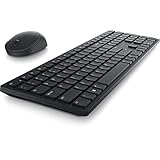
- Enhance your all-day productivity with this RF 2.4GHz wireless full-sized keyboard and mouse.
- Programmable keys and scroll wheel allow you to gain quick access to your frequently used shortcuts
- The native 1600 DPI mouse offers preset DPIs of up to 4000 adjustable via the Dell Peripheral Manager, offering accurate tracking across a wide range of display resolutions
- Work with one of the quietest wireless keyboards whether on a conference call or in proximity with others. Symmetrically designed, the wireless mouse is great for both left and right-handed users
Rank #4

- Flexible multi-tasking: The dual mode RF 2.4 GHz and Bluetooth 5.0 connectivity lets you effortlessly switch across devices with the connection-mode key or button on your keyboard and mouse.
- Navigate with precision: Dell Peripheral Manager (DPM) software enables you to manage your input devices and adjust to your preferred preset DPIs at 1000, 1600, 2400 or 4000. Supported on Windows OS only.
- Well-crafted design: The thoughtfully designed quiet keyboard is slim and stylish with a premium feel and titan gray finish.
- Durable and secure: Powered by one of the industry’s leading battery lives at up to 36 months*, this keyboard and mouse combo has been rigorously tested to work seamlessly with your Dell system. *Based on Dell analysis of battery life usage model calculations, Nov. 2020. Results vary depending on use, operating conditions and other factors.
Rank #3

- QUIET PERFOMANCE FOR GREATER FOCUS: Quiet keyboard and silent mouse minimise distractions from typing and clicking to help you stay focused anywhere.
- SMOOTH, FATIGUE-FREE TYPING: Sleek, full-size keyboard with low-profile fluid keys reduces typing force for day-long comfort and less fatigue.
- COMFORTABLE CONTROL: Full-size mouse with a textured grip provides a comfortable hold for all-day use.
- ULTRA-SMOOTH GLIDE: Improved feet material ensures smooth mouse movement across any surface, reducing strain and making navigation effortless.
- EXTENDED POWER PERFORMANCE: Uninterrupted productivity with industry-leading battery life of up to 48 months for the keyboard and 36 months for the mouse.
Sources
- Dell KB746 support page and manuals (User’s Guide updated May 11, 2026).
- Dell KM746 unboxing and setup video (published June 9, 2026; its transcript covers the KB746 keyboard).
- Dell US KB746 product listing and Dell India KB746 product listing.
Product prices and availability are accurate as of the date/time indicated and are subject to change. Any price and availability information displayed on Amazon at the time of purchase will apply.

