
Do these 3 things before closing this tab:
1Clear out junk files and repair common Windows errors2Fix the driver behind crashes, sound loss and screen glitches3Repair Windows errors before they cause bigger problemsiTechGuides is reader-supported. When you buy through links on our site, we may earn an affiliate commission. As an Amazon Associate I earn from qualifying purchases. Learn more
The simplest way to make a video call on an Amazon Fire tablet is Alexa Calling. It works with compatible Echo Show devices, other supported Alexa-enabled screens, and people using the Alexa app. For work, school, or larger group meetings, install a compatible third-party app such as Zoom from the Amazon Appstore.
Your tablet needs a front-facing camera, microphone, Wi-Fi or another internet connection, and an account or profile allowed to use the calling feature. The exact options depend on your Fire tablet model, Fire OS version, region, account type, and whether the calling app supports that device.
What you need before making a video call
- A working Wi-Fi or internet connection.
- A front-facing camera and microphone. Amazon Fire tablets such as the Fire HD 10 (2023, 13th generation) include both.
- A registered Amazon account for Alexa Calling.
- Camera and microphone permission for any third-party calling app.
- A recipient using a compatible screen-equipped Alexa device or the Alexa app if you are calling through Alexa.
Before starting, remove anything covering the camera lens or microphone. If the tablet has recently updated or calling features are not working, check for updates at Settings > Device Options > System Updates > Check Now, then restart the tablet.
Quick wins for a faster PC:
Clear out junk files and repair common Windows errorsFree Scan →Fix the driver behind crashes, sound loss and screen glitchesFind Drivers →Method 1: Use Alexa Calling
Alexa video calling is usually the least complicated option for family and caregiver calls within the Amazon ecosystem. Alexa Calling can connect with other Alexa-enabled devices, the Alexa app, and, in supported situations, most phone numbers in the United States, Canada, and Mexico. However, a phone number by itself does not guarantee a video call.
The call becomes a video call when the recipient answers on a device with a screen, such as an Echo Show or compatible Fire tablet, or answers in the Alexa app. If the recipient answers on an ordinary phone without the Alexa app or a compatible screen, the call may be voice-only. Alexa Communication is also not an emergency service.
Popular on Amazon

- Fire HD 8 offers an 8" HD display for seamless streaming and gaming, coupled with a 5MP rear facing camera for photos—with a thin, light, durable design.
- Fast and responsive with long battery life - With up to 4 GB RAM (2X more than 2022 release), 64GB of storage, and up to 1 TB of expandable storage (sold separately). Hexa-core processor for fast, responsive performance. Up to 13 hours of reading, browsing the web, watching videos, gaming, and listening to music at home and on-the-go.
- Save time, get creative - Enjoy three smart tools to help you send polished emails, quickly summarize webpages, and create unique wallpapers.
- Stream or download your favorite shows, movies, and games (like Minecraft, Roblox, and more). Enjoy your favorite content from Facebook, Hulu, Instagram, TikTok, and more through Amazon’s Appstore (Google Play not supported. Subscription for some apps required).
- Stay connected with family and friends - ask Alexa to make video calls to friends and family or download apps like Zoom.
Prepare Alexa Calling
- Connect the Fire tablet to Wi-Fi.
- Register it to the Amazon account you intend to use.
- Use the tablet’s main profile when setting up Alexa features. Some Alexa features are unavailable from child or secondary profiles.
- Make sure the camera and microphone are unobstructed.
- Open Alexa communication or calling settings and add or synchronize the intended contact.
- Complete any contact permissions, invitations, or verification steps requested by Amazon.
- Ask the recipient to sign in to the Alexa app or confirm that their Echo Show or other supported screen device is online.
Start an Alexa video call by voice
If hands-free Alexa is enabled, say:
“Alexa, call [contact name].”
After the recipient answers on a screen-equipped Alexa device or in the Alexa app, look for the camera control. Depending on the Fire OS and Alexa software version, you may be able to switch between voice-only and video during the call.
If Alexa does not respond, check whether the tablet’s microphone has been disabled in Quick Settings. Amazon allows Fire tablet users to turn Alexa microphones off, and a disabled microphone prevents hands-free voice activation. You can also activate Alexa through the tablet’s on-screen Alexa control and then issue the call command.
Start the call from the Alexa interface
Labels can differ by Fire OS and Alexa app version, but the general process is:
- Open the Alexa communication, calling, or contacts interface.
- Select the contact.
- Tap the call or video-call control when it is available.
- Wait for the recipient to answer.
- Check that the camera is turned on and the microphone is not muted.
If you see only a voice-call option, verify that the other person is answering through the Alexa app or a compatible screen device. Also check camera permissions and whether the recipient’s account and contact permissions are complete.
Can someone call the Fire tablet from the Alexa app?
Yes, a person using the Alexa app on a phone or tablet can call an Alexa contact associated with the Fire tablet, provided communications are configured and the Fire tablet is reachable through the relevant Amazon account. Both sides need a screen-capable endpoint for video. If an incoming call is voice-only, check the camera permissions and confirm that the recipient is using the Alexa app or a device with a display.
Method 2: Use Zoom or another video-calling app
Third-party apps are better suited to work meetings, classes, appointments, and group calls. Amazon has identified apps such as Zoom, Skype, and Microsoft Teams as possible video-calling options on Fire tablets, but availability is not identical across all models or regions.
The Tool Desk
Outbyte Driver Updater FREEFix the driver behind crashes, sound loss and screen glitchesFind Drivers →Outbyte PC Repair FREEClear out junk files and repair common Windows errorsFree Scan →How to install and use Zoom
- Open the Amazon Appstore.
- Search for Zoom Workplace or Zoom.
- Install the app only if the Appstore lists it as compatible with your particular Fire tablet.
- Open Zoom and sign in, or join with the meeting link, meeting ID, and passcode supplied by the host.
- Allow camera and microphone access when prompted.
- Before an important meeting, test the camera, microphone, speakers, and internet connection.
- Use the in-call controls to mute or unmute yourself and start or stop video.
Zoom’s mobile requirements list Android 9.0 or later as a supported baseline. For comparison, Amazon lists the Fire HD 10 (2023, 13th generation) with Fire OS 8 and Android 11. That means the model meets the operating-system baseline on paper, but it does not guarantee that every Zoom release, feature, or Fire tablet model will be supported.
Zoom recommends approximately 1.0 Mbps upload and 600 kbps download for high-quality video, with more bandwidth recommended for 720p and 1080p video. These figures are network guidance, not a promise of performance: congestion, latency, device performance, Wi-Fi signal strength, and the other participants’ connections also affect the call.
What if Zoom is missing from the Appstore?
Do not assume that any Android APK, Google Play installation, or browser-based workaround will provide the same experience as an Appstore-supported installation. Fire OS is based on Android, but Amazon Appstore compatibility still depends on the tablet’s specifications, operating-system version, marketplace, and the app’s device targeting.
Also popular on Amazon
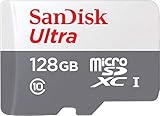
- Exclusive “Made for Amazon” SD memory card - The only one tested and certified to work with your Fire Tablet and Fire TV
- Load your Fire Tablet with more fun - By adding space for additional photos, music and movies
- Download your apps and games directly to the SD card
- Class 10 performance for Full HD (1080p) video recording and playback
- Designed to perform multiple simultaneous activities with no lag or delay
Try these steps:
- Check the exact Fire tablet model and Fire OS version.
- Install available Fire OS updates and restart the tablet.
- Search the Appstore again using the current app name, such as “Zoom Workplace.”
- Ask the meeting host whether the service offers a browser-join option. Browser access may still lack camera, microphone, or screen-sharing features.
- Use Alexa Calling for family communication if all participants have compatible Alexa endpoints.
- Use a different phone, computer, or tablet if the meeting requires features unavailable on your Fire tablet.
Camera, microphone, and permission checks
Fire OS uses Android-style permission controls for camera and microphone access. If you deny permission, grant it only temporarily, or later change the setting, a calling app may be unable to transmit audio or video.
What’s actually slowing this PC down?
Pick the symptom - the matching free tool is one click away.
- Check that the camera lens is clean and uncovered.
- Use the in-call control to confirm that video is enabled.
- Check whether the app is muted.
- Raise the tablet’s volume and check the selected Bluetooth audio device.
- Review the app’s camera and microphone permissions in the tablet’s app settings.
- After changing permissions, close and reopen the calling app.
- Check for a physical or software microphone mute, including Alexa’s Quick Settings microphone control.
- Restart the tablet after an update or major permission change.
To separate hardware trouble from an app problem, test the tablet’s built-in camera or another camera-capable app. If the camera works there but not in Zoom or Alexa, the likely problem is the calling app, its permissions, or its compatibility. If it fails everywhere, inspect the lens and restart the tablet; persistent failure may indicate a hardware problem.
Amazon Kids and child profiles
Child profiles need additional setup. Amazon supports outbound Alexa-to-Alexa voice or video calls to approved contacts on Fire tablets using Amazon Kids, with contact approval controlled by a parent or guardian. The exact controls can differ by Amazon Kids version, account configuration, and region.
For a child’s tablet:
- Use the parent controls or Alexa communication settings to add permitted contacts.
- Confirm that every contact is approved for communication.
- Check whether the child is using the Amazon Kids profile rather than the adult profile.
- Test both outbound and inbound calls before relying on the tablet for regular contact.
Do not assume that a contact approved for an adult profile is automatically available in the child’s profile. If calling is unavailable, review the parent controls and test from the intended child profile.
Which Fire tablet is best for video calls?
Based on Amazon’s published specifications, the Fire HD 10 for video calls is the clearest fit among the models covered by the research. The 2023, 13th-generation model has a 10.1-inch, 1920-by-1200 display, a 5 MP front-facing camera, a microphone, Fire OS 8, and Android 11. Its larger screen is more comfortable for face-to-face calls and group meetings than a smaller tablet.
PC Slower Than It Used to Be?
A free scan shows the junk files, broken settings and background clutter dragging Windows down - then fixes them in one click.Free scan · Windows 10 & 11Crashes, No Sound, or Screen Glitches?
Random freezes, missing sound and display glitches usually trace back to one bad driver. Find and replace yours safely.Free scan · under a minuteThis is a specification-based recommendation, not a hands-on performance test. Call quality still depends on the app, Wi-Fi, lighting, and the other person’s connection.
The Fire 7 (2022) also has a front-facing camera and microphone, so it may work for basic calls when the relevant app supports that model. Its smaller display may be less convenient for group meetings, older users, or anyone who needs larger controls.
Accessories that can make calls easier
No accessory is required, but a few can improve the setup:
- Fire tablet stand: keeps the tablet stable and can position the camera closer to face height.
- A protective case with a built-in stand: useful for children, older adults, or frequent callers.
- A Bluetooth headset or wired headphones: can improve listening privacy, reduce room echo, and make the microphone easier to position. Zoom lists Bluetooth speakers and microphones as optional equipment.
- A screen-cleaning cloth: helps keep the camera clear without covering it.
- A compatible charger and longer charging cable: useful for extended meetings. Use an appropriate charger and cable for the tablet.
A stand primarily improves positioning and stability; it does not itself improve video resolution. Similarly, a headset can improve audio privacy or reduce feedback, but it cannot compensate for a weak internet connection.
Troubleshooting: fix the most common problems
The other person cannot see me
- Check that the call is not in voice-only mode.
- Tap the camera or start-video control.
- Confirm that the calling app has camera permission.
- Remove any cover or obstruction from the front camera.
- Close and reopen the app.
- Restart the tablet and check for Fire OS updates.
In Alexa, a missing camera control may indicate an unsupported endpoint, a permission problem, or a software issue. Confirm that the other person is answering on a screen device or in the Alexa app.
The other person cannot hear me
- Check the in-call mute button.
- Confirm microphone permission for the app.
- Check whether Alexa’s microphone has been disabled in Quick Settings.
- Disconnect Bluetooth headphones or speakers temporarily to test whether audio is being routed to the wrong device.
- Reconnect the Bluetooth device if it is the intended microphone and speaker.
- Restart the app and tablet if the microphone remains unavailable.
The call will not connect
- Test another website or app to verify the internet connection.
- For Alexa, confirm the recipient is an approved Alexa contact or uses a supported Alexa endpoint.
- Confirm that the Fire tablet is registered to the intended Amazon account.
- For Zoom, check the meeting link, ID, passcode, and invitation.
- Install Fire OS updates and restart the tablet.
- Check that the Appstore-installed app is compatible with the exact tablet model.
The app is not in the Amazon Appstore
Availability can vary by Fire tablet model, Fire OS version, country or marketplace, and the developer’s device targeting. Check the model and region, update Fire OS, and search again using the app’s current name. Sideloading is not a guaranteed solution and may produce missing features, installation errors, or permission problems.
Also popular on Amazon

- 100% Spyware free!
- Best price for features
- Capture photos and video
- Panoramic Photo mode
- 6 levels of exposure
The video is blurry, freezes, or drops out
- Move closer to the Wi-Fi router or access point.
- Stop downloads, streaming, and other high-bandwidth activity.
- Lower video quality if the app provides that option.
- Check whether the tablet and calling app are running supported versions.
- Improve the lighting in front of the caller rather than behind them.
- Try again when the network is less congested.
Bandwidth is only one factor. Latency, Wi-Fi interference, device performance, and the other participants’ connections can all cause freezing or poor quality.
Privacy and safety
Alexa Communication cannot be used to access emergency services. Keep a conventional phone or another supported emergency-calling method available for anyone who may need emergency assistance.
For children, use approved contacts and parent controls. For everyone, grant camera and microphone access only to calling apps you trust. Turn off the camera or microphone when the tablet is not intended to listen or show video, and explain these controls to children or less technical users.
Frequently Asked Questions
Can every Amazon Fire tablet make video calls?
No. A tablet needs a front-facing camera, microphone, internet connection, and compatible software. Alexa Calling may work on supported models, while third-party apps such as Zoom depend on the exact tablet model, Fire OS version, region, and Appstore listing.
Can I video call a regular phone number from a Fire tablet?
Alexa Calling supports calls to most phone numbers in the United States, Canada, and Mexico in supported circumstances, but a phone number alone does not ensure video. The recipient needs the Alexa app or a compatible device with a screen for a video call.
Does a Fire tablet support Zoom?
Some Fire tablets may support Zoom Workplace through the Amazon Appstore. Search the Appstore on the exact tablet and install it only if Amazon lists it as compatible. Do not assume that every Fire model supports every Zoom version or feature.
Why is my Alexa Fire tablet call voice-only?
The recipient may be answering on a phone without the Alexa app or on a device without a screen. Also check the camera control, camera permission, the front camera, and whether either caller has video disabled.
The Bottom Line
Use Alexa Calling for the simplest family video calls between compatible Alexa screens, the Alexa app, and supported Fire tablets. Use Zoom or another Appstore-compatible meeting app for work, school, and group meetings. Before relying on either method, verify the exact tablet model, app availability, camera and microphone permissions, Wi-Fi, and—especially for child profiles—approved contacts.

