
iTechGuides is reader-supported. When you buy through links on our site, we may earn an affiliate commission. As an Amazon Associate I earn from qualifying purchases. Learn more
The most reliable way to play a modded Fallout: New Vegas is to begin with a clean English PC installation that includes every downloadable content pack, keep the game and Mod Organizer 2 (MO2) out of protected Windows folders, generate fresh configuration files, install xNVSE directly in the game folder, and launch the game from MO2. For an automated, curated setup, use the Viva New Vegas Wabbajack list and follow its separate installation and post-installation steps.
This guide covers both approaches. Manual MO2 installation gives you control over every mod; Wabbajack installs a tested list with less repetitive work. Either route can produce a stable starting point if you follow the folder, profile, and launch requirements exactly.
| # | Preview | Product | Price | |
|---|---|---|---|---|
| 1 |
|
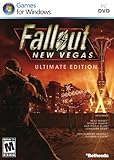
Fallout: New Vegas Ultimate Edition | $40.08 | Buy on Amazon |
| 2 |

|
Fallout: New Vegas - Ultimate Edition (PC DVD) | $89.99 | Buy on Amazon |
| 3 |
|
Fallout New Vegas Ranger Vintage Distressed Video Game T-Shirt | $24.95 | Buy on Amazon |
| 4 |

|
Fallout Video Game New Vegas Skyline Retro Souvenir Design T-Shirt | $19.99 | Buy on Amazon |
What you need before installing mods
Modding works best when the base game is uncomplicated. Start with an English copy of Fallout: New Vegas purchased through Steam, GOG, or the Epic Games Store, with all downloadable content installed. The Viva New Vegas setup documentation supports those three storefront editions. The Microsoft Store edition is unsupported, and the German no-gore release is incompatible with xNVSE, so neither is suitable for this workflow.
The current Viva New Vegas introduction lists Windows 10 or newer in 64-bit form and at least 19GB of free drive space. That space is for the broader setup; a Wabbajack installation has its own lower bound for the files it downloads and installs, explained below. Leave additional room if you expect to add large texture or content packages later.
#1 Best Overall
- Beyond the Wasteland: The world of New Vegas is more expansive than ever. Each new distinct area presents a fresh set of branching-quests, remarkable personalities and more chances to play the Savior or the Pariah to the natives of New Vegas.
- Dead Money: Lured into a trap masquerading as the Sierra Madre Casino, you are thrown into a high stakes game where you'll have to work with three other lost souls if you want to survive.
- Honest Hearts: An expedition into Utah's Zion National Park goes horribly wrong and you become embroiled in a war between tribes and put into a conflict between a New Canaanite missionary and the mysterious Burning Man.
- Old World Blues: Transported to the Big MT research crater, you are enlisted by the Think Tank to save them from their own science experiments that have gone horribly out of control.
- Lonesome Road: Ulysses, the original Courier Six, contacts you and promises to answer why he refused to deliver the Platinum Chip at the start of Fallout: New Vegas, but only if you make one last journey into the treacherous canyons of the Divide.
- A clean English installation with every DLC enabled.
- Windows 10 or higher, 64-bit.
- At least 19GB of free storage for the general Viva New Vegas setup.
- A location outside protected folders such as
C:Program Files (x86),C:Program Files,C:Users, andC:Windows. - Mod Organizer 2 for ordinary mods.
- xNVSE, installed directly in the game folder.
If you have already experimented with files in the game directory, uninstall the game, remove the remaining Fallout: New Vegas folder, reinstall it in a new location, and then follow the clean-start procedure. A mod manager cannot reliably undo files that were copied manually into the game directory by an earlier attempt.
Step 1: Install the game outside protected Windows folders
Choose a simple library path that you control, rather than the default Windows-protected location. Examples include D:GamesFallout New Vegas or a similarly named folder on another drive. The exact path is not important; avoiding access restrictions is.
Install every DLC offered by your storefront before opening a mod manager. Do not begin by copying mods into the Data directory. MO2 will provide a virtual modded file system later, which keeps the original installation easier to repair.
The Tool Desk
Outbyte PC Repair FREEClear out junk files and repair common Windows errorsFree Scan →Outbyte Driver Updater FREEFix the driver behind crashes, sound loss and screen glitchesFind Drivers →Generate fresh INI files
- Open the game folder and run
FalloutNVLauncher.exe. - When the launcher displays “Detecting Video Hardware,” accept both hardware-detection prompts.
- Choose a graphics preset, allow the launcher to save its settings, and exit.
This first launch creates the configuration files that the game and modding tools expect. If the hardware prompts never appear, close the launcher, delete the Fallout: New Vegas INI files in DocumentsMy GamesFalloutNV, and run FalloutNVLauncher.exe again. Complete the detection prompts before continuing.
Step 2: Set up Mod Organizer 2
Download and install MO2 in a location outside protected Windows folders and outside the Fallout: New Vegas game directory. Keeping the manager in its own folder prevents an update or uninstall from mixing manager files with game files.
- Start MO2 and choose to create a new instance.
- Select Fallout: New Vegas as the game and select the storefront where you installed it.
- Choose a portable instance when MO2 offers the choice. A portable instance keeps profiles, downloads, and mod metadata together, which makes a self-contained setup easier to back up or move.
- Enable the profile options during setup so each profile can have its own mod and INI configuration.
- Connect MO2 to your Nexus account when prompted. This connection is used for downloads; MO2 itself is free.
- Finish the setup wizard and allow MO2 to detect the game executable.
Understand MO2’s two lists
MO2 presents a left pane for installed mods and a right pane for plugins. The left pane controls which mod files win when two mods contain the same file. The right pane controls plugin load order for files such as .esp, .esm, and .esl. These are separate decisions: changing a plugin’s position does not change which loose texture or mesh wins in the left pane.
MO2 uses a virtual file system. The mods remain in MO2’s managed folders while the game sees a temporary combined view when launched through MO2. This makes conflicts visible and lets you disable or reorder a mod without repeatedly copying files into the real game directory.
Recommended Free Tools
Step 3: Install xNVSE in the correct place
xNVSE is the modern New Vegas Script Extender. Its project documentation describes it as expanding the engine and scripting capabilities of Fallout: New Vegas. Many modern gameplay, interface, and bug-fix mods require it.
- Download a release of xNVSE from the xNVSE project.
- Open the archive and locate its DLL and EXE files.
- Copy those files directly into the Fallout: New Vegas root folder—the folder containing
FalloutNV.exeandFalloutNVLauncher.exe. - Do not place xNVSE in the
Datafolder and do not install it as a normal MO2 mod.
To start the script-extender loader, run nvse_loader.exe. If you have applied a compatible 4GB patch, you can launch through FalloutNV.exe as described by the xNVSE documentation. In either case, start the game from the executable configured in MO2 so the manager’s virtual files are present.
Verify the installation
Before installing a large mod set, launch once through MO2 with xNVSE in place. If the game reaches the main menu, close it and continue. If Windows reports a missing DLL or the game immediately closes, check that the xNVSE files are beside FalloutNV.exe, not inside Data or an extra nested folder such as Fallout New VegasxNVSE.
Step 4: Install ordinary mods through MO2
For a mod listed by a guide, use the site’s Mod Manager Download option when it is available. MO2 receives the archive in its Downloads tab and can install it without you manually unpacking files into the game directory.
Do these 3 things before closing this tab:
1Repair Windows errors before they cause bigger problems2Scan for outdated or missing drivers - takes under a minute3Clear out junk files and repair common Windows errors- In MO2, open the Downloads tab at the bottom of the window.
- Double-click the downloaded archive.
- Review the installer choices if the mod provides a FOMOD menu, then complete the installation.
- Tick the new mod in MO2’s left pane to activate it.
- Check the right pane for any plugin the mod installed. Follow the guide’s stated load-order instructions rather than guessing.
For a file downloaded manually, click MO2’s archive-install button, select the archive, complete the same installer steps, and activate the mod in the left pane. If MO2 shows a red or incorrectly structured archive, use its manual directory mapping so that the archive’s Data contents appear at the mod’s root. A mod should not end up with an unnecessary path such as ModNameDataData.
Build a stable baseline before adding preferences
Viva New Vegas divides its recommendations into a curated first section and an Extended section. Complete the curated section as written before adding subjective changes. The guide presents that initial set as a broadly accessible foundation; it is easier to troubleshoot when every baseline component is present and in the documented order.
The Extended section is modular. It includes optional interface, gameplay, content, visual, and finishing-touch changes. Add one group at a time, launch the game, and keep a note of what you changed. If a problem appears, you can disable the latest group instead of dismantling the entire setup.
Rank #3
- Officially licensed Fallout video game merchandise. Survive the post-apocalyptic landscape as the vault dweller in this highly rated series. Just beware the rogue ghouls and super mutants.
- Perfect graphic merchandise for fans of Video Gaming, Apocalypse, Vault Boy, Nuka Cola, Gamers, TV Shows, Ghoul, Streetwear, and Trendy fashion. Our Fallout gaming designs are made with fans like you in mind.
- Lightweight, Classic fit, Double-needle sleeve and bottom hem
Manual installation versus Wabbajack
Both methods use MO2, but they suit different kinds of players. Manual installation is slower and gives you control over every choice. Wabbajack automates the repetitive download and installation work for a curated list, while still leaving the resulting MO2 instance available for inspection.
| Consideration | Manual MO2 installation | Viva New Vegas through Wabbajack |
|---|---|---|
| Control | You select each mod, option, and order. | You install the list’s prescribed choices, then add optional content carefully. |
| Setup effort | Each archive is downloaded and installed through MO2. | Wabbajack automates downloads and list installation after you choose the folders. |
| Troubleshooting | MO2’s panes expose each conflict as you build. | The finished MO2 instance is consistent, but deviations from the list can complicate support. |
| Storage | The general setup calls for at least 19GB of free space. | The Wabbajack README specifies at least 12.8GB for its workflow: 9.2GB for the game, 0.8GB for downloads, and 2.8GB for the installation. |
| Updates | You update individual mods and resolve changes yourself. | Follow the list’s documented update process; an update can delete files that are not part of the modlist. |
Choose manual installation if you want to learn the load order and make a highly personal build. Choose Wabbajack if you want the Viva New Vegas baseline assembled with minimal repetitive work and are willing to keep its folder structure and update instructions intact.
Step 5: Install Viva New Vegas with Wabbajack
Wabbajack is optional. It does not remove the need for a clean English all-DLC installation, xNVSE, or careful folder choices. It automates the list rather than changing the underlying game requirements.
- Install the supported English all-DLC game edition first and run its launcher once as described earlier.
- Download Wabbajack into a folder of its own, separate from the game and from the eventual modlist installation.
- In Wabbajack, select the Viva New Vegas list and choose an empty installation folder.
- Place that installation folder outside
C:Program Files,C:Users,C:Windows, the Steam folder, and the Fallout: New Vegas folder. - Accept Wabbajack’s Nexus API request when it appears. Nexus Premium is optional; the list’s README says it only makes downloads faster.
- Let Wabbajack download and install the list. Do not add unrelated files to the chosen installation folder while it is working.
Complete the post-installation steps
- When Wabbajack finishes, open the list’s Game Folder Files directory.
- Copy only the files inside that directory into the Fallout: New Vegas root folder.
- Allow Windows to overwrite files when prompted.
- Run
FalloutNVpatch.exeas administrator. - Open
ModOrganizer.exefrom the Viva New Vegas installation folder, not from a different MO2 instance.
Keep the Wabbajack installation folder separate from the original game folder. The list’s MO2 instance expects that arrangement, and mixing files from another profile can make later updates or troubleshooting ambiguous.
Independent reader supportYour contribution helps us test, update, and keep practical guides available for everyone.Step 6: Start the modded game
Open the MO2 instance that owns your mods, select a profile, and use its New Vegas launch option. Do not start the game from the storefront shortcut when you intend to use MO2; a direct storefront launch bypasses the virtual file system and can omit xNVSE or managed mods.
PC Slower Than It Used to Be?
A free scan shows the junk files, broken settings and background clutter dragging Windows down - then fixes them in one click.Free scan · Windows 10 & 11Outdated Drivers Are Slowing You Down
One free scan finds every outdated or missing driver and matches the right update for your exact hardware.Free scan · exact hardware matchChoose a Viva New Vegas profile
The Wabbajack installation provides three profiles:
- Viva New Vegas: the intended first-time-playthrough profile.
- Viva Wasted Vegas: a grittier experience.
- Viva Basic Vegas: a lighter base suited to players who want fewer changes or intend to build their own mod list.
Select the profile in MO2 before launching. If the list’s current instructions call for a new game, begin a new game rather than loading a save created with a different profile or mod set. A save can retain references to removed or reordered content.
Rank #4
- Officially licensed Fallout video game merchandise. Survive the post-apocalyptic landscape as the vault dweller in this highly rated series. Just beware the rogue ghouls and super mutants.
- Perfect graphic merchandise for fans of Video Gaming, Apocalypse, Vault Boy, Nuka Cola, Gamers, TV Shows, Ghoul, Streetwear, and Trendy fashion. Our Fallout gaming designs are made with fans like you in mind.
- Lightweight, Classic fit, Double-needle sleeve and bottom hem
Confirm that the correct instance is running
If the main menu looks completely unmodded, close the game and check that you launched the MO2 executable from the intended installation folder, that the profile is enabled, and that the expected mods are ticked in the left pane. If xNVSE-dependent features do not work, verify the loader and root-folder files before changing the load order.
Troubleshooting the most common setup failures
The launcher will not create INI files
Delete the Fallout: New Vegas INI files under DocumentsMy GamesFalloutNV, then run FalloutNVLauncher.exe again and accept both hardware-detection dialogs. The launcher must complete this first-run configuration before MO2 can provide predictable profile settings.
Free tools Windows power users keep installed
One-click scans. No signup required.
MO2 reports access errors or cannot write files
Move both MO2 and the game outside protected Windows folders. Avoid installing either one under Program Files, the Steam directory, or another location where Windows virtualization can intercept writes. Re-run MO2’s instance setup after moving the folders so its paths point to the new locations.
xNVSE is installed but mods say it is missing
Check the physical location of the xNVSE DLL and EXE files. They belong beside FalloutNV.exe and FalloutNVLauncher.exe. They do not belong in MO2’s left pane, the game’s Data folder, or a nested subfolder. Launch through nvse_loader.exe from MO2.
The game starts, but a mod’s files are not visible
Confirm that the mod is checked in MO2’s left pane and that its archive was installed with the correct folder structure. If two mods provide the same file, the lower mod in the left pane wins; inspect the conflict indicators and move the intended winner below the other mod. Plugin order in the right pane is a separate issue.
A Wabbajack installation fails or updates unexpectedly remove files
Use an empty installation directory outside the excluded Windows, Steam, and game folders. Ensure the game is the supported English all-DLC edition and that Wabbajack can access the requested downloads. For updates, follow the list’s documented procedure and keep a backup of personal files: the Wabbajack documentation warns that an update can delete files that are not part of the modlist.
Quick wins for a faster PC:
Fix the driver behind crashes, sound loss and screen glitchesFind Drivers →Repair Windows errors before they cause bigger problemsFix Now →The game crashes after adding optional mods
Disable the most recently added mod or optional group in MO2, then launch again. Re-enable changes one at a time until the failing component is identified. Keep the curated Viva New Vegas baseline unchanged while diagnosing; changing several foundational mods at once removes the reference point you need to isolate a conflict.
A practical first-playthrough checklist
- English Steam, GOG, or Epic Games Store edition installed with all DLC.
- Unsupported Microsoft Store and German no-gore variants avoided.
- Game installed outside protected Windows folders.
FalloutNVLauncher.exerun once, with both hardware prompts accepted.- MO2 installed separately, with a portable instance and the correct storefront selected.
- xNVSE DLL and EXE files copied into the game root.
- Ordinary mods installed and activated through MO2.
- Viva New Vegas baseline completed before optional additions, or the Wabbajack list installed in an empty external folder.
- Wabbajack post-install files copied from Game Folder Files and
FalloutNVpatch.exerun as administrator when using that route. - Game launched from the correct MO2 profile, with a new save started whenever the list’s instructions require it.
Once those checks pass, add personal visual, interface, gameplay, or content changes gradually. Keeping the game, MO2 instance, and profiles separated makes it possible to return to a known-good setup instead of reinstalling everything after one bad experiment.
Quick Recap
Product prices and availability are accurate as of the date/time indicated and are subject to change. Any price and availability information displayed on Amazon at the time of purchase will apply.

