
Free tools Windows power users keep installed
One-click scans. No signup required.
iTechGuides is reader-supported. When you buy through links on our site, we may earn an affiliate commission. As an Amazon Associate I earn from qualifying purchases. Learn more
If an x86 program opens slowly, crashes, or loses features on a Windows-on-Arm PC, first separate user-mode emulation from components that must be native Arm64. Windows 11 24H2 and later use Microsoft’s Prism technology to run both x86 and x64 user-mode applications. Windows 10 on Arm emulates x86 only. Neither system can translate kernel-mode drivers, so a missing Arm64 driver can break printing, anti-cheat, virtualization, antivirus, accessibility, or a hardware feature even when the main application launches.
Work through the checks below in order: identify the app and Windows architecture, update both, verify every driver and shell integration, select a supported graphics path, run the compatibility troubleshooter, then adjust Prism settings one at a time. A native Arm64 build remains the best performance solution; Arm64EC can help vendors port an application in stages.
What Windows on Arm can and cannot run
Windows on Arm divides compatibility into user-mode code and kernel-mode code. Prism translates blocks of x86 instructions into Arm64 instructions at run time, applying optimizations to the generated code. Translated blocks are cached, so later launches usually spend less time recompiling. This process can run conventional desktop applications, but it does not make an x86 kernel driver into an Arm64 driver.
Recommended Free Tools
| Application or component | Windows 11 24H2 and later | Windows 10 on Arm | Practical implication |
|---|---|---|---|
| Native Arm64 application | Runs directly on the processor | Runs directly on the processor | Normally the best speed, battery efficiency and compatibility choice |
| Arm64EC application or mixed application | Runs with native Arm64 and compatible x64 components | Support depends on the application and OS version | Lets a vendor port performance-critical pieces without rewriting everything at once |
| x86 user-mode application | Emulated by Prism | Emulated | Usually works unless it depends on an unsupported component or API |
| x64 user-mode application | Emulated by Prism | Not covered by the x86-only emulation described for Windows 10 on Arm | Use Windows 11 24H2 or later for the current x64 emulation path |
| Kernel-mode driver, print driver or other kernel integration | Must have an Arm64 build | Must have an Arm64 build | Prism cannot translate it; the dependent feature can fail even when the app opens |
Common examples of architecture-sensitive components include device and printer drivers, user-mode driver framework (UMDF) components, anti-cheat drivers, virtualization software, antivirus filters, Explorer context-menu handlers, cloud-storage overlays, input-method editors and assistive-technology modules. These components load inside Windows processes or below the application and must match the system architecture.
#1 Best Overall

- Versatile 2-in-1 Design: This ergonomic laptop mount is designed to support both notebooks and monitors. With the tray, the laptop stand can hold notebooks up to 17”. Simply remove the tray to accommodate monitors ranging from 13-34” (VESA 75x75mm, 100x100mm) with a weight capacity of 4.85-19.8 lbs. The C-clamp fits desks from 0.39” to 2.56” thick, and the grommet mount works with desks up to 2.95”, offering a variety of installation options.
- Full Range of Motion: Effortlessly adjust your laptop or monitor to the perfect angle and height. Tilt it ±45°, swivel ±90°, or rotate it 360°—whatever suits you best. The laptop arm extends up to 18.1” and can reach a maximum height of 17.5”, keeping your screen at eye level and reducing strain for long working hours.
- Quick & Hassle-Free Setup: Set up your workstation in minutes. The VESA mounting plate and laptop arm come pre-assembled, allowing you to easily attach the laptop arm mount to your desk with minimal effort. The C-clamp securely holds it in place, providing a stable, reliable setup without the need for additional tools.
- Keep Your Notebook Cool and Secure: The 11.8” x 10.4” ventilated tray is designed to keep your notebook cool during extended use with airflow-enhancing ventilation holes. The tray also includes 6 anti-slip pads and a widened bottom guard to hold your laptop securely in place, while Velcro straps ensure the laptop and tray stay firmly together, preventing unwanted movement.
- Maximize on Desk Space: Elevate your laptop or monitor with this laptop desk mount to free up space and create a more organized workspace. Easily switch between laptop and monitor modes to enhance your multitasking abilities, boosting your productivity without sacrificing valuable desk space.
Choose the architecture that matches the workload
- Arm64: use this first when the publisher offers it. The code runs natively and avoids the translation overhead that can affect CPU use, latency and battery life.
- Arm64EC: useful for a large application that cannot be converted all at once. A vendor can move selected modules to Arm64 while retaining compatible x64 pieces, but drivers and other kernel dependencies still need separate Arm64 versions.
- x86: generally supported as user-mode code on Windows 11 and Windows 10 Arm through emulation, subject to its plug-ins, graphics path and hardware dependencies.
- x64: supported through Prism on Windows 11 24H2 and later. Do not assume the same x64 application has an equivalent path on Windows 10 Arm.
Compatibility is therefore a property of the entire stack, not just the main executable. An application can pass its startup test while a print driver, shell extension or anti-cheat service remains incompatible.
1. Confirm the Windows version and application architecture
Check the operating system
Open Settings > System > About and record the Windows edition, version and OS build. Prism arrived with Windows 11 version 24H2. Windows updates can change compatibility behavior, so keep the exact build number for a support case. A Windows 10 Arm installation has x86 emulation but not the Windows 11 Prism x64 path.
Identify the program type
Check the publisher’s download page, installer name or support documentation to determine whether the program is x86, x64, Arm64 or Arm64EC. If the publisher offers an Arm64 build, install that edition rather than continuing to tune an emulated copy. Some vendors provide separate installers; others select the architecture automatically.
Do these 3 things before closing this tab:
1Repair Windows errors before they cause bigger problems2Scan for outdated or missing drivers - takes under a minute3Clear out junk files and repair common Windows errorsDo not infer architecture from the processor name. A Snapdragon-based PC can run an x86 executable, but that fact says nothing about the architecture of its plug-ins, drivers or shell extensions.
Check the whole installation, not only the main EXE
List the components that start with the application: launchers, update services, plug-ins, codecs, licensing modules and device utilities. Ask the vendor which of these are user-mode and which require a driver. A launcher may be emulated successfully while a child process or plug-in fails, creating the misleading impression that the application itself is broken.
2. Update Windows and the application before changing emulation controls
Install all available Windows updates, restart, then install the latest application release and vendor patches. Prism’s compatibility and performance improve over time, and an application update may replace an old plug-in or bundled runtime with an Arm-aware version.
Record the Windows build, application version, installer architecture and the exact failure symptom. Reproduce the problem after each update. This creates a useful baseline and prevents a later settings change from hiding the update that actually fixed the issue.
Windows Errors? Fix Them Before They Spread
Repair common Windows errors and clear accumulated junk for a smoother, more stable PC - no reinstall needed.Free scan · no reinstallCrashes, No Sound, or Screen Glitches?
Random freezes, missing sound and display glitches usually trace back to one bad driver. Find and replace yours safely.Free scan · under a minuteUse the same document, project, game scene or peripheral during each test. Otherwise, a different workload can look like an improvement when the real variable was the input or feature being exercised.
3. Check drivers and hardware integrations first
If the failure involves a printer, scanner, USB device, security product, virtual machine, game anti-cheat system, screen reader or other hardware-backed feature, look for an Arm64 driver or component from the device or software vendor. Windows may install a generic driver that supports basic operation while leaving advanced features unavailable.
Rank #2
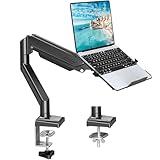
- Fast Laptop In & Out - Easily snap your laptop in or out with our tray design—perfect for busy days. The secure locking tab keeps devices stable while you shift between work zones.
- Flexible Angles, No Limits - Enjoy +90°/-45° tilt, +90°/-90° swivel, and full ±180° rotation. Whether you’re typing, presenting, get the best screen position every time.
- Fits Laptops and Monitors - Use with a max 32" monitor or a 14"-17" laptop—supports 2.2–22 lbs. Perfect for coders, creatives, and multitaskers who love flexibility. Switch between laptop and monitor.
- Smooth Lifting Power - Effortlessly raise or lower your screen with a premium arm—tested over 2,000 times for long-term durability. Enjoy smooth, stable height adjustment up to " and a max extension of 21.2". A rock-solid hold that moves like butter.
- Declutter with Smart Design - Save up to 80% of your desk space while built-in cable management tames the cord chaos. Ideal for minimalist workspaces and clean desk fanatics.
- Install the printer manufacturer’s Arm64 print driver when Windows’ generic queue cannot print, scan or expose finishing options.
- Check Arm64 releases for antivirus, endpoint protection, virtualization and backup filters before blaming the application.
- For games, verify that the anti-cheat service includes an Arm64 driver; an emulated game executable cannot compensate for a missing kernel service.
- For accessibility software and input tools, confirm that injected components are Arm64-compatible.
- For UMDF devices, verify the vendor’s Arm64 package rather than assuming that a similarly named x86 package will load.
If the vendor has no Arm64 driver, changing Prism settings will not solve that dependency. Ask for an Arm64 or Arm64EC component, use a supported alternative device, or run the workload on a system with the required architecture.
4. Remove incompatible shell and injected components from the diagnosis
Explorer context-menu handlers, cloud-storage status overlays, input-method editors and assistive technologies often inject DLLs into Windows processes. Those processes are native Arm64, so an x86-only extension can prevent a menu from appearing, crash Explorer, or cause an application to fail before its own code runs.
The Tool Desk
Outbyte Driver Updater FREEScan for outdated or missing drivers - takes under a minuteDriver Scan →Outbyte PC Repair FREEClear out junk files and repair common Windows errorsFree Scan →Temporarily disable or uninstall nonessential shell extensions and plug-ins, then test the application again. Re-enable them individually. A failure that returns when one extension is restored identifies the component that needs an Arm64 update; changing the application’s emulation mode cannot repair an incompatible DLL loaded into Explorer.
Use this isolation step for plug-ins as well. Remove all optional extensions, establish a clean baseline, and add them back one at a time. Keep a note of the exact extension version because a vendor may publish separate x86, x64 and Arm64 packages under nearly identical names.
5. Verify the graphics API path
Graphics problems are often API-specific. Microsoft documents x86 applications using DirectX 9, DirectX 10, DirectX 11 or DirectX 12 as supported on Arm. By contrast, OpenGL newer than 1.1 and hardware-accelerated OpenGL have documented limitations in this scenario.
Prefer DirectX when the program offers it
Open the application’s launcher or graphics settings and select its DirectX renderer instead of an OpenGL option. If the program exposes separate “legacy,” “software,” “DirectX” or “OpenGL” modes, test DirectX first, then restart the application after changing the renderer. A software-rendering fallback can confirm that the failure is in the graphics path, although it may be too slow for regular use.
What’s actually slowing this PC down?
Pick the symptom - the matching free tool is one click away.
Update the Arm64 graphics driver supplied for the PC and retest. If the application requires a newer or hardware-accelerated OpenGL feature with no DirectX alternative, contact the vendor; Prism settings cannot add an unavailable graphics API.
Document the selected renderer in a support report. “The app crashes” is less useful than “the x86 build starts in software mode but fails during hardware-accelerated OpenGL initialization.”
6. Run the Program Compatibility Troubleshooter
Before using advanced emulation controls, run Windows’ Program Compatibility Troubleshooter for the affected executable. Open Start, search for that tool, select the program, and allow Windows to test recommended compatibility settings. Apply a recommendation only after reproducing the original failure and confirming that the change addresses it.
Rank #3

- 2-in-1 Laptop Monitor Mount: The Laptop Mount fits laptop and notebook up to 17", and monitor up to 32" with VESA 75x75mm and 100x100mm. You can easily switch it between a laptop arm and a monitor mount by choosing whether or not to install the laptop tray. As this desk mount supports device weighing from 4.4 to 22 lbs. When the weight meets this requirement, you can adjust the tension of the gas spring arm to secure it in place. If you have any problems while adjusting it, we are here to help.
- Ergonomic Laptop Arm Mount: With its 14.5" pole, the laptop holder stand offers a wide range of height adjustments, making it a valuable addition to your standing or sitting desk setup. By lifting your laptop off the desk, the laptop tray mount is a handy accessory to help you customize your deskop setup. It can be used on its own or pair with your organised monitor to create a dual-screen setup. It is perfect for working, gaming, creating, helping relieve discomfort from fixed postures.
- Full Motion Adjustment - The laptop desk mount gives you complete viewing flexibility with its swivel, tilt, and rotation adjustments. It is versatile for +70° to -45° tilting, 180° swiveling and 360° rotating. The premium gas spring arm can be extended forward up to 20.9” and elevated to a max height of 23.6". This adjustable laptop stand can be adjusted in many ways, so you can put your laptop in the perfect position for you. This can make you more productive and comfortable.
- Removable Laptop Tray: The ventilated tray is designed with two side clamps to prevent your laptop from slipping and to provide reliable stability. Both clamps can be adjusted vertically to avoid blocking the ports on your laptop's sides, and horizontally to accommodate wider devices. Thanks to its adjustable design, this tray can hold most laptops, MacBooks and notebooks. Additionally, the vent tray has multiple slots for heat dissipation to keep your device cool during extended use.
- Say Goodbye to Messy desk: With clear instructions and all necessary mounting hardware, you can easily install the laptop desk arm yourself. Depending on your desk, you can choose between a C-clamp (fits desk thicknesses of 0.39“~2.76") or grommet mount (fits desk thicknesses of 0.39“~1.97", a hole diameter of 0.39“~2.36"). As well as freeing up desktop space, this laptop riser arm features a built-in cable management system to store cable clutter, creating a organised workspace.
Use the troubleshooter as a diagnostic step, not as proof that every dependency is compatible. It can adjust application-level behavior, but it cannot supply an Arm64 driver or repair an incompatible shell extension.
7. Change Prism settings per application
Prism controls are scoped to an individual executable. Locate the program’s executable in File Explorer, right-click it, choose Properties > Compatibility > Change emulation settings, and start with Default. Launch the program using the same workload that exposed the problem.
Use the least restrictive setting that works
- Default: establish the normal Prism behavior and performance baseline.
- Safe: test when Default crashes or shows unstable behavior.
- Strict: test when Safe does not resolve the failure.
- Very strict: reserve for persistent compatibility problems after the preceding modes fail.
More conservative modes can increase compatibility but generally reduce performance. Change one setting at a time, write down the result, and revert immediately if launch time, frame rate, battery life or stability worsens. Settings apply to the selected executable, so a launcher and the child program may require separate tests.
Do not change several advanced switches together. If the result improves, you will not know which control mattered; if it worsens, you will have to undo multiple variables before returning to a known-good state.
8. Target specific Prism failure modes
The advanced controls are useful only when the symptom points to a particular execution path. Test one control, restart the program, and compare the result with Default.
Quick wins for a faster PC:
Repair Windows errors before they cause bigger problemsFix Now →Fix the driver behind crashes, sound loss and screen glitchesFind Drivers →Hybrid execution and CHPE conflicts
Disable hybrid execution for an x86 application that conflicts with CHPE (compiled hybrid portable executable) behavior. This is a targeted compatibility test, not a general speed option; disabling hybrid paths can lower performance.
Application translation cache
Prism caches translated code so repeat launches normally require less run-time compilation. If an application behaves differently on its first and later launches, or appears to reuse bad translated code, test the per-app cache option. Disabling the cache forces recompilation during execution and normally hurts performance, so restore caching after the diagnosis.
Self-modifying or generated code
Some runtimes and protection systems generate machine code while the program runs. Enable the strict self-modifying-code support option when a crash or hang points to generated code. Expect a possible performance cost.
RWX and floating-point optimizations
Disable RWX optimization or floating-point optimization only when testing indicates that the application reaches those paths. These switches are compatibility workarounds, not routine tuning controls, and can reduce throughput.
Rank #4

- 【RAM & Storage】This computer comes with 16GB RAM DDR5 | 512GB SSD
- 【Qualcomm Snapdragon X X1-26-100】It is an affordable ARM architecture processor for use in Windows laptops. Unveiled in Jan 2025, this Qualcomm SoC features 8 Oryon CPU cores running at up to 2.98 GHz, along with the 1.7 TFLOPS X1-45 iGPU and the 45 TOPS Hexagon NPU. The super-fast LPDDR5x-8448 memory controller, USB 4.0 support, TB 4 support and PCIe 4 support are all onboard as well.
- 【 16” WUXGA (1920 x 1200) Display】Enjoy better color accuracy and wider viewing angles and display and a high resolution of 1920x1200. A 16:10 aspect ratio lets you see more of your content with less scrolling.
- 【Other features】Qualcomm Adreno GPU,Copilot+ PC Experiences,Windows 11 Home operating system.
- 【Bundle with USB Hub】Bundled with USB 3.0 Hub, Suitable for USB port computer and other equipment, standard USB3.0 theory 5Gbps high-speed transmission, can actually SUB2.0 multi-port expansion, such as: mouse, keyboard connection.
Multi-core options
Advanced multi-core settings can be tested when a program has thread-related instability. Apply one change, exercise the same workload, and keep the setting only if it fixes a reproducible fault without an unacceptable performance loss.
9. Interpret the most common symptoms
| Symptom | Most likely area | Next action |
|---|---|---|
| The program never starts | Missing driver, incompatible injected DLL, blocked dynamic code or an application-level emulation issue | Test without shell extensions, verify Arm64 drivers, run the troubleshooter, then try Prism modes in order |
| The program opens but printing or scanning fails | Printer or device driver architecture | Install the vendor’s Arm64 print or device driver; Prism cannot translate a kernel driver |
| Explorer context menus or overlays disappear | x86-only shell extension or injected DLL | Disable extensions individually and obtain Arm64-compatible versions |
| Graphics initialization fails or the screen is corrupted | Unsupported OpenGL path or graphics driver | Select DirectX 9–12 when available and update the Arm64 graphics driver |
| First launch is slow but later launches improve | Normal translation and cache warm-up | Keep the translation cache enabled unless it is part of a specific fault investigation |
| A game starts but online play is blocked | Anti-cheat service or driver | Confirm that the anti-cheat package has Arm64 support; application emulation alone is insufficient |
10. Decide when to stop tuning and request an Arm build
Escalate to the vendor when the application depends on a kernel driver, an unsupported shell DLL, blocked dynamic code or a graphics API that has no supported alternative. Ask specifically for an Arm64 build or an Arm64EC release and include the Windows build, application version, architecture, affected peripheral and the Prism settings you tested.
Arm64EC is particularly useful for large applications with third-party plug-ins: the vendor can port selected modules first while retaining compatible x64 components. It is not a driver workaround; every kernel-mode dependency still needs its own Arm64 implementation.
Ask the vendor whether its support statement covers your exact Windows release, not merely “Windows on Arm” in general. Also ask whether the statement covers printing, plug-ins, shell integration, online services and hardware acceleration. Those details often determine whether the application is usable for your workload.
Performance: what to expect from emulation
Emulation is a just-in-time translation process, not native execution. Prism translates instruction blocks and optimizes the resulting Arm64 code, then reuses cached translations. CPU usage, latency and battery impact therefore depend on the application’s instruction mix, plug-ins, graphics API and workload. There is no universal performance multiplier for x86 or x64 software on Arm.
A native Arm64 build removes the translation layer and is usually the best performance and efficiency fix. If no native build exists, keep Default Prism settings, use the documented DirectX path, retain the translation cache, and avoid strict modes unless they solve a reproducible compatibility failure. Disabling optimizations can make a program more reliable while making it slower; measure the actual workload rather than assuming that a setting is beneficial.
Use a repeatable performance comparison
Compare cold launch, repeat launch and the same sustained task. Note launch time, responsiveness, frame rate where relevant, CPU behavior, battery drain and whether the application completes the task without errors. A setting that improves startup but causes a later crash is not a successful fix. Likewise, a strict mode that prevents a crash may be acceptable for an occasional utility but unsuitable for an all-day workload.
Do not treat a single laptop result as a universal benchmark. Firmware, graphics drivers, cooling and attached peripherals differ between Arm models, and Microsoft has not published one authoritative compatibility percentage or performance multiplier for this scenario.
Validation before deployment
Compatibility is component-specific. Check the software vendor’s support matrix and Microsoft’s evolving Works on WoA database, then test the exact Windows build, application release, plug-ins, printer or peripheral and production workload. A result on one Arm laptop does not guarantee the same result on another model with different firmware, graphics drivers or attached hardware.
Best Value

- UNOPENED RETAIL PACKAGING, sold as configured by Lenovo. Includes one year of Courier or Carry-in Lenovo Warranty. Add up to 4 years of Lenovo Premium Care Onsite Plus when you register your computer with Lenovo.
- Amazing Display: 14.5" 3K (2944 x 1840), OLED, Glare, Dolby Vision, Touch, HDR 600 True Black, 100I-P3, 1000 nits (Peak)/500 nits (Typical), 90Hz, Glass
- Experience exceptional performance with the Snapdragon X Elite X1E-78-100 processor, Delivering 45 trillion operations per second, ensuring tasks are more efficient and faster. With exceptional power efficiency expertly managed by the tuning of the Slim 7x, you can enjoy up to 23.5 hours of video playback on a single battery charge.
- Designed to get any job done with memory of 16 GB and even more storage capacity at 1 TB. And power through your day with plenty of connectivity, including: 3x USB-C (USB4 40Gbps), with USB PD 3.1 and DisplayPort 1.4.
- The Snapdragon X Elite X1E-78-100 processor is perfect for those with a creative mind and an eye for design. It delivers top-tier performance while cutting power consumption by 68%, letting your creative juices flow all day without any interruptions.
- Record the final Windows build and application version.
- List every native Arm64 driver and plug-in required by the workload.
- Test first launch, repeat launch, sleep and resume, printing, file dialogs, graphics acceleration and any online or hardware-backed feature.
- Keep a known-good Prism configuration and document how to revert advanced settings.
- Retest after major Windows, driver or application updates because compatibility behavior can change.
Microsoft’s “Troubleshooting x86 desktop apps” guidance, dated November 6, 2025, reflects an evolving compatibility landscape. Recheck vendor and Microsoft documentation when Windows or the application receives a major update.
Frequently asked questions
Frequently Asked Questions
Why is my x86 app slow on a Snapdragon Windows laptop?
An x86 app runs through Prism translation rather than directly as Arm64 code. Translation blocks are cached, so later launches may improve, but CPU use and responsiveness still depend on the workload, plug-ins and graphics path. Install a native Arm64 build if the vendor offers one, keep the cache enabled, and use Default Prism settings unless a stricter mode fixes a reproducible crash.
Can Windows on Arm run x64 applications?
Windows 11 24H2 and later use Prism to emulate x64 user-mode applications. Windows 10 on Arm is described as providing x86 emulation only, so it does not provide the same x64 path. In either case, drivers and other kernel-mode components must be native Arm64.
Why does the application open but my printer or scanner fail?
The main executable is user-mode and can be emulated, while the print or device driver is a separate component that Windows cannot translate. Install the manufacturer’s Arm64 driver. A generic Windows driver may provide basic access but omit scanning, finishing or other advanced features.
Which Prism setting should I try first?
Start with Default and establish a baseline. If the program still crashes or behaves incorrectly, test Safe, then Strict, then Very strict. Change one setting at a time, because more conservative modes can reduce performance and battery life.
Should I disable the translation cache to improve performance?
Usually no. The cache lets Prism reuse translated code and normally reduces work on later launches. Disable it only as a targeted test for a launch or repeat-run anomaly, then restore caching because recompilation during execution generally hurts performance.
Can Prism fix an x86 anti-cheat driver or antivirus filter?
No. Anti-cheat drivers, antivirus filters, virtualization components and other kernel-mode code need Arm64 builds. Ask the vendor for an Arm64 component or use a supported alternative; changing user-mode emulation settings cannot translate the driver.
Quick wins for a faster PC:
Fix the driver behind crashes, sound loss and screen glitchesFind Drivers →Repair Windows errors before they cause bigger problemsFix Now →Why does OpenGL fail when DirectX works?
Microsoft documents x86 applications using DirectX 9 through DirectX 12 as supported on Arm, while OpenGL newer than 1.1 and hardware-accelerated OpenGL have documented limitations. Select the application’s DirectX renderer when available and update the Arm64 graphics driver.
When should a vendor provide Arm64EC instead of a full Arm64 rewrite?
Arm64EC helps large applications move selected modules to Arm64 while retaining compatible x64 components, especially when third-party plug-ins make an immediate full port impractical. It does not remove the requirement for Arm64 kernel drivers or other architecture-sensitive dependencies.
The Bottom Line
Start with architecture and driver checks, not random emulation switches. Windows 11 24H2 Prism can run x86 and x64 user-mode applications, but unsupported drivers, shell DLLs and graphics paths remain hard limits. Use DirectX when available, keep the translation cache, test Prism settings one at a time, and request an Arm64 or Arm64EC build when the dependency itself cannot be translated.
Quick Recap
Product prices and availability are accurate as of the date/time indicated and are subject to change. Any price and availability information displayed on Amazon at the time of purchase will apply.
The Tool Desk
Outbyte Driver Updater FREEFix the driver behind crashes, sound loss and screen glitchesFind Drivers →Outbyte PC Repair FREEClear out junk files and repair common Windows errorsFree Scan →
