
iTechGuides is reader-supported. When you buy through links on our site, we may earn an affiliate commission. As an Amazon Associate I earn from qualifying purchases. Learn more
A slow or frozen TradingView chart is usually caused by the browser session, an overloaded chart or computer, or software blocking TradingView traffic—not by the candles themselves. First check TradingView Status from another tab or device, then isolate the problem by trying the browser fixes, Desktop cache steps, load reductions, and network checks below. A stale price feed, a connection warning, and drawings that fail to sync are different problems and need different fixes.
Start by identifying what is actually broken
Do not begin by deleting cache or changing hardware. Compare the symptom across browsers, devices and accounts so you know whether the fault is local or shared. TradingView can be slow because a single browser profile is overloaded, while a provider-specific feed incident can leave candles stale for many users at once.
| Symptom | Useful comparison | Clues to record | Best first move |
|---|---|---|---|
| Blank chart or an endless loading indicator | Does it occur in one browser, every browser, or every device? | Extra tabs, extensions, long-running browser session, high CPU or memory | Open TradingView Status, then use the browser sequence |
| Laggy cursor, delayed drawing or frozen controls | Does disabling indicators improve responsiveness? | A resource-intensive indicator or other demanding applications | Disable all indicators and re-enable them one at a time |
| Last price or candles remain unchanged | Do other symbols update? Does another device update? | Connection warning, provider notice, or a service incident | Read the chart warning and check service status |
| Drawings, layouts or settings do not appear on another device | Are live prices updating normally? | Only saved chart content is missing | Treat it as a synchronization problem, not proof of a stale feed |
| TradingView Desktop fails while the website works | Does the same account work in a browser? | Outdated app or stale Desktop cache | Update Desktop and clear its service cache |
1. Check whether TradingView itself is having an incident
Open the TradingView Status page in a second browser tab or on another device before making local changes. Its history identifies chart-loading incidents, provider events described as charts not updating, maintenance and the time an issue was resolved. If the status page shows an active incident affecting charts or your data provider, clearing a local cache or closing tabs cannot repair the underlying service.
Recommended Free Tools
For context, TradingView recorded a Slow loading data incident on 28 May 2019 and marked it resolved at 14:30 GMT that day. That historical record demonstrates why scope matters; it is not evidence that a current outage exists. Look for a current event matching your market, data provider and time of failure.
#1 Best Overall

- DO MORE ON ONE SCREEN: See every detail on the wider display featuring a 21:9 aspect ratio; Ultra WQHD provides the simplest way to maximize screen real estate and experience truly seamless multitasking on just one screen.Brightness (Typical) : 300 cd/㎡. Static Contrast Ratio 3000:1.
- ENJOY A BILLION COLORS W/ INCREDIBLE DEPTH: With HDR10 that displays over 1 billion colors compared to 16.7 million for typical SDR technology, dark colors are darker and the brightest are even brighter; Content is experienced as the creator intended
- CARE FOR YOUR EYES DAY and NIGHT: An ambient light sensor on the monitor detects lighting in your workstation and automatically adjusts brightness; Eye Saver Mode minimizes excessive blue light, and Flicker Free relieves eye strain
- SEE CONTENT SMOOTHER, EVEN GAMING: A faster than average refresh rate updates the image on screen more often every second; 100Hz refresh rate reduces lag and motion blur when playing games, watching videos, or working on design projects
- STAY IN SYNC WITH THE ACTION: AMD Radeon FreeSync keeps the refresh rate of your monitor and graphics card in sync to reduce image tearing for a superfluid entertainment experience; Watch movies and play games without interruptions
Use a second surface for the comparison
- Keep the affected chart open and check Status from another tab, phone or computer.
- Ask whether another symbol, exchange or provider updates. A problem limited to one provider can look like a general TradingView failure.
- Compare a logged-in session with another browser only after checking the service notice, so you do not mistake an outage for a profile problem.
2. Apply the browser fixes in order
TradingView says performance depends on factors including the number of open tabs, extensions such as Adblock, and how long the browser has run without restarting. Work through the following sequence, testing the chart after each step. Stop when the symptom disappears; the last change is your strongest lead.
- Reload the chart page. Use the browser reload command while the affected chart is open. This re-establishes the page session without changing your layout or indicators.
- Restart the browser completely. Close every browser window, wait briefly, and open a fresh window. A browser that has been running for a long time can accumulate tabs, extension processes and memory pressure.
- Close additional tabs. Leave only the TradingView chart and the Status page open for the test. Other tabs can consume memory or processor time even when you are not looking at them.
- Disable added extensions. Turn off extensions, beginning with ad blockers and privacy, script-filtering or network-monitoring additions. Reload TradingView after changing them. If the chart recovers, re-enable extensions individually to identify the conflict rather than leaving every extension disabled.
- Try another browser. Use a browser with a clean session and compare the same symbol, interval and layout. A working second browser points toward the original profile, its extensions or stored site data; it does not prove that a particular browser is universally incompatible.
- Use a private or incognito window as a diagnostic. If TradingView works there but not in the normal profile, an extension or site data in that profile is a likely lead. This is a troubleshooting inference, not a guarantee that private mode fixes the root cause.
What the browser comparison tells you
If a private window and a second browser both work, focus on the original profile: extensions, accumulated site data or a session that was never restarted. If every browser on one computer fails while another device works, inspect that computer’s resources and security software. If every client fails at the same time, return to Status and provider notices instead of repeatedly clearing local data.
3. Repair TradingView Desktop separately
Desktop has its own update and cache controls. A problem confined to the app can persist even when the web version is healthy, so test both surfaces.
What’s actually slowing this PC down?
Pick the symptom - the matching free tool is one click away.
- Check for an update. Open the three-dot menu in TradingView Desktop, then go to Settings → About. Install any offered update and relaunch the app.
- Clear the Desktop service cache. Open Settings → Service → Clear cache. Confirm the action, close or relaunch Desktop as prompted, and load the chart again.
- Compare with the web app. Open TradingView in a browser using the same account, symbol and interval. If the browser works but Desktop does not, the app’s update state, cache or local installation is the more useful lead. If both fail, investigate the shared account, network, provider or service status instead.
Do not treat clearing cache as a universal cure. It is a targeted Desktop step; it cannot correct an active TradingView incident, a blocked connection or a provider whose feed is delayed.
Rank #2

- Improved ComfortView Plus: Reduces harmful blue light emissions to ≤35%, for all-day comfort without sacrificing color accuracy.
- Refresh rate: A smooth, tear-free experience with AMD FreeSync Premium (refresh rate up to 120Hz) and an ultra-low 0.03ms response time create a captivating experience for work and play.
- Vivid colors: Enjoy vibrant, true-to-life colors with 99% sRGB and 95% DCI-P3 coverage. The VA panel with 3000:1 contrast ratio and HDR readiness delivers stunning depth, detail and realism.
- Re-engineered sound quality: Enjoy more detailed sound with spacious audio featuring greater output power, deeper frequency response and more decibel range than the previous generation.
- Easy connectivity: Keep your desk organized and clutter-free with a single USB-C cable (up to 65W power delivery).
4. Reduce chart and computer load
TradingView warns that resource-intensive indicators can cause a tab to crash. High processor or memory use can also make a chart appear to be loading forever because the interface cannot respond promptly.
Isolate an indicator
- Open the affected layout and disable every indicator.
- Reload or switch symbols and observe whether cursor movement, controls and candles respond normally.
- Re-enable indicators one at a time, waiting after each addition. The first indicator that brings back the lag is the trigger to investigate or remove.
This test is more informative than deleting all indicators permanently: it identifies whether the load comes from one script, the combination of several studies or the base chart itself.
Free system resources
- Close other resource-intensive applications while testing the chart.
- Inspect CPU and memory use in your operating system’s process monitor. Record whether usage rises when the chart freezes.
- Reduce the number of simultaneously open charts or layouts during diagnosis.
- Keep the operating system and hardware drivers current, as TradingView recommends.
Do not buy a router, monitor, cooling device or graphics card as a first response. No performance threshold or benchmark is provided that would justify hardware as the general fix. Hardware investigation becomes reasonable only after the same chart remains slow across clean browser sessions and you have confirmed sustained resource pressure.
5. Check antivirus, firewalls, VPNs and monitoring tools
TradingView lists antivirus programs, firewalls, VPN clients and network-monitoring tools as software that can interfere with operation. These tools may block or inspect requests needed to load a chart or maintain its live connection.
Rank #3
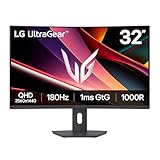
- Fast Response. Full Screen Immersion. - This UltraGear delivers fast, immersive gameplay on a 32" QHD curved display, with 180Hz refresh rate, and 1ms response. AMD FreeSync ensures smooth, tear-free action, while HDR10 and up to 99% sRGB coverage bring vivid color.
- 32" QHD Curved Display (1000R) - Dive into every detail with a 32" QHD (2560x1440) curved display. The 1000R curvature pulls you into the action, expanding your field of view for deeper immersion and giving you more screen space to game, multitask, or stream with ease.
- HDR10 & up to 99% sRGB Color - Experience vibrant, bold visuals with HDR10 support and up to 99% sRGB color gamut coverage. Whether you're gaming, streaming, or creating, colors stay rich and impactful—revealing more detail in every scene for a more dynamic and visually stunning experience.
- Experience Smooth Motion with 180Hz - With a fast 180Hz refresh rate, you’ll experience smoother frame transitions. Whether you're working or gaming, enjoy more fluid visuals with less screen stutter and motion blur.
- 1ms Response (GtG) for Crisp Gameplay - 1ms Response Time (GtG) keeps fast-paced gameplay sharp by minimizing blur and ghosting. Whether you're tracking enemies or racing to the finish, every frame stays crisp—giving you the edge when it matters most.
- Note which security, VPN or monitoring products are active on the affected device.
- Temporarily test the chart with one suspected tool paused, changing only one variable at a time.
- Reload TradingView and compare the result with the tool enabled.
- If the tool is responsible, configure an allow rule for TradingView traffic using that product’s normal settings, then restore protection.
Never leave antivirus, firewall or VPN protection disabled as a permanent workaround. The temporary pause is only an isolation test; the durable fix is an appropriate allow configuration or a different network path approved by your security policy.
6. When candles or the last price are not updating
A chart that looks frozen is not always a slow chart. First look for a visible warning on the chart page. TradingView provides notice-specific guidance for messages such as a closed connection or a parallel chart connection. Follow the instructions attached to the exact warning rather than applying generic browser changes indefinitely.
Separate the possible scopes
- One browser profile: A clean browser or private window works, so focus on extensions, site data or the original session.
- One device: Other devices update, which makes local resources, security software or the device’s network path more likely.
- One provider or market: Other symbols update but the affected feed does not. Check for a provider-specific event in TradingView Status.
- All clients: The same account, browser and device combinations fail. An active service incident, provider problem or network-wide block is more plausible than a single stale tab.
Use timing as evidence
Record whether the failure is constant, begins after a long browser session, appears immediately after adding an indicator or starts at the same time as a Status notice. A delay that follows a long session supports the restart and resource tests. A failure synchronized with an incident should be monitored until the service reports resolution. A failure limited to one provider should not be described as proof that every TradingView market feed is down.
Do these 3 things before closing this tab:
1Clear out junk files and repair common Windows errors2Fix the driver behind crashes, sound loss and screen glitches3Repair Windows errors before they cause bigger problemsDo not confuse a delayed feed with unsaved work
If the last traded price and candles continue to move but drawings, layouts or cross-device saves do not, the live market connection may be healthy. TradingView has a separate help section for charts that are not saving or syncing. Use that synchronization guidance for persistence problems; do not infer a stale market feed from missing drawings.
Rank #4

- 【Curved Ultrawide Monitor 49" & VA】 Premium VA Panel delivers double FHD 1080p resolution up to 144hz( DP1.4) monitor for content creation and gaming, 32:9 aspect ratio bring more wider visual than ordinary 16:9 monitor, capture game details more clearly for quick response. Tilt / Swivel / Height Adjustable meet different viewing visions
- 【USB Type C, DP and HDMI Ports】49C1G widescreen curved monitor delivers powerful USB C power delivery connectivity and have richful interfaces: 1 x DP 1.4, 1 x USB C 65W, 1 x HDMI 2.1, 2 x USB A, 1 x USB-B, 1 x RJ45, 1 x 3.5MM Audio Jack, you can directly connect your USB C devices such as Laptop, Mac, Phones, Tablets, Gaming Console( like Switch, PS5/4/3, XBOX Series etc) . It's much more convenient
- 【Adaptive-Sync & HDR 400 Technology】 INNOCN 49C1G ultrawide computer gaming monitor adopt high dynamic range (HDR) technology with professional color gamut (99% sRGB) delivers high contrast 3000:1 and color performance that meets the Display HDR 400 and Adaptive-Sync, bring smooth images and video viewing experience
- 【Enhanced Comfort & Double Your Experience】: 1800R curvature results in less eye fatigue; The curved screen allows content to be viewed at a glance while proven to limit eye strain compared to flat monitors. Dual FHD ensures enhanced depth in every detail, delivering incredibly realistic images; INNOCN 49C1G 32:9 super ultra wide display maximizes your screen real estate for seamless multitasking on just one computer screen
- 【Boost Productivity with Ultrawide Display】 Equipped PIP / PBP split screen technology which allowing you to configure your monitor to show content from two separate input sources. Play, watch, stream or work from multiple input sources at the same time, on one screen. You will not go wrong with any details, produce more fun and innovative things with INNOCN monitor. Just turn on and play
7. A practical decision path
Use this order when several causes fit at once:
- Check scope: Status page, another device and another browser.
- Check the surface: Decide whether the failure is browser-only, Desktop-only, mobile-only or present everywhere.
- Check the symptom: Classify it as blank/loading, cursor lag, frozen controls, stale price or unsaved drawings.
- Check clues: Look for high CPU or memory, a new indicator, a VPN or firewall, a connection warning or a provider notice.
- Apply the narrowest fix: Browser sequence for a profile issue, Desktop update/cache for an app issue, indicator isolation for load, or security configuration for blocked traffic.
- Re-test with a controlled chart: Use one symbol, one interval and no indicators before restoring your normal layout.
| What changes the diagnosis | Interpretation | Next test |
|---|---|---|
| Private window works | Normal profile is implicated | Disable extensions and investigate profile site data |
| Another browser works | Original browser session or configuration is implicated | Restart, remove extensions and compare again |
| Browser works, Desktop fails | Desktop-specific state is implicated | Update, clear cache and relaunch |
| Removing one indicator restores speed | That indicator or its interaction with the layout is implicated | Leave it disabled or test it alone before rebuilding the layout |
| All clients fail during a Status event | Local changes will not resolve the service incident | Follow the incident and provider updates |
8. Verify the fix before returning to a complex layout
After a change, test deliberately instead of assuming the problem is gone. Reload the same symbol, switch to another symbol, move the cursor across the chart, change the interval and watch whether the last price advances. Then restore indicators or extensions one at a time. If the failure returns, undo the last change and keep that variable isolated.
For a synchronization issue, make a small drawing or layout change, wait for it to save, and check the same account on another device. Keep this test separate from live-price testing so you know whether you repaired persistence or the market connection.
9. What to document if the problem persists
Write down the time and time zone, affected symbol and provider, browser or Desktop version, device, whether other browsers and devices worked, visible warning text, indicator changes, CPU or memory symptoms and any VPN, firewall or antivirus test. Include whether TradingView Status showed an incident. This evidence distinguishes a profile problem from a provider event and prevents repeating the same broad fixes without learning from each test.
The Tool Desk
Outbyte Driver Updater FREEFix the driver behind crashes, sound loss and screen glitchesFind Drivers →Outbyte PC Repair FREEClear out junk files and repair common Windows errorsFree Scan →Bottom line: fix the scope, not just the symptom
Start with service status and a second device or browser. Then restart and simplify the browser, update and clear TradingView Desktop when appropriate, isolate indicators and resource pressure, and test security or network software without leaving protection disabled. Treat connection warnings and provider incidents as feed problems, while unsaved drawings and layouts belong to synchronization troubleshooting. That sequence turns a vague frozen-chart complaint into a specific, testable cause.
Quick Recap
Product prices and availability are accurate as of the date/time indicated and are subject to change. Any price and availability information displayed on Amazon at the time of purchase will apply.

