
iTechGuides is reader-supported. When you buy through links on our site, we may earn an affiliate commission. As an Amazon Associate I earn from qualifying purchases. Learn more
Most C64 simulator problems that look like bad HDMI cables, broken games, or faulty sound hardware begin with one of three mismatches: the emulator is using the wrong PAL/NTSC machine, the display refresh rate does not match the simulator’s 50 Hz or 60 Hz output, or audio buffering and HDMI settings do not suit the host. Correct the video standard first, then match the display mode, and only then tune buffers, drivers, filters, and cables.
Start with the C64 video standard
A Commodore 64 is not clocked identically in every region. PAL and NTSC machines derive their timing from different colour-carrier crystals, so choosing the wrong machine changes CPU speed, VIC-II raster timing, video refresh, and sound pitch. A title that appears to run too quickly, too slowly, or with broken raster effects may be functioning correctly for its intended standard while the simulator is configured for the other one.

| Timing value | PAL C64 | NTSC C64 | Why it matters |
|---|---|---|---|
| Master clock | 17.734475 MHz | 14.31818 MHz | All major machine timing is derived from this clock. |
| CPU clock | 985248 Hz | 1022727 Hz | Cycle-counted code and game speed differ. |
| VIC-II dot clock | 7881984 Hz | 8181816 Hz | Raster geometry, scan-line effects, and display timing differ. |
These figures are documented in the Codebase64 C64 timing reference. The difference is large enough to affect raster interrupts, cycle-sensitive demos, scrolling tricks, disk routines, and SID music. VICE’s file-format documentation also notes that clock differences can detune NTSC music when it is played on a PAL machine.
What’s actually slowing this PC down?
Pick the symptom - the matching free tool is one click away.
How a mismatch appears
- A game runs faster or slower than expected.
- Music is at the wrong pitch or drifts against the picture.
- A raster bar, split screen, status panel, or other VIC-II effect tears or disappears.
- A demo hangs during a timing-sensitive effect.
- A disk or tape title loads but behaves incorrectly after loading.
Do not try to correct these symptoms with a video scaler. Scaling changes how an image is presented; it does not change the simulated CPU or VIC-II timing.
Popular on Amazon
Choose the machine that the software expects
- Identify whether the program was authored for PAL, NTSC, or both. Release notes, demo documentation, disk labels, and the software’s original region are useful clues.
- Open the simulator’s machine or video-standard selector and choose the matching PAL or NTSC model.
- Restart or reload the title after changing the machine. Some software reads timing assumptions during startup.
- Test a raster-heavy demo and a piece of music before changing audio or HDMI settings. This confirms that the fundamental clock is correct.
Keep the software’s intended standard when loading disk, tape, or music content. If a title is NTSC-only, a PAL-only implementation cannot reproduce its NTSC raster geometry by changing resolution, refresh settings, or a cable.
PAL-only implementations are a hard compatibility boundary
C64 Ready’s known-issues documentation states that it models only a PAL machine and leaves NTSC raster geometry and timing out of scope. An NTSC-only title can therefore fail even when the display and controls are working normally. Use an implementation with an NTSC-capable, cycle-accurate model instead of compensating with a scaler.
VICE is the practical fallback when you need multiple C64 video standards. Its documentation covers PAL and NTSC machines and accurate 6502/6510 and VIC-II timing. Select the appropriate standard before judging a game, demo, or SID file as incompatible.
Match the display refresh to the simulator output
After selecting PAL or NTSC, make the monitor or television accept the corresponding refresh. PAL output is normally close to 50 Hz; NTSC output is normally close to 60 Hz. If the display runs at an unrelated rate, the presentation layer must repeat or drop frames. The result can be judder, uneven scrolling, visible stutter, or audio that slowly moves out of sync.
Use this display sequence
- Confirm which standard the simulator is producing.
- Choose a display mode that follows that standard: 50 Hz for PAL or 60 Hz for NTSC whenever the hardware offers both.
- Temporarily remove scalers, converters, capture devices, and AV receivers from the signal path. Test the simulator directly on the display.
- Check whether the display reports the selected refresh accurately. Some televisions accept a signal but internally convert it to another rate.
- Only after a stable direct connection is working should you reintroduce a scaler or receiver.
A mode that is technically accepted by HDMI is not necessarily timing-compatible. This is particularly important for the nonstandard 50.125 Hz mode used by some BMC64 configurations.
Fix BMC64 timing and HDMI output
BMC64 runs on Raspberry Pi hardware and provides PAL and NTSC configurations. Its safest PAL example is 720p at 50 Hz. Start there whenever the screen is blank, unstable, or the sound drifts.
Safe BMC64 procedure
- Verify that the Raspberry Pi board generation, power supply, and BMC64 image are compatible with one another.
- Select the PAL or NTSC configuration required by the software.
- Use the documented 720p PAL 50 Hz mode for PAL software before experimenting with custom timings.
- Connect the Pi directly to the monitor or television and verify stable picture and sound.
- Re-add any receiver, scaler, or converter only after the direct connection remains synchronized.
When to use 50.125 Hz
BMC64 documents a custom 50.125 Hz mode intended to track original C64 timing more closely than a nominal 50 Hz output. That precision is useful only when the entire display chain accepts it. The BMC64 guide warns that custom HDMI modes may not work on every monitor and that HDMI modes which are not exactly 50 Hz or 60 Hz can cause audio-synchronization problems.
Quick wins for a faster PC:
Repair Windows errors before they cause bigger problemsFix Now →Scan for outdated or missing drivers - takes under a minuteDriver Scan →Also popular on Amazon

- Includes Raspberry Pi 4 4GB Model B with 1.5GHz 64-bit quad-core CPU (4GB RAM)
- Includes Pre-Loaded 32GB EVO+ Micro SD Card (Class 10), USB MicroSD Card Reader
- CanaKit Premium High-Gloss Raspberry Pi 4 Case with Integrated Fan Mount, CanaKit Low Noise Bearing System Fan
- CanaKit 3.5A USB-C Raspberry Pi 4 Power Supply (US Plug) with Noise Filter, Set of Heat Sinks, Display Cable - 6 foot (Supports up to 4K60p)
- CanaKit USB-C PiSwitch (On/Off Power Switch for Raspberry Pi 4)
Test 50.125 Hz only after 720p 50 Hz works. If the display goes blank, loses sync, or audio begins drifting, return to the safe 720p PAL 50 Hz mode. A monitor that rejects the custom mode is not evidence of a defective Pi or HDMI cable.
Fix VICE sound delay, crackle, and skips
VICE’s audio buffer is a latency-versus-stability control. A larger buffer gives the host more time to prepare sound, but it also increases the delay between an emulated event and what you hear. The VICE settings manual states that the bigger the buffer, the longer the playback delay.
Set the buffer methodically
- Select the correct PAL or NTSC machine before tuning audio.
- Set the audio sample rate to one supported by the host audio device.
- Start with a small buffer so input and sound effects feel responsive.
- Play a demanding section or demo. If crackles, pops, or underruns occur, increase the buffer one step.
- Stop increasing as soon as playback is stable. A very large buffer may hide underruns while making controls and music noticeably late.
If the sound is delayed but clean, the buffer is probably too large or another layer is buffering audio. Reduce VICE’s buffer and remove unnecessary operating-system, capture-device, or receiver buffering while testing.
When audio crackles or skips
Crackling usually indicates host overload, a driver problem, or an audio-buffer underrun rather than an incorrect SID file. Follow this order:
Recommended Free Tools
- Disable CPU-heavy video options such as CRT effects while diagnosing sound.
- Check host CPU load and close other demanding applications.
- Try VICE’s faster SID engine when the selected emulation mode is consuming more CPU than the host can sustain.
- Change the sound driver if CPU usage is reasonable but playback still underruns.
- Raise the buffer slightly after the workload is under control.
Do not enable every visual enhancement while troubleshooting audio. Establish a clean, stable baseline first, then re-enable filters one at a time.
Drive emulation can affect performance
VICE’s true-drive emulation reproduces hardware-level disk behavior required by some software, but it increases workload. Enable it when a title depends on real drive timing or protection behavior; leave it off during ordinary disk use if performance is marginal. If enabling true-drive emulation introduces crackle, revisit CPU load and buffer size rather than assuming the disk image is damaged.
Fix MiSTer HDMI video and silent audio
MiSTer’s INI documentation contains a setting that often explains the combination of working picture and silent HDMI sound: dvi_mode. When enabled, it selects DVI signalling over the HDMI connection and disables audio transmission over HDMI.
Also popular on Amazon
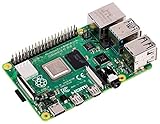
- Broadcom BCM2711 Quad Core Cortex-A72 (ARM v8) 64-bit SoC @ 1.5GHz
- 1GB, 2GB or 4GB 8GB-3200 SDRAM (depending on model).
- 2.4GHz and 5.0GHz IEEE 802.11ac Wireless, Bluetooth 5.0, BLE Gigabit Ethernet
- 2 USB 3.0 ports; 2 USB 2.0 ports.
- Raspberry Pi Standard 40 pin GPIO header (fully backward compatible with previous boards).
MiSTer diagnostic order
- Confirm that the core is configured for the intended PAL or NTSC output.
- Confirm that the display accepts the resulting 50 Hz or 60 Hz mode without frame judder or repeated sync loss.
- Open the MiSTer INI configuration and ensure
dvi_modeis disabled when audio must travel through HDMI. - Use the normal 48 kHz HDMI audio rate first.
- Try
hdmi_audio_96konly when the display or receiver reports a sampling-rate problem or the system specifically requires 96 kHz. - Remove unnecessary scalers, converters, and audio extractors while isolating the fault.
If video works and the receiver is silent, changing the cable or replacing the board should not be the first step. Check dvi_mode and the receiver’s selected HDMI input mode first. An HDMI audio extractor can help a display chain that genuinely cannot carry or decode the simulator’s audio, but it cannot restore audio that MiSTer has intentionally disabled through DVI mode.
Use symptoms to choose the first correction
| Symptom | Most likely cause | First correction |
|---|---|---|
| Game runs too fast or too slowly | PAL/NTSC mismatch | Select the machine standard intended by the software. |
| Raster effects break or the screen tears | Wrong VIC-II timing or an unsupported NTSC mode | Use an NTSC-capable, cycle-accurate model. |
| Sound is delayed | Audio buffer is too large or another device is buffering | Reduce the VICE buffer and simplify the audio path. |
| Sound crackles or skips | Host overload, driver issue, or buffer underrun | Disable expensive filters, check CPU load, change driver, then raise the buffer slightly. |
| Video works but HDMI audio is silent | MiSTer dvi_mode is enabled |
Disable dvi_mode. |
| BMC64 audio drifts in custom mode | Monitor does not track 50.125 Hz correctly | Return to 720p PAL 50 Hz. |
| NTSC-only title fails on a PAL-only simulator | Unsupported raster geometry and timing | Switch to an NTSC-capable simulator. |
A complete isolation workflow
When several symptoms occur together, changing many settings at once makes the cause harder to find. Use a fixed baseline and change one variable per test.
- Document the starting state. Record the simulator, core or build, selected PAL/NTSC mode, display mode, audio rate, buffer size, filters, and any scaler or receiver in the chain.
- Validate machine timing. Run software known to match the selected standard. Confirm speed, raster effects, and music pitch before touching HDMI settings.
- Validate direct video. Connect directly to a display that accepts the intended 50 Hz or 60 Hz rate. Remove converters and capture hardware.
- Validate audio transport. On MiSTer, check
dvi_mode; on BMC64, return to the safe 50 Hz mode; in VICE, use a supported sample rate and small stable buffer. - Stress the host deliberately. Re-enable CRT effects, true-drive emulation, or other intensive options one at a time. The first setting that brings back crackle identifies the workload limit.
- Reintroduce accessories. Add the receiver, scaler, extractor, or capture device only after the simulator is stable by itself. If the fault returns, the newly added device or its timing conversion is the likely cause.
Compare the practical choices
| Option | Best use | Important limitation or setting |
|---|---|---|
| VICE | Testing PAL and NTSC software on a general-purpose computer | Buffer size, sound driver, CPU load, filters, and true-drive emulation all affect stability. |
| BMC64 | A Raspberry Pi-based appliance-style C64 | Use the safe 720p 50 Hz mode first; 50.125 Hz depends on monitor compatibility. |
| MiSTer | Hardware-style FPGA simulation with selectable video output | dvi_mode disables HDMI audio; normal HDMI audio is 48 kHz. |
| PAL-only C64 implementation | PAL games and demos that do not require NTSC behavior | Cannot reproduce NTSC-only raster geometry or timing. |
This is not a ranking of image quality. It is a compatibility choice. VICE is the straightforward diagnostic option when you need to switch standards quickly; BMC64 and MiSTer require more attention to the exact output mode and display chain.
Check hardware and accessories before buying replacements
For a BMC64 build, the physical requirements are a compatible Raspberry Pi generation, a suitable power supply, and a BMC64 image intended for that board. Confirm those three items before blaming a blank screen on HDMI hardware. The guide’s documented 720p PAL 50 Hz mode is the safest starting point.
If video is good but the receiver cannot carry or decode the audio, an HDMI audio extractor or adapter can be a useful task-enabling accessory. It should be considered only after checking MiSTer’s dvi_mode, the selected audio rate, and the direct HDMI connection. An extractor cannot correct an emulated PAL/NTSC mismatch, an unsupported 50.125 Hz mode, or audio that has already been disabled at the source.
PC Slower Than It Used to Be?
A free scan shows the junk files, broken settings and background clutter dragging Windows down - then fixes them in one click.Free scan · Windows 10 & 11Outdated Drivers Are Slowing You Down
One free scan finds every outdated or missing driver and matches the right update for your exact hardware.Free scan · exact hardware matchThere is no universal cable upgrade that fixes these faults. A replacement cable is reasonable only after the simulator produces a known-good standard mode and a direct connection still shows physical dropouts, blanking, or intermittent sync.
Why software compatibility cannot always be repaired
C64 software can depend on details below the level of ordinary video resolution. Raster interrupts may assume a specific number of cycles per line; demos may write VIC-II registers at exact moments; music players may rely on the original frame rate; and disk routines may require hardware-level drive timing. PAL and NTSC change those assumptions through their different master, CPU, and VIC-II clocks.
Also popular on Amazon

- Raspberry Pi 5 with 8GB RAM: Model SC1112 featuring a quad-core ARM Cortex-A76 processor running at 2.4GHz. Enhanced Connectivity: Includes dual 4K micro HDMI ports, USB-C power input, and high-speed USB 3.0 ports. PCIe Expansion Support: FPC connector enables M.2 NVMe SSDs when using compatible adapters. Fast Storage Options: Works with microSD cards for booting, or optional NVMe storage for advanced projects. Built for Projects & Learning: Ideal for programming, home labs, DIY electronics, automation, and Linux-based development.
Consequently, a title can be valid, a disk image can be intact, and the simulator can still be incompatible. If a PAL-only implementation is the only option, no amount of HDMI scaling, audio buffering, or refresh conversion can make it an NTSC machine. The correct fix is an implementation that models the required standard.
Independent reader supportYour contribution helps us test, update, and keep practical guides available for everyone.Prevent recurring timing and sync problems
- Keep PAL software on a PAL configuration and NTSC software on an NTSC configuration.
- Use a display mode that matches the simulator’s 50 Hz or 60 Hz output.
- Prefer nominal 50 Hz or 60 Hz modes for compatibility; reserve custom 50.125 Hz output for displays documented to accept it.
- Keep VICE’s buffer as small as the host can run reliably.
- Disable expensive visual effects when the host is close to its CPU limit.
- Use true-drive emulation only for software that needs it.
- On MiSTer, leave
dvi_modeoff when HDMI audio is required. - Change one setting at a time and retest with the same known-good title.
Frequently asked questions
Why does my C64 simulator run at the wrong speed?
Check the machine standard first. PAL and NTSC use different master and CPU clocks, so a PAL setting playing NTSC software, or the reverse, changes game speed and music timing. Select the software’s intended PAL or NTSC model before changing display scaling.
Can a 60 Hz monitor display PAL output?
It may accept the signal, but if the presentation rate does not track the simulator’s approximately 50 Hz PAL output, frames can be repeated or dropped. That produces judder and may eventually create audio drift. Use a display mode that follows 50 Hz when possible.
Why is my sound delayed even though it does not crackle?
In VICE, reduce the audio buffer. Larger buffers improve tolerance of a busy host but add playback delay. Also remove extra buffering in receivers, capture devices, or operating-system audio paths while testing.
Why does increasing the buffer sometimes make crackle worse?
A larger buffer normally helps underruns, but it cannot repair a host driver or an overloaded configuration. Disable CRT effects, check CPU load, try another sound driver, and use the smallest buffer that remains stable.
Why is MiSTer video working but HDMI audio silent?
Check dvi_mode in the MiSTer INI file. Enabled DVI mode disables audio transmission over HDMI. Turn it off, verify the receiver input, and keep the normal 48 kHz rate unless the display reports a sampling-rate problem.
Should I use BMC64’s 50.125 Hz mode?
Only after the documented 720p PAL 50 Hz mode is stable and the monitor is known to accept 50.125 Hz. The custom mode follows original timing more closely, but the BMC64 guide warns that some monitors reject custom HDMI modes and that non-50/60 Hz modes can cause audio-sync problems.
Also popular on Amazon
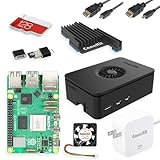
- Includes Raspberry Pi 5 with 2.4Ghz 64-bit quad-core CPU (8GB RAM)
- Includes 128GB Micro SD Card pre-loaded with 64-bit Raspberry Pi OS, USB MicroSD Card Reader
- CanaKit Turbine Black Case for the Raspberry Pi 5
- CanaKit Low Noise Bearing System Fan
- Mega Heat Sink - Black Anodized
Why does an NTSC game fail on my PAL-only simulator?
NTSC-only software may depend on NTSC raster geometry and timing that a PAL-only implementation does not model. A scaler, cable, or refresh conversion cannot add that behavior. Use an NTSC-capable, cycle-accurate implementation such as a properly configured VICE setup.
When should true-drive emulation be enabled?
Enable it for software that depends on hardware-level disk timing or protection behavior. It increases workload, so leave it off for ordinary disk use when the host is close to its performance limit.
What should I replace first when the display is blank?
Replace nothing initially. Return to a documented safe mode, such as BMC64’s 720p PAL 50 Hz output, connect directly to the display, and remove scalers or receivers. A rejected custom mode or unsupported refresh is more likely than a failed cable.
Do these 3 things before closing this tab:
1Scan for outdated or missing drivers - takes under a minute2Clear out junk files and repair common Windows errors3Fix the driver behind crashes, sound loss and screen glitchesFrequently Asked Questions
What is the quickest way to separate a timing fault from an HDMI fault?
Run a known PAL or NTSC title with the matching machine selected, then connect directly to a display at the matching 50 Hz or 60 Hz mode. If speed, raster effects, and sound pitch are wrong before HDMI accessories are added, the machine standard is the problem. If they are correct directly but fail through a receiver or scaler, investigate that signal path.
Does changing resolution change C64 emulation speed?
No. Resolution and scaling affect presentation only. CPU, VIC-II, raster, and SID timing come from the selected PAL or NTSC machine model.
Is an HDMI audio extractor a fix for MiSTer silent audio?
It can help when the display chain cannot carry or decode audio, but first disable MiSTer dvi_mode and verify the HDMI audio rate. An extractor cannot restore audio that the source has disabled.
What information should I record when asking for support?
Record the simulator or core, PAL/NTSC selection, display mode and reported refresh, audio sample rate, VICE buffer size if applicable, enabled filters, true-drive status, dvi_mode, and every scaler, receiver, or capture device in the path.
Free tools Windows power users keep installed
One-click scans. No signup required.
The Bottom Line
Fix C64 simulator problems from the clock outward: select the software’s PAL or NTSC standard, use a matching 50 Hz or 60 Hz display mode, and test a direct connection. Then tune VICE’s buffer and driver, return BMC64 to 720p PAL 50 Hz when custom timing is unstable, and disable MiSTer dvi_mode when HDMI audio is required. If the software needs NTSC raster behavior, choose an NTSC-capable implementation rather than trying to repair an architectural compatibility limit with cables or scalers.
Quick Recap
Product prices and availability are accurate as of the date/time indicated and are subject to change. Any price and availability information displayed on Amazon at the time of purchase will apply.

