
What’s actually slowing this PC down?
Pick the symptom - the matching free tool is one click away.
iTechGuides is reader-supported. When you buy through links on our site, we may earn an affiliate commission. As an Amazon Associate I earn from qualifying purchases. Learn more
PS1 polygon wobble is usually caused by the console’s original low-precision, fixed-point geometry. Start with a hardware renderer, enable PGXP in memory only mode, turn on perspective-correct texturing if floors or walls swim, and keep PGXP Vertex Cache off until the game is stable. For color, choose 16bpp (native) with 1x (native) dithering for an authentic image, or test 32bpp with a deliberate dithering choice for smoother gradients. Save settings per game so a title with broken geometry can fall back to the original rendering path.
Why PS1 graphics wobble and shimmer
Fixed-point vertex rounding creates polygon jitter
The original PlayStation rendered geometry with fixed-point mathematics. Polygon vertices were rounded to integer pixel positions, so a surface that should move smoothly can jump between nearby pixels as the camera or object moves. The result is the familiar “wobble” around character models, walls, rails, and other polygon edges. It is not normally a damaged ROM or a graphics-card fault; it is an artifact of the original rendering design.
PGXP adds subpixel precision to the geometry calculations. That extra precision can remove or greatly reduce the visible movement, but it is an enhancement rather than an exact reproduction of the original hardware.
Affine texture mapping causes texture swimming
Many PS1 surfaces also used affine texture mapping. A floor, wall, or long line can appear to bend, stretch, or “swim” as the viewpoint changes because the texture is not corrected for depth in the way modern perspective-correct rendering is. PGXP Perspective Correct Texturing compensates for that depth-related distortion. It addresses texture warping, not every form of polygon instability, so it is useful to treat geometry correction and texture correction as separate controls.
#1 Best Overall

- With broad game support, the Logitech Gamepad F310 works with old standbys to today's biggest titles, so it's easy to set up and use with your favorite games.
- Profiler software allows the gamepad to be programmed to perform keyboard and mouse commands for games without gamepad support.* * Requires software installation.
- A familiar control layout that doesn't require a learning curve to be able to use, with all the same buttons as on an Xbox 360.
- The unique floating D-pad rests on four switches-instead of a single pivot point-making it responsive to quick changes in direction.
- The six-foot cord lets you lean back and play a comfortable distance from your PC monitor.
16-bit color produces banding
The PS1’s 16-bit color depth can create visible steps in skies, fog, shadows, and other gradients. Original games used dithering to soften those transitions. An emulator can preserve that behavior, calculate colors at a higher depth, or remove dithering. Those choices change the image’s character: an image can look more authentic, smoother, unusually clean, or more visibly banded depending on the combination.
Record a reversible baseline before changing enhancements
Graphics options can be scoped globally or per game, and some core options require a restart. Establish a known baseline so you can identify which setting helped and restore a title that develops glitches.
- Open the emulator’s video or core-options menu and record the current renderer, internal resolution, PGXP options, color depth, and dithering choices.
- Save a screenshot in a repeatable scene: a level with a long floor or wall, a character model with straight edges, and a visible gradient if possible.
- If the emulator supports per-game settings, create a profile for the title before making changes. Avoid changing several unrelated options at once.
- Close and relaunch the game after changing any option marked Restart. A setting that is not reloaded can make a valid change appear ineffective.
Use the same scene for each comparison. Moving between different levels can make normal game effects look like an improvement or regression.
Quick wins for a faster PC:
Clear out junk files and repair common Windows errorsFree Scan →Fix the driver behind crashes, sound loss and screen glitchesFind Drivers →Repair Windows errors before they cause bigger problemsFix Now →Choose a hardware renderer that is stable on your system
PGXP and higher internal resolutions are normally used with a hardware renderer. In Beetle PSX HW, Vulkan is documented as a stable alternative, but the available renderers depend on your operating system, GPU, and driver. A renderer that is theoretically faster can still produce flicker or crashes if its driver is unreliable on your machine.
Rank #2

- DUAL VIBRATION MOTORS: Each controller features two built-in vibration motors, delivering immersive, realistic feedback during sports and fighting games.
- STABLE WIRED CONNECTION: The premium 5.9-foot cable ensures a reliable, lag-free connection between the controller and your PS2, PS2 Slim, or PS1 console.
- PLUG AND PLAY: No setup or configuration needed—simply plug the wired controller into your console and start playing immediately.
- ERGONOMIC DESIGN: Contoured to fit comfortably in your hands, this controller reduces fatigue during extended gaming sessions.
- 2-PACK VALUE: Includes two wired PS2 controllers in the package, allowing you to enjoy multiplayer games with friends and family.
Switch one renderer at a time
- Open the emulator’s video-driver or renderer selector.
- Choose a hardware renderer available on your system. If Vulkan is available and your current renderer is unstable, test Vulkan first.
- Restart the content if the emulator marks the renderer option as requiring a restart.
- Recheck the baseline scene before enabling PGXP. This separates renderer problems from geometry-correction problems.
If the game becomes black, flashes, or stops rendering after a renderer change, return to the previous driver and confirm that the GPU driver supports the selected API. Do not use a renderer switch as a substitute for fixing a PGXP compatibility issue.
Configure PGXP to reduce polygon wobble
| PGXP choice | What it changes | Recommended use |
|---|---|---|
| Disabled | Reproduces the original hardware’s geometry behavior, including its characteristic vertex jitter. | Use for strict original rendering or as a compatibility fallback. |
| Memory only | Enables subpixel precision with minor compatibility issues according to Libretro’s Beetle PSX HW documentation. | Start here; it offers the best compatibility among the PGXP modes. |
| Memory + CPU | Can reduce more jitter, but is highly demanding and is known to cause geometry errors. | Try only after memory only leaves objectionable wobble and the game remains stable. |
Start with PGXP Operation Mode: memory only
Set PGXP Operation Mode to memory only. This is the practical first step because it adds subpixel precision without the heavier CPU-side processing and broader compatibility risks of memory + CPU. Examine several scenes, not just the title screen: a game can look correct in one area and reveal misplaced polygons in another.
Use memory + CPU only for a stubborn title
If memory only does not reduce enough wobble, test memory + CPU as an experiment. Watch for stretched meshes, missing polygons, walls that move to the wrong depth, or objects that suddenly separate from their shadows. Those are signs that the game’s geometry is incompatible with the more aggressive mode. Revert to memory only rather than trying to compensate with unrelated resolution or filtering settings.
Keep PGXP Vertex Cache disabled initially
PGXP Vertex Cache can improve results in some scenes, but Libretro warns that false positives can introduce graphical glitches. Leave it disabled while establishing a stable configuration. Enable it only if a particular game still has a reproducible problem that the cache is intended to address, and then test multiple levels before keeping it enabled.
Rank #3

- Original Sony Playstation Controller
Stop texture swimming and warped floors
When polygons remain in the right places but textures ripple, bend, or slide across floors and walls, enable PGXP Perspective Correct Texturing. This applies a depth-aware correction to the texture coordinates and targets the affine-mapping distortion that causes swimming.
- Leave the stable renderer and PGXP Operation Mode unchanged.
- Enable PGXP Perspective Correct Texturing.
- Look at a long, textured floor, corridor wall, or straight line while moving the camera.
- Keep the option enabled if the surface remains anchored without introducing broken polygons.
- If new seams, missing textures, or severe stretching appear, disable the option for that game and use the per-game fallback.
Perspective correction does not guarantee that every texture will look modern. Some games deliberately rely on affine behavior, animated warping, or unusual coordinate tricks. Judge the result against the game’s normal appearance and stability, not only against a still screenshot.
Choose color depth and dithering deliberately
Color controls solve a different problem from PGXP. They cannot repair a polygon that jumps, and PGXP cannot remove color banding caused by a low-depth output path. Change color depth and dithering after geometry is stable.
The Tool Desk
Outbyte PC Repair FREEClear out junk files and repair common Windows errorsFree Scan →Outbyte Driver Updater FREEFix the driver behind crashes, sound loss and screen glitchesFind Drivers →| Color setup | Visual result | When to choose it |
|---|---|---|
| 16bpp (native) + 1x (native) dithering | Preserves the PS1-style color depth and original dithering pattern. | Best starting point for hardware authenticity and for games whose gradients were designed around dithering. |
| 32bpp + internal-resolution dithering | Uses a wider color representation while retaining a dithering treatment at the chosen internal resolution. | Test when you want smoother gradients but still want some of the original transition behavior. |
| 32bpp + dithering disabled | Removes the emulator’s dithering treatment and can produce a cleaner gradient, but banding may become more apparent at high internal resolutions. | Use when you intentionally prefer a clean, modern-looking image and have compared it in several scenes. |
| 16bpp (native) with dithering disabled | Retains the limited color depth without the original softening pattern. | Use only when you specifically want to inspect the raw banding or a game’s native color steps. |
Authentic colors: 16bpp and native dithering
Select 16bpp (native) and 1x (native) dithering when the goal is to reproduce the way the console blended limited colors. Dithering may look like fine grain or a checkerboard in a paused image, but it often makes gradients appear less harsh during motion.
Rank #4
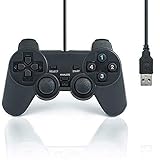
- USB 2.0 Game Pad.
- Plug and play.
- Light weight design.
- Master your games with this USB 10-button joy-pad for the PC!
- Styled after the controllers, this joy-pad offers the ultimate control for your favorite games.
Smoother gradients: 32bpp
Try 32bpp when skies, fog, or lighting transitions show distracting steps. Compare both internal-resolution dithering and disabled dithering. At high internal resolutions, disabled dithering can expose the underlying color bands more clearly instead of hiding them, so do not assume that “off” always means smoother.
Do not diagnose every color difference as a washed-out output
A flatter-looking image can be the result of a different color-depth and dithering combination rather than a display fault. First compare 16bpp native output with native dithering, then test 32bpp choices in the same scene. Keep the setting that matches your goal—original appearance or smoother gradients—rather than chasing a universal “correct” palette.
Apply the same principles in DuckStation
DuckStation exposes the same broad controls under its own menus: a hardware renderer, internal resolution, and PGXP or geometry-correction options. Exact labels and defaults vary by version, so use the wording shown by your installed build rather than copying a menu path from an older guide.
Free tools Windows power users keep installed
One-click scans. No signup required.
- Open the graphics settings and select a supported hardware renderer.
- Find the PGXP or geometry-correction section and enable the basic correction first.
- Enable perspective-correct texturing when floors, walls, or lines visibly warp.
- Increase internal resolution only after the geometry is stable.
- If one title develops broken geometry, turn PGXP off for that title before changing global settings.
DuckStation’s labels may not match Beetle PSX HW’s “memory only” and “memory + CPU” terminology exactly. The decision remains the same: begin with the least aggressive correction, test compatibility, and keep exceptions on a per-game basis.
Best Value

- 12 analog keys
- Compatible with playstation & playstation2
- 6 foot cable
- Eco packaging
Use per-game fallbacks instead of weakening every game
PGXP is not universally compatible. A game that benefits from corrected geometry can coexist with another game that needs original behavior. If your emulator supports per-game overrides, use them rather than disabling enhancements globally.
- Broken geometry after enabling PGXP: disable PGXP for that title, or step back from memory + CPU to memory only.
- More wobble than expected in memory only: test memory + CPU briefly, then return to memory only if any mesh or polygon errors appear.
- Textures swim but geometry is stable: enable perspective-correct texturing without changing the operation mode.
- Texture glitches after enabling the vertex cache: disable PGXP Vertex Cache and retest the same scene.
- Colors look wrong while geometry is correct: compare 16bpp native with 1x native dithering against 32bpp options; do not alter PGXP to solve a color-depth issue.
Document each override in the game’s profile. A later emulator update may reset options or change defaults, and a short note prevents you from repeating the same diagnosis.
Troubleshoot by symptom
| What you see | Likely cause | First corrective action |
|---|---|---|
| Character models or polygon edges jump as objects move | Original fixed-point vertex rounding | Enable PGXP and start with memory only. |
| Floors or walls ripple while the camera moves | Affine texture mapping | Enable PGXP Perspective Correct Texturing. |
| Meshes stretch, detach, or move to the wrong depth | PGXP compatibility problem, especially in memory + CPU mode | Return to memory only; disable PGXP for the game if necessary. |
| Small false polygons or new glitches appear after a cache change | PGXP Vertex Cache false positives | Disable PGXP Vertex Cache and retest. |
| Sky or fog shows visible steps | 16-bit color banding | Test 32bpp, comparing internal-resolution and disabled dithering. |
| The image looks unusually clean or lacks the console’s grain | Dithering disabled or a higher-depth path | Use 16bpp (native) with 1x (native) dithering for an authentic presentation. |
| Changing a setting appears to do nothing | The option requires a restart | Close and relaunch the content after changing restart-marked options. |
| Black screen, flicker, or crashes after selecting a renderer | GPU or driver instability with that API | Return to the previous renderer and test a different supported hardware driver. |
Balance image quality, compatibility, and performance
There is no single best preset because the settings optimize different goals.
- Maximum original-hardware accuracy: disable PGXP, use 16bpp (native), and select 1x (native) dithering. This preserves the console’s vertex rounding and color treatment.
- Stable modernized geometry: use a hardware renderer, PGXP memory only, perspective-correct texturing when needed, and leave Vertex Cache disabled until proven useful.
- Most aggressive jitter reduction: test memory + CPU, but accept high CPU demand and a greater chance of geometry errors. Keep a per-game fallback ready.
- Smoother color gradients: use 32bpp and compare internal-resolution dithering with disabled dithering at the internal resolution you actually use.
Higher internal resolution does not automatically fix wobble. It can make corrected geometry look sharper, but it can also make uncorrected affine distortion and color banding easier to notice. Solve the underlying geometry and color-depth choices first.
A repeatable setup sequence
For a new game, this order minimizes confusion and unnecessary resets:
- Record the default settings and capture a baseline screenshot.
- Select a stable hardware renderer; test Vulkan when it is available and your current driver is unreliable.
- Enable PGXP in memory only mode.
- Check a moving character and hard polygon edges for reduced wobble.
- Enable PGXP Perspective Correct Texturing if floors or walls still swim.
- Leave PGXP Vertex Cache disabled unless a specific, repeatable issue justifies testing it.
- Choose 16bpp with native dithering for authenticity, or test 32bpp choices for smoother gradients.
- Restart whenever the emulator marks a changed option as requiring one.
- Raise internal resolution only after the previous steps are stable.
- Save the final combination as a per-game profile and keep a fallback with PGXP disabled.
This sequence isolates renderer, geometry, texture, and color decisions. If a later change introduces a problem, restore the last working profile instead of rebuilding the configuration from memory.
What a successful fix looks like
With a compatible title and stable renderer, PGXP memory only should keep polygon edges steadier during movement, and perspective-correct texturing should keep long surfaces anchored as the camera changes. A title that uses the original hardware path may still wobble when PGXP is disabled, while a title that conflicts with aggressive correction may need a per-game fallback. Color improvements should be judged separately: native 16bpp dithering preserves the characteristic PS1 appearance, whereas 32bpp can make gradients smoother but changes the original presentation.
Outdated Drivers Are Slowing You Down
One free scan finds every outdated or missing driver and matches the right update for your exact hardware.Free scan · exact hardware matchPC Slower Than It Used to Be?
A free scan shows the junk files, broken settings and background clutter dragging Windows down - then fixes them in one click.Free scan · Windows 10 & 11Quick Recap
Product prices and availability are accurate as of the date/time indicated and are subject to change. Any price and availability information displayed on Amazon at the time of purchase will apply.

