
What’s actually slowing this PC down?
Pick the symptom - the matching free tool is one click away.
iTechGuides is reader-supported. When you buy through links on our site, we may earn an affiliate commission. As an Amazon Associate I earn from qualifying purchases. Learn more
For most Xbox Cloud Gaming controller lag or disconnects, the fastest fix is to test the controller over a wired USB data connection, confirm the device and browser or app are supported, and stabilize the network. Xbox publishes a minimum of 10 Mbps for mobile devices and 20 Mbps for consoles, PCs, and tablets, and recommends 5 GHz Wi-Fi. Re-pair Bluetooth, update the controller and host device, try another cable or port, and compare a local game with a cloud game to identify whether the delay is in the controller link or the streaming path.
A controller can feel slow even when it is working correctly because cloud play adds capture, encoding, network transport, decoding and display time. The steps below isolate each part instead of assuming that replacing the controller will solve a Wi-Fi or service problem.
Start with this five-minute isolation test
Make one controlled change at a time. This prevents a network problem from being mistaken for a bad controller, or a Bluetooth problem from being blamed on Xbox Cloud Gaming itself.
- Confirm support. Check that your device and the Xbox app or browser you are using appear on Xbox’s current supported-device list. Make sure the operating system recognizes the controller before you open the cloud game.
- Check bandwidth and competing traffic. Xbox’s current cloud-gaming guidance lists 10 Mbps for mobile devices and 20 Mbps for consoles, PCs and tablets. Use 5 GHz Wi-Fi when available; pause downloads, video streams, VPNs and background synchronization while testing.
- Switch to USB. Connect the controller with a known-good, data-capable USB cable. A wired test bypasses Bluetooth radio interference and also reveals whether the cable, port or controller firmware is involved.
- Repeat the same game locally. Use the same controller and cable in a locally installed game or an input tester, then repeat in Xbox Cloud Gaming. Delay in both places points to the controller, cable, host device or display. Delay only in the cloud game points toward the network, browser or app, device decoding or the service path.
- Record the result. Note whether USB removes the lag, whether disconnects occur on more than one device, and whether another network changes the behavior. These observations determine the next step and give Xbox Support useful evidence if escalation is needed.
Verify the Xbox Cloud Gaming prerequisites
Use a supported host and recognized controller
Xbox Cloud Gaming requires a compatible controller connected by Bluetooth or USB. Open the host device’s system settings first and verify that button presses are recognized. If the operating system does not see the controller, launching a cloud game cannot fix that lower-level connection.
#1 Best Overall

- Charger for Xbox Series X S and PS5 Controller : USB C Type-C Charger Cord specially made for Xbox Series X Controller, Series S Controller,PS5 Controller. This usb c cable can bear 10000+ bending test,Service life much longer than normal PS5 controller charger cord.
- Perfect Long: With the perfect 10ft length, you can lie on the couch or sofa and play games while you are charging at the same time. and you can also pose in a variety of positions without worrying about your PS-5 Charger Cables are not long enough.Make it easy to stay in the game.
- Perfect Connection: The stainless steel connector heads slot in your PS5 controllers Console easily and steadily, and won't get loose or fall out from your PS5 Controller. Just enjoy the best gaming experience.
- Simultaneously Charge and Play: SCOVEE PS5 charging cable allows you to play playstation-5 games while Charge. No need to stop and recharge,allow you to take charge of your games.
- Universal Compatibility: USB type c to USB C Cable compatible with Xbox Series X Controller,Series S controler,compatible with Playstation-5,PS5 controller and more devices with usb c port.
Support varies by device, operating-system version and the Xbox app or browser. Use Xbox’s current cloud-gaming support information for the exact combination rather than relying on an old compatibility list. If the controller works in the operating system but not in the game, close and reopen the app or browser, reconnect the controller, and check that another application is not capturing gamepad input.
Meet the published connection guidance
| Host type | Xbox-published speed guidance | Preferred connection |
|---|---|---|
| Mobile device | 10 Mbps | Stable Wi-Fi or reliable mobile data; 5 GHz Wi-Fi is recommended when available |
| Console, PC or tablet | 20 Mbps | Ethernet for a fixed setup, or 5 GHz Wi-Fi |
These figures are guidance, not a promise of a particular latency. Distance to the service, routing, congestion, wireless interference, device performance and display processing can still make controls feel delayed when a speed test exceeds the target.
Fix Bluetooth lag and random disconnects
Re-pair from a clean state
- Turn the controller off completely.
- In the host device’s Bluetooth settings, choose the controller and select Forget, Remove or the equivalent option.
- Restart the host device. This resets the Bluetooth stack and clears a stale connection that a simple reconnect may preserve.
- Turn the controller on, enter pairing mode, and pair it again from the host’s Bluetooth menu.
- Launch the cloud game only after the operating system reports the controller as connected.
Keep the controller close to the device during this test. Remove unnecessary Bluetooth peripherals temporarily so the controller is not competing with headsets, keyboards or other devices for radio time.
Do these 3 things before closing this tab:
1Clear out junk files and repair common Windows errors2Fix the driver behind crashes, sound loss and screen glitches3Repair Windows errors before they cause bigger problemsUse USB to prove whether radio interference is involved
Connect the controller with a USB cable and play the same cloud session. USB is the cleanest diagnostic because it removes Bluetooth distance, interference and pairing state from the path. If lag and disconnects disappear over USB, the likely cause is Bluetooth interference, the host’s radio, distance, a crowded 2.4 GHz environment or a corrupted pairing state.
Rank #2

- Official Microsoft Xbox Series X/S USB Type C Charging Cable
- 2.7 Meter Length Cable
- Compatible with all Xbox Series X/S Controllers
- Will NOT work with Xbox One controllers, as they use a mini USB cable
- This is the same charge cable that comes with the play & charge set and the one that comes packaged with some of the brand new controllers
On Windows, Xbox also documents the Xbox Wireless Adapter as a workaround for Bluetooth controller problems. It is useful when a wired cable is impractical, but it does not remove network or cloud-streaming delay; it changes only the controller-to-PC radio path.
Reduce common wireless causes
- Move the controller and host closer together and remove metal objects or other obstructions between them.
- Temporarily disable or move other Bluetooth devices during the test.
- Prefer 5 GHz Wi-Fi for the host. Bluetooth normally operates in the 2.4 GHz band, where congestion from nearby networks and household devices can increase retries.
- Do not place the host immediately beside a crowded wireless access point, USB 3 hub or other source of radio noise.
Check the controller, firmware and USB path
Update firmware where supported
Install available controller firmware updates through the Xbox Accessories app on a supported device. Also install pending operating-system, Xbox app and browser updates on the host. Firmware and host updates can correct connection handling, but an update cannot compensate for an unstable Wi-Fi path.
Use a data-capable cable
Some USB cables provide power only. A charging-only cable can light the controller while failing to carry input data, creating a misleading test result. Use a known-good USB-C data cable for a Series controller, or the appropriate data cable for your controller model. Try a second cable and a different USB port, preferably one directly on the computer or console rather than through an unpowered hub.
If the controller disconnects when the cable moves, inspect the connector for looseness or damage. A cable or port fault that follows the cable is different from a controller fault that follows the controller across multiple cables.
Rank #3

- Wide compatibility – Compatible with PS5 DualSense, Xbox Series X/S, Xbox Elite Series 2 (Model 1914 & 1797), and all USB-C devices. Perfect USB-C replacement for daily gaming.
- Ideal length for comfort – The 10 ft (3 m) cable allows comfortable play while charging. Relax on your couch without worrying about short cables.
- Charge and play simultaneously – No need to pause gaming to charge. Charge your controller while playing for uninterrupted sessions, unlike charging docks.
- Durable & reliable connection – Withstands 9,999+ bends at 90°. Sturdy USB-C connectors ensure a secure, stable connection.
- 24-month manufacturer warranty
Test the controller away from cloud gaming
Use an input tester or a locally installed game on the same host, then test the controller on a second compatible device. Interpret the result this way:
| Observed behavior | Most likely area to investigate |
|---|---|
| Lag or disconnects on every device and with both Bluetooth and USB | Controller hardware, firmware, battery or a cable/connector problem |
| Bluetooth fails but USB is stable | Pairing state, Bluetooth interference, host radio or distance |
| USB fails on one port but works on another | Port, hub or cable issue on that host |
| Only one cloud device has the problem | That device’s app, browser, operating system, radio, network or decoding performance |
| Local play is responsive but cloud play is delayed | Network transport, cloud service conditions, browser/app processing, display or device decoding |
Stabilize the network before judging cloud latency
Choose the least variable connection
For a fixed PC or console, Ethernet normally removes the host’s Wi-Fi hop and is the most repeatable test. If Ethernet is unavailable, use 5 GHz Wi-Fi, stay near the access point, and reduce the number of walls between them. A strong signal does not guarantee low latency if the channel is congested, so repeat the test at a quieter time or on another network.
Stop traffic that competes with the stream
- Pause game downloads, cloud backups, operating-system updates and file transfers.
- Stop video streams on the same network, including televisions and other consoles.
- Disconnect a VPN for the test unless it is required for your network; VPN routing can add distance and jitter.
- Ask other users to pause large uploads. Upload saturation can increase queueing delay even when download speed looks adequate.
Distinguish speed from stability
Cloud gaming needs a sustained, low-jitter connection, not just a high peak speed. Packet loss and brief wireless stalls can look like controller disconnects or delayed button presses. Test at another time and, when possible, on a different network. If the problem changes with time of day or access point, local congestion or ISP routing is more likely than a controller defect.
Understand where cloud input delay comes from
In local play, a button press travels through the controller and host before the game responds. Cloud play adds more stages: the game receives the input remotely, the service captures and encodes a new frame, that frame travels back, the device decodes it, and the display presents it. Xbox describes latency as coming from the game loop, encoding and decoding, and device factors, among other points in the stack.
Rank #4

- Charger for Xbox Series and PS5 Controller : USB C Type-C Charger Cord specially made for Xbox Series X Core Controller,Series S Controller, PS5 Controller. this usb c cable can bear 10000+ bending test.PS5 controller charger cord.
- Extra Long: With the extra15ft length, you can lie on the couch or sofa and play games while you are charging at the same time. and you can also pose in a variety of positions without worrying about your PS-5 Charger Cables are not long enough.Make it easy to stay in the game.
- Perfect Connection: The stainless steel connector heads slot in your PS5 controllers easily and steadily, and won't get loose or fall out from your PS5 Controller. Just enjoy the best gaming experience.
- Simultaneously Charge and Play: SCOVEE PS5 charging cable allows you to play 5 games while Charge. No need to stop and recharge, allow you to take charge of your games.
- Universal Compatibility: USB type c to USB C Cable compatible with Xbox Series X Core Controller,Series S controler,for Playstation-5,PS5 controller and more devices with usb c port.
Microsoft’s Developer article published March 21, 2025 reports that Direct Capture reduced input latency by 16–72 milliseconds depending on the game. That is a service-side improvement range, not a guaranteed reduction for every title, device or connection. The same article says WebRTC improved resilience to packet loss. Neither technology removes delay caused by a weak wireless link, a slow display mode or a Bluetooth connection that is dropping packets.
Use a local-versus-cloud comparison
- Connect the controller by USB first so the controller link is held constant.
- Play a responsive local game or use an input tester and note whether button presses feel immediate.
- Open the same type of game through Xbox Cloud Gaming on the same display and host.
- Repeat the cloud test over Ethernet or a clean 5 GHz connection if possible.
- Switch back to Bluetooth only after the wired cloud test is stable.
If the wired local test is delayed, focus on the controller, host performance, display mode or USB path. If local play is fine but cloud play remains delayed, investigate network stability, app or browser behavior, device decoding and service conditions rather than buying a new controller.
Choose the connection that fits your device
| Connection | Strengths | Limitations | Best use |
|---|---|---|---|
| Bluetooth | Portable and cable-free; works with many supported phones, tablets and PCs | Susceptible to radio congestion, distance, pairing-state errors and host Bluetooth differences | Portable play after a wired test confirms the controller is healthy |
| USB | Bypasses Bluetooth interference and provides the clearest diagnostic; generally the most consistent controller link | Requires a suitable data cable, a usable port and cable management | First troubleshooting test and fixed-seat play |
| Xbox Wireless Adapter for Windows | Wireless alternative documented by Xbox for Windows Bluetooth problems | Windows-specific; still does not fix network streaming delay or a defective controller | Windows users who need wireless play and cannot rely on Bluetooth |
Connection type affects only the controller-to-host portion of the path. A perfect USB link cannot overcome packet loss between the host and Xbox Cloud Gaming, and a stable adapter cannot correct a display or decoding bottleneck.
The Tool Desk
Outbyte PC Repair FREEClear out junk files and repair common Windows errorsFree Scan →Outbyte Driver Updater FREEFix the driver behind crashes, sound loss and screen glitchesFind Drivers →Follow symptom-specific recovery steps
The controller disconnects as soon as a cloud game opens
- Close the cloud game and confirm the controller remains connected in the operating system.
- Forget and re-pair Bluetooth, or switch to USB.
- Restart the host device and controller.
- Update controller firmware and the Xbox app or browser.
- Try another USB cable or port if wired.
- Test a local game. If the controller disconnects there too, investigate hardware or firmware rather than cloud networking.
Buttons register late but the controller stays connected
First compare USB with Bluetooth. If USB is immediately better, continue with Bluetooth isolation. If both are equally delayed, compare local and cloud play, then test Ethernet or a clean 5 GHz network. Persistent cloud-only delay is usually a streaming-path or device issue, not a button sensor problem.
Best Value
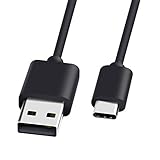
- 1.🎮[COMPATIBILITY] Professional charging cable for Xbox Series S/X and Xbox Elite Controller Series 2.PS5 Controller PS5 Dual Sense,,Switch/Pro/Lite Controller,Steam Deck ( !!! IMPORTANT NOTE: This is NOT compatible with controller older than those stated above. Not for Micro-USB Devices !!! )
- 2.🎮SIMULTANEOUSLY CHARGE & PLAY - There's nothing worse than your controller dying in the middle of hunting a Thunderjaw. Luckily with our type-c USB charging cable, you can enjoy a seamless gaming experience. Charge and Sync cable to allow continued play even while charging the Xbox Elite Controller Series 2.
- 3.🎮Using high quality materials, high quality copper core wire, safe and fast charging your equipment.
- 4.🎮USB2.0 ↔ USB-C jack Silver-plated connectors: Thickened cable shell and high quality copper core, 2A current, the cable charging speed is faster than ordinary USB cable.
- 5.🎮After-sale policy: The charging cable is sold under strict quality control. Please rest assured to purchase. If there is any quality problem, please contact us and we will refund for you.
The picture freezes and then several inputs arrive together
This pattern is consistent with packet loss or a temporary network stall. Stop competing traffic, move to 5 GHz or Ethernet, reduce distance from the access point, and repeat at another time. A controller replacement will not repair a stalled video stream.
The problem occurs on multiple devices and networks
Try both Bluetooth and USB, a second data cable and a second USB port. If the same controller fails across devices and connection methods, document the pattern and contact Xbox Support. Do not assume a new controller is the answer until the controller has been isolated from the network and host.
Prepare an effective Xbox Support report
Xbox Insider release notes dated October 19, 2021 asked users to report random sync loss or disconnects after reconnecting. A useful report should let support distinguish a controller fault from a service or network condition.
Free tools Windows power users keep installed
One-click scans. No signup required.
- Device model and operating-system version
- Xbox app or browser name and version
- Controller model and firmware status
- Bluetooth, USB or Xbox Wireless Adapter connection
- Whether a different cable and USB port changed the result
- Wi-Fi band or Ethernet, approximate speed and whether other traffic was paused
- Whether local play was responsive
- Approximate time, game title and any error message
- Whether the issue reproduced on another device or network
Include the exact sequence that reproduced the issue and the result of the USB-versus-Bluetooth comparison. This is more actionable than reporting only that “xCloud feels slow.”
Quick Recap
What not to conclude from a single test
- A speed-test number above 20 Mbps does not guarantee low cloud latency; jitter, packet loss, routing and device processing still matter.
- One Bluetooth disconnect does not prove the controller is defective; re-pairing and a wired comparison are needed.
- A responsive local game does not prove cloud streaming will be responsive, because the cloud path adds transport and video-processing stages.
- A new cable helps only if the existing cable or port is faulty; it cannot fix an overloaded Wi-Fi network.
- A new controller cannot fix service-side conditions or a host device that is decoding frames slowly.
Product prices and availability are accurate as of the date/time indicated and are subject to change. Any price and availability information displayed on Amazon at the time of purchase will apply.

