
Free tools Windows power users keep installed
One-click scans. No signup required.
iTechGuides is reader-supported. When you buy through links on our site, we may earn an affiliate commission. As an Amazon Associate I earn from qualifying purchases. Learn more
First identify the device. A standalone DVD player may reject a burned game disc because the disc type, recording format, recording speed, region, or finalization is incompatible. A game console may reject it because the platform does not support burned media at all. PlayStation 4 and PlayStation 5, for example, cannot play burned discs, so cleaning or reburning cannot overcome that restriction. Nintendo Wii systems accept only compatible Wii (and, on the original Wii, GameCube) game discs; they do not play DVD or Blu-ray movies or discs made for other consoles.
If the disc is meant for a standalone DVD player, work through compatibility, finalization, authoring, cleaning, and cross-testing in that order. Reburning is the last step, not the first. The sequence below tells you when the disc can be fixed, when you need a different format or drive, and when the player itself is the likely fault.
Identify what is refusing the disc
The phrase “DVD player” is often used for two different products: a living-room DVD player or recorder, and a game console with an optical drive. Their rules are not interchangeable. Start with the device’s exact model and manual before changing media or burning software.
Outdated Drivers Are Slowing You Down
One free scan finds every outdated or missing driver and matches the right update for your exact hardware.Free scan · exact hardware matchPC Slower Than It Used to Be?
A free scan shows the junk files, broken settings and background clutter dragging Windows down - then fixes them in one click.Free scan · Windows 10 & 11| Device | What it officially supports | What that means for a burned game disc |
|---|---|---|
| PlayStation 4 | PlayStation support states that PS4 consoles cannot play burned discs or audio CDs. | No burn speed, blank-disc brand, cleaning method, or finalization setting can make a burned disc playable. Use an original/authorized replacement or a supported digital or optical option. |
| PlayStation 5 | PlayStation support states that PS5 consoles cannot play burned discs or audio CDs. | The limitation is platform-level. Troubleshoot only to confirm that the drive reads known-good supported media. |
| Nintendo Wii/Wii mini | Nintendo says Wii systems play compatible Wii game discs. The original Wii also supports GameCube discs. Game discs are region encoded. | DVD, Blu-ray, discs for another console, and other unsupported media formats will not play. A burned DVD is not converted into a Wii game disc by simply copying files to it. |
| Standalone DVD player or recorder | Playback depends on the model’s supported disc type, recording format, recording speed, region, and finalization state. | A burned disc may work after correcting compatibility or authoring problems, but no single DVD-R, DVD+R, or burn-speed choice works in every player. |
If your model is not listed, do not assume it behaves like one of these examples. Look for manual entries such as “playable discs,” “recordable media,” “DVD-Video,” “VR mode,” “region,” and “finalize.”
#1 Best Overall

- SUPER FINE MICROFIBER BRUSHES: The Thunder on brush system features ultra-fine synthetic fibers impregnated with copper for maximum cleaning and demagnetization. Ideal for removing scratches.
- MAXELL RECOMMENDS: It is recommended to clean the DVD player's lens after every 10 hours of use. When the brush shows signs of wear or after 20 usages, it is recommended to replace the product.
- IMPROVING QUALITY: Laser lens cleaners can enhance DVD player quality, fixing issues like slow loading, skipping, and freezing during playback. Cleaning the lens boosts player durability, sound, and image quality.
- COMPATIBLE: This product is safe for use with Blu-Ray players, all DVD players, computers (DVD), laptops (DVD), XBOX/XBOX360, and PS1/2 gaming systems, but it is not suitable for use with PS3, PS4, or WiiU.
- EASY TO USE: Insert the DVD lens cleaner with graphics facing up and arrow forward. Play the video, press stop to remove it for cleaning only. Carefully take the disc out of the player and return it to its case.
Run the compatibility checks before touching the disc
A burned disc can be perfectly recorded and still be unreadable to a particular player. Check these items first; they determine whether a repair is possible at all.
Check the platform’s burned-media policy
Search the manual or manufacturer support page for explicit support for burned discs. Terms such as DVD-R, DVD+R, DVD-RW, DVD+RW, CD-R, DVD-Video, and VR mode are specific capabilities, not interchangeable labels. If the platform expressly prohibits burned discs, stop troubleshooting the burn. Obtain an original or authorized replacement disc, or use a format the platform explicitly supports.
Match the blank-disc type
DVD-R, DVD+R, DVD-RW, and DVD+RW differ in how they are recorded and finalized. Some players accept only one family; some accept both but not every recording mode. A DVD-R made in one workflow is not equivalent to a DVD+RW recorded in another. Write down the exact marking on the disc and compare it with the player’s supported-media list.
Match the recording speed
Players can reject a disc when the recording speed used is outside the range documented for that media or device. Sony’s recordable-disc guidance treats recording speed as a separate compatibility check. Do not assume that “slowest possible” is universally best, or that a particular speed is guaranteed for every blank. Use a speed listed by the target player, recorder, or media documentation.
Check region and video or game format
Region coding can prevent playback even when the physical disc is readable. Nintendo specifically states that Wii game discs are region encoded. Standalone DVD players may also be region-limited, and a player expecting DVD-Video will not necessarily understand a data disc containing game files. Region, filesystem, image structure, and authoring mode must all match the target platform.
Fix a burned disc for a standalone DVD player
Follow these steps in order. After each change, test the disc in the same player with the same conditions so you know which factor mattered.
Rank #2

- 【Why to Use】Laser Lens Cleaner for CD/VCD/DVD players experiencing slow loading, skipping or freezing of discs during playback.
- 【Special Technology】The 2-brush clean process removes dirt and dust deposits that cause audio and video dropouts and distortions.
- 【Usage Effect】Cleaning the laser lens can extend the service life of CD / VCD / DVD player, and improve the sound and image quality at the same time.
- 【Compatible Players】Works with CD/VCD/DVD player. Not compatible with PS1/2/3/4,Xbox/Xbox 360/Xbox One/Xbox X,Wii/Wii U/Bose player.
- 【What You will Get】Cleaner disc*1, A piece of glasses cloth*1, User manual*1.
1. Confirm that the player supports the disc and recording format
- Find the player’s model number on the front, rear label, or setup menu.
- Open the manual’s “Playable discs,” “Specifications,” or equivalent section.
- Record whether it supports DVD-R, DVD+R, DVD-RW, DVD+RW, and the recording mode used by your recorder or authoring program.
- Check the supported region and whether the player expects DVD-Video, VR, or another named format.
- Compare those requirements with the disc label and the way the image was written.
If the manual lists DVD-R but not DVD+R, treat that as a real limitation rather than a suggestion. If it lists DVD-Video but your burn is a generic data disc, the player may display “No disc” even though a computer can browse the files.
2. Determine whether the disc was finalized
Finalization writes the structures that let another player recognize a recorded DVD. Sony Canada warns that an unfinalized recorded DVD may not be recognized by another player. LG describes finalization as fixing recordings in place so the disc can play on a regular DVD player or a suitable DVD-ROM drive.
Use the recorder or authoring application that created the disc:
- Insert the disc in the original recorder or computer drive.
- Open the project, disc-information, or recording menu.
- Choose Finalize disc, Close session, or the equivalent label.
- Confirm the warning and wait for the drive to finish; do not eject or power off during the process.
- Test the finalized disc in the target player.
Finalization is normally irreversible on DVD-R and DVD+R. LG notes that once those discs are finalized, further editing is not possible. If the original recorder cannot finalize the disc, the practical fix is to create a new disc with finalization enabled.
3. Verify that the image was authored for the target device
Copying game files onto a blank DVD as ordinary files is not the same as creating a playable game disc. A standalone DVD player generally expects a DVD-Video structure; a console expects the exact disc image, filesystem, region behavior, and security or authorization rules defined for that platform. The required image and patching process varies by console and title.
Do these 3 things before closing this tab:
1Clear out junk files and repair common Windows errors2Fix the driver behind crashes, sound loss and screen glitches3Repair Windows errors before they cause bigger problemsFor a legally owned title, use the manufacturer’s documentation and the software’s image-writing mode. Do not drag files into a new data-disc project unless the target device’s documentation explicitly says that a data disc is supported. If you have only a folder of files rather than a verified image intended for the device, authoring is the likely problem and reburning the same folder will not solve it.
Rank #3

- 【Why to Use】Laser Lens Cleaner for CD/VCD/DVD players experiencing slow loading, skipping or freezing of discs during playback.
- 【Special Technology】The 2-brush clean process removes dirt and dust deposits that cause audio and video dropouts and distortions.
- 【Usage Effect】Cleaning the laser lens can extend the service life of CD / VCD / DVD player, and improve the sound and image quality at the same time.
- 【Compatible Players】Works with CD/VCD/DVD player. Not compatible with PS1/2/3/4,Xbox/Xbox 360/Xbox One/Xbox X,Wii/Wii U/Bose player.
- 【What You will Get】Cleaner disc*1, A piece of glasses cloth*1,Disc cleaning fluid*2, After Sales Card*1. If any problem, please contact us, we are 24 hours standby to serve you.
4. Check region and format settings
Review the region of the player, the disc image, and the original title. A mismatch can produce a no-disc, unsupported-disc, or playback-error message rather than a clear region warning. Also check whether the recorder used a format the player does not understand, such as VR mode when the player requires DVD-Video. These are independent checks: a disc can be finalized yet still have the wrong region or recording format.
5. Inspect and clean the disc
Examine the recording side under a bright light. Look for fingerprints, dust, radial scratches, cloudy patches, warping, cracks, or obvious dye and recording defects. Hold the disc by its edge and center hole; do not touch the data surface.
- Use a soft, lint-free cloth or a disc-cleaning kit.
- Wipe gently from the center straight toward the outer edge, not in a circular path.
- Do not use abrasive compounds, household solvents, or excessive pressure.
- Allow any cleaning fluid to evaporate completely.
- Reinsert the disc and wait for the player to finish its loading attempt.
Sony recommends checking and cleaning the disc when recordable media is not recognized. Rockstar’s disc-versus-console troubleshooting likewise recommends a soft cloth or cleaning kit. Cleaning cannot repair a cracked, warped, or chemically damaged disc, but it can remove a film that prevents the laser from reading it.
6. Cross-test the disc and the player
Cross-testing separates a bad burn from a failing optical drive.
- Insert a known-good, compatible commercial DVD or game disc into the same player.
- If that disc also fails, try a second known-good disc of the same type.
- Try the burned disc in another drive that explicitly supports its media type and format.
- Write down the result of each test, including any error message and whether the player spins, retries, or ejects the disc.
| Test result | Most likely cause | Next action |
|---|---|---|
| Only the burned disc fails; commercial compatible discs work | Burn format, finalization, image authoring, media defect, region, or surface damage | Recheck the disc information and authoring mode, then create one correctly finalized test disc. |
| Several known-good compatible discs fail in the player | Dirty lens, weak laser, spindle or loading fault, or other player hardware problem | Try the manufacturer’s approved cleaning procedure; if failure persists, seek service or replace the player. |
| The burned disc works in another compatible drive | Target player has narrower media tolerance or a developing optical-drive fault | Use a media type and format listed for the target player, or use the other compatible drive. |
| The disc fails everywhere | Unfinalized or incorrectly authored image, incompatible media, defective burn, or damaged disc | Verify the source image and create a new disc after the compatibility checks. |
7. Reburn only after the checks pass
When the player supports the media and the image is correct, make a controlled second burn:
- Use a blank-disc type explicitly listed by the player or recorder.
- Use a recording speed documented as compatible with that media and device.
- Write the verified image in image-authoring mode rather than creating a generic data disc.
- Enable finalization or close-session behavior.
- After burning, eject and reinsert the disc once, then test it in the target player.
- Keep the original failed disc and record the new disc’s type, speed, software, and result so you can identify a pattern.
Do not change several variables without recording them. Switching disc type, speed, authoring mode, and software at the same time makes it impossible to know which change fixed or caused the failure. There is no authoritative universal statistic for the best brand or speed; compatibility with the specific player and media is the reliable criterion.
Rank #4

- 【Why to Use】Laser Lens Cleaner for CD/VCD/DVD players experiencing slow loading, skipping or freezing of discs during playback.
- 【Special Technology】The 2-brush clean process removes dirt and dust deposits that cause audio and video dropouts and distortions.
- 【Usage Effect】Cleaning the laser lens can extend the service life of CD / VCD / DVD player, and improve the sound and image quality at the same time.
- 【Compatible Players】Works with CD/VCD/DVD player. Not compatible with PS1/2/3/4,Xbox/Xbox 360/Xbox One/Xbox X,Wii/Wii U/Bose player.
- 【What You will Get】Cleaner disc*1, A piece of glasses cloth*1,Disc cleaning fluid*1, After Sales Card*1. If any problem, please contact us, we are 24 hours standby to serve you.
When the “DVD player” is a game console
PlayStation 4 and PlayStation 5
PlayStation Support states, respectively, “PS4™ consoles can’t play burned discs or audio CDs” and “PS5 consoles can’t play burned discs or audio CDs.” This is not a dirty-disc diagnosis or a burn-quality problem. A different blank-disc brand, slower speed, finalization, or cleaning cannot remove the platform restriction.
The Tool Desk
Outbyte PC Repair FREEClear out junk files and repair common Windows errorsFree Scan →Outbyte Driver Updater FREEFix the driver behind crashes, sound loss and screen glitchesFind Drivers →You can still perform one useful diagnostic: insert a known-good, supported original game or movie disc. If the console reads that disc, the drive is behaving as expected and the burned disc is simply unsupported. If it cannot read multiple supported originals, follow the console manufacturer’s hardware troubleshooting and service options.
Nintendo Wii and Wii mini
Nintendo says Wii systems play compatible Wii game discs, while the original Wii also supports GameCube discs. Nintendo also states that game discs are region encoded. Wii and Wii mini systems do not play DVD or Blu-ray movies, and a disc made for another console is not compatible.
Therefore, a burned DVD containing game files is not a supported substitute for a Wii game disc. Confirm the console model, the title’s region, and the disc type before attempting any cleaning or testing. If the console fails with known-good, correctly regioned original discs, investigate the optical drive; if originals work and only the burned disc fails, the media is outside the supported format.
Other consoles
Do not apply the PlayStation or Wii rules to another console without checking its own documentation. Console generations differ in burned-media support, region handling, filesystem, and authorization requirements. The safe procedure is to verify official compatibility first, then test with an original supported disc. Do not assume that a disc readable by a computer is a playable console game.
If a Windows PC cannot see the optical drive
Sometimes the problem occurs before the disc is tested: the computer does not detect its own DVD drive. In that case, troubleshoot the PC separately from the disc.
Best Value
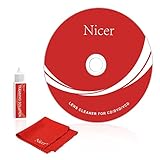
- 【Why do you need it? 】If your CD DVD or VCD player has been used for a long time and has not been cleaned. Then try to use this kit to clean your device. It will help your player to bring better playback effects.
- 【What problem can it solve?】The CD/VCD/DVD device is ejected, the playback is stuck, the picture is not clear, and the loading is slow. When these problems occur with your player, it may be that the laser lens on the device is dirty. Using a cleaning kit to clean up can improve these problems and extend the life of the machine.
- 【Scope of Applicable Equipment】It can be used for CD/VCD/DVD equipment, but does not support PS1/2/3/4, Xbox/Xbox 360/Xbox One/Xbox X, Wii/Wii U/Bose Player.
- 【Advantage of this Product】Its operation is simple. There are voice guidance, left and right channel testing. The whole procession only takes 3 minutes. The kit is included a microfiber cloth that can be used to clean CD discs.
- 【What you will get?】CD Cleaning Disc *1. Cleaning Liquid *1. Microfiber Cleaning Cloth *1, Instruction Manual *1. And 6-month after-sales service period. Our team are ready for you at any time.
Check basic hardware visibility
- Restart the computer and enter BIOS or UEFI setup to see whether the optical drive is listed.
- For an internal drive, reseat the data and power cables with the computer powered off.
- For an external drive, reconnect the USB cable directly to the computer rather than through an unpowered hub.
- Test a different USB port or cable if available.
Check Windows software and drivers
HP’s optical-drive guidance includes Device Manager, recording software, firmware, registry filters, system files, and hardware-failure checks. In Windows, open Device Manager, expand DVD/CD-ROM drives, and note whether the drive is disabled or marked with an error. Restart after any driver or firmware change and test with a known-good disc.
Conflicting disc-burning software or damaged filter entries can hide a drive from Windows. Remove or repair recently installed recording software according to its documentation rather than deleting registry entries blindly. If BIOS sees the drive but Windows does not, the fault is likely in the operating system or driver layer; if BIOS does not see it either, focus on cables, power, firmware, or hardware.
Use an external drive as a comparison
An external USB DVD burner or reader can provide a controlled comparison. If it recognizes the disc while the internal drive does not, the internal drive, its connection, or its firmware is suspect. If neither drive recognizes the disc, return to media type, finalization, authoring, and disc-condition checks.
What’s actually slowing this PC down?
Pick the symptom - the matching free tool is one click away.
Choose the next action from the symptom
| What you see | Do this next |
|---|---|
| “No disc” appears immediately with a burned DVD, but originals play | Verify that the player supports the exact DVD-R/DVD+R/RW type, recording format, region, and finalization state. |
| The player spins for a long time, then ejects the disc | Clean and inspect the disc, then cross-test it in another compatible drive. This pattern can indicate a marginal burn or a weakening laser. |
| The disc plays on a computer but not the living-room player | Check whether it is a data disc rather than the DVD-Video or other format expected by the player, and verify finalization. |
| The original recorder can open the disc but another player cannot | Finalize the disc if possible. Remember that DVD-R/DVD+R cannot be edited after finalization. |
| A PS4 or PS5 rejects the burned disc | Do not reburn; those consoles prohibit burned discs. Use an authorized supported format. |
| A Wii rejects a burned DVD | Confirm that the disc is a supported, region-matched Wii or original-Wii GameCube game disc. DVD and Blu-ray media are not supported. |
| Several commercial discs fail in the same player | Stop making new burns and investigate the player’s lens, laser, loading mechanism, or service status. |
When to stop troubleshooting and replace or service hardware
Service is more appropriate than another burn when multiple known-good compatible discs fail, the player repeatedly makes unusual clicking or grinding sounds, the tray cannot maintain a stable spin, or the drive disappears from BIOS and Windows after cable checks. A cleaning disc is not a guaranteed repair for a worn laser, and opening a player can create electrical and mechanical hazards and may void warranty coverage.
Replacement is often the practical choice for an inexpensive standalone player that fails across several supported discs. Before replacing it, copy down the disc types and formats you need; a new player that omits DVD-RW, DVD+R, VR, or a required region will reproduce the same compatibility problem.
A final controlled test plan
Use this short checklist when you need a defensible answer rather than repeated trial and error:
- Identify the exact device: standalone player, recorder, PC drive, PS4, PS5, Wii, or Wii mini.
- Confirm that the platform permits burned media at all.
- Record the blank-disc type, recording mode, region, and recording speed.
- Check whether the disc was finalized and whether finalization is still possible.
- Verify that the image was authored for the target platform instead of copied as generic files.
- Inspect and clean the disc from the center outward.
- Cross-test with a known-good compatible disc and, if possible, another compatible drive.
- Reburn once using documented media and speed settings, with finalization enabled.
- If known-good discs still fail, stop reburning and service or replace the optical drive.
The key distinction is simple: compatibility restrictions cannot be repaired, while a wrong format, unfinalized recording, dirty surface, defective burn, or failing drive can be isolated through the tests above. That distinction prevents wasted discs and points you to the correct remedy.
Quick Recap
Product prices and availability are accurate as of the date/time indicated and are subject to change. Any price and availability information displayed on Amazon at the time of purchase will apply.

