
Use Nmap on a network you own or are authorized to assess: first discover responsive hosts, then scan TCP ports 22, 23, and 8080 with service/version detection. Treat those port numbers as clues, not proof of what service is running or which physical device owns the address. Match scan results with router, DHCP, switch, wireless, and asset records before identifying a device or deciding what to do.
Find unknown devices in two stages
Host discovery and service identification answer different questions. Discovery finds addresses that respond to probes; a targeted port scan checks whether the named TCP ports are open and what appears to be listening there.


1. Define an authorized scope
Identify only the subnet or host addresses you administer or have permission to assess. Check your network configuration or organization’s records for the correct range. Scanning can be logged or trigger monitoring, even when you limit the scan to three ports.
2. Discover responsive hosts
Run Nmap’s host-discovery mode against the authorized range:
#1 Best Overall
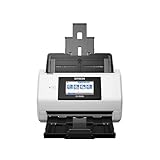
- Large format scanner - Helps improve access to and management of all your large files
- Has a color depth of 32-bit
nmap -sn <authorized-subnet>The -sn option requests host discovery without a port scan. On a local Ethernet network, Nmap uses ARP for IPv4 and Neighbor Discovery for IPv6 by default. Discovery is not guaranteed to find every device: a host or firewall may drop the probes or responses Nmap uses.
3. Scan the relevant ports and identify services
Scan the discovered addresses, or the appropriately scoped authorized subnet, for the three TCP ports with service/version detection:
Rank #2
nmap -sV -p 22,23,8080 <authorized-subnet-or-hosts>-p 22,23,8080 limits the port scan to those TCP ports, while -sV asks Nmap to probe open ports to identify the service and, when possible, its product and version. This adds scan traffic beyond a simple port-number lookup.
If you already know host discovery is missing devices, Nmap’s -Pn option skips discovery and attempts the requested scan against every supplied address. Use it only with a narrow, authorized target list: it can take longer because Nmap tries each address rather than first filtering for responsive hosts. See Nmap’s host discovery documentation and service and version detection documentation.
Quick wins for a faster PC:
Repair Windows errors before they cause bigger problemsFix Now →Scan for outdated or missing drivers - takes under a minuteDriver Scan →Clear out junk files and repair common Windows errorsFree Scan →Rank #3

- Standalone network scanner with scanning speeds of 25 ppm/50 ipm (A4 portrait, 200/300 dpi), ADF capacity of 50 sheets
- PC-less scanning with large touch screen and on-screen keyboard
- Supports scanning from thin paper to thick paper, and plastic cards
- Security measures include Login Authentication with custom job menus, Encryption, Data Transmission Security, and more
- USB port to connect devices like a mouse or contactless IC card reader
What ports 22, 23, and 8080 can tell you
Port numbers are conventional associations, not reliable identification by themselves. Nmap maintains a database of common port/service associations, but the service actually responding on a particular host may differ. As the Nmap guide puts it, “People do and can run services on strange ports.”
| TCP port | Common association | What to verify |
|---|---|---|
| 22 | SSH | Check the service/version result rather than assuming the listener is SSH. A service can use a nonstandard port, and another service can occupy 22. |
| 23 | Telnet | Confirm the actual service response; the port label does not identify the device or its owner. |
| 8080 | HTTP proxy or alternate HTTP service | Inspect the detected service. Port 8080 can host another application, so it is not proof of a web server or proxy. |
Nmap’s well-known port list describes common associations; its port-scanning overview explains port states and scanning. Active version detection is different from looking up a port number: it sends probes to learn what is actually responding.
Read service-detection results with appropriate confidence
Nmap version detection can start by listening for a service’s initial banner. If that is not enough, it tries service-specific probes. Depending on what the service reveals, results may include a protocol, product or version, device type, or OS family. Some services disclose little, so an inconclusive result does not mean a port is harmless or that no service is present. Nmap describes the probing approach in its version-detection technique documentation.
Build identification from several clues rather than treating a banner or inferred OS as proof:
Free tools Windows power users keep installed
One-click scans. No signup required.
- Record the IP address, TCP port, reported state, detected service/version, and scan time.
- Note any hostname, MAC address, or device-type and OS clues Nmap provides.
- Compare these observations with router or DHCP records, switch and wireless-controller client tables, and your asset inventory.
- Ask the listed owner or network administrator to confirm the device and whether the service is expected.
These records can help connect an address to a known device, but none of the scan metadata alone necessarily proves its make, model, owner, or physical location.
Independent reader supportYour contribution helps us test, update, and keep practical guides available for everyone.Decide whether an exposed service needs action
An open port does not by itself establish compromise or a vulnerability. If the service is expected, confirm that its owner and access controls are appropriate. If Telnet or an unexplained management interface is not needed, confirm with the responsible owner and disable or restrict it through your normal change process.
Best Value

- FAST BUSINESS PRINTING AND COPYING: The Brother MFC-L5915DW business monochrome laser all-in-one printer delivers high-quality output and print and copy speeds of up to 50ppm(1) to help boost productivity and ensure fast, professional quality documents for busy offices.
- LOW-COST OUTPUT: Help reduce operating costs by using the Brother Genuine TN920UXXL ultra high-yield 18,000-page replacement toner cartridge. Includes a Brother Genuine 3,000-page toner cartridge(2).
- FAST, HIGH-VOLUME SCANNING: The 70-page capacity(3) auto document feeder offers single-pass, two-sided scanning up to 56ipm(4). Features a large document glass for up to legal-sized documents.
- FLEXIBLE CONNECTIVITY OPTIONS: Features built‐in Gigabit Ethernet and dual band wireless networking to seamlessly set up and share on your wired.
Do not treat a version string as a complete security assessment. Vendors may backport security fixes without changing the apparent upstream version, so an old-looking string alone cannot prove that a system is vulnerable. Verify the exact product and build against vendor security notices and configuration; Nmap discusses this limitation in its service and application version-detection chapter.
This basic identification workflow does not require intrusive NSE scripts or credential attempts. Nmap classifies some scripts as intrusive; keep the scan to host discovery and ordinary service/version detection unless you have a separate, authorized reason and plan for further testing.
Quick Recap
Product prices and availability are accurate as of the date/time indicated and are subject to change. Any price and availability information displayed on Amazon at the time of purchase will apply.

