
Free tools Windows power users keep installed
One-click scans. No signup required.
There is no documented “100 divs” limit in html2canvas. Reliable conversion depends on the size of each generated bitmap, supported CSS, image origin policy, browser memory, and how you schedule captures. Capture elements in a controlled sequence, keep canvas dimensions and scale intentional, release finished objects, and verify every file. If you need pixels from the real browser rather than a DOM reconstruction, use a browser screenshot workflow instead.
What html2canvas actually does
html2canvas does not ask the browser for a native screenshot. It walks the target element’s DOM and styles, then constructs a canvas from the CSS features it implements. The project describes the result as an image “based on the DOM” that “may not be 100% accurate to the real representation” (see the html2canvas documentation). Unsupported CSS can therefore produce a result that is wrong even when the element count is small. Increasing a batch size cannot fix a CSS feature the renderer does not support.
Use html2canvas when an in-page, client-side reconstruction is acceptable. Use a real-browser capture when exact browser pixels, cross-origin frames, or server-side automation are more important than avoiding a browser runtime.
Is more than 100 elements a hard limit?
No. The documentation does not define a maximum number of divs. One page with 150 small cards may succeed while one oversized element fails because the resulting bitmap is too large. Treat the generated pixel dimensions—not the number of nodes—as the primary capacity question.
The Tool Desk
Outbyte PC Repair FREERepair Windows errors before they cause bigger problemsFix Now →Outbyte Driver Updater FREEFix the driver behind crashes, sound loss and screen glitchesFind Drivers →#1 Best Overall

- Features an 8 Megapixel camera for capturing Ultra High Definition live images up to 3264 x 2448 pixels
- High frame rate for lag-free live streaming – streams at up to 30 fps at full HD, and up to 15 fps at 3264 x 2448 pixel
- Fast focusing speed helps minimize interruptions for frequent switching between different materials; features Sony CMOS Image Sensor for exceptional noise reduction and color Reproduction – great for capturing in dimly lit environments
- Designed and made in Taiwan. Multi-jointed stand offers a simple fix for tightening loose joints caused by heavy daily use.Max Shooting Area:13.46 inch x 10.04 inch
- Works with a variety of software and applications on Mac, PC and Chromebook that allows you to use it in different ways. System Requirements - Mac Intel Core i5 CPU 2.5 GHz or higher, OS X 10.10 or higher, Solid-state drive, and 200MB of free hard disk space, 256MB of dedicated video memory (For lag-free live streaming up to 1920 x 1080, and video recording of 1920 x 1080). Windows Recommended Requirements - Microsoft Windows 10,Intel Core i5 CPU 3.40 GHz or higher, 4 GB RAM, 200MB of free hard disk space, 256MB of dedicated video memory (For lag-free live streaming up to 1920 x 1080, and video recording of 1920 x 1080)
Measure the bitmap you are about to create
A canvas contains width × height × 4 bytes before browser and encoding overhead. A 2,000 × 2,000 canvas therefore needs about 16 MB for raw RGBA pixels; several canvases, decoded images, and encoded blobs can multiply that footprint. The default scale is the device-pixel ratio, so a CSS box that is 1,000 × 1,000 can become a 2,000 × 2,000 bitmap on a 2× display.
For many independent divs, capture each at its own dimensions. Do not create one very tall canvas merely to process the collection in one call. If a single element is genuinely huge, split it at meaningful content boundaries or switch to a browser screenshot process.
A reliable sequential capture pattern
The following browser example captures every element with the class .export-card, waits for each operation to finish, checks dimensions, converts the canvas to a PNG, and drops references before moving on.
import html2canvas from "html2canvas";

async function captureCards() {
  const cards = [...document.querySelectorAll(".export-card")];
  const files = [];

  for (let i = 0; i < cards.length; i++) {
    const canvas = await html2canvas(cards[i], {
      scale: 1,                 // choose deliberately; default is devicePixelRatio
      useCORS: true,
      backgroundColor: "#ffffff",
      clearImageCache: true
    });

    if (!canvas.width || !canvas.height) {
      throw new Error(`Card ${i} produced an empty canvas`);
    }

    const blob = await new Promise((resolve, reject) =>
      canvas.toBlob(blob => blob ? resolve(blob) : reject(new Error("PNG encoding failed")), "image/png")
    );

    files.push({ index: i, blob, width: canvas.width, height: canvas.height });
    // Do not retain the canvas itself; let the browser reclaim its backing store.
  }

  return files;
}
Awaiting each capture is the safest starting point. If profiling on representative devices shows spare memory, use a small worker pool rather than launching 100 promises at once. There is no universally optimal concurrency value; it depends on element size, image content, browser, and device memory.
Control dimensions and resolution
- Use
scaleintentionally. Lowering it reduces width, height, memory, and encoding time, but also reduces detail. A value of1is predictable across displays; a value of2preserves more detail at roughly four times the pixel area. - Set explicit
widthandheightwhen the target has responsive layout or changes size during capture. Confirm the element has settled before calling html2canvas. - Capture only what is needed. A selector-specific element is cheaper than a page-sized container containing off-screen content.
- Consume results promptly. Upload each blob, append a download link, or write it to storage, then remove arrays and object URLs that are no longer needed.
Wait for fonts, images, and layout
Capture after web fonts have loaded and images have completed decoding. For dynamic cards, wait for the data-rendering promise and a layout frame (for example, await document.fonts.ready; await new Promise(requestAnimationFrame)). A delay alone is less reliable than waiting for the actual condition that makes the card complete.
Rank #2
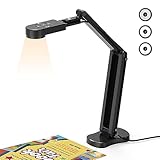
- USB Document Camera with adjustable image reversal: The camera that can manually adjust image reversal. In video chat or image output, the image can be freely adjusted left/right and up/down; you can also manually adjust the reversed image that appears in the device to a normal image
- 8MP/2448P document camera with 30fps: it output ultra-high-definition images and videos live transmission, up to 2448P megapixels. Press the focus button once to automatically focus the document camera once. Moving the object under the lens, the camera will not be arbitrary automatic focus and the image dance. Macro can capture objects as close as 3.94"
- Document Camera with Adjustable Image Brightness : the usb camera has brightness (plus) and brightness (minus) buttons, you can manually adjust the image brightness with 10 degree, to make sure that you can get the clear image. Camera comes with 14 ring lamp beads, 3 levels of brightness adjustable, which can eliminate shooting problems under difficult lighting conditions, allowing you to capture objects in dark and bright environments, and can also achieve Selfie fill-in function
- Foldable Document Camera for teachers/classroom: embedded design, occupies a small space after folding, easy to carry; Multi-joint support with multi-angle rotate freely usb camera can capture 2D and 3D objects better and shooting high-definition images and videos. Maximum covering area: 16.5" x 116" in. (A3 paper)
- USB Camera with highly compatible, plug-and-play : applicable to Windows PCS, Macs, and Chromebooks, automatically installs drivers when the device is plugged in, compatible with Tiktok, Google Meet, Skyp-Microsoft Teams, Zoom; it has built-in dual silicon microphones, which can reduce noise and improve sound quality
Canvas limits that cause blank or partial output
The html2canvas FAQ gives rough, browser-specific guides, accessed September 29, 2026—not guaranteed safe limits:
| Guide | Approximate value | What it means |
|---|---|---|
| Maximum canvas dimension | About 32,767 pixels | Rough maximum dimension cited for Chrome/Chromium, Firefox, and desktop Safari. |
| Chrome/Chromium maximum area | About 268 million pixels | Approximate total pixel area; actual behavior varies by platform. |
| Firefox maximum area | About 473 million pixels | Approximate FAQ figure, not a cross-browser promise. |
Limits vary by browser, operating system, device memory, and especially iOS hardware. Exceeding one can yield a blank or partially rendered canvas without a useful JavaScript exception. Keep a safety margin, test the actual target devices, and inspect the returned dimensions and pixels rather than assuming a successful promise means a valid image.
When one large canvas is the wrong design
A single canvas containing 100 cards concentrates all pixels and decoded resources in one allocation. Separate canvases let you retry one failed card, upload incrementally, and keep each bitmap below a safer size. A single canvas is reasonable only when the consumer needs one composite image and its dimensions are comfortably inside the tested limits.
Cross-origin images and iframes
Images from another origin
Images loaded from a different origin can taint the canvas, making toDataURL() or toBlob() fail or produce an unusable result. The html2canvas FAQ documents two valid approaches: the image server must send suitable CORS headers, or your application must fetch the image through a proxy that you control. Set useCORS: true only when the remote server permits the request; it does not bypass browser security policy.
const canvas = await html2canvas(node, {
  useCORS: true,
  proxy: "https://your.example/image-proxy"
});
Do not silently substitute a missing image with a blank rectangle. Log the source URL and either fix its CORS response, proxy it, or exclude it intentionally.
Rank #3

- 🔍 3-in-1 Versatile Tool: The document camera transforms into a dynamic webcam and visualizer, ideal for classroom lessons or remote teaching. Adjust its 360° lens to capture crisp 1080P live demos, worksheets, or 3D objects—perfect for teachers and students sharing resources interactively
- 🎒 Portable USB Design: Foldable hose and compact build make this USB document camera a travel-ready companion. Effortlessly rotate it for multi-angle views during video calls or homeschool sessions—no bulky setups required
- 🎥 Crystal-Clear Focus & Detail: Designed as a document camera for teachers, its manual focus ensures sharp, blur-free images even in dim lighting. Show fine text, science experiments, or art projects in stunning 1080P resolution at 30fps
- 🎤 Noise-Reduced Collaboration: Dual built-in mics eliminate background noise, delivering studio-quality sound for Zoom, Google Meet, or TikTok lessons. Perfect for classroom discussions, parent-teacher conferences, or lively student Q&A sessions
- 💻 Plug-and-Play Compatibility: Works seamlessly with Windows, Mac, Chromebook, and apps like Microsoft Teams or Skype. Includes USB-C for instant setup—ideal for document camera for classroom tech or home office video chats!
Cross-origin iframes
A page cannot read the document of an iframe on another origin. html2canvas therefore cannot reconstruct that iframe’s contents. If you own both origins, use an appropriate same-origin deployment or a coordinated rendering endpoint. Otherwise capture the frame separately with a real browser that is authorized to access it, or accept that it cannot be included in an in-page reconstruction.
CSS fidelity and visual verification
Check representative cards for filters, blend modes, pseudo-elements, complex gradients, sticky positioning, video, SVG, and other features your design uses. The supported feature list changes with the project, so consult the supported-features page rather than assuming ordinary browser rendering and html2canvas rendering are identical.
A practical verification checklist
- Compare the output with a native browser screenshot at the same viewport and scale.
- Check text wrapping, web-font metrics, shadows, borders, gradients, and background images.
- Open several encoded files and verify their MIME type, byte length, and width/height.
- Test the smallest and largest cards, not only the average case.
- Repeat on the browsers and devices your users actually run.
For regression testing, keep a small fixture page with known fonts, CORS images, long text, and the most complex CSS in your application. A visual diff catches omissions that a resolved promise cannot.
Choosing the right capture method
| Need | Best fit | Important trade-off |
|---|---|---|
| Client-side export of same-page elements | html2canvas | Fast to integrate, but output is a DOM/CSS reconstruction and follows origin rules. |
| Actual browser pixels on a server | Puppeteer or Playwright | Requires a browser runtime and automation infrastructure; the html2canvas FAQ points to these for server-side screenshots. |
| Browser extension capture | Native tab screenshot APIs | Requires extension permissions and browser-specific behavior; native APIs avoid canvas-size limits cited by the FAQ. |
| Many URLs, unattended jobs, or AI-agent workflows | Hosted screenshot API | Moves browser operation and scaling to a service; review billing, failure handling, and content controls. |
Or skip the browser setup
ScreenshotNeo is a website screenshot API and MCP server. It captures the rendered page in a real browser, so you do not need to maintain Puppeteer or Playwright for URL-based jobs. Before capture it accepts cookie or consent banners and removes more than 60 known consent platforms, newsletter popups, and chat widgets; each cleanup step can be disabled. Bot checks, CAPTCHAs, blank pages, timeouts, failed loads, and cache hits are not billed, and the response reports the page verdict and billing state in X-Page-Verdict and X-Billed headers.
Use the API documentation at https://screenshotneo.com/docs/ for authentication and options. A minimal request is:
curl -G "https://api.screenshotneo.com/v1/shot" -d access_key=YOUR_API_KEY --data-urlencode url=https://stripe.com -o shot.webpPython:
import requests
r = requests.get("https://api.screenshotneo.com/v1/shot", params={"access_key": "YOUR_API_KEY", "url": "https://stripe.com"}, timeout=90)
r.raise_for_status()
open("shot.webp", "wb").write(r.content)
Node.js:
const q = new URLSearchParams({ access_key: 'YOUR_API_KEY', url: 'https://stripe.com' });
const res = await fetch(`https://api.screenshotneo.com/v1/shot?${q}`);
if (!res.ok) throw new Error(`${res.status} ${await res.text()}`);
const fs = await import('node:fs/promises');
await fs.writeFile('shot.webp', Buffer.from(await res.arrayBuffer()));
ScreenshotNeo supports full-page captures with lazy images loaded, CSS-selector element capture, dark mode, 12 device presets or custom viewports, retina scale, PNG/JPEG/WebP and PDF output, custom CSS and JavaScript, pre-capture clicks, selector hiding, waits for selectors, delays or network idle, request and resource blocking, headers, cookies, user agents, authorization, timezone and geolocation, transparent backgrounds, resizing, configurable-TTL caching, signed image links, asynchronous jobs with signed webhooks, bulk capture of up to 100 URLs per call, a usage API, an OpenAPI specification, and familiar parameter names for easier migration.
Quick wins for a faster PC:
Repair Windows errors before they cause bigger problemsFix Now →Scan for outdated or missing drivers - takes under a minuteDriver Scan →It also provides an MCP server with take_screenshot, get_page_info, and capture_pdf tools for Claude, Cursor, and other MCP clients. The Free plan includes 1,000 shots per month with no card; paid plans start at $5 for 3,000 shots. Every feature is included on every plan, and yearly billing gives two months free. Create a free ScreenshotNeo account to try it.
Rank #4

- [Crystal-Clear Imaging and Smooth Video Streaming] 8 Megapixel Ultra-High definition SONY camera captures live images at up to 3264 x 2448 pixels with lag-free video streaming at 30 fps across all resolutions.
- [Your Space-Saving Multi-Joint Camera] Experience the durability of our multi-joint design while enjoying a generous viewing size of 14.72 x 11 inches. This compact camera is perfect for your desktop set up.
- [Powerful Features, Crisp Image] Featuring LED light, and an anti-glare sheet for exposure challenges in varying lighting. 7-segment brightness control, image flip, and built-in mic ensure top-notch performance. Autofocus lens and macro capability (capturing objects as close as 3.9 inches).
- [Feature-Packed INSWAN Documate Software] The bundled full-function INSWAN Documate software offers digital zoom, image annotation, hue adjustment, image rotation/flip, video recording, snapshots and other useful features. Download the latest version for free and access tutorial videos!
- [Plug-n-Play & High Compatibility for Effortless Conferencing] The INS-1 comes with a USB-A cable for instant plug-and-play operation. Seamlessly works with Documate and other webinar software on PC (Windows 7/8/10/11), Mac (OS13.5 or higher), iPad (OS 17 or higher; must have a USB-C port) , Chromebook (38.0 or higher). Designed and made in Taiwan.
Troubleshooting common failures
Some files are blank
First inspect canvas width and height. A zero-sized target, an over-limit bitmap, or content that had not finished loading are common causes. Capture after layout settles, reduce scale, split very large elements, and test on the affected device. A blank result can occur without an exception when a browser canvas limit is exceeded.
Images disappear or encoding throws a security error
Find cross-origin images in the target. Configure server CORS or a proxy, then use useCORS. If the server does not grant access, the browser cannot be instructed to ignore the restriction.
Text or effects look different
Confirm fonts are loaded and compare the CSS property with html2canvas’s supported-features list. Replace unsupported effects with export-specific CSS, or use a real-browser screenshot when fidelity is mandatory.
The tab becomes unresponsive
Stop launching all captures concurrently. Process sequentially or with a small, measured pool; lower scale; encode and upload each result immediately; and enable clearImageCache for long-lived repeated captures. Release canvas, blob, and object-URL references after each item.
An iframe is missing
Cross-origin iframe documents are inaccessible to page JavaScript. Capture the content from an authorized browser context or redesign the export so the required data is rendered in the parent document.
Best Value

- Document camera with Image reversal function: The image reversal function can be realized through the button (no need to pass the software). When video chatting or picture output, the picture can be freely reversed left and right, up and down; The PAKOTOO document camera connects the computer via USB 2.0 cable, it does not support zoom and HDMI features, nor it does compatible with iPad.
- Document camera for teachers with 3 levels of brightness adjustment and 10 levels of exposure adjustment: The brightness function can be realized by buttons to ensure that you can get clearer images. It can also realize the Selfie fill light function in dark and bright environments
- Document camera for classroom with Foldable: Embedded design, takes up little space after folding, and is easy to carry; multi-joint supports multi-angle free rotation, which can better capture 2D and 3D objects. Maximum coverage area: 16.5" x 11.6" in (A3 paper)
- USB document camera with autofocus: 2448P high-definition document cameras, press the focus (AF) button once, and the document camera will automatically focus once. Move the object under the lens, the image will not be blurred. Macro captures objects as small as 3.94"
- Important: PAKOTOO Document camera is not plug and play. You need to select "USB Camera" in the system that comes with your computer. The document camera is equipped with a USB-C cable, which can be directly used with devices with USB-C interface such as MacBook. Compatible with Windows PCS, Macs and Chromebooks, works with Tiktok, Google Meet, Skyp-Microsoft Teams, Zoom; If you encounter any problems during the use of the product, or the computer does not recognize the camera, please be sure to contact our friendly support team for a quick solution.
A server job times out
For Puppeteer or Playwright, wait on a meaningful page condition instead of an arbitrary short delay, and bound navigation and resource waits. For a hosted API, inspect HTTP status and the service’s verdict headers, then retry only transient failures rather than repeatedly billing a successful capture.
Operational checklist for 100-plus divs
- Inventory the largest target dimensions and required output resolution.
- Verify fonts, images, and dynamic data before capture.
- Choose html2canvas only if DOM reconstruction fidelity is acceptable.
- Set
scale, width, height, CORS, and background options explicitly. - Capture one element at a time initially; profile before adding concurrency.
- Validate every canvas and encoded file, including dimensions and byte length.
- Upload or consume each result, then release references and clear caches as appropriate.
- Test on every supported browser class, including constrained mobile devices.
- Switch to a real-browser or hosted workflow when cross-origin content, exact pixels, or unattended scale makes in-page reconstruction unsuitable.
FAQ
Can I capture exactly 100 divs in one html2canvas call?
You can pass a common ancestor, but that creates one composite canvas. It does not create 100 independent image files and may hit dimension or area limits sooner. Iterate over the elements when separate files are required.
What’s actually slowing this PC down?
Pick the symptom - the matching free tool is one click away.
Does lowering scale change CSS layout?
No. It changes the output bitmap resolution. Layout still follows the target’s CSS dimensions, although lower resolution can make text and fine details less sharp.
Should I retry a failed element automatically?
Retry after addressing the cause: wait for missing resources, reduce dimensions, or fix CORS. Blind retries of an over-limit canvas usually reproduce the same failure.
When is a native screenshot preferable to html2canvas?
Choose a native or automated browser screenshot when you need the pixels the browser actually painted, content inside an accessible frame, or server-side rendering without exposing your page to export code.
Frequently Asked Questions
Can I capture exactly 100 divs in one html2canvas call?
You can capture a common ancestor, but that produces one composite canvas and may reach canvas limits sooner. Iterate over elements for separate image files.
Recommended Free Tools
Does lowering scale change CSS layout?
No. It changes bitmap resolution; layout still follows CSS dimensions, but fine details may be less sharp.
Should I retry a failed element automatically?
Only after fixing the cause, such as incomplete resources, excessive dimensions, or CORS. Blind retries rarely help an over-limit canvas.
Quick Recap
Product prices and availability are accurate as of the date/time indicated and are subject to change. Any price and availability information displayed on Amazon at the time of purchase will apply.

