
Do these 3 things before closing this tab:
1Clear out junk files and repair common Windows errors2Fix the driver behind crashes, sound loss and screen glitches3Repair Windows errors before they cause bigger problemsiTechGuides is reader-supported. When you buy through links on our site, we may earn an affiliate commission. As an Amazon Associate I earn from qualifying purchases. Learn more
The best way to connect an Android phone to a TV depends on what you want to display. Use Google Cast for supported streaming apps, screen mirroring for the entire phone screen, or HDMI when you need a direct connection, lower latency, or no Wi-Fi. The important limitation is that a USB-C port does not automatically mean an Android phone supports video output.
Start with the decision table below, then follow the method that matches your phone, TV, and network.
Choose the right connection method
| What you need | Best option | What must be compatible |
|---|---|---|
| Netflix, YouTube, or another supported streaming app | Google Cast | The TV or streaming device must support Google Cast, and the phone and receiver normally need to be on the same Wi-Fi network. |
| Your entire phone screen, photos, documents, or an unsupported app | Screen mirroring | The phone and TV must expose compatible Smart View, Screen Share, Wireless display, or Miracast functionality. |
| No usable Wi-Fi, a presentation, gaming, or the lowest practical latency | HDMI | The exact phone model must support USB-C video output, micro-HDMI, MHL, or another compatible wired standard. |
| A hotel, dormitory, office, or guest network blocks device discovery | HDMI or compatible direct wireless mirroring | Cast discovery can fail because of captive portals or router client isolation. |
Method 1: Connect Android to a TV with Google Cast
Google Cast is usually the simplest choice for streaming. Instead of continuously copying the phone display, a supported app sends playback to the TV or Cast receiver while the phone acts as a remote control. This generally gives a cleaner viewing experience and avoids showing every notification on the television.
What you need
- A TV with Google Cast built in, or a compatible Chromecast, Chromecast with Google TV, or Google TV Streamer connected to an HDMI port.
- An Android phone with a Cast-enabled app. Google documents Android 6.0 or later for Cast-enabled app use.
- The phone and TV or receiver connected to the same Wi-Fi network.
If the television does not have Google Cast built in, a Google TV Streamer (4K) is the current dedicated Google receiver option covered by this workflow. It needs power, an HDMI connection, and network access through Wi-Fi or Ethernet. Google’s setup documentation also specifies a separately purchased Ultra High Speed HDMI 2.1 cable for the recommended Google TV Streamer setup. A basic HDMI connection does not automatically require the highest HDMI cable specification, but use the cable specification required by the particular device and resolution.
Cast a video or song from an Android app
- Turn on the TV and select the HDMI input used by the Chromecast or Google TV Streamer, if you are using an external receiver.
- Connect the phone and receiver to the same Wi-Fi network. They must be able to communicate with one another; being connected to the same internet service is not enough if the router isolates wireless clients.
- Open a Cast-enabled app, such as YouTube or another supported streaming app.
- Tap the Cast icon, usually a rectangle with curved wireless lines.
- Select the TV or Cast receiver from the device list.
- Start playback. The Cast icon normally changes state or becomes highlighted when the connection is active.
To stop casting, open the app’s playback controls, tap the Cast icon, and choose Disconnect or the equivalent stop command. You can also manage supported receivers from Google Home.
Popular on Amazon

- Superior Display, Swift Connectivity: Elevate your viewing experience to unparalleled clarity with 8K@60Hz, and enjoy smoother visuals and reduced lag with support for 4K@120Hz and 4K@60Hz.
- Quick and Seamless Video Transfer: With the latest HDMI technology, stream or transfer videos without interruptions, and witness the power of up to 48 Gbps in bandwidth, ensuring consistently clear content.
- Lasts Longer, Performs Stronger: This cable is designed to withstand up to 1,000 bends throughout its lifespan, meaning fewer replacements and continuous peace of mind.
- One Cable, Many Solutions: Whether you're connecting tablets, laptops, HDMI devices, projectors, or desktop screens, this cable effortlessly connects them all.
- What You Get: HDMI Cable (6 ft, 8K), welcome guide, 18-month warranty, and our friendly customer service.
Mirror the entire Android screen through Google Home
Full-screen casting through Google Home is separate from tapping the Cast button inside a video app. It can be useful for a photo gallery, a document, a demonstration, or an app that has no Cast button. Google documents Android 8.0 or later for Google Home screen-casting features, although the exact option and performance can vary by phone.
- Open the Google Home app.
- Open the device controls for the TV or Cast receiver.
- Choose the screen-casting option, such as Cast my screen or Cast screen.
- Approve the prompt and select the receiver if requested.
Use app-level casting instead of full-screen mirroring whenever the app supports it. Mirroring can expose notifications, use more battery, fit the television awkwardly, and fail for protected video.
Recommended Free Tools
When Google Cast cannot find the TV
Check that both devices are on the same SSID rather than one being on a guest network. Captive-portal networks, hotel sign-in pages, and router settings such as AP isolation, client isolation, or wireless isolation can prevent discovery. Update the relevant streaming app, Google Home, and Google Play services where applicable. If the network is overloaded, move the phone, router, and receiver closer together and try a less congested connection.
Method 2: Connect Android to a TV with an HDMI cable
HDMI provides a direct picture-and-sound path and is often the most dependable option when wireless discovery is unreliable. It is also useful for presentations, gaming, or situations where the TV network is unavailable. However, HDMI compatibility is determined by the phone model—not merely by the shape of its connector.
Also popular on Amazon
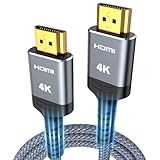
- 4K HDMI UHD Transmission, Stunning Audio & Visual for Home Theater & Gaming: Enhanced with gold-plated connectors for high-speed, interference-free signal transmission. Supports 4K*2K UHD resolution (3840×2160), delivering crystal-clear imagery and full HD stereo sound—perfect for immersive home theater movie nights, gaming marathons and big-screen TV viewing
- High-Speed Bandwidth, Instant Transmission for Real-Time Playback: Fully compliant with High-Speed HDMI cable 2.0 standard for max-speed data transfer. Blazing-fast transmission of audio, video and image files with zero buffering, ideal for 4K streaming, real-time gaming and seamless laptop-to-projector presentations. Plug-and-play design, no driver installation needed for effortless one-step connection
- HDMI 2.0 Standard Compliant, Universal Compatibility for All A/V Devices: Built to fully comply with official HDMI 2.0 standards after rigorous professional quality testing. Featuring broad backward compatibility with HDMI 1.4/1.3/1.2 generations, this cable effortlessly pairs with smart TVs, game consoles, Blu-ray players, projectors, laptops and set-top boxes. Enjoy stable plug-and-play connectivity across every piece of your home audio-visual gear.
- Premium Crafted Material, Ultra Durable for Daily Home Use & Frequent Use: Exclusive SR joint design at both ends to prevent joint cracking at the source. Rigorously lab-tested to withstand over 15,000 bends without performance loss, built to endure daily plug-and-unplug, messy entertainment area setups and regular home use—ensuring long-lasting durability against daily wear and tear hdmi cable
- 100% Component Inspected, Uncompromising Quality for Long-Term A/V Enjoyment: Every single component of the cable undergoes multiple rigorous lab tests for performance and sturdiness. Only flawlessly tested parts are selected for assembly, guaranteeing top-tier product performance and extended service life with strict quality control—reliable for years of home theater, gaming and everyday big-screen use hdmi
Check the phone before buying an adapter
Look in the phone manufacturer’s official specifications or manual for one of these terms:
- DisplayPort Alt Mode or USB-C video output
- HDMI output
- DeX over HDMI for a supported Samsung Galaxy device
- Micro-HDMI
- MHL, usually on older phones with a compatible micro-USB connection
A USB-C connector by itself is not proof that the phone can send video. USB-C can provide charging and data without supporting DisplayPort video output. Android compatibility guidance recommends DisplayPort support for USB-C implementations but does not make video output universal, and manufacturers document HDMI or MHL support on a model-by-model basis.
Quick wins for a faster PC:
Fix the driver behind crashes, sound loss and screen glitchesFind Drivers →Clear out junk files and repair common Windows errorsFree Scan →For a supported phone, a USB-C to HDMI adapter is the usual modern accessory. Verify the phone’s exact specification for DisplayPort Alt Mode or DeX HDMI support before buying; an adapter cannot add video output to a USB-C port that lacks it. Some phones or adapters also require external power.
Connect the phone to the TV
- Connect the compatible adapter to the phone. For an older phone, use the model-specific MHL or micro-HDMI accessory instead.
- Connect an HDMI cable from the adapter or phone to an HDMI input on the TV.
- Turn on the TV and select the HDMI input number used for the connection.
- Unlock the phone and approve any connection prompt if one appears.
- Wait for the TV to show the phone display or a supported desktop interface such as Samsung DeX.
The result depends on the phone. Some models duplicate the phone screen; compatible Samsung Galaxy devices may offer DeX or another desktop-style interface. Do not assume that every Samsung phone supports DeX or that every USB-C Android phone supports HDMI.
HDMI troubleshooting
- No signal: Confirm that the TV is on the correct HDMI input, then reseat both ends of the cable. Try another HDMI input and, if available, another known-good cable.
- The phone charges but the TV stays blank: Charging only proves that the USB-C connection carries power. Recheck whether the exact phone model supports wired video output.
- The adapter is not detected: Confirm that it supports the phone’s output standard. A generic USB-C hub is not universally compatible with Android video output.
- The adapter needs power: Connect its power input as specified, then reconnect the phone and HDMI cable.
- A prompt is waiting: Unlock the phone and approve the connection. Some phones do not activate external display output until the device is unlocked.
Method 3: Mirror Android to a TV wirelessly
Wireless screen mirroring reproduces the phone’s display on the television. The feature may be based on Miracast or a manufacturer-specific implementation, and menu names differ widely across Android brands and software versions.
Also popular on Amazon

- 【Crystal-Clear Visuals: Experience Unmatched 8K Clarity】 Elevate your home entertainment with our 8K HDMI cable 15ft . Supporting 48Gbps High Speed, indulge in seamless transitions between 8K@60Hz and 4K@120Hz resolutions for crystal-clear visuals. Experience the vibrancy of Dynamic HDR, immersive 3D visuals, and HDCP2.2 & 2.3 compliance for an unparalleled viewing experience
- 【Gaming Excellence: Elevate Your Gaming with Next-Level Performance】 Our enhanced 8K long HDMI cable amplifies gaming experiences. Featuring an advanced audio return channel (eARC), enjoy superior high-definition audio compared to standard 4K cables. Bid farewell to picture freezes and tears with Variable Refresh Rate (VRR) support, ensuring smoother gameplay. This 15 ft HDMI cable is your ultimate choice for exceptional gaming performance across all compatible devices
- 【Seamless Compatibility: Versatile Connections Across Devices】 Backward compatible from HDMI versions 2.1 to 1.1, our 8K HDMI 2.1 cable 15 ft seamlessly connects laptops, Blu-ray players, HDTVs, monitors, Series X/S, CX C9 B9, AMD, Nvidia RTX 3080/3090, and various HDMI output devices. Immerse yourself in the latest high-bitrate audio formats including DTS Master, DTS:X, Atoms, and enhanced Audio Return Channel (eARC) across various setups, from 4K/8K UHD TVs to projectors and A/V Receivers
- 【Durable Performance: Sleek & Durable Copper Build for Longevity】 Crafted with advanced copper wire technology, our HDMI 15ft cable ensures greater bandwidth and durability. Experience minimal signal attenuation, superior interference resistance, and increased carrying capacity compared to traditional wires. It's the ideal choice for pre-built HDMI 2.1 cables, ensuring long-term performance without future cable replacement costs during home upgrades
- 【Lifetime Support & Precision: Quality Assurance and Bidirectional Transmission】 At Highwings, quality and customer support are top priorities. Enjoy lifetime support with our 8K long HDMI cable 15 ft. Our customer service team is available within 13 hours to assist with any cable-related issues. Remember, our cables support bidirectional transmission and are designed for optimal performance, ensuring the perfect picture on your chosen display device
Miracast is not the same as Google Cast. Miracast is generally a direct wireless-display connection based on Wi-Fi Direct. Google Cast usually sends supported app playback to a Cast receiver over the network. A TV that supports one does not necessarily support the other.
Samsung Galaxy: use Smart View
- Turn on the TV and make sure it is ready to accept a screen-mirroring connection.
- On the Galaxy phone, swipe down twice to open the full Quick Settings panel.
- Tap Smart View.
- Select the TV or compatible wireless display.
- Accept the connection request on the TV if prompted.
Samsung recommends placing the phone and TV on the same network, and Smart View requires a compatible Miracast-capable display. The precise availability of Smart View, DeX, and related features depends on the Galaxy model and software.
Other Android phones
Open Quick Settings and look for Screen Share, Cast screen, Wireless display, Smart View, or a similar manufacturer-specific command. If it is not in Quick Settings, check the phone’s Settings search for cast, wireless display, or screen share.
On an LG TV, the typical LG workflow is to open the Android notification panel, select Screen Share, choose the TV, and accept the request on the television. On a Sony Android TV or Google TV, check the exact model’s compatibility information before relying on screen mirroring: Sony notes that wireless-display functions vary by TV model, and some newer Sony models no longer include the older Screen mirroring feature.
Also popular on Amazon

- 【HDMI 2.1 Certification】Only 1% of HDMI cables on the market have passed HDMI 2.1 certification. Scan with the QR code Scanner app for verification
- 【120Hz/144Hz Gaming Excellence】Elevate your gaming experience with smooth 4K@120Hz gameplay for PS5 and Xbox, and ultra-responsive 4K@144Hz for PC. Whether you’re pushing your console or PC to the limit, enjoy unparalleled performance across all platforms(Requires game to support 4K@120Hz)
- 【Exclusive "E-Braid" Technology】Experience unprecedented durability with our unique double-layer fishnet winding and nylon braiding techniques. Copper cores and ferrite magnetic beads ensure uninterrupted signals, eliminating black screens and flickering
- 【HDMI 2.1-48Gbps Bandwidth】Unleash the full potential of your devices with lightning-fast data transfer rates, ensuring seamless connectivity for all your high-definition needs
- 【Next-Level Resolution Support】Dive into the future with support for mind-blowing resolutions, including 10K 8K@60Hz, 12-bit; 5K@120Hz/90Hz, 12-bit; 4K@144Hz/120Hz, 12-bit; and 2K@240Hz/165Hz
If the TV does not support compatible mirroring, a Miracast wireless display adapter may provide a receiver for a compatible Android phone. Confirm Miracast support on both the phone and adapter before purchase. Compatibility can vary with the phone, TV, adapter, firmware, and the content being displayed.
The Tool Desk
Outbyte PC Repair FREERepair Windows errors before they cause bigger problemsFix Now →Outbyte Driver Updater FREEFix the driver behind crashes, sound loss and screen glitchesFind Drivers →Limitations of screen mirroring
- Protected content may show a black screen: Digital rights management can prevent mirroring. Samsung specifically documents that DRM-protected content cannot be mirrored.
- Notifications may appear on the TV: Enable Do Not Disturb or hide sensitive notifications before presenting or sharing photos.
- The image may not fill the screen: Phones use different aspect ratios from TVs. Rotate the phone, adjust the TV’s picture-size control, or use Smart View’s aspect-ratio setting where available.
- Wireless video can stutter: Distance, interference, an overloaded router, and an isolated network can affect performance.
Google Cast or screen mirroring: which should you use?
| Feature | Google Cast | Screen mirroring |
|---|---|---|
| Best for | Supported streaming apps and music | Photos, documents, presentations, demonstrations, and unsupported apps |
| What appears on the TV | Playback from the app or service | The phone’s current display |
| Phone role | Usually a controller or remote | Must remain active as the source display |
| Network model | Normally requires the phone and receiver on the same Wi-Fi network | Miracast may create a direct wireless display connection, depending on the devices |
| Common limitation | The app or browser must support Cast | DRM, notifications, battery use, and compatibility differences |
For a streaming service, use its own Cast button whenever available. If the service does not support Cast, try screen mirroring only if the content permits it. If you need a predictable connection in a hotel room or during a presentation, check wired HDMI compatibility before depending on a shared Wi-Fi network.
Independent reader supportYour contribution helps us test, update, and keep practical guides available for everyone.Fix the most common Android-to-TV problems
The TV or receiver does not appear
- Confirm that the phone and TV or receiver are connected to the same Wi-Fi network for Google Cast.
- Disconnect from a guest network or VPN temporarily if it prevents local-device discovery.
- Check whether the router has AP, client, or wireless isolation enabled.
- Update Google Home, the streaming app, and Google Play services where applicable.
- Restart the phone, TV or receiver, and router if discovery remains stuck.
- For Miracast, confirm that the phone and TV actually support compatible wireless display features; a Cast-only TV may not appear in the phone’s mirroring list.
You are using hotel, dorm, office, or guest Wi-Fi
These networks often use a captive sign-in page or prevent connected devices from communicating with one another. Google Cast setup and discovery may therefore fail even when the phone has internet access. Use a direct HDMI connection, a supported direct-mirroring mode, or a properly configured private network instead. Do not try to bypass an organization’s network restrictions.
The TV shows a black screen
With HDMI, select the correct input, reconnect the cable firmly, test another input, and verify the adapter’s compatibility with the phone. With wireless mirroring, try the app’s Cast button instead: protected content may deliberately block full-screen mirroring. Also check whether the TV has accepted the connection request.
The picture is low quality or keeps freezing
Move the phone, router, and receiver closer together, reduce congestion on the Wi-Fi network, and use a compatible 2.4 GHz or 5 GHz connection. For the most consistent low-latency result, use HDMI if the phone supports wired video output. Mirroring and Cast performance can vary substantially with the phone, receiver, router, and TV firmware.
What’s actually slowing this PC down?
Pick the symptom - the matching free tool is one click away.
Also popular on Amazon

- IN THE BOX: HDMI cable (A Male to A Male) for connecting 2 HDMI-enabled devices; 3 feet long in Black
- DEVICE COMPATIBLE: Connects Blu-ray players, Fire TV, Apple TV, PS4, PS3, Xbox One, Xbox 360, and computers to TVs, displays, A/V receivers, and more
- SUPPORTS 4K VIDEO: Supports 4K video at 60 Hz, 2160p, 48-bit/px color depth, as well as bandwidth up to 18Gbps, Ethernet, 3D, and Audio Return Channel (ARC)
- EASY CONNECTION: Share an Internet connection among multiple devices (no need for a separate Ethernet cable)
- BACKWARDS COMPATIBLE: Works with earlier versions to allow for use with a wide range of HDMI-enabled devices
The picture is cropped or surrounded by black bars
Rotate the phone and check the TV’s picture-size or aspect-ratio controls. On Samsung phones, open the Smart View controls and adjust the aspect ratio when that option is available. Some distortion is normal when a tall phone display is shown on a wide television.
Quick checklist
- For YouTube or another Cast-enabled app: use the app’s Cast button.
- For the whole phone display: use Smart View, Screen Share, or the phone’s equivalent wireless-display feature.
- For no Wi-Fi or the lowest practical delay: use HDMI, but verify exact phone-model support first.
- For a USB-C phone: look for DisplayPort Alt Mode or documented HDMI/DeX support; do not rely on the connector alone.
- For a TV without Google Cast: use a compatible external receiver such as the Google TV Streamer, or use compatible Miracast hardware for screen mirroring.
- For protected video: prefer the service’s official Cast function; mirroring may be blocked.
Frequently Asked Questions
Will any USB-C-to-HDMI adapter connect an Android phone to a TV?
No. The phone must support video output through USB-C, usually through DisplayPort Alt Mode or a documented manufacturer feature such as compatible Samsung DeX HDMI output. USB-C may support only charging and data, so check the exact phone model before buying an adapter.
Can I connect an Android phone to a TV without Wi-Fi?
Yes, if the phone supports HDMI output and you have the correct adapter and cable. Some Miracast implementations also create a direct wireless-display connection, but Google Cast normally requires the phone and receiver to communicate over the same Wi-Fi network.
Why can I cast YouTube but not another app?
Google Cast is app-dependent. The other app may not provide a Cast function, or its content may be protected against full-screen mirroring. Use the app’s own Cast control when available rather than mirroring the entire display.
Do all Samsung Galaxy phones support DeX or HDMI output?
No. DeX and wired display output are model-dependent. Check Samsung’s specifications or support information for the exact Galaxy model.
The Bottom Line
Use Google Cast for supported streaming apps, Smart View or another compatible mirroring feature for the complete phone screen, and HDMI when you need a direct connection. Before purchasing an adapter, verify that the exact Android phone supports wired video output—USB-C alone is not enough.

