
iTechGuides is reader-supported. When you buy through links on our site, we may earn an affiliate commission. As an Amazon Associate I earn from qualifying purchases. Learn more
To configure Spotlight Messenger, open Intercom and go to Settings > Channels > Messenger > Spotlight. Some workspaces show the shorter path Settings > Messenger > Spotlight. Set the audience, select the correct brand, style the composer, review the preview, secure your domains, and choose Save and set live. Spotlight is Intercom’s sales-oriented Messenger experience and replaces Widget Messenger for the audience you select.
This guide follows Intercom’s Spotlight configuration documentation dated July 29, 2026, and explains the settings, JavaScript options, security checks, and differences from Widget Messenger.
What Spotlight Messenger is—and when to use it
Spotlight Messenger is an Intercom web Messenger experience designed mainly for sales engagement. A matching visitor sees a floating Spotlight entry bar rather than the standard Widget Messenger. Fin can proactively start a conversation when outbound triggers are configured, qualify the visitor according to a playbook, and route a qualified person to sales or a meeting.
Quick wins for a faster PC:
Fix the driver behind crashes, sound loss and screen glitchesFind Drivers →Clear out junk files and repair common Windows errorsFree Scan →Scan for outdated or missing drivers - takes under a minuteDriver Scan →Intercom recommends Widget Messenger as the primary experience for customer service. Spotlight can still be used with Fin for Service, so this is a positioning decision rather than a hard technical restriction. Use Spotlight when a focused, sales-oriented entry point is more useful than a broad support hub—for example, on pricing or high-intent product pages. Those are examples, not requirements.
#1 Best Overall

- Digital Stereo Sound: Fine-tuned drivers provide enhanced digital audio for music, calls, meetings and more
- Rotating Noise Canceling Mic: Minimizes unwanted background noise for clear conversations; the rotating boom arm can be tucked out of the way when you’re not using it
- Handy In-line Controls: Simple in-line controls on the headset cable let you adjust the volume or mute calls without disruption
- Plug-and-Play USB Computer Headset: Simply plug the USB-A connector into your computer and you’re ready to talk or listen without the need to install software
- Padded Comfort: Comfortable headphones with adjustable headband features swivel-mounted, leatherette ear cushions for hours of comfort and is easy to clean
Spotlight is configured in Messenger settings and applies only to the audience rules you publish. Visitors outside those rules continue to receive whatever Messenger experience is configured for them.
Spotlight and Widget Messenger compared
| Decision area | Spotlight Messenger | Widget Messenger |
|---|---|---|
| Primary positioning | Sales engagement and focused conversations | Intercom’s recommended primary experience for service |
| Audience behavior | Can replace Widget Messenger for a selected audience defined by rules | Standard Messenger experience for the audiences assigned to it |
| Entry experience | Floating Spotlight entry bar and a sales-oriented conversation flow | Widget interface with its broader Messenger spaces |
| Available spaces | Does not include Home Screen, Tasks, News, or Help Space; help articles can still be sent in a conversation | Includes those broader spaces when they are enabled in the workspace |
| Conversation navigation | Uses a conversation switcher instead of a message-list screen | Uses the Widget Messenger navigation model |
| Service use | Can be used with Fin for Service, although it is not Intercom’s default service recommendation | Recommended by Intercom for primary service interactions |
| Theme control | Light or dark composer in settings; system-following behavior requires the JavaScript SDK | Uses the Widget Messenger’s own configuration options |
Requirements and preparation
- Intercom access: Messenger requires an Intercom trial or subscription.
- Permission: Your administrator account needs Can access Messenger settings.
- Web installation: The Messenger installation must be present on the website where Spotlight will appear.
- Security decisions: Decide which domains are trusted and whether identity verification will be used before publishing.
- Brand information: If the workspace contains multiple brands, know which brand should own the Messenger experience.
- Audience logic: Decide whether Spotlight should appear broadly or only under URL, role, attribute, or other conditions.
Do not treat the domain field as an optional cleanup step. Intercom’s security guidance warns that leaving trusted domains blank allows Messenger to be added to any domain.
Where do I configure Spotlight Messenger?
- Open Messenger settings. In Intercom, open Settings, then locate Messenger. The dedicated Spotlight guide uses Settings > Channels > Messenger > Spotlight; the broader setup guide shows Settings > Messenger > Spotlight. If your labels differ, open Messenger settings and select Spotlight.
- Confirm the Spotlight page. The page contains the audience, brand, appearance, and Smart Suggestions controls. Make changes here before publishing.
- Keep the preview visible. Use the live preview while editing so spacing, colors, and the composer treatment can be checked before visitors see them.
How to control who sees Spotlight Messenger
Choose the audience scope
Use the audience controls to decide whether Spotlight should be broadly available or targeted. Selecting Specific audience opens rule-based targeting. Matching visitors receive Spotlight, and Spotlight replaces Widget Messenger for that selected audience.
Build rules from supported conditions
Intercom documents conditions based on the visitor’s URL, user role, custom attributes, and other rule-based criteria available in the workspace. Roles can distinguish a visitor, lead, or user. URL rules are useful when the sales conversation should start only on particular pages; role and custom-attribute rules let you target known user segments.
Use the narrowest rule set that matches the intended campaign. A rule aimed at a pricing page should not accidentally include every page on the site, and a role rule should distinguish anonymous visitors from identified leads or users. Review the resulting audience in the preview before publishing.
Select the Messenger brand
Workspaces with multiple brands must select the correct Messenger brand before styling Spotlight. Brand selection affects which identity and visual treatment the visitor sees. Confirm the brand first; otherwise, you can spend time tuning colors and spacing on the wrong configuration.
How to change the Spotlight Messenger appearance
Open the Appearance section in Spotlight settings. The settings page controls the composer, not a separate “system” theme option.
The Tool Desk
Outbyte Driver Updater FREEFix the driver behind crashes, sound loss and screen glitchesFind Drivers →Outbyte PC Repair FREERepair Windows errors before they cause bigger problemsFix Now →| Appearance setting | What you can configure | Important behavior |
|---|---|---|
| Composer theme | Light or dark | Spotlight settings do not offer a system-following choice |
| Primary brand color | Enter a hexadecimal color value | Provides the main brand color used by the composer treatment |
| Composer stroke | Optional stroke around the composer | Requires a primary color; without one, the composer uses a neutral shadow |
| Bottom spacing | Spacing measured in pixels | Adjusts the distance between the Spotlight interface and the bottom of the browser viewport |
Set light or dark mode
Choose the light or dark composer option that best fits the page where Spotlight appears. Check the live preview at the same time; a color that works on a light page may have insufficient contrast on a dark one.
Enter the primary color and optional stroke
Enter the brand color as a hex value. You can then enable the composer stroke. Intercom states that the stroke depends on a primary color; if no primary color is configured, the composer displays a neutral shadow instead.
Adjust bottom spacing
Set bottom spacing in pixels so the floating entry bar does not collide with cookie notices, accessibility controls, or other fixed elements. Validate the result at the narrowest browser width your site supports.
Follow the visitor’s operating-system theme with JavaScript
Intercom explicitly states that Spotlight’s Messenger settings do not support a system theme option. If the interface should follow the visitor’s operating-system preference, configure the JavaScript SDK at runtime. The documented theme_mode values are light, dark, and system; system follows the visitor’s OS theme.
Windows Errors? Fix Them Before They Spread
Repair common Windows errors and clear accumulated junk for a smoother, more stable PC - no reinstall needed.Free scan · no reinstallOutdated Drivers Are Slowing You Down
One free scan finds every outdated or missing driver and matches the right update for your exact hardware.Free scan · exact hardware matchRank #2

- Exceptional call quality - Revel in crystal-clear conversations with the Lenovo USB-A Wired Stereo Headset Gen 2. Powered by Lenovo Accessories and Device Manager (LADM) software that enhances noise-cancelation, ensuring clarity even in the busiest environments.
- Effortless controls - No more fumbling with complicated settings. This headset’s intuitive control box simplifies your life with easy access to call functions, volume, and mute, allowing you to stay focused and productive.
- Supreme comfort - At just 140 g, experience the featherlight embrace of thoughtfully designed earcups. Relish the perfect blend of function and comfort that supports you through every task, making this headset a transformative addition to any professional’s toolkit.
- USB-A Plug & Play Compatible with: Teams, Zoom, Google Meet (Hangout), Google Voice, Slack, GoTo Meeting, WeChat, Cisco Webex
Intercom('update', {
  theme_mode: 'system',
  composer_stroke: true,
  glow_color: '#5C2D91'
});
Intercom also documents Intercom('boot', {...}) for initial configuration and Intercom('update', {...}) for changing appearance at runtime. Developers can set the composer stroke and its stroke color in the SDK as well. Keep the runtime values consistent with the brand settings so a later update does not unexpectedly override the visual design.
Enable Smart Suggestions
Spotlight includes Smart Suggestions as a documented beta feature. In Spotlight settings, enable Smart Suggestions and enter a website URL. Intercom says the feature can generate up to 20 suggestions. Visitors see three suggestions at a time, and the suggestions rotate across sessions.
The beta has important management limits:
- You cannot manually add a suggestion.
- You cannot edit the text of an individual suggestion.
- You can delete individual suggestions.
- You can regenerate the complete set.
Because the feature is labeled beta, its controls and behavior may change. Treat generated suggestions as prompts for a conversation, not as a permanent content library. Check the wording in the preview and remove suggestions that do not match the page or your support policy.
Preview, secure, install, and publish
Review the visitor experience
Use the live preview to inspect the floating entry bar, composer theme, brand color, stroke, and spacing. Confirm that the selected audience and brand are the ones you intend to publish.
Restrict trusted domains
Set the trusted-domains field to the domains where Messenger is allowed to run. Intercom warns that a blank field permits Messenger to be added to any domain. Include production domains deliberately and avoid treating a broad wildcard as a substitute for an access review.
Review identity verification
If logged-in users will use Messenger, review identity verification before deployment. Domain restrictions control where the Messenger code can run; identity verification helps ensure that an identified user is the person represented by the account data.
Install Messenger on the website
Spotlight requires the web Messenger installation. If the installation is missing, a correctly configured Spotlight page will not appear to visitors. Confirm that the installation is on the intended site and that the page loads the current Intercom snippet.
Save and set live
After the preview and security checks, choose Save and set live. Publish only after confirming that the audience rules, brand, domains, and appearance are correct; these settings determine who receives Spotlight and what they see.
What’s actually slowing this PC down?
Pick the symptom - the matching free tool is one click away.
What visitors experience after launch
- A visitor who matches the published rules sees the floating Spotlight entry bar.
- If outbound triggers are configured, Fin may proactively engage.
- Fin qualifies the visitor according to the configured playbook.
- A qualified visitor can be routed to sales or offered a meeting.
- When direct booking is enabled, Intercom uses its native Calendly booking experience. Intercom says other booking platforms are coming soon but does not provide a release date.
Spotlight informs users when a teammate joins, shows online status, and displays a privacy policy below the text bar before a conversation begins. Voice dictation requires no additional setup and is available wherever Spotlight is available.
What Spotlight leaves out
Choosing Spotlight changes more than the launcher’s color. Compared with Widget Messenger, Spotlight omits the Home Screen, Tasks, News, and Help Space. Fin or a human agent can still send help articles inside a conversation, but those spaces are not available as standalone destinations. Spotlight also removes Special Notice and expectation settings. Its message-list screen is replaced by a conversation switcher.
These differences matter when visitors need self-service navigation or a persistent list of support resources. If those spaces are central to your service workflow, Widget Messenger is the better fit. If the primary goal is a focused sales conversation, Spotlight’s reduced interface may be intentional.
Rank #3
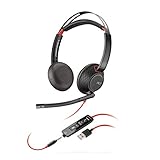
- Connects To: For a professional needing to connect to a PC/Mac using USB-A and/or mobile phone. Compatible with Microsoft Teams and other leading collaboration platforms.
- Ideal For: Users with extensive PC communication and collaboration use.
- Audio Performance: Superb Audio Quality - Noise canceling microphone ensures your voice is heard. Audio automatically switches between wideband for telephony & hi-fi stereo for music. SoundGuard DIGITAL protects against sound levels over 118dBA, sudden loud sounds & long-term exposure.
- Intelligent Features: Enhanced All Day Comfort & Portability - Ultra-soft leatherette ear cushions wrapped around pillow-soft memory foam provide all-day comfort. A lightweight cushioned metal headband offers durability and a comfortable custom fit.
- Global Warranty & Wearing Style: 2 years global warranty; over the head wearing style with two earpieces.
How to choose between Spotlight and Widget Messenger
Choose Spotlight when
- You want a sales-oriented entry point on high-intent pages.
- You need rules that target specific URLs, roles, or custom attributes.
- You want Fin to qualify visitors and route qualified people to sales.
- You prefer a focused conversation switcher over a larger set of Messenger spaces.
- You are prepared to manage appearance, domain security, and web installation as part of the launch.
Choose Widget Messenger when
- Your primary requirement is Intercom’s recommended service experience.
- Visitors need Home Screen, Tasks, News, or Help Space.
- You want the broader Widget navigation rather than Spotlight’s sales-focused entry bar.
Use both strategically
Spotlight can replace Widget Messenger for a defined audience, which allows a workspace to target a sales experience without making every visitor use it. For example, one set of rules can show Spotlight on selected commercial pages while other visitors continue to receive Widget Messenger. Keep the rule boundaries explicit so overlapping conditions do not create an unexpected experience.
Do these 3 things before closing this tab:
1Clear out junk files and repair common Windows errors2Scan for outdated or missing drivers - takes under a minute3Repair Windows errors before they cause bigger problemsTroubleshooting configuration problems
Spotlight does not appear
- Confirm that the visitor matches the published audience rules.
- Check that the Messenger installation is present on the site.
- Verify that the current domain is included in trusted domains.
- Confirm that the changes were published with Save and set live.
The settings page is missing
Check that the account has an Intercom trial or subscription and that the administrator granted Can access Messenger settings. Also look for both documented navigation variants: Settings > Channels > Messenger > Spotlight and Settings > Messenger > Spotlight.
The stroke looks like a shadow
Set a primary brand color first. Intercom documents that the composer stroke requires a primary color; without one, the interface shows a neutral shadow.
The interface does not follow the operating-system theme
Messenger settings support light and dark, not system mode. Use the JavaScript SDK with theme_mode: 'system' through Intercom('boot', {...}) or Intercom('update', {...}).
Smart Suggestions are unsuitable
Delete individual suggestions or regenerate the full set. Manual additions and edits are not supported in the documented beta behavior.
Frequently Asked Questions
Frequently Asked Questions
Is Spotlight Messenger a separate chat product?
No. It is an Intercom Messenger experience configured in Messenger settings. Its main difference is the targeted, sales-oriented presentation and the ability to replace Widget Messenger for a selected audience.
Can Spotlight be used for customer support?
Yes. Intercom documents that Spotlight can be used with Fin for Service, while recommending Widget Messenger as the primary service experience.
Can I add my own Smart Suggestion text?
No. The documented beta feature generates suggestions from a website URL; individual suggestions can be deleted, and the full set can be regenerated, but suggestions cannot be manually added or edited.
What does a blank trusted-domains field mean?
Intercom’s security guidance says a blank field allows Messenger to be added to any domain. Set the intended domains before publishing.
How do I make Spotlight follow a visitor’s system theme?
Use the JavaScript SDK and set theme_mode to system. The Spotlight settings page itself offers only light and dark composer choices.
Why can’t I find the Spotlight menu?
The navigation labels vary by workspace. Look under either Settings > Channels > Messenger > Spotlight or Settings > Messenger > Spotlight, and verify that your account has Messenger-settings permission.
The Bottom Line
Spotlight Messenger is best configured as a targeted, sales-focused Intercom experience: define the audience, select the brand, style the composer, secure trusted domains and identity, verify the web installation, then publish with Save and set live. Use Widget Messenger instead when your service workflow depends on its broader navigation spaces.
Quick Recap
Product prices and availability are accurate as of the date/time indicated and are subject to change. Any price and availability information displayed on Amazon at the time of purchase will apply.
Free tools Windows power users keep installed
One-click scans. No signup required.

