
Recommended Free Tools
iTechGuides is reader-supported. When you buy through links on our site, we may earn an affiliate commission. As an Amazon Associate I earn from qualifying purchases. Learn more
Buy the upgrade when it removes a real bottleneck, not because you expect a broad price collapse. Current 2026 forecasts point to higher, not lower, memory and flash costs: TrendForce forecast LPDDR4X and LPDDR5X contract prices to rise about 90% quarter over quarter in the first quarter of 2026, conventional DRAM to rise 13–18% in the third quarter, and NAND Flash to rise 10–15% in the third quarter. Gartner estimated that combined DRAM and SSD prices could be 130% higher at the end of 2026 than in 2025. Those are market forecasts, not guaranteed retail prices, but they make waiting solely for a cheaper upgrade speculative.
The right choice depends on four things: which component is limiting your system, what your computer physically supports, how much capacity your workload needs, and the total cost per usable gigabyte. This guide gives you a compatibility-first process for choosing replaceable RAM and SSDs in desktops and laptops.
What the 2026 price outlook means for your buying decision
The phrase “when memory prices are falling” does not match the current outlook. TrendForce’s 2026 forecasts describe supply pressure caused in part by AI-server demand and constrained capacity. The forecasted increases are contract-market indicators and can differ from a retailer’s price, region, inventory position, or promotion. Gartner’s estimate of a 130% year-end increase for combined DRAM and SSD prices is also a forecast rather than a promise.
Free tools Windows power users keep installed
One-click scans. No signup required.
That uncertainty changes the timing rule. Do not buy a larger module or a faster drive simply to get ahead of a headline. Buy when your current configuration is causing a measurable problem—memory pressure, swapping, application limits, slow storage, or insufficient free space—and the replacement is confirmed compatible. If your computer is comfortable under your normal workload, waiting is reasonable, but it is a market bet rather than a decision supported by a guaranteed future discount.
#1 Best Overall

- Boosts System Performance:16GB DDR4 laptop memory RAM kit (2x8GB) that operates at 2400MHz to improve multitasking and system responsiveness for smoother performance
- Easy Installation: Upgrade your laptop RAM with ease—no computer skills required Follow step-by-step how-to guides available at Crucial for a smooth, worry-free installation
- Compatibility Guaranteed: Ensure seamless compatibility with your laptop by using the Crucial System Scanner or Crucial Upgrade Selector—get accurate recommendations for your specific device
- Trusted Micron Quality: Backed by 42 years of memory expertise, this DDR4 RAM is rigorously tested at both component and module levels, ensuring top performance and reliability
- ECC Type = Non-ECC, Form Factor = SODIMM, Pin Count = 260-pin, PC Speed = PC4-19200, Voltage = 1.2V, Rank and Configuration = 1Rx8
Identify the bottleneck before buying anything
When RAM is the limiting component
Additional RAM primarily lets a system keep more applications, browser tabs, virtual machines, or large project files in memory at the same time. Kingston’s support guidance emphasizes that extra memory enables more simultaneous or memory-intensive work; it does not guarantee a speed increase when the computer already has enough RAM.
- Memory usage stays close to the installed capacity during your normal workload.
- The operating system frequently compresses memory or swaps data to storage.
- Switching between applications causes long pauses even though the processor is not fully occupied.
- An application refuses to open a project because it cannot obtain enough memory.
- A virtual machine, development environment, photo catalog, or video project exceeds the available headroom.
Use the operating system’s memory monitor while reproducing the slowdown. Look at usage, committed memory, swap or page-file activity, and whether the problem appears only when several applications are open. A high percentage alone is not proof of a RAM shortage; sustained paging and reproducible slowdowns are stronger evidence.
When the SSD is the limiting component
Storage is the more likely bottleneck when the drive is nearly full, applications take a long time to load, large files transfer slowly, or the computer lacks space for updates and working data. A faster interface cannot compensate for a drive that is incompatible, thermally constrained, or filled to the point that normal housekeeping becomes difficult.
- The system drive has little free space after removing files you genuinely need.
- Boot, application launch, or project-open times are dominated by storage activity.
- Large sequential transfers repeatedly saturate the existing drive’s interface.
- You need a second drive for games, media, virtual machines, or local datasets.
- The current SSD is showing health warnings or has reached the endurance limit specified by its manufacturer.
Check drive health and real activity rather than assuming that an NVMe label means every workload will be faster. A workload made mostly of small random operations may respond differently from sustained sequential transfers, and a laptop may throttle a high-performance drive if its cooling is limited.
When neither upgrade is the answer
If memory usage is low and storage activity is not responsible for the delay, investigate the processor, graphics subsystem, cooling, software configuration, malware, or network connection. More RAM and a larger SSD cannot fix a defective charger, an overheating CPU, a failing motherboard, or an application that is itself misconfigured.
Rank #2

- Complete DIY kit for upgrading your 2012-2015 27" iMac's hard drive with a high-performance OWC 6G Solid State Drive; No software hacks required
- Sequential Reads (Compressible Data): up to 532MB/s; Sequential Writes(Compressible Data): up to 467MB/s
- Compatible with 2012, 2013, 2014, and 2015 27-inch iMac
- Includes: OWC Mercury 6G SSD, AdaptaDrive 2.5" to 3.5" Drive Converter Bracket, OWC In-line Digital Thermal Sensor Cable, (2) OWC 2-1/4" Suction Cups, 27" iMac Adhesive tape set for proper display resealing, (4) Installation tools, Microfiber Screen Cleaning Cloth
- Backed by free DIY install videos and expert support; 3 Year OWC Limited Warranty
Record your exact computer configuration
Before comparing products, create a short specification record. The model number printed on a laptop’s base is not always enough; revisions can use different memory layouts or storage lengths.
| Item to record | Why it matters | Where to verify it |
|---|---|---|
| Desktop motherboard model and revision | Determines supported DDR generation, slot population, maximum capacity, firmware requirements, and M.2 layout. | Motherboard label, firmware setup, system-information utility, and the manufacturer manual. |
| Laptop model and exact submodel | Some versions have soldered memory, one slot instead of two, or different M.2 lengths. | Bottom label, firmware setup, service manual, and manufacturer support page. |
| Processor generation | Memory speed and supported density can be limited by the integrated memory controller. | Operating-system system information and processor documentation. |
| Installed RAM modules | Capacity, DDR generation, speed, rank, and module layout affect compatibility and dual-channel operation. | Firmware setup, a hardware-information utility, or the label on the module. |
| Occupied and free RAM slots | Determines whether you can add a module or must replace the existing one. | System utility plus the service manual; software can misreport soldered memory. |
| Current storage type | Separates M.2 NVMe, M.2 SATA, 2.5-inch SATA, and other interfaces that are not interchangeable. | Manufacturer specifications, service manual, and a physical inspection when permitted. |
Save the manual before opening the computer. It is the final authority when a configurator, a retailer listing, and a forum post disagree.
Choose compatible RAM
DDR4 and DDR5 are different generations
DDR4 and DDR5 modules use different electrical signaling and key positions. A DDR5 module cannot be installed in a DDR4 slot, and vice versa. Do not choose by the advertised transfer rate alone: first identify the generation supported by the motherboard or laptop.
Kingston recommends checking the DDR generation, module type, target speed, capacity, and whether matched pairs are required. A desktop normally uses full-size DIMMs. A replaceable laptop normally uses shorter SO-DIMMs. Soldered laptop memory cannot be replaced by inserting a SO-DIMM unless the machine also provides a socket.
Check the slot and channel arrangement
Count the physical sockets and note which are occupied. A desktop with two free slots can often be expanded without removing existing modules, while a laptop with one socket may require replacing the original module. Some systems combine soldered memory with one expansion socket.
Rank #3
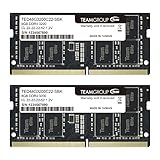
- Actual memory speed may vary depending on the system, CPU, motherboard, BIOS settings, and supported memory configuration. DDR4 3200MHz modules may operate at lower speeds such as 2933MHz or 2666MHz when supported by the host system. Please check your device specifications and compatibility before purchase.
- Adherence to JEDEC and compliance to RoHS with respect to environmental protection regulation, production and manufacturing
- All new generation product of DRAM module. Strict test and verification procedures are performed for products
- Lifetime warranty and Free technical support
- Installation video is attached in product image. ※Refer to the latest version on the official website. In case of discrepancies, the official website prevails.
Use the motherboard’s recommended slot order. Intel warns that “Incorrect population of DIMM slots may result in a no-boot scenario.” The correct pair of sockets is platform-specific; it is not safe to assume that adjacent slots are always the right choice.
Match capacity before headline speed
Choose enough capacity for the workload, then select a speed that the platform supports. A faster kit is not automatically better if the memory controller, firmware, or motherboard cannot run it at that setting. Unsupported XMP or EXPO profiles may fall back to a lower speed, remain at a standard setting, or prevent the system from booting.
When mixing modules, the system may operate at the slowest common settings, and mixed capacities can change channel behavior. A matched kit is generally easier to validate than combining unrelated modules. If the manual lists a maximum capacity per slot or a specific module density, follow that limit even when a newer module appears physically identical.
Account for density and BIOS support
Kingston notes that newer DRAM chips used on memory modules may require BIOS optimization by the motherboard or system manufacturer. Its guidance states: “Newer DRAM chips used on your memory modules may require optimization in the BIOS done by the motherboard/system manufacturer to work correctly.”
Check for a BIOS or firmware update before installing high-density modules, and read the update notes for memory compatibility. Some older platforms cannot address newer densities even after an update. Do not interrupt a firmware update, and make sure the system has stable power.
Rank #4

- Experience the extreme performance of an OWC SSD upgrade with this easy DIY SSD and hard drive replacement kit
- Add an SSD to your hard drive equipped iMac to experience faster booting, near instant application launches and data transfer speeds up over 500 MB/s
- Capacity: 2000GB Useable Capacity; Total Flash Memory Components: 2048GB; 48GB Allocated to real-time data redundancy and error correction Formatted Capacity: 1863GiB Form Factor: 2
- 5-inch 7mm Storage Interface: SATA 6
- 0 Gb/s Controller: Phison PS3112-S12 with 3% over-provisioning NAND Flash Components: Micron Synchronous Quad-Level Cell (QLC) 3D NAND Flash S
Choose a compatible SSD
Identify the interface, not just the connector shape
Confirm whether the computer accepts an M.2 NVMe drive, an M.2 SATA drive, a 2.5-inch SATA drive, or another format. M.2 describes a physical card shape; it does not by itself identify the storage protocol. An M.2 SATA drive and an M.2 NVMe drive can have different keying and may not work in the same socket.
Crucial separates NVMe and SATA upgrade categories and provides a system scanner to narrow the choices. Use that result as a starting point, then verify the exact model in the computer’s manual.
Check M.2 length and keying
M.2 lengths are written as four digits: the first two indicate width in millimeters and the last two indicate length. Common examples include 2230, 2242, and 2280. A 2280 drive will not fit a bay designed only for 2230 or 2242 unless the chassis provides another mounting point.
Also check whether the bay has clearance for a single-sided or double-sided module. A drive with a large heatsink may not fit under a laptop’s cover, and a second-sided package can collide with a board or thermal pad. The socket key and the manual’s supported protocols take precedence over a retailer’s generic “M.2 compatible” label.
Verify PCIe generation and lane support
NVMe drives use PCIe, but the slot’s generation and lane count set the practical ceiling. A newer drive can often operate at an older generation’s speed, but paying for a premium tier is difficult to justify when the computer cannot use it. For example, the Crucial T705 4TB is a PCIe Gen5 NVMe M.2 product; it should be considered only for a system with a compatible Gen5 M.2 slot, adequate cooling, and the required physical clearance.
Best Value

- Premiun Material:High-quality Carbon Fiber
- Package Content:One Wheel Handle and 5 Cutting Wheels.One of wheel Is Inserted on the Handle Already.
- This Tool Kit Is Designed for All iMac Machine Repair,SSD Upgrade and RAM Upgrade.
- Don't Use Inferior Tools and Has the Risk to Scratch or Damage the LED glass When Tear-down the Machines.
- The Non-slip Design on the Hanld Providing the Operators with the Convenience
Do not assume that every M.2 socket on a desktop supports the same generation. One socket may connect directly to the processor while another uses the chipset, and some sockets disable a SATA port or share lanes when populated. The motherboard diagram explains those trade-offs.
Consider endurance, warranty, and thermals
Compare the manufacturer’s endurance rating, warranty term, controller behavior, and thermal requirements alongside capacity and interface. A drive for continuous scratch, compilation, or virtual-machine writes faces a different duty cycle from a drive used mainly for documents. If the system has no heatsink or airflow, a cooler, lower-power model may deliver more consistent performance than a hotter flagship model.
Independent reader supportYour contribution helps us test, update, and keep practical guides available for everyone.RAM or SSD: which upgrade should come first?
Use the observed symptom and the compatibility record to decide. The table below is a decision aid, not a promise of a universal performance percentage.
Do these 3 things before closing this tab:
1Fix the driver behind crashes, sound loss and screen glitches2Clear out junk files and repair common Windows errors3Scan for outdated or missing drivers - takes under a minute| Observed condition | First upgrade to investigate | Reason | What to verify |
|---|---|---|---|
| Paging or swapping during multitasking | RAM | More memory can keep active data in RAM instead of repeatedly using storage. | Peak committed memory, slot availability, supported capacity, and DDR generation. |
| Drive nearly full | SSD capacity | Extra usable space removes file-management and update constraints. | Interface, physical size, cloning or reinstall plan, and backup space. |
| Large sequential transfers saturate an old drive | SSD interface or model | A compatible NVMe drive may raise the storage ceiling. | PCIe generation, lane count, cooling, and workload pattern. |
| Applications fail because projects exceed memory | RAM | Capacity is the immediate limit. | Application requirements and the platform’s maximum module density. |
| Neither memory nor storage is busy during the slowdown | Neither by default | The bottleneck may be CPU, GPU, thermals, software, or networking. | System monitors, temperatures, drivers, and application logs. |
A step-by-step buying and installation workflow
- Measure the problem. Reproduce the slowdown while recording memory usage, paging, storage activity, free space, and temperatures.
- Write down the exact model. Include the motherboard revision or complete laptop submodel, processor generation, current modules, occupied slots, and storage type.
- Read the manual. Confirm DDR generation, DIMM or SO-DIMM form factor, maximum capacity, supported speeds, slot order, M.2 protocol, length, keying, and PCIe generation.
- Run a compatibility selector. Kingston’s configurator can narrow model-based desktop and laptop memory choices. Crucial’s Upgrade Selector or System Scanner can narrow storage and memory categories. Treat both as aids, not replacements for the manual.
- Choose capacity. Select a capacity that covers your measured peak workload with headroom. Do not trade required capacity for an unsupported speed tier.
- Compare usable value. Calculate the purchase price divided by usable gigabytes after formatting and reserved space. Include any required heatsink, adapter, mounting screw, cloning enclosure, or operating-system reinstall cost.
- Prepare a recovery plan. Back up important files, record encryption-recovery information, and create installation media before opening the system or cloning a drive.
- Install carefully. Shut down fully, disconnect power where the manual requires it, discharge static safely, insert RAM at the specified angle and latches, and secure the SSD with the correct standoff and screw.
- Update firmware only when appropriate. If the manual or vendor guidance identifies a BIOS requirement for the chosen density or speed, update using the manufacturer’s procedure before judging the module incompatible.
- Validate the result. Confirm the full capacity in firmware and the operating system, check that the SSD appears with the expected interface, run a memory test, inspect drive health, and repeat the workload that originally exposed the bottleneck.
How to compare two otherwise compatible choices
When two products fit, score them in this order:
- Compatibility certainty: A model listed for the exact computer is safer than one selected only by connector shape.
- Capacity: Insufficient capacity defeats a faster specification.
- Platform-supported speed or interface: Ignore premium speeds the motherboard, processor, or M.2 socket cannot use.
- Workload benefit: Match RAM capacity to memory pressure and SSD performance or capacity to the actual storage task.
- Price per usable gigabyte: Include accessories, formatting overhead, and any required migration hardware.
- Warranty and endurance: These matter especially for SSDs exposed to sustained writes.
- Future upgradeability: Preserve a free slot or choose a capacity that avoids another replacement if your workload is likely to grow.
Common failure modes and fixes
The computer will not boot after a RAM installation
- Power off and reseat every module until both latches lock.
- Move the modules to the slot pair specified by the motherboard manual.
- Test one module at a time to identify a bad module or socket.
- Clear CMOS only according to the manufacturer’s procedure.
- Check BIOS support for the module’s density and update firmware if the vendor documents a fix.
- Remove an incompatible mixed kit and test the original configuration.
The system reports less RAM than expected
Some memory may be reserved for integrated graphics or hardware. Confirm the total in firmware first, then check whether a module is partially seated, a slot is disabled, or the operating system has a configuration limit. A mixed-capacity arrangement can also produce a different usable total than the labels suggest.
The SSD is not detected
- Confirm that the socket supports the drive’s protocol; an M.2 SATA and M.2 NVMe drive are not interchangeable by appearance alone.
- Check the drive length, keying, standoff position, and seating.
- Review the manual for shared lanes, disabled SATA ports, or a socket that supports only one interface.
- Update firmware only through the documented process, then check storage settings in the firmware interface.
The new SSD is slower than expected
Verify the PCIe generation and lane count, confirm that the drive is installed in the intended socket, and monitor temperature during the real workload. A PCIe-generation mismatch, thermal throttling, background activity, or a workload dominated by small random operations can make benchmark claims irrelevant.
Should you buy now or wait?
Waiting makes sense when the system is functioning well, you have no capacity pressure, and you are willing to accept the risk that forecasts or retail prices move against you. Buying now makes sense when the upgrade solves a recurring problem and the selected part is verified compatible. In either case, compare current total cost per usable gigabyte rather than chasing a percentage forecast.
Do not treat TrendForce’s quarterly figures or Gartner’s year-end estimate as a guaranteed checkout price. Retail prices can diverge by region, capacity, retailer inventory, exchange rates, and promotions. The durable decision is to avoid paying for capacity or speed your computer cannot use while resolving the bottleneck that is costing you time today.
Quick wins for a faster PC:
Repair Windows errors before they cause bigger problemsFix Now →Scan for outdated or missing drivers - takes under a minuteDriver Scan →Clear out junk files and repair common Windows errorsFree Scan →Quick Recap
Product prices and availability are accurate as of the date/time indicated and are subject to change. Any price and availability information displayed on Amazon at the time of purchase will apply.

