
iTechGuides is reader-supported. When you buy through links on our site, we may earn an affiliate commission. As an Amazon Associate I earn from qualifying purchases. Learn more
To check the battery-health information Amazon exposes for your Kindle, sign in to Amazon, open Manage Your Content and Devices, choose Devices, select the Kindle, and open Device Details. Look for Data Storage and Battery Health. That account page may not show a numerical capacity percentage. The live charge level and charging indicator on the Kindle itself are model-specific, so identify your generation and follow its guide rather than assuming one icon or menu works on every Kindle.
What you can—and cannot—check from Amazon
Kindle battery information is split between two different questions:
- Battery health: an account-level device detail that Amazon makes available through Manage Your Content and Devices (MYCD).
- Current charge and charging state: what the Kindle is doing right now while it is connected to power or running on battery.
Amazon’s Device Health instructions list Data Storage and Battery Health under a Kindle’s Device Details. The wording does not promise that every model reports a percentage such as “85% capacity,” and it does not establish that all generations display the same fields. Treat the entry as the health information Amazon provides for that registered device, not as a universally standardized laboratory capacity test.
The live charging display is a separate, model-dependent feature. Amazon’s Kindle E-Reader User and Quick Start Guides index covers many generations and notes that not every generation has been available in every marketplace. Because the available guidance does not define one shared charging-status screen for all models, the safest procedure is to identify the exact Kindle first and then use its guide for the icon, percentage, or menu path.
Popular on Amazon
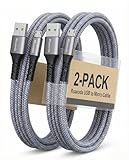
- [END THE FRAYING CYCLE] Original plastic cords inevitably split at the connector. We engineered an extended strain relief joint encased in a space grey aluminum shell and high-density nylon braid. Withstands 25,000+ bends without tearing.
- [SECURE CLICK-LOCK FIT] Tired of loose Micro USBs falling out? Precision stainless steel pins lock firmly with an audible click. The stepped connector bypasses thick rugged cases. Zero dropouts during intense gaming or constant recording.
- [ZERO LATENCY PLAY & CHARGE] Built with a 22 AWG copper core and double-layer shielding to block interference, delivering stable 2.4A power for lag-free gaming. The aluminum housing actively dissipates heat to prevent battery degradation.
- [PET-PROOF & TANGLE-FREE ARMOR] Is your setup a graveyard of chewed wires? This heavy-duty braided jacket resists sharp pet teeth. Toss it into a crammed backpack—it unrolls perfectly straight without knotting, built for daily abuse.
- [24/7 CONTINUOUS POWER] Flawlessly powers outdoor security cameras and dash cams continuously without unexpected power drops. Revives PS4 controllers and classic Androids. Backed by a 3-year responsive care plan for complete peace of mind.
Check Battery Health in Manage Your Content and Devices
This is the account-based check and works from a web browser. It is useful when you want Amazon’s recorded device information, even if the Kindle is not currently beside you.
- Sign in to the Amazon account registered to the Kindle.
- Open Manage Your Content and Devices.
- Select the Devices tab.
- Choose the Kindle you want to inspect. If several Kindles are registered, match the displayed device name or serial information to the e-reader in your hand.
- Open Device Details.
- Find the section labeled Data Storage and Battery Health.
Amazon says Device Details can also include information such as connectivity and software-update status. Those fields help confirm that you selected the correct Kindle, but they are not substitutes for the battery-health entry.
If you see a health description rather than a percentage, that is not necessarily an error. The documented feature does not guarantee a numerical full-charge-capacity value for every model or account. Do not convert a status label into an invented percentage or compare labels across different Kindle generations as though they were measured on one scale.
The page is tied to the device registered to your Amazon account, so selecting the wrong entry can produce a perfectly valid-looking result for another e-reader. When names are similar, use every identifying detail Amazon presents and compare it with the physical device or its original order information. If a Kindle is missing from the Devices list, verify that you are signed in to the account used to register it before treating the absence as a hardware problem.
Battery health is not the same as today’s charge level
A health field describes information Amazon associates with the device over time; a charge indicator describes the energy available at this moment. A Kindle can show a normal health entry while its current charge is low, and it can be connected to power without immediately showing the same indication as another generation. Neither observation alone supplies a dependable remaining-capacity percentage.
Use the two checks together. First, read the Device Details entry exactly as Amazon displays it. Next, use the exact model’s guide to identify the current battery symbol, percentage, or charging message. Finally, observe whether the level rises after the cable and power source have been verified. This avoids the common mistake of treating a temporary low charge, a background download, or a different user interface as proof that the battery has degraded.
Find the Kindle generation before checking its live charge status
On-device charging indicators vary by generation, firmware, and sometimes the model’s regional documentation. Before following any online instruction that names a particular battery icon or settings path, establish which Kindle you own.
Ways to identify the device
- Check the device name shown in the Devices list in MYCD and compare it with the physical e-reader.
- Use the model and serial information printed on the device, its packaging, or its original order record when available.
- Open the guide index and select the guide matching the generation and marketplace for your Kindle.
Once the model is confirmed, use the guide’s charging section to learn what the battery symbol means, where a percentage is shown (if the model supports one), and how the screen behaves while the cable is connected. The available Amazon material does not support a single universal on-device route that can be stated accurately for every Kindle.
What a charging check should establish
- Whether the Kindle recognizes a connected cable.
- Whether the battery level is increasing after an appropriate interval.
- Whether the model shows a charging symbol, a percentage, or another status message.
- Whether the device is drawing power from a computer USB port or a wall adapter.
If your guide’s display differs from another Kindle owner’s instructions, follow the guide for your own generation. A different icon or menu is not, by itself, evidence that the battery is defective.
Also popular on Amazon
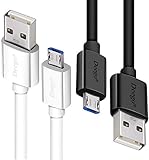
- UNIVERSAL COMPATIBILITY: Extra long micro USB cable compatible with Samsung Galaxy S7/S7 Edge/S6/S6 Edge/S5/S4/Note 5/4, Samsung Tablets/Tab, PS4 controller/Dual Shock 4/Xbox One Controller, Windows Phones, LG G4/G4 Stylus/G3/G3 Stylus/K40/K30/Tribute Empire, Huawei Honor 7X/6X, Motorola, Google Nexus, Blackberry Aurora/DTEK50/Leap/Z3/Z30/Z10, wireless keyboards, bluetooth speakers, HP, Camera, printers, E-readers; Supports most Android cell phone and Android devices
- FAST CHARGING & SYNC: Micro USB Cable 10FT & 6FT, A Male to Micro B;USB 2.0 supports 480Mbps transmission speed and charging speed up to 2.4A; thick gauge wiring and reduced cable resistance enable power line charging faster than most standard cables, plus data transfer; Oxidation resistance ensures a safe rapid charging by any USB charger, protect your devices and charging adapters from damage; work better for your phones, tablets and quick charge devices
- HIGH QUALITY & FLEXIBLE: This premium micro USB cable with High quality PVC jacket makes it stand out from bunch of cables and provides higher durability and increased flexibility with tangle-free, convenient, lightweight and easily coiled; perfect substitute for your missing micro USB cord or add more Android chargers in different places
- EXTRA LONG & CONVENIENT: Stylish Micro USB Cables 10ft+6ft different lengths combination with a view to prepare the long charger cables for where you may stay every day and they will make your life more convenient; long enough to reach limited outlets; 2 cables in 1 pack are convenient for using at home, workplace, sofa, car, office, hotel, bedroom, and travel
- STURDY & PERFECT FIT: Reinforced Powerline with a 10000+ bend lifespan make this Phone Charger Cord more strong and enduring; Compact and heat-resistant aluminium connector fit snugly and secure a good connection; These Micro USB Cables will connect your devices better and won't easily fall out of your devices like other cables do
Do not rely on a screenshot or instruction written for a different marketplace without checking the model name. Amazon’s guide index covers many generations, and Amazon notes that not all generations have been available in every marketplace. The guide that matches your device and region is the controlling reference for the live charging display.
Charging a Kindle 11th Generation
Amazon’s Kindle 11th Generation setup guidance gives a specific accessory arrangement that should not be generalized to other generations.
- The supplied USB cable can connect the Kindle to a computer for charging.
- For charging from a wall outlet, Amazon specifies an Amazon 5W charger in that 11th Generation guide.
Connect the cable firmly at both ends, use the power source described by the guide, and then verify the on-device indication documented for that model. A cable that works with one Kindle does not establish that every Kindle uses the same connector, cable rating, or wall-adapter requirement. For another generation, check its own guide before buying an adapter or assuming that a computer cable alone is sufficient for wall charging.
When comparing accessories, separate the connector question from the power-source question. A replacement cable may be appropriate for a computer USB port, while a wall outlet may require the adapter specified by the model guide. Buying a cable because its plug looks similar is not enough; confirm that it is compatible with the exact Kindle generation and intended charging arrangement.
If the Kindle does not appear to charge
Work through the checks in order. This separates a connection problem or temporary power demand from a battery that needs professional service.
1. Use a compatible cable
Amazon’s battery guidance says: “Make sure to use a compatible USB cable to charge your Kindle (preferably the one that came with it).” Start with the supplied cable when you still have it. Inspect both connectors for looseness, bent parts, contamination, or visible damage. Try a known-good compatible cable only after confirming that its connector and intended use match the Kindle generation.
Recommended Free Tools
2. Check the power source
Test the Kindle from the source specified in its model guide. A computer USB port and a wall outlet are not interchangeable instructions: some model documentation describes computer charging with the supplied cable and separately specifies a wall charger. If the Kindle is not recognized or the charge does not rise, try another suitable USB port or the model-approved wall setup, then allow enough time for the device to respond before judging the result.
3. Account for setup and background work
Amazon’s battery-conservation guidance notes that new-device setup, downloading books, indexing those books, and automatic updates can affect battery life. A Kindle may therefore drain faster soon after first setup or after a large library download. That temporary demand explains usage in those circumstances; it does not diagnose battery health. Let downloads and indexing finish, keep the device connected to an appropriate power source, and then observe normal use before deciding that the battery has failed.
4. Recheck the model-specific indicator
Return to the guide for the exact generation and confirm what “charging” looks like on that model. Do not infer a fault merely because another Kindle displays a percentage or a different symbol. The reviewed Amazon guidance does not establish one indicator shared by all generations.
Also popular on Amazon

- 【Short Micro USB Cable】 1ft Micro USB to USB Cable is perfect length for charging smart phones, tablets, MP3/MP4 players, cameras, Power bank, TV Stick.
- 【Fast Charging & Data Transfer】 Micro USB to USB cable adopt lower resistance value tinned copper wires inside, support 18w fast charging and 480Mbps data transfer speed.
- 【12inch USB A to Micro USB Cord】12 inch Micro USB Charging Cable great for cable management when charging an item in the car or on a desk. Work well for charger station.
- 【Flexible and Tangle free】Sturdy cable with Aluminum case and nylon braided jacket. Solid construction, good solid construction, thick; do not have to worry about flexing and breaking, 1ft good length is tangle-free.
- 【Wide Compatibility】 Work for the devices with Micro USB Port, Android smart phones, such as Samsung Note 1/2/4/5, Galaxy S3/S4/S6/S7/S7 Edge, Samsung Galaxy Tab, Moto X, Google Nexus 7, Kindle Reader, MP3/MP4, Fire TV Sticks, Power Bank, Camera, Speaker and more.
5. Stop if the hardware or battery appears unsafe
Do not continue using a cable, connector, or device that is physically damaged, unusually hot, swollen, or emitting an odor. Disconnect it safely and arrange authorized assistance rather than opening the enclosure.
Quick wins for a faster PC:
Fix the driver behind crashes, sound loss and screen glitchesFind Drivers →Clear out junk files and repair common Windows errorsFree Scan →Scan for outdated or missing drivers - takes under a minuteDriver Scan →Normal battery drain versus a possible battery problem
Battery behavior has to be interpreted in context. A short-term drop after setup, a large download, book indexing, or an automatic update is consistent with the background activity Amazon describes. It is not a reliable health measurement.
Situations that can explain temporary drain
- The Kindle is downloading a newly purchased or restored library.
- Recently downloaded books are being indexed for search.
- Initial setup tasks or an automatic software update are still running.
- The device was used heavily while wireless connectivity and downloads were active.
Evidence that merits escalation
- The Kindle repeatedly fails to recognize a compatible cable and approved power source.
- The charge indication does not increase after the connection and source have been verified against the model guide.
- The device shuts down unexpectedly during ordinary reading after background work has finished.
- The battery or enclosure shows swelling, heat, leakage, or other physical damage.
These observations can justify contacting Amazon or an authorized service provider, but they do not produce a dependable capacity percentage. Use the Device Details health information together with the model-specific charging behavior rather than treating one symptom as a diagnosis.
Keep notes on when the behavior occurs. A problem limited to setup or a large download has a different context from repeated failure during ordinary reading. Record the cable, power source, model, and any status shown in Device Details so support can distinguish a power-path issue from a persistent battery concern.
Choose a replacement cable or charger without mixing model instructions
Accessory advice must follow the exact Kindle generation and the intended power source. The following comparison reflects the arrangements documented in the cited Amazon material.
The Tool Desk
Outbyte PC Repair FREERepair Windows errors before they cause bigger problemsFix Now →Outbyte Driver Updater FREEScan for outdated or missing drivers - takes under a minuteDriver Scan →| Use case | What the guidance establishes | What to verify before purchase or use |
|---|---|---|
| Replacing a missing or damaged cable | Use a cable compatible with the Kindle; Amazon prefers the cable supplied with the device. | Connector and compatibility for the exact generation; inspect the cable for damage. |
| Charging a Kindle 11th Generation from a computer | The supplied USB cable can connect the Kindle to a computer for charging. | That the cable and computer port are suitable and that the Kindle recognizes the connection. |
| Charging a Kindle 11th Generation from a wall outlet | The 11th Generation setup guide specifies an Amazon 5W charger. | That the guide for your own generation calls for the same adapter; do not apply this instruction universally. |
| Charging another Kindle generation | No universal cable, connector, or adapter rule is established by the available guidance. | Consult the guide for the exact model and marketplace before selecting a wall charger or replacement cable. |
A cable transfers power; it does not automatically replace a wall adapter when a model guide specifies one. Conversely, buying a separate wall charger is unnecessary if your model’s documented setup is satisfied by a computer USB connection and the supplied cable.
Do not choose an accessory solely because it is advertised as “for Kindle.” Verify the connector and the source for your generation. If the original cable is available and undamaged, it remains Amazon’s preferred starting point. If it is missing, retain the product information for the replacement so you can tell support exactly what was tested.
Temperature and battery-safety requirements
Amazon’s IEEE 1725 Battery Safety Statements specify a charging temperature range of 32°F to 95°F (0°C to 35°C). The cited page does not state a publication year for that range. Keep charging within those limits and move the Kindle to a safe environment if it is outside them.
Do not puncture, crush, short-circuit, or otherwise disassemble the Kindle’s rechargeable battery. Amazon states: “The rechargeable battery in your Kindle should be replaced only by an Amazon authorized service provider.” Battery replacement is therefore a service escalation, not a do-it-yourself repair. The available guidance does not establish a universal service price, booking process, or replacement interval, so contact Amazon support for current options in your region.
What’s actually slowing this PC down?
Pick the symptom - the matching free tool is one click away.
Also popular on Amazon
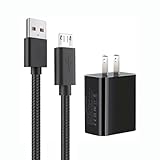
- 【Widely Compatible 】: Compatible with the Amazon Kindle e-Readers, Fire / Fire HD Tablets, or other devices with Micro USB port as Samsung Galaxy S7/S7 edge/S6/S5/S4/S3/S2, Xbox, PS4, old Android smartphones, Fire Stick, Tablet, MP3, Power bank and more.
- 【Fast Charging and Data Sync】: Input:100~240V,Output: 5V - 2A . High Fine tin plated pure copper wire batteries ensures a Safe Rapid Charging at 2A Maximum and data syncing speed up to 480Mb/s.
- 【Security & Protection】: The USB Wall Charger has the function of automatic protection circuit. Intelligent circuit design protects against short circuiting, over-heating, over-current, and over-charging.
- 【Nylon Braided Cable】:Unlike traditional PVC materials, this product adopts a nylon braiding process, making it has tensile resistance, safety, long service life. More softer, more durable, and easier to disassemble, fold, and carry.
- 【Package Includes】: USB Wall charger, 5FT Micro-USB cable, Adapters.
Stop troubleshooting if there is swelling, leakage, smoke, extreme heat, a damaged enclosure, or a strong unusual odor. Disconnect power safely and keep the device away from anything that could be damaged while you arrange help. A safety symptom takes priority over collecting another charge reading.
A practical monitoring routine
For a clear record when battery behavior changes, use the same process each time:
- Record the Kindle’s exact generation and the date of the observation.
- Check MYCD’s Device Details and note the Battery Health information exactly as displayed, without translating it into a percentage.
- Confirm that downloads, indexing, setup, and automatic updates are complete.
- Use the model-approved cable and power source, and note whether the Kindle’s guide-specific charging indicator appears.
- After charging, use the Kindle normally and record any unexpected shutdowns, failure to gain charge, heat, or physical changes.
- Repeat the check under comparable conditions before requesting service, unless there is a safety concern that requires immediate disconnection.
This record gives support staff the model, accessory, power-source, and symptom details they need while avoiding an unsupported claim about remaining battery capacity.
Consistency matters more than a single observation. Compare like with like: the same Kindle, a verified compatible cable, the same type of power source, and a period when setup activity is finished. If the indicator or Device Details entry changes, record the wording rather than interpreting it beyond what Amazon states.
Do these 3 things before closing this tab:
1Fix the driver behind crashes, sound loss and screen glitches2Repair Windows errors before they cause bigger problems3Scan for outdated or missing drivers - takes under a minuteWhen to contact Amazon
Contact Amazon support or an authorized service provider when the verified cable and power source fail repeatedly, the charging behavior in the correct guide is not occurring, or the Device Details information and physical behavior suggest a persistent issue. Include the Kindle generation, marketplace, software-update status if shown in Device Details, the cable and power source tested, and whether the problem began during setup or after normal use.
Escalate immediately for swelling, leakage, smoke, extreme heat, or a damaged enclosure. Disconnect the Kindle from power safely and follow Amazon’s safety instructions rather than attempting to open or repair it.
Frequently asked questions
Does Amazon show a Kindle battery percentage?
Amazon documents a Battery Health detail under Device Details in Manage Your Content and Devices, but the guidance does not promise a numerical capacity percentage for every model or account. Read the entry as displayed and do not turn a description into an estimated percentage.
Where do I see whether my Kindle is charging?
Use the user guide for the exact Kindle generation. Amazon’s guide index covers many models, and the available material does not establish one charging icon, percentage, or menu path shared by all generations.
Free tools Windows power users keep installed
One-click scans. No signup required.
Why does my Kindle lose charge quickly after setup?
New-device setup, book downloads, indexing, and automatic updates can affect battery life. Let those tasks finish and then observe ordinary use before concluding that the battery is unhealthy.
Also popular on Amazon
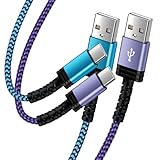
- Fast Charging and High Speed Sync: This 6 feet usb c Replacement for kindle charger cord made from 25 AWG high-gauge low-impedance wire and Replacement for old kindle paperwhite charger speed is fairly fast to 3A, allowing your device to quickly restore power, which transfer data at 480 MBPS via USB 3.0, high-speed data transmission function makes file transfer faster and more convenient
- Replacement for amazon fire tablet Charger Cable Parameter: this usb c cord equipped with an IC smart chip, Intelligent circuit design protects against short circuiting, over-heating, over-current, and over-charging,fits for amazon fire tablet adapter which enables to charger Kindle Fire Tablet & E-readers fast and safety.
- High-quality charging cord: usb c charger Replacement for kindle paperwhite cable adopt thickened reinforced nylon braided material, pass 40000+ bending test, the cable has tensile resistance, safety, long service life.Compact and portable design, convenient for travelers and most people to take it anytime, anywhere.
- 6.6 feet Length: The USB C Cable 6.6ft meets all your charge needs when you are in your office, bedroom and car which makes your life more convenient.
- Excellent compatibility: this Replacement for kindle charger cord for Kindle 11th Gen 2022;Paperwhite/kids 11th Gen 2021;Fire Max 11 13th Gen 2023;New Fire HD 7/7fire/7kids/7kids pro 12th Gen 2022; Fire HD10/10Plus 9th-13th Gen (2019-2023); Fire HD 10 Kids/10 Kids Pro 11th gen 2021,New Fire HD 8 8Plus 10th 12th Gen 2020 2022,Fire HD 8 Kids/Kids Pro 12th gen 2022 and more USB Type C Charger port devices
Can I use any USB cable?
No. Amazon recommends a compatible USB cable, preferably the one supplied with the Kindle. Confirm connector and model compatibility before using a replacement.
Can I charge every Kindle with an Amazon 5W charger?
The cited 5W wall-charger instruction is specific to the Kindle 11th Generation setup guide. Check the guide for another generation instead of applying that adapter instruction universally.
Should I replace the battery myself?
No. Amazon says the rechargeable battery should be replaced only by an Amazon-authorized service provider. Do not open the enclosure or attempt a DIY replacement.
Crashes, No Sound, or Screen Glitches?
Random freezes, missing sound and display glitches usually trace back to one bad driver. Find and replace yours safely.Free scan · under a minutePC Slower Than It Used to Be?
A free scan shows the junk files, broken settings and background clutter dragging Windows down - then fixes them in one click.Free scan · Windows 10 & 11What temperature is safe for charging?
Amazon’s battery-safety statement gives a charging range of 32°F to 95°F (0°C to 35°C). Move the Kindle to a safe temperature range before charging.
Does a low charge prove the battery has failed?
No. A low reading can follow downloads, indexing, setup, or updates. A persistent failure to gain charge with a verified cable and power source is a stronger reason to contact support, especially when accompanied by physical damage or abnormal heat.
Frequently Asked Questions
How do I check Kindle battery health?
In Amazon, open Manage Your Content and Devices, select Devices, choose the Kindle, open Device Details, and look for Data Storage and Battery Health. It may not be a numerical capacity percentage.
How do I check whether my Kindle is charging?
Identify the exact generation and follow its Amazon user guide. Charging indicators and menu paths are model-specific, so there is no confirmed universal screen for every Kindle.
Why is my Kindle battery draining quickly?
Setup, book downloads, indexing, and automatic updates can temporarily increase battery use. Let those tasks finish before judging normal battery behavior.
What cable should I use to charge a Kindle?
Use a cable compatible with the exact model, preferably the cable supplied with the Kindle. Confirm connector and intended power source before buying a replacement.
Can I replace a Kindle battery myself?
No. Amazon says rechargeable battery replacement should be performed only by an Amazon-authorized service provider.
What charging temperature is safe for a Kindle?
Amazon specifies 32°F to 95°F (0°C to 35°C). Stop charging and move the device to a safe environment if it is outside that range.
Do these 3 things before closing this tab:
1Fix the driver behind crashes, sound loss and screen glitches2Repair Windows errors before they cause bigger problems3Scan for outdated or missing drivers - takes under a minuteThe Bottom Line
Use Amazon’s Manage Your Content and Devices > Devices > Device Details page for the documented Battery Health information, but do not assume it is a capacity percentage. For live charging status, identify your Kindle generation and follow its guide. Use a compatible, preferably supplied cable; apply the 5W wall-charger instruction only to the 11th Generation guide; and send battery replacement or unsafe hardware to an authorized service provider.

