
Windows Errors? Fix Them Before They Spread
Repair common Windows errors and clear accumulated junk for a smoother, more stable PC - no reinstall needed.Free scan · no reinstallOutdated Drivers Are Slowing You Down
One free scan finds every outdated or missing driver and matches the right update for your exact hardware.Free scan · exact hardware matchiTechGuides is reader-supported. When you buy through links on our site, we may earn an affiliate commission. As an Amazon Associate I earn from qualifying purchases. Learn more
The quickest way to check RAM in Windows is Task Manager: press Ctrl + Shift + Esc, select Performance, and choose Memory. This page normally shows the memory Windows can see, current usage, available memory, speed, slots used, form factor, and hardware-reserved memory.
For a simple installed-capacity check, use Settings → System → About. For each physical module’s manufacturer, capacity, part number, serial number, and firmware-reported location, use PowerShell with Win32_PhysicalMemory.
Which RAM-checking method should you use?
| What you want to know | Best method | What it tells you |
|---|---|---|
| How much RAM is installed? | Settings → System → About | The fastest capacity check |
| How much memory is usable, in use, or reserved? | Task Manager → Performance → Memory | Live memory totals and usage |
| What speed is RAM currently using? | Task Manager | The current operating rate reported to Windows |
| How many slots are occupied? | Task Manager, then the device manual | A quick, but firmware-dependent, slot count |
| What is the manufacturer, part number, or serial number? | PowerShell | Per-module SMBIOS inventory, when supplied by firmware |
| Is the memory DDR4 or DDR5? | PowerShell, BIOS/UEFI, or an SPD utility | Memory-generation information, subject to firmware limitations |
| Can the RAM be upgraded? | System model and manufacturer service manual | Maximum capacity, socket availability, and soldered-memory information |
| Is the RAM faulty? | Windows Memory Diagnostic, followed by isolation testing | A basic memory test, not a complete diagnosis |
Windows tools do not all measure the same thing. Installed RAM, Total, In use, Available, and Hardware reserved are different values. That difference explains many apparently conflicting RAM reports.
Check installed RAM in Settings
Use Settings when you only need to answer, “How much RAM does this PC have?”
Popular on Amazon

- Boosts System Performance: 16GB DDR4 Pro Series desktop memory RAM kit (2x8GB) that operates at 3200MHz, 3000MHz, or 2666MHz to improve multitasking and system responsiveness for smoother performance
- Easy Installation: Upgrade your desktop RAM with ease—no computer skills required Follow step-by-step how-to guides available at Crucial for a smooth, worry-free installation
- Compatibility Guaranteed: Ensure seamless compatibility with your desktop by using the Crucial System Scanner or Crucial Upgrade Selector—get accurate recommendations for your specific device
- Trusted Micron Quality: Backed by 42 years of memory expertise, this DDR4 RAM is rigorously tested at both component and module levels, ensuring top performance and reliability
- ECC Type = Non-ECC, Form Factor = UDIMM, Pin Count = 288-pin, PC Speed = PC4-25600, Voltage = 1.2V, Rank and Configuration = 1Rx16, 1Rx8 or 2Rx8
Windows 11
- Press Windows + I to open Settings.
- Select System.
- Select About.
- Under Device specifications, read Installed RAM.
Windows 10
- Press Windows + I.
- Select System.
- Select About.
- Read Installed RAM under Device specifications.
The Settings layout and exact wording can vary slightly by Windows build, edition, language, or update status. If the path is not obvious, search Settings for About. Microsoft documents the System > About system-information page.
Settings usually does not show the speed, timings, slot occupancy, per-module capacity, part number, or serial number. It also does not necessarily show how much of the installed memory applications can use. Use Task Manager for those questions.
See RAM usage, speed, slots, and hardware-reserved memory in Task Manager
- Press Ctrl + Shift + Esc.
- If Task Manager opens in its compact view, select More details.
- Open the Performance tab.
- Select Memory.
Microsoft describes Task Manager and its Performance view as built-in tools for monitoring system resources. The exact layout and labels can vary with Windows versions, firmware, and the computer manufacturer.
What’s actually slowing this PC down?
Pick the symptom - the matching free tool is one click away.
What the Memory page means
- Total
- The physical memory currently visible and available to Windows as system memory. This can be slightly lower than the amount printed on the memory modules if some physical address space is reserved.
- In use
- Memory currently being used by Windows, applications, processes, drivers, and other system activity. It is not simply the amount of RAM used by the application visible on screen.
- Available
- Memory that Windows can allocate without immediately having to reclaim or write existing data. Available memory can include reclaimable standby or cached data, so it is not the same as a permanently unused portion of RAM.
- Committed
- Virtual-memory commitments backed by physical RAM, the page file, or both. This is not a direct measurement of the RAM modules installed in the computer.
- Cached
- Recently used data retained to improve performance. Windows can discard or reuse much of this data when applications need memory.
- Paged pool
- Kernel memory that can be paged to storage when necessary.
- Non-paged pool
- Kernel memory that must remain in physical memory.
- Speed
- The current memory rate reported by Windows or firmware. It is not necessarily the maximum speed advertised on the memory packaging.
- Slots used
- A firmware-reported count such as
2 of 4. It is useful for a quick inventory, but it is not conclusive proof that two user-accessible upgrade sockets exist. - Form factor
- Often shown as DIMM for desktop memory or SO-DIMM for many laptops. Some systems report Other or provide an inaccurate value.
- Hardware reserved
- Physical memory reserved by firmware or hardware and therefore unavailable for normal Windows use. Integrated graphics, firmware reservations, devices, and address-space requirements can contribute to this value.
Microsoft’s memory-performance documentation explains how Windows memory counters relate to physical memory, available memory, cache, pools, and virtual-memory commitments.
How to interpret the reported speed
Older Windows releases may label the value MHz. Windows 11 version 25H2 changes the DDR speed label in Task Manager to MT/s, or megatransfers per second. This version-specific change is documented in Microsoft’s Windows 11 version 25H2 release notes.
MHz and MT/s are related but are not technically interchangeable units. DDR memory transfers data more than once per clock cycle, so a module marketed as DDR4-3200 or DDR5-6000 may be displayed using a transfer-rate figure rather than a clock-frequency figure.
The Task Manager value normally represents the current operating configuration. For example, DDR4-3200 memory may currently be running at a lower rate because of the processor, motherboard, firmware settings, a disabled memory profile, or mixed modules. The number on the RAM box is generally a supported or advertised profile, not a guarantee of the speed currently in use.
Task Manager is useful, but it is not infallible. Microsoft documents cases in which Task Manager’s reported speed or hardware-reserved amount differs from BIOS or other tools because of SMBIOS parsing. If the value matters for an upgrade or performance diagnosis, compare it with BIOS/UEFI and a second inventory tool.
How to interpret Slots used
A value such as 2 of 4 generally means that the firmware reports two populated memory positions out of four. Treat it as a clue, not as a purchase specification.
- A laptop may have soldered memory plus one SO-DIMM socket.
- A system may have fewer physically accessible sockets than the firmware table suggests.
- Some firmware reports virtual or incomplete slot information.
- On-board memory may be represented differently from removable modules.
Before buying RAM, check the exact computer model, motherboard documentation, or manufacturer service manual for maximum capacity, supported module type, and actual upgradeable sockets.
Get per-module RAM details with PowerShell
PowerShell is the best built-in Windows method for detailed module inventory. Open PowerShell or Windows Terminal and run:
Free tools Windows power users keep installed
One-click scans. No signup required.
Also popular on Amazon

- Boosts System Performance: 32GB DDR5 RAM laptop memory kit (2x16GB) that operates at 5600MHz, 5200MHz, or 4800MHz to improve multitasking and system responsiveness for smoother performance
- Accelerated gaming performance: Every millisecond gained in fast-paced gameplay counts—power through heavy workloads and benefit from versatile downclocking and higher frame rates
- Optimized DDR5 compatibility: Best for 12th Gen Intel Core and AMD Ryzen 7000 Series processors — Intel XMP 3.0 and AMD EXPO also supported on the same RAM module
- Trusted Micron Quality: Backed by 42 years of memory expertise, this DDR5 RAM is rigorously tested at both component and module levels, ensuring top performance and reliability
- ECC Type = Non-ECC, Form Factor = SODIMM, Pin Count = 262-Pin, PC Speed = PC5-44800, Voltage = 1.1V, Rank And Configuration = 1Rx8
Get-CimInstance -ClassName Win32_PhysicalMemory |
  Select-Object DeviceLocator,
                BankLabel,
                @{Name='CapacityGB'; Expression={[math]::Round($_.Capacity / 1GB, 2)}},
                Manufacturer,
                PartNumber,
                SerialNumber,
                Speed,
                ConfiguredClockSpeed,
                MemoryType,
                SMBIOSMemoryType,
                FormFactor
When the firmware exposes individual-module data, the command returns one row for each physical memory device. The capacity expression converts the raw byte value into gigabytes for easier reading.
What the PowerShell columns mean
| Column | Meaning |
|---|---|
DeviceLocator |
The firmware-reported physical location, such as a slot name. |
BankLabel |
The firmware-reported memory bank. |
CapacityGB |
The capacity of that module, calculated from the Capacity value in bytes. |
Manufacturer |
The manufacturer name reported through SMBIOS. |
PartNumber |
The manufacturer-assigned module part number. This is often the most useful field when matching a replacement. |
SerialNumber |
The serial or identifier reported by the module firmware. It may be blank or generic. |
Speed |
A firmware-reported speed field. The value and unit presentation can differ from Task Manager. |
ConfiguredClockSpeed |
The configured memory clock speed reported by firmware, when known. It describes the current configuration rather than every speed profile the module supports. |
MemoryType |
A numeric CIM memory-type value, if supplied. |
SMBIOSMemoryType |
The raw memory-type value from SMBIOS. |
FormFactor |
A firmware-reported form-factor code. Task Manager or an SPD utility may provide a more readable DIMM/SO-DIMM label. |
These values come from the Windows Win32_PhysicalMemory class. Windows is reading information supplied by the computer’s firmware and SMBIOS tables; it is not independently reading every label printed on the module. Blank, generic, or incorrect fields therefore indicate incomplete firmware data as often as they indicate a problem with the RAM.
Use a simpler PowerShell report
Get-CimInstance Win32_PhysicalMemory |
  Format-Table DeviceLocator,Capacity,Manufacturer,PartNumber,Speed,ConfiguredClockSpeed -AutoSize
This version keeps the output compact and is convenient when you mainly need each module’s location, raw capacity, manufacturer, part number, and speed fields.
Add up the reported module capacity
$ram = Get-CimInstance Win32_PhysicalMemory
[math]::Round(($ram | Measure-Object Capacity -Sum).Sum / 1GB, 2)
Compare this total with Settings and Task Manager. A difference does not automatically mean a module is missing: compare the module total, Task Manager’s Total, and its Hardware reserved value separately.
Recommended Free Tools
What the memory-type values mean
Documented MemoryType value |
Meaning |
|---|---|
| 20 | DDR |
| 21 | DDR2 |
| 24 | DDR3 |
| 26 | DDR4 |
A zero, blank, or unexpected value is not reliable proof of a different DDR generation. DDR5 detection through WMI is particularly firmware-dependent, so verify it with the exact module part number, the computer or motherboard manufacturer’s specifications, BIOS/UEFI, or an SPD-capable utility. Do not assume that one PowerShell result can always identify DDR4 or DDR5 correctly.
Use System Information for a broader report
Windows includes the System Information utility, also called msinfo32. It is useful when you want RAM information alongside the computer model, BIOS mode, system type, drivers, and other configuration details.
- Press Windows + R.
- Type
msinfo32. - Press Enter.
- Stay on System Summary.
Look for fields such as:
- Installed Physical Memory (RAM)
- Total Physical Memory
- Available Physical Memory
- Virtual-memory fields
- System Type
- BIOS Mode
- System Model
The labels can differ by language and Windows build. Microsoft recommends running System Information as an administrator when complete information is required. It also provides limited hardware information when Windows is running in Safe Mode. See Microsoft’s documentation for msinfo32, permissions, and report options.
Export an inventory report
Create the destination folder first if it does not already exist:
mkdir C:TempThen export a readable text report or an Information File:
msinfo32 /report C:TempRAM-report.txt
msinfo32 /nfo C:TempRAM-report.nfo
The /report option creates a text report. The /nfo option creates an .nfo file that can be opened in System Information. These reports are useful when sending a general system inventory to a technician, although they normally do not identify every physical module as precisely as the PowerShell query.
Check general RAM information from Command Prompt
The built-in systeminfo command works on Windows 10 and Windows 11 and provides a general system configuration report, including hardware information and RAM-related fields.
Also popular on Amazon
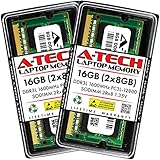
- A-Tech 16GB RAM Kit (2 x 8GB Modules), DDR3/DDR3L SO-DIMM 204-Pin, 1600MHz PC3L-12800 (PC3L-12800S)
- Non-ECC Unbuffered, 2Rx8 (Dual Rank x8), JEDEC DDR3 Low Voltage 1.35V
- Compatible with select DDR3 SODIMM capable Laptop, Notebook, Mini PC, and All-in-One (AIO) computer systems. Please verify your system's memory type, form factor, and maximum supported capacity before purchasing
- Not compatible with desktop (DIMM), DDR2, DDR4, DDR5, ECC Registered (RDIMM), ECC Load Reduced (LRDIMM), or ECC Unbuffered (ECC UDIMM) memory types
- Increases available memory capacity to enhance system responsiveness, application performance, and multitasking capabilities.
systeminfoFor list-style output, run:
systeminfo /fo listTo query a remote computer, use:
systeminfo /s COMPUTERNAMERemote queries depend on permissions, connectivity, and organizational policy. systeminfo is useful for a broad inventory, but it is not the best choice for per-stick capacity, slot, serial-number, or part-number information. Microsoft documents the command and its options in the systeminfo command reference.
WMIC is now a legacy option
Many older guides begin with this command:
wmic memorychip get devicelocator, manufacturer, partnumber, capacity, speedIt may still work on some installations, but it should not be the primary method:
- Microsoft deprecated WMIC beginning with Windows 10 version 21H1.
- WMIC is not preinstalled beginning with Windows 11 version 24H2.
- Windows 11 version 25H2 removes WMIC during the feature update, although it may temporarily be available as an optional component.
- Microsoft recommends PowerShell and CIM as the replacement.
Therefore, if Windows says that wmic is not recognized, switch to the Get-CimInstance Win32_PhysicalMemory command rather than treating the error as a RAM problem. Microsoft’s WMIC documentation and Windows feature documentation describe these changes.
Find the DDR generation, exact model, and form factor
DDR, DDR2, DDR3, DDR4, or DDR5
Windows does not guarantee a dependable DDR-generation label on every computer. Task Manager may expose useful hardware information, and PowerShell may return MemoryType or SMBIOSMemoryType, but both depend on firmware data.
For a purchase decision, confirm the generation using several sources in this order:
- Search the exact module part number returned by PowerShell.
- Check the computer or motherboard manufacturer’s specifications.
- Check BIOS/UEFI hardware information.
- Read the module’s label if the computer can be safely opened.
- Use an SPD-reading utility when necessary.
DDR generations are not interchangeable. A DDR4 module cannot be installed in a DDR5 socket, even if the capacity and advertised speed appear similar.
DIMM or SO-DIMM
Task Manager commonly reports DIMM for desktop memory and SO-DIMM for many laptop modules. PowerShell’s FormFactor property may be a numeric SMBIOS code, and some firmware reports Other or nothing useful.
Do not rely on the form-factor field alone. A laptop may use soldered memory, a removable SO-DIMM, or a combination of both. The exact model’s service manual is the authority for whether a module can be replaced.
Manufacturer, part number, serial number, and capacity
The PowerShell report is the most useful built-in option for these details. Each returned row represents a firmware-reported memory device and includes its own capacity, manufacturer, part number, serial number, and locator when available.
Do these 3 things before closing this tab:
1Clear out junk files and repair common Windows errors2Scan for outdated or missing drivers - takes under a minute3Repair Windows errors before they cause bigger problemsA blank serial number or manufacturer such as a generic value does not by itself indicate defective RAM. SMBIOS records are often incomplete, especially on laptops and prebuilt systems. If an exact module match is important, use an SPD-capable utility such as CPU-Z from CPUID. In CPU-Z, the Memory tab shows the current memory configuration, while the SPD tab can show information stored for an individual slot, including supported timings and module details.
For a more comprehensive hardware report, HWiNFO can provide detailed memory and system reporting. Download third-party utilities only from their official sites.
Also popular on Amazon

- Capacity – 32GB RAM KIT (2 x 16GB Modules) Speed up to 2666MHz Non-ECC Unbuffered 260-Pin 1.2V SODIMM.
- Specs – PCB Color (Green or Black) and Rank (1Rx8 or 2Rx8) may vary depending on production batch. Performance and quality remain consistent across all Timetec products.
- Compatibility – Designed for selected DDR4 Laptop, Notebook, Mini PCs, and All-In-One systems(AIO) that support 260-Pin SODIMM memory. NOT compatible with Desktop DIMM slots.
- Installation – Plug-and-Play Upgrade, Quick and Easy to Install, no expertise required (please refer to your system's manual for guidelines).
- Warranty – All Timetec products are high-quality and rigorously tested to meet stringent standards. Backed by Timetec Limited Lifetime Warranty and professional technical support based in the United States.
Installed RAM versus usable RAM
It is normal for a PC with a stated 16 GB of RAM not to show exactly 16 GB as available to Windows applications. Use these definitions:
- Installed RAM: the capacity physically fitted to the computer, as reported by Settings or firmware.
- Total in Task Manager: the portion Windows can currently use as system memory.
- Hardware reserved: physical address space withheld by firmware or hardware.
- In use: memory currently occupied by Windows, applications, drivers, and processes.
- Available: memory that can be allocated without immediately reclaiming existing data.
Common reasons for a difference between installed and usable memory include:
Quick wins for a faster PC:
Repair Windows errors before they cause bigger problemsFix Now →Fix the driver behind crashes, sound loss and screen glitchesFind Drivers →Clear out junk files and repair common Windows errorsFree Scan →- Integrated graphics reserving part of system RAM.
- Firmware or hardware address-space reservations.
- A module that is not fully seated or is not being recognized.
- A defective module or memory slot.
- A motherboard or processor capacity limitation.
- A 32-bit Windows installation, which has more limited memory handling.
- Incorrect or incomplete firmware/SMBIOS reporting.
Windows 11 is 64-bit only, but some Windows 10 installations are 32-bit. Check System type in Settings or msinfo32. A small hardware-reserved amount is not automatically a fault. A large or sudden increase, especially after installing RAM or changing graphics settings, deserves investigation.
What to do when Windows does not detect all RAM
If you installed a module and Windows still reports the old capacity, use this sequence:
- Check BIOS/UEFI first. Restart the computer, enter firmware setup using the manufacturer’s indicated key, and check its memory total. This separates a physical or firmware-detection issue from a Windows reporting issue.
- Compare the module rows in PowerShell. Run the
Win32_PhysicalMemorycommand and see whether the new capacity appears as a separate device. - Confirm the recommended slots. Desktop motherboards often require a particular paired-slot arrangement for two modules. Follow the motherboard manual rather than guessing from the slot colors.
- Shut down completely and reseat the modules. Disconnect power, follow the manufacturer’s service instructions, release the retaining clips, and reinstall the module evenly until it is fully secured. Do not force a module in the wrong orientation.
- Test one module at a time. Test each stick in a known-good slot, then test the suspected slot with a known-good module. This is the most practical way to distinguish a bad module from a bad slot.
- Check compatibility. Confirm the DDR generation, form factor, supported capacity, and speed for the exact motherboard or laptop model. Mixed modules may operate at a lower common speed or may not be supported together.
- Check firmware updates. Review the computer or motherboard manufacturer’s support page for BIOS/UEFI updates and memory-compatibility notes.
If BIOS sees both modules but Windows does not, compare the BIOS total with Task Manager’s Total and Hardware reserved values. Also check the Windows system type and documented system limits. If BIOS itself sees only one module, focus first on seating, slot choice, compatibility, firmware, and module-by-module testing.
On a laptop, do not assume that a reported slot is user-accessible. Some memory is soldered to the motherboard, and opening the computer may affect warranty or require model-specific procedures.
The Tool Desk
Outbyte Driver Updater FREEFix the driver behind crashes, sound loss and screen glitchesFind Drivers →Outbyte PC Repair FREEClear out junk files and repair common Windows errorsFree Scan →Why PowerShell shows blank, zero, or unknown RAM values
The CIM query reads WMI/SMBIOS information supplied by firmware. It can return capacity but omit the manufacturer, part number, serial number, memory type, or form factor. It can also return generic or inaccurate values.
When this happens:
- Run the command again and inspect every returned field rather than relying on one column.
- Check BIOS/UEFI for memory information.
- Search any part number that is available.
- Check the exact PC or motherboard manufacturer specifications.
- Use CPU-Z’s SPD tab or HWiNFO if module-level information is essential.
Incomplete PowerShell output is usually a firmware-reporting limitation, not proof that the RAM is defective. The Win32_PhysicalMemory reference lists the fields Windows can expose, but it cannot make missing SMBIOS data appear.
Test RAM for errors with Windows Memory Diagnostic
Inventory tools tell you what Windows believes is installed; they do not prove that the memory is reliable. To run the built-in Windows Memory Diagnostic:
- Save your work and close applications.
- Press Windows + R.
- Enter
mdschedand press Enter. - Select Restart now and check for problems, or schedule the test for the next restart.
- When the diagnostic screen appears, use the available test options if you need a more thorough standard or extended test.
- Allow the computer to restart and complete the test.
Windows may display the result after you sign in. If no notification appears, open Event Viewer, go to Windows Logs → System, and look for the MemoryDiagnostics-Results source. Microsoft documents the mdsched workflow and test options.
Windows Errors? Fix Them Before They Spread
Repair common Windows errors and clear accumulated junk for a smoother, more stable PC - no reinstall needed.Free scan · no reinstallCrashes, No Sound, or Screen Glitches?
Random freezes, missing sound and display glitches usually trace back to one bad driver. Find and replace yours safely.Free scan · under a minuteA reported error means further hardware troubleshooting is required, but it may not identify the exact faulty stick. A passing test lowers suspicion but does not rule out every intermittent, temperature-dependent, overclock-related, or slot-specific problem. If crashes or missing memory continue, test each module separately in a known-good slot and remove memory overclocking or unsupported profiles while diagnosing.
Also popular on Amazon

- Capacity – 32GB RAM KIT (2 x 16GB Modules) Speed up to 2666MHz Non-ECC Unbuffered 288-Pin 1.2V UDIMM.
- Specs – Black PCB Color and Dual Rank (2Rx8).
- Compatibility – Designed for selected DDR4 Desktop PCs and workstations that support 288-Pin UDIMM memory. NOT compatible with Laptop SODIMM slots.
- Installation – Plug-and-Play Upgrade, Quick and Easy to Install, no expertise required (please refer to your system's manual for guidelines).
- Warranty – All Timetec products are high-quality and rigorously tested to meet stringent standards. Backed by Timetec Limited Lifetime Warranty and professional technical support based in the United States.
Important edge cases
Virtual machines
Windows running inside a virtual machine reports the memory assigned to the guest, not necessarily the physical RAM installed in the host computer. Check the host’s hardware inventory if you need the host total.
Remote computers
Remote systeminfo, PowerShell, WMI, or msinfo32 queries may be restricted by permissions, remoting configuration, firewall rules, or organizational policy. A successful local query does not guarantee that the same query will work remotely.
Windows-version context
As of August 10, 2026, Microsoft’s Windows 11 release information lists versions 26H1, 25H2, and 24H2 as current general-availability versions. The important practical differences for this guide are the Task Manager speed-unit change in 25H2 and the removal of WMIC.
The Tool Desk
Outbyte PC Repair FREERepair Windows errors before they cause bigger problemsFix Now →Outbyte Driver Updater FREEFix the driver behind crashes, sound loss and screen glitchesFind Drivers →Standard Windows 10 Home and Pro support ended on October 14, 2025. Existing installations continue to run, and LTSC or Extended Security Updates have separate terms. Microsoft’s Windows 10 lifecycle information explains those qualifications.
RAM upgrade checklist
Before ordering a replacement or adding memory, record the following:
- The exact PC, laptop, or motherboard model.
- Installed capacity and the capacity Windows can currently use.
- DDR generation: DDR4, DDR5, or another supported type.
- DIMM or SO-DIMM form factor.
- Whether memory is removable, soldered, or a combination.
- Number of actual upgradeable sockets and the manufacturer’s maximum supported capacity.
- Capacity and part number of each existing module.
- Current operating speed and the module’s supported or advertised profiles.
- The manufacturer’s recommended slot arrangement for two or more modules.
Use PowerShell and Task Manager to collect the current inventory, but use the exact model’s service manual or manufacturer specification to decide what will fit and be supported. A slot count in Task Manager alone is not enough for a laptop purchase.
Quick reference
| Tool | Open it with | Best use | Main limitation |
|---|---|---|---|
| Settings | Windows + I → System → About | Installed RAM capacity | Little per-module detail |
| Task Manager | Ctrl + Shift + Esc → Performance → Memory | Live usage, total, available, speed, slots, form factor, hardware reserved | Some values depend on firmware and Windows version |
| PowerShell/CIM | Get-CimInstance Win32_PhysicalMemory |
Per-module capacity and identifying fields | SMBIOS data may be blank or inaccurate |
| System Information | msinfo32 |
System model, physical memory, BIOS, and exportable reports | Not a complete per-stick inventory |
| systeminfo | Command Prompt or PowerShell | General system configuration, including RAM-related information | Not designed for detailed module data |
| Windows Memory Diagnostic | mdsched |
Basic RAM error testing | Does not reliably identify the bad module or every intermittent fault |
Frequently Asked Questions
Why does Settings show 16 GB of RAM but Task Manager shows less?
Settings reports installed capacity, while Task Manager separates memory visible to Windows from hardware-reserved memory. Integrated graphics, firmware reservations, a 32-bit Windows installation, a module problem, or a system limit can make usable memory lower than installed memory.
Recommended Free Tools
Does Task Manager show the RAM speed printed on the box?
Usually it shows the current operating rate, not necessarily the module’s highest advertised profile. Processor, motherboard, firmware settings, memory profiles, and mixed modules can cause RAM to run below its advertised speed. Windows 11 25H2 labels the DDR rate as MT/s; older builds may label it MHz.
Can Windows tell me which RAM stick is defective?
Not reliably. Windows Memory Diagnostic can report memory errors, but isolating the faulty module normally requires testing one stick at a time in a known-good slot, then testing the slots separately.
Why does the PowerShell RAM command show unknown or blank fields?
The command reads firmware-provided SMBIOS data. Some computers report capacity but omit manufacturer, serial number, part number, DDR type, or form factor. Check BIOS/UEFI, the exact model documentation, or an SPD utility such as CPU-Z.
Does Slots used in Task Manager prove that my laptop can be upgraded?
No. Laptops can combine soldered memory with one SO-DIMM socket, use entirely soldered memory, or expose incomplete firmware slot information. Confirm the exact model and manufacturer service manual before buying RAM.
Free tools Windows power users keep installed
One-click scans. No signup required.
The Bottom Line
For a quick live check, use Task Manager → Performance → Memory. Use Settings for installed capacity and PowerShell’s Win32_PhysicalMemory query for per-module details. Treat speed, DDR type, slot count, and firmware-reported identifiers as useful evidence rather than absolute proof; verify conflicting results with BIOS/UEFI, the exact system documentation, or an SPD utility. If a new module is missing or errors appear, reseat and isolate the modules one at a time before replacing hardware.

