
iTechGuides is reader-supported. When you buy through links on our site, we may earn an affiliate commission. As an Amazon Associate I earn from qualifying purchases. Learn more
To check disk health on Mac with smartctl, install smartmontools with Homebrew, identify the physical disk with diskutil list, then run sudo smartctl -a /dev/diskN. Replace diskN with the correct whole-disk identifier. Back up important data first, especially if the drive is unstable or reporting errors.
smartctl provides detailed SMART or NVMe health information, including errors, temperatures, wear indicators, and self-test logs. A passing result is useful, but it is not a guarantee that the drive, filesystem, cable, enclosure, or backup is healthy.
Key takeaways
- Install
smartctlon macOS withbrew install smartmontools, then verify it withsmartctl --version. - Use
diskutil listanddiskutil info /dev/diskNto select the whole physical disk, not an APFS volume or partition such as/dev/disk2s1. - Run
sudo smartctl -H /dev/diskNfor a focused health result orsudo smartctl -a /dev/diskNfor a detailed standard report. - A
PASSEDSMART result means the drive has not crossed its reported failure criteria; it does not prove that the drive cannot fail or that the filesystem is intact. - External USB results depend on the enclosure or USB bridge exposing SATA or NVMe health commands to macOS.
- If the drive is failing, disconnecting, making unusual noises, or producing read errors, preserve the data before running repeated diagnostics.
How do you check disk health on Mac with smartctl?
The shortest reliable workflow is to install smartmontools, identify the physical disk, and request a report:
brew install smartmontools

diskutil list

sudo smartctl -a /dev/diskN
Replace /dev/diskN with the correct disk shown by diskutil list, such as /dev/disk0 for an internal disk or /dev/disk2 for an external disk. Do not copy those numbers blindly: disk identifiers can change when drives are connected, disconnected, or rebooted.
Popular on Amazon
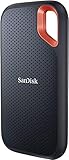
- Get NVMe solid state performance with up to 1050MB/s read and 1000MB/s write speeds in a portable, high-capacity drive(1) (Based on internal testing; performance may be lower depending on host device & other factors. 1MB=1,000,000 bytes.)
- Up to 3-meter drop protection and IP65 water and dust resistance mean this tough drive can take a beating(3) (Previously rated for 2-meter drop protection and IP55 rating. Now qualified for the higher, stated specs.)
- Use the handy carabiner loop to secure it to your belt loop or backpack for extra peace of mind.
- Help keep private content private with the included password protection featuring 256‐bit AES hardware encryption.(3)
- Easily manage files and automatically free up space with the SanDisk Memory Zone app.(5). Non-Operating Temperature -20°C to 85°C
For only the overall health assessment, use:
sudo smartctl -H /dev/diskNThe smartctl utility is part of the open-source smartmontools package. The project supports common ATA/SATA, SCSI/SAS, and NVMe storage systems and runs on Darwin, the operating-system foundation used by macOS. The smartmontools project documentation describes the package’s supported storage protocols and platforms.
What does SMART measure?
S.M.A.R.T. stands for Self-Monitoring, Analysis, and Reporting Technology. SMART is drive-firmware telemetry: the storage device records selected information about its own condition and reports health assessments, attributes, errors, temperatures, wear, and test results when the connection path allows macOS to retrieve them.
SMART is not a complete disk-integrity test. Three different questions are often confused:
The Tool Desk
Outbyte PC Repair FREEClear out junk files and repair common Windows errorsFree Scan →Outbyte Driver Updater FREEFix the driver behind crashes, sound loss and screen glitchesFind Drivers →| Question | What answers it | What it can reveal |
|---|---|---|
| Is the drive reporting hardware or media warnings? | smartctl and the drive’s SMART/NVMe data |
Health status, media errors, wear, temperature, error logs, and self-tests |
| Is the filesystem structure damaged? | Disk Utility First Aid or an appropriate filesystem tool | Problems with APFS, HFS+, exFAT, NTFS, or another volume structure |
| Can the data be recovered if the drive fails? | Backups, redundancy, and a recovery plan | Whether another copy exists and whether the copy can be restored |
A drive can pass SMART while its filesystem is corrupted, its cable is unreliable, its enclosure is overheating, or its controller is failing intermittently. Conversely, a SMART warning can identify a serious hardware problem even when the volume still mounts normally.
What do you need before running smartctl on macOS?
You need a Mac running macOS, administrator access for commands that use sudo, and a drive that exposes SMART or NVMe health data through its controller and connection path. Homebrew is required only to install smartmontools; Homebrew is a separate package manager, not a component of macOS.
Back up important files before running extended diagnostics or continuing to use a suspicious drive. A long self-test does not repair a drive, and testing can take time or affect performance. If a disk is unstable, copying or imaging important data takes priority over collecting a perfect report.
How do you install smartctl with Homebrew?
Install the current Homebrew formula with:
brew install smartmontoolsThe Homebrew smartmontools formula provides this installation command. Confirm that the executable is available:
Crashes, No Sound, or Screen Glitches?
Random freezes, missing sound and display glitches usually trace back to one bad driver. Find and replace yours safely.Free scan · under a minutePC Slower Than It Used to Be?
A free scan shows the junk files, broken settings and background clutter dragging Windows down - then fixes them in one click.Free scan · Windows 10 & 11smartctl --versionIf the shell reports zsh: command not found: smartctl, check where Homebrew installed the formula:
which smartctl
brew --prefix smartmontools
Do not assume a fixed path such as /usr/local/sbin. Intel and Apple-silicon Macs can use different Homebrew prefixes, so asking Homebrew for the prefix is safer than hard-coding one.
Also popular on Amazon
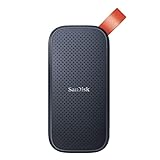
- Solid state performance with up to 800MB/s read speeds in a portable drive. (Based on internal testing; performance may be lower depending on host device, interface, usage conditions and other factors. 1MB=1,000,000 bytes.)
- Back up your content and memories on a storage solution that fits seamlessly into your mobile lifestyle.
- Take it with you on your adventures—up to two-meter drop protection means this durable drive can take a beating. (Based on internal testing.)
- Secure it to your belt loop or backpack for extra peace of mind thanks to the tough rubber hook.
- From Sandisk, a brand professional photographers trust to take on assignments.
How do you find the correct physical disk?
List the disks attached to the Mac:
diskutil listA shortened listing may look like this:
/dev/disk0 (internal, physical):
/dev/disk2 (external, physical):
Choose the whole physical disk that matches the drive you intend to inspect. Confirm the disk number, internal or external designation, capacity, model or manufacturer, and connection type. Then inspect the selected device:
diskutil info /dev/disk2The target is normally a device such as /dev/disk2, not an APFS volume, APFS container, or partition such as /dev/disk2s1. The smartctl Darwin device documentation lists /dev/diskN and /dev/rdiskN forms. This article uses the clearer /dev/diskN form as the default; using /dev/rdiskN is not universally necessary.
What does smartctl -H mean?
The focused health command is:
sudo smartctl -H /dev/diskNEnter the Mac administrator password when prompted. Terminal does not display characters while the password is being typed.
| Result | Meaning | Recommended response |
|---|---|---|
PASSED |
The drive’s reported overall SMART assessment has not crossed its failure criteria. | Continue monitoring, but keep verified backups; a pass is not a guarantee. |
FAILED |
The drive has reported a serious condition according to its health criteria. | Stop relying on the drive, preserve data if possible, and plan immediate replacement. |
| Unsupported or unavailable | smartctl could not obtain a usable health result through the selected device path. |
Investigate the disk identifier, bridge, enclosure, protocol, or host; do not interpret this as healthy. |
A single command exit status also needs context. Read the report and its warnings instead of treating every nonzero exit code as proof that the drive has failed.
How do you read the full smartctl report?
Request the standard report with:
sudo smartctl -a /dev/diskNUse the broader diagnostic report when available:
sudo smartctl -x /dev/diskNThe -x option is broader than -a, but neither option should be described as displaying every possible diagnostic field on every device. Output depends on the drive protocol, firmware, smartmontools version, macOS support, and connection path. Check the upstream smartmontools release notes when behavior or support matters, because all versions do not behave identically.
These focused commands are useful when you want to save or examine separate sections:
Recommended Free Tools
sudo smartctl -i /dev/diskN
sudo smartctl -H /dev/diskN
sudo smartctl -A /dev/diskN
sudo smartctl -l error /dev/diskN
sudo smartctl -l selftest /dev/diskN
The -i report displays device-identification and capability information such as model, serial number, firmware, capacity, and whether SMART is supported or enabled. The smartctl manual documents these options and their Darwin device forms.
Which ATA or SATA values deserve attention?
On ATA/SATA hard drives and SSDs, inspect the overall health result, error log, self-test results, temperature, power-on hours, and power-cycle count. Important attributes commonly include:
- Reallocated sectors.
- Current pending sectors.
- Offline uncorrectable sectors.
- Reported uncorrectable errors.
- Self-test failures.
- Temperature readings.
Do not apply a universal “safe” threshold to every SMART attribute. Attribute names, normalized values, raw values, and vendor thresholds vary by manufacturer and drive family. A nonzero pending or uncorrectable count deserves attention even if the overall label still says PASSED; the complete model-specific context matters.
Also popular on Amazon

- Capacity Display Variance: 500GB external ssd often appears as around 465GB on Windows. MacOS can show full 500 GB capacity. This is binary calculation difference and doesn’t affect SSD hard drive actual physical storage
- 1050 MB/s Speed: Instantly access to your files with blazing-fast 10Gbps external SSD read up to 1050MB/s and write up to 1000MB/s. LED Light indicates USB SSD instant activity
- Data Security: Solid state drives S.M.A.R.T. health diagnostics and adaptive TRIM optimizing data block management ensures consistent write speeds and extends the longevity of the portable SSD
- USB-C & USB-A Cable: Both cables featuring rapid USB 3.2 Gen2, this USB SSD effortlessly bridges devices, enabling seamless cross-platform file transfers and backup between computers, smartphones, tablets and iPhone
- Always Fast: No slowdowns for large file transfers. With SLC caching (25% of current available capacity allocated as high-speed cache), this external SSD delivers steady 10Gbps for transfers within the cache capacity
Which NVMe values deserve attention?
NVMe reports use a different vocabulary from many ATA/SATA reports. Review:
- Critical Warning.
- Temperature.
- Available Spare and Available Spare Threshold.
- Percentage Used.
- Data Units Read and Written.
- Media and Data Integrity Errors.
- Error Information Log Entries.
- Unsafe Shutdowns.
Percentage Used is a lifetime-estimate indicator, not a direct probability that an SSD will fail soon. A low percentage does not rule out controller, firmware, power, enclosure, or sudden electronic failure. NVMe health data is also unavailable or incomplete when a USB-to-NVMe bridge does not pass the relevant commands through.
How do you run a SMART self-test?
First check what the device supports:
sudo smartctl -c /dev/diskNIf the capability output lists the tests, start a short test with:
sudo smartctl -t short /dev/diskNStart an extended test with:
sudo smartctl -t long /dev/diskNAfter the estimated completion time shown by smartctl, read the self-test log:
sudo smartctl -l selftest /dev/diskNA short or long self-test can take time and may affect performance. A long test does not fix bad sectors or repair hardware. Do not repeatedly test a disk that is already producing read errors, disconnecting, failing to mount, or making unusual mechanical noises. Copy or image important data first, and treat unusual noise or unstable behavior as a failure risk even when SMART has not yet changed to FAILED.
What’s actually slowing this PC down?
Pick the symptom - the matching free tool is one click away.
Should you enable SMART if smartctl says it is disabled?
Enable SMART only when the report explicitly says that SMART is disabled and the device path is understood:
sudo smartctl -s on /dev/diskNMany modern drives already have SMART enabled. The command can fail when a USB bridge does not pass the command through, or when the drive is behind RAID, a virtual disk, or an unusual controller. Do not use -s on blindly on an unknown device. Failure to enable SMART may describe an interface limitation rather than defective media.
Why does smartctl often fail on external USB drives?
External-drive compatibility depends on the USB-to-SATA or USB-to-NVMe bridge and the enclosure firmware, not merely on whether the enclosure uses USB-C. An enclosure may allow normal file access while blocking the health commands needed by smartctl.
External USB SATA drives
For a SATA drive behind a compatible USB bridge, first ask smartctl to scan for accessible devices and detected types:
Free tools Windows power users keep installed
One-click scans. No signup required.
Also popular on Amazon

- Easily store and access 2TB to content on the go with the Seagate Portable Drive, a USB external hard drive
- Designed to work with Windows or Mac computers, this external hard drive makes backup a snap just drag and drop
- To get set up, connect the portable hard drive to a computer for automatic recognition no software required
- This USB drive provides plug and play simplicity with the included 18 inch USB 3.0 cable
- The available storage capacity may vary.
sudo smartctl --scan-openIf the scan or documentation indicates a SAT device, a possible query is:
sudo smartctl -d sat -a /dev/diskNThe -d sat option is not guaranteed to work with every enclosure. The upstream macOS and USB SAT notes explain that SAT-capable USB or FireWire devices may require the OS X SAT SMART Driver and matching device support.
External USB NVMe drives
USB-to-NVMe enclosures are particularly variable. Some expose NVMe health data, while others expose only limited SCSI information or no usable SMART information. “SMART unsupported” can therefore describe the connection path rather than the SSD itself.
When an external NVMe report is unavailable, try the SSD through a known-compatible enclosure, connect it directly through a supported interface, use the enclosure manufacturer’s diagnostic utility, or test the drive from another suitable operating system or host. Do not buy an enclosure solely because it is labeled USB-C or NVMe; verify that the complete enclosure and controller path supports health-data pass-through.
Do these 3 things before closing this tab:
1Repair Windows errors before they cause bigger problems2Fix the driver behind crashes, sound loss and screen glitches3Clear out junk files and repair common Windows errorsWhat should you do when smartctl reports an error?
| Message or symptom | Likely explanation | Next action |
|---|---|---|
zsh: command not found: smartctl |
smartmontools is not installed or the executable is not on the shell path. | Run brew install smartmontools, then smartctl --version and which smartctl. |
Permission denied |
The query needs administrator privileges. | Retry with sudo smartctl -a /dev/diskN. |
Unable to detect device type |
The protocol or bridge was not identified automatically. | Confirm the disk, run sudo smartctl --scan-open, and use a device type suggested by the scan. |
SMART support is unavailable |
The bridge, enclosure, RAID layer, logical device, protocol, or software compatibility prevents access to health data. | Try a direct connection, another cable or port, another compatible enclosure, or another host. Do not call the drive healthy. |
Read Device Identity failed |
The Mac cannot reliably communicate with the device through the current path. | Confirm the disk number, remove hubs and docks, reconnect directly, try another cable or port, and back up before further testing. |
For low-level identity failures, reconnect the drive directly to the Mac, temporarily remove hubs and docks, try another cable or port, and check whether the enclosure supports SMART pass-through. If the drive is unstable, data preservation comes before troubleshooting the enclosure.
What if the disk passes SMART but still behaves badly?
A passing SMART result does not rule out filesystem corruption, a bad cable, a failing port or hub, power instability, thermal throttling, firmware bugs, macOS compatibility problems, intermittent controller failure, or data corruption that the drive’s SMART criteria do not capture.
Run filesystem checks separately. In Disk Utility, select the relevant volume or physical disk and use First Aid where appropriate. First Aid checks filesystem or volume structures; First Aid is not a replacement for SMART attributes, error logs, or a backup.
Apple’s Disk Utility guidance for checking whether a Mac disk is about to fail says that a fatal hardware-error message should be treated as an irreparable hardware problem. Back up the data and arrange service or replacement rather than expecting software repair to make the hardware reliable.
Quick wins for a faster PC:
Repair Windows errors before they cause bigger problemsFix Now →Scan for outdated or missing drivers - takes under a minuteDriver Scan →When is Disk Utility better than smartctl?
Disk Utility is the better first step when you want a graphical check, need to investigate filesystem corruption, or are uncomfortable with Terminal. Open Disk Utility, choose View > Show All Devices if necessary, select the physical disk, click Info, and review the available SMART or hardware-status information.
Also popular on Amazon
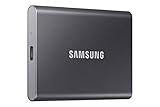
- MADE FOR THE MAKERS: Create; Explore; Store; The T7 Portable SSD delivers fast speeds and durable features to back up any endeavor; Build your video editing empire, file your photographs or back up your blogs all in an instant
- SHARE IDEAS IN A FLASH: Don’t waste a second waiting and spend more time doing; The T7 is embedded with PCIe NVMe technology that brings fast read and write speeds up to 1,050/1,000 MB/s¹, making it almost twice as fast as the T5
- ALWAYS MAKE THE SAVE: Compact design with massive capacity; With capacities up to 4TB, save exactly what you need to your drive – from large working files to game data and everything in between
- ADAPTS TO EVERY NEED: Whether using a PC or mobile phone, count on the T7 for extensive compatibility²; It’s a true team player when it comes to heavy-duty application usage or file-saving
- HI RESOLUTION VIDEO RECORDING: Record Ultra High Resolution (4K 60fs) videos directly onto the T7 Portable SSD with your favorite camera or mobile devices; Supports iPhone 15 Pro Res 4K at 60fps video and more³
Disk Utility is simpler but generally less detailed than smartctl. Use smartctl when you need attributes, temperatures, error logs, self-test results, NVMe wear data, or a scriptable command-line workflow. A third-party GUI such as DriveDx may be easier to interpret and useful for ongoing monitoring, but a GUI cannot obtain health data that a USB bridge or enclosure blocks. Compatibility with the particular external device must be checked, and pricing was not verified here.
What should you do after a failed SMART health check?
Treat a FAILED result, increasing uncorrectable errors, repeated disconnects, or unusual mechanical noises as a data-preservation emergency. Stop using the disk for normal work, avoid unnecessary writes, copy the most important files first, and consider a sector-by-sector image or professional recovery if ordinary copying fails.
Replace the drive rather than trying to repair the hardware with First Aid or a SMART self-test. Restore from a verified backup or recovery image, then test the replacement and confirm that the restored files open. A new drive is not a backup until another independent copy exists.
If the drive reports only “SMART unavailable,” do not replace it solely because the enclosure blocks pass-through. First determine whether the problem is the bridge, cable, dock, port, RAID layer, or host. At the same time, do not treat unavailable health data as evidence that the drive is safe.
Frequently Asked Questions
Does smartctl work on Apple-silicon Macs?
Yes, smartctl can work on Apple-silicon Macs because smartmontools documents Darwin/macOS support, including NVMe support. Actual results still depend on the macOS release, device controller, permissions, and any external enclosure or USB bridge.
Can smartctl check an external USB SSD?
Sometimes. An external USB SATA or NVMe SSD can be inspected only when the enclosure or USB bridge passes the relevant health commands through to macOS. If the bridge blocks pass-through, smartctl may report that SMART is unavailable even though the SSD is accessible for normal file operations.
Is SMART Passed enough to trust a drive?
No. SMART Passed means that the drive has not crossed its reported failure criteria; it does not guarantee that the drive cannot fail, that the filesystem is intact, or that the cable, enclosure, controller, and backup are working correctly.
What is the difference between smartctl -a and smartctl -x?
smartctl -a requests a standard comprehensive report, while smartctl -x requests a broader diagnostic report. The exact fields vary by protocol, firmware, smartmontools version, macOS support, and connection path, so neither option guarantees every possible diagnostic field.
Should you run a long SMART test on a failing drive?
Usually not before preserving important data. A long test can take time and affect performance, and it diagnoses rather than repairs the drive. If the disk produces read errors, disconnects, fails to mount, or makes unusual noises, copy or image the data first.
The Bottom Line
Bottom line: Install smartmontools, identify the correct whole disk, and start with sudo smartctl -H /dev/diskN or sudo smartctl -a /dev/diskN. Interpret PASSED as one piece of evidence rather than a guarantee. For a failing or unstable disk, protect the data first; for an external drive, remember that the enclosure may prevent SMART data from reaching macOS.

