
Recommended Free Tools
To add a waveform visualizer to an always-on podcast stream in OBS, install an OBS visualizer plugin, add its source to the scene that carries your podcast, and select the audio source viewers hear. For a conventional waveform or spectrum, start with Waveform. Use Audio Waves Visualizer if you want shader-based templates or custom effects and your OBS version is 32.0.2 or later. Then test the scene and recovery workflow on the computer that will run the stream: plugin listings do not guarantee uninterrupted 24/7 operation.
Choose a visualizer that fits your OBS version
| Plugin | Best fit | Compatibility and constraints |
|---|---|---|
| Waveform | Conventional waveform, line, bar, or circular spectrum visuals and audio metrics. | The OBS resource listing gives a minimum OBS Studio version of 27.0.0 and lists Windows, macOS, and Linux. It lists Waveform version 1.9.1 and a July 14, 2026 update; these details can change. On Linux, pair Flatpak OBS with the Flatpak version of Waveform. Waveform resource listing · Waveform project instructions |
| Audio Waves Visualizer | Shader-driven looks, bundled templates, or custom effect files. | The OBS resource listing gives a minimum OBS Studio version of 32.0.2 for version 3.0.5 and lists Windows, macOS, and Linux. Its author warns that some themes may cause lag on weaker GPUs; this is an author warning, not an independent benchmark. Audio Waves Visualizer resource listing · Audio Waves Visualizer project |
| Spectralizer | Existing setups that use this older plugin. | Its OBS resource page marks it deprecated in favor of Waveform, which it says offers more options. It is not the default choice for a new setup. Spectralizer resource listing |
These are requirements stated on the individual OBS resource listings, not a guarantee that every OBS build or packaging format will behave identically. OBS recommends consulting a plugin’s documentation for compatibility and installation guidance. OBS plugin guide
Install and add the visualizer to your podcast scene
- Check your OBS version, operating system, and package format. Compare them with the plugin’s current resource page before downloading. Waveform’s listing names OBS 27.0.0 as its minimum; Audio Waves Visualizer’s names OBS 32.0.2. If OBS on Linux came from Flatpak, the Waveform project instructions say to install its Flatpak form too rather than mixing package formats.
- Install the plugin from its official resource or project instructions. Follow the installation notes for your operating system and OBS packaging. Restart OBS after installation if the plugin’s source does not appear.
- Open the scene used for the continuous podcast output. In OBS, select the persistent program scene in the Scenes panel. Under Sources, use the add control to add the visualizer source supplied by the plugin; its exact name and configuration controls depend on the plugin and version. OBS renders sources in scenes, and its plugin guide advises following plugin-specific documentation for source setup.
- Select the podcast program audio. In the visualizer’s properties, choose the OBS audio source that carries the program viewers hear. Check the Audio Mixer: the chosen source’s meter should respond when the podcast plays. Waveform describes its graphs and metrics as applying to an audio source; Audio Waves Visualizer says it analyzes a selected OBS audio source using RMS, peak, and FFT data to drive a transparent visual source.
- Place and style the visualizer. Resize and position it on the canvas so it is legible without covering branding or useful information. Adjust the available color, opacity, and style controls. Audio Waves Visualizer offers templates and custom shader/effect-file loading; test the chosen template on the production machine, since its author warns that some themes may cause lag on weaker GPUs.
- Verify the output and unattended behavior. Preview the scene, confirm that the graphic moves with the podcast feed, and check the actual stream output. Before relying on it continuously, test after scene changes, reconnects, and OBS or system restarts. The plugin documentation describes source operation but does not certify a 24/7 reliability or recovery level.
Make sure the visualizer follows the sound viewers hear
The graphic is driven by the OBS source selected in its properties, not automatically by whichever sound seems most prominent in the scene. If the visualizer reacts to a microphone, desktop audio, or temporary media source instead of the finished podcast mix, change the selection to the source carrying the program feed. Verify that source’s meter responds during playback, then check that the visual and audible program stay in sync in the output.
For a useful always-on scene, keep the visualizer source in the scene that OBS uses for the continuous output. That is an operational setup recommendation based on OBS’s scene-and-source model; it is not a plugin promise that the visualizer will recover after every crash, reconnect, source switch, or restart.
Do these 3 things before closing this tab:
1Scan for outdated or missing drivers - takes under a minute2Repair Windows errors before they cause bigger problems3Fix the driver behind crashes, sound loss and screen glitches#1 Best Overall

- High-Resolution VFD Sound Level Meter: The AK2515 analyzer boasts a 25x15 resolution VFD display, ensuring accurate frequency band representation. It also includes a precise clock display, utilizing an SD3078 built-in crystal oscillator for ±3.8ppm accuracy, with a monthly error within 10 seconds, providing both functionality and style.
- Versatile Frequency Range and Connectivity: Covering an extensive 20Hz-20kHz frequency sweep, the AK2515 offers high-precision frequency point testing. The 3.5mm AUX and MIC inputs support both wired and wireless connections, capturing every nuance in sound with ease.
- Advanced AGC and Customizable Display Modes: The AK2515 features a special AGC and spectrum algorithm for optimal visual effects across a wide range of input signals. Switch between -10/-5/-3/-1/0dB gain settings and choose from three display modes (real output, smooth output I, smooth output II) to meet your specific needs.
- Extensive Customization and Adjustable Settings: Tailor your experience with adjustable brightness, main light column falling speed, peak holding and falling speeds, and more. The AK2515 also supports date and time display, four font types, five music spectrum modes, five clock modes, and three level modes, all with a power-off memory function for convenience.
- Noise Filtering and Multiple Modes: With five frequency division and amplification curve modes, the AK2515 enhances visual clarity and sound quality. The noise filtering function significantly improves sound clarity, making it suitable for various environments. Choose from auto, deep sleep, music spectrum, and clock display modes to optimize your audio analysis.
Troubleshoot common problems
| Symptom | Likely cause | What to check |
|---|---|---|
| The visualizer source is missing. | The plugin may not match the OBS version, operating system, or package format, or OBS has not been restarted. | Recheck the plugin listing and installation notes, including the Flatpak pairing for Waveform on Linux. Restart OBS after installation and consult the plugin’s documentation. |
| The graphic is static or blank. | The selected audio source may be inactive or may not be the source carrying the podcast. | Open the visualizer properties, select the active program audio source, and confirm its Audio Mixer meter responds while the podcast plays. |
| The graphic reacts to the wrong sound. | The visualizer is listening to an unrelated source, such as desktop audio, a microphone, or a temporary media source. | Select the podcast program feed in the visualizer’s source controls, then verify the scene output. |
| OBS becomes sluggish after styling. | A demanding style or shader may be taxing the system, particularly with Audio Waves Visualizer themes that its author says can lag on weaker GPUs. | Try a simpler Waveform style or a less demanding Audio Waves template, then test the production scene again. |
| The visualizer disappears or stops after an interruption. | Recovery behavior is not established as guaranteed by the plugin documentation reviewed. | Test the stream after scene changes, reconnects, and OBS or system restarts. Check that the intended scene remains active and its selected audio source still works. |
Or let it run in the cloud
The OBS method above needs a running OBS setup on your computer. If you want a YouTube stream of uploaded podcast recordings without leaving a computer on at home, StreamNeo runs the video loop from the cloud: upload your recording or build a playlist, add your YouTube stream key once, and go live. StreamNeo plays uploaded videos, not a live camera feed, and streams to YouTube only. It does not add an OBS waveform visualizer to a live OBS scene.
- Nothing has to stay on at home for the cloud stream to continue.
- Each slot streams the uploaded video as made, up to 4K 60fps, at one flat price per slot; there are no quality tiers or re-encode.
- StreamNeo automatically tries to recover if YouTube drops the stream.
- The first day is free with no card, once per account.
- Monthly: $9.99 per month.
See StreamNeo for details, or start your free first day.
Quick Recap
Best Value
![[Upgraded] VFD Audio Spectrum Analyzer Bluetooth 5.0 Receiver 3.5mm AUX Selector (Black)](https://m.media-amazon.com/images/I/3164NUSypvL._SL160_.jpg)
- VFD253 integrates mutiple functions into a whole: As an audio spectrum analyzer: adopts dedicated green VFD display screen with 25 × 15 high resolution, guarantee the accuracy of each frequency band.
- As a Bluetooth receiver and audio switcher: besides microphone pickup, also with Bluetooth 5.0 and 2 groups of 3.5mm AUX input, works perfectly with your phone/PC/game player/amplifier/speaker etc. As a high-precision clock: using RX8025T built-in crystal oscillator whose clock accuracy is ±3ppm, year error within 1 minutes, very cool and interesting.
- Wide frequency range & special AGC display: 80Hz-16KHz frequency sweep, high-precision display even can do frequency point test. Speical AGC algorithm and customized output curve, ensure ideal visual effects even the input signal is in a small to large range, avoid that no display when input low and display in full screen when input high.
- Many adjustable items & display effects: gain, brighntness, falling speed of main light column, holding time and falling speed of the peak can be adjusted separately. 5 music spectrum display mode and 2 clock display mode, all settings with power-off memory function, no need to set again after restarting.
- Attractive looking and convenient use: with remote control, easy to adjsut all settings and see the music level status in real time and every slight change of sound.CNC machined aluminum and transparent acrylic case, both solid and beautiful, compact design not occupy your desktop space.
Rank #4

- Sound Control Pickup Rhythm Lights: Pickup ambient light is equipped with a built in sound sensor, capturing surrounding sound signals and converting them into commands for light changes.
- Energy Efficient: LED lamp beads feature low power consumption, high brightness, and long lifespan, reducing the frequency of replacements and maintenance costs, promoting environmental sustainability.
- Real Music Spectrum Light: With a spectrum range of 20Hz-25KHz, it is ideal for ambient lighting, decoration, and sound system modifications, adding a dynamic touch to the space.
- Compact Design: Put it on desk, bedside table or in your car to create a relaxing ambience. The sound controlled light makes the whole room , bringing you a unique lighting experience.
- Wide Application: Suitable for home theater, KTV, bar, festival celebrations, and smart home lighting, creating a vibrant ambience and enhancing the overall ambiance.
Rank #3
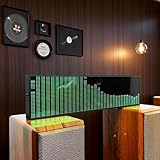
- Real-Time Rhythm Visualizer: Experience your music with vibrant, sound-activated RGB lighting that dances to every beat, or use the included audio cable for direct music sync to the LED spectrum display.
- Dynamic Light Show: Choose from 36 stunning display styles, 16 colors, 9 spectrum modes, 6 floating dot effects, and 4 frequency bands to create your perfect desktop ambiance light.
- Smart Desktop Companion: Seamlessly switches to a precise digital clock with network time sync and weather forecast display when music stops. A functional and stylish desktop gadget.
- Easy Plug-and-Play: Effortlessly powered via standard USB (5V/1A) using your phone charger, computer, or power bank. Simple setup for instant music visualizer fun.
- Immersive Audio Decor: Elevate your room decor, gaming setup, home studio, or parties with this captivating RGB music light that reacts to sound, creating an engaging sound reactive atmosphere.
Rank #2
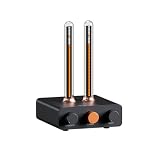
- Musical Resonance: The lights dynamically pulse to the rhythm of the music, creating an immersive audio-visual experience that enhances both sight and sound. Perfect for desktop, living rooms, parties to elevate visuals
- Multiple Lighting Modes: Equipped with 48 full-color LED chips on each strip as the light source, low-voltage drive for safety and reliability. It features five lighting effects to create a unique ambiance for different scenarios
- Customizable Effects: Adjustable lighting colors, sensitivity, and lights falling speed to match different music rhythms. With built-in microphone pickup, no extra wiring is needed—ensuring pristine audio quality remains uncompromised.
- All-Metal Build: Crafted from CNC-machined aluminum alloy, offering a premium and compact design. The anodized finish delivers a smooth, refined tactile experience, adding a touch of sophistication to your personal space
- Fosi Signature: The crystal clear glass tubes and ring bases are set off by the metallic orange knob perfectly. It is not only a harmonious blend of vintage charm and modern aesthetics, but also a fusion of tube amp aesthetics and Fosi Audio's style
Product prices and availability are accurate as of the date/time indicated and are subject to change. Any price and availability information displayed on Amazon at the time of purchase will apply.

