
Quick wins for a faster PC:
Scan for outdated or missing drivers - takes under a minuteDriver Scan →Clear out junk files and repair common Windows errorsFree Scan →iTechGuides is reader-supported. When you buy through links on our site, we may earn an affiliate commission. As an Amazon Associate I earn from qualifying purchases. Learn more
To connect 2 monitors to one USB-C port, the laptop must support video output through DisplayPort Alt Mode, Thunderbolt, or USB4, and the computer must support two independent displays. Windows laptops commonly use an MST hub or USB-C dock; compatible Macs may require a Thunderbolt dock or DisplayLink dock instead.
USB-C describes the connector shape, not what the connector can do. One USB-C port may support charging only, USB data only, video output, Thunderbolt, USB4, or several of those capabilities at once. The correct adapter therefore depends on the exact laptop model, operating system, graphics hardware, monitor inputs, and required resolution.
Key takeaways
- A USB-C port can drive two monitors only when the port supports video and the laptop supports two external displays.
- Windows and ChromeOS laptops commonly use a USB-C MST hub or dock, provided the host supports DisplayPort Alt Mode and MST.
- Many ordinary MST hubs extend two displays on Windows but mirror them on macOS; compatible Macs generally need a Thunderbolt dock or DisplayLink dock for two independent screens.
- Thunderbolt and USB4 can carry multiple display streams, but neither technology overrides the laptop’s maximum external-display limit.
- Two simultaneous displays may require lower resolution or refresh rate because the displays share the USB-C, dock, and graphics bandwidth.
How do I connect 2 monitors to one USB-C port?
Connect the laptop to a compatible MST hub, USB-C dock, Thunderbolt dock, or DisplayLink dock, then connect each monitor to a separate video output on that device. In Windows, open Settings → System → Display and choose Extend these displays. On macOS, use a Thunderbolt or DisplayLink solution when the Mac supports two independent displays, then open Apple menu → System Settings → Displays to arrange the screens.
Before buying anything, confirm three separate facts: the USB-C port can carry video, the laptop can operate two external displays, and the chosen hub or dock uses a display technology supported by the operating system.
Popular on Amazon

- 5-in-1 Connectivity: Equipped with a 4K HDMI port, a 5 Gbps USB-C data port, two 5 Gbps USB-A ports, and a USB C 100W PD-IN port. Note: The USB C 100W PD-IN port supports only charging and does not support data transfer devices such as headphones or speakers.
- Powerful Pass-Through Charging: Supports up to 85W pass-through charging so you can power up your laptop while you use the hub. Note: Pass-through charging requires a charger (not included). Note: To achieve full power for iPad, we recommend using a 45W wall charger.
- Transfer Files in Seconds: Move files to and from your laptop at speeds of up to 5 Gbps via the USB-C and USB-A data ports. Note: The USB C 5Gbps Data port does not support video output.
- HD Display: Connect to the HDMI port to stream or mirror content to an external monitor in resolutions of up to 4K@30Hz. Note: The USB-C ports do not support video output.
- What You Get: Anker 332 USB-C Hub (5-in-1), welcome guide, our worry-free 18-month warranty, and friendly customer service.
What does one USB-C port actually support?
A USB-C connector alone does not guarantee monitor support. VESA’s DisplayPort FAQ explains that DisplayPort Alt Mode over USB-C is optional, so a USB-C-shaped port may provide charging and USB data without providing any display signal.
Look up the exact laptop model in the manufacturer’s technical specifications or port diagram. Do not rely on a product description that only says “has USB-C.” Search for one or more of these terms:
- DisplayPort Alternate Mode, DisplayPort Alt Mode, DP Alt Mode, or video output.
- Thunderbolt 3, Thunderbolt 4, or Thunderbolt 5.
- USB4 with display support or display tunneling.
- A stated maximum number of external displays.
Symbols can provide a useful clue, although the manufacturer’s specifications are more reliable. A lightning-bolt symbol usually indicates Thunderbolt, while a DisplayPort logo or “DP” marking indicates video output. A plain USB symbol may indicate data only, and an unmarked port may require model-specific documentation.
Free tools Windows power users keep installed
One-click scans. No signup required.
DisplayPort Alt Mode is different from USB-C itself. A USB-C port with DisplayPort Alt Mode can send a native DisplayPort signal to a compatible hub or monitor. A USB-C port without Alt Mode cannot be made into a video output by a passive splitter.
Can every laptop drive two external monitors?
No. The laptop’s processor, integrated or discrete GPU, firmware, operating system, and port configuration determine the maximum number of external displays. A dock can distribute display streams, but a dock cannot create more native displays than the computer supports.
Check the laptop manufacturer’s display-support specifications for the exact model. This is especially important for MacBooks because Apple’s display limits vary by Mac model, chip, resolution, and refresh rate. Apple’s current external-display guidance lists those limits by Mac configuration.
Windows laptops often support two extended monitors through a USB-C MST hub when the USB-C port supports DisplayPort Alt Mode and the graphics system supports MST. Some Windows laptops still have a one-display limit or share a limited video path with another port, so “Windows” is not by itself a guarantee.
Do these 3 things before closing this tab:
1Scan for outdated or missing drivers - takes under a minute2Clear out junk files and repair common Windows errors3Fix the driver behind crashes, sound loss and screen glitchesMac users should not apply the old blanket statement that MacBooks cannot run two monitors from one port. Some newer Mac models support multiple displays through a single Thunderbolt port, while other Macs require DisplayLink for two independent screens. The Mac’s exact model and chip are decisive.
Which hardware should I use for two monitors?
The best hardware depends on the laptop and the desired desk setup. Port count is less important than the technology inside the hub or dock.
| Method | Best for | Display drivers | Mac behavior | Main requirement |
|---|---|---|---|---|
| USB-C MST hub | Compatible Windows or ChromeOS laptops and simple monitor connections | Usually no | Often mirrors rather than extending two screens | USB-C DisplayPort Alt Mode plus MST |
| Full USB-C dock | One-cable desks with charging, USB, Ethernet, audio, and monitors | Depends on technology | Depends on whether the dock uses MST, Thunderbolt, or DisplayLink | Video-capable host port and compatible dock mode |
| Thunderbolt dock | Compatible Macs and PCs needing native multi-display output or higher bandwidth | Usually no display driver | Works natively only when the Mac model supports the display configuration | Thunderbolt-capable host and suitable cable |
| DisplayLink dock | Systems that cannot provide two native displays through MST | Yes | Can provide extended displays after software and permissions are configured | USB data connection, DisplayLink software, and OS compatibility |
| DisplayPort daisy chain | Two compatible DisplayPort monitors without a separate dual-output hub | Usually no | Limited or variable on macOS | DP 1.2-or-newer MST monitors with DisplayPort output |
USB-C MST hub: the compact Windows option
An MST hub splits one DisplayPort Alt Mode connection into two independent DisplayPort streams. A typical connection looks like this:
Also popular on Amazon

- The Anker Advantage: Join the 50 million+ powered by our leading technology.
- Massive Expansion: Equipped with a USB C PD-IN charging port, 2 USB-A data ports, 2 HDMI ports, an Ethernet port, and a microSD/SD card reader, giving you an incredible range of functions—all from a single USB-C port.
- Dual HDMI Display: Stream or mirror content to a single device in stunning 4K@60Hz, or hook up two displays to both HDMI ports in 4K@30Hz. Note: For macOS, the display on both external monitors will be identical.
- Power Delivery Compatible: Compatible with USB-C Power Delivery to provide high-speed pass-through charging up to 85W. Please note: 100W PD wall charger and USB-C to C cable required.
- Compatibility: Supports USB-C, USB4, and Thunderbolt connections. Compatible with Windows 10 and 11, ChromeOS, and laptops equipped with DP Alt Mode and Power Delivery. Note: This device is not compatible with Linux.
Laptop USB-C port
        │
        ▼
USB-C MST hub
   ├── Monitor 1
   └── Monitor 2
An MST hub may have two HDMI outputs, two DisplayPort outputs, or one of each. The laptop must support DisplayPort Alt Mode and MST, and the link must have enough bandwidth for both monitors. StarTech’s dual-DisplayPort MST documentation describes the adapter as using one USB-C DisplayPort Alt Mode input to provide two independent DisplayPort outputs.
Recommended Free Tools
Choose an MST hub when the laptop is a compatible Windows or ChromeOS system, the monitors already have suitable inputs, and you do not need a full set of desk peripherals. MST hubs are generally compact and use a native display path, but they offer fewer charging and connectivity features than a full dock.
USB-C docking station: the one-cable desk option
A full USB-C dock is useful when one cable should connect the laptop to two monitors, power, keyboard, mouse, Ethernet, storage, webcam, and audio. A dock may also charge the laptop through USB-C Power Delivery.
Do not treat “dual monitor” or “dual HDMI” as a universal promise. The advertised display count depends on the host port, dock technology, GPU, operating system, resolution, refresh rate, and exact output combination. The published listing for a Plugable dual-HDMI dock describes two 4K 60Hz displays on compatible Windows systems while noting a macOS limitation for independent extended displays.
A full dock is more convenient than an MST hub but usually costs more and introduces additional variables such as firmware, power adapters, USB bandwidth, and host-mode fallbacks.
Outdated Drivers Are Slowing You Down
One free scan finds every outdated or missing driver and matches the right update for your exact hardware.Free scan · exact hardware matchWindows Errors? Fix Them Before They Spread
Repair common Windows errors and clear accumulated junk for a smoother, more stable PC - no reinstall needed.Free scan · no reinstallThunderbolt dock: the native high-bandwidth option
Use a Thunderbolt dock when the laptop has Thunderbolt 3, 4, or 5 and the computer’s display limit supports the desired configuration. Thunderbolt can carry multiple display streams over one connection and is a strong fit for compatible MacBooks, professional Windows laptops, and high-resolution monitor setups.
A Thunderbolt dock does not bypass the laptop’s maximum-display limit. Apple states that supported hubs or daisy chains can connect multiple displays through one Thunderbolt port but cannot increase the Mac’s overall maximum number of displays.
A Thunderbolt dock connected to an ordinary USB-C data port may fall back to reduced USB-C functionality. The connector may fit physically, but physical compatibility does not guarantee Thunderbolt bandwidth or multi-display behavior. Use a genuine Thunderbolt-capable host port and cable when Thunderbolt performance is required.
DisplayLink dock: the compatibility workaround
DisplayLink sends display data through a USB graphics system and uses software on the computer. DisplayLink is useful when a laptop has USB data but lacks suitable native MST support, or when a Mac cannot drive two independent screens through an ordinary MST hub.
A DisplayLink dock requires compatible DisplayLink Manager software and may require macOS privacy permissions such as Screen Recording or related system access. DisplayLink is not the same as native DisplayPort Alt Mode or Thunderbolt video. Software-mediated output can introduce driver maintenance, latency, compression, and protected-content limitations, making DisplayLink less suitable for gaming, color-critical work, high-frame-rate video, or latency-sensitive applications.
Also popular on Amazon

- 【13 in 1 Laptop Docking Station】Plug and play. With this usb c hub multiple adapter, you get 2*4K HDMI, DisplayPort, 2*USB C ports(Both support 100W Power Delivery+10Gbps Data Transfer), USB 3.1(10Gbps), 3*USB 3.0, 2*USB 2.0, 3.5mm Audio, Gigabit Ethernet port.
- 【Triple Display Docking Station】This usb c docking station only Windows System support MST and SST(Mirror & Extend Mode), HDMI port support up to 4K@60Hz (DP1.4 Source); DP port support up to 4K@60Hz. ❣️Note: For Extend mode, MAC OS can Only Extend One Monitor (4K@60Hz).
- 【Fast Data Transfer & PD Charging Port】USB-C 3.1 No longer distinguish between data transmission and fast charging port, fulfill the 10Gb/s high speed rates data transfer at the same time. And this computer docking station with power delivery support 100W PD Charging (This docking station will occupy 13W power to work, so only 87W power for laptop charging.).
- 【Gigabit Ethernet & Audio/Mic】 Docking station ethernet port download movies quickly and reduce game lag. This laptop docking station with 3.5mm Audio/Mic 2-in-1 jack.
- 【18 Month Warranty】LIONWEI support 18 month product warranty, If you encounter any problems in use, please feel free to message us.
DisplayLink is not automatically better or worse than MST. DisplayLink is mainly a compatibility solution; native MST or Thunderbolt is usually simpler when the computer already supports the required displays.
How do I connect two monitors on Windows 10 or Windows 11?
For a native MST hub or compatible USB-C dock, use this sequence:
- Confirm that the laptop’s USB-C port supports DisplayPort Alt Mode, Thunderbolt, or USB4.
- Connect the hub or dock directly to the laptop with its supplied or appropriately rated USB-C cable.
- Connect monitor 1 to the first video output.
- Connect monitor 2 to the second video output.
- Connect the dock’s power adapter if the dock has one, especially when the dock provides laptop charging or several peripherals.
- Turn on both monitors and select the correct HDMI or DisplayPort input on each monitor.
- Open Settings → System → Display.
- Select Identify so Windows shows which numbered display corresponds to each physical monitor.
- Under the multiple-display control, choose Extend these displays, not Duplicate these displays.
- Drag the display icons so their arrangement matches the physical position of the monitors.
- Select each monitor to set resolution, orientation, scaling, and refresh rate.
Windows 10 and Windows 11 can use slightly different wording as Microsoft changes the Settings interface, but the relevant controls remain on the Display settings page. If one monitor is missing, select Detect, then power-cycle the monitors, dock, and laptop.
How do I connect two monitors to a Mac?
Mac setup depends primarily on the Mac model and chip, not merely on the presence of a USB-C-shaped port. Apple’s model-specific display documentation should be checked before buying a dock.
Using a Thunderbolt dock
- Check the Mac model and chip’s maximum supported external-display count at the intended resolution and refresh rate.
- Use a Thunderbolt dock rather than an ordinary USB-C MST hub when the Mac requires native Thunderbolt display paths.
- Connect the dock to a Mac Thunderbolt port using a compatible Thunderbolt cable.
- Connect each monitor to a separate supported display output on the dock.
- Turn on the monitors and choose the correct inputs.
- Open Apple menu → System Settings → Displays.
- Select each display and arrange the displays spatially.
- Confirm that macOS recognizes two separate screens rather than mirroring one image.
Apple’s MacBook Pro display guide documents supported multi-display connection patterns for specific MacBook Pro models. The supported number and arrangement can change with the chip, display resolution, refresh rate, and connection method.
Using a DisplayLink dock
- Choose a dock explicitly identified as DisplayLink-compatible with the relevant macOS version.
- Install the current DisplayLink Manager software supplied by the dock or DisplayLink vendor.
- Approve the required macOS privacy permissions.
- Connect the dock directly to the Mac.
- Connect both monitors to the dock.
- Open System Settings → Displays.
- Arrange the screens and select extended-display behavior where available.
If both monitors remain mirrored, verify that the dock is genuinely DisplayLink-based. A dock with two HDMI sockets may still be an MST-only device. Confirm that DisplayLink Manager is running and that macOS permissions were granted.
On Apple-silicon Mac laptops, macOS may ask for approval before allowing a new USB or Thunderbolt accessory to connect. Apple documents accessory-approval prompts on Mac laptops with Apple silicon.
The Tool Desk
Outbyte Driver Updater FREEScan for outdated or missing drivers - takes under a minuteDriver Scan →Outbyte PC Repair FREERepair Windows errors before they cause bigger problemsFix Now →Why can an ordinary dual-HDMI hub mirror on a Mac?
Many dual-HDMI USB-C hubs use DisplayPort MST. Windows commonly treats the two MST streams as two independent extended displays, while ordinary macOS MST support generally does not provide two independent extended displays from those hubs. The result is often mirrored output or only one active display.
Plugable’s MST compatibility guidance distinguishes Windows extended-desktop behavior from macOS MST limitations. A compatible Mac may instead need a Thunderbolt dock, or a DisplayLink dock when the Mac’s native display support is insufficient.
Can I daisy-chain two monitors from one USB-C port?
Yes, DisplayPort daisy chaining can connect two compatible monitors from one video-capable USB-C connection, but the first monitor must have both a DisplayPort input and a DisplayPort output, and both monitors must support MST.
Also popular on Amazon

- Detachable 2-in-1 Design for Desk & Travel — Features a 13-in-1 desktop docking station with a detachable 6-in-1 portable hub that snaps off for on-the-go use. One docking station replaces two, covering both your home office setup and mobile work needs without buying separate devices.
- Triple Display with Flexible Monitor Setup — Connect up to 3 monitors via 2× HDMI ports and 1x DisplayPort for a full desktop workstation. Supports up to 4K@60Hz (single display) or dual 2K@60Hz (dual displays) or triple 1080P@60hz (triple display). Perfect for data analysts, traders, and content creators who need screen real estate. (Note: macOS supports mirrored mode only on multiple external displays).
- All the Ports You Need in One Dock — 1× USB C upstream, 2× USB C Data at 5Gbps and 10Gbps, 3× USB-A, 2× HDMI, 1× DisplayPort, 1× Gigabit Ethernet, 1× 3.5mm audio, SD/TF card slots, and DC power input. Connect your monitors, keyboard, mouse, webcam, headphones, and wired network — all through a single USB C cable to your laptop.
- 100W Laptop Charging + 10Gbps Data Transfer — Delivers up to 100W Power Delivery to charge your laptop while running all connected peripherals. Includes a 140W power adapter to ensure stable performance under full load. One USB C Data port transfers files at 10Gbps — move a 1GB video in under 2 minutes.
- Wide Compatibility & Complete Package — Works with Dell XPS, Lenovo ThinkPad, HP Spectre, and most Windows laptops with USB C. Includes: Nano Docking Station (13-in-1), 3ft USB C cable (10Gbps), 140W power adapter with 5ft power cord, welcome guide, and 18-month warranty. Set up in under 2 minutes — plug and play, no drivers needed.
Laptop USB-C → Monitor 1 DisplayPort input
Monitor 1 DisplayPort output → Monitor 2 DisplayPort input
The laptop must support DisplayPort Alt Mode or Thunderbolt. The monitors must support DisplayPort 1.2 or later and MST, and the monitor menu may require MST to be enabled. Use suitable DisplayPort cables.
Microsoft’s Thunderbolt 4 Dock documentation describes the connection order and requires DisplayPort input and output on intermediate monitors. Microsoft also warns that multiple monitors sharing the link can reduce available resolution and refresh rate.
Daisy chaining is generally more predictable on Windows than on macOS. Do not assume that any DisplayPort monitor can act as the intermediate monitor: the second DisplayPort output and MST support are essential.
What resolution and refresh rate can two monitors use?
Two monitors do not automatically mean two 4K 60Hz displays. The actual result depends on DisplayPort version, available lanes, USB 3 traffic, Display Stream Compression, dock bandwidth, GPU capability, monitor combination, cable quality, HDR, and color depth.
| Setup | Likely requirement | Main limitation |
|---|---|---|
| Two 1080p monitors | USB-C DisplayPort Alt Mode plus MST | Usually a modest bandwidth requirement, but host support is still necessary |
| Two 1440p monitors | DisplayPort Alt Mode and MST with adequate shared bandwidth | DisplayPort version and USB lane allocation can limit refresh rate |
| Two 4K 60Hz monitors | High-bandwidth DisplayPort 1.4, DSC, USB4, or Thunderbolt on suitable systems | Host, dock, cable, GPU, and monitor limits all apply |
| Two monitors on many Macs | Compatible Thunderbolt configuration or DisplayLink | The Mac model and chip determine the native display limit |
| DisplayPort daisy chain | DP 1.2-or-newer MST monitors and a DisplayPort output on monitor 1 | The second display shares the link and may receive lower resolution or refresh rate |
The table shows examples and requirements, not guarantees. A dock’s maximum resolution may apply to one display, Thunderbolt mode rather than ordinary USB-C mode, a specific operating system, DSC-enabled hosts, or a particular combination of output ports.
What’s actually slowing this PC down?
Pick the symptom - the matching free tool is one click away.
USB-C bandwidth can also be divided between display and USB 3 data. Disconnecting high-speed USB peripherals may change the available display modes, although the dock’s design and host capabilities ultimately determine the result.
Why are both monitors showing the same image?
Mirroring usually means the operating system is set to duplicate the desktop, the dock is a splitter, the Mac is using an MST hub, or a DisplayLink dock is missing its software.
- In Windows, open Settings → System → Display and choose Extend these displays.
- Confirm that the hub or dock supports independent displays rather than simple signal duplication.
- On a Mac, check whether the device is MST-only. Ordinary MST hubs commonly mirror on macOS.
- If the device is DisplayLink-based, install and run DisplayLink Manager and approve its required permissions.
- Check the laptop’s maximum external-display count.
An ordinary video splitter generally duplicates one signal. Independent desktops require MST, Thunderbolt or USB4 display tunneling, or DisplayLink.
Independent reader supportYour contribution helps us test, update, and keep practical guides available for everyone.What should I do if only one monitor works?
When one monitor works and the second remains blank, check the compatibility chain in this order:
- Confirm the laptop’s maximum number of external displays.
- Confirm that both dock outputs are active in the current host mode; some ports change behavior when the dock is connected to ordinary USB-C instead of Thunderbolt.
- Replace the USB-C cable with one rated for the required video and bandwidth.
- Set the second monitor to the correct input.
- Enable MST in the first monitor’s on-screen menu when using daisy chaining.
- Connect the dock’s external power adapter.
- Temporarily reduce both monitors to 1080p at 60Hz.
- Disconnect other USB 3 devices from the dock.
- Remove any intermediate hub, adapter, or cable extension.
- Test each monitor individually to identify whether the fault follows the monitor, cable, dock output, or host.
Some older Intel systems and particular dock combinations support only lower resolutions or refresh rates than a product’s headline specification. Plugable documents examples in which older Intel configurations can be limited to dual 4K 30Hz or dual 1080p 60Hz depending on the system and configuration.
Also popular on Amazon
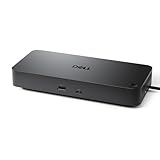
- Powerful compatibility: Power essential productivity across the AI PC workplace. The Dell Pro Dock offers enhanced compatibility and drives up to 100W of power to new mainstream Dell AI PCs and non-Dell PCs.
- Modern manageability: The Dell Pro Dock is part of the world’s most manageable commercial docking family, with flexible management capabilities, designed to uplevel IT efficiency and keep users working without disruption.
- Thoughtful design: Configure your workspace with an ambidextrous USB-C cable that can be routed left or right. Features a new robust USB-C connector, designed for enhanced durability.
- A leader in sustainable innovation: Experience up to 72% reduction in power consumption on standby mode. Built with at least 65% postconsumer recycled materials and packaged with 100% recycled or renewable packaging.
- Upgraded for modern work: Expand your views with native support for up to four high-res displays. Keep your PC accessories connected and charged with the latest ports, while staying productive with faster USB and network speeds.
How can I fix low refresh rates?
Low refresh rates usually indicate a bandwidth or conversion limitation rather than a Windows or macOS arrangement problem.
- Test each monitor individually at its intended resolution and refresh rate.
- Temporarily set both screens to 1080p at 60Hz.
- Try DisplayPort instead of HDMI when the dock and monitors support it.
- Check whether the path uses DisplayPort 1.2 instead of DisplayPort 1.4.
- Disconnect USB 3 storage and other high-speed peripherals.
- Disable HDR or reduce color depth temporarily for diagnosis.
- Use shorter, properly rated display cables.
- Check the dock manufacturer’s resolution matrix for two simultaneous displays.
Microsoft specifically notes that daisy-chained displays may have reduced resolution and refresh rate. A product page claiming “4K 60Hz” may describe one display rather than two displays simultaneously.
Why does the laptop charge slowly through the dock?
A dock’s advertised USB-C Power Delivery input rating is not necessarily the wattage delivered to the laptop. The dock may reserve power for its own electronics and connected peripherals.
Free tools Windows power users keep installed
One-click scans. No signup required.
Compare the laptop charger wattage, dock input wattage, dock pass-through wattage, and whether the power adapter is included. A dock described as “100W PD” does not necessarily deliver 100W to the laptop. Use the manufacturer’s charging specification for the exact dock.
What if the monitors disconnect after sleep or reboot?
Sleep and reboot disconnections can result from dock firmware, graphics drivers, DisplayLink software, monitor firmware, cable negotiation, or a marginal connection.
- Update Windows or macOS.
- Update Windows graphics drivers.
- Update the dock firmware when the manufacturer provides an updater.
- Update DisplayLink Manager if the dock uses DisplayLink.
- Reconnect the dock directly to the laptop rather than through another hub.
- Power-cycle the dock and both monitors.
- Disconnect and reconnect the display cables after the laptop wakes.
Microsoft documents firmware updates for the Surface Thunderbolt 4 Dock through Windows Update and the Surface app. Other docks use their own vendor update procedures.
Which type of solution should I buy?
Choose the technology that matches the host computer rather than choosing solely by the number of HDMI sockets.
What’s actually slowing this PC down?
Pick the symptom - the matching free tool is one click away.
| Your situation | Best starting point | Why | Important warning |
|---|---|---|---|
| Windows laptop with DP Alt Mode, two ordinary monitors, and no need for many peripherals | USB-C MST hub | Compact, generally driver-free, and uses native display output | Verify MST and two-display resolution support |
| Windows or ChromeOS laptop used at a permanent desk | Full USB-C dock | Adds charging, USB, Ethernet, audio, and monitor connections through one cable | Check simultaneous two-display specifications, not one-display maximums |
| Thunderbolt-compatible Mac or Windows laptop | Thunderbolt dock | Native multi-display support and higher bandwidth when the host supports it | The computer’s display limit still applies |
| Mac that cannot natively drive two displays through the available port | DisplayLink dock | Can add independent displays through USB data and software | Requires software, permissions, and compatible drivers |
| Two DisplayPort monitors with DP output on the first monitor | DisplayPort MST daisy chain | May avoid a separate dual-output hub | Displays share bandwidth and macOS support is limited or variable |
For the cheapest compatible Windows setup, start with an MST hub. For a one-cable desk, choose a full USB-C dock. For a supported Mac-native setup, choose Thunderbolt. For a Mac or PC whose native display architecture cannot provide two independent screens, consider DisplayLink. For high-resolution monitors, verify the exact two-display resolution and refresh-rate matrix before purchase.
Two-monitor buying checklist
- Host port: Does the exact laptop port support DisplayPort Alt Mode, Thunderbolt, or USB4?
- Display limit: Does the laptop support two external displays at the chosen resolution and refresh rate?
- Dock technology: Is the device an MST hub, Thunderbolt dock, USB4 dock, or DisplayLink dock?
- Operating system: Does the listing support the exact Windows, ChromeOS, or macOS version?
- Independent desktops: Does “dual monitor” mean extended displays rather than mirroring?
- Two-display modes: What resolution and refresh rate are supported with both outputs active?
- Monitor inputs: Do the monitors use HDMI, DisplayPort, or a connection requiring an active converter?
- Cables: Are the included or existing cables rated for the required display mode?
- Charging: What is the dock’s actual laptop pass-through wattage, and is its power adapter included?
- Software: Are DisplayLink drivers, macOS permissions, or firmware updates required?
Frequently Asked Questions
Can I connect two monitors to a USB-C port that only supports charging and USB data?
No. A USB-C port without DisplayPort Alt Mode, Thunderbolt, or USB4 display support cannot provide native monitor output through a passive hub. A DisplayLink dock may work if the port supports sufficient USB data and the required software is compatible.
Will a dual-HDMI USB-C adapter extend two monitors on a Mac?
Not necessarily. Many dual-HDMI USB-C adapters use MST, and ordinary MST hubs generally mirror displays rather than provide two independent extended screens on macOS. A compatible Thunderbolt dock or DisplayLink dock may be required.
Can a Thunderbolt dock add more displays than my laptop supports?
No. A Thunderbolt dock can route multiple display streams through one port, but the laptop’s GPU, operating system, model, chip, resolution, and refresh-rate limits still determine how many independent displays can operate.
Quick wins for a faster PC:
Repair Windows errors before they cause bigger problemsFix Now →Fix the driver behind crashes, sound loss and screen glitchesFind Drivers →Do two monitors connected through one USB-C port always run at 4K 60Hz?
No. Two-display resolution and refresh rate depend on the host, DisplayPort version, dock bandwidth, USB lane allocation, DSC, GPU, cables, monitors, HDR, and color settings. A setup may need reduced resolution or refresh rate when both monitors are active.
The Bottom Line
Two monitors can often run from one USB-C port, but the connector alone is not enough. Verify video support on the exact laptop port, confirm the laptop’s external-display limit, and then match the solution to the computer: MST for many Windows and ChromeOS systems, Thunderbolt for compatible native multi-display setups, and DisplayLink when software-assisted compatibility is needed. Always verify the dock’s two-monitor resolution, refresh rate, operating-system behavior, and charging specifications before buying.

