
Do these 3 things before closing this tab:
1Scan for outdated or missing drivers - takes under a minute2Repair Windows errors before they cause bigger problems3Fix the driver behind crashes, sound loss and screen glitchesiTechGuides is reader-supported. When you buy through links on our site, we may earn an affiliate commission. As an Amazon Associate I earn from qualifying purchases. Learn more
Choose Chromecast with Google TV if your priority is dependable Google Cast support, dashboard and media casting, Google Assistant, or Matter compatibility. Choose a Fire TV Stick if Alexa and Amazon’s app ecosystem matter more and you are willing to enable Android Debug Bridge (ADB). Before buying or configuring either device, verify the exact Fire TV model: Amazon’s current range includes Android-based Fire OS products and newer Vega OS products, and the Home Assistant ADB method depends on that distinction.
Quick verdict
| Priority | Better fit | Reason |
|---|---|---|
| Cast a Home Assistant dashboard to a television | Chromecast with Google TV | Home Assistant’s Google Cast integration is designed for casting dashboards, media and text-to-speech. |
| Google Assistant and Google Cast | Chromecast with Google TV | Chromecast with Google TV uses Android TV OS and includes Google Assistant. |
| Alexa and Amazon’s television ecosystem | Fire TV Stick | Fire TV integrates with Home Assistant through ADB while retaining the Alexa-oriented Fire TV experience. |
| Fewest Home Assistant setup surprises | Chromecast with Google TV | Cast devices are discovered with mDNS/Zeroconf; Fire TV requires model compatibility, a fixed network address and ADB debugging. |
| Existing Android-based Fire TV hardware | Fire TV Stick | If the model supports the ADB integration, Home Assistant can create media-player and remote-control entities without replacing the device. |
Neither product is universally “best.” Chromecast is the more natural Home Assistant display and casting endpoint. Fire TV is a good choice when Alexa, Amazon’s interface or a specific Fire TV app is the deciding factor, provided the exact model remains compatible with ADB.
Why the exact model matters
Chromecast with Google TV (4K)
Google lists Chromecast with Google TV (4K) as an Android TV OS device with Google Assistant and Matter support. Those capabilities are relevant to Home Assistant because the device can receive Google Cast sessions and participate in a Google-centered voice and smart-home setup.
Do not treat every current Google television product as the same device. Google’s newer Google TV Streamer is a separate product. Its published specifications include 4 GB of memory and 32 GB of storage, and it adds a Thread border router and Ethernet. Those features should not be attributed to Chromecast with Google TV, which is the product discussed in this comparison.
Popular on Amazon

- The Google TV Streamer (4K) delivers your favorite entertainment quickly, easily, and personalized to you[1,2]
- HDMI 2.1 cable required (sold separately)
- See movies and TV shows from all your services right from your home screen[2]; and find new things to watch with tailored recommendations for everyone in your home based on their interests and viewing habits
- Watch live TV and access over 800 free channels from Pluto TV, Tubi, and more[3]; if you find an interesting show or movie on your TV, mobile app, or Google search, you can easily add it to your watchlist, so it’s ready when you are[2]
- Up to 4K HDR with Dolby Vision delivers captivating, true-to-life detail[4]; and you can connect speakers that support Dolby Atmos for more immersive 3D sound
Fire TV Stick 4K (2nd Gen, 2023)
Amazon identifies the Fire TV Stick 4K (2nd Gen, 2023) as an Android-based device running Fire OS 8, based on Android level 30 (Android 11), with 2 GB of RAM and 8 GB of storage. This is the sort of Android/Fire OS model for which the Home Assistant ADB approach is relevant.
Amazon also documents newer Fire TV products using Vega OS. Vega OS is not an Android assumption you can safely carry over from an older Fire TV Stick. A guide that says “Fire TV works with ADB” without naming the model is therefore incomplete: check the model name and operating system first.
How Home Assistant controls each device
Fire TV: Home Assistant sends ADB commands
Home Assistant’s Amazon Fire TV support is provided through the Android Debug Bridge integration. The integration communicates with a compatible Fire TV over the network. Home Assistant sends ADB commands to its own server; the server sends those commands to the Android or Fire TV device and reports the state back.
“Amazon Fire TV devices are either rebranded devices or devices that share a common communication protocol, making it possible to use them with the Android Debug Bridge integration.” — Home Assistant Amazon Fire TV integration documentation
Also popular on Amazon
Sale Google Streamer 4K – Fast Streaming Entertainment with Voice Search Remote, Watch Movies, Shows, Live Channels and Netflix in HDR, Smart Home Control, 32 GB Storage, Porcelain
- The Google TV Streamer (4K) delivers your favorite entertainment quickly, easily, and personalized to you[1,2]
- HDMI 2.1 cable required (sold separately)
- See movies and TV shows from all your services right from your home screen[2]; and find new things to watch with tailored recommendations for everyone in your home based on their interests and viewing habits
- Watch live TV and access over 800 free channels from Pluto TV, Tubi, and more[3]; if you find an interesting show or movie on your TV, mobile app, or Google search, you can easily add it to your watchlist, so it’s ready when you are[2]
- Up to 4K HDR with Dolby Vision delivers captivating, true-to-life detail[4]; and you can connect speakers that support Dolby Atmos for more immersive 3D sound
After a successful connection, Home Assistant can poll the device locally and expose media-player and remote-control entities. Those entities can be used in automations, scripts and dashboard controls. This is device control rather than Google Cast: the television is being operated through ADB commands, not receiving a Cast session.
Chromecast: Home Assistant uses Google Cast discovery and sessions
Home Assistant’s Google Cast integration discovers Cast devices through mDNS/Zeroconf. It can send media, cast a Home Assistant dashboard and deliver text-to-speech. A Cast device must be able to reach the internal Home Assistant URL configured for the installation when you cast local media or TTS.
“Home Assistant Cast allows you to show your Home Assistant data on a Chromecast device and allows you to interact with Home Assistant on Google Assistant devices with a screen.” — Home Assistant Cast FAQ
Crashes, No Sound, or Screen Glitches?
Random freezes, missing sound and display glitches usually trace back to one bad driver. Find and replace yours safely.Free scan · under a minuteWindows Errors? Fix Them Before They Spread
Repair common Windows errors and clear accumulated junk for a smoother, more stable PC - no reinstall needed.Free scan · no reinstallSpecial offer. See more information about Outbyte and uninstall instructions. Please review EULA and Privacy policy.
The distinction is practical. A Fire TV integration gives you ADB-driven buttons and playback state. A Chromecast integration gives you a receiver for Cast content, including a visual Home Assistant interface. You can automate either device, but the control path and the failure modes are different.
Also popular on Amazon
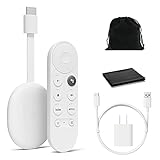
- Watch the entertainment you love with Chromecast with Google TV, including live TV in up to 4K HDR; discover over 700,000 movies and TV episodes, plus millions of songs
- Get fast streaming, and enjoy a crystal clear picture up to 4K and brighter colors with HDR
- Your home screen displays movies and TV shows from all your services in one place with Chromecast 4K; get personal recommendations based on your subscriptions, viewing habits, and content you own
- Press the Google Assistant button on the remote and use voice search to find specific shows, youtube tv streaming, or search by mood, genre, actress, and more; control the volume, switch inputs, play music, and get answers, hands-free
- Chromecast is easy to install and compatible with almost any TV that has an HDMI port; to get started, just plug it into your TV’s HDMI port, connect to Wi-Fi, and start streaming
Feature comparison for a Home Assistant installation
| Area | Chromecast with Google TV | Fire TV Stick |
|---|---|---|
| Home Assistant integration | Google Cast integration | Android Debug Bridge integration |
| Discovery or pairing | mDNS/Zeroconf discovery on the local network | Manual device IP address and ADB debugging enabled |
| Dashboard casting | Supported through Home Assistant Cast | Not the native ADB use case; use ADB to control the Fire TV interface instead |
| Media casting | Supported; the receiver must reach Home Assistant’s internal URL for local media | ADB can control playback on compatible applications, but this is not Google Cast |
| Text-to-speech | Supported through Google Cast when network reachability requirements are met | Not provided by the ADB integration as a Cast receiver |
| Voice ecosystem | Google Assistant | Alexa-oriented Fire TV experience |
| Operating-system certainty | Android TV OS for the specified Chromecast with Google TV product | Must be checked per model because Amazon now has both Android-based Fire OS and Vega OS products |
| Published hardware figures | Chromecast figures are not stated in the cited specification summary; Google TV Streamer is separately listed at 4 GB/32 GB | Fire TV Stick 4K (2nd Gen, 2023): 2 GB RAM, 8 GB storage, Fire OS 8, Android level 30 |
| Network concern | mDNS/Zeroconf discovery and reachability to Home Assistant’s internal URL | Home Assistant server must reach the Fire TV’s ADB endpoint over the network |
Set up a compatible Fire TV Stick in Home Assistant
The following process applies to an Android-based Fire TV model that supports ADB. Menu names can vary between Fire OS releases, so use the wording shown on the device rather than assuming every Fire TV generation has identical screens.
- Identify the model and operating system. Record the product name and generation from the Fire TV device information screen or its packaging. Confirm that it is an Android-based Fire OS model; do not assume a Vega OS product will expose the same ADB integration path.
- Put the Fire TV and Home Assistant on reachable networks. The Home Assistant server needs to connect to the Fire TV’s local IP address. If your network separates clients, guest devices or VLANs, allow the required traffic between the Home Assistant host and the Fire TV.
- Find the Fire TV’s IP address. Use the network information shown by Fire TV and note the address. A DHCP reservation is sensible so that the integration does not break when the lease changes.
- Enable developer and ADB debugging on the Fire TV. Open the Fire TV’s device or developer settings and enable ADB debugging. Fire TV may display a confirmation prompt when a new computer connects; approve it only for the Home Assistant server you intend to use.
- Add the Android Debug Bridge integration. In Home Assistant, open Settings → Devices & services, choose Add integration, search for Android Debug Bridge, and enter the Fire TV’s IP address when prompted.
- Approve the connection on the television. If Fire TV asks whether to allow the ADB connection, accept the prompt. If the prompt never appears, recheck the IP address, ADB setting and network path.
- Verify the created entities. The device should provide media-player and remote-control entities. Test a harmless action such as reading the current playback state or sending a navigation command before building automations around it.
Fire TV setup problems and fixes
- The integration cannot find the device: Confirm the IP address and make sure the Home Assistant host can reach the Fire TV rather than only sharing the same internet connection. Guest Wi-Fi isolation commonly prevents this.
- The device appears but will not authenticate: Reopen ADB debugging, watch the television for an authorization prompt and approve the Home Assistant host. A stale authorization can require toggling debugging off and on again.
- It worked until the router changed addresses: Create a DHCP reservation for the Fire TV and update the integration if the address has already changed.
- A newer Fire TV is unsupported: Check whether the model uses Vega OS. Android-based instructions and assumptions should not be applied automatically to a Vega OS product.
- Controls are inconsistent in a third-party app: ADB exposes device-level commands, but application-specific behavior can differ. Build automations around entities and states that the integration actually reports rather than assuming every app exposes identical playback controls.
Set up Chromecast with Google TV
- Connect Chromecast and Home Assistant to a reachable local network. Google Cast discovery uses mDNS/Zeroconf. The simplest arrangement is for both devices to be on the same local subnet without client isolation.
- Check Home Assistant’s internal URL. For local media and text-to-speech, the Chromecast must be able to open the internal Home Assistant URL configured in Home Assistant. A hostname that works only from the Home Assistant server itself will not be sufficient.
- Allow discovery through your network equipment. If you use VLANs or separate subnets, configure the appropriate mDNS/Zeroconf forwarding and firewall rules. Home Assistant does not recommend assuming Cast discovery will work across separate subnets without that network configuration.
- Add or confirm the Google Cast integration. Open Settings → Devices & services. When discovery is available, Home Assistant can show the Chromecast as a discovered Cast device; complete the integration flow and assign the device to the appropriate area.
- Cast a dashboard or media item. Use the Cast device in a Home Assistant action, script or automation. Choose the dashboard or media target and verify that the Chromecast can reach the internal URL. A failure at this stage is often a URL or routing problem, not a defective Chromecast.
- Add text-to-speech only after basic casting works. Confirm that the Chromecast can receive a dashboard or media session first. Then use a Cast-capable TTS action and check that the generated audio location is reachable from the Chromecast.
Chromecast setup problems and fixes
- No device is discovered: Check mDNS/Zeroconf, Wi-Fi client isolation and firewall rules. Same-subnet placement is the easiest diagnostic test.
- Discovery works but a dashboard is blank: Test the internal Home Assistant URL from a device on the Chromecast’s network. Replace an internal-only hostname with a name and address the Chromecast can resolve and reach.
- Media or TTS starts and then fails: Verify that the Cast device can reach the media or audio URL generated by Home Assistant, not merely the Home Assistant server’s own browser session.
- Cross-subnet casting is unreliable: Treat multicast discovery and ordinary HTTP reachability as separate requirements. You may need mDNS forwarding for discovery and explicit firewall routes for the Home Assistant URL and media.
Dashboard casting, media control and announcements
When Chromecast is the clear choice
If the television is primarily a wall display for your Home Assistant dashboard, Chromecast with Google TV has the more direct workflow. Home Assistant Cast is expressly intended to show Home Assistant data on a Chromecast and to support interaction on a screen-equipped Google Assistant device. The same Cast path can handle media and text-to-speech, so one receiver can serve as a dashboard, entertainment target and announcement endpoint.
This does not mean every dashboard will look identical to a browser. Design the dashboard for a television distance: use large cards, limit dense controls and provide a clear way to return to the main view. The important compatibility condition is that the Cast receiver can reach the Home Assistant internal URL.
When Fire TV is sufficient
Fire TV is more suitable when you want Home Assistant to operate the television or its playback state rather than cast a Home Assistant interface to it. ADB can provide media-player and remote entities for automations such as navigation, playback commands and state-aware controls on a compatible device.
Also popular on Amazon

- Advanced 4K streaming - Elevate your entertainment with the next generation of our best-selling 4K stick, with improved streaming performance optimized for 4K TVs.
- The newest Fire TV experience (2026) – Our biggest update to Fire TV has a new, modern design that gets you to your entertainment fast. Browse dedicated content categories, pin more of your favorite apps, and get personalized recommendations from Alexa+. Spend less time scrolling, and more time watching.
- Cloud gaming, no console required – Stream Call of Duty: Black Ops 7, Hogwarts Legacy, Outer Worlds 2, Ninja Gaiden 4, and hundreds of games on your Fire TV Stick 4K Select with Xbox Game Pass and Luna via cloud gaming. Xbox Game Pass subscription and compatible controller required. Each sold separately.
- Smarter picks with Alexa+ – Getting to what you love has never been easier. Press the voice remote button and talk naturally to find what to watch across your apps, manage your smart home, or dive into virtually any topic.
- Wi-Fi 6 support - Enjoy smooth 4K streaming, even when other devices are connected to your router.
If your requirement is “turn on the television, select an input or send a navigation command,” Fire TV’s ADB route may be adequate. If the requirement is “show my Home Assistant dashboard and speak an announcement,” Chromecast’s Cast integration is the more appropriate match.
Independent reader supportYour contribution helps us test, update, and keep practical guides available for everyone.Voice assistants and app ecosystems
Google Assistant and Matter
Chromecast with Google TV is the better fit for a household already organized around Google Assistant and Google Cast. Google also lists Matter support for Chromecast with Google TV (4K). That does not turn the Chromecast into the newer Google TV Streamer: the Streamer’s Thread border router and Ethernet are separate product features.
Alexa and Fire TV
Fire TV makes more sense when Alexa is the household’s preferred voice assistant or when the Amazon television interface and its available applications are the priority. App availability is market- and model-dependent, particularly as Amazon introduces Vega OS products, so verify that the exact Fire TV edition supports the applications and integration path you need.
Voice-assistant preference should be treated as a first-order buying decision. Home Assistant can automate either platform, but it does not erase the differences between Google’s Cast/Assistant model and Amazon’s Fire TV/Alexa model.
Also popular on Amazon
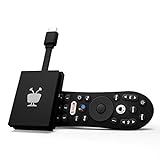
- No More App-Switching. Forget learning to navigate a new screen with every app. TiVo Stream 4K enables one centralized place for searching, browsing, and creating watch lists across all your apps..DC Input Range 5V/1.0A. Power Consumption : Maximum 5 W
- Recommendations Across All of Your Apps: Get rid of the walls between what you watch. TiVo recommends your next favorite shows and movies based on what you love, not where they live.
- Say it and watch it. The power of voice control makes it easy to find shows. Integrated Google Assistant allows you to launch apps, dim the lights and more.
- One place for all your favorite streaming apps. TiVo Stream 4K includes Netflix, Prime Video, Disney+, Peacock plus many more, so you can get to your shows fast.
- TiVo Stream 4K is one of Time Magazine’s “2020 Best Inventions, Special Mention” and PCMag hails it as “an excellent media streamer for TV lovers.” Operating Temperature 0˚C - 40˚C
Network design before you buy
Same-subnet installations
Keeping the Home Assistant server, Chromecast and television on the same trusted local subnet usually minimizes setup effort. Chromecast discovery can use mDNS/Zeroconf directly, and the internal Home Assistant URL is more likely to be reachable without extra routing.
VLANs and multiple subnets
Segmentation can still work, but it must be designed deliberately. Google Cast discovery depends on multicast DNS, while dashboard, media and TTS sessions also require ordinary IP reachability to Home Assistant URLs. A firewall rule that permits web traffic but blocks mDNS may allow a manually known device to load a page while preventing automatic discovery; the reverse can also happen.
Fire TV has a different dependency: Home Assistant needs a routable path to the Fire TV’s ADB endpoint. If the television sits on an isolated IoT VLAN, permit only the traffic required from the Home Assistant server and confirm that the address remains stable.
What’s actually slowing this PC down?
Pick the symptom - the matching free tool is one click away.
Choosing between the two: a decision framework
Choose Chromecast with Google TV when:
- Your main goal is casting a Home Assistant dashboard to a television.
- You want one Cast receiver for dashboards, media and text-to-speech.
- Your household uses Google Assistant or Google Cast.
- You can place the device where mDNS/Zeroconf discovery and the internal Home Assistant URL are reachable.
- Matter support on the specified Chromecast with Google TV model is useful to your smart-home design.
Choose Fire TV Stick when:
- Alexa and Amazon’s television ecosystem are more important than Google Cast.
- You want Home Assistant media-player and remote entities for a compatible Fire TV.
- You are comfortable identifying the exact model and enabling ADB debugging.
- Your Home Assistant server can reach the Fire TV’s local IP address.
- You have confirmed that the Fire TV uses an Android-based Fire OS version appropriate for the ADB method.
Buy neither until you verify:
- The exact model and generation, not just the product family name.
- The operating system, especially for newer Fire TV products that may use Vega OS.
- Whether your network allows mDNS/Zeroconf and device-to-Home-Assistant traffic.
- Whether the applications and voice assistant you require are available in your country and on that edition.
Bottom line
For a Home Assistant-centered television, Chromecast with Google TV is the safer recommendation because Google Cast directly supports dashboard, media and TTS use cases. Fire TV Stick remains a sound choice for Alexa-focused homes and ADB-based device control, but compatibility depends on the exact Fire TV model and operating system. Verify those two details, then choose the platform that matches your network and voice-assistant ecosystem rather than choosing on brand alone.
Quick Recap
Product prices and availability are accurate as of the date/time indicated and are subject to change. Any price and availability information displayed on Amazon at the time of purchase will apply.

