
iTechGuides is reader-supported. When you buy through links on our site, we may earn an affiliate commission. As an Amazon Associate I earn from qualifying purchases. Learn more
Short answer: Facebook Messenger problems do not all have the same cause. The failure may be an outage, a weak connection, an app or device setting, an account restriction, a contact-specific issue, an unsupported browser, or encrypted-chat history that has not been restored. Start with the least destructive checks below before signing out or reinstalling.
Do these checks first
- Open another website or app to test whether the internet connection works.
- Switch between Wi-Fi and cellular data, or try another network.
- Force-close Messenger and open it again.
- Restart your phone, tablet or computer.
- Check the App Store or Google Play for a Messenger update.
- Check available device storage and free space if it is nearly full.
- Try Facebook messaging in a supported browser, or try Messenger on another device.
- Check whether other users are reporting a Messenger or Facebook outage.
- Do not uninstall Messenger yet. Before reinstalling, confirm that encrypted-chat secure storage is enabled and that you know the recovery method.
Use the symptom that best matches what you see, then follow that section in order. A useful first diagnostic question is: does the problem affect everyone, one contact, one device, one network or one account?
Diagnose the problem before changing anything
Messenger shares infrastructure with Facebook, but the mobile apps, Facebook web messaging, desktop apps and browser-based calls have different settings and compatibility requirements. A problem in one does not necessarily mean all of Messenger is down.
| What you see | Most likely area | First action |
|---|---|---|
| A message is stuck on Sending | Connection, outage, restriction or recipient | Try another network and send a short message to another contact |
| Messages appear only after opening Messenger | Notifications or background activity | Check Messenger notification, Focus, battery and data settings |
| The app closes or freezes | App files, storage or operating system | Update, restart, then clear Android cache if applicable |
| A blank screen or spinning loader appears | Connection, browser, login session, outage or chat restoration | Try another browser or device and check encrypted-chat recovery |
| You cannot log in | Password, two-factor authentication or account security | Try logging in through Facebook and use the account-recovery tools |
| Photos, videos or voice notes fail | Permissions, storage, data restrictions or transfer quality | Check media and microphone permissions and try a small attachment |
| Calls do not ring or have no audio or video | Call notifications, permissions, browser or network | Check camera and microphone access, then try a supported browser or network |
| Chats disappear after reinstalling or changing devices | End-to-end encrypted history and secure storage | Restore using the configured PIN, recovery code or account method |
1. Messages will not send or remain on “Sending”
What the failure means
You may see This message didn’t send, Unable to connect, a red warning icon, or a message that remains on Sending. First determine whether the problem affects every conversation or only one.
Popular on Amazon
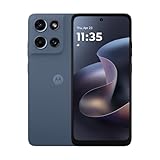
- Universal unlocked. Compatible with all major U.S. carriers, including Verizon, AT&T, T-Mobile and other prepaid carriers.
- Super-bright, super-smooth 6.7" display. See your screen clearly even outdoors in sunlight, and enjoy seamless views with a fast-refreshing 120Hz display.*
- AI-powered camera system. Take stunning photos in any light with the 50MP camera**, look your best with a 32MP selfie cam*****, and capture extreme close-ups.
- Superfast 5G performance. Unleash your entertainment at 5G speed*** with the MediaTek Dimensity 6300 chipset and up to 12GB of RAM with RAM Boost****.
- Long-lasting battery + TurboPower charging. Power through day after day with a 5200mAh battery, then get hours of power in just minutes.****
Possible causes include an interrupted Wi-Fi or cellular connection, a Messenger service problem, an outdated app, insufficient storage, a temporary messaging restriction, a deactivated or deleted recipient, blocking, or a group conversation whose members have left. Meta lists these possibilities in its Messenger troubleshooting guidance; it does not establish that any single cause is always responsible.
Fix it in this order
- Open another website or app. If that also fails, fix the connection first.
- Turn Wi-Fi off and try cellular data, or switch from cellular data to Wi-Fi.
- Tap the failed message and choose Resend, if that option appears.
- Send a short text to a different contact. If that succeeds, the problem is probably specific to the original conversation or recipient.
- Update Messenger from the App Store or Google Play, then close it completely and restart the device.
- Check free storage. A nearly full phone or tablet can interfere with app operation and uploads.
- Try Facebook messaging in a supported browser or try the same account on another device.
If only one person is affected, do not assume that person blocked you. The account may be deactivated or deleted, the conversation may be a message request, the group may have changed, or a privacy or product change may have made the thread unavailable. A missing green Active Status indicator is not proof that someone is offline: Active Status can be disabled, delayed, or affected by separate Facebook and Messenger settings. See Meta’s Active Status information.
When it may be an account restriction
Meta says Messenger can temporarily restrict messaging after a high volume of messages or activity that violates its Community Standards. Do not repeatedly resend the same message, create multiple accounts, or send large numbers of friend requests while restricted. Those actions are unlikely to remove the restriction and may create additional account problems. If Messenger identifies a temporary block, wait for it to expire and use the account’s available review or help options rather than assuming a reinstall will fix it.
2. Messages arrive late or notifications are missing
Separate delivery from notification
Open the conversation before changing the app. If the message is already there but no alert appeared, delivery worked and the notification or background-activity layer needs attention. If the message does not appear until much later, investigate the connection, app synchronization, device restrictions or a service issue as well.
If only one conversation is silent, that chat may be muted. Messenger has controls for all conversations, individual chats and groups. Meta says a muted group will not notify you about messages, reactions or mentions. Check both the individual conversation and the global notification settings; do not assume that changing Facebook notification settings automatically changes every Messenger notification.
Check Messenger itself
- Open Messenger’s profile or menu area.
- Choose Settings, then Notifications & Sounds. The exact placement can vary by release.
- Confirm that global notifications are enabled.
- Open the affected chat or group and make sure it is not muted.
Meta documents the mobile notification controls in its Messenger notification instructions, along with separate guidance for conversation notifications and group notifications.
iPhone and iPad
- Open Settings and choose Notifications. On some current iOS versions, go to Settings → Apps → Messenger → Notifications.
- Turn on Allow Notifications, then enable the alert locations you want, such as Lock Screen, Notification Center, banners, sounds and badges.
- Check Settings → Focus. Do Not Disturb, Sleep and scheduled Focus modes can suppress alerts. Add Messenger to an allowed-app list if appropriate.
- Open Settings → General → Background App Refresh and allow it for Messenger.
- If Low Power Mode is enabled, test with it disabled. Apple says Low Power Mode turns off Background App Refresh.
Apple’s current documentation covers notification controls, Focus and notification behavior, Background App Refresh and Low Power Mode.
Do these 3 things before closing this tab:
1Clear out junk files and repair common Windows errors2Fix the driver behind crashes, sound loss and screen glitches3Repair Windows errors before they cause bigger problemsAndroid
- Open Settings → Notifications → App notifications, select Messenger and turn notifications on.
- Check Messenger’s individual notification categories. A category can be disabled or set to Silent even when general app notifications are enabled.
- Open Settings → Apps → Messenger → Permissions and review relevant permissions.
- Check Data Saver, background-data access and the manufacturer’s battery-management settings. Some phones restrict background activity more aggressively than others.
- Temporarily disable Battery Saver or equivalent power restrictions and test again.
Android menu names differ between Samsung, Google Pixel and other devices. Google explains Android notification controls, background-data behavior and device-specific variation in its support documentation.
3. Messenger crashes, freezes or will not open
This includes an app that closes immediately, freezes on launch, becomes unresponsive in the chat list, or crashes during a call, media upload or busy group conversation.
Use this repair order
- Force-close Messenger and open it again.
- Restart the phone, tablet or computer.
- Update Messenger.
- Install any pending iOS, Android, Windows or macOS update that applies to the device.
- Check available storage.
- On Android, force-stop Messenger and clear its temporary cache.
- If the problem continues on iPhone or iPad, consider offloading or deleting and reinstalling the app—but read the encrypted-chat warning below first.
- If the problem started after joining a Messenger beta, leave the beta and install the regular release when available.
Android: clear cache, not storage
On many Android phones the path is Settings → Apps → Messenger → Storage & cache → Clear cache. This removes temporary files and is a relatively low-risk troubleshooting step. Do not casually choose Clear storage, Clear data or an equivalent option. Google says clearing app storage permanently deletes the app’s stored data, while clearing cache removes temporary data. Its cache and storage explanation is worth checking before you tap either control.
Google’s general app-crash guidance also recommends restarting and updating first, followed by force-stopping, clearing temporary data and reinstalling only later.
Free tools Windows power users keep installed
One-click scans. No signup required.
Also popular on Amazon

- YOUR CONTENT, SUPER SMOOTH: The ultra-clear 6.7" FHD+ Super AMOLED display of Galaxy A17 5G helps bring your content to life, whether you're scrolling through recipes or video chatting with loved ones.¹
- LIVE FAST. CHARGE FASTER: Focus more on the moment and less on your battery percentage with Galaxy A17 5G. Super Fast Charging powers up your battery so you can get back to life sooner.²
- MEMORIES MADE PICTURE PERFECT: Capture every angle in stunning clarity, from wide family photos to close-ups of friends, with the triple-lens camera on Galaxy A17 5G.
- NEED MORE STORAGE? WE HAVE YOU COVERED: With an improved 2TB of expandable storage, Galaxy A17 5G makes it easy to keep cherished photos, videos and important files readily accessible whenever you need them.³
- BUILT TO LAST: With an improved IP54 rating, Galaxy A17 5G is even more durable than before.⁴ It’s built to resist splashes and dust and comes with a stronger yet slimmer Gorilla Glass Victus front and Glass Fiber Reinforced Polymer back.
iPhone and iPad: no universal cache button
iOS generally does not provide a universal clear cache button for Messenger. Offloading or reinstalling refreshes local app files, but it is more disruptive than restarting or updating. Because Messenger conversations use end-to-end encryption, confirm a secure-storage recovery method before deleting the app.
VPNs, private DNS, unusual date-and-time settings, screen overlays and aggressive battery controls can occasionally be useful diagnostic variables when basic fixes fail. Treat them as tests—not as proven universal causes. Temporarily return one setting to normal, test Messenger, and restore the setting if it makes no difference.
4. Messenger shows a blank screen, spinning loader or missing chats
A blank conversation list or endless loading screen can result from a connection failure, broken local files, an expired login session, an outage, an outdated or unsupported browser, nearly full storage, or encrypted-chat history that has not been restored.
Try these steps
- Switch networks and test another website.
- Fully close and reopen Messenger, or refresh the web page.
- Update Messenger and the browser.
- Try Facebook messaging in a supported browser or on another device. If it works there, the account is less likely to be the problem.
- On Android, clear Messenger’s cache only.
- Sign out or end the session only if you know the password and can complete two-factor authentication. Messenger does not always provide a conventional logout button; Meta explains that an active session can instead be ended through Facebook’s security and login settings. See its account-management guidance.
- Check encrypted-chat secure storage and restore the history before reinstalling.
For web messaging, Meta says Chrome and Microsoft Edge support the relevant end-to-end encrypted chat experience. A different browser may show incomplete history, and calls may not work. This is a compatibility limitation, not necessarily a damaged account. See Meta’s browser guidance for encrypted chats.
The Tool Desk
Outbyte PC Repair FREERepair Windows errors before they cause bigger problemsFix Now →Outbyte Driver Updater FREEFix the driver behind crashes, sound loss and screen glitchesFind Drivers →5. You cannot log in to Messenger
Start with account triage
- Can you log in to Facebook in a browser using the same account?
- Are you using the correct email address, phone number and account?
- Is the password entered with the correct capitalization?
- Is a two-factor authentication request waiting on another signed-in phone or browser?
- Is Meta asking for identity verification, a security review or a password reset?
- Could the account be hacked, disabled or restricted?
Update the app first. If the general account cannot be accessed, use Facebook’s account-login recovery flow rather than repeatedly guessing passwords. Meta’s Messenger login guidance covers the basic process.
Recovery actions
- Suspected hacking: use Facebook’s hacked-account recovery page from a device previously used to access the account when possible.
- Password-reset code missing: check spam and junk folders, verify that the device has connectivity, confirm the email address or phone number, and wait before requesting another code. Repeated requests can make the process more confusing.
- Two-factor authentication problem: check another signed-in device or browser and use saved recovery codes. If the login flow offers it, choose Need another way to authenticate? → Other Options → Get more help.
Meta documents additional account recovery steps and two-factor authentication recovery options. Exact prompts depend on the account and security situation.
Windows and Mac qualification
Desktop login behavior has changed. Meta’s current help information says the newer Windows Messenger app is distributed through the Microsoft Store and no longer supports Facebook login in the old way; it requires an email address and password. The Mac app has different requirements and feature differences. If a desktop app rejects credentials that work elsewhere, try Facebook web messaging and check Meta’s current desktop instructions instead of assuming the account is disabled.
People using Messenger without an active Facebook account may see different account and feature flows. Meta also warns that some Messenger features may be unavailable in the European Economic Area for people using Messenger without Facebook.
Windows Errors? Fix Them Before They Spread
Repair common Windows errors and clear accumulated junk for a smoother, more stable PC - no reinstall needed.Free scan · no reinstallOutdated Drivers Are Slowing You Down
One free scan finds every outdated or missing driver and matches the right update for your exact hardware.Free scan · exact hardware match6. Photos, videos, files or voice messages will not send or download
Text can work while media fails because attachments need a steadier transfer, more storage and additional permissions. Common possibilities include a weak or filtered connection, Photos or Files permission being denied, camera or microphone access being blocked, Data Saver or Low Data Mode, an unsupported or oversized attachment, an outdated app, or a restriction affecting the conversation.
Test with a small attachment
- Try a small image or a short voice message. If that works, the original file may be too large, unsupported or damaged.
- Switch between Wi-Fi and cellular data.
- Check available device storage.
- Temporarily disable Data Saver on Android or Low Data Mode on iPhone, then test again.
- Update Messenger, force-close it and restart the device.
Meta’s media guidance says Messenger supports photos, voice messages, GIFs, stickers and AI stickers up to 25 MB for the file types covered by that guidance. Do not automatically apply that figure to every possible video or document type without checking the current rules for that attachment.
Check permissions
iPhone or iPad: open Settings → Privacy & Security, then review Photos, Camera and Microphone. Give Messenger the access required for the action you are attempting. Depending on the iOS version, photo access may offer limited or full access.
Also popular on Amazon

- Charger NOT Included, 6.7" Super AMOLED FHD+, 90Hz Refresh Rate, 385 ppi, 800 nits (HBM), 1080x2340px, 5000mAh Battery
- 128GB, 4GB RAM, microSDXC, Exynos 1330 (5nm), Octa-Core, Mali-G68 MP2 or Mali-G57 MC2 GPU
- Rear Camera: 50MP, f/1.8 (wide) + 5MP, f/2.2 (ultrawide) + 2MP, f/2.4 (macro), LED flash, panorama, HDR; Front Camera: 13MP, f/2.0, Android 14, up to 6 major Android upgrades, One UI 6.1
- 3G: HSDPA 850/900/1700(AWS)/1900/2100; 4G LTE: 1/2/3/4/5/7/12/13/14/20/25/26/28/29/30/38/39/40/41/48/66/71, 5G: 2/5/25/41/66/71/77/78 SA/NSA/Sub6/mmWave - Nano-SIM + eSIM
- US Model – Global Connectivity – Compatible with Most GSM Carriers like T-Mobile, AT&T, MetroPCS, etc. Will Also work with CDMA Carriers Such as Verizon, Straight Talk.
Android: open Settings → Apps → Messenger → Permissions. Review Photos and videos, Files, Camera and Microphone. Labels vary by Android version and manufacturer.
Apple explains app access under Privacy & Security. Google documents the Android route in its app-permission instructions.
A different network is a useful diagnostic, but do not assume that public Wi-Fi generally blocks Messenger uploads. An unstable, filtered or bandwidth-limited network can interfere with a large transfer even when ordinary text messages work.
7. Messenger voice or video calls do not ring or have poor quality
Separate the symptom before troubleshooting:
- The call does not ring: call notifications, Focus or Do Not Disturb, recipient connectivity, account availability or blocking may be involved.
- The call connects with no sound: check mute status, microphone permission, speaker output and Bluetooth routing.
- The video is black: check camera permission and whether another app is using the camera.
- The call is choppy: investigate network quality, congestion, device performance and other active apps.
- It works on a phone but not in a browser: check browser support and browser camera/microphone permissions.
Meta says a person may be unreachable for a Messenger call when their phone is not connected to the internet. That does not necessarily mean they blocked you or that your own app is broken.
Fix calls in order
- Confirm Messenger call notifications are enabled and temporarily disable Focus or Do Not Disturb.
- Check Messenger’s camera and microphone permissions. Also check the phone’s global camera and microphone privacy controls.
- Close Zoom, Teams, WhatsApp, Instagram, the Camera app and other programs that may be using the camera or microphone.
- Disconnect Bluetooth temporarily. Audio may be routed to earbuds, a car system or another nearby device.
- Switch networks and ask the other participant to do the same.
- On a computer, use a supported browser and allow camera and microphone access when prompted.
- Update Messenger and the operating system, then restart the browser or device.
Meta’s call troubleshooting guidance recommends checking browser and device permissions, microphone mute status, other programs using the hardware, the connection and a browser or computer restart.
For computer Messenger calls, Meta lists Chrome, Opera and Edge as supported browsers; it lists Chrome for Android and Safari for iPhone. Meta also says group calling is not currently available in Firefox or Edge. Browser and feature availability can change, so a call that fails only in one browser may be a compatibility issue rather than an account failure. See the current browser call requirements.
Privacy note: Meta says that in one-to-one Messenger audio and video calls, the participants’ devices may establish a peer-to-peer connection that exposes an IP address to the other participant. This is not a repair step, but it is relevant when choosing a calling service or accepting calls from people you do not know. More detail is available in Meta’s Messenger call privacy information.
Independent reader supportYour contribution helps us test, update, and keep practical guides available for everyone.8. Chats or message history appear to be missing
Missing history after a reinstall, device change or browser change is not the same problem as a message that failed to send. Messenger conversations are end-to-end encrypted, and the history may need to be restored through secure storage.
Possible explanations
- You are using a new phone, tablet, computer or browser.
- Secure storage was not enabled, or its recovery method was not completed.
- You forgot the PIN or 40-character recovery code.
- The browser does not support the encrypted-chat experience.
- The conversation was deleted, archived or moved to message requests.
- The account or contact changed status.
- A product change made a conversation read-only.
- You are using Messenger without Facebook in a region where some features differ.
Facebook-to-Instagram cross-app conversations are a specific example: Meta says those conversations became read-only after cross-app communication was discontinued, beginning in mid-December 2023. A read-only thread is not repaired by reinstalling Messenger.
Recommended Free Tools
Before reinstalling: confirm that secure storage is enabled and that you know at least one recovery method—your Messenger PIN, 40-character recovery code, Apple Account, Google Account or an available one-time-code route. Meta specifically advises enabling secure storage before deleting or reinstalling Messenger so encrypted history can be retained and restored.
Restore encrypted history
On a computer, Meta’s documented route is generally:
Also popular on Amazon

- YOUR CONTENT, SUPER SMOOTH: The ultra-clear 6.7" FHD+ Super AMOLED display of Galaxy A17 5G helps bring your content to life, whether you're scrolling through recipes or video chatting with loved ones.¹
- LIVE FAST. CHARGE FASTER: Focus more on the moment and less on your battery percentage with Galaxy A17 5G. Super Fast Charging powers up your battery so you can get back to life sooner.²
- MEMORIES MADE PICTURE PERFECT: Capture every angle in stunning clarity, from wide family photos to close-ups of friends, with the triple-lens camera on Galaxy A17 5G.
- NEED MORE STORAGE? WE HAVE YOU COVERED: With an improved 2TB of expandable storage, Galaxy A17 5G makes it easy to keep cherished photos, videos and important files readily accessible whenever you need them.³
- BUILT TO LAST: With an improved IP54 rating, Galaxy A17 5G is even more durable than before.⁴ It’s built to resist splashes and dust and comes with a stronger yet slimmer Gorilla Glass Victus front and Glass Fiber Reinforced Polymer back.
- Open Messenger or Facebook messaging.
- Open the profile or settings area.
- Choose Privacy & safety.
- Open End-to-end encrypted chats.
- Choose Message storage.
- Turn on secure storage or select Manage security methods.
- Restore the history with the configured PIN, 40-character code, Apple Account, Google Account or one-time code if that option is offered.
Labels and locations may change as Meta consolidates its desktop products. Meta’s pages on secure storage, one-time-code restoration and PIN restoration describe the available methods. If secure storage is enabled, Meta also provides a way to download a copy of encrypted chat data from a computer.
If you already reinstalled Messenger, follow the restoration prompt rather than creating a new recovery method at random. If you have lost the PIN and recovery code and no account-based or one-time-code option is offered, avoid repeatedly deleting and reinstalling the app; check Meta’s recovery instructions first.
Quick wins for a faster PC:
Repair Windows errors before they cause bigger problemsFix Now →Fix the driver behind crashes, sound loss and screen glitchesFind Drivers →Clear out junk files and repair common Windows errorsFree Scan →Computer users: Messenger.com and desktop apps are changing
Old troubleshooting articles often tell readers to open Messenger.com or install a legacy Windows or Mac app. That advice may no longer match the current product rollout. Meta’s desktop help pages describe newer Windows and Mac apps with changed features and operating-system requirements. Independent reporting also described a planned transition beginning in April 2026 in which the standalone Messenger.com website would redirect desktop users to Facebook messaging; Meta’s help pages may still contain older Messenger.com references while the transition is being rolled out.
Therefore, if Messenger.com does not load or an old bookmark redirects, do not treat that alone as evidence that your account is broken. Try Facebook messaging in a current supported browser, update the desktop app from its official store, and check Meta’s current desktop and app instructions. The reported transition and its availability can depend on rollout status and account type. Readers without a Facebook account may need the mobile app, according to the reported product change, so verify the route available to your account.
For encrypted chats, use Chrome or Microsoft Edge where Meta supports the web experience. For calls, check the separate browser restrictions above; encrypted-chat browser support and call support are not identical.
Is Messenger down or is it just your device?
A service outage is more likely when Messenger fails on multiple devices, on both Wi-Fi and cellular data, for several contacts, and at the same time as Facebook or Instagram. A local problem is more likely when Messenger works on another device with the same account, works on cellular but not Wi-Fi, affects only one phone, or affects notifications while chats load normally.
What’s actually slowing this PC down?
Pick the symptom - the matching free tool is one click away.
Check a crowdsourced service such as Downdetector’s Facebook Messenger reports, but treat the graph as an indicator rather than proof. Reports can be regional, delayed or caused by a common local network. Meta does not provide a simple, comprehensive consumer status page; Meta’s Messenger status page is primarily aimed at Messenger Platform and business-messaging metrics, so it may not reflect every consumer-app problem.
Do not promise that an outage will be fixed within a particular number of hours. If independent reports and your own tests point to a service-side failure, avoid repeated reinstalls and retry periodically after Meta resolves it. A regional outage, account restriction and prolonged bug can look similar from one device.
When to report the problem
Report a broken feature after the safe steps fail, especially when the problem is reproducible on more than one network or device and no outage is being reported. In Messenger, look in the profile or menu area for Help & support or Report a problem; labels vary by app version.
Include:
- the exact symptom and error text;
- the steps that reliably reproduce it;
- whether it affects every contact or only one;
- your device model, operating-system version and Messenger version;
- whether you tested Wi-Fi, cellular data, another browser or another device;
- the approximate time and region of the failure;
- a screenshot, with passwords, recovery codes and private conversation details hidden where possible.
Meta recommends including reproducible steps and screenshots where available in a broken-feature report, but does not promise a personal reply to every report.
Be careful with supposed Messenger support accounts found in comments or direct messages. Meta will not need your password, one-time login code, PIN or payment to diagnose a normal app problem. Do not share recovery information with an alleged support agent.
The Bottom Line
Bottom line: Test the connection, another network, another contact and another device before taking destructive action. Update and restart Messenger, check notifications and permissions, and use Android’s Clear cache rather than Clear storage. If you reinstall or change devices, secure encrypted-chat recovery first. When the failure follows your account across devices and networks, stop treating it as a phone problem and check for an outage, restriction or account-recovery issue.

