
iTechGuides is reader-supported. When you buy through links on our site, we may earn an affiliate commission. As an Amazon Associate I earn from qualifying purchases. Learn more
An external GPU enclosure—usually called an eGPU enclosure—is a desktop-style graphics-card bay that connects to a laptop or desktop through Thunderbolt or USB4. It can add GPU performance without replacing the computer, drive external monitors, and in some cases deliver power back to a laptop.
The important catch is that an enclosure is not automatically compatible with every USB-C computer, graphics card, or operating system. You must check the host port, operating-system support, GPU dimensions, power requirements, cable, and driver support before buying.
What an external GPU enclosure does
An eGPU enclosure contains a PCIe slot, a power supply or power-supply connection, cooling, and a high-speed external interface. You install a desktop graphics card in the enclosure, then connect the enclosure to the computer with a Thunderbolt or USB4 cable.
What’s actually slowing this PC down?
Pick the symptom - the matching free tool is one click away.
Applications that use supported graphics APIs can use the external GPU. On macOS, Apple documents eGPU acceleration for Metal, OpenGL, and OpenCL. An eGPU can also:
Popular on Amazon

- 【Up Link & Down Link】Up link: Oculink 4i(PCIE4.0x4), Down Link: PCIEx16(PCIE4.0x4). Only Support Oculink.
- 【Power Supply】This DEG1 supports ATX and SFX standard power supplies, which provides flexible power supply solutions for mini chassis.
- 【Oculink Interfaces】Please kindly note the OCulink interface does not support hot plugging, and the machine needs to be turned off first.
- 【Follow-start Function】The follow-start function is only compatible with MINISFORUM Mini PCs, it requires the use of original wires.
- Note: The GPU is not included.
- Drive one or more external displays.
- Support a VR headset connected to the eGPU.
- Charge a MacBook Pro when the enclosure supplies enough power for both the graphics card and the laptop.
- Provide a way to upgrade graphics performance without opening the laptop.
The connection is still external, however. It does not behave exactly like a graphics card installed directly into a desktop motherboard. Thunderbolt and USB4 share bandwidth with other traffic, and some Thunderbolt 3 computers expose only two PCIe lanes, limiting PCIe performance to approximately 20Gbps even when the enclosure advertises a 40Gbps Thunderbolt interface.
USB-C is not the same as Thunderbolt
The connector shape is not enough to establish eGPU support. USB-C is a physical connector used by several different standards. A USB-C port may support charging, USB data, video output, Thunderbolt, USB4, or only some of those features.
For an eGPU, look specifically for:
- Thunderbolt 3 or Thunderbolt 4 on a compatible system.
- Thunderbolt 5 on supported newer systems.
- USB4 with external-graphics support.
On Windows, the computer must implement the relevant PCIe tunnelling and external-graphics functions. A USB-C logo or a generic USB4 label does not prove that it can send GPU or PCIe-card data to an enclosure.
Do these 3 things before closing this tab:
1Fix the driver behind crashes, sound loss and screen glitches2Repair Windows errors before they cause bigger problems3Scan for outdated or missing drivers - takes under a minutemacOS compatibility
Apple’s supported eGPU path requires all of the following:
- An Intel Mac.
- A Thunderbolt 3 port.
- macOS High Sierra 10.13.4 or later.
- A graphics processor for which Apple supplies an integrated macOS driver.
That Intel requirement excludes Apple-silicon Macs from Apple’s supported eGPU configuration. Apple also does not support third-party GPU drivers, so installing an NVIDIA driver is not a supported workaround.
Supported Mac families include MacBook Pro models released from 2016 onward, iMac models introduced from 2017 onward, and iMac Pro models, subject to Apple’s stricter current requirements: the Mac must have an Intel processor and Thunderbolt 3.
Supported Radeon cards and minimum macOS versions
| GPU family | Minimum documented macOS version |
|---|---|
| Radeon RX 6800, RX 6800 XT, RX 6900 XT | macOS Big Sur 11.4 or later |
| Radeon RX 6600 XT | macOS Monterey 12.1 or later |
| Radeon RX 5700-series | macOS Catalina 10.15.1 or later |
| Radeon RX 5500 XT | macOS 10.15.7 or later, as documented by Sonnet |
These are support requirements, not a guarantee that every card model, display output, enclosure, or application will behave identically. For example, Apple warns that USB-C display output on the Radeon RX 6800, RX 6800 XT, and RX 6900 XT can have wake-from-sleep problems. DisplayPort or HDMI on the graphics card is the safer choice for those cards.
Apple’s eGPU feature does not apply in macOS Recovery or while macOS is installing system updates. Apple, Sonnet, AMD, and NVIDIA also do not support eGPUs under Boot Camp.
Windows compatibility
Windows support depends on the specific computer, port implementation, BIOS and firmware, Windows version, enclosure, and GPU driver. Sonnet’s current Windows 11 guide specifies support for:
- 64-bit Windows 11.
- AMD Radeon RX 6000-series and newer GPUs.
- NVIDIA GeForce RTX 30-series and newer GPUs.
- Computers with Thunderbolt 4, Thunderbolt 5, or certain USB4 ports.
For Thunderbolt laptops, systems with an 11th-generation or newer Intel Core processor or an Intel Core Ultra chipset are identified as supported candidates, but that is not a universal processor-generation guarantee. The particular computer must still provide compatible Thunderbolt functionality, current firmware, and suitable drivers.
Also popular on Amazon
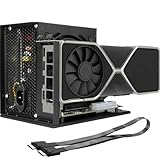
- Package Include: OCuLink SFF-8612 Female to PCIe x16 Enclosure Dock, and SFF-8611 Male to Male Cable 50cm/19.7inch (Note: The GPU and Power Supply are not included)
- Advantage of the dock: Our enclosue detachable design on both ends for improved portability and easy storage. PCB board with 10μ gold-plated contacts ensure superior conductivity and reduce oxidation/rust-related resistance that may cause system crashes or BSOD. Multi-status LED indicators provide clear visual feedback for real-time device monitoring. Transfer Speed: PCIe 4.0 x4 (64Gbps )
- SFF-8611 Male to Male Cable: Ultra-thin & flexible design (0.5mm thickness) with premium aesthetics, eliminating port damage risks from rigid traditional OCuLink cables. Flat cable architecture with full-coverage shielding and advanced EMI materials to minimize interference and performance degradation
- Compatible Graphics Cards: Compatible with graphics cards of various sizes like RTX 4090, AMD RX 7900 XTX etc., no need to worry about graphics card length restrictions. 🔺Compatible Power Supply: Compatible with standard ATX power supply ONLY, dual screw mounting (top & bottom) for PSU stability
- Note: The OCulink interface does not support hot plugging, and the computer needs to be turned off to unplug the cable.
How to check a USB4 Windows computer
- Turn on the enclosure and connect it directly to the computer with the supplied cable.
- Install the current AMD or NVIDIA graphics driver from the GPU manufacturer.
- Right-click the Start button and open Device Manager.
- Expand Universal Serial Bus controllers.
- Look for USB4(TM) Host Router (Microsoft).
- Expand Display adapters and check that the external GPU appears without a warning icon.
If the USB4 Host Router entry is missing, Sonnet states that the computer cannot pass GPU or PCIe-card data to the enclosure. A warning icon beside the GPU indicates a device or driver problem rather than successful operation.
Recommended Free Tools
Windows menu instructions that say Settings > Update & Security > Check for updates describe an older Windows layout. On current Windows 11 installations, use Settings > Windows Update to check for updates.
NVIDIA support on macOS
NVIDIA eGPUs are not supported by any version of macOS according to Sonnet’s macOS eGPU guide. Apple’s current eGPU support page lists supported Radeon architectures and does not provide an equivalent supported NVIDIA path. An NVIDIA card may physically fit in an enclosure, but that does not make it usable as a supported macOS eGPU.
How to check an eGPU on a Mac
- Press Command-Space.
- Type System Information and open the application.
- Select Thunderbolt in the sidebar.
- Confirm that the enclosure appears as a Thunderbolt device.
- Select PCI and look for the external graphics card.
- Check the card’s Driver Installed status.
If the enclosure appears under Thunderbolt but the GPU is absent under PCI, investigate power, card seating, the enclosure, the cable, and PCIe-link enumeration. If the GPU appears under PCI but Driver Installed says No, the Mac can see the hardware but the installed macOS version does not support that GPU, or the card is otherwise unsupported.
You can also open Apple menu > About This Mac > System Report > Graphics/Displays to view GPUs detected by macOS.
Choose the enclosure and graphics card together
A removable-GPU enclosure requires three separate compatibility checks:
- Physical fit: compare the card’s length, height, width, and slot thickness with the enclosure’s clearance.
- Electrical power: check the card’s total power requirement and the number and type of auxiliary power connectors.
- Power-supply capacity: confirm that the enclosure PSU can supply the GPU and any required overhead.
Do not rely on the enclosure’s headline wattage alone. The graphics card may need one or more 6-pin, 8-pin, or newer power connectors, and the enclosure must provide the correct connectors at the required capacity.
Example: Razer Core X V2
The Razer Core X V2 exposes the installed card through an internal PCIe 4.0 x4 connection. Its listed maximum card dimensions are:
| Measurement | Maximum listed size |
|---|---|
| Length | 362.7 mm |
| Height | 82 mm |
| Width | 185.1 mm |
Razer’s page inconsistently describes card width as both up to 3.5 slots and up to 4 slots. Treat that specification conflict as unresolved: measure the card and confirm the exact model with Razer before purchasing.
The Core X V2 does not include a graphics card or a standard ATX power supply. The buyer must provide both. Razer specifies at least 230 additional watts for the enclosure itself, in addition to the graphics card’s power requirement. The enclosure can provide up to 140W USB-C Power Delivery to the connected laptop.
Also popular on Amazon
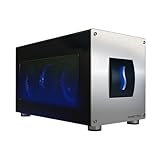
- Astounding Performance: Unlock near-desktop GPU power with your Thunderbolt 5 Windows 11 laptop. Breakaway Box 850 T5 delivers 80 Gbps of bi-directional bandwidth, ensuring blazing-fast performance for GPU-accelerated workflows. Accelerates Thunderbolt 4 and Most USB4 Windows 11 Computers, too. Intel Thunderbolt Certified.
- Supports Triple Wide GPU Cards NVIDIA GeForce RX50, 40, and 30 Series; AMD Radeon RX 9000, 7000, and 6000 Series.
- 850W power supply supports the power requirements of today’s and tomorrow’s power-hungry GPU cards. And large built-in, variable-speed, temperature-controlled fan quietly and effectively cools whatever card you install.
- Editing, rendering, color grading, animation, and visual effects run significantly faster with GPU acceleration. And Supercharge AI-driven applications with massively increased processing power and efficiency.
- Built-in Thunderbolt 5 Dock for Additional Connectivity Includes one Thunderbolt 5 peripheral port, three 10 Gbps USB Type A ports, plus a 5 Gigabit Ethernet (RJ45) port for super-fast wired network connectivity.
By contrast, Sonnet’s Breakaway Box documentation lists up to 85W laptop charging. A laptop whose normal charger is rated above 85W may accept that power but still slowly discharge, particularly when USB peripherals are drawing power.
Cables and connection layout
Connect the enclosure directly to a Thunderbolt port on the computer. Apple recommends the cable supplied with the eGPU or an Apple Thunderbolt 3 USB-C cable, rather than routing the enclosure through another Thunderbolt device or hub.
A Thunderbolt 4 cable works with Thunderbolt 3 computers and peripherals without a stated functionality or performance compromise. For Thunderbolt 3 cables, Sonnet identifies high-bandwidth cables by the Thunderbolt icon plus the number 3 on the connector housing. Except for Apple’s 0.8-metre Thunderbolt 3 cable, a cable showing only the Thunderbolt icon may be a 20Gbps cable and is not recommended for GPU-class PCIe devices.
Use the supplied cable first. If the enclosure is not detected, test a known-good Thunderbolt 3 or Thunderbolt 4 cable rather than assuming that any USB-C cable is equivalent.
Safe installation and disconnection
Install the graphics card with the enclosure disconnected from both the computer and mains power. PCIe graphics cards are not hot-pluggable inside an enclosure.
- Shut down the computer.
- Turn off the enclosure.
- Disconnect the enclosure’s power cord.
- Disconnect the Thunderbolt cable.
- Install or remove the graphics card and connect all required auxiliary power leads.
- Close the enclosure, reconnect power, and switch it on.
- Connect the Thunderbolt cable directly to the computer.
- Start the computer and verify detection.
Do not replace the card while the enclosure is connected to power or the computer. Doing so can damage the card, enclosure, or computer and creates an injury risk.
On macOS Sonoma and macOS Sequoia, Sonnet documents crashes when an eGPU is hot-disconnected. Shut down before disconnecting the enclosure instead of unplugging it while macOS is running or sleeping. Also note that some enclosures do not illuminate their power indicator merely because they are connected to mains power: Sonnet states that the Breakaway Box indicator turns on when the connected computer is powered on and turns off while the computer is asleep or powered off.
Free tools Windows power users keep installed
One-click scans. No signup required.
Troubleshooting checklist
The enclosure does not appear on a Mac
Open System Information > Thunderbolt. If the enclosure is missing, check these items in order:
- The enclosure power cable is connected.
- The enclosure power switch is on, if it has one.
- The graphics card’s auxiliary power connectors are attached.
- The Thunderbolt cable is fully connected at both ends.
- The cable is actually a Thunderbolt cable, not merely a USB-C cable.
- A different known-good Thunderbolt 3 or Thunderbolt 4 cable has been tested.
The enclosure appears, but the GPU does not
If Thunderbolt lists the enclosure but PCI does not list the graphics card, the failure is below the driver layer. Reseat the card only after shutting down and disconnecting power, then check the card’s power leads, enclosure power supply, and physical installation. The remaining possibilities include a defective enclosure, cable, GPU, or PCIe link.
The GPU appears but has no driver
If the card appears under PCI with Driver Installed: No, check the macOS version against the supported GPU list. This result usually indicates an OS or GPU-support problem, not a Thunderbolt cable-detection problem.
Also popular on Amazon

- Compatibility: Compatible with most NVIDIA/AMD graphics cards up to ≤205mm (≤8.07”) in length, ≤150mm (≤5.91”) in height, and ≤55mm (≤2.17”) in width. Support Windows 10/11, Linux
- This complete kit includes everything you need:a GPU Enclosure Box ,240W external power supply, Thunderbolt 4 cable, 8-pin PCIe power cable, and a custom carrying case. Simply connect one cable to your device and instantly boost your graphics power for editing, rendering, or gaming
- Application: Compatible with NUC/laptop/handheld game console with Thunderbolt 4/3 USB4 interface. Note that The Type-C port is not applicable if it does not support Thunderbolt 3/4 or USB4 protocols. And package does not contain the graphics card
- Multiple Interfaces: Features one Thunderbolt port with PD 85W charging, one Thunderbolt port with PD 15W charging, and one DP port.Supports PCIe 3.0 x16 data transfer mode
- Compact & Durable Design:Featuring a lightweight yet robust anodized aluminum shell, this enclosure combines portability with premium protection. Complete with a custom carrying case, it delivers desktop-grade graphics performance wherever you go
The Windows GPU has a warning icon
In Device Manager > Display adapters, a warning icon indicates a device or driver issue. Recheck the GPU driver, Windows version, enclosure power, auxiliary connectors, BIOS, and Thunderbolt or USB4 firmware. On USB4 systems, also verify the USB4(TM) Host Router (Microsoft) entry under Universal Serial Bus controllers.
Quick wins for a faster PC:
Repair Windows errors before they cause bigger problemsFix Now →Fix the driver behind crashes, sound loss and screen glitchesFind Drivers →What an eGPU enclosure cannot guarantee
- A USB-C port does not automatically support an eGPU.
- A USB4 computer does not automatically support external graphics.
- A 40Gbps Thunderbolt label does not guarantee 40Gbps of PCIe throughput.
- A physically compatible graphics card may still lack macOS drivers.
- A high-wattage enclosure may not provide enough power for both a demanding GPU and laptop charging.
- Every display output may not behave identically, particularly after sleep and wake.
- Operating-system or firmware updates can break compatibility that previously worked.
Check the computer manufacturer’s port specifications, the enclosure’s current compatibility list, the exact graphics-card dimensions and connector layout, and the operating-system support before ordering. Updates to macOS, Windows, BIOS, firmware, or GPU drivers can change the result after installation.
FAQ
Can I use an eGPU with an Apple-silicon Mac?
Not through Apple’s supported macOS eGPU configuration. Apple’s current requirements specify an Intel processor and Thunderbolt 3, which excludes Apple-silicon Macs.
Does every USB-C port support an external GPU?
No. USB-C describes the connector, not the required Thunderbolt or USB4 PCIe functionality. Check the computer’s specifications and, on a USB4 Windows system, look for Device Manager > Universal Serial Bus controllers > USB4(TM) Host Router (Microsoft).
Can I use an NVIDIA eGPU on macOS?
No supported NVIDIA eGPU path is provided for macOS. Sonnet states that NVIDIA graphics processors are not supported by any version of macOS.
Crashes, No Sound, or Screen Glitches?
Random freezes, missing sound and display glitches usually trace back to one bad driver. Find and replace yours safely.Free scan · under a minuteWindows Errors? Fix Them Before They Spread
Repair common Windows errors and clear accumulated junk for a smoother, more stable PC - no reinstall needed.Free scan · no reinstallShould the monitor connect to the laptop or the eGPU?
For the display to be driven directly by the external GPU, connect it to an output on the graphics card. Apple also warns that USB-C output on certain Radeon RX 6800-series cards can have wake-from-sleep problems, so DisplayPort or HDMI may be preferable.
Will an eGPU charge my laptop?
Only if the enclosure supports USB-C Power Delivery at sufficient wattage. Apple says the enclosure must provide enough power to run the GPU and charge the MacBook Pro. Sonnet lists up to 85W for its Breakaway Box, while Razer lists up to 140W for the Core X V2.
Can I unplug an eGPU while the computer is running?
Avoid doing so. Sonnet documents crashes from hot-disconnecting an eGPU on macOS Sonoma and Sequoia and recommends shutting down before connection or disconnection. The graphics card itself must never be installed or removed while the enclosure is powered or connected.
Does an eGPU enclosure include a graphics card?
Not always. Some enclosures are sold empty. For example, the Razer Core X V2 requires the buyer to provide both the graphics card and a standard ATX power supply.
The Tool Desk
Outbyte Driver Updater FREEScan for outdated or missing drivers - takes under a minuteDriver Scan →Outbyte PC Repair FREEClear out junk files and repair common Windows errorsFree Scan →The Bottom Line
An eGPU enclosure is worth considering when your computer has a confirmed Thunderbolt or USB4 external-graphics path and you need more GPU performance, additional displays, or a desktop graphics card without replacing the system. Compatibility is a checklist, not a connector guess: verify the host port and OS, supported GPU architecture, cable, card clearance, power connectors, PSU capacity, and laptop charging wattage. For Macs, the supported path is Intel-only with Apple-supported Radeon cards; for Windows, verify the specific Thunderbolt or USB4 implementation and the required device entry in Device Manager.

