
iTechGuides is reader-supported. When you buy through links on our site, we may earn an affiliate commission. As an Amazon Associate I earn from qualifying purchases. Learn more
The safest way to install HyperOS depends on the phone’s condition. If your Xiaomi, Redmi, or POCO phone works normally, use the built-in updater. If the update has not arrived or a normal OTA fails, use the exact full Recovery ZIP for your device and region. Use a Fastboot ROM with Mi Flash only when the phone is boot-looping, the system is corrupted, or the Recovery method is not suitable.
There is no universal HyperOS download. A compatible package must match the exact device, hardware codename, regional branch, Android base, and—when using an incremental OTA—the required source build. A package that merely contains the word HyperOS, Global, or Xiaomi is not automatically safe.
This guide covers official stock HyperOS installation through OTA, a full Recovery package, and Fastboot. It also explains bootloader unlocking, data loss, rollback protection, region mismatches, relocking risks, and what to do when a phone is stuck in Fastboot or shows The system has been destroyed.
Choose the installation method first
| Phone condition or goal | Recommended method | Bootloader and data notes |
|---|---|---|
| Phone works normally and an update is offered | Built-in OTA update | No computer or bootloader unlock normally required; lowest risk |
| Phone works, but the OTA has not arrived or the update repeatedly fails | Full Recovery package through the system updater | Usually does not require unlocking; backup is still mandatory |
| Phone is boot-looping, corrupted, or cannot complete a Recovery installation but still enters Fastboot | Fastboot ROM with Xiaomi Mi Flash | Ordinary consumer flashing normally requires an authorized bootloader unlock and can erase all data |
| Phone cannot enter Android, Recovery, or Fastboot | Authorized Xiaomi service | Do not improvise EDL, test-point, or authentication procedures |
| Change region or install Xiaomi.eu/custom firmware | Separate advanced procedure | Not the same as installing official HyperOS; compatibility and relocking risks are substantially higher |
Xiaomi distinguishes manual package installation through the system updater from Mi Flash installation with a Fastboot ROM. See Xiaomi’s ROM and Mi Flash support information for its official workflow.
Popular on Amazon
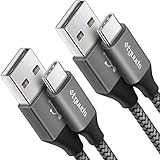
- Fast Charging and Data Sync: etguuds USB A to USB C cable supports charging speed up to 3 A fast charging for quick usb-c port device charging and data transfer speeds up to 480 Mb/s, usbc cable support USB 2.0 data transfer
- Long-Lasting: The usb c charger cord uses integral seamless stretch process, high pressure resistance and nylon braided adding tangle-free, can bear 20000+ bending lifespan
- Wide Compatibility: USB Type C cable fast charging for most C -port devices, for Samsung Galaxy S26 S26+ S26 Ultra S25 S25+ S25 Ultra S24 S24+ S24 Ultra S23 S22 S21 S20 A53 A14, for LG, for Moto, for Pixel, for iPhone Duo 18 17 16 15 Pro Max. Not compatible with iPhone older models before iPhone 15
- Friendly Tips: The USB A to C cable is not support video and media display. Not compatible with webcams, some gaming devices, laptops. Fast charging requires that your device supports fast charging and wall charger supports fast charging
- What You Get: You will get 2 pack 3 ft etguuds Gray usb-a to usb-c nylon braided charging cable
What is being installed?
| Package or method | Typical file | Computer? | Typical use |
|---|---|---|---|
| OTA update | Small incremental ZIP | No | Updates a phone from a specific existing build |
| Full Recovery ROM | Large .zip |
Usually no | Manual update or compatible repair through the running system updater |
| Fastboot ROM | .tgz archive, containing images and scripts |
Yes | Full reinstall or recovery from serious software problems |
| Custom ROM | Device-specific ZIPs or images | Usually yes | Third-party operating systems; outside this guide |
A Recovery ROM is not necessarily installed by booting into the phone’s stock Recovery menu. On many Xiaomi devices, you select the Recovery ZIP from the running system’s HyperOS updater. The Recovery menu is primarily for maintenance actions such as wiping data and rebooting. Xiaomi’s current Android package-selection instructions also use the system updater’s package-selection option rather than presenting a generic adb sideload procedure.
HyperOS versions are not universal
Xiaomi’s global HyperOS page presents HyperOS 3 as the current global platform, but rollout timing, supported models, features, and Android base vary by device and region. As of August 10, 2026, firmware listings for the Xiaomi 17 already show some regional builds on HyperOS 3.3 and Android 17 while other builds for the same model remain on HyperOS 3.1 and Android 16. Therefore, “the latest HyperOS” is not a complete download instruction without the phone model and region.
Identify the phone before downloading a ROM
Do not begin with a search for HyperOS ROM. Begin by recording the phone’s identity:
The Tool Desk
Outbyte PC Repair FREERepair Windows errors before they cause bigger problemsFix Now →Outbyte Driver Updater FREEScan for outdated or missing drivers - takes under a minuteDriver Scan →- Exact commercial name, such as Xiaomi 14, Redmi Note 13 Pro 5G, or POCO F6.
- Exact model number from Settings > About phone > Detailed info and specs.
- Current HyperOS or MIUI build string.
- Current Android version.
- Regional suffix in the build string.
- Device codename, if available.
- Whether the phone was officially sold in your current country or imported.
The build string is more useful than the retail name. Phones with similar names can have different hardware, modems, partition layouts, or regional firmware branches.
Understand the regional suffix
These are common examples of regional suffixes:
| Suffix example | Common branch |
|---|---|
MIXM |
Global |
EUXM |
European Economic Area |
INXM |
India |
IDXМ |
Indonesia |
RUXM |
Russia |
TRXM |
Turkey |
TWXM |
Taiwan |
CNXM |
China |
Note: The Indonesia example is normally written as IDXM; the table’s code should be checked against the actual build string rather than inferred from a familiar pattern. Suffixes are useful clues, not a substitute for verifying the complete model and codename. Match the phone’s existing regional branch unless you deliberately understand cross-region firmware conversion.
For an example of why this matters, current Xiaomi 17 listings show separate builds such as XPCMIXM for Global, XPCEUXM for EEA, XPCINXM for India, WPCIDXM for Indonesia, WPCRUXM for Russia, WPCTRXM for Turkey, WPCTWXM for Taiwan, and WPCCNXM for China. These packages should not be treated as interchangeable. The Xiaomi 17 firmware listing is an example of regional separation, not a universal naming guide.
Check the codename from Fastboot
If the phone enters Fastboot, install the current Android SDK Platform-Tools from Google. It includes adb and fastboot. Open a terminal or Command Prompt in the Platform-Tools folder and run:
Quick wins for a faster PC:
Repair Windows errors before they cause bigger problemsFix Now →Fix the driver behind crashes, sound loss and screen glitchesFind Drivers →Clear out junk files and repair common Windows errorsFree Scan →fastboot devices
fastboot getvar productfastboot devices should return a device serial number. fastboot getvar product should report the hardware codename. Fastboot often writes variable results to standard error, so the codename may appear in the terminal even when the command seems not to produce normal output. Output format varies between devices.
Prepare safely
Complete this checklist before installing either a Recovery package or Fastboot ROM:
- Back up photos, videos, contacts, messages, notes, app data, and files stored in internal storage.
- Export authenticator accounts and save two-factor authentication recovery codes. A cloud backup alone may not restore every authenticator or app.
- Make sure the phone has roughly 50% battery or more. Xiaomi gives this recommendation in its manual update guidance.
- Keep your Xiaomi Account username and password available, especially if the bootloader may need to be unlocked.
- For Recovery installation, ensure there is enough free internal storage for a large ZIP. Some current Recovery packages are several gigabytes.
- For Fastboot, use a reliable USB data cable and a direct USB port rather than an unreliable hub.
- Download only the exact model, codename, region, and supported branch.
- If the phone is rooted or modified, expect OTA verification or installation failures.
- Do not disconnect power or USB while an installation or flash is actively writing firmware.
Bootloader unlocking, flashing, rollback attempts, and other system-level modifications can erase data, reduce device security, affect protected features, or make the phone inoperable if the wrong firmware is used. Xiaomi describes these risks in its system modification and bootloader warning.
Method 1: Install HyperOS with the built-in updater
Use the normal OTA method whenever it is offered. It avoids downloading an archive manually and does not normally require a bootloader unlock.
Recommended Free Tools
Also popular on Amazon

- IN THE BOX: Amazon Basics 6-foot high-speed USB 2.0 A-Male to Mini-B electronic cable in black with round design for data transfer & charging
- DEVICE COMPATIBILITY: Connects Mini-B-equipped external hard drives, smartphones & peripherals to a personal computer for seamless use
- RECOMMENDED USES: Suitable for charging & data transfer with Samsung Galaxy S, HTC Desire, Motorola Droid & other devices with Mini-B USB ports (2007-2012)
- GOLD-PLATED CONNECTORS: Gold-plated connectors help reduce corrosion & maintain optimal signal clarity for reliable data transfer between devices
- PROTECTIVE SHIELDING: Built-in shielding minimizes electromagnetic interference for a clear, uninterrupted signal during data transfer
- Open Settings > About phone > Xiaomi HyperOS.
- Tap Check for updates.
- Download and install the offered update.
- Keep the phone charged and do not interrupt the reboot or optimization process.
- After Android starts, return to the same screen and confirm the new build number.
If the update fails, look for an updater option such as Download latest package or Download full package. Xiaomi recommends using the updater’s full package when a normal OTA fails, which is preferable to forcing an arbitrary ZIP from a mirror.
Method 2: Install a full HyperOS Recovery ROM
When this method is appropriate
Use a full Recovery package when the phone still boots into Android, the package matches the device and region, and the updater accepts it. This is suitable for a manual same-region upgrade or a compatible repair. It is not a guaranteed method for cross-region conversion, downgrading, or repairing a phone that cannot boot.
Download the correct Recovery package
- Find the exact device page in a reputable firmware index.
- Select the phone’s existing regional branch.
- Choose Recovery or Full Recovery, not an incremental OTA package.
- Prefer a download link that resolves to Xiaomi’s CDN, such as a Xiaomi-hosted download domain, when available. A third-party index is a catalog; it is not itself proof that every file is suitable.
- Compare the package filename with the phone’s codename, region, build number, Android base, and release information.
- Verify the checksum when the listing provides one.
- Do not rename the ZIP to bypass an updater verification error.
Recovery packages are generally large ZIP files. For example, a Xiaomi 17 Global OS3.0.332.0.XPCMIXM Recovery package is listed at approximately 7.6 GB, while Fastboot packages for regional variants are commonly around 9–11 GB. These are examples, not universal size requirements. The current firmware listing also shows why an incremental OTA, full Recovery ZIP, and Fastboot .tgz are different packages.
Install the Recovery ZIP
- Download the exact full Recovery ZIP to a computer or directly to the phone.
- If necessary, copy it to the phone’s internal storage, preferably the
Downloadfolder. Do not extract the ZIP. - Open Settings > About phone > Xiaomi HyperOS.
- Tap the three-dot menu.
- Choose Choose update package, Manually select installation package, or the equivalent label on your build.
- Select the downloaded ZIP.
- Wait while the updater verifies the package’s model, signature, region, and compatibility.
- Confirm the installation and leave the phone connected to power if possible.
- Wait for the reboot and post-update optimization to finish.
- Open Settings > About phone and confirm the installed HyperOS build and Android version.
On some builds, the manual package option is hidden. Xiaomi’s current Android 17 instructions say to tap the Xiaomi HyperOS header ten times before opening the three-dot menu. This behavior is version-dependent, so do not assume the same gesture exists on every Xiaomi, Redmi, or POCO phone.
What’s actually slowing this PC down?
Pick the symptom - the matching free tool is one click away.
Will a Recovery installation erase data?
A normal same-region Recovery update may preserve user data, but it is not a promise. Special flashing procedures, major-version transitions, preview builds, corrupted systems, and subsequent troubleshooting wipes can erase the phone. Xiaomi explicitly warns of data erasure in its Android 17 flashing instructions. Back up before selecting the package even when a normal stable update is expected to retain data.
If the updater says the package cannot be verified
Stop rather than trying to force the installation. Common causes include:
- The ZIP is for the wrong device codename or hardware variant.
- The regional suffix does not match the phone.
- The package uses a different Android base or branch.
- The file is an incremental OTA that requires a specific source build.
- The download is incomplete or corrupted.
- The phone is rooted, modified, or running a non-stock system.
- Xiaomi has not authorized the package for that device, rollout channel, or installation path.
Recheck the complete filename and build string, download the full package again from a trusted source, and use the updater’s own full-package option if available. Xiaomi explains that manual packages are checked for suitability and official authenticity in its update verification troubleshooting.
Method 3: Install a HyperOS Fastboot ROM with Mi Flash
When Fastboot is the right choice
Use Fastboot when Android is corrupted, the phone is stuck in a boot loop but still reaches Fastboot, a clean stock reinstall is needed, or the Recovery package repeatedly fails. It is more destructive and more technically demanding than an OTA or Recovery update.
Do these 3 things before closing this tab:
1Clear out junk files and repair common Windows errors2Fix the driver behind crashes, sound loss and screen glitches3Repair Windows errors before they cause bigger problemsWhat you need
- A Windows PC for the ordinary Mi Flash workflow.
- Xiaomi’s Mi Unlock tool and a Xiaomi Account if the bootloader requires unlocking.
- Xiaomi Mi Flash.
- The current Google Android Platform-Tools package for basic
adbandfastbootdetection. - The correct Xiaomi Fastboot ROM in
.tgzformat. - Compatible Xiaomi USB drivers, normally available through the Mi Flash installation process.
- A reliable USB data cable and direct USB port.
Google documents that fastboot is used for bootloader operations and flashing system images in its Platform-Tools documentation. Xiaomi’s Mi Flash instructions describe the general process of unlocking the bootloader, extracting a Fastboot package, loading it into the flashing tool, connecting the phone, and choosing a flash mode.
Unlocking the bootloader
Ordinary consumer Fastboot flashing generally requires Xiaomi bootloader authorization and an unlocked bootloader. Unlocking normally performs a factory reset. Android’s bootloader documentation requires user data to be deleted when a bootloader is unlocked or locked, and Xiaomi warns that unlocking reduces security and can affect protected features.
Xiaomi’s official unlock overview describes this basic sequence:
Also popular on Amazon

- The micro USB side is compatible with old Kindle, old phones / smartphone, Nokia, Samsung, LG, Motorola, HTC, Nokia, select Nikon / Sony / Canon cameras with micro USB port, headphones, earbuds, tablets, old game controllers, MP3, battery packs, speakers, keyboards, mixers, camcorders, old gaming devices, portable printers, and other older devices.
- The USB C side is compatible with Macbook, iPhone 15 16 17, new Android smartphones, PC / laptops, AC block with a USB C port.
- Warning: This cable can only be used to charge old phones or devices with a micro USB charging port. This cannot be used to charge new phones with a USB-C charging port. Please see product description below.
- This micro USB to USB C Type C cable has data transfer and charging capabilities.
- Download Mi Unlock on a PC and sign in with the same Xiaomi Account associated with the phone.
- Shut down the phone.
- Hold Volume Down + Power to enter Fastboot.
- Connect the phone to the PC by USB.
- Run Mi Unlock and follow the live eligibility and authorization prompts.
Do not publish or rely on a universal waiting period. Account eligibility, country, device, quotas, authorization rules, and waiting times can change; public guides commonly quote different values. The current result shown by Xiaomi’s unlock tool or account process controls. If the phone still boots, complete any required account or device association steps shown by Xiaomi before attempting the unlock.
If the bootloader is already unlocked, do not unlock it again. Confirm its state through the device or Mi Unlock tool and continue with the matching Fastboot ROM.
Confirm Fastboot connectivity
- Power off the phone.
- Hold Volume Down + Power until the Fastboot screen appears.
- Connect the phone directly to the PC.
- Open Command Prompt or a terminal in the Platform-Tools directory.
- Run:
fastboot devices
fastboot getvar productProceed only if a serial number appears and the reported product codename matches the ROM you downloaded. If there is no device, fix the driver, cable, USB port, or mode problem before opening Mi Flash.
If the Windows side of that problem is a missing or outdated hardware driver, Outbyte Driver Updater is an optional way to check for driver issues before retrying Mi Flash.
Extract the Fastboot ROM completely
Fastboot ROMs are usually distributed as .tgz archives. They may contain another archive, so extraction can require more than one step:
- Extract the downloaded
.tgzfile. - If the result contains a
.tar, extract that archive too. - Locate the directory containing the image files and Xiaomi flashing scripts.
- Use that inner directory in Mi Flash—not merely the outer download folder.
A current Xiaomi 17 example uses a filename similar to:
pudding_global_images_OS3.0.301.0.WPCMIXM_20260327.0000.00_16.0_global_....tgzThe exact filename, codename, Android version, and folder layout vary by device. See the example Xiaomi 17 Fastboot listing only to understand the naming and archive distinction; do not use it for another model.
Flash with Mi Flash
- Back up the phone and confirm that the Fastboot ROM matches the exact device and region.
- Unlock the bootloader through Xiaomi’s authorized process if required.
- Extract the Fastboot ROM fully.
- Launch Mi Flash with the necessary permissions.
- Choose the extracted ROM directory.
- Boot the phone into Fastboot using Volume Down + Power.
- Connect the phone to the PC.
- Click Refresh, Load device, or the equivalent button.
- Confirm that the expected device appears.
- Choose a flash mode at the bottom of the Mi Flash window.
- Start the flash and do not disconnect the cable, close Mi Flash, or let the PC sleep while the process is active.
- After completion, allow the phone’s first boot and optimization process to finish.
- Verify the HyperOS build, Android version, cellular service, Wi-Fi, cameras, biometric unlock, and Xiaomi Account activation.
Choose the correct Mi Flash mode
| Mi Flash option | Effect | When to consider it |
|---|---|---|
| Clean all | Erases user data and leaves the bootloader unlocked | Usually the safest choice for a corrupted system or clean reinstall |
| Save user data | Attempts to preserve user data | Only when the tool offers it and the device-specific situation supports it; do not rely on it for major changes or modified systems |
| Clean all and lock | Erases data and relocks the bootloader after flashing | Only after verifying exact official stock firmware and regional/hardware compatibility |
Do not choose Clean all and lock by default. Relocking a phone with the wrong regional ROM, an imported hardware branch, modified firmware, or incompatible images can make it fail to boot. Android Verified Boot is designed to reject untrusted or inconsistent software; see Google’s Verified Boot documentation. Community reports also document serious relock failures after regional mismatches, including system-destroyed errors. If you cannot prove the firmware is the exact matching official stock build, leave the bootloader unlocked and seek device-specific advice.
Why you should not use generic partition commands
Do not copy a universal command list such as:
fastboot flash system system.img
fastboot flash vendor vendor.img
fastboot flash product product.img
Modern Xiaomi phones can use dynamic partitions, A/B slots, super, vendor_boot, init_boot, and device-specific flashing logic. The correct partition set changes by model and Android generation. Use the Fastboot ROM’s supplied scripts through Mi Flash unless a guide written specifically for your exact codename documents another procedure. Google’s Fastbootd and dynamic-partition documentation explains why modern devices do not follow one simple legacy partition layout.
Free tools Windows power users keep installed
One-click scans. No signup required.
Recovery Mode versus Fastboot Mode
| Mode | Typical entry | Primary uses |
|---|---|---|
| Recovery | Power off, then hold Volume Up + Power | Wipe data, reboot, and device-specific maintenance or recovery functions |
| Fastboot | Power off, then hold Volume Down + Power | Bootloader unlocking, Mi Flash, Fastboot diagnostics, and device-specific image flashing |
Key combinations and available menus vary by model. Xiaomi warns that Wipe All Data permanently erases user data. Some older Redmi models also do not offer the same Recovery or Fastboot capabilities as newer devices; consult Xiaomi’s Recovery-mode guidance and model-specific support notes.
Troubleshooting
Recovery package: “Can’t verify update package”
Do not rename the file or attempt to bypass the check. Verify all of the following:
- Exact device codename and model number.
- Matching regional suffix.
- Full Recovery ZIP rather than incremental OTA.
- Required source build if the package is incremental.
- Android and HyperOS branch.
- ZIP integrity and checksum.
- Whether the phone is rooted, modified, or running a custom system.
- Whether Xiaomi has authorized that package for the device and rollout channel.
Download the latest full package through the updater if that option exists. Xiaomi’s manual update troubleshooting explains that the updater verifies both suitability and official authenticity.
Also popular on Amazon
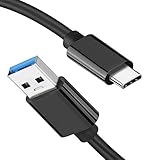
- [ Excellent Performance ] This USB C 3.1 cable connects a portable external USB C 3.1 SSD to a computer for speedy file transfer or syncs and charges Samsung smartphones or tablets equipped with the USB C port. Data synchronization is 20 times faster than USB 2.0 cables (480Mbps). (Does not support video output.)
- [ Fast Charging & High Speed Data Transfer ] This usba to usbc data power cable can sync your favourite photos, videos and music at a data transfer rate of up to 10Gbps(1250MB/s). Files can be synchronised in seconds. In addition, it can quick-charge your USB-C devices at up to 3A safe charging power. Tested charge Samsung Galaxy S22 from 0 to 60% in 30mins with Qualcomm Quick Charge 3.0 technology.Tips: USB 3.1 Gen 2 renamed to USB 3.2 Gen 2 by USB-IF in 2019.
- [ Extreme Durability & High Quality ] : Unique ABS case with the reinforced connector withstand 10000+ bending test. Durable TPE cable not only stay tangling-free but also flexible enough to be wrapped up and put in a bag ! (PS:The connector shell is wrapped around by a piece of plastic film to protect the shell from scraching ,feel free to remove the film when you use it.)
- [ Universal Compatibility ] This USB C to USB A Charger cable is Compatible with almost all USB-C devices. For Samsung Galaxy S24/S24+/S24 Ultra/S23/S23+/S23 Ultra/S22/S21/S20/S10/S9/Note 20/10/A70/A80/A90/A54, iPhone 16/16 Plus/16 Pro/16 Pro Max, iPhone 15/15 Plus/15 Pro/15 Pro Max, Google Pixel 9/8/7/6/5/, Moto G9/G8/G7/G Pure, LG G7/G6/V50, Sony XZ, Bose 700, GoPro, Nintendo switch, Samsung Galaxy Tab S6, iPad Pro 2018 11''/12.9", Samsung T7/T5, Crucial X8/X6, LaCie Rugged SSD, G-Drive, WD My Passport, Seagate Fast, SanDisk Extreme Portable SSD etc. (OnePlus phones are not supported.)
- [ What You Get ] 1 X Super-Fast USB-A to USB-C 3.1 Gen 2 Cable (3 ft including both ends), our worry-free LIFETIME WARRANTY and friendly customer service. NOTE: If you have any questions, please feel free to contact us, we will be happy to serve you and give you an easy and pleasant shopping experience.
“No update available” even though others have it
Xiaomi uses staged rollouts, so another owner receiving an update does not prove that it is available for every device. Other possibilities include an imported phone, a mismatched regional ROM, an unsupported older model, or a build that is no longer being distributed.
Xiaomi says update availability depends on the device’s official sales channel and that older devices eventually stop receiving updates. Its general policy describes security support as typically at least two years after first shipment, with some models supported for three years or longer; this is a general policy, not a promise for a particular phone. Check Xiaomi’s update availability guidance and support policy.
Mi Flash or Fastboot does not detect the phone
First test outside Mi Flash:
fastboot devicesIf no serial number appears, work through this list:
- Confirm that the phone is in Fastboot, not Recovery.
- Try another known-good USB data cable.
- Use a different direct USB port, avoiding hubs and adapters.
- Reinstall or repair the Xiaomi USB drivers included with the flashing tool.
- Install or update Google Platform-Tools.
- Restart Mi Flash and the computer.
- Check that the phone has sufficient battery.
If the phone cannot enter either Recovery or Fastboot, do not download random EDL files or follow unverified test-point and authentication-service instructions. Use an authorized Xiaomi service center.
The phone is stuck on the Fastboot screen
- Check whether the Volume Down button is physically stuck or being pressed by a case.
- Disconnect the USB cable.
- Hold the Power button for more than 10 seconds to force a restart.
- If it returns to Fastboot, confirm that the button is not being pressed during startup.
- If it still cannot boot but Fastboot works, use the exact matching Fastboot ROM or contact service.
Xiaomi specifically identifies accidental Volume Down presses and recommends a long Power-button restart in its Fastboot troubleshooting guidance.
Outdated Drivers Are Slowing You Down
One free scan finds every outdated or missing driver and matches the right update for your exact hardware.Free scan · exact hardware matchPC Slower Than It Used to Be?
A free scan shows the junk files, broken settings and background clutter dragging Windows down - then fixes them in one click.Free scan · Windows 10 & 11The phone is stuck at the logo after updating
Do not immediately interrupt the first boot. Post-update processing can take approximately 30–120 minutes in some cases. Keep the phone connected to its original charger while monitoring its temperature. If it becomes excessively hot or remains stuck well beyond that period, disconnect power and use only device-specific Recovery instructions or seek service.
A Recovery wipe may resolve some software loops, but it erases the phone and should be a last resort after backup. Xiaomi’s post-update recovery guidance covers this situation.
The screen says “The system has been destroyed”
This can result from relocking after an incompatible regional flash, incorrect boot-critical images, corrupted partitions, or a Verified Boot or rollback-protection failure.
- Stop repeated relock attempts.
- Do not flash a package from another model or region.
- If Fastboot still works, restore the exact matching official Fastboot ROM and leave the bootloader unlocked.
- If Fastboot is unavailable, use authorized Xiaomi service rather than attempting random EDL procedures.
Android’s Verified Boot documentation explains the security checks behind these failures. Community reports about Xiaomi relocking problems are useful evidence of the risk, but they are not a substitute for a device-specific official procedure.
Downgrades, rollback, and changing regions
Installing a newer same-region build is a normal update. Reinstalling the same build can be a repair step. Downgrading to an older build and changing the regional branch are different operations and should not be treated as ordinary HyperOS installation.
Xiaomi states that its smartphones do not support system rollback. Android Verified Boot also uses rollback protection and version binding to prevent vulnerable older software from booting. Do not provide or follow generic downgrade instructions that remove anti-rollback checks or edit flashing scripts. The optional command below may not be supported or meaningful on every model:
Also popular on Amazon
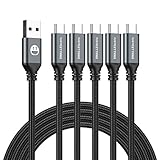
- 5 Pack 6FT Charging Cords: Includes five 6-foot cords for home, office, car, travel, bedside, and backup use.
- 3A Fast Charging and Sync: Supports up to 3A charging and 480Mbps data transfer with compatible devices and USB A adapters.
- Braided for Daily Use: Nylon braided material helps resist bending, pulling, and tangling for everyday charging needs.
- Wide Type C Compatibility: Compatible with iPhone 17 16 15 series, Samsung Galaxy S10 S9 S8, Note 10 9 8, LG V50 V40 G8 G7, and other Type C devices.
- USB A to Type C Connection: Works with standard USB A wall chargers, car chargers, power banks, laptops, and charging stations.
fastboot getvar antiDo not infer downgrade safety from that output unless a guide for the exact device documents what it means.
Likewise, do not assume that Global, EEA, India, China, or another regional ROM can be installed interchangeably. Cross-region flashing can affect boot verification, modem behavior, network bands, NFC, language or service availability, account activation, and relocking. Treat region conversion as a separate advanced project requiring exact hardware compatibility and a device-specific procedure.
The Tool Desk
Outbyte PC Repair FREEClear out junk files and repair common Windows errorsFree Scan →Outbyte Driver Updater FREEScan for outdated or missing drivers - takes under a minuteDriver Scan →When the built-in updater or Mi Flash is not appropriate
Use the updater’s full package first
If the phone works but an incremental OTA fails, use Settings > About phone > Xiaomi HyperOS > Check for updates, then look for the option to download the latest or full package. This is safer than forcing a package obtained from an arbitrary mirror.
Use authorized service for serious failures
Service is the correct path when:
- The phone has no Recovery or Fastboot access.
- The device is hard-bricked.
- The locked phone requires EDL authorization.
- The hardware variant or regional firmware cannot be verified.
- Mi Flash cannot detect a working Fastboot device after cable, port, driver, and tool checks.
- A relock attempt has produced a system-destroyed or otherwise unrecoverable state.
Do not mix this guide with custom ROM installation
Xiaomi.eu and other custom ROMs generally require an unlocked bootloader and device-specific recovery or Fastboot instructions. They can affect banking applications, Widevine certification, OTA updates, warranty treatment, and hardware functions. Installing them is not the same as installing official stock HyperOS.
Frequently Asked Questions
Can I install HyperOS without unlocking the bootloader?
Yes, normally. Use the built-in OTA updater or a correctly signed full Recovery package accepted by the system updater. Ordinary consumer Fastboot flashing through Mi Flash generally requires bootloader authorization and unlocking, while authorized service flashing is a separate process.
Is a Recovery ROM safer than a Fastboot ROM?
For a phone that still boots and is receiving a compatible same-region package, Recovery installation is usually the less destructive option because it avoids bootloader unlocking and Mi Flash. It is not risk-free: the package can be rejected, modified phones may fail verification, and some procedures can erase data.
Windows Errors? Fix Them Before They Spread
Repair common Windows errors and clear accumulated junk for a smoother, more stable PC - no reinstall needed.Free scan · no reinstallOutdated Drivers Are Slowing You Down
One free scan finds every outdated or missing driver and matches the right update for your exact hardware.Free scan · exact hardware matchWill installing a Recovery ZIP erase my data?
A normal same-region update may preserve data, but do not rely on that as a guarantee. Major-version, preview, repair, or device-specific flashing procedures may wipe the phone. Back up photos, app data, authenticator accounts, and recovery codes first.
Can I install a Global ROM on a China Xiaomi phone?
Do not assume that you can. Regional packages may correspond to different hardware, modem firmware, boot verification, services, and update channels. Cross-region flashing and later relocking can brick the phone. Use the exact original branch unless you are following a thoroughly verified, device-specific conversion procedure.
Can I relock the bootloader after flashing HyperOS?
Only after confirming that the phone is running exact official stock firmware for the matching hardware and region. Never select Clean all and lock as a default step. An incompatible regional ROM or modified image can fail Verified Boot and leave the phone unable to start.
What if Xiaomi has not released a Fastboot package for my model?
Use the built-in updater or an official full-package option if available. Do not substitute a package for a similar model or use random scripts. If the phone cannot boot and no correct Fastboot package exists, contact Xiaomi service.
What’s actually slowing this PC down?
Pick the symptom - the matching free tool is one click away.
Why does the updater say the package is not official or cannot be verified?
The package may be for the wrong codename or region, may be incremental and require another source build, may be corrupted, or may be unsuitable for a rooted or modified system. Recheck the full build string and use a full package from the updater or a trusted Xiaomi CDN link.
Why does Mi Flash show no device?
Run fastboot devices first. If no serial appears, confirm Fastboot mode, try another cable and direct USB port, reinstall the Xiaomi driver, update Platform-Tools, and restart the tool. If the phone cannot enter Fastboot or Recovery, use authorized service.
What if the phone only shows the Fastboot logo?
Check for a stuck Volume Down button, disconnect USB, and hold Power for more than 10 seconds. If it repeatedly returns to Fastboot but remains detectable, use the exact matching Fastboot ROM. If it is not detectable, troubleshoot drivers and cables or seek service.
The Bottom Line
For most Xiaomi, Redmi, and POCO owners, start with Settings > About phone > Xiaomi HyperOS > Check for updates. If a manual installation is necessary and Android still works, use the exact full Recovery ZIP for the phone’s codename and existing region. Reserve Fastboot and Mi Flash for corrupted or unbootable systems, expect a possible data wipe, and verify the ROM before flashing. Never downgrade casually, never use universal partition commands, and never relock the bootloader unless the firmware is confirmed to be exact official stock software for that device and region.
Do these 3 things before closing this tab:
1Clear out junk files and repair common Windows errors2Scan for outdated or missing drivers - takes under a minute3Repair Windows errors before they cause bigger problems
