
Recommended Free Tools
iTechGuides is reader-supported. When you buy through links on our site, we may earn an affiliate commission. As an Amazon Associate I earn from qualifying purchases. Learn more
Discord Stage Channels are moderated voice rooms designed for talks, interviews, panels, AMAs, announcements, and live presentations. A small group can speak while everyone else joins as a muted audience member. Unlike ordinary voice channels, audience members cannot simply unmute themselves; they need a moderator’s invitation or approval after raising their hand.
There is one important restriction: Stage Channels are available only in Community servers. Discord’s current Stage Channels documentation was updated on January 15, 2026, and the controls described below apply to desktop, browser, iOS, and Android, although menu layouts differ slightly.
What is a Discord Stage Channel?
A Stage Channel is a special voice channel with two participation levels:
- Speakers: Members whose microphones can be active and who appear in the speaker area.
- Audience: Members who can listen but join muted. They can request permission to speak.
Stage moderators control who speaks, remove disruptive participants, manage speaking requests, and can usually start or end the live session. Moderators may join as speakers or remain in the audience.
Popular on Amazon

- [Natural Audio Clarity] Operated with frequency response of 50Hz-16KHz, the podcasting XLR mic delivers balanced audio range, likely to resonate with your audience. Directional cardioid dynamic microphone corded will not exaggerate your voice, while rejects unwanted off-axis noise for vocal originality and intelligibility during your PS5 gaming streaming video recording. (Tips: Keep the top of end-addressing XLR dynamic microphone AM8 facing audio source, and suggested recording range is 2 to 6 in.)
- [XLR Connection Upgrade-Ability] To use XLR connection, connect the podcast microphone to an audio interface (or mixer) using a separate XLR cable (NOT Included) . Well-connected and smooth operation improves audio flexibility to make you explore various types of music recording singing. The streaming mic isolates the pristine and accurate sound from ambient noise with greater no interference and fidelity. (RGB and function key on mic are INACTIVE when using XLR connection.)
- [USB Connection with Handy Mute] Skip the hassle of setting something up and plug the cable to play the dynamic USB microphone directly, which suits for beginner creators or daily podcast. You can quickly control the gamer mic with tap-to-mute that is independent of computer/Macbook programs to keep privacy when live streaming. LED mute reminder helps you get rid of forgetting to cancel the mute. (RGB and function key are only available for USB connection, but NOT for XLR connection)
- [Soothing Controllable RGB] RGB ring on the desktop gaming microphone for PC, with 3 modes and more than 10 light colors collection, matches your PC gears accessories for gaming synergy even in dim room. You can control the RGB key button of the dynamic microphone USB directly for game color scheme gaming or live streaming. Configured memory function, the streaming microphone RGB no need to repeated selections after turnning off and brings itself alive when power on. (Only available for USB connection)
- [More Function Keys] Computer microphone with headphones jack upgrades your rhythm game experience and gets feedback whether the real-time voice your audience hear as expected. Get the desired level via monitoring volume control when gaming recording. Smooth mic gain knob on the PC microphone gaming has some resistance to the point, easily for audio attenuation or boost presence to less post-production audio. (Only available for USB connection)
Stages work well when you want a structured event rather than an open conversation. Examples include a product launch, a developer Q&A, a community town hall, a podcast-style discussion, or a live tutorial.
What you need before creating one
Your server must be a Community server
Stage Channels cannot be created in a regular Discord server. If the channel-creation dialog does not offer Stage Channel, check whether the server has Community enabled.
You need Manage Channels
The current Discord FAQ says that Manage Channels is required to create a Stage Channel. Older Discord documentation also mentioned Manage Roles, but that is not the current creation requirement. Manage Roles is still relevant when changing the moderators assigned to an existing Stage.
There is no slash command for Stages
Discord does not document a slash command or text command for creating, starting, moderating, or ending a Stage. Use Discord’s buttons, channel menus, and participant context menus instead.
How to create a Stage Channel
On desktop or in a browser:
- Open the Community server.
- Click the + button beside the channel category, or open the server menu and choose Server Settings followed by Create Channel.
- Choose Stage Channel as the channel type.
- Click Next.
- When Discord asks for Stage moderators, select the roles or members that should manage the Stage.
- Finish the channel setup.
You can also create the channel from Server Settings → Create Channel. The exact placement of the plus button can vary depending on your server layout and permissions.
Stage moderators and permissions
The moderator picker is not a completely separate Stage permission system. It reflects the underlying server and channel permissions. A role may already appear selected because it has the permissions Discord needs for Stage moderation.
For a moderator to manage a Stage, the relevant channel permissions are:
Windows Errors? Fix Them Before They Spread
Repair common Windows errors and clear accumulated junk for a smoother, more stable PC - no reinstall needed.Free scan · no reinstallOutdated Drivers Are Slowing You Down
One free scan finds every outdated or missing driver and matches the right update for your exact hardware.Free scan · exact hardware match| Permission | What it allows |
|---|---|
| Manage Channels | Manage the Stage channel and its configuration. |
| Mute Members | Control participant audio when moderation requires it. |
| Move Members | Move or disconnect participants from the Stage. |
To change moderators after creating the channel, right-click the Stage Channel, choose Edit Channel, and select Channel Permissions in the left sidebar. In general, channel permissions are edited through right-click channel → Edit Channel → Permissions.
The administrator changing Stage moderators needs both Manage Channels and Manage Roles. Discord’s normal role hierarchy also applies: a member cannot manage roles at or above their highest role, and cannot grant permissions they do not have themselves.
Also popular on Amazon

- [Convenient Setup] Plug and play recording USB microphone for PC, with 5.9-Foot USB cable included for computer PC laptop, is connected directly to USB-A port for recording music, computer singing or podcast. The office condenser microphone for computer is easy to use and install. (NOT compatible with Xbox and Phones)
- [Durable Metal Design] Solid sturdy metal construction design, the computer microphone for Zoom meetings with stable tripod stand is convenient when you are doing voice overs or livestreams on YouTube. Durable material extends the service life of the voice-over microphone.
- [Mic Volume Knob] Gaming condenser USB mic compatible for PS4 with additional volume knob itself has a louder or quieter adjustment and is more sensitive. Your voice would be heard well enough through the zoom microphone USB when gaming, skyping or voice recording. Also, you can adjust your volume to zero and protect your privacy.
- [Widely Use] USB-powered design, the condenser microphone for recording no need the 48v Phantom power supply, works well with Cortana, Discord, voice chat and voice recognition. The podcast microphone for Mac, with USB-B to USB-A/C cable, is compatible with desktop, laptop or PS4/PS5, which meets most of your daily recording needs.
- [Clear Output Voice] Cardioid condenser microphone for PC captures your voice properly, producing clear smooth and crisp sound. Great computer recording mic for gamers/streamers/youtubers focus on the main source and reduces background noise. The streaming microphone does the job well for broadcast ,OBS and teamspeak.
Check channel-specific overrides if a moderator cannot perform an action. A server role may have the correct permission globally, while a deny rule on the Stage channel removes it locally.
Starting and opening a Stage
Select the Stage Channel from the server’s channel list. Discord presents three choices:
| Option | Use it when |
|---|---|
| Start the Stage | You are ready to open the live Stage. You must enter a discussion topic. |
| Create Event | You want to schedule the Stage as a Discord event. |
| Continue without starting | You need to enter privately for setup, microphone checks, or speaker preparation without announcing that the Stage has started. |
After entering the channel, use Open the Stage at the bottom of the screen to set or change the topic. The topic appears at the top of the active Stage and at the top of the channel list while the event is running.
The permissions Discord lists for managing a Stage start include Manage Channel, Manage Permissions, Move Members, Mention @everyone when a Stage starts, and Manage Events. Discord’s channel-creation documentation uses the permission name Manage Channels; if a user cannot start a Stage, inspect both the user’s role permissions and the channel overrides.
While users wait for a Stage to formally begin, Discord may play setup music. This is controlled per user. Server administrators cannot mute it for everyone; an individual listener can click the music-note button to turn it off.
How speaking works
Inviting someone to speak
A moderator can invite an audience member directly:
The Tool Desk
Outbyte Driver Updater FREEScan for outdated or missing drivers - takes under a minuteDriver Scan →Outbyte PC Repair FREEClear out junk files and repair common Windows errorsFree Scan →- Desktop/browser: Right-click the audience member and choose Invite to Speak.
- Mobile: Tap the member’s profile, then choose Become a Speaker.
The invited user must accept before becoming a speaker.
Requesting to speak
An audience member can tap the raised-hand button at the bottom-left of the Stage action bar. After approval, an invitation bar appears at the top of the screen with options to accept or decline.
Moderators review requests by clicking Show Requests. The Request to Speak menu allows a moderator to:
Also popular on Amazon

- Custom three-capsule array: This professional USB gaming mic produces clear, powerful, broadcast-quality sound for YouTube videos, Twitch game streaming, podcasting, Zoom meetings, music recording and more
- Four pickup patterns: Flexible cardioid, omni, bidirectional, and stereo pickup patterns allow you to record in ways that would normally require multiple mics, for vocals, instruments and podcasts
- Blue VO!CE software: Elevate your streamings and recordings with clear broadcast vocal sound and entertain your audience with enhanced effects, advanced modulation and HD audio samples
- Onboard audio controls: This USB microphone offers headphone volume, pattern selection, instant mute, and mic gain to put you in charge of every level of the audio recording and streaming process
- Positionable design: Pivot the mic in relation to the sound source to optimize your sound quality thanks to the adjustable desktop stand and track your voice in real time with no-latency monitoring
- Accept a request.
- Dismiss a request.
- Use Invite to Speak to approve the member.
- Turn Allow requests to speak off when questions or interruptions need to be paused.
Moving speakers back to the audience
A speaker can return to the audience by clicking Move to Audience. A moderator can do the same:
- Desktop/browser: Right-click the speaker and choose Move to Audience.
- Mobile: Tap the speaker’s profile and choose Move to Audience.
Removing a participant
To remove someone from the Stage:
- Desktop/browser: Right-click the audience member and select Disconnect from Stage.
- Mobile: Tap the user’s profile to open the profile card, then select Disconnect from Stage.
Stage moderators can become speakers without an invitation. Ordinary audience members cannot bypass the speaking workflow by unmuting themselves.
Camera and screen sharing
Stage Channels support both video and screen sharing, but these features introduce separate permission and capacity constraints.
Turning on a camera
A speaker can click the video-camera button and choose Turn On Camera. The speaker needs the Video permission through a server role or a Stage-specific channel override.
Sharing a screen
To share a screen, click the screen-share button and choose Share Your Screen. The relevant moderator, administrator, or speaker must have permission to use Go Live.
Free tools Windows power users keep installed
One-click scans. No signup required.
A Stage supports one Go Live stream at a time. Up to five people on the Stage can have cameras enabled simultaneously. Audience members automatically receive the screen share and the speakers’ video.
Stage Channel capacity limits
Do not apply the commonly repeated “10,000 participants” figure to every Stage. Discord distinguishes between audio-only Stages and Stages using video or screen sharing.
| Stage mode | Audience viewing limit |
|---|---|
| Audio-only | Up to 10,000 audience members. Discord’s current FAQ states there is no limit on the number of people on Stage and talking. |
| Video or screen share, base limit | 50 audience members. |
| Boosting Tier 2 | 150 audience members. |
| Boosting Tier 3 | 300 audience members. |
| Beyond the minimum 14 boosts for Tier 3 | Each additional boost adds 30 seats, up to 10,000. |
If video or Go Live is already running when the audience limit is reached, new users cannot join. There is also a less obvious failure case: if more than 50 audience members are already present and video or screen sharing has not started, speakers and moderators cannot start those features unless the server has enough boosts for a larger viewing limit.
Scheduling a Stage Event
A scheduled Stage Event is useful when you want Discord to notify members ahead of time rather than opening an unscheduled live session.
Quick wins for a faster PC:
Scan for outdated or missing drivers - takes under a minuteDriver Scan →Repair Windows errors before they cause bigger problemsFix Now →Also popular on Amazon
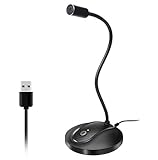
- 360 Degree Position Adjustable Gooseneck Design --Plug and play USB microphone Pick up the sound from 360-degree with high sensitivity, in the best possible location for sound to your PC gaming, dragon voice dictation, and talk to Cortana
- Mute Button & LED Indicator --One-click to mute/unmute your microphone for pc, Build-in LED indicator tells you the working status at any time
- Intelligent Noise-Canceling Tech --Premium omnidirectional condenser microphone with noise-canceling technology can pick up your clear voice and reduce background noise and echo
- USB Plug&Play(1.8/6ft USB Cable) -- No driver required. Just need to plug & play for the microphone to start recording, well compatible with Windows(7, 8, 10 and 11) and macOS. (NOT compatible with Xbox/Raspberry Pi/Android)
- Solid Construction--Adopting premium metal pipe and heavy-duty ABS stand to make sure that you will be satisfied with our computer mic quality
To create one from inside the channel:
- Enter the Stage Channel.
- Choose Create Event.
- Enter the event details.
- Select Create Event.
You need the server-wide Create Events permission and must be a moderator for that Stage Channel.
You can also use the server menu:
- Click the arrow beside the server name.
- Choose Create Event.
- Select Stage Channel.
- Choose the Stage Channel and click Next.
- Enter the event details and click Next.
- Review the preview and click Create Event.
Event permissions are configurable at server and channel level. To edit the role settings, go to Server Settings → Roles → select a role → Permissions, then find Create Events or Manage Events under General Server Permissions.
The person who creates an event can edit it. Editing or canceling somebody else’s event requires Manage Events at the server or channel level. If a scheduled event does not start within one hour of its scheduled time, Discord automatically removes it from the Community’s Scheduled Events list.
The 99-participant limit mentioned in Discord’s Scheduled Events documentation applies to events hosted in ordinary voice channels. It does not replace the separate Stage capacity rules above.
Ending a Stage and leaving quietly
The live Stage ends when the last Stage moderator leaves the channel. This does not delete the channel; the same Stage Channel remains available for another event.
Audience members leave by clicking Exit Quietly at the bottom-right of the action bar. Stage Channels do not use join or leave sounds, so listeners can enter or leave without interrupting the discussion.
Public Stages and privacy
Discord allows a Stage to be limited to server members or opened to anyone on Discord. A public Stage temporarily makes the server public while the Stage is live.
Before opening one publicly:
- Review sensitive categories and channels.
- Mark private channels as private.
- Check role and channel permissions so visitors cannot see information intended only for members.
- Brief moderators on how to remove disruptive speakers quickly.
Public access does not turn a Stage into a private broadcast. Treat anything said there as potentially accessible to people outside your normal membership.
Do these 3 things before closing this tab:
1Scan for outdated or missing drivers - takes under a minute2Repair Windows errors before they cause bigger problems3Fix the driver behind crashes, sound loss and screen glitchesRecording, transcripts, and policy requirements
Discord does not currently provide built-in recording or transcription for Stage Channels. If you use third-party recording or transcription software, comply with applicable law and obtain consent where required. Tell speakers and attendees what is being recorded, how it will be used, and who can access it.
Also popular on Amazon
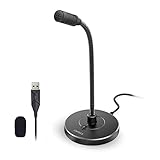
- 【Crystal Clear Audio Quality】Our Omnidirectional pattern condenser microphone accurately captures your voice, making it perfect for dictation, online classrooms, and more.
- 【Active Noise-Cancelling】Come in CMTECK CCS2.0 SMART CHIP with Omnidirectional Polar Pattern, which can effectively block the background noise. The pop filter prevents plosives from overloading the microphone, ensuring only your voice is heard.7
- 【Convenient Mute Button with LED Indicator】You can quickly mute/un-mute the microphone with the Mute Button and the built-in LED light lets you know the working status(Greenlight: Connected; Red light: Mute mode).
- 【Easy to use】 No drivers needed, just plug and record without external power supply, directly connect the microphone to a USB compatible device, well compatible with Windows(7, 8 and 10), Mac OS and PS4 (NOT compatible with Raspberry Pi/Linux/Android)
- 【Mini size with Adjustable Gooseneck】Adopted flexible and adjustable gooseneck metal pipe, easily adjust position 360 degrees to suit user comfort. The compact and stable base maximizes your desktop space.
Stage content must follow Discord’s Community Guidelines and Terms of Service. Discord’s Stage guidelines prohibit explicit, graphic, or sexual content and state that Stages should be suitable for audiences aged 13 and older.
Practical setup checklist
- Confirm the server is a Community server.
- Give the creator Manage Channels.
- Assign moderators with Manage Channels, Mute Members, and Move Members on the Stage.
- Check channel-specific permission overrides.
- Use Continue without starting for microphone, camera, and screen-share tests.
- Set a clear topic before opening the Stage.
- Decide whether audience members may raise their hands.
- Test the speaker invitation and removal controls with a moderator.
- If using video, check the server’s audience limit before advertising the event.
- For a scheduled event, verify Create Events and the Stage moderator assignment.
- Before a public Stage, audit private channels and explain any recording policy.
FAQ
Can I create a Stage Channel in any Discord server?
No. Stage Channels are available only in Community servers. The person creating one also needs Manage Channels.
Is there a Discord command to start or end a Stage?
No documented slash or text command performs these actions. Use the Stage controls and participant context menus in Discord.
What’s actually slowing this PC down?
Pick the symptom - the matching free tool is one click away.
Can audience members talk whenever they want?
No. Audience members are muted by default. They must raise their hand and receive moderator approval, or accept a direct invitation to speak.
How do I make someone a Stage moderator?
Edit the Stage Channel, open Channel Permissions, and assign the required permissions to the appropriate role or member. The administrator changing moderators needs Manage Channels and Manage Roles.
How many people can join a Stage?
Audio-only Stages support up to 10,000 audience members, while Discord’s current FAQ states there is no limit on the number of people on Stage and talking. Video or screen-share Stages start with a 50-person audience limit, increasing with server boosts up to 10,000.
How many cameras can be active in a Stage?
A maximum of five people on the Stage can enable cameras at the same time. A speaker also needs the Video permission.
The Tool Desk
Outbyte PC Repair FREERepair Windows errors before they cause bigger problemsFix Now →Outbyte Driver Updater FREEScan for outdated or missing drivers - takes under a minuteDriver Scan →Can I record a Discord Stage natively?
No. Discord does not currently provide built-in Stage recording or transcription. Third-party tools may also require consent under applicable law.
Why did my Stage end when I left?
The live Stage ends when the last Stage moderator leaves. The channel itself is not deleted and can be reused.
The Bottom Line
Discord Stage Channels are best treated as moderated broadcasts: speakers are controlled, the audience stays muted, and moderators manage requests and removals. Set up the Community server and channel permissions first, test privately with Continue without starting, and check the separate capacity rules before enabling video or screen sharing. Remember that public Stages expose the live session beyond your normal membership, and Discord provides neither native recording nor transcription.
Based on Discord’s Stage Channels FAQ, updated January 15, 2026, plus Discord’s documentation for permissions, scheduled events, and Stage guidelines.
Free tools Windows power users keep installed
One-click scans. No signup required.

