
Do these 3 things before closing this tab:
1Scan for outdated or missing drivers - takes under a minute2Clear out junk files and repair common Windows errors3Fix the driver behind crashes, sound loss and screen glitchesiTechGuides is reader-supported. When you buy through links on our site, we may earn an affiliate commission. As an Amazon Associate I earn from qualifying purchases. Learn more
A Chromecast that sees your Wi-Fi but refuses to connect is usually dealing with one of four problems: weak signal, an incompatible Wi-Fi band, router isolation, or a setup-phone permission issue. The correct fix depends first on which Chromecast you own.
Chromecast with Google TV and Google TV Streamer have on-screen network menus. Older models—including Chromecast 1st, 2nd, and 3rd gen, Chromecast Ultra, and Chromecast Audio—are configured through the Google Home app.
Work through the fixes in order and retry the connection after each one. Do not factory-reset the device until the simpler steps have failed.
Free tools Windows power users keep installed
One-click scans. No signup required.
Before troubleshooting: identify your Chromecast
| Device | Where Wi-Fi is configured | Important limitation |
|---|---|---|
| Chromecast 1st gen | Google Home app | 2.4-GHz Wi-Fi only; support and updates have ended |
| Chromecast 2nd or 3rd gen | Google Home app | Uses one saved Wi-Fi network |
| Chromecast Ultra | Google Home app | Uses one saved Wi-Fi network |
| Chromecast Audio | Google Home app | Uses one saved Wi-Fi network |
| Chromecast with Google TV | TV settings or Google Home during setup | Has an on-screen network menu and remote |
| Google TV Streamer (4K) | TV settings | Successor to Chromecast with Google TV |
Google ended Chromecast production in 2024, but existing supported devices continue to work. The first-generation Chromecast is the exception: Google no longer provides software or security updates or technical support for it.
Popular on Amazon

- 1000Mbps Extreme Experience: Upgrade to 1000Mbps Ethernet full speed to enjoy unprecedentedly smooth video playback and gaming experience, say goodbye to lagging caused by weak signals, and realize fast LAN access. While solving the problem of weak WiFi signals, the 1000Mbps ethernet adapter further stabilizes the network, effectively helping you surf the Internet more stably and enjoy a smooth experience with zero latency.
- Specially Designed for Chromecast : Your Chromecast with USB C ports perfectly fit our Chromecast ethernet adapter, such as Chromecast HD, Chromecast 4K which are the most popular types in Google TV. In addition, the Chromecast with Google TV ethernet adapter also support Smartphones, Tablets in USB Type C connection. Attention :It do not fit for VPN.
- Easy to Set Up: Plug and work instantly, No driver needed. Just simply connect your Ethernet Adapter for Chromecast into Google TV USB Type C port and plug in an Ethernet cable directly from your router to activate and get a stable, high-speed Internet connection. (Additional Power cable is suggested for sufficient power supply via USB Type C port)
- Heat Dissipation Design: Made of high-quality aluminum alloy, it can quickly and effectively dissipate heat and maintain optimal performance even after long hours of operation. Chromecast ethernet network adapter also provides over-voltage protection, over-current protection, over-power protection and short-circuit protection, making it safer to use.
- Thoughtful & Perfect Design: Equipped with an LED indicator light, it can accurately show the working status of this ethernet adapter, so that you can know the network connection status at any time. Comes with 2pcs self-adhesive tapes, which is convenient for you to locate this Chromecast with Google TV ethernet adapter in proper location, avoiding poor contact between Chromecast ethernet adapter and LAN Wires due to hanging in the air.
Setup requires an Android device running Android 9 or later, or an iPhone or iPad running iOS/iPadOS 17 or later. Google does not support completing Chromecast setup from a Windows PC or Mac.
Fix a Chromecast that sees the network but will not connect
1. Move the Chromecast, phone, and router closer together
For setup, place the Chromecast within about 20 feet of both the router and the phone or tablet running Google Home. A weak signal can allow the network name to appear while still preventing setup from completing.
If you have a first-generation Chromecast, use the HDMI extender supplied with it. The extender can move the Chromecast away from the back of the television, where the TV and nearby cables may interfere with reception.
PC Slower Than It Used to Be?
A free scan shows the junk files, broken settings and background clutter dragging Windows down - then fixes them in one click.Free scan · Windows 10 & 11Crashes, No Sound, or Screen Glitches?
Random freezes, missing sound and display glitches usually trace back to one bad driver. Find and replace yours safely.Free scan · under a minute2. Check whether another device can use the same Wi-Fi
Connect a phone or computer to the same network and try loading a website. If several devices cannot connect, the Chromecast is probably not the cause. Restart the router, check its status lights, and contact your internet provider if the connection remains unavailable.
If other devices work normally, continue with the Chromecast-specific checks below.
3. Select the right Wi-Fi band
Many routers broadcast separate 2.4-GHz and 5-GHz networks. Their names may include labels such as 2, 2.4G, 2.4 GHz, 5, 5G, or 5 GHz.
- Chromecast 1st gen: select the 2.4-GHz network. It cannot connect to 5 GHz.
- Other models: select the band supported by the device and use the network with the stronger signal if both are available.
Do not assume that a network appearing in the setup list is compatible. The first-generation model will not list a 5-GHz network during setup.
Quick wins for a faster PC:
Fix the driver behind crashes, sound loss and screen glitchesFind Drivers →Repair Windows errors before they cause bigger problemsFix Now →Scan for outdated or missing drivers - takes under a minuteDriver Scan →4. Turn off AP or client isolation
AP isolation, also called Access Point isolation or Client isolation, prevents devices on the same Wi-Fi network from communicating with one another. That is incompatible with normal Chromecast setup and casting.
Sign in to your router’s administration page or app and look under wireless, advanced Wi-Fi, guest network, or security settings. Turn off AP/client isolation, then try setup again.
Guest Wi-Fi commonly enables this restriction. A phone and Chromecast may both show that they are connected to the guest network while remaining unable to discover each other.
Also popular on Amazon

- Fast & Reliable Network Access: This 2-in-1 Thunderbolt to Ethernet adapter provides a stable and ultra-fast wired connection with full Gigabit speed up to 1000Mbps. Ideal for high-bandwidth tasks such as 4K streaming, large file downloads, and accessing secure networks, this USB C to Gigabit Ethernet adapter with charging is a reliable USB C network adapter for work, travel, or home office.
- 140W Power Delivery Charging: Stay charged while connected with this USB C Ethernet adapter with power. The integrated USB-C PD port supports up to 140W (28V/5A) power delivery, making it perfect for charging high-performance laptops like the MacBook Pro or Dell XPS through this USB C Ethernet Adapter.
- Broad Device Compatibility: This Type C to Ethernet adapter with 140W PD works with a wide range of USB-C and Thunderbolt 3/4/5 devices. Compatible with MacBook, iMac, iPad Pro, Dell XPS, Surface, NAS systems, and more. The Gigabit Ethernet to USB C adapter also works seamlessly with Windows, macOS, iPadOS, ChromeOS, and Linux.
- Premium & Durable Construction: Built for daily use, this USB-C to Ethernet adapter features a lightweight aluminum housing for improved durability and heat dissipation. A flexible braided pigtail cable adds strain resistance. Easily transform your devices' USB C to RJ45 Ethernet adapter for secure wired connections in offices, hotels, or conference setups.
- Consistent & Efficient Performance: This USBC to Ethernet adapter with Gigabit connectivity and 140W PD charging ensures fast, stable performance with low latency and minimal power loss. No drivers or software needed—simply plug and play your USBC Ethernet adapter for instant network access.
5. Avoid networks with browser sign-in pages
Chromecast and Google TV Streamer do not support captive-portal Wi-Fi. This includes many hotel, airport, school, dormitory, business, and public networks that require you to open a browser and accept terms or enter a room number.
Knowing the Wi-Fi password does not solve the captive-portal problem. Use a normal private network instead, or ask the venue whether it provides a non-portal network that permits device-to-device communication.
6. Check iPhone and iPad permissions
Google Home needs Bluetooth and local-network access during setup. On an iPhone or iPad:
- Open Settings → Bluetooth and turn on Bluetooth.
- Open Settings → Privacy and Security → Local Network.
- Turn on Google Home.
If Google Home was denied local-network access previously, it may not find the Chromecast even though both devices are on the same Wi-Fi.
7. Restart the router completely
Do not just tap a soft restart button in the router app. Unplug the router for two minutes. If it has a backup battery, disconnect that as well. Wait until its lights are off, reconnect power, and wait for the Wi-Fi name to appear again on your phone.
A full power cycle clears temporary router state and can resolve failed DHCP assignments or a router that has stopped allowing new devices to join.
8. Force-close Google Home
Close Google Home rather than merely switching away from it:
- iPhone or iPad: open the recent-apps view and swipe the Google Home preview upward.
- Android: open Recent apps and swipe Google Home upward.
Open Google Home again and retry the setup.
9. Restart the setup phone or tablet
Turn off the phone or tablet, wait about one minute, and turn it back on. Reconnect it directly to the intended Wi-Fi network before reopening Google Home.
10. Restart Chromecast by disconnecting power
Unplug the Chromecast’s power cable for one minute, then reconnect it. Removing the Chromecast from the television’s HDMI port does not reboot it; HDMI carries the picture and sound, while the USB power cable keeps the device running.
What’s actually slowing this PC down?
Pick the symptom - the matching free tool is one click away.
After reconnecting power, wait for the device to finish starting before trying setup again.
Also popular on Amazon
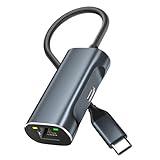
- [Compatible with Chromecast & Google TV] Specifically designed to enhance the performance of your Chromecast and Google TV. This USB-C Ethernet adapter provides a stable wired network connection, improving your streaming quality by eliminating the hassle of unstable Wi-Fi signals and enhancing overall performance.
- [1000Mbps Transmission Speed] Our products provide up to 1000Mbps from ethernet to USB C. We have a USB to RJ45 ethernet adapter. This allows you to eliminate the instability of WiFi connections and rely on the speed and reliability of wired Internet. Thus, you can promptly engage in work, meetings, learning, gaming, and movie-watching and fully utilize the network's performance.
- [Powerful 100W USB-C Charging Port] Keep your devices charged while you stream! Featuring a 100W USB-C charging port, this adapter not only provides high-speed internet access but also delivers fast charging to your Chromecast, Google TV, or other USB-C devices, so you can power up while you watch.
- [ Plug & Play Convenience] The USBC to Ethernet adapters can be connected to phones, tablets, and laptops without the requirement for additional drivers or software. Just plug the network cable in and enjoy a smooth wired Internet connection. It's a hassle-free solution for a faster, more reliable network connection and simultaneous charging.
- [Compact & Portable] This sleek and lightweight adapter is designed for easy portability, making it perfect for home use, office setups, or travel. Built with high-quality materials for durability and efficient heat dissipation, it ensures long-lasting performance and reliability.
11. Try another phone or tablet
Google recommends trying a different compatible mobile device. This helps identify problems caused by permissions, an outdated Google Home installation, VPN settings, or a phone-specific Wi-Fi issue.
Use a device connected directly to the same private Wi-Fi network as the Chromecast—not cellular data, a guest network, or a VPN connection that separates local devices.
12. Factory-reset the Chromecast as a last resort
A factory reset erases the device’s saved configuration and cannot be undone. Use it if the network is correct, the router allows local-device communication, and the preceding restarts have not solved the problem.
If the Wi-Fi network does not appear
Connect to a hidden Wi-Fi network
If your router hides its SSID, use the procedure for your device.
Older Chromecast models:
- In Google Home setup, reach Choose Wi-Fi network.
- Select Other.
- Enter the Wi-Fi network name exactly as configured.
- Select the security type: None, WEP, WPA, or WPA2.
- Enter the password and select Set Network.
Chromecast with Google TV or Google TV Streamer:
- Open All Settings.
- Select Network and Internet.
- Scroll down and select Add a new network.
- Enter the SSID, security details, and password with the remote.
On Chromecast with Google TV, hold the Google Assistant button for voice entry. On Google TV Streamer, hold the Microphone button.
If Google Home cannot find the Chromecast
When the device does not appear in Google Home at all, check the Chromecast’s setup state before resetting it:
- Connect the phone or tablet directly to the intended Wi-Fi network.
- Move the phone and Chromecast close to the router.
- Check that the Chromecast LED is flashing white.
- Confirm that the TV displays “Set me up.”
- Turn Wi-Fi off and back on on the phone or tablet.
- Reopen or reinstall Google Home.
- On iPhone or iPad, confirm Settings → Privacy and Security → Local Network → Google Home is enabled.
- Open the mobile device’s Wi-Fi settings and manually connect to the Chromecast’s temporary setup network, then reopen Google Home.
- Disable AP/client isolation on the router or extender.
If Google Home still cannot discover the device, perform a factory reset and run setup again.
Change the Wi-Fi network after setup
Google streaming devices remember one Wi-Fi network at a time. The steps differ between Google TV devices and older Chromecast models.
Chromecast with Google TV or Google TV Streamer
- On the TV, select Settings in the top-right corner.
- Select Wi-Fi network.
- Select the current network name.
- Select Forget network.
- Choose the new network and complete setup.
Chromecast 3rd gen or older, Ultra, and Audio
- Open Google Home.
- Tap Home → All devices.
- Touch and hold the Chromecast’s device tile.
- Tap Settings → Device information → Wi-Fi → Forget this network.
- Return to the Google Home home screen and set up the Chromecast on the new Wi-Fi.
The phone or tablet must use the same Google Account associated with the Chromecast. If the old Wi-Fi network is unavailable and the Chromecast is offline, the normal Forget this network option cannot be used. Factory-reset the device and set it up again instead.
How to factory-reset each model
Google TV Streamer (4K)
From the TV: Profile → All settings → System → About → Factory Reset.
Also popular on Amazon

- ★ Say Goodbye to Unstable WIFI Connection: Suffering from unstable connection when connected wifi signal for your Google TV ethernet adapter? Our Ethernet Adapter can effectively enable you with more stable and faster internet access, solving the problem of weak WiFi signal. Connect it, then you can enjoy smooth video feast now!
- ★ Specially Designed for Chromecast: Your Chromecast with USB C ports perfectly fit our Chromecast ethernet adapter, such as Chromecast HD, Chromecast 4K which are the most popular types in Google TV. In addition, the Chromecast with Google TV ethernet adapter also support Smartphones, Tablets in USB Type C connection. Attention: It do not fit for VPN.
- ★ Easy to Set Up: Plug and work instantly, No driver needed. Just simply connect your Ethernet Adapter for Chromecast into Google TV USB Type C port and plug in an Ethernet cable directly from your router, it will be activated.(Additional Power cable is suggested for sufficient power supply via USB Type C port)
- ★ 10/100 Mbps Ethernet: Rely on the speed and reliability of wired internet to achieve Full 10/100Mbps ethernet speed. USB Type C at 480Mbps can realize reliable and faster LAN access. Equipped with Led indicator, which can exact show the working states of this Google TV ethernet adapter.
- ★ Thoughtful & Perfect Design: Made of Aluminum alloy material for quick heat dissipation during long-time TV shows. Comes with 2pcs self-adhesive tapes, which is convenient for you to locate this Chromecast with Google TV ethernet adapter in proper location, avoiding poor contact between Chromecast ethernet adapter and LAN Wires due to hanging in the air.
Using the device button: with the Streamer powered on, hold the button on its back for 10–12 seconds. Release it when the LED changes from blinking yellow to solid white.
Recommended Free Tools
Chromecast with Google TV
From the TV: Profile → All settings → System → About → Factory Reset.
Using the device: with the Chromecast powered on, hold the button on its back. Release it when the LED changes from blinking yellow to solid white.
Chromecast 2nd gen, 3rd gen, or Ultra
From Google Home:
- Open Google Home and tap Home → All devices.
- Touch and hold the device tile.
- Tap Settings → More → Factory reset → Factory reset.
This in-app option works only when the phone and Chromecast are on the same network on which the Chromecast was originally set up.
Using the device button: hold the side button while the Chromecast is powered on. Release it when the LED changes from blinking orange to solid white.
The Tool Desk
Outbyte PC Repair FREEClear out junk files and repair common Windows errorsFree Scan →Outbyte Driver Updater FREEScan for outdated or missing drivers - takes under a minuteDriver Scan →Chromecast 1st gen
Hold the device button for at least 25 seconds, or until the solid LED flashes red. Release it after the LED blinks white and the TV goes blank. Because first-generation support has ended, a reset may not resolve compatibility or firmware-related problems.
Independent reader supportYour contribution helps us test, update, and keep practical guides available for everyone.Check the firmware
For a device that can still be reached in Google Home, open:
Home → All devices → touch and hold the device tile → Settings → Device information → Technical information.
On Chromecast with Google TV and Google TV Streamer, check manually from:
All settings → System → About → System update.
Also popular on Amazon

- Micro USB to Ethernet for TV Stick: It compatible with FireTV Stick Basic/2nd gen/4k/Lite, Google Chromecast 1/2/3/Ultra/Audio, Google Home Mini, Fire TV 3. (Note: Not USB-C. Incompatible with devices like Chromecast with Google TV (HD/4K)with USB-C Port.)
- Not Compatible with Any Roku Devices: Not compatible with any Roku devices including Roku Express/Roku Express 4K+/Roku Streaming Stick/Roku Streaming Stick 4K. In addition, it is not compatible with Fire TV Stick 1st gen/4k Max
- 100Mbps, Say Goodbye to Slow or Weak Wi-Fi Connection: UGREEN Ethernet Adapter can provide 10/100 mbps internet speed. (Note: 100Mbps is maximum speed that can be provided) Stable wired connection and high internet speed help you watch video smoothly
- 3.3 ft Long Cable Design: The Micro USB and USB power cable in the UGREEN Ethernet Adapter for Fire TV Stick has a length of up to 3.3 ft/100 cm, it can come in handy if you have little-to-no wiggle room behind your TV
- USB-A Power Cable: UGREEN Ethernet Adapter has a USB-A power cord, which can power the network adapter and TV Stick at the same time, no need to buy extra cables. (Note: Must be connected to a USB wall charger over 5W for normal use, not USB port on TV.)
Google rolls firmware out in stages, so an update may not appear immediately on every device. The first-generation Chromecast is no longer eligible for software or security updates.
Common Chromecast Wi-Fi advice that is wrong
| Claim | What is actually true |
|---|---|
| “Unplugging it from the TV resets it.” | Disconnect the power cable for a real reboot. Removing HDMI does not cut power. |
| “Every Chromecast supports 5 GHz.” | The first-generation Chromecast supports 2.4 GHz only. |
| “Hotel Wi-Fi works if you know the password.” | Captive portals are unsupported, and guest networks may block local device communication. |
| “Google Home can change the saved Wi-Fi from anywhere.” | Older models must be reachable on their existing network. If that network is gone, reset the device. |
| “A laptop can complete setup.” | Google requires a compatible Android or iOS/iPadOS mobile device for setup. |
| “A firmware update will fix every first-generation Chromecast.” | First-generation software and security support has ended. |
FAQ
Why does my Chromecast see Wi-Fi but fail to connect?
The most common causes are a weak signal, selecting an incompatible band, AP/client isolation on the router, a captive-portal network, or missing local-network permissions on an iPhone or iPad. Move the devices closer, check the band and router settings, then restart the router, phone, and Chromecast.
Can a first-generation Chromecast connect to 5-GHz Wi-Fi?
No. The first-generation Chromecast supports 2.4-GHz Wi-Fi only. It will not list a 5-GHz network during setup.
Windows Errors? Fix Them Before They Spread
Repair common Windows errors and clear accumulated junk for a smoother, more stable PC - no reinstall needed.Free scan · no reinstallCrashes, No Sound, or Screen Glitches?
Random freezes, missing sound and display glitches usually trace back to one bad driver. Find and replace yours safely.Free scan · under a minuteWhy can’t Google Home find my Chromecast?
Make sure the phone is directly connected to the intended Wi-Fi, the Chromecast LED is flashing white, and the TV says “Set me up.” On iPhone or iPad, enable Google Home under Settings → Privacy and Security → Local Network. Also disable AP/client isolation and try manually connecting to the Chromecast’s temporary setup network.
Can Chromecast work on hotel or airport Wi-Fi?
Usually not. Chromecast and Google TV Streamer do not support captive-portal networks that require browser sign-in or terms acceptance. Guest networks may also prevent the phone and Chromecast from communicating.
How do I change the Wi-Fi saved on an older Chromecast?
In Google Home, open Home → All devices, touch and hold the Chromecast tile, then select Settings → Device information → Wi-Fi → Forget this network. If the old network is unavailable and the Chromecast is offline, factory-reset it and complete setup again.
Does unplugging Chromecast from the HDMI port restart it?
No. HDMI does not provide the reboot procedure. Disconnect the Chromecast’s power cable for one minute, then reconnect it.
Quick wins for a faster PC:
Fix the driver behind crashes, sound loss and screen glitchesFind Drivers →Clear out junk files and repair common Windows errorsFree Scan →Is the original Chromecast still supported?
No. Google ended software and security updates and technical support for the first-generation Chromecast. Later Chromecast models remain supported according to their generation.
The Bottom Line
Start with the model, Wi-Fi band, router isolation, and mobile-device permissions. Then restart the router, setup device, and Chromecast in that order, retrying after each step. If the old Wi-Fi is gone or the device remains undiscoverable, factory-reset it and set it up on a private, non-captive network. For a first-generation Chromecast, remember that no further software or security update is available.

