
iTechGuides is reader-supported. When you buy through links on our site, we may earn an affiliate commission. As an Amazon Associate I earn from qualifying purchases. Learn more
Yes, you can use a stylus on some touchscreen laptops, but touchscreen capability alone does not guarantee active-pen support. A passive capacitive stylus usually works like a finger, while handwriting, drawing, pressure sensitivity, palm rejection, hover, and tilt require a compatible active-pen digitizer built into the laptop’s display.
The key is to identify the exact laptop model, display configuration, and pen protocol before buying anything. A pen designed for Microsoft Pen Protocol (MPP), Wacom AES, USI, or EMR is not automatically interchangeable with a laptop using another technology.
Key takeaways
- A touchscreen laptop can usually recognize a passive capacitive stylus, but active-pen features require a compatible digitizer built into the screen.
- The exact laptop model, generation, and display option matter more than the laptop brand because pen support can vary within one product family.
- Windows laptops commonly use MPP or Wacom AES, while compatible Chromebooks commonly use USI; these protocols should not be treated as interchangeable.
- Bluetooth pairing may enable buttons or extra features, but Bluetooth cannot add active-pen support to a display that lacks the required digitizer.
- If an active pen does not work, check compatibility and power before reinstalling drivers or changing Windows settings.
Does every touchscreen laptop support a stylus?
No. Every touchscreen laptop does not support an active stylus, even though many touchscreen laptops can recognize a basic capacitive stylus.
What’s actually slowing this PC down?
Pick the symptom - the matching free tool is one click away.
An ordinary capacitive touchscreen detects changes similar to the electrical contact made by a fingertip. A passive stylus with a rubber or conductive tip can therefore tap, scroll, select, and sometimes annotate on that screen. The passive stylus is only acting as a more precise finger.
Popular on Amazon

- 【New Upgraded 3-in-1 Stylus】: Building on the foundation of dual rubber tips, this new version adds a more precise and sensitive transparent disc tip, and comes with a protective cap. This 3-in-1 stylus pen meets various needs in your daily life, whether it's clicking icons, writing, drawing, or playing games, it can handle them all with ease
- 【Highly Sensitive and Accurate】: The disc tip is transparent which allows visibility of the contact point, making it highly accurate and responsive. 180° flexible writing angle for comfortable using. You can get more smooth writing or painting experience, no lag, no interruption, no screen scratching
- 【Dual-sized Rubber Tips】: The two different-sized rubber tips(0.18'' & 0.27'') are smooth and responsive, made from high-quality silicone material with excellent wear and aging resistance. The soft rubber tips won't scratch screens or leave as many fingerprints as fingers. Ideal for those with long nails or larger fingers, perfect for browsing screens, writing, note-taking, and playing games
- 【Wide Compatibility】: MEKO capacitive styluses are universally compatible with all touchscreen devices such as Apple iPad iPhone Duo/ Tablet/Nintendo Switch/ iPod/ Galaxy/ kindle & morephones, tablets, touch screen laptops & PC, e-Reders etc
- 【Easy to Use & Replaceable】: No battery or bluetooth needed, simply unscrew the pen cap to use the disc tip and use dual rubber tips directly.All 3 tips are replaceable and finish the replacement process within seconds. Package contains 2* stylus, 4* 0.18'' replacing rubber tips, 4* 0.27'' replaceable rubber tips, 2* disc tips, effectively extending the lifetime of the stylus. To find extra replacement Disc tips, please search ASIN: B016X4QJWE on Amazon.
An active stylus is different. HP explains that an active stylus communicates with a digitizer built into the screen. The digitizer is the hardware that detects the pen’s position and, depending on the laptop and software, pressure, tilt, hover, and pen-versus-palm input. Dell warns that an active pen will not work on a laptop that does not support active-pen input.
| Screen and input hardware | What normally works | What normally does not work |
|---|---|---|
| Ordinary capacitive touchscreen | Finger input and passive capacitive stylus for tapping, scrolling, and selection | Reliable pressure sensitivity, true palm rejection, hover, tilt, and active-pen buttons |
| Active-pen-enabled touchscreen | Compatible active stylus, handwriting, drawing, and potentially pressure, palm rejection, hover, tilt, and buttons | Pens using the wrong protocol or unsupported features |
| USI-compatible Chromebook touchscreen | Compatible USI stylus and supported ChromeOS inking features | MPP or Wacom AES pens unless the manufacturer explicitly documents support |
| Laptop without a touch display | External USB graphics tablet or pen display | Direct stylus input on the laptop’s own screen |
What is the difference between a passive and active stylus?
A passive stylus acts like a fingertip, while an active stylus contains electronics and communicates with a compatible screen digitizer.
Passive or capacitive stylus
- Usually requires no pairing, charging, or special driver.
- Works for tapping, scrolling, selecting, and basic annotation.
- Normally lacks pressure sensitivity, tilt, hover, and dependable palm rejection.
- May be useful for navigation but is not a substitute for a drawing pen.
A passive capacitive stylus is the sensible choice when the goal is simply to make small touchscreen controls easier to select. For example, an observed Lenovo U.S. listing dated August 16, 2026 showed a Targus capacitive stylus at $17.99; the price is a vendor-listing signal and can change with region, stock, tax, shipping, and promotions. The Lenovo listing identifies the Targus product as a capacitive stylus.
Active stylus
- Contains electronics and usually uses a battery, rechargeable cell, or a battery-free design.
- Communicates with a particular digitizer technology such as MPP, Wacom AES, USI, or EMR.
- May support pressure sensitivity, tilt, hover, palm rejection, erasing, and programmable buttons.
- Requires compatibility between the pen, laptop display, operating system, driver, and application.
An active pen can still provide only limited functionality if the laptop, driver, or application does not support every advertised feature. A pen advertised with 4,096 pressure levels does not automatically deliver 4,096 usable levels on every touchscreen that looks compatible.
How can you check whether your laptop supports a stylus?
Check the exact laptop model and display configuration first, then identify the supported pen protocol. Do not buy a pen based only on a family name such as “HP Envy,” “Lenovo Yoga,” “Dell Inspiron,” or “Surface.”
- Find the exact model and generation. Check Windows Settings, the manufacturer’s support application, the underside label, the original order, or the product documentation. Record the complete model number, not just the brand and series.
- Open the manufacturer’s specifications or support page. Search the exact model for terms including active pen support, stylus support, pen-enabled display, supports simultaneous pen and touch, digitizer, MPP, Microsoft Pen Protocol, Wacom AES, or USI.
- Check the display configuration. A single laptop family can be sold with multiple panels, and only some panels may contain an active-pen digitizer. Dell’s pen compatibility documentation shows that active-pen support can depend on the display configuration.
- Look for the manufacturer-recommended pen. The laptop manual, accessory page, or model-specific support page may identify the correct pen model. A manufacturer-recommended accessory is usually safer than a generic “universal” pen.
- Identify the operating system and protocol. Windows laptops may use MPP, Wacom AES, WGP, or another documented technology. Compatible Chromebooks commonly use USI. The operating system alone does not identify the digitizer protocol.
- Confirm the feature you actually need. Basic inking, pressure sensitivity, tilt, palm rejection, hover, shortcut buttons, and pen charging may have separate hardware or software requirements.
If the manufacturer’s specifications mention only “touchscreen” and say nothing about active pens, do not assume that an active pen will work. Contact the manufacturer with the exact model and panel configuration if the documentation is unclear.
Which stylus technology does a laptop use?
The pen and laptop must support the same active-input technology, or the manufacturer must explicitly document cross-protocol compatibility.
Quick wins for a faster PC:
Clear out junk files and repair common Windows errorsFree Scan →Fix the driver behind crashes, sound loss and screen glitchesFind Drivers →Also popular on Amazon

- Stylus Pen for Touchscreen: No Bluetooth or charging needed—use instantly on any capacitive touch screen (iPad, iPhone, Android, Samsung). Dual rubber tips (5mm/6.6mm) ensure precise control for writing, drawing, or gaming. Lightweight aluminum body with vibrant colors.
- Precision & Comfort Redefined: High sensitivity rubber tip glides smoothly without lag or scratches. Ergonomic design reduces wrist strain for extended use. Compatible with tablets, phones, and Laptops.
- Dual-Tip Flexibility: Switch between 0.20” and 0.26” rubber nibs for detailed art or bold notes. Anti-scratch, fingerprint-resistant tip. Pretty bright metal colors inspire creativity.
- Effortless Multi-Device Compatibility: Works seamlessly on Apple, Samsung, Android, and more. No apps or setup—just pick up and write. Perfect for notes, games, or gifts—ready to spark ideas instantly. Replaceable tips included for long-term use.
- Creative Freedom, Anywhere: Lightweight aluminum stylus with natural grip. Includes 6 replaceable tips and 3 color stylus pens. Perfect for sharing with friends, family, or colleagues, this bundle ensures you’re always equipped to capture inspiration.
| Technology | Where it is commonly found | Buying rule |
|---|---|---|
| Microsoft Pen Protocol (MPP) | Microsoft Surface and many Windows 2-in-1 laptops | Choose an MPP-compatible pen listed for the exact laptop or Surface model. |
| Wacom AES | Some Windows laptops and active pens | Choose the AES version supported by the laptop; AES 1.0 and AES 2.0 should not be assumed equivalent without documentation. |
| USI | Many compatible Chromebooks | Buy a USI pen only after confirming that the Chromebook supports USI and, where relevant, USI 2.0. |
| EMR | Some tablets and specialized pen displays | Do not assume an EMR pen works with a Windows or Chromebook touchscreen using MPP, AES, or USI. |
| Multi-protocol pen | Some manufacturer accessory ranges | Check the pen’s explicit compatibility list; “multi-protocol” does not mean universal feature support. |
Bluetooth does not determine the screen protocol. Bluetooth may handle shortcut buttons, remote functions, firmware features, or pairing, but Bluetooth cannot add an active digitizer to a display that does not have one. A pen can pair successfully and still fail to write on the screen.
What stylus should a Windows laptop owner buy?
Buy for the laptop’s digitizer and protocol, not for Windows alone. The safest choice is the pen named in the laptop manufacturer’s compatibility documentation.
- MPP laptop: Choose a compatible MPP pen, such as the model-specific pen recommended by the laptop maker.
- Wacom AES laptop: Choose the correct AES-compatible pen and verify whether the laptop supports AES 1.0 or AES 2.0.
- Surface device: Check Microsoft’s model-by-model compatibility table before buying a Surface Pen or Surface Slim Pen. Microsoft’s Surface compatibility documentation lists pen support and inking features by specific Surface model, and some Surface Laptop models listed there do not support Surface Pen inking.
- HP laptop: Check whether the exact configuration specifies MPP, Wacom AES, or a particular HP Active Pen. HP’s pen specifications describe MPP support for selected systems, not for every HP touchscreen laptop.
- Dell laptop: Confirm active-pen support and whether the system uses MPP or Wacom AES. Dell’s active-pen guidance identifies MPP and Wacom AES as examples of supported technologies.
- Lenovo Windows laptop: Check the exact model because Lenovo systems may use WGP, MPP 2.0, AES 2.0, AES 1.0, or another listed protocol. Lenovo’s product listings include pens supporting combinations of those technologies, but the laptop still determines which one works.
Observed U.S. Lenovo listing signals dated August 16, 2026 illustrate why model matching matters rather than serving as universal recommendations:
| Pen or category | Observed U.S. listing signal | Best use | Important limitation |
|---|---|---|---|
| Lenovo Slim Pen 2 | $59.99 | Compatible Lenovo Windows systems | Not a universal pen; verify the exact device. |
| Lenovo Digital Pen 2 | $46.99; Lenovo lists Windows 10 or later and up to 4,096 pressure levels | Supported Lenovo Windows laptops | The specification does not make the pen compatible with every Windows touchscreen. |
| Lenovo Yoga Pen | $49.99 | Compatible Lenovo Yoga systems | Check the model-specific accessory list. |
| Lenovo USI Pen | $43.99 | Supported USI Chromebooks | Not the default choice for MPP or Wacom AES Windows laptops. |
| Lenovo USI Pen 2 | Approximately $49.99, with promotional prices also displayed | Chromebooks that explicitly support USI 2.0 or the listed pen | Confirm USI version and Chromebook compatibility. |
| Targus capacitive stylus | $17.99 | Touchscreen navigation | Not an active pressure-sensitive drawing pen. |
Prices, availability, discounts, tax, and shipping vary by country and date. The figures above are observed U.S. vendor-listing signals, not permanent prices. Lenovo’s pressure-sensitive pen listings, Lenovo’s smart-pen listings, and Lenovo’s digital-writing pen listings should be checked for current specifications and availability.
Free tools Windows power users keep installed
One-click scans. No signup required.
What stylus should a Chromebook owner buy?
A Chromebook owner should first confirm that the exact Chromebook supports USI, then choose a USI-compatible pen recommended for that model.
USI is a separate pen ecosystem from MPP and Wacom AES. An MPP or AES pen should not be recommended for a Chromebook merely because the Chromebook has a touchscreen. The Chromebook must support USI, and a newer USI 2.0 pen may require explicit USI 2.0 compatibility.
Lenovo lists a USI Pen with ChromeOS support and up to 4,096 pressure levels, along with a manufacturer battery-life estimate based on two hours of active use per day. Those are manufacturer claims rather than independent performance measurements. Lenovo’s USI Pen listing provides the stated ChromeOS and pressure-sensitivity specifications. Lenovo also lists USI 2.0 products for compatible Chromebook models.
Also popular on Amazon

- 【Stylus for Touch Screen】This stylus can be used on touch screen, designed to replace your fingers, the stylus can free up your fingers and provide higher sensitivity and response on the screen.
- 【Capacitive stylus】This is a capacitive stylus (battery-free, requires no charging, and functions like a fingertip)—not an active stylus. It does not support pressure sensitivity or palm rejection. However, it allows for tapping, scrolling, note-taking, and drawing on touchscreens; if you require professional-grade drawing capabilities on an iPad, please choose an active stylus instead.
- 【2-in-1 Stylus Pen】This stylus features two different tips: a flexible transparent disc tip and a rubber tip. Applying moderate pressure when using the rubber tip ensures full contact with the screen—especially on screens with protective films—thereby enabling stable signal transmission. The combination of the rubber tip and the disc tip offers two distinct touch experiences.Please note that the plastic piece on the transparent disc is an integral part of the tip and cannot be removed.
- 【Works On Capacitive Touch Screens】 Compatible with iPad, iPad Air/mini, iPhone, Samsung Galaxy Tab, Android tablets, Kindle, smartphones, and laptops equipped with capacitive touchscreens.(Laptop models can only be used if they have a touchscreen and support touch input) Also works over most screen protectors — glide, no scratch. If it cannot be used for writing on some devices, This may be due to limitations in the settings of touchscreen devices. If you cannot find a solution, please contact us at any time, and we will help you resolve the issue.
- 【Multiple Usage Scenarios】Whether you are taking notes in class, reviewing documents at work, drawing creative designs, or enjoying mobile games, this universal stylus pen delivers a smooth and comfortable touch experience. It is ideal for writing, sketching, annotating, scrolling, and precise screen control on tablets and smartphones. From daily tasks to creative projects, this stylus helps you capture ideas anytime and anywhere.
How do you connect and use a stylus on Windows?
Writing input often works through the pen and digitizer without Bluetooth, but some pens require Bluetooth for buttons or additional features.
- Charge the pen or install its battery. Follow the pen’s manual because some pens use rechargeable cells and others use replaceable batteries.
- Activate the pen. Turn it on if it has a switch, remove an insulating battery tab, or press the activation button specified by the manufacturer.
- Pair Bluetooth if the pen requires it. Microsoft’s Surface Pen example uses a press of approximately 5–7 seconds on the top button until the LED flashes white. The procedure varies by pen. Microsoft documents the Surface Pen pairing example and Windows pen settings.
- Open Windows pen settings. Use Start → Settings → Bluetooth & devices → Pen & Windows Ink. Windows labels and paths can differ by release, so search Settings for Pen & Windows Ink if the menu is not in that location.
- Test in a suitable application. Try Microsoft Whiteboard or a supported handwriting or note-taking application. If the pen works in one app but not another, the problem may be application configuration rather than laptop compatibility.
- Install manufacturer updates if necessary. Run Windows Update, then use the laptop manufacturer’s support page or support utility to install relevant chipset, touchscreen, HID, firmware, and pen updates.
Microsoft’s Windows 10 support ended on October 14, 2025 for free software updates, technical support, and security fixes. That date is operating-system background information, not proof of stylus compatibility; the laptop’s digitizer and supported drivers remain decisive.
What should you do if the stylus does not work?
Start with compatibility rather than drivers. A driver reinstall cannot make an MPP pen work with a USI-only Chromebook or add a missing digitizer to a touchscreen laptop.
- Confirm the exact laptop model and screen configuration. Recheck the manufacturer’s documentation for active-pen input and the installed display option.
- Confirm the pen protocol. Match MPP with MPP, Wacom AES with the supported AES version, and USI with a USI-compatible Chromebook. If the pen is advertised as universal or multi-protocol, read the actual compatibility list.
- Check power and physical condition. Charge the pen or replace its battery. Check the nib for damage, replace it if necessary, and remove a thick or damaged screen protector that may affect accuracy or contact.
- Pair Bluetooth features if required. Bluetooth pairing can be necessary for buttons and extra functions even when basic writing uses the digitizer directly. A successful Bluetooth connection does not prove that screen writing is supported.
- Check Windows Ink and app settings. Open Settings → Bluetooth & devices → Pen & Windows Ink, then test in a second Windows Ink-enabled application.
- Install official updates. Use Windows Update and the laptop manufacturer’s support page or utility. Install device-specific firmware, chipset, HID, touchscreen, and pen updates rather than drivers from random third-party websites.
- Check the feature-specific failure. If the pen writes but has no pressure sensitivity, the application, driver, pen, or digitizer may not support pressure. If palm rejection fails, check simultaneous pen-and-touch support, Windows Ink, the application’s palm-rejection setting, and the protocol.
- Check calibration and intermittent behavior. For inaccurate or unreliable input, inspect the nib, screen protector, battery, firmware, drivers, and the manufacturer’s calibration instructions. HP provides troubleshooting guidance for inaccurate or nonresponsive touchscreen styluses.
Use the symptom to narrow the diagnosis:
| Symptom | Most likely explanations | Next action |
|---|---|---|
| A finger works, but an active pen does not | Missing active digitizer, wrong protocol, dead battery, or unsupported pen | Verify model, display option, protocol, and pen power. |
| The pen pairs but does not write | Bluetooth is connected for buttons, but the screen does not support the pen technology | Check digitizer compatibility rather than repeatedly pairing. |
| The pen works only like a cursor | Basic input works but pressure-sensitive inking is unavailable | Test another app and verify pressure support for the laptop, pen, driver, and app. |
| The pen writes but palm rejection fails | Palm rejection depends on the laptop, OS, driver, protocol, and app | Check Windows Ink, app settings, simultaneous pen-and-touch support, and updates. |
| The pen is inaccurate or stops intermittently | Damaged nib, screen protector, low battery, firmware, driver, or calibration issue | Inspect the physical setup, replace or charge the pen, update software, and follow manufacturer calibration guidance. |
What do pressure sensitivity, palm rejection, and tilt require?
Pressure sensitivity, palm rejection, and tilt are system features rather than guarantees supplied by the pen alone.
- Pressure sensitivity: The pen, screen digitizer, driver, operating system, and application must all support pressure input. Microsoft’s Surface compatibility documentation lists model-specific figures including 1,024 or 4,096 pressure levels, so those numbers should not be generalized to every Surface or Windows laptop. Microsoft’s Surface table identifies pressure-sensitivity support by model.
- Palm rejection: Palm rejection requires the laptop to distinguish an active pen from touch and may depend on simultaneous pen-and-touch support, Windows Ink, drivers, and the application.
- Tilt: Tilt effects require support from the pen, digitizer, driver, and drawing application. A tilt-capable pen does not guarantee tilt functionality on every compatible-looking touchscreen.
- Hover: Hover depends on the digitizer and protocol, so a pen that writes on one device may not show a hover cursor on another.
- Buttons and Bluetooth: Buttons may need Bluetooth pairing even when the pen’s writing signal does not.
For drawing, prioritize verified pressure and tilt support, low-latency response, a comfortable nib, and application compatibility. For handwriting, palm rejection and comfortable writing feel may matter more than the largest pressure-level specification.
What if the laptop has no active-pen support?
A laptop without an active digitizer cannot be upgraded into a direct on-screen drawing device by buying a different stylus. The practical alternatives are:
- Use a passive capacitive stylus for tapping, scrolling, signatures, and rough annotation where finger-like input is sufficient.
- Use a USB graphics tablet for drawing while viewing the result on the laptop. The tablet has its own pen hardware, so the laptop’s touchscreen protocol does not matter.
- Use an external pen display when drawing directly on a screen is important. The pen display supplies its own digitizer.
- Use a tablet with a built-in active-pen system for handwriting or illustration.
- Replace the laptop only when pen input is a core requirement. When shopping, look specifically for active-pen support and the supported protocol, not merely the word “touchscreen.”
A non-convertible touchscreen laptop may technically accept an active pen, but drawing can be uncomfortable if the hinge does not fold flat or the screen cannot be positioned securely.
Also popular on Amazon
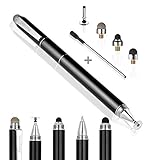
- 4-in-1 UNIVERSAL STYLUS: Penyeah stylus pen for touchscreen include 4 different of touch screen stylus replaceable tips: 1 X 0.27" clear disc tip; 1 X 0.23" mesh fiber tip; 1 X 0.16" rubber tip and 1 X 0.2 " rubber tip; plus a smooth black ink ball point writing pen. One stylus delivers 4 different using experience; Note: It's not paml-rejection, please don't rest your hand on the screen, or it will not work smoothly
- FULLY COMPATIBLE & VERSITILE: The clear disc stylus is universal and drawing like a fine point stylus; 100% compatible with all capacitive touch screen devices (iPhone,iPad,iPad Pro,Samsung,Galaxy, Android, Cellphone,Laptop,Computer,Kindle,Tablets,HP,Dell,Microsoft,Surface etc.); Perfect for digital signing,browsing,writing,taking notes,drawing apps,playing games; Quick responsive, no battery required, no need for setup; Slim with sturdy pocket clip, easy to use and carry around
- UNIQUE DESIGN FOR YOUR STYLE: The tablet pens for touch screen is made of high grade metal material, handy comfortable feeling, solid, durable and corrosion resistant. All screw type tips are interchangeable. So you can DIY your-style stylus pen according to your needs and using preference
- HIGH ACCURATE & PRECISE: The precison stylus for ipad disc tip provides much better flexibility and accuracy, allows you to see exactly where your mark is being made and gives you the accurate point; Mesh fiber tip glides easily on your screens, and rubber tips can help you select small icons exactly, Penyeah stylus provide you more choice for all your daily use
- WHAT YOU GET: Penyeah universal stylus pen x1; High sensitive disc stylus tip x1; Responsive mesh stylus tip x1; 0.16 inch fine point small rubber tip x1; 0.2 inch larger rubber tip x1; Standard D1 pen refill x1; black pen sleeve x1; User manual x1.
Can a “universal” stylus work on every laptop?
No. “Universal” may mean that a passive capacitive stylus works on many touchscreens, or that an active pen supports several documented protocols. Neither meaning guarantees compatibility with every laptop or every pen feature.
Use a multi-protocol pen only when its manufacturer explicitly lists the laptop, digitizer technology, and desired features. A multi-protocol pen may support MPP, WGP, AES, or USI in different modes, but the laptop still needs the corresponding digitizer and the pen may not provide identical pressure, tilt, palm rejection, button, or charging features in every mode.
Can you use an Apple Pencil on a Windows touchscreen laptop?
Apple Pencil is not a general-purpose stylus for Windows touchscreen laptops. Apple Pencil should be used only with devices explicitly designed to support it; a Windows laptop’s touchscreen does not become Apple Pencil-compatible because the screen responds to fingers.
Frequently Asked Questions
Can I use a stylus on a laptop that is not touchscreen?
You cannot use a stylus directly on a non-touch laptop display. You can still draw by connecting an external USB graphics tablet or pen display, which has its own pen hardware.
Does Bluetooth make an active stylus compatible with a laptop?
No. Bluetooth may connect shortcut buttons or extra features, but Bluetooth cannot add the active digitizer required for on-screen pen input. A pen can pair successfully and still be incompatible with the display.
Why does my finger work but my active pen does not?
A working finger confirms touch input, not active-pen support. The laptop may lack an active digitizer, or the pen may use an incompatible protocol; verify the exact model, display configuration, and MPP, Wacom AES, USI, or other supported technology.
Recommended Free Tools
Can a 4,096-pressure-level pen provide 4,096 levels on any touchscreen laptop?
No. A 4,096-level specification applies only when the pen, laptop digitizer, drivers, operating system, and application support that pressure input. The specification does not make an ordinary capacitive touchscreen pressure-sensitive.
The Bottom Line
The bottom line
You can use a stylus on a touchscreen laptop, but the answer depends on what “use” means. A passive capacitive stylus is suitable for finger-like navigation on most capacitive touchscreens. Handwriting and drawing require an active-pen digitizer and a pen using the laptop’s exact protocol.
Before buying, identify the complete laptop model and display configuration, confirm active-pen support, match MPP, Wacom AES, USI, EMR, or another documented technology, and verify the features you need. If the laptop has no active digitizer, choose a passive stylus for navigation or an external graphics tablet or pen display for serious writing and drawing.

