
Do these 3 things before closing this tab:
1Repair Windows errors before they cause bigger problems2Fix the driver behind crashes, sound loss and screen glitches3Clear out junk files and repair common Windows errorsToggl Track is the best overall time tracking software for freelancers, agencies, consultants, and professional-services teams that need reliable project hours, billable rates, estimates, reports, and profitability without intrusive employee surveillance. However, it is not the best choice for every workplace: choose Clockify for a very low-cost team tracker, QuickBooks Time for QuickBooks-connected payroll, Jibble for attendance and field work, Harvest for built-in invoicing, Hubstaff when employee monitoring is an explicit requirement, and TimeCamp for automatic app and website tracking.
These products solve different problems. The right choice depends on whether you need billable project reporting, payroll-ready attendance, GPS and kiosk controls, invoicing, workforce monitoring, or automatic activity capture.
Best time tracking software at a glance
| Best for | Software | Starting or notable pricing | Why choose it |
|---|---|---|---|
| Best overall for billable professional work | Toggl Track | Free; Starter $9/license/month; Premium $14/license/month for the first annual-billing year, then $18 | Excellent project tracking, billable rates, estimates, reports, approvals, profitability, and integrations |
| Best free team tracker | Clockify | Free for unlimited tracked time and up to four invited people; paid plans from $3.99/seat/month annually | Low-cost time tracking with projects, billability, reports, and optional scheduling and workforce features |
| Best for QuickBooks payroll and accounting | QuickBooks Time | Time Premium lists $20/month plus $8/user/month; QuickBooks Online is required | Clock-ins, breaks, job switching, approvals, GPS-related options, and direct QuickBooks integration |
| Best free attendance and field-work option | Jibble | Free plan advertises unlimited users | Attendance, mobile and web clock-ins, GPS, facial recognition, kiosks, time off, and offline field tracking |
| Best for built-in invoicing | Harvest | Free for one seat and two active projects; Teams from $9/seat/month annually | Time, expenses, budgets, reports, invoicing, and accounting integrations in one product |
| Best for employee activity monitoring | Hubstaff | Starter from $4.99/seat/month annually; two-seat minimum | Screenshots, app and URL tracking, activity levels, scheduling, attendance, payroll, and workforce analytics |
| Best low-cost automatic tracker | TimeCamp | Free; paid plans from $3.99/user/month annually | Automatic app and website tracking at a lower price than most workforce-monitoring suites |
Prices are listed in U.S. dollars and reflect the supplied pricing information checked on August 9, 2026. Promotional pricing, billing intervals, taxes, usage charges, minimum seats, and legacy-account terms can change the total cost.
How to choose the right time tracker
Start with the output you need, not the timer interface. A freelancer sending client invoices needs a different product from a construction company proving who arrived at a job site.
Quick wins for a faster PC:
Repair Windows errors before they cause bigger problemsFix Now →Scan for outdated or missing drivers - takes under a minuteDriver Scan →#1 Best Overall

- Atomic Clock Digital - The clock has a built-in receiver that automatically synchronizes itself with WWVB radio broadcast, which will set and update time automatically every midnight, no need to set manually. It has four time zones selectable: EST, PST, MST, CST.
- Digital Wall Clock Battery Operated - This digital clock is supported by 3xAAA battery (Not included). No wires make it can be placed anywhere; and the low battery symbol reminds you to replace the battery in time to avoid getting the wrong time due to low power.
- Digital Wall Clock Large Display - The LCD screen measures 6.2 in x 3.7 in and it displays time, indoor temperature, day and date. Each section is showed separately, allows you to read the content easily and quickly.
- Atomic Clock with Auto DST - With DST on, the time would go forward or backward one hour automatically in daylight saving time, no worry about time changing on that day. If for no need, it could also be turned off, then “AUTO DST” disappears from screen.
- Digital Alarm Clock - The alarm could be turned on or off according to your need, just click the button to set. When alarm is set on, there is a bell icon staying on screen. The icon will disappear if alarm is set off. When alarm goes off, just click any button to stop it on the day.
- Need client and project profitability? Start with Toggl Track, Harvest, or Clockify.
- Need approved hours to flow into payroll or accounting? Choose QuickBooks Time if you already use QuickBooks Online.
- Need attendance, locations, geofencing, kiosks, or offline clock-ins? Compare Jibble and QuickBooks Time.
- Need screenshots, app usage, or URL activity? Consider Hubstaff, but only after documenting the privacy and employee-relations implications.
- Need passive tracking of applications and websites? TimeCamp is the more focused low-cost option.
- Need simple adoption and clean reporting without surveillance? Toggl Track is the safest default for most knowledge-work teams.
Also check how each vendor counts users. Some charge per license or seat rather than per person who actively tracks time, and invited users may count even before they record an entry.
1. Toggl Track: best overall for freelancers, agencies, and professional services
Toggl Track is the strongest general-purpose choice for people who sell time: freelancers, consultants, agencies, legal and accounting practices, software contractors, and other professional-services teams. It emphasizes accurate project and billable-hour tracking rather than turning every employee’s computer activity into a monitoring report.
Its Starter plan adds billable rates, project estimates and alerts, team reporting, revenue analysis, project tasks, and collaboration. Premium adds profitability analysis, fixed-fee projects, scheduled reports, timesheet approvals, customizable reports, Jira and Salesforce integrations, and SSO.
Toggl Track pricing
- Free: available without a paid subscription.
- Starter: $9 per license per month.
- Premium: $14 per license per month for the first year of annual billing, renewing at $18 per license per month.
The Premium price is a significant buying detail: $14 is not the indefinite renewal price. Billing is also based on licenses, not simply the number of members who currently track time. Removing a member may leave a vacant paid license until an administrator removes that license from the subscription. Review the subscription before renewal.
What’s actually slowing this PC down?
Pick the symptom - the matching free tool is one click away.
How to start a timer in Toggl Track
- Open the Timer page.
- Click the pink clock icon in the upper-right corner to enter Timer mode.
- Click the pink play icon or press N.
- Enter the Description, Project, and Tag.
- Stop the timer with the red stop icon or press S.
The desktop application can work offline and synchronize entries after the connection returns. Its idle detector does not decide whether inactivity was legitimate work: it offers choices such as Discard idle time, Discard idle and continue, Add idle time as new time entry, and Keep idle time.
Browser-extension auto-stop is not guaranteed after a force-quit or abrupt system shutdown. Administrators can also hide start and end times, removing those fields from relevant entry views.
Reports and data retention
Use the Detailed Report page for detailed time-entry exports. Workspace-wide exports are under Settings → Data Export; the generated download link is valid for 72 hours. Free accounts with no new time-entry data for six months can be deleted under Toggl’s inactive-account policy, while paid plans retain inactive data indefinitely.
Choose Toggl Track if: people need to track billable work quickly, managers need project and profitability reporting, and you want a relatively low-surveillance approach.
Free tools Windows power users keep installed
One-click scans. No signup required.
Choose something else if: payroll attendance, biometric verification, job-site geofencing, or mandatory screenshots is the central requirement.
2. Clockify: best free tracker for a small team
Clockify is the best starting point when the main goal is recording hours at the lowest practical cost. It works well for freelancers and small teams that need projects, tasks, billability, tags, timesheets, and reports but do not yet need a full attendance or payroll platform.
Clockify pricing
- Free: unlimited tracked time and up to four invited people.
- Basic: $3.99 per seat per month annually or $4.99 monthly.
- Standard: $5.49 per seat per month annually or $6.99 monthly.
- Pro: $7.99 per seat per month annually or $9.99 monthly.
- Enterprise: $11.99 per seat per month annually or $14.99 monthly.
The free plan is not unlimited users. It permits unlimited tracked time but currently allows up to four invited people. Paid seats include active and invited users; deactivated users do not occupy seats.
Rank #2

- 3 Time Display Modes: Classic digital clock with traditional time display that aligns with standard reading habits. Colorful clock mode displays three colors simultaneously to distinguish week, time, and date, convenient for elderly users, young people, and children. Wall clock mode features imitation pointer design that decorates living rooms and bedrooms
- Power Outage Memory Function: Plug-in powered clock (no battery option) retains all settings after a power outage, eliminating the need to reset when power is restored. Features automatic DST (Daylight Saving Time) adjustment for hassle-free time changes
- 12 Daily Alarms and 3 Medication Reminders: Set up to 12 daily alarms for meals, appointments, exercises, feeding pets, bathroom breaks, drinking water, and taking medications. Includes 3 groups of medication reminders with options to repeat or not repeat. Functions as a dementia clock, digital wall clock, or desk clock
- Auto Dimming and 10 Language Options: Screen brightness adjusts automatically between day and night modes based on time (Bright: 7:00 am to 7:59 pm, Dim: 8:00 pm to 6:59 am), or can be set to fixed brightness. Features 10 built-in system languages: English, German, Spanish, Portuguese, French, Italian, Dutch, Czech, Polish, and Swedish
- Large Easy-to-Read Display: High contrast display with adjustable font colors in classic digital clock mode including white (default), yellow, red, or green options for seniors or those with visual needs. Soft, flicker-free backlight emits no harmful blue light for comfortable viewing without eye strain
Pro adds scheduling, forecasting, expenses, labor cost and profit, budgets, custom fields, alerts, forced timers, GPS tracking, kiosk photo capture, and screenshots. Enterprise adds SSO, custom subdomains, SCIM provisioning, account control, and audit logs. Private project visibility requires a paid plan because free-plan projects can only be public.
How to track time in Clockify
- Open the workspace.
- Select Time Tracker from the sidebar.
- Click the clock icon in the upper-right corner to enter Timer mode.
- Optionally enter What are you working on?, Project/Task, Billability, and Tags.
- Click START, then click STOP when finished.
Clockify’s timer continues running if a user leaves the page or closes the browser. The browser extension has a separate option to stop the timer when the browser closes. Only one active timer is allowed within a single workspace; simultaneous timers require separate workspaces.
If someone forgets to start the timer, edit the existing entry or use Timesheet to add the missing time. If you enable Force Timer under Workspace settings → Permissions, users cannot create split or duplicate time entries.
Choose Clockify if: your priority is inexpensive project time tracking and you can work within the free plan’s four-person invitation limit.
Choose Toggl Track instead if: you need more polished profitability workflows or want a stronger default for client-facing professional-services reporting.
3. QuickBooks Time: best for payroll-connected timekeeping
QuickBooks Time is the right choice when approved hours must feed QuickBooks accounting or payroll. It is not a standalone low-cost time tracker: a QuickBooks Online account is required.
QuickBooks Time pricing
The current Time Premium pricing page lists a $20-per-month base fee plus $8 per user per month. A promotional $10-per-month base price is shown for the first three months in some offers. The base fee includes one administrator. Confirm the offer, QuickBooks Online subscription, user count, and renewal price before purchasing.
Clocking in through QuickBooks Online
- Sign in to QuickBooks Online.
- Go to All apps → Time → Time entries.
- Select Clock in.
- Choose a job or customer, then select Clock In.
- To change work, select Switch jobs.
- For a break, select Take break and choose the break type.
- Select Save when required.
- Select Clock out when finished.
In the separate QuickBooks Time interface, the path is Time Clock → choose a job or customer → Clock In. Switch tasks by choosing a new job and selecting Switch, then select Clock Out at the end of the shift.
Within QuickBooks Online, current navigation is All apps → Time → Overview or All apps → Time → Time entries. The separate classic QuickBooks Time site remains available for advanced settings and reporting. The mobile app is now called QuickBooks Workforce; older comparisons may call it the QuickBooks Time app or use the former TSheets name.
Approval, mobile, and GPS details
Workers submit time through Submit Time → Submit Week. After submission, they cannot edit the timesheet unless an administrator rejects it. Approving a timesheet locks it and prevents further changes.
Mobile time entry, GPS, geofencing, mileage, notifications, and related permissions must be configured by an administrator. If mobile time entry is disabled, workers cannot clock in or out from the mobile app.
Rank #3

- Atomic Wall Clock Never Need Setting: Atomic clock has a built-in receiver that automatically synchronizes itself with the WWVB radio broadcast by the US Government's National Institute (NIST) in Fort Collins, Colorado. The Atomic Clock will always be accurate to within one second as it receives daily WWVB updates. (No Backlight)
- Atomic Clock with Indoor/Outdoor Temp: The Wireless outdoor sensor transmits the outdoor temperature to the atomic clock. The sensor should be placed within 100ft of the clock. Also, clock has a built-in high-quality indoor temperature sensor so that you can read the temperature both indoor and outdoor
- Digital Wall Clock Large Display: Jumbo 2.5 inch Height Time Digital Display - Use as either a wall clock or as a desk clock, it is easy to read, easy to Use and easy to set up. This atomic clock has been designed with absolute simplicity in mind, you can also set it manually. Excellent clocks for seniors, suitable for anyplace in your home or office
- Atomic Clock Digital: 12/24 Hour time formats with accurate and clear second minute and hour display; 4 time zone to choose (PST, MST, CST, EST); auto daylight saving time; temperature display units in Celsius or Fahrenheit
- Digital Wall Clock Battery Operated: Both clock and outdoor sensor are supported by batteries only, no need to plug or charge (Batteries not included). The existed alarm features can wake you up in the morning or help you keep track of dates and days of the week to avoid missing any important meetings or appointments
Choose QuickBooks Time if: payroll and accounting integration matter more than the lowest subscription price.
Choose Jibble instead if: you need attendance and field verification but do not already use QuickBooks Online.
The Tool Desk
Outbyte Driver Updater FREEScan for outdated or missing drivers - takes under a minuteDriver Scan →Outbyte PC Repair FREERepair Windows errors before they cause bigger problemsFix Now →4. Jibble: best free attendance and field-work tracker
Jibble is designed around workforce attendance rather than agency-style project profitability. It is a strong fit when the central question is “When and where was each employee working?” rather than “How profitable was each client project?”
Its advertised free plan includes unlimited users, mobile and web clock-in, basic timesheets, GPS, facial recognition, time-off management, payroll-ready reports, and integrations. Jibble also lists integrations with Slack, Microsoft Teams, and QuickBooks. Core areas include Dashboard, Attendance, Timesheets, Locations, Time Off, Kiosk, and Reports.
Offline clock-in is useful at job sites with poor connectivity; entries synchronize when the device reconnects. Managers should verify that synchronization completed before relying on the data for payroll or compliance.
GPS, geofencing, face recognition, selfie verification, and kiosk workflows are powerful but introduce location and biometric-data responsibilities. Before deployment, explain what is collected, when it is collected, who can access it, and how long it is retained. Check company policy and applicable law, particularly for biometric and employee-location data.
Recommended Free Tools
The free claim refers to the advertised free time-and-attendance setup. Check the current plan comparison for advanced workforce functionality and enterprise controls before committing.
Choose Jibble if: attendance, breaks, overtime, locations, kiosks, offline use, or job-site verification are central.
Choose Toggl Track, Harvest, or Clockify if: client billing, project budgets, estimates, and profitability are more important than employee attendance.
5. Harvest: best for time tracking plus invoicing
Harvest combines time tracking, expenses, project budgets, team reports, and invoicing. It suits agencies and consultants that want to turn approved project time and expenses into client invoices without stitching together as many separate tools.
Harvest pricing
- Free: one seat and two active projects.
- Teams: $9 per seat per month annually or $11 monthly.
- Enterprise: $14 per seat per month annually or $17.50 monthly.
- Enterprise Plus: custom pricing.
Teams includes time tracking, team reporting, invoicing, and integrations with Stripe, QuickBooks Online, Xero, Deel, and others. Harvest states that additional invoices, projects, clients, and tasks can create usage-based charges, so do not evaluate the product using the seat price alone.
Rank #4

- Large Digital Wall Clock with Big Numbers - Easy to Read: WallarGe digital wall clock has a high-definition LCD screen measures 14x6 inch and the time display is 8.1x4.3 inch, the large display helps you read the time from many angles at a room distance. You can also read the indoor temperature and date on screen for full information
- Digital Wall Clock Battery Operated - Easy to Setup: The clock is supported by 4xAA battery (not included). There is a low battery indicator display on screen when battery is not power enough, no more worries about forgetting to replace new batteries. The function buttons are at the back which are easily to set
- Day and Temp Display Switchable: There are three modes optional for the day/temp display: Day only, Temp only, Day and Temp display in turns every 10s. Just click the button at back to choose the display mode you favored. No matter which mode of day/temp you choose, the time and date will not change
- Wall Mount Large Digital Clock with Fold-out Stand - Digital Clock for Wall or Desk: The clock comes with a mounting template ruler showing 8.7 inches distance between two mounting holes, so you don't need to measure holes on wall. If you intend it to be placed on desk with no holes on wall, you can just unfold the fold-out stand
- Wall Clock Large Display with AUTO DST: The clock will automatically adjust time in Daylight Saving Time with AUTO DST on. It has two time display modes (Military time and Standard time), just click 12/24 button to switch. And the alarm is optional, it can be turned off manually if for no need
A free trial is fully featured except for SAML-based SSO. The checkout page preselects Enterprise + Annual after the trial; change both the plan and billing interval if that is not what you want. Legacy accounts created under older plans may have different prices and features.
Harvest’s 2026 navigation change
Harvest changed its navigation in 2026. Accounts created before April 8, 2026 could temporarily switch back to the old navigation. Beginning July 22, 2026, users who remained on the old navigation began receiving a prompt to move to the new one, and the old navigation is no longer maintained or receiving new features.
In the new navigation, Timesheet is the home for time tracking. It includes Day, Week, and Calendar views and supports submitting timesheets and expenses for approval.
Be cautious when downgrading: moving from Enterprise to Teams removes features including activity logs, profitability reports, required notes, saved and shared reports, and SAML SSO.
Choose Harvest if: invoicing and expenses are nearly as important as tracking time.
Choose Toggl Track if: your main concern is flexible time capture and deeper project profitability rather than an integrated invoicing workflow.
Independent reader supportYour contribution helps us test, update, and keep practical guides available for everyone.6. Hubstaff: best when employee monitoring is an explicit requirement
Hubstaff is materially different from a normal project timer. It combines time tracking with activity levels, screenshots, app and URL tracking, idle-time controls, scheduling, attendance, payments, payroll, and workforce analytics.
PC Slower Than It Used to Be?
A free scan shows the junk files, broken settings and background clutter dragging Windows down - then fixes them in one click.Free scan · Windows 10 & 11Outdated Drivers Are Slowing You Down
One free scan finds every outdated or missing driver and matches the right update for your exact hardware.Free scan · exact hardware matchHubstaff pricing
- Starter: $4.99 per seat per month annually or $7 monthly.
- Grow: $7.50 per seat per month annually.
- Team: $10 per seat per month annually.
- Enterprise: $25 per seat per month annually.
Hubstaff has a two-seat minimum. Starter includes limited screenshots and limited app and URL tracking. Grow adds reports, idle timeout, project budgets, expenses, and one integration. Team adds unlimited screenshots, unlimited app and URL tracking, scheduling, attendance, payments and payroll, and unlimited integrations. Enterprise adds features such as SSO, SCIM, HIPAA compliance, SOC 2 Type II compliance, silent background tracking, and locations.
Screenshots and activity tracking are not neutral timesheet features. They can affect employee trust, privacy, workplace culture, and legal compliance. Before enabling them, document what is collected, when tracking runs, who can see the data, how long it is retained, and how employees are notified. Hubstaff documents that screenshot tracking is optional and can be controlled at the organization level; review its compliance and data-governance information.
Choose Hubstaff if: monitoring is a deliberate, documented business requirement—for example, activity evidence for distributed work or workforce operations.
Do not choose it merely because: you want ordinary billable-hour reports. Toggl Track, Harvest, or Clockify will usually be less intrusive and easier to explain to a professional team.
Do these 3 things before closing this tab:
1Fix the driver behind crashes, sound loss and screen glitches2Repair Windows errors before they cause bigger problems3Scan for outdated or missing drivers - takes under a minuteBest Value
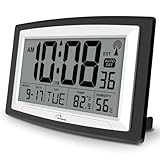
- Atomic Digital Clock Auto Set (No back light) - Using radio frequencies broadcast from NIST’s Colorado , the clock will automatically set to the correct time. Automatically adjusts to Daylight Savings Time while set the DST on.
- Atomic Wall Clocks Battery Operated with Alarm - This digital calendar alarm day clock required 3 “AA” long life batteries (Not included) for operation, no redundant wires, easy to use. Turn on the alarm clock before going to bed, it will wake you up in the morning.
- Clock with Temperature and Humidity - Excellent wall clocks for living room, office, bathroom decor,etc. Help you monitor indoor temperature and humidity to avoid cold. 12/24 hours formats with clear Hours, Minutes and Seconds display; 4 Time Zone to choose.
- Atomic Clock Large Display for seniors - WallarGe atomic clock has been designed with absolute simplicity in mind, you can also set it manually without any more ado. Wall clock or desk clock, large and clear digital display, easy to read.
- Digital Wall Clock with Accurate Date and Time - This digital calendar alarm day clock can help you keep track of dates, days of the week and times to avoid missing any important meetings, appointments or anniversaries, work well for work, study or travel schedule.
7. TimeCamp: best low-cost automatic tracker
TimeCamp is worth considering when manually starting and stopping timers is the main adoption problem. Its focus is automatic app and website tracking, making it useful for teams that want activity captured in the background rather than relying entirely on memory.
TimeCamp has a free plan. Paid plans start at $3.99 per user per month annually or $5.49 monthly. Premium automatic tracking starts at $6.99 per user per month annually. Automatic activity tracking can be useful for reconstructing work patterns, but it is not the same as payroll-grade attendance, job-site verification, or advanced project profitability.
Choose TimeCamp if: automatic app and website tracking matters more than sophisticated workforce, payroll, or field-operation functions.
Which time tracking software should you buy?
| Your situation | Best first choice | Reason |
|---|---|---|
| Solo freelancer tracking client work | Toggl Track | Fast manual tracking, billable rates, project reporting, and a free starting point |
| Small agency needing estimates and profitability | Toggl Track | Starter and Premium add estimates, revenue analysis, profitability, approvals, and reports |
| Small team that wants the cheapest practical option | Clockify | Unlimited tracked time on free, with up to four invited people |
| Business already running QuickBooks Online payroll | QuickBooks Time | Time entries, approvals, and worker hours connect to QuickBooks |
| Construction, field service, or shift attendance | Jibble | GPS, locations, kiosks, attendance, offline clock-in, and time-off features |
| Consultancy that invoices from tracked work | Harvest | Time, expenses, reports, invoices, and accounting integrations in one product |
| Company requiring screenshots or application tracking | Hubstaff | Monitoring, activity levels, scheduling, attendance, and workforce analytics |
| Team that will not reliably start timers | TimeCamp | Automatic app and website tracking reduces manual timer entry |
What common comparisons get wrong
- “Clockify is free for unlimited users.” The free plan currently allows unlimited tracked time but up to four invited people. Paid plans charge for active and invited seats.
- “Toggl Track Premium costs $14 per user indefinitely.” The $14 price applies to the first year of annual Premium billing; renewal is $18 per license per month.
- “Harvest is a flat per-user subscription.” Harvest’s current plans can add usage-based charges for invoices, projects, clients, and tasks.
- “QuickBooks Time is a standalone tracker.” QuickBooks Online is required, and the main advantage is the accounting and payroll connection.
- “QuickBooks Time’s mobile app is still TSheets.” The current mobile experience is QuickBooks Workforce. TSheets is the former product name.
- “All time trackers are interchangeable.” Toggl Track, Clockify, and Harvest are primarily project and billable-time tools; QuickBooks Time and Jibble emphasize payroll and attendance; Hubstaff emphasizes employee monitoring; and TimeCamp emphasizes automatic activity tracking.
Implementation checklist before you roll out a tracker
- Define the purpose. Decide whether the system is for client billing, project estimation, payroll, attendance, compliance, or productivity analysis.
- Choose the smallest necessary data set. If project hours solve the problem, do not automatically collect screenshots, URLs, GPS, or biometric data.
- Set the project structure first. Create clients, projects, tasks, billable status, rates, and approval rules before asking employees to track.
- Test the export or accounting flow. Run a sample week through reports, invoice creation, or QuickBooks payroll before relying on it.
- Write correction rules. Explain how employees add forgotten time, correct breaks, submit a week, and request rejection of an incorrect timesheet.
- Check subscription mechanics. Confirm whether invited users count as seats, whether vacant licenses remain billable, whether there is a minimum seat count, and whether annual prices renew at a higher rate.
- Communicate monitoring clearly. For GPS, facial recognition, screenshots, app tracking, or background monitoring, state what is collected, when, why, who can access it, and how long it is retained.
- Review after the first month. Measure missing entries, correction volume, report usefulness, adoption, and whether the collected data is actually used.
Bottom line
For most freelancers and professional-services teams, start with Toggl Track. It offers the best balance of simple adoption, billable project tracking, reporting, estimates, and profitability without making surveillance the center of the product.
Use Clockify when price is the deciding factor, QuickBooks Time when QuickBooks payroll is the system of record, Jibble for attendance and field verification, Harvest for integrated invoicing, Hubstaff only when monitoring is intentional and properly governed, and TimeCamp when automatic activity capture is more important than payroll or field-work features.
Frequently Asked Questions
What is the best time tracking software overall?
Toggl Track is the best overall choice for freelancers, agencies, consultants, and professional-services teams that need billable project hours, estimates, reporting, and profitability without making employee surveillance the central feature.
What is the best free time tracker for teams?
Clockify is the strongest low-cost starting point. Its free plan supports unlimited tracked time and up to four invited people. It is not free for unlimited users, and paid plans charge for active and invited seats.
Is QuickBooks Time a standalone time tracking app?
No. QuickBooks Time requires a QuickBooks Online account. Its main advantage is connecting clock-ins, approvals, and worker hours with QuickBooks accounting and payroll.
Free tools Windows power users keep installed
One-click scans. No signup required.
Which time tracker is best for GPS and attendance?
Jibble is the best fit when attendance, GPS, geofencing, kiosks, offline clock-ins, breaks, overtime, or field-work verification are central. QuickBooks Time is an alternative when the organization already uses QuickBooks Online.
Should employers use screenshots and employee activity tracking?
Only when monitoring is an explicit, documented requirement and the organization has addressed privacy, employee-relations, security, retention, and applicable legal considerations. Hubstaff offers these capabilities, but a normal project tracker such as Toggl Track or Harvest is less intrusive when the real need is simply recording billable hours.
The Bottom Line
Best overall: Toggl Track. Best free small-team option: Clockify. Best payroll connection: QuickBooks Time. Best attendance and field tracking: Jibble. Best invoicing: Harvest. Best monitoring suite: Hubstaff. Best automatic tracker: TimeCamp.
Quick Recap
Product prices and availability are accurate as of the date/time indicated and are subject to change. Any price and availability information displayed on Amazon at the time of purchase will apply.

