
iTechGuides is reader-supported. When you buy through links on our site, we may earn an affiliate commission. As an Amazon Associate I earn from qualifying purchases. Learn more
The best stylus is the one that matches your tablet’s digitizer. For a compatible modern iPad, choose Apple Pencil Pro; for a Galaxy Tab, consider the Samsung S Pen Creator Edition or the tablet’s included S Pen; for a Surface, choose Surface Slim Pen 2 after checking the exact model; and for a newer supported Wacom tablet or display, buy the matching Wacom Pro Pen 3. iPad owners who want a simpler shared-device option should consider Logitech Crayon USB-C.
These are not universal pens. Compatibility matters more than a headline pressure-sensitivity number, and a pen that works perfectly with one tablet may not work at all with another.
Quick recommendations
| Best for | Recommended stylus | Why it stands out | Important limitation |
|---|---|---|---|
| Compatible modern iPads | Apple Pencil Pro | Squeeze, barrel roll, hover, haptic feedback, double-tap, magnetic pairing and charging | Works only with specific newer iPad models and iPadOS 17.5 or later |
| Compatible Galaxy Tab tablets | Samsung S Pen Creator Edition | Artist-oriented grip, tilt sensitivity and no charging requirement | No Bluetooth, Air Actions or charging; compatibility varies by model |
| Surface tablets and 2-in-1 PCs | Microsoft Surface Slim Pen 2 | Pressure-sensitive inking, zero-force inking, buttons and rechargeable battery | Haptic features are limited to particular Surface hardware and Windows configurations |
| Supported newer Wacom hardware | Wacom Pro Pen 3 | Configurable grip, button and nib options | Not compatible with older Wacom pen technology |
| Simple iPad sketching and shared devices | Logitech Crayon USB-C | Tilt support, palm rejection, replaceable tip and USB-C charging | Does not offer the full Apple Pencil Pro feature set |
Before buying: identify the exact tablet model
Start with the tablet, not the stylus. “iPad Pro,” “Galaxy Tab,” “Surface” and “Wacom Cintiq” each describe several generations with different digitizers and pen protocols. Check the tablet’s exact model name or model number, then confirm compatibility on the stylus manufacturer’s current product page.
This step prevents the most expensive common mistake: buying a premium active pen that cannot pair with the device. Also check whether the pen is included with the tablet. Some Galaxy Tab and Wacom products ship with a compatible pen, so an upgrade may provide a different grip or feature set rather than basic pen input.
Active pens versus generic capacitive styluses
An active pen communicates with a compatible digitizer. Depending on the ecosystem, it can provide pressure sensitivity, tilt detection, palm rejection, hover, buttons, wireless pairing or charging. Apple Pencil Pro, Surface Slim Pen 2, Samsung’s S Pen range and Wacom Pro Pen 3 are examples of ecosystem-specific active pens.
Popular on Amazon

- Multifunctional Drawing Tablet – Ctab 12 is a 12-inch Android 15 tablet, powered by a T616 octa-core processor with 16GB RAM and 256GB ROM (expandable up to 2TB) for smooth multitasking. Ideal for online teaching, Zoom meetings, and digital art creation, it’s perfect for beginners and professionals in drawing, sketching, design, 3D work, and animation.
- Ultra-Sensitive Stylus for Seamless Creativity – This tablet with Stylus comes equipped with a rechargeable pen offering 4096 pressure levels and tilt support, ensuring precise, natural strokes for professional-grade results. The pen attaches magnetically to prevent loss and includes a drawing glove for a comfortable, smudge-free experience—perfect for artists and designers.
- Experience Every Detail in Stunning Clarity – The 12-inch IPS display delivers crisp, vibrant 2K visuals, bringing every brushstroke, movie, or game to life. Wide viewing angles and anti-glare technology ensure accurate colors and comfortable, precise artwork from any position.
- Large Screen with Protective Case – Enjoy a spacious canvas for drawing, sketching, or working on this Android tablet. The included protective case features three folding modes, offering multiple viewing angles while protecting your tablet from scratches and bumps—ideal for creating, typing, or watching videos anywhere.
- 8000mAh Long-Lasting Battery – Android tablet features a powerful 8,000mAh battery, providing up to 6 hours of video playback or creative work. The reinforced Type-C port allows easy charging from any orientation, giving you more uninterrupted time for drawing, streaming, or productivity.
A generic capacitive stylus simply imitates a finger. It can be useful for tapping or occasional annotation, but it is not a sensible replacement for a pressure-sensitive drawing pen. It generally cannot provide the same pressure, tilt or palm-rejection behavior.
How much should you care about pressure levels?
Pressure-level figures should not be used as a simple ranking of drawing quality. Microsoft publishes 4,096 pressure levels for Surface Slim Pen 2, while Adonit publishes 2,048 levels for selected Note+ models. Those numbers are meaningful only within the complete system: the tablet’s digitizer, operating system, drivers and drawing application all affect how pressure is interpreted.
Recommended Free Tools
In practice, confirm that your preferred art app supports the tablet and pen properly. A hardware feature may also be unavailable in a particular application, even when the tablet and stylus support it.
Best stylus pens for digital artists
1. Apple Pencil Pro — best premium stylus for compatible iPads
Choose it if: you own a compatible recent iPad and want the richest set of drawing-oriented controls.
Apple Pencil Pro is the strongest all-around choice for artists using the iPad models that support it. Its documented features include pressure-sensitive input, squeeze, barrel roll, haptic feedback, hover, double-tap tool switching, magnetic attachment, wireless pairing and magnetic charging. Find My support can also help locate the pencil.
For illustration, the most useful differentiators are not merely the existence of pressure sensitivity. Barrel roll can control the orientation of supported shaped brushes, making it relevant to calligraphy, shading and texture tools. Squeeze can open a tool palette or trigger an app-supported shortcut, while hover lets you position the cursor before the tip touches the canvas. These features depend on the iPad and application exposing them; not every brush engine will use every capability.
Compatibility warning: Apple Pencil Pro is compatible with iPad Pro 11-inch and 13-inch models using M4 or M5, iPad Air 11-inch and 13-inch models using M2, M3 or M4, and iPad mini with A17 Pro, with iPadOS 17.5 or later required according to Apple’s current compatibility information. It does not work with every iPad. Older and entry-level iPads may require a different Apple Pencil model—or may not support Apple Pencil at all.
Also popular on Amazon
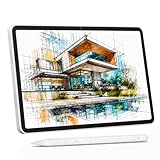
- 【All-in-One Standalone Drawing Tablet】No computer needed. Ready right out of the box. 12" screen, 4096 stylus, 16GB RAM, 256GB storage, Android 15. Runs all your favorite drawing apps smoothly. Perfect for beginners, students, and hobbyists. Create anywhere – from home to coffee shop.
- 【Natural Drawing Feel】4096 pressure levels capture every stroke from delicate lines to bold marks. 60° tilt support lets you shade naturally, just like a real pencil. USI 2.0 ensures compatibility across devices. Magnetic attachment keeps the stylus secure on your portable drawing tablet – no fumbling, no losing.
- 【True Color Canvas】12-inch IPS display with 2000x1200 resolution brings every detail to life. 100% sRGB color gamut ensures vibrant, accurate hues from first sketch to final render. Full-lamination eliminates parallax – your pen tip meets the cursor exactly where you expect. More room to create on this drawing tablet with screen – zero distraction.
- 【Anti-Glare & Eye Comfort】Pre-applied anti-glare screen protector cuts harsh reflections and fingerprints, so you can draw under any light – studio, cafe, or sunlight. Reduced glare means less eye strain, even during marathon sessions. This drawing tablet no computer needed keeps your focus on art, not on squinting.
- 【Open. Smooth. Limitless.】Powered by Android 15 and 16GB RAM (8+8 virtual) – layers pile up, apps multiply, yet zero lag. 256GB storage onboard, expandable to 2TB – room for thousands of artworks, tutorials, and everything you love. Download any creative app from Google Play: ibis Paint, CSP, Krita, you name it. A true art tablet for drawing that adapts to you.
After confirming that your exact iPad is on Apple’s compatibility list, Apple Pencil Pro is the clearest premium-iPad purchase. Its magnetic charging is convenient, but the compatibility check should come before the purchase decision.
2. Samsung S Pen Creator Edition — best artist-focused option for compatible Galaxy Tabs
Choose it if: you use a compatible Galaxy Tab and want a more substantial, drawing-oriented grip with tilt behavior.
Samsung’s S Pen Creator Edition is designed for supported Galaxy devices and includes a hard or soft tip, tilt sensitivity and a comfortable grip. Unlike many rechargeable active pens, it does not require Bluetooth or charging for core pen input: the pen begins working when its tip contacts the screen.
Do these 3 things before closing this tab:
1Clear out junk files and repair common Windows errors2Scan for outdated or missing drivers - takes under a minute3Repair Windows errors before they cause bigger problemsThat simplicity is both an advantage and a limitation. You do not have to remember to charge the Creator Edition for ordinary drawing, but it does not support Bluetooth shortcuts or Air Actions. Do not buy it expecting remote camera controls or other wireless S Pen functions.
Samsung lists compatibility with Galaxy Tab S6 series and later generations, including the Tab S10 and Tab S11 families in its current support material, as well as selected Galaxy phones and Galaxy Book computers that support S Pen input. It is not compatible with Galaxy Z Fold devices. Because support can vary by exact model, verify the tablet before ordering.
For many Galaxy Tab owners, the included or model-specific S Pen remains the practical choice when storage, basic compatibility and replacement availability matter most. If you specifically want a more substantial grip and artist-focused tilt behavior, the S Pen Creator Edition is the better upgrade candidate—provided Samsung lists your exact tablet as compatible.
3. Microsoft Surface Slim Pen 2 — best for compatible Surface PCs and tablets
Choose it if: you draw on a supported Surface tablet, Surface Laptop Studio or other compatible Windows device and want one pen for illustration and general Windows input.
The Tool Desk
Outbyte PC Repair FREERepair Windows errors before they cause bigger problemsFix Now →Outbyte Driver Updater FREEFix the driver behind crashes, sound loss and screen glitchesFind Drivers →Also popular on Amazon

- Word-first 16K Pressure Levels: The upgraded stylus features 16,384 levels of pressure sensitivity and supports up to 60 degrees of tilt, delivering smoother lines and shading for a natural drawing experience. With no battery or charging needed, it operates like a real pen, making it easy for beginners to create effortlessly. This functionality helps novice artists develop their skills and explore their creativity without the intimidation of complex tools
- Designed for Beginners: This drawing pad desinged with 8 customizable shortcuts for both right and left-hand users, express keys create a highly ergonomic and convenient work platform
- Perfectly Adapted for Android: The XPPen Deco 01 V3 art tablet supports connections with Android devices running version 10.0 and above. It is recommended to download the XPPen Tools Android application, which adapts to your smartphone's screen aspect ratio, ensuring accurate mapping. It also supports mapping on Android screens with different aspect ratios in portrait mode
- Large Drawing Space, Bigger Bold Inspiration: This expansive drawing pad has10 x 6.25-inch helps you break through the limit between shortcut keys and drawing area
- Easy Connectivity for Beginners: The Deco 01 V3 offers USB-C to USB-C connectivity, plus adapters for USB C. This ensures easy connection to various devices, allowing beginner artists to set up quickly and focus on their creativity without compatibility concerns. Whether using a laptop, tablet, or desktop, the Deco 01 V3 provides a seamless experience, making it an ideal choice for those just starting their digital art journey
Surface Slim Pen 2 supports 4,096 pressure levels, zero-force inking, Bluetooth 5.0, a side button, a top button with eraser functionality and a rechargeable battery. Microsoft rates typical usage at up to 15 hours in its technical information. Its rechargeable design suits artists who move between sketching, note-taking and a hybrid laptop/tablet workflow.
The important qualification is device-specific functionality. Microsoft Pen Protocol compatibility does not mean every supported device delivers the same experience. Haptic feedback is limited to specific Surface hardware and Windows configurations, so do not assume that every compatible MPP device will reproduce the same tactile response.
Check the exact Surface model and the supported accessories list before buying. Microsoft lists compatibility across selected Surface Pro, Surface Laptop Studio, Surface Go, Surface Book, Surface Studio, Surface Duo and other devices that support the relevant pen protocol, but the product family name alone is not enough.
Once that check is complete, Surface Slim Pen 2 is the most straightforward match for artists who want pressure-sensitive Windows input, programmable buttons and rechargeable operation. Treat its haptic feedback as a bonus that must be confirmed for your particular hardware, not as a universal feature.
4. Wacom Pro Pen 3 — best replacement or upgrade for supported Wacom hardware
Choose it if: you already own a newer supported Wacom tablet or display and need a replacement, additional pen or configurable drawing grip.
Wacom Pro Pen 3 is not a standalone stylus for phones, iPads or arbitrary touchscreen computers. It is a configurable pen designed for particular Wacom products. Wacom’s current Intuos Pro materials list Pro Pen 3 support, and the pen offers configuration options involving its grip, buttons and nib setup.
Compatibility requires special care because Wacom has multiple generations of pen technology. Wacom states that Pro Pen 3 uses newer technology introduced with Cintiq Pro 27 and is not compatible with older Wacom devices. The company’s accessory matrix is the authoritative place to check the exact tablet or display, compatible pens, grips and nibs.
Also popular on Amazon
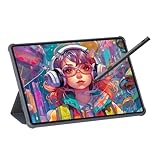
- Stunning Display: Enjoy vibrant colors and crisp details on the 11 inch Nano anti-glare display with a 1920 x 1200 resolution and 90Hz refresh rate
- Rechargeable Pen: The computer graphic tablet is equipped with a rechargeable pen with 4096-level pressure sensitivity and tilt function, making strokes smooth and sensitive
- Soft Light Glass: Nano-etching screen reduces glare/graininess, offers a paper-like texture. Full-laminated design enhances touch precision/image clarity. Soft viewing experience reduces eye strain for natural drawing and extended use. Anti-fingerprint coating ensures cleanliness
- Powerful Performance: Experience seamless multitasking and smooth gaming, 6GB of RAM, and 128GB of storage (expandable up to 1TB)
- All-Day Battery Life: Stay connected and entertained with the long-lasting 8000mAh battery that supports uninterrupted usage throughout the day
Before ordering, find the exact Wacom model and confirm that it uses Pro Pen 3 technology. If the device is an older Intuos, Cintiq or another legacy model, its correct replacement may be a different Wacom pen. A Pro Pen 3 is not a safe universal substitute merely because both products carry the Wacom name.
What’s actually slowing this PC down?
Pick the symptom - the matching free tool is one click away.
For a supported newer device, Wacom Pro Pen 3 makes sense when you want a replacement or prefer to customize the grip and nib configuration. Buy compatible replacement nibs at the same time only after checking the model-level accessory matrix.
5. Logitech Crayon USB-C — best practical iPad alternative
Choose it if: you need straightforward iPad sketching, annotation or classroom use and do not need the advanced controls of Apple Pencil Pro.
Logitech Crayon USB-C uses Apple Pencil technology and offers pixel-precise input, tilt sensitivity, palm rejection, a replaceable tip and USB-C charging. Logitech lists up to seven hours of active writing time. Its simpler operation can be useful for shared tablets, classrooms and households where a pen needs to be easy to hand off and recharge with a common cable.
Crayon should not be described as an equivalent substitute for Apple Pencil Pro. The documented feature set does not establish squeeze, barrel roll, hover, Find My, or magnetic pairing and charging for Crayon. It is a practical iPad stylus, not the feature-maximal choice for artists who rely on advanced brush controls.
Logitech describes compatibility with iPads from 2018 onward, but model and port caveats apply. Confirm your exact iPad and whether it uses the required USB-C charging arrangement before buying. If you want tilt, palm rejection and a replaceable tip without paying for Apple’s highest-end feature set, Logitech Crayon USB-C is a sensible alternative.
Decision guide: which stylus should you buy?
- Find the exact tablet model. Use the device’s Settings page, About screen, model number or original purchase information. Do not rely only on “iPad Pro,” “Galaxy Tab” or “Surface.”
- Check whether the tablet already includes a pen. An included S Pen or Wacom pen may be fully suitable, and a replacement must use the same pen technology.
- Choose the ecosystem match.
- Compatible M4/M5 iPad Pro, M2/M3/M4 iPad Air or A17 Pro iPad mini: Apple Pencil Pro.
- Compatible Galaxy Tab S-series tablet: included/model-specific S Pen for simplicity, or S Pen Creator Edition for its grip and drawing-oriented tilt behavior.
- Compatible Surface: Surface Slim Pen 2, with a separate check for haptic support.
- Supported newer Wacom tablet or display: matching Wacom Pro Pen 3 configuration.
- Compatible iPad needing a simpler shared-device pen: Logitech Crayon USB-C.
- Check application support. Make sure your preferred drawing app recognizes pressure, tilt, hover or shortcut features as needed. Hardware support does not guarantee that every app or brush engine exposes every function.
- Check maintenance accessories. Confirm the correct nibs, grips, charging method and replacement parts. Pen accessories are often model-specific.
- Buy from a current listing. Price, stock, seller, regional availability and bundled accessories change. Verify those details at the time of purchase rather than relying on an old comparison page.
Feature trade-offs that matter to artists
Pressure and tilt
Pressure controls characteristics such as opacity, size or stroke width when configured by the application. Tilt is particularly useful for shading, calligraphic tools and brushes designed to respond to the pen’s angle. Both are dependent on the tablet, operating system and application, not just the stylus specification.
Also popular on Amazon

- All-in-One Drawing Tablet: This standalone tablet requires no computer connection—start drawing right out of the box. Perfect for artists on the go, its sleek aluminum back provides a comfortable feel and makes the writing tablet an ideal choice for note-taking and capturing ideas.
- 10.95-inch Full HD Graphic Tablet: The combination of a 10.95-inch screen and FHD+ (1920*1200) resolution ensures a high pixel density of 207 PPI, delivering a sharp visual experience. With a 99% sRGB color gamut, every stroke of your artwork is precisely represented.
- Smooth 90Hz Refresh Rate: The digital drawing tablet features a 90Hz refresh rate, ensuring smooth visuals with no lag. This makes images more vivid, allowing you to immerse yourself in a seamless creation experience. The digital drawing pad also enhances your viewing experience, whether you're watching films or playing games.
- Full-Laminated Anti-Glare Screen: The digital art pad features a nano-etched, anti-fingerprint matte surface that significantly reduces glare and provides a natural paper-like texture for a comfortable drawing feel. The full-lamination technology minimizes parallax, enhancing stroke precision and clarity, while also helping to reduce eye strain during prolonged use.
- High-Precision H-Pencil: The drawing pen features Huion's years of experience in line-drawing algorithms, offering better accuracy and preventing line offset while drawing. With 4096 levels of pressure sensitivity and 60° tilt recognition, it brings you a writing experience that feels just like using a real pencil.
Wireless features and core pen input
Apple Pencil Pro pairs and charges magnetically and includes wireless features such as Find My. Surface Slim Pen 2 uses Bluetooth and a rechargeable battery. Samsung S Pen Creator Edition does not need Bluetooth or charging for core pen input, but it also does not provide Bluetooth-based shortcuts or Air Actions. Decide whether wireless controls are useful to your workflow or simply another battery to maintain.
Charging and storage
Magnetic charging is convenient when the tablet supports it, while USB-C charging is familiar and practical for shared devices. A non-charging pen can be attractive for classroom or travel use, but check whether it has a secure storage location. Wacom replacement pens and nibs may be easier to manage as part of a dedicated desk setup than as a mobile tablet accessory.
Windows Errors? Fix Them Before They Spread
Repair common Windows errors and clear accumulated junk for a smoother, more stable PC - no reinstall needed.Free scan · no reinstallCrashes, No Sound, or Screen Glitches?
Random freezes, missing sound and display glitches usually trace back to one bad driver. Find and replace yours safely.Free scan · under a minuteNibs and grip
Nib wear, tip feel and grip shape affect long drawing sessions, but official specifications alone cannot prove that one pen feels better to every artist. Look for replacement-part availability and confirm that the nibs fit the exact pen. Wacom’s accessory matrix should be used for Pro Pen 3 parts, while Logitech identifies the Crayon tip as replaceable.
Troubleshooting when a stylus does not work
- Recheck the model number. Compatibility errors are more common than defective pens. Compare the exact tablet model with the manufacturer’s current list.
- Charge or pair only when the pen requires it. Apple Pencil Pro and Surface Slim Pen 2 need their documented pairing or charging process. Samsung Creator Edition does not require Bluetooth for basic input.
- Update the tablet and drawing app. Newer pen features can depend on the operating system and app version.
- Test in another supported application. If pressure or tilt fails in one app but works elsewhere, the issue may be application settings or feature support rather than the hardware.
- Inspect the nib. A loose, damaged or incorrect nib can cause intermittent strokes or poor contact. Use the pen’s compatible replacement part.
- Check Windows drivers for Surface or Wacom hardware. Use the manufacturer’s official support and driver pages first. Third-party driver utilities are not required for ordinary stylus ownership, and installing one should not be the default fix.
What not to assume from a stylus specification sheet
- More pressure levels do not automatically mean better drawing. The digitizer, driver, operating system and app determine how pressure is delivered.
- Compatibility with one device in a family does not guarantee compatibility with another. Check the exact generation and model.
- Bluetooth is not the same as pen input. A pen can draw without Bluetooth, while wireless buttons and remote actions may require it.
- Every application does not expose every hardware feature. Squeeze, barrel roll, hover, haptics and tilt may require app support.
- A replacement pen is not necessarily an upgrade. Wacom’s Pro Pen 3 is tied to newer supported pen technology and cannot safely replace an older Wacom pen.
- Official claims do not prove universal feel or latency advantages. Without controlled independent testing, claims about the most natural texture, lowest latency or best accuracy should be treated as subjective.
Frequently Asked Questions
Can I use Apple Pencil Pro with any iPad?
No. Apple Pencil Pro supports specific newer iPad Pro, iPad Air and iPad mini models. Apple’s current compatibility information lists M4/M5 iPad Pro models, M2/M3/M4 iPad Air models and the A17 Pro iPad mini, with iPadOS 17.5 or later required. Check the exact iPad before buying.
Is the Samsung S Pen Creator Edition rechargeable?
The Creator Edition does not require charging or Bluetooth for core pen input. That also means it does not support Bluetooth-based features such as Air Actions.
Quick wins for a faster PC:
Scan for outdated or missing drivers - takes under a minuteDriver Scan →Clear out junk files and repair common Windows errorsFree Scan →Does Surface Slim Pen 2 work with every Surface device?
No. It works with selected Surface devices and other compatible Microsoft Pen Protocol hardware. Confirm the exact model, and separately check whether haptic feedback is supported because that feature is hardware- and Windows-configuration-specific.
Can Wacom Pro Pen 3 replace an older Wacom pen?
Not generally. Wacom Pro Pen 3 uses newer pen technology and is not compatible with older Wacom devices. Use Wacom’s accessory matrix to verify your exact tablet or display and its compatible pen.
Is Logitech Crayon USB-C as capable as Apple Pencil Pro for artists?
No. Crayon provides useful iPad features such as tilt sensitivity, palm rejection and a replaceable tip, but it is not documented as supporting Apple Pencil Pro features such as squeeze, barrel roll, hover, Find My or magnetic pairing and charging.
The Bottom Line
Choose by ecosystem first: Apple Pencil Pro for compatible modern iPads, S Pen Creator Edition or the included S Pen for compatible Galaxy Tabs, Surface Slim Pen 2 for supported Surface hardware, Wacom Pro Pen 3 for supported newer Wacom devices, and Logitech Crayon USB-C for simpler iPad use. The exact tablet model—not the stylus’s marketing label or pressure-level number—should determine your purchase.
Free tools Windows power users keep installed
One-click scans. No signup required.

