
Quick wins for a faster PC:
Repair Windows errors before they cause bigger problemsFix Now →Scan for outdated or missing drivers - takes under a minuteDriver Scan →Clear out junk files and repair common Windows errorsFree Scan →iTechGuides is reader-supported. When you buy through links on our site, we may earn an affiliate commission. As an Amazon Associate I earn from qualifying purchases. Learn more
For the smoothest Ruffed Up demo performance, first meet the official PC requirements, then use the lowest or medium preset, test fullscreen, reduce shadows and effects before textures, cap FPS at a value your system can hold steadily, and disable overlays while troubleshooting. Change one setting at a time and judge frame-time consistency—not just the highest FPS number. Ruffed Up is still listed on Steam as a demo rather than a released full game, and there is no official per-setting benchmark or guaranteed FPS target.
What these settings can—and cannot—do
Ruffed Up is a chaotic co-op physics game from Elusive Games. The official Steam listing currently shows a demo and says the full game is not yet available on Steam. That matters because graphics options, performance and optimization can change before release. Treat the settings below as a reliable troubleshooting order for the current build, not as a permanent specification for the finished game.
The developer has reported improvements and fixes based on demo feedback, describing them as changes intended “to make things a bit smoother.” Retest after each game update rather than assuming an old workaround is still necessary.
Recommended Free Tools
No official source provides a complete graphics-menu performance guide, a per-setting FPS benchmark or a frametime chart for Ruffed Up. Consequently, no setting can be promised to remove stutter on every PC, and a fixed FPS number would be guesswork. The practical goal is a frame rate your machine can sustain with consistent frame times during busy physics scenes and online play.
#1 Best Overall

- Capacity – 32GB RAM KIT (2 x 16GB Modules) Speed up to 2666MHz Non-ECC Unbuffered 288-Pin 1.2V UDIMM.
- Specs – Black PCB Color and Dual Rank (2Rx8).
- Compatibility – Designed for selected DDR4 Desktop PCs and workstations that support 288-Pin UDIMM memory. NOT compatible with Laptop SODIMM slots.
- Installation – Plug-and-Play Upgrade, Quick and Easy to Install, no expertise required (please refer to your system's manual for guidelines).
- Warranty – All Timetec products are high-quality and rigorously tested to meet stringent standards. Backed by Timetec Limited Lifetime Warranty and professional technical support based in the United States.
Check your starting point against the official requirements
Settings cannot compensate for a system that is substantially below the game’s stated baseline. Compare your computer with the specifications on the Steam page before spending time on fine adjustments.
| Component | Minimum requirement | Recommended requirement |
|---|---|---|
| Operating system | Windows 10 64-bit | Windows 11 64-bit |
| Processor | Intel Core i5 or AMD FX-6300 | Intel Core i7 or AMD Ryzen 7 |
| Memory | 8 GB RAM | 16 GB RAM |
| Graphics | NVIDIA GTX 970 or AMD Radeon RX 580 | NVIDIA GTX 1070 or AMD Radeon RX 5700 XT |
| DirectX | DirectX 12 | DirectX 12 |
| Available storage | 1 GB | 1 GB |
The minimum figures are a starting point, not a promise of high settings or perfectly even frame delivery. The recommended target—especially 16 GB of RAM and the listed processor class—provides more headroom for a physics-heavy co-op game, background services and a modern Windows session.
- If your PC is below the minimum CPU, GPU or operating-system requirement, prioritize hardware or operating-system compatibility before tuning visual options.
- If you have 8 GB of RAM, close background programs and watch memory use; moving toward the recommended 16 GB target is a reasonable conditional upgrade.
- If your hardware is near the recommended level but performance is erratic, continue with the diagnostic sequence instead of assuming that buying a faster graphics card is the answer.
Use this settings sequence in order
Apply the following procedure in the current Ruffed Up demo. Keep a note of the starting settings and your observations so you can undo a change that makes image quality or frame pacing worse.
1. Start with the lowest or medium preset
- Launch Ruffed Up and open its graphics or video options.
- Select the lowest preset if you are below the recommended hardware target, or medium if your system is close to recommended.
- Play the same type of scene for several minutes, preferably including camera movement, multiple physics objects and co-op activity.
- Record the average FPS and whether motion feels consistent. A brief peak in an empty area is less useful than performance during a busy scene.
The exact preset names and available controls are not documented by the official sources, so use the closest equivalent shown by your build. Once frame pacing is stable, raise individual options rather than jumping directly to a high or ultra preset.
2. Test fullscreen before borderless
If the game offers an exclusive fullscreen mode, test it first. Fullscreen can reduce desktop-compositor involvement and may give a steadier presentation on some systems. If you frequently alt-tab, use multiple monitors or experience display problems, compare borderless windowed mode instead; its convenience can outweigh a small performance difference on a particular PC.
Keep resolution at your monitor’s native setting while you establish a baseline. If the GPU is clearly overloaded, reducing resolution or using an in-game resolution scale can be a later experiment, provided the option exists. Make only one display change at a time so you know which change affected the result.
Rank #2

- Boosts System Performance: 16GB DDR4 Pro Series desktop memory RAM kit (2x8GB) that operates at 3200MHz, 3000MHz, or 2666MHz to improve multitasking and system responsiveness for smoother performance
- Easy Installation: Upgrade your desktop RAM with ease—no computer skills required Follow step-by-step how-to guides available at Crucial for a smooth, worry-free installation
- Compatibility Guaranteed: Ensure seamless compatibility with your desktop by using the Crucial System Scanner or Crucial Upgrade Selector—get accurate recommendations for your specific device
- Trusted Micron Quality: Backed by 42 years of memory expertise, this DDR4 RAM is rigorously tested at both component and module levels, ensuring top performance and reliability
- ECC Type = Non-ECC, Form Factor = UDIMM, Pin Count = 288-pin, PC Speed = PC4-25600, Voltage = 1.2V, Rank and Configuration = 1Rx16, 1Rx8 or 2Rx8
3. Lower shadows, effects, reflections and post-processing first
When the game exposes separate quality controls, reduce shadows, effects, reflections and post-processing before sacrificing texture quality. These categories often add substantial rendering work while textures primarily affect memory use and surface detail. That ordering usually preserves a sharper-looking world, but the exact control names and their performance impact in Ruffed Up have not been published, so verify the result on your own system.
Windows Errors? Fix Them Before They Spread
Repair common Windows errors and clear accumulated junk for a smoother, more stable PC - no reinstall needed.Free scan · no reinstallOutdated Drivers Are Slowing You Down
One free scan finds every outdated or missing driver and matches the right update for your exact hardware.Free scan · exact hardware match- Shadows: Move from high to medium or low if busy scenes cause GPU load spikes or uneven motion.
- Effects: Reduce particle, debris or other screen-space effects when action scenes produce drops.
- Reflections: Lower or disable them if they are available and reflective surfaces coincide with slowdowns.
- Post-processing: Reduce expensive blur, ambient or screen-space effects when clarity is acceptable at a lower level.
- Textures: Keep them higher than the options above when video memory is sufficient; lower them if you see texture streaming problems, severe memory pressure or hitching that correlates with loading new areas.
Do not assume every option exists in the demo or has the same names. If a control is absent, leave it out of the sequence rather than substituting an unverified setting.
4. Cap FPS for consistency
An uncapped frame rate can fluctuate sharply between quiet areas and physics-heavy moments. Set an FPS limit to a value the system can hold consistently in the demanding scenes you actually play. Use the game’s own limiter when one is available. If it does not provide a limiter, test a cap in your graphics-driver software.
Choose stability over a headline number: a consistent cap that the PC rarely misses generally feels better than a higher uncapped average with frequent drops. Start conservatively, observe the busiest gameplay, and adjust upward only if the cap is maintained without repeated dips. The correct value depends on your monitor, CPU/GPU combination and scene complexity; there is no official Ruffed Up number that applies to everyone.
5. Temporarily remove overlays
Disable overlays while diagnosing frame pacing. Steam’s overlay, GPU-driver overlays, chat clients, recording tools and performance widgets can all add another layer to the rendering path. Turn them off one at a time if you need to identify a conflict, then re-enable only the overlay you actually use for communication or monitoring.
Do these 3 things before closing this tab:
1Repair Windows errors before they cause bigger problems2Fix the driver behind crashes, sound loss and screen glitches3Clear out junk files and repair common Windows errorsThis is a general troubleshooting step, not a Ruffed Up-specific fix. If disabling an overlay changes nothing, restore it and test the next variable rather than leaving useful features off indefinitely.
Rank #3
- Boosts System Performance: 32GB DDR4 desktop memory RAM kit (2x16GB) that operates at 3200MHz, 3000MHz, or 2666MHz to improve multitasking and system responsiveness for smoother performance
- Easy Installation: Upgrade your desktop RAM with ease—no computer skills required Follow step-by-step how-to guides available at Crucial for a smooth, worry-free installation
- Compatibility Guaranteed: Ensure seamless compatibility with your desktop by using the Crucial System Scanner or Crucial Upgrade Selector—get accurate recommendations for your specific device
- Trusted Micron Quality: Backed by 42 years of memory expertise, this DDR4 RAM is rigorously tested at both component and module levels, ensuring top performance and reliability
- ECC Type = Non-ECC, Form Factor = UDIMM, Pin Count = 288-pin, PC Speed = PC4-25600, Voltage = 1.2V, Rank and Configuration = 1Rx8 or 2Rx8
6. Close unnecessary background applications
Before launching the game, close browsers with many tabs, video encoders, file-synchronization jobs, installers and other applications that consume CPU, memory or disk time. Leave essential security software and drivers running. On an 8 GB system, background memory use can be especially important; on a system with 16 GB or more, look for unusual CPU or GPU utilization instead of closing everything indiscriminately.
7. Update the Steam client and graphics driver
Install current updates for Steam and your GPU driver, then restart Windows before retesting. Driver and client updates are broad maintenance steps, not evidence of a Ruffed Up-specific bug. If a performance change appears immediately after a driver update, record the version so you can roll back or compare versions using the manufacturer’s supported process.
How to tell what is causing stutter
“Stutter” can mean a low average FPS, a single hitch when a new effect appears, repeated frame-time spikes or network delay that looks like a rendering problem. Use an on-screen FPS and frame-time graph if you already have a trusted monitoring tool, or use the game’s own statistics if it provides them. Do not rely only on the average FPS counter.
The Tool Desk
Outbyte Driver Updater FREEScan for outdated or missing drivers - takes under a minuteDriver Scan →Outbyte PC Repair FREEClear out junk files and repair common Windows errorsFree Scan →GPU-limited behavior
If GPU utilization remains near its limit and lowering shadows, effects or resolution improves the graph, rendering is probably the dominant constraint. Keep the lower-cost visual settings and raise them one at a time until you find the point where frame times become inconsistent. An FPS cap can then prevent the GPU from running flat-out in easier scenes.
CPU-limited behavior
Physics simulation, game logic and co-op activity can stress the processor even when the graphics card is not fully occupied. If lowering resolution or texture quality barely changes performance, watch CPU use and per-core activity. A faster graphics card will not solve a processor bottleneck; use a stable cap, close CPU-heavy background tasks and compare a quiet scene with a busy physics scene.
Memory pressure
Systems with 8 GB can run out of working memory when Windows, Steam, voice chat and other applications are open alongside the game. Symptoms can include hitching during level changes or when new assets appear. Close nonessential programs, allow the game to use the system’s available memory and consider a compatible 16 GB desktop RAM kit if your motherboard and operating system support it.
Rank #4
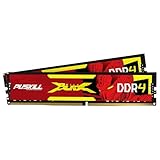
- The Sweet Spot for Performance & Value: Get the ideal balance of speed and responsiveness with 3200MHz frequency and tight CL16-18-18-42 timings. This DDR4 RAM delivers a significant boost in gaming frame rates and application speed over standard 2666MHz memory, making it the perfect upgrade for any modern PC.
- Easy Intel XMP 2.0 Overclocking: Achieve the full 3200MHz speed instantly. The pre-configured Intel XMP 2.0 profile allows you to automatically overclock your memory to its rated speed with a single click in your BIOS. No technical expertise required—just enable and enjoy.
- Wide Motherboard Compatibility: Built for universal compatibility. Works flawlessly with a vast range of Intel Core i9/i7/i5/i3 (e.g., 10th, 11th Gen) and AMD Ryzen (e.g., 3000, 5000 series) platforms. An essential, reliable upgrade for your desktop computer.
- Effective Heat Spreader for Stability: The sleek, anodized aluminum heat spreader efficiently dissipates heat, preventing thermal throttling during long gaming sessions or intensive tasks. This ensures consistent performance and enhances the longevity of your memory modules.
- Plug-and-Play Reliability: Experience a hassle-free installation. Our memory kit is rigorously tested for stability and reliability right out of the box. Whether you're building a new PC or upgrading an existing one, you can count on PUSKILL for seamless performance.
Shader or asset compilation hitches
A short hitch the first time a particular effect appears may be related to shader or asset preparation rather than a setting that permanently lowers FPS. Repeat the same scene after the assets have been encountered, and compare later runs. Do not claim that a single graphics toggle fixes this behavior; the demo’s official sources do not document a universal shader-stutter remedy.
What’s actually slowing this PC down?
Pick the symptom - the matching free tool is one click away.
Network or simulation delay
In co-op, delayed movement or players snapping into position can be a networking or simulation issue rather than a rendering drop. Compare local camera motion with the game’s connection behavior, and check whether the problem persists in a less busy session. Lowering image quality cannot repair an unstable connection.
Measure changes without fooling yourself
- Choose a repeatable test: the same area, camera route and approximate number of active physics objects.
- Record the preset, resolution, display mode, FPS cap and the one setting you are changing.
- Play long enough to include both a quiet moment and a demanding moment; a few seconds is not enough.
- Note average FPS plus frame-time consistency, visible hitching and GPU/CPU/memory utilization.
- Keep the change only if it improves the demanding section without creating unacceptable image quality or input behavior.
If lowering several settings produces almost no change, stop reducing image quality. That result points toward CPU, memory, shader preparation, background activity or networking rather than raw GPU quality.
Practical profiles for different PCs
| System situation | Starting profile | Next adjustment |
|---|---|---|
| Below the recommended target but at or above minimum | Lowest preset, fullscreen test, reduced shadows/effects/reflections/post-processing, conservative FPS cap, overlays off | Raise one option at a time only after demanding scenes remain smooth |
| Near the recommended CPU/GPU target with 16 GB RAM | Medium preset, fullscreen and borderless comparison, moderate effects reductions, stable cap | Restore texture quality first, then test individual visual options |
| At or above the recommended target | Medium-to-high starting point, native resolution, fullscreen test and a cap below the system’s unstable peak | Increase shadows or effects individually while watching frame-time consistency |
These are starting strategies, not promised presets. The demo does not have an official per-setting benchmark, so your monitor refresh rate, processor balance and the complexity of each scene determine the final choice.
When a hardware upgrade is justified
Memory: the clearest conditional upgrade
Steam recommends 16 GB of RAM. If your system has 8 GB and you still see memory pressure after closing background applications, a compatible 16 GB desktop RAM kit is the most defensible upgrade to investigate. Confirm the DDR generation, motherboard support, available slots and whether replacing the existing kit is preferable to mixing unmatched modules. Check your motherboard or system manufacturer’s documentation before purchasing; capacity alone does not guarantee compatibility.
Graphics card: match the rest of the system
The recommended graphics examples are an NVIDIA GTX 1070 or AMD Radeon RX 5700 XT. Those labels describe the level named by Steam, not a universally suitable current retail purchase. Before selecting a card, verify power-supply capacity and connectors, case clearance, CPU balance, display resolution and local availability. A card that fits the specification can still be a poor choice if the processor limits it or the power supply cannot support it.
Best Value

- Disclaimer: Maximum Speed requires overclocking/PC BIOS adjustments. Maximum speed and performance depend on system components, including motherboard and CPU
- Hand-sorted memory chips ensure high performance with generous overclocking headroom
- VENGEANCE LPX is optimized for wide compatibility with the latest Intel and AMD DDR4 motherboards
- A low-profile height of just 34mm ensures that VENGEANCE LPX even fits in most small-form-factor builds
- A solid aluminum heatspreader efficiently dissipates heat from each module so that they consistently run at high clock speeds
Processor and platform limits
Because Ruffed Up is a physics-focused co-op game, a processor upgrade may matter when lowering graphics settings barely changes frame times and one or more CPU threads remain busy. Compare your current processor with the recommended Intel Core i7 or AMD Ryzen 7 class, but account for the exact generation, motherboard socket and cooling requirements. Do not infer a required model from the generic names in the Steam listing.
Recovery steps for common outcomes
| What you observe | What to try next |
|---|---|
| FPS is high in empty areas but drops during physics-heavy action | Keep the stable cap, reduce effects and shadows, close CPU-heavy background programs, and inspect CPU utilization. |
| Lowering resolution barely changes FPS | Restore resolution, test a CPU or memory bottleneck, and check whether the hitch is shader, asset or network related. |
| Motion is uneven despite a high average FPS | Enable a conservative cap, compare fullscreen with borderless, and disable overlays during the test. |
| Hitches occur when new areas or effects appear | Repeat the route, watch memory use and background disk activity, and avoid assuming a universal graphics-toggle fix. |
| Performance changed after an update | Retest the same scene, note the game and driver versions, and rebuild your settings baseline rather than copying an old profile blindly. |
| Co-op movement looks delayed while local rendering is smooth | Investigate connection or simulation conditions; image-quality reductions will not correct network delay. |
Retest after every Ruffed Up update
Elusive Games has already shipped demo improvements and fixes aimed at smoother play. After an update, temporarily return to a known baseline: medium or low preset, your chosen display mode, overlays off and a conservative FPS cap. Run the same repeatable scene, then restore visual settings one at a time. This prevents an old workaround from hiding a genuine optimization improvement—or from masking a new regression.
Keep notes on the game version, driver version, resolution, cap and the setting changed. A short record makes it easier to tell whether a perceived improvement came from the update, a driver change, a background task ending or a graphics adjustment.
Frequently asked questions
Is there a guaranteed FPS target for Ruffed Up?
No. The available official information does not include a per-setting benchmark, frametime chart or universal FPS guarantee. Choose a cap your own PC can sustain in demanding scenes.
Should I lower textures before shadows and effects?
Usually not. When those controls exist, reduce shadows, effects, reflections and post-processing first to preserve surface detail. Lower textures if memory pressure or texture streaming is the specific problem.
Will disabling Steam or GPU overlays always stop stutter?
No. Disable overlays temporarily as a diagnostic step. If frame pacing does not change, restore the overlay and investigate CPU, memory, shader, driver or network causes.
Does the full game have the same settings as the demo?
That is not established. Steam currently lists the demo while the full game is not yet available, and options or performance may change before release.
Quick Recap
Product prices and availability are accurate as of the date/time indicated and are subject to change. Any price and availability information displayed on Amazon at the time of purchase will apply.

