
Free tools Windows power users keep installed
One-click scans. No signup required.
iTechGuides is reader-supported. When you buy through links on our site, we may earn an affiliate commission. As an Amazon Associate I earn from qualifying purchases. Learn more
Short answer: choose ABBYY FineReader PDF when you need a local Windows or Mac application to OCR and edit scanned PDFs. Choose Adobe PDF Extract API when an application must receive structured text, reading order, tables and figures as JSON or Markdown. Choose Amazon Textract for AWS-native forms and tables, or Google Cloud Document AI for managed, per-page document processing. OCR alone makes image-only pages searchable; a parser is what preserves document structure for reliable downstream data.
No cited source provides a common, independent accuracy benchmark across these products, so there is no defensible universal accuracy winner. Select by document type, deployment, output and operating cost instead.
At-a-glance recommendations
| Product | Best fit | Deployment | Key extraction evidence | Published pricing evidence |
|---|---|---|---|---|
| ABBYY FineReader PDF | Desktop OCR, cleanup and editing of scanned documents | Windows or Mac application | AI-powered OCR for digital and scanned PDFs | Windows Standard $99/year; Windows Corporate $165/year; Mac $69/year (ABBYY current pricing page) |
| Adobe PDF Extract API | Developer pipelines that need document structure | Cloud API with Node.js, Python, .NET and Java SDKs | Text blocks, headings, lists, footnotes, complex tables, figures and natural reading order from native or scanned PDFs; JSON or Markdown output | 500 document transactions per month in the documented free tier |
| Amazon Textract | AWS-native forms and table workflows | Cloud service integrated into an AWS application | Text detection plus tables, key-value pairs and selection elements | Pricing is not stated on the cited documentation page |
| Google Cloud Document AI | Managed OCR and document understanding at variable volume | Cloud service | Document structures and entities through the Enterprise Document OCR Processor | Tiered per-page pricing; confirm current regional rates |
OCR versus PDF parsing: what you actually need
OCR creates text from pixels
A scanned PDF is usually a set of page images. OCR recognizes the characters and creates a selectable, searchable text layer. Adobe’s OCR guidance describes searchable PDF modes including SEARCHABLE_IMAGE and SEARCHABLE_IMAGE_EXACT. OCR is the right first step when a viewer cannot select any words.
Recommended Free Tools
Parsing preserves meaning and layout
Extraction for a data pipeline must do more than return a text stream. You may need headings, lists, footnotes, reading order, table cells, figures, form fields or key-value pairs. Adobe’s Extract API explicitly models those structures; Textract documents tables, key-value pairs and selection elements; Google Document AI describes structures and entities. A parser can also process a native PDF whose text is already selectable, whereas OCR is necessary for image-only pages.
Popular on Amazon
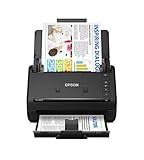
- FAST DOCUMENT SCANNING — Document scanner with feeder allows you to speed through stacks with a 50-sheet Auto Document Feeder (ADF); Efficient office scanner to help you scan more productively
- INTUITIVE, HIGH-SPEED SOFTWARE — Quickly scan with this desktop document scanner; Epson ScanSmart Software lets you easily preview scans, email files, upload to the cloud, and more; Plus, automatic file naming saves even more time
- SEAMLESS INTEGRATION — Easily incorporate your data into most document management software with the included TWAIN driver; Office document scanner integrates seamlessly with business workflows
- EASY SHARING — Duplex scanner allows you to scan straight to email or popular cloud storage2 services like Dropbox, Evernote, Google Drive, and OneDrive for simple storage and sharing
- SIMPLE FILE MANAGEMENT — Scanner allows the creation of searchable PDFs with Optical Character Recognition (OCR) and convert scans to editable Word or Excel files effortlessly; Designed for home and office document scanning
Why the distinction affects your choice
- For a person correcting pages and exporting a clean searchable PDF, a desktop OCR editor is usually simpler.
- For JSON, Markdown, indexing, analytics or database ingestion, use an API that exposes structural elements.
- For forms, invoices or checkboxes, confirm that the service represents fields and selection states rather than only plain text.
- For tables, inspect whether the result contains cell boundaries and row/column relationships, not merely lines in reading order.
ABBYY FineReader PDF: best local desktop option
FineReader PDF is the clearest directly evidenced choice for a local workflow. ABBYY describes it as an AI-powered OCR and PDF application for digital and scanned documents. It is suited to opening a scan, recognizing it, correcting uncertain characters, searching the result and editing or exporting the document without uploading it to a cloud API.
Choose it when
- Your work is interactive and document-by-document rather than an application endpoint.
- You need a PDF editor alongside OCR and want to review recognition visually.
- Keeping source files on a workstation is preferable to sending them to a service.
- A recurring batch can use Corporate’s Hot Folder workflow; ABBYY’s pricing page states automated conversion of up to 5,000 pages per month for that workflow.
Trade-offs
FineReader is a desktop productivity application, not a general-purpose JSON extraction service. If another system must receive normalized tables or entities automatically, an API-oriented product will fit better. The published prices are annual desktop subscriptions rather than directly comparable per-page cloud rates.
Adobe PDF Extract API: strongest documented general parser
Adobe positions the PDF Extract API as a cloud service using Sensei AI to extract content and structural information from native or scanned PDFs. Its documented output choices are structured JSON for detailed element and layout information and Markdown for LLM ingestion, documentation, republishing and search repositories.
Do these 3 things before closing this tab:
1Clear out junk files and repair common Windows errors2Fix the driver behind crashes, sound loss and screen glitches3Repair Windows errors before they cause bigger problemsWhat it can represent
- Contextual text blocks, headings, lists and footnotes.
- Complex tables with cell-level extraction.
- Figures and natural reading order.
- OCR of scanned pages before structural extraction.
Adobe documents SDKs for Node.js, Python, .NET and Java, making it a practical integration choice when your application already has one of those runtimes. The documented free tier allows 500 document transactions per month; check the current service terms before estimating production spend.
When it is the better choice
Use Extract API when the output feeds a search index, knowledge base, LLM ingestion step or database and the relationship between elements matters. It is less appropriate when policy forbids cloud upload or when a user only needs to fix a handful of pages locally.
Amazon Textract: AWS-native forms and tables
Amazon Textract is an application service rather than a desktop PDF editor. AWS documents text detection and analysis, including tables, key-value pairs and selection elements. That makes it a natural candidate for workflows already using AWS storage, queues, identity and monitoring.
Choose it when
- Documents arrive in an AWS-based ingestion pipeline.
- You need form-like key/value relationships or checkbox and selection states.
- Application code, rather than an operator, should request and process results.
Questions to settle before committing
The cited Textract page does not provide a price figure, accuracy comparison or a desktop editing experience. Confirm the current regional pricing, supported file and page limits, asynchronous-job behavior and language coverage for your document set in AWS documentation.
Also popular on Amazon

- PORTABLE SCANNER FOR USE ON-THE-GO — The fastest and lightest mobile single-sheet-fed compact document scanner in its class¹
- QUICK DOCUMENT SCANNING ― This Epson ultra-fast scanner scans a single page as quickly as 5.5 seconds²; Windows and Mac compatible
- VERSATILE PAPER HANDLING ― Portable scanner scans documents up to 8.5 x 72 in; Also easily digitizes receipts and ID cards to make accounting, bookkeeping, and organizing simpler
- INTUITIVE, HIGH-SPEED SOFTWARE — Epson ScanSmart Software³ is a smart tool allowing you to easily scan, review, and save; Stay organized easily with the help of this Epson scanner
- EASY SETUP — USB-powered connect to your computer for quick and simple scanning; No batteries or external power supply required to operate portable document scanner; Standard Connectivity: USB 2.0
Google Cloud Document AI: managed, usage-priced processing
Google Cloud Document AI is the managed option in this group. Google’s pricing page lists an Enterprise Document OCR Processor and describes extraction of document structures and entities. Its pricing is tiered by page and volume, so it can suit a service whose throughput changes over time.
Choose it when
- You prefer a managed cloud processor and already operate on Google Cloud.
- Per-page accounting maps cleanly to your budget and workload.
- Your downstream model needs entities and structure, not just a searchable text layer.
Rates and availability can vary by region and can change. Obtain a current quote for the processor and geography you will use; the cited material does not establish a cross-product accuracy score.
How to select a parser for your documents
- Classify the input. Test whether text can be selected. Native PDFs can go directly to structural extraction; image-only pages need OCR.
- Define the required output. Decide whether you need a searchable PDF, plain text, Markdown, JSON elements, table cells, key-value pairs, figures or entities.
- Measure layout risk. Collect representative samples containing multi-column pages, rotated scans, footnotes, stamps, dense tables and checkboxes. Reading order and cell boundaries are often more important than raw character recognition.
- Choose the operating boundary. Select FineReader for local, reviewed work. Select an API for automated ingestion. Among APIs, favor the platform that matches your existing cloud controls and SDK.
- Design human review. Route low-confidence pages, unusual tables and missing fields to a review queue. Do not silently write uncertain values into a financial or legal database.
- Validate the export. Check page counts, required fields, table row totals, numeric formats and character encoding before accepting a document.
A practical extraction workflow
1. Preserve the source
Store the original PDF unchanged and assign a stable document identifier. Work on a copy or on the API result so that a later correction can be traced to the same source.
2. Preflight the pages
Record page count, orientation and whether text is selectable. Separate blank pages and obvious bot or download failures before spending processing capacity. For skewed, low-resolution or heavily compressed scans, obtain a cleaner source where possible.
What’s actually slowing this PC down?
Pick the symptom - the matching free tool is one click away.
3. OCR only where necessary
Run OCR on image-only pages. Keep the original image and the recognized text layer; this lets a reviewer compare a questionable character with the scan.
4. Extract structure
Request the richest output your application needs. For a report, preserve headings and reading order. For a spreadsheet, map table cells to rows and columns. For a form, retain key-value and selection states. For an LLM or search repository, Markdown can be more convenient than a deeply nested element model.
5. Normalize and validate
Normalize dates, decimal separators and whitespace only after retaining the raw value. Compare extracted totals with visible totals, verify that every required field is present and flag impossible values for review.
Also popular on Amazon

- OUR MOST ADVANCED SCANSNAP. Large touchscreen, fast 45ppm double-sided scanning, 100-sheet document feeder, Wi-Fi and USB connectivity, automatic optimizations, and support for cloud services. Upgraded replacement for the discontinued iX1600
- CUSTOMIZABLE. SHARABLE. Select personalized profiles from the touchscreen. Send to PC, Mac, mobile devices, and clouds. QUICK MENU lets you quickly scan-drag-drop to your favorite computer apps
- STABLE WIRELESS OR USB CONNECTION. Built-in Wi-Fi 6 for the fastest and most secure scanning. Connect to smart devices or cloud services without a computer. USB-C connection also available
- PHOTO AND DOCUMENT ORGANIZATION MADE EFFORTLESS. Easily manage, edit, and use scanned data from documents, receipts, photos, and business cards. Automatically optimize, name, and sort files
- AVOIDS PAPER JAMS AND DAMAGE. Features a brake roller system to feed paper smoothly, a multi-feed sensor that detects pages stuck together, and skew detection to prevent paper damage and data loss
6. Monitor production
Track pages submitted, successful results, rejected files, processing time and review rates. Keep a small regression set of difficult documents and rerun it after changing a processor, prompt, preprocessing rule or SDK version.
Or skip the browser setup
If the document is published on a web page, you can capture a clean source image or PDF before sending it to your parser with ScreenshotNeo. Its API accepts one GET request; documentation is at https://screenshotneo.com/docs/.
curl -G "https://api.screenshotneo.com/v1/shot" -d access_key=YOUR_API_KEY --data-urlencode url=https://example.com/document.pdf -o shot.webpimport requests
r = requests.get("https://api.screenshotneo.com/v1/shot", params={"access_key": "YOUR_API_KEY", "url": "https://example.com/document.pdf"}, timeout=90)
open("shot.webp", "wb").write(r.content)const q = new URLSearchParams({ access_key: 'YOUR_API_KEY', url: 'https://example.com/document.pdf' });
const res = await fetch(`https://api.screenshotneo.com/v1/shot?${q}`);Before capture, ScreenshotNeo accepts cookie or consent banners and removes more than 60 known consent platforms, newsletter popups and chat widgets; each step can be disabled. Bot checks, CAPTCHAs, blank pages, timeouts, failed loads and cache hits are not billed, and response headers identify the page verdict and whether it was billed. An MCP server provides take_screenshot, get_page_info and capture_pdf tools for Claude, Cursor and other MCP clients. The Free plan includes 1,000 screenshots per month with no card; paid plans start at $5 for 3,000 shots. Create a free ScreenshotNeo account.
Troubleshooting common extraction failures
The result is empty
Cause: the download is a blank page, an access challenge, an image with no usable resolution or a failed load. Open the original, confirm it is a valid PDF, and inspect page images before retrying. For a web source, check the capture verdict and load status before passing the file to OCR.
Text is selectable but in the wrong order
Cause: multi-column layout, positioned text or a reading-order ambiguity. Use a structural extractor that documents natural reading order, then compare headings, columns and footnotes on sample pages. Do not assume the visual order equals the PDF’s internal object order.
The Tool Desk
Outbyte PC Repair FREEClear out junk files and repair common Windows errorsFree Scan →Outbyte Driver Updater FREEScan for outdated or missing drivers - takes under a minuteDriver Scan →Tables become a paragraph
Cause: the tool recognized characters but did not model cells, borders or merged columns. Select a product that documents cell-level table extraction or table analysis, and validate row and column counts against the page.
Forms lose their answers
Cause: labels and values were returned as independent text, or checkboxes were ignored. Use a processor that exposes key-value pairs and selection elements, then test checked, unchecked and handwritten-looking marks separately.
Numbers contain subtle errors
Cause: scan quality, decimal marks, adjacent columns or OCR confusion between characters such as 0/O and 1/I. Preserve the raw text, apply type and range checks, and send exceptions to a human rather than silently correcting them.
Also popular on Amazon

- FAST SPEEDS - Scans color and black and white documents a blazing speed up to 16ppm (1). Color scanning won’t slow you down as the color scan speed is the same as the black and white scan speed.
- ULTRA COMPACT – At less than 1 foot in length and only about 1. 5lbs in weight you can fit this device virtually anywhere (a bag, a purse, even a pocket).
- READY WHENEVER YOU ARE – The DS-640 mobile scanner is powered via an included micro USB 3. 0 cable allowing you to use it even where there is no outlet available. Plug it into you PC or laptop and you are ready to scan.
- WORKS YOUR WAY – Use the Brother free iPrint&Scan desktop app for scanning to multiple “Scan-to” destinations like PC, Network, cloud services, Email and OCR. (2) Supports Windows, Mac and Linux and TWAIN/WIA for PC/ICA for Mac/SANE drivers. (3)
- OPTIMIZE IMAGES AND TEXT – Automatic color detection/adjustment, image rotation (PC only), bleed through prevention/background removal, text enhancement, color drop to enhance scans. Software suite includes document management and OCR software. (4)
Cloud processing conflicts with policy
Cause: documents contain regulated or confidential information that cannot leave your controlled environment. Use a local desktop workflow where permitted, or obtain a documented enterprise deployment and retention policy before uploading.
Cost, throughput and reliability notes
These prices are not apples-to-apples. FineReader publishes annual desktop subscriptions, Adobe publishes a monthly transaction allowance, and Google publishes per-page tiers. Textract’s cited documentation page does not state a price. Estimate total cost from pages, retries, storage, review labor and any preprocessing—not only the parser’s unit rate.
Throughput also depends on synchronous versus asynchronous processing, page size, network transfer and downstream validation. Start with a representative batch, record processing time and review rate, and establish retry limits. A service that recognizes more text but returns unusable table structure can cost more after manual repair.
FAQ
Frequently Asked Questions
Can these tools read handwriting?
The cited product descriptions do not establish handwriting accuracy. Test your own samples and verify whether the chosen processor explicitly supports the handwriting styles and languages you need.
Should I convert every PDF to images before parsing?
No. Keep native PDFs in their original form when they contain usable text and structure; apply OCR to image-only pages or pages whose text layer is unusable.
Crashes, No Sound, or Screen Glitches?
Random freezes, missing sound and display glitches usually trace back to one bad driver. Find and replace yours safely.Free scan · under a minutePC Slower Than It Used to Be?
A free scan shows the junk files, broken settings and background clutter dragging Windows down - then fixes them in one click.Free scan · Windows 10 & 11Which output should an LLM consume?
Adobe documents Markdown as an option for LLM ingestion, while structured JSON is better when your application must address elements, tables or coordinates programmatically.
Are the listed prices guaranteed?
No. ABBYY, Adobe and Google publish the figures described here, but pricing, regional availability and service limits can change. Recheck the provider’s current pricing page before purchase.

