
The best app depends on what the PDF is for. If you only need to highlight, write a note, fill in a form, or sign a document, start with Apple Preview on iPad. For a serious PDF-first workflow, choose PDF Expert. For handwritten class notes, choose Goodnotes; for lectures or meetings with synchronized audio, choose Notability. Researchers should look at LiquidText or MarginNote 4, while Adobe Acrobat remains the safer fit for formal business review.
The key distinction is whether you want to edit and send a normal PDF, keep the PDF inside a handwritten notebook, or turn reading into a research and study system. Those are different jobs, and no single iPad app is best at all three.
Quick recommendations
| What you need | Best first choice | Why |
|---|---|---|
| Free, occasional markup, form filling, or signing | Apple Preview | Built into iPadOS 26 and covers the essential PDF tasks without another subscription. |
| Best PDF-first all-rounder for Apple users | PDF Expert | Combines annotation, text and image editing, page management, OCR, signatures, redaction, and conversion. |
| Handwriting-heavy studying | Goodnotes | Turns imported PDFs into notebook-style study material with handwriting, templates, search, and extra pages. |
| Lecture or meeting notes with recorded audio | Notability | Audio remains synchronized with the notes written or typed during playback. |
| Deep research across papers and reports | LiquidText | Lets you pull excerpts into a workspace and connect notes to source passages across documents. |
| Highlights, mind maps, and flashcards | MarginNote 4 | Builds a structured study system from PDF excerpts and notes. |
| Formal Adobe review, forms, or document security | Adobe Acrobat | Best fit for organizations already using Acrobat and Adobe review workflows. |
| Technical drawings and pen-first markup | Drawboard PDF | Offers reusable markup items, measurements, calibration, and cross-platform access. |
| Mixed iPad, Windows, Android, and cloud workflows | Xodo | Provides broad PDF, cloud-storage, form, page-management, and stylus support. |
| Free third-party alternative | PDFgear | Offers a broad set of markup, page, form, and signature tools without a listed iOS subscription. |
These are workflow recommendations, not standardized handwriting-latency test results. Pencil behavior can change with the iPad model, Apple Pencil generation, operating system, app version, and document type.
What changed for iPad PDF annotation in 2026?
Older iPad app lists often treated system Markup as the only serious built-in option. That is no longer the complete picture. iPadOS 26 adds Apple Preview to iPad, with tools for viewing, annotating, scanning, filling, signing, rearranging, and protecting PDFs. Apple documents support for text highlighting, underlining, strikethrough, shapes, stickers, text boxes, signatures, Apple Pencil drawing, form filling, searchable scans, page operations, and password protection in its Preview guide and related PDF and scanning documentation.
#1 Best Overall
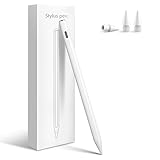
- Compatibility: Only compatible with iPad Pro 13/11-Inch M5/M4, iPad Pro 12.9" (3rd/4th/5th/6th), iPad 11th (A16)/10/9/8/7/6 Gen, iPad Air M4/M3/M2/5/4/3, Mini 7/6/5. Note: Not available for Android tablets, mobile phones, iPhone and Microsoft devices. Please verify your model in [Settings > General > About] before purchasing
- Precise & Smooth: Easily power the stylus on/off with a button press on the top.Enjoy precise, smooth lines and clean strokes with the fine pen tip.Ideal for writing, drawing and creating detailed artwork,with no lag, offset, or line breaks
- 13 Mins Fast Charge: Up to 8 hours of continuous use on a 13-minute charge. It automatically powers off after 5 minutes of inactivity to conserve energy. Three indicator lights clearly displays the power status, preventing unexpected shutdowns due to low battery
- Palm Rejection & Tilt Sensitivity: Provides a natural writing experience with quick response and effortless screen interaction, without worrying about accidental touches. Simply tilt the pen tip to adjust the line width as desired.Note: No pressure sensitivity
- Magnetic Attachment: The upgraded built-in magnet attaches securely to the side of your iPad.Magnet attaches compatible with iPad Pro 11/13 M4/M5,iPad Air11/13 M2,iPad Air 4/5th, iPad Pro 11 (1st/2nd/3rd), iPad Pro 12.9 (3rd/4th/5th), iPad mini A17 Pro/mini 6th.Note:Wireless charging is not supported
That makes Preview the right starting point for many occasional users. You no longer need a third-party app merely to circle something, sign a form, highlight text, or add a short handwritten comment. Third-party apps earn their place when you need one or more of the following:
- Editing existing PDF text or images.
- Advanced page organization, conversion, or OCR.
- Reusable technical symbols and measurement tools.
- Formal comments, review permissions, redaction, or enterprise forms.
- A notebook with extra handwritten pages and audio.
- Cross-document excerpts, mind maps, flashcards, or research links.
First decide which kind of app you need
PDF-native apps
Preview, PDF Expert, Acrobat, Xodo, Drawboard PDF, Foxit PDF Editor, and PDFgear treat the PDF as the main document.
They are generally the better choice when the marked-up file will be sent to somebody else, opened in Preview or Acrobat, printed, signed, archived, or processed by a business system. They also tend to provide stronger page management, forms, signatures, and PDF-specific editing.
Notebook-based apps
Goodnotes and Notability import a PDF into a notebook environment. This is ideal when the source document is only part of the work: you may want to add blank pages, diagrams, handwritten explanations, templates, audio, or other class materials around it.
Recommended Free Tools
The trade-off is that the app’s internal notebook becomes important. Exporting to PDF may be required before sharing, and not every PDF feature survives export in exactly the same form.
Research workspaces
LiquidText and MarginNote 4 use PDFs as sources for a larger knowledge system. Their strengths are excerpts, links, relationships, mind maps, flashcards, and multi-document study—not simply drawing on a page.
Apple Preview on iPad: the best free starting point
Choose Preview if you occasionally need to mark up, fill, scan, or sign PDFs. It is the simplest recommendation for a user who does not need a research database, a notebook library, advanced collaboration, or full document production.
What Preview can do
- Open and read PDFs.
- Select and copy text.
- Highlight, underline, or strikethrough selected text.
- Draw with an Apple Pencil or finger.
- Add text boxes, shapes, stickers, and signatures.
- Fill interactive PDF forms.
- Scan paper documents into searchable PDFs.
- Add, delete, rotate, move, or crop pages.
- Protect a PDF with a password.
- Share or print the marked-up document.
Basic Preview workflows
To highlight text: open the PDF in Preview, drag across the text, tap Highlight, then choose highlighting, underlining, or strikethrough and a color.
To write or draw: open the PDF, tap Markup, select the pen, marker, pencil, shape, or another tool, and write with an Apple Pencil or finger.
To add text or a signature: tap Markup, tap Add, and select Add Text or Add Signature.
To fill a form: open the form, tap the Form Fill button, tap a blue field, and type or select an autofill suggestion. Use Add for a signature or text box when the document is a static form rather than a field-based form. See Apple’s form-filling instructions.
Where Preview stops
Preview is not a full research environment, a multi-document excerpt canvas, a reusable technical-markup library, or a formal team-review system with reviewer identity and revision tracking. It also is not positioned as a complete replacement for advanced PDF editors that provide broad conversion, OCR, redaction, or existing-text editing.
Verdict: Try Preview first. If it handles the PDF tasks you actually perform, it is difficult to justify paying for a more complex app just for basic Pencil markup.
PDF-first apps for serious document work
PDF Expert: best overall PDF-first choice for Apple users
PDF Expert is the strongest general recommendation when the PDF itself must remain the finished document. It supports reading, highlighting, notes, stickers, stamps, drawings, text and image editing, forms, signatures, page insertion and rearrangement, merging and splitting, conversion, OCR, password protection, and permanent redaction. Its documented construction tools include scale, measure, polygon, polyline, and redline tools. It also supports Apple-device synchronization.
The app additionally promotes PDF Copilot features for summaries, questions, explanations, and document analysis. Treat these as separate, plan-dependent features rather than a reason to buy the app for ordinary annotation.
The official US pricing page currently lists examples of $4.99 per week, $79.99 per year, and a $139.99 lifetime option described as Mac-only. App Store prices, taxes, regional pricing, student offers, and the exact device scope can differ, so check the current PDF Expert pricing page and in-app purchase screen before subscribing.
The Tool Desk
Outbyte PC Repair FREEClear out junk files and repair common Windows errorsFree Scan →Outbyte Driver Updater FREEScan for outdated or missing drivers - takes under a minuteDriver Scan →Best for: Apple-only professionals, form filling, editing a PDF’s existing content, OCR, signatures, redaction, and sending a conventional file to users of Preview, Acrobat, or desktop PDF software.
Limitations: Many advanced features require a subscription, and its strongest synchronization story is Apple-centric rather than designed primarily for Windows and Android teams.
Adobe Acrobat: best for formal review and Adobe ecosystems
Acrobat Reader is a sensible choice when your school, employer, client, or document process already uses Adobe. Adobe documents free mobile capabilities for opening, viewing, searching, signing, printing, annotating, and sharing PDFs. Annotation tools include highlights, underlines, strikethroughs, sticky notes, text comments, freehand drawing, and replies to comments.
Shared review workflows may require signing in with an Adobe ID. Adobe also documents offline editing and later synchronization in supported review workflows. Premium mobile tools include PDF creation, export, modification, file combining, page organization, compression, password protection, and additional editing and OCR depending on the plan. See Adobe’s mobile review documentation and subscription guide.
Do these 3 things before closing this tab:
1Fix the driver behind crashes, sound loss and screen glitches2Clear out junk files and repair common Windows errors3Scan for outdated or missing drivers - takes under a minuteRank #2

- 🖊【Wide Compatibility】Stylus pen supports iPad 2018-2026 series:iPad 11th 11 inch 2025/10/9/8/7/6th Gen,iPad Air 11 inch (M4) 2026/13 inch (M4) 2026/7/6/5/4/3th Gen,iPad Pro 13 inch M4,iPad Pro 12.9 inch 3/4/5/6th Gen,iPad Pro 11 inch 1/2/3/4th/M4,iPad Mini 7th (A17 Pro)/6/5th Gen.NOTE: The Pencil is NOT compatible with iPad models before 2018, iPhone, Android and Microsoft devices. Please check your product model before placing an order.
- 🖊【Ultra-fast Charging/Ultra-long Battery Life】Hastraith stylus pen for ipad uses a Type-C interface for charging and can be fully charged in just 13 minutes. It also has an ultra-long battery life of more than 10 hours of continuous use, which can meet the needs of long-term writing or drawing.
- 🖊【Tilt Sensitivity and Palm Rejection】Hastraith ipad pen uses tilt pressure sensing technology, enabling it to dynamically adjust the line thickness in accordance with the varying tilt angles of the pen's side. The full-screen palm rejection function ensures that when using a capacitive pen, the finger or palm touching the screen will not cause accidental touches, while ensuring the smoothness and stability of writing.
- 🖊【Battery Display/No Bluetooth Required】No need for Bluetooth connection, turn on this stylus pen by simply touching the cap button. Hastraith ipad pencil has 3 battery indicator lights: All lights on: 70%-100% power, 2 lights on: 30%-70% power, 1 light on: 5%-30% power, 1 light flashing: less than 5% power. Therefore, you can view the battery consumption progress in real time so that you can charge it before important work begins.
- 🖊【Package Included】1 * smart stylus, 1 * type-c charging cable, 3 * replacement nibs, 1 * silicone replacement head,1 * dust cover, 1 * silicone protective cover, 1 * user manual. Hastraith provides you with a 12-month manufacturer's warranty, if you have any questions about our products, please contact us. Note: If it does not work after turning it on, please turn off the Bluetooth of the iPad.
Best for: business review, Adobe-heavy organizations, formal comments, PDF forms, security workflows, and documents that will be handled on desktop Acrobat.
Limitations: Free annotation is not the same as free PDF editing. The interface and subscription model may be excessive for a student who only wants to write on lecture slides.
Xodo: best practical option for mixed-device workflows
Xodo is a strong alternative when PDFs move between iPad, Windows, Android, browsers, and cloud storage. Its iPad listing includes drawing, highlighting, links, stamps, images, form filling, signatures, scanning, page insertion, deletion, rotation, cropping, splitting, extraction, search, tabs, and Apple Pencil or stylus support. It integrates with iCloud, OneDrive, Google Drive, and Dropbox. Paid tiers add or unlock tools such as PDF conversion, compression, and some OCR functions.
Xodo also supports flattening annotations, which can be useful when a receiving application does not render the original annotation objects correctly. Confirm the current mobile subscription boundaries because the App Store description groups free and paid capabilities together.
What’s actually slowing this PC down?
Pick the symptom - the matching free tool is one click away.
Best for: cloud-stored files, people who use both Apple and non-Apple devices, and users who want more file and page management than Preview provides.
Limitation: Do not rely on older descriptions calling Xodo almost entirely free; its current mobile plan structure is the relevant one.
Drawboard PDF: best for technical and pen-first markup
Drawboard PDF is the specialist choice for plans, drawings, specifications, and technical review. It emphasizes Apple Pencil and pressure-sensitive digital ink, freehand drawing, highlights, shapes, comments, signatures, reusable items in a Markup Library, measurements, areas, polylines, and calibration. Its Store+Share service provides synchronization, and Drawboard advertises availability across iOS, macOS, Windows, Android, and the web.
The current Drawboard pricing page lists a free Basic plan with essential tools, text review, digital ink, shapes and images, bookmarks, search, annotation flattening, signatures, notes, and basic page insertion, rotation, and deletion. It also includes limited Store+Share storage. Paid features use a subscription model. Because tier names and prices have changed across Drawboard pages and third-party roundups, check the current iPad purchase screen.
Quick wins for a faster PC:
Scan for outdated or missing drivers - takes under a minuteDriver Scan →Clear out junk files and repair common Windows errorsFree Scan →Fix the driver behind crashes, sound loss and screen glitchesFind Drivers →Best for: architects, engineers, contractors, inspectors, and anyone who needs measurements or reusable symbols.
Limitation: Its technical tools are unnecessary for ordinary reading, and cloud storage introduces an account-based workflow rather than simple local PDF editing.
Foxit PDF Editor: a business-oriented Acrobat alternative
Foxit is worth considering for business forms, security, and cross-platform PDF compatibility. Its iPad listing includes annotations and stamps, text and image editing, page reorganization, handwritten signatures, redaction, password protection, cloud services, tabs, reflow, and read-aloud tools. It also advertises XFA form support, which can matter when an organization uses complex forms.
OCR, conversion, handwritten-note conversion, and AI functions are associated with subscription tiers or specific plans. Foxit documents Apple Pencil double-tap behavior for switching between the Pencil tool and eraser in supported configurations, but Apple Pencil features still depend on the hardware and app setup.
Free tools Windows power users keep installed
One-click scans. No signup required.
Best for: users who need XFA forms, security features, Windows compatibility, or a business PDF editor outside the Adobe ecosystem.
Limitation: It is more business-oriented than notebook-oriented, and many advanced editing, OCR, redaction, and conversion features are paid.
PDFgear: a feature-rich free alternative to test
PDFgear is a useful free third-party option for users who want more page tools than Preview offers. The current US App Store listing describes PDF viewing and printing, highlighting, underlining, strikethrough, text insertion, shapes, arrows, ink writing, erasing, page insertion, deletion, rotation, extraction, form filling, signatures, stamps, file management, iCloud storage, translation, and Apple Pencil improvements.
The listing says its iOS functions are available free without trial watermarks or page-count limits. That is a current product claim, not a permanent guarantee; recheck the App Store before publication or purchase.
Do not describe PDFgear as private or the safest free app without separate privacy research. Its App Store privacy section says the developer’s privacy practices may involve data handling and that the information has not been verified by Apple.
Best for: free markup, signatures, page manipulation, and basic PDF editing.
Limitation: Privacy details, support expectations, and long-term product certainty deserve more scrutiny than they would for Apple’s built-in utility.
Rank #3

- 【Compatible with iPad 2018-2026】 This iPad Stylus is Only compatible with Apple iPad Air 11-inch & 13-inch (M2) (M3)(M4), iPad Pro 11-inch & 13-inch (M5)(M4), iPad 6/7/8/9/10/11(A16) Gen, iPad Pro 11-inch 1/2/3/4 Gen, iPad Pro 12.9-inch 3/4/5/6 Gen, iPad Air 3/4/5 Gen, iPad Mini 5/6 Gen.【Note】This stylus is NOT compatible with models prior to 2018 and does NOT work with iPhone, Android and Microsoft devices. Before purchasing, please make sure to check the model on the back of the iPad
- 【Battery Indicator / Type-C Charging】 This iPad A16 Pencil uses the popular Type-C charging port for charging, and can be used for 8 hours after 20 minutes of charging. When charging, four lights on the side of the stylus will light up gradually, each light represents 25% of the power, so you can observe the charging status and power usage in real time, and keep track of the remaining power at all times to ensure that you don't drop the ball during critical work time. The iPad stylus has a sleep function. When you forget to turn it off, keep it still for 5 minutes and the stylus will automatically turn off, effectively saving battery life
- 【Tilt Sensitivity & Palm Rejection】DOGAIN Stylus iPad Pencil A19 creates lines of varying thickness and textures based on different tilt angles, making your drawings more realistic. Tilt the nib in [Pencil Brush] mode to enhance shadow effects, or in [Marker Brush] mode to draw thicker lines. This iPad stylus supports palm rejection technology—no need for gloves. You can naturally rest your palm or fingers on the screen while studying, drawing, or taking work notes at school
- 【How to Use? & Double Magnets】This upgraded DOGAIN iPad Pen requires no Bluetooth or app connection. Simply double-tap the invisible touch switch on the rounded end of the A19 pen body to turn it on/off. Equipped with a built-in dual-magnet structure, the iPad pro pencil can firmly attach to the iPad surface, eliminating the hassle of it rolling off or getting lost entirely. (Note: Wireless charging is not supported. Compatible iPad models for magnetic attachment: iPad Pro 11-inch (1st/2nd/3rd gen), iPad Pro 12.9-inch (3rd/4th/5th gen), iPad Air (4th/5th gen), and iPad mini 6.)
- 【4 Extra Replacement Nibs】The nib of this iPad Pen is made of high-quality POM material, which has passed multiple writing and durability tests—meeting the same standard as the original iPencil nib. Each DOGAIN A19 Pen comes with 4 additional replacement nibs, helping heavy users save on costs
Notebook apps for handwriting and study
Goodnotes: best for handwriting-heavy study
Goodnotes is best when the PDF is part of a handwritten notebook. It can import PDFs, images, Word files, and PowerPoint files on supported Apple platforms, then provide handwriting, highlighting, typed text, search, organization, templates, audio features, and PDF export. You can add handwritten pages around lecture slides, worksheets, or reading assignments rather than treating the PDF as an isolated file.
Crashes, No Sound, or Screen Glitches?
Random freezes, missing sound and display glitches usually trace back to one bad driver. Find and replace yours safely.Free scan · under a minuteWindows Errors? Fix Them Before They Spread
Repair common Windows errors and clear accumulated junk for a smoother, more stable PC - no reinstall needed.Free scan · no reinstallGoodnotes’ current plan structure includes a free tier with a maximum of three files, a 5 MB import limit, watermarked exports, and a 20-minute audio-recording limit. Essential adds unlimited documents and additional note-taking, transcription, and collaboration features. Special Edition is a one-time Apple-platform purchase, while Pro expands AI and productivity features. AI Pass is a separate paid AI add-on. Prices and availability vary by region and purchase channel; see the current Goodnotes plan documentation.
Goodnotes export choices matter
Goodnotes offers Editable and Flattened PDF export:
- Editable PDF: objects remain selectable and document outlines and original hyperlinks are preserved, but handwriting is not searchable.
- Flattened PDF: generally offers broader visual compatibility and smaller files. Handwriting can be searchable when handwriting recognition is enabled, but original outlines and hyperlinks are not preserved.
If annotations or the page background disappear during export, start the export again and enable Include Page Background and Include Annotation. Goodnotes documents these settings in its export troubleshooting guide.
When layout is important, import a PDF version of a Word or PowerPoint document rather than expecting every Office layout element to survive direct conversion inside a notebook app.
The Tool Desk
Outbyte Driver Updater FREEFix the driver behind crashes, sound loss and screen glitchesFind Drivers →Outbyte PC Repair FREEClear out junk files and repair common Windows errorsFree Scan →Best for: students, handwritten annotations, extra pages, templates, searchable handwriting, and keeping course material together.
Limitations: Goodnotes is not a complete PDF production tool. It is a less suitable choice for native PDF comments, advanced page operations, redaction, form creation, or document comparison.
Notability: best for audio-linked lectures and meetings
Notability’s differentiator is synchronized audio. Import PDFs, PowerPoint files, spreadsheets, images, or documents, write with Apple Pencil, and record audio. During playback, tapping an annotation can take you to the point in the recording when that note was written. It also supports highlights, text boxes, shapes, media, PDF outlines, and PDF, image, or native-note export.
The current US-facing pricing page lists Starter as free, Plus at $15.99 per year, Pro at $79.99 per year, Business at $60 per user per year, and Business Pro at $180 per user per year. Regional prices, tax, platform, and plan contents may differ, so verify the current Notability pricing page.
What’s actually slowing this PC down?
Pick the symptom - the matching free tool is one click away.
Notability warns that some annotations created by other PDF apps may not display correctly after import. Its recommended workaround is to create a flattened copy in Acrobat or PDF Expert when annotations are missing. For Office-file import failures, convert the file to PDF through Pages, Keynote, or Numbers. For very large files, compress or split the PDF into smaller sections. See Notability’s annotation troubleshooting and import troubleshooting.
Best for: recorded lectures, meetings, annotated slide decks, and users who want a flexible notebook with audio.
Limitation: It is more note-centric than PDF-editor-centric, so it is not the first choice for redaction, complex forms, or producing professionally edited PDFs.
Research and knowledge-management apps
LiquidText: best for deep research across documents
LiquidText is for readers who need to connect evidence, not just mark pages. It supports PDF, Word, and PowerPoint documents, web-page import, Safari integration, typed and handwritten notes, excerpts pulled into a workspace, and ink links connecting notes to source passages. Multi-document projects let you compare distant pages or several papers at once.
Free tools Windows power users keep installed
One-click scans. No signup required.
Its documented research features include search, bulk highlighting, tags, links, OCR for scanned documents, Zotero and Mendeley import on supported plans, collaboration, and export to PDF or Word. A quotation can be placed in the workspace while retaining a relationship to the page and source document.
The current App Store listing says LiquidText requires iPadOS 17.6 or later on iPad, iOS 17.6 or later on iPhone, macOS 13.5 or later on Mac, and visionOS 1.3 or later on Apple Vision. The US listing shows example in-app prices of $10.90 monthly and $99.99 yearly for LiquidText Live, alongside different student and upgrade prices.
Best for: literature reviews, legal research, comparing papers, extracting quotations, and building arguments from multiple sources.
Limitations: Its project model has a learning curve, and a LiquidText project is not the same thing as a conventional PDF that every recipient can continue editing.
MarginNote 4: best for turning reading into a study system
MarginNote 4 is the specialist choice for structured study. It connects PDF highlights and excerpts to notes, mind-map nodes, flashcards, OCR, spaced repetition, cross-document links, bidirectional source links, dual-document comparison, and study sets. Its core idea is that one excerpt can become a highlight, a mind-map node, and a flashcard.
It supports Apple Pencil and iCloud synchronization across iPhone, iPad, and Mac. The App Store listing is in the 4.4.x release line at the time of the supplied research, with updates covering PDF condensing, block selection, Immersive Mode, OCR, AI, and synchronization improvements. Version numbers can change quickly, so check the listing before publishing.
Rank #4
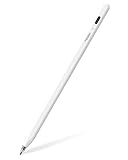
- 【All-New Air-Flex Tip for a Quiet, Paper-Like Writing】Metapen presents the world’s first Air-Flex soft tip with micro air chambers, creating a paper-like feel with gentle resistance on the iPad screen. Softer than traditional hard tips, it glides smoothly without scratching and stays as quiet as 25 dB, enabling writing that won’t disturb others
- 【20H Battery Life, 2X Fast Charge】iPad Pencil Air 8 Pro fully charges in 45 minutes and lasts up to 20 hours. 2-min charge = 2-hour use. iPad Pencil Air 8 Pro delivers market-leading battery life and fast charging performance. No battery anxiety. (NOTE: Charges via USB-C to C cable. NOT magnetic attachment.)
- 【Easy To Use, LED Power Display】Click the top button once to turn on, long press to turn off. Simply grab and write. No Bluetooth connection required. With three-color LED indicator, get peace of mind by knowing the power status. Auto shut-off after 5 minutes of inactivity to save energy
- 【Ultra-Light, Palm Rejection】Durable yet lighter design. iPad stylus Pen Air 8 Pro weighs just 10 g—50% lighter than Pencil, allowing you to focus on writing for hours without hand fatigue. Stylus pen for ipad Air 8 Pro's Palm Rejection allows you to rest your hands freely on the screen for uninterrupted creation, delivering a paper-like smooth writing experience. NOTE: NOT support tilt or pressure sensitivity
- 【Make Sure Your iPad Model is Compatible】Air 8 Pro iPad pen is ONLY compatible with the iPad models below: iPad 11/10/9/8/7/6 Gen, iPad Pro 13 inch M4, iPad Pro 11 inch 1/2/3/4/M4, iPad Air 3/4/5/M2/M3/M4, iPad Pro 12.9 inch 3/4/5/6 Gen, iPad Mini 5/6 Gen. NOTE: ❌NOT for iPads before 2018, iPad Mini 7th, iPhone, Android or Microsoft devices. Please check your iPad model before ordering
The official pricing page currently lists Pro Lifetime at $12.99 for iPhone and iPad, Max Annual at $16.99 per year, and Max Lifetime at $51.99. The Max plans include Mac access and advanced OCR and AI features. Regional App Store prices may differ; see MarginNote’s pricing page.
Some MarginNote features document on-device Apple Intelligence options, but AI, OCR, synchronization, supported hardware, and plan access should be checked feature by feature.
Do these 3 things before closing this tab:
1Repair Windows errors before they cause bigger problems2Scan for outdated or missing drivers - takes under a minute3Clear out junk files and repair common Windows errorsBest for: medical, law, or graduate study; exam preparation; flashcards from readings; and long-term knowledge management.
Limitations: It is much more complex than Preview or Goodnotes and offers little benefit to someone who only wants to annotate and export a PDF.
Feature comparison
| App | Workflow type | PDF-first? | Apple Pencil | OCR or scanned-PDF tools | Main trade-off |
|---|---|---|---|---|---|
| Apple Preview | Native PDF utility | Yes | Yes | Creates searchable scans | Limited research, collaboration, and advanced editing |
| PDF Expert | PDF editor and reader | Yes | Yes | OCR and scanned-document tools | Advanced features require payment; Apple-centric |
| Goodnotes | Notebook workspace | No | Yes | Handwriting recognition and search | Notebook and export model may not preserve every PDF feature |
| Notability | Notebook and lecture app | No | Yes | Depends on document and plan | More note-centric than PDF-editor-centric |
| LiquidText | Research workspace | Partly | Yes | Documented OCR | Steeper learning curve and project-based workflow |
| MarginNote 4 | Study and knowledge system | Partly | Yes | OCR and study tools | Complex and specialized |
| Adobe Acrobat | Enterprise PDF platform | Yes | Yes | Paid OCR and document tools | Subscription-heavy for casual users |
| Xodo | PDF reader and editor | Yes | Yes | OCR options for scans | Feature availability varies by subscription |
| Drawboard PDF | Pen-first technical markup | Yes | Yes | Not its central strength | Advanced tools and cloud features are paid |
| Foxit PDF Editor | Business PDF editor | Yes | Yes | Paid OCR and handwriting conversion | Advanced tools require subscription |
| PDFgear | Free PDF editor | Yes | Yes | Basic PDF tools; verify OCR scope | Privacy and long-term product certainty need scrutiny |
How to choose in 60 seconds
- Only need to circle, highlight, sign, or fill a form? Use Apple Preview.
- Need to edit existing text, merge pages, convert files, run OCR, or redact? Start with PDF Expert, Acrobat, Foxit, or Xodo. Check whether the specific advanced feature is paid.
- Need to write all over lecture slides and add notebook pages? Choose Goodnotes.
- Need audio synchronized to your writing? Choose Notability.
- Need to compare many papers and collect connected excerpts? Choose LiquidText.
- Need mind maps, flashcards, and spaced repetition? Choose MarginNote 4.
- Need measurements, reusable symbols, and technical drawing markup? Choose Drawboard PDF.
- Need a broad free third-party tool? Test PDFgear, but review its privacy disclosures and confirm its current pricing status.
- Need to work with Windows or Android users? Prefer Xodo, Acrobat, Foxit, or Drawboard over an Apple-only notebook workflow.
Apple Pencil and iPad compatibility
Do not buy an Apple Pencil based only on the iPad’s marketing name. Apple’s current compatibility matrix distinguishes among Apple Pencil Pro, Apple Pencil USB-C, Apple Pencil 2, and Apple Pencil 1.
- Apple Pencil Pro: iPad Pro M4 and M5, iPad Air M2, M3, and M4, and iPad mini A17 Pro.
- Apple Pencil USB-C: current USB-C iPads plus many previous iPad Pro, Air, and mini models.
- Apple Pencil 2: selected iPad Pro, iPad Air, and iPad mini models.
- Apple Pencil 1: older iPad, iPad mini, iPad Air, and iPad Pro models; some USB-C iPads require an adapter.
Apple’s iPadOS 26 compatibility list includes iPad Pro 11-inch first generation and later, iPad Pro 12.9-inch third generation and later, 13-inch iPad Pro M4 and M5, iPad Air third generation and later including M2, M3, and M4, iPad eighth generation and later including A16, and iPad mini fifth generation and later including A17 Pro.
Recommended Free Tools
Features such as Pencil Pro squeeze, barrel roll, hover, double-tap, pressure response, and palm rejection depend on the Pencil model, iPad hardware, operating system, and app implementation. “Supports Apple Pencil” normally means that you can write with it; it does not guarantee that every advanced Pencil gesture works.
Independent reader supportYour contribution helps us test, update, and keep practical guides available for everyone.What to check before choosing an app
Annotation type
There is a meaningful difference between selecting text and highlighting it semantically, drawing a translucent line with the Pencil, adding a sticky-note comment, and placing a text box. If another person needs to reply to your comment in Acrobat, use an app that creates conventional PDF comments rather than relying only on ink or notebook objects.
Scanned PDFs and OCR
A text-native PDF has a text layer. You can usually select words, search them, copy them, and apply a semantic highlight. A scanned PDF may be only a collection of images. You can draw on it, but text selection and search require OCR or a newly created searchable text layer.
Test separately with a text-native article, a scan without OCR, and a scan after OCR. Columns, tables, formulas, images, and handwriting can reduce recognition quality. Preview documents searchable PDF creation from scans, while LiquidText, PDF Expert, Foxit, and other apps advertise OCR capabilities at particular tiers or in particular workflows. OCR availability is not proof that every complex scan will be recognized accurately.
Quick wins for a faster PC:
Scan for outdated or missing drivers - takes under a minuteDriver Scan →Clear out junk files and repair common Windows errorsFree Scan →Fix the driver behind crashes, sound loss and screen glitchesFind Drivers →Forms and signatures
Distinguish among typing into existing interactive fields, adding a text box to a static form, drawing a signature, using a saved signature, applying a certificate-based digital signature, and flattening a completed form. Preview handles interactive fields and basic signatures. Foxit documents XFA support, which is especially relevant to business forms. Acrobat and PDF Expert provide broader professional document workflows.
A drawn signature is not automatically a certificate-backed digital signature. If a bank, employer, court, or government agency requires a particular signature or verification method, follow that organization’s instructions.
Redaction and security
A black rectangle placed over sensitive text is not necessarily redaction. It may only cover the text visually while leaving the underlying content recoverable or selectable. True redaction removes the underlying content; flattening changes how objects are represented but should not be confused automatically with secure removal.
PDF Expert, Acrobat, Foxit, Xodo, and Drawboard list redaction or security tools at particular paid tiers. Before using any app for confidential documents, confirm that the exact iPad version performs permanent redaction, then test the result by searching, copying, and opening it in another viewer.
Collaboration
For team review, look for comment replies, reviewer identity, permissions, version history, offline editing, guest access, and whether recipients need an account. Adobe’s shared reviews, Notability collaboration, LiquidText projects, Drawboard Store+Share, and Goodnotes collaboration all use different models. A collaboration feature inside an app’s cloud is not equivalent to sending a normal PDF by email.
Export and interoperability: the part many comparisons omit
Before choosing a notebook or research app, ask: Can the recipient open the result in Preview, Acrobat, Windows PDF software, or a browser?
Editable versus flattened output
An editable PDF keeps annotation objects separate from the page. This can preserve selectable objects, comments, outlines, and links, but another viewer may not support every annotation type. A flattened PDF merges the visible result more closely with the page, usually improving visual compatibility, but it can remove editability and may discard links or outlines.
Goodnotes explicitly documents this trade-off: editable export preserves objects, outlines, and original hyperlinks but does not make handwriting searchable; flattened export is generally more compatible and can preserve searchable handwriting when recognition is enabled, but it does not preserve original outlines and hyperlinks.
Notability also warns that annotations made in other PDF applications may fail to display after import. Its documented workaround is to flatten a copy in Acrobat or PDF Expert.
A safe handoff procedure
- Keep the original PDF and the app’s native project or notebook as a backup.
- Export a PDF with annotations explicitly included.
- When compatibility matters more than future editing, create a flattened copy.
- Open the exported file in Apple Preview or Acrobat on another device.
- Check a page with handwritten ink, a text highlight, a comment, a signature, links, and an outline.
- Send the validated copy, not the first export you assume is correct.
Common problems and fixes
Annotations disappear in another app
Possible causes include proprietary annotation types, an export made without annotations, incorrect flattening, an unusual PDF structure, or unsupported comment rendering in the receiving application.
- Reopen the original in the source app.
- Export again with annotation and page-background options enabled.
- Try a flattened copy for visual compatibility.
- Open the result in Preview and Acrobat before sending it.
- Retain the original editable project in case the recipient needs a different format.
For Goodnotes, enable Include Page Background and Include Annotation during export. For Notability, flatten the source PDF in Acrobat or PDF Expert when imported annotations do not appear.
Best Value

- 【Active Stylus Pen with LED Display — Real-Time 1%-100% Battery Readout】Never run out mid-drawing. The built-in LED screen shows precise battery percentage and auto-wakes when you pick up the pen — the only active stylus pen for iPad, Android, and Samsung with a live LED battery display. USB-C fast charging delivers full-day use from just 50 minutes of charge time, no Bluetooth required.
- 【Universal 2-in-1 Dual Mode Stylus — Works on ALL Capacitive Touch Screens】One stylus pen for iPad, Samsung Galaxy, Android tablets, iPhone, and Nintendo Switch. This 2-in-1 dual mode digital pencil eliminates the need for multiple styli — just turn on and write instantly on any capacitive touch screen. Perfect for multi-device users and families.
- 【1.5mm Fine Tip + Tilt Sensitivity — Draw, Shade, and Write with Precision】Ultra-fine durable tip with LED display lets you tap, write, and draw pixel-accurately. Angle the pen to shade, thicken, or thin your strokes — just like a real pencil. Works seamlessly with iPad (Procreate), Android tablet (Sketchbook, Ibis Paint), and other drawing apps with smooth, low-latency response.
- 【No Bluetooth, No App — Instant Plug and Play】Forget pairing codes and compatibility lists. Turn on this universal stylus pen and it works on any capacitive touch screen — even school-issued iPads that block Bluetooth accessories. Palm rejection lets you rest your hand naturally while writing. Package includes: 1 LED stylus pen, 3 extra tips, 3 tip caps, user manual.
- 【Ideal for Gaming, Note Taking, and Office — A True All-Rounder】Beyond drawing: this active stylus is perfect for touch-screen games , document signing, PDF annotation, photo editing, and smart meeting notes. With palm rejection and tilt sensitivity, it transitions seamlessly from the art studio to the boardroom to casual gaming.
The PDF will not import
- Convert Word or PowerPoint to PDF first.
- Save the file to Files before importing it from a browser or email attachment.
- Compress a very large PDF.
- Split a textbook or report into chapters.
- Try a flattened copy.
- Check whether the PDF is password-protected.
- Check available iPad storage and memory.
Notability specifically recommends Office-to-PDF conversion, alternate import routes, compression, and splitting large documents in its import troubleshooting guidance.
Windows Errors? Fix Them Before They Spread
Repair common Windows errors and clear accumulated junk for a smoother, more stable PC - no reinstall needed.Free scan · no reinstallOutdated Drivers Are Slowing You Down
One free scan finds every outdated or missing driver and matches the right update for your exact hardware.Free scan · exact hardware matchA static form cannot be filled normally
If the document has no interactive fields, use Preview’s Add Text tool or add a signature manually. For more complex form creation, XFA forms, or advanced editing, use a PDF editor such as Acrobat, PDF Expert, Foxit, or Xodo.
The file is a scan
You can still write or draw on a scanned PDF, but semantic highlighting, search, and copy/paste require a text layer. Create a searchable scan in Preview or use an app with documented OCR. Do not confuse the ability to draw on an image with the ability to recognize its words.
Cloud synchronization creates duplicate files
Choose one source of truth: Files and iCloud Drive, the app’s internal library, OneDrive or Dropbox, or a research project database. Avoid editing the same PDF simultaneously in two systems unless the app documents conflict handling. This reduces duplicate copies and makes it clear which file should be exported or shared.
Privacy, accounts, AI, and offline use
AI is an optional layer, not a requirement for PDF annotation. Depending on the app and feature, AI may require an account, a paid plan, credits, an internet connection, or supported Apple Intelligence hardware. Some features may process document content on a cloud service; others may use on-device processing. Check the exact feature’s documentation before placing confidential contracts, research, medical records, or legal documents into an AI workflow.
MarginNote documents on-device Apple Intelligence options for certain features. PDF Expert, Foxit, Acrobat, Goodnotes, and other apps advertise AI features that may have separate plan or account requirements. These claims should not be generalized into a claim that an entire app is private or offline.
Likewise, cloud synchronization does not automatically mean that every feature works offline or that conflicts are resolved safely. If offline work matters, test opening, annotating, saving, and reopening a file with Wi-Fi disabled.
Which app should each type of reader choose?
- Occasional signer: Apple Preview.
- Student who writes extensively on slides: Goodnotes.
- Student recording lectures: Notability.
- Researcher comparing papers: LiquidText.
- Graduate student building flashcards and mind maps: MarginNote 4.
- Apple-only professional managing PDFs: PDF Expert.
- Business reviewer in an Adobe organization: Adobe Acrobat.
- Architect, engineer, or field inspector: Drawboard PDF.
- Mixed iPad, Windows, Android, and cloud user: Xodo, Acrobat, Foxit, or Drawboard.
- Subscription-averse user wanting a broad free alternative: Preview first, then PDFgear if its current privacy and feature terms are acceptable.
How to test before moving your library
If the app will become part of a school, research, or business workflow, test it with the same files you actually use. Record the iPad model, Apple Pencil model, iPadOS version, app version, test date, storage location, and whether the device was online.
A useful test pack contains:
- A text-native article.
- A scanned PDF without a text layer.
- A form with interactive fields.
- A password-protected PDF.
- A PDF containing hyperlinks and an outline.
- A large textbook or technical drawing.
- A PDF with comments created in Acrobat.
- A document containing columns, tables, formulas, and images.
- A document requiring a signature and text boxes.
- A PDF exported from each candidate app and reopened in Preview and Acrobat.
Check highlight accuracy, Pencil writing, palm rejection, finger scrolling while writing, eraser behavior, undo, search, OCR, page thumbnails, export size, annotation visibility, link and outline preservation, login requirements, offline editing, and duplicate-file behavior. Do not turn these observations into universal performance rankings unless the test procedure and results are published.
Why older app rankings can mislead
Some search results are not current enough for iPadOS 26. For example, the page titled “Best PDF markup and annotation apps for iPad and Apple Pencil 2026” identifies an August 3, 2023 update and says Preview was not available on iPad. That statement predates the iPadOS 26 Preview app and should not be used as a current description of Apple’s built-in tools.
Vendor roundups can also be useful for discovering apps but should be read with attribution. Drawboard’s own iPad PDF roundup naturally emphasizes Drawboard’s technical-markup strengths and product ecosystem. Check product claims and prices against the relevant App Store listing and support documentation.
The deeper problem with many lists is that they rank a native PDF utility, a handwriting notebook, a research canvas, and an enterprise review platform as if they were interchangeable. They are not.
Frequently Asked Questions
Can I write directly on a PDF with Apple Pencil on an iPad?
Yes. On iPadOS 26, open the PDF in Preview, tap Markup, choose a pen or other drawing tool, and write with Apple Pencil. Third-party apps such as PDF Expert, Goodnotes, Notability, LiquidText, Acrobat, Xodo, Drawboard, Foxit, and PDFgear also support Pencil-based workflows, but advanced Pencil gestures vary by app, iPad, Pencil model, and operating system.
Do these 3 things before closing this tab:
1Scan for outdated or missing drivers - takes under a minute2Repair Windows errors before they cause bigger problems3Fix the driver behind crashes, sound loss and screen glitchesIs Apple Preview enough for PDF annotation?
Preview is enough for occasional highlighting, handwriting, text boxes, signatures, form filling, scanning, page rearrangement, and password protection. Choose another app when you need advanced editing, OCR-heavy workflows, permanent redaction, technical measurements, formal collaboration, a handwritten notebook, or a research workspace.
Why did my PDF annotations disappear after export?
The export may have omitted annotations, used an unsupported annotation type, or preserved objects that the receiving app cannot render. Export again with annotations included, try a flattened copy, and open the result in Preview or Acrobat before sending it. In Goodnotes, enable Include Page Background and Include Annotation.
Should I export an editable or flattened PDF?
Use editable export when you need selectable objects, comments, links, or outlines to remain available for further editing. Use flattened export when the recipient mainly needs the marked-up appearance to render consistently. Keep the original notebook or project because flattening can remove editability and may discard links or outlines.
Can a PDF annotation app search a scanned PDF?
Only if the document has a text layer or the app performs OCR. Drawing on a scanned image does not make its words searchable or selectable. Preview can create searchable scans, while several paid PDF and research apps document OCR tools.
The Bottom Line
For most iPad owners, start with Apple Preview. It now handles the basic PDF markup and signing tasks that older comparisons incorrectly treated as third-party-only features. Choose PDF Expert when you need a complete Apple-focused PDF editor, Goodnotes or Notability when the PDF belongs inside a handwritten notebook, and LiquidText or MarginNote 4 when reading is part of a larger research or study system. For business compatibility, consider Acrobat, Xodo, or Foxit; for technical drawings, choose Drawboard PDF.
Before sending an important file, export it, reopen it in Preview or Acrobat, and verify that the annotations, links, outlines, signatures, and redactions appear as intended.
Quick Recap
Product prices and availability are accurate as of the date/time indicated and are subject to change. Any price and availability information displayed on Amazon at the time of purchase will apply.

