
iTechGuides is reader-supported. When you buy through links on our site, we may earn an affiliate commission. As an Amazon Associate I earn from qualifying purchases. Learn more
For most people, odrive is the best online cloud file manager because it puts multiple cloud accounts, apps, and servers behind one login, works in a browser and on desktop, offers CLI tools and sync agents, and can use placeholder files so your computer downloads content only when you open it. Choose CloudMounter instead when you specifically want cloud storage to appear as a local drive in Finder or File Explorer. Choose MultCloud when moving files between providers and supporting as many services as possible matters more than collaboration features.
Those recommendations describe different jobs rather than a single universal winner. The right choice depends on whether you browse across clouds, mount storage like a disk, or run repeated cloud-to-cloud transfers. Pricing and availability are changing quickly in 2026, so check each provider immediately before subscribing.
Quick comparison
| Service | Best for | Access and operating systems | Standout capability | Important 2026 note |
|---|---|---|---|---|
| odrive | One interface for several cloud accounts | Browser client, desktop apps, CLI tools and sync agents; operating-system coverage varies by current client | Progressive Sync uses cloud placeholders and downloads a file when opened | Free consumer offering discontinued effective March 31, 2026; verify current business plans |
| CloudMounter | Making cloud storage look like a local disk | Mac and Windows applications; supports local-drive mounting and WebDAV | Finder or File Explorer-style access without treating every cloud file as a permanently synced copy | Official page lists version 4.18, released June 18, 2026 |
| MultCloud | Cloud-to-cloud transfers and broad provider coverage | Web-based management with support for a wide selection of services | Transfers, file management and previews across providers | The available comparison is useful for feature framing, not a current pricing authority |
No product is automatically best for every workflow. A file manager that is excellent for browsing may be inconvenient for a scheduled migration, while a transfer service may not provide the local-drive behavior a desktop user expects.
What an online cloud file manager actually does
An online cloud file manager is a control layer above services such as personal drives, team storage, backup buckets or WebDAV servers. Instead of signing in to each provider separately, you connect accounts to the manager and navigate folders from one interface. Depending on the product, you can preview files, copy or move data between clouds, share links, mount storage as a virtual drive, or synchronize selected folders to a computer.
Popular on Amazon
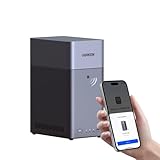
- Entry-level NAS Personal Storage:UGREEN NAS DH2300 is your first and best NAS made easy. It is designed for beginners who want a simple, private way to store videos, photos and personal files, which is intuitive for users moving from cloud storage or external drives and move away from scattered date across devices. This entry-level NAS 2-bay perfect for personal entertainment, photo storage, and easy data backup (doesn't support Docker or virtual machines).
- Set Your Devices Free, Expand Your Digital World: This unified storage hub supports massive capacity up to 64TB.*Storage drives not included. Stop Deleting, Start Storing. You can store 22 million 3MB images, or 2 million 30MB songs, or 43K 1.5GB movies or 67 million 1MB documents! UGREEN NAS is a better way to free up storage across all your devices such as phones, computers, tablets and also does automatic backups across devices regardless of the operating system—Window, iOS, Android or macOS.
- The Smarter Long-term Way to Store: Unlike cloud storage with recurring monthly fees, a UGREEN NAS enclosure requires only a one-time purchase for long-term use. For example, you only need to pay $459.98 for a NAS, while for cloud storage, you need to pay $719.88 per year, $2,159.64 for 3 years, $3,599.40 for 5 years. You will save $6,738.82 over 10 years with UGREEN NAS! *NAS cost based on DH2300 + 12TB HDD; cloud cost based on 12TB plan (e.g. $59.99/month).
- Blazing Speed, Minimal Power: Equipped with a high-performance processor, 1GbE port, and 4GB RAM on Board, this NAS handles multiple tasks with ease. File transfers reach up to 125MB/s—a 1GB file takes only 8 seconds. Don't let slow clouds hold you back; they often need over 100 seconds for the same task. The difference is clear.
- Let AI Better Organize Your Memories: UGREEN NAS uses AI to tag faces, locations, texts, and objects—so you can effortlessly find any photo by searching for who or what's in it in seconds. It also automatically finds and deletes similar or duplicate photo, backs up live photos and allows you to share them with your friends or family with just one tap. Everything stays effortlessly organized, powered by intelligent tagging and recognition.
The manager does not necessarily replace your underlying storage subscriptions. Your files normally remain in the connected providers, and the manager supplies authentication, indexing and transfer or sync functions. That distinction matters when you cancel a manager: disconnecting it should not delete the original cloud accounts, but any transfer jobs, local placeholders or sync relationships may stop.
Why odrive is the best general-purpose choice
One login for multiple services
odrive is designed to link cloud storage accounts, applications and servers so they can be accessed from one place. Its combination of a browser client, desktop applications, command-line tools and sync agents covers users who switch between a web dashboard, a computer file system and scripted workflows.
This breadth is useful when your files are split between personal storage, a work account, an archive service and a server. You can keep each provider in its native account while navigating them through the odrive namespace instead of maintaining a separate bookmark and desktop client for every service.
Progressive Sync reduces local storage pressure
odrive’s Progressive Sync represents remote content with placeholder files. The file name and folder structure can be visible locally, while the full contents are downloaded when you open the item. This is different from ordinary mirroring, which keeps a complete local copy and can consume the same capacity as the cloud dataset.
Placeholders are most helpful on laptops with limited solid-state storage or on workstations that need to see a large archive without keeping every video, disk image or project export offline. You still need a network connection the first time an online-only file is opened, and you should mark critical folders for offline use when travel or unreliable connectivity is expected.
Browser, desktop and command-line access
Use the browser client when you are on a temporary computer or need to administer accounts without installing software. Desktop applications are better for drag-and-drop work and local folder integration. CLI tools and sync agents are the differentiator for repeatable jobs such as scheduled copies, server workflows or scripted backups; confirm the current command syntax and supported operating system in odrive’s documentation before automating production data.
Also popular on Amazon

- 【Advanced Home Data & Media Hub】For advanced home users who need phone backup, file storage, and centralized data management. Centralize family photos, 4K videos, movies, computer backups, and personal files in one place while running multiple apps for home entertainment and everyday data management. Suitable for households with growing digital libraries and multiple NAS use cases.
- 【Built for Creators, Media Servers & Advanced Apps】Powered by the Intel N100 Quad-Core CPU, 8GB DDR5 RAM, 2.5GbE networking, and dual M.2 NVMe slots, DXP2800 handles large files and heavier workloads with ease. Run Docker, virtual machines, and media server applications compatible with Plex—ideal for content creators, tech enthusiasts, and advanced home users managing 4K videos, RAW photos, personal media libraries, and multiple NAS apps.
- 【Up to 80TB for Growing Digital Libraries】 Supports up to 80TB of storage using two HDD bays and two M.2 NVMe SSD slots for family photos, movies, RAW photos, 4K videos, work files, and device backups. AI photo management supports recognition of people, objects, scenes, and locations, album organization, and duplicate photo detection. HDDs and SSDs are not included.
- 【AI-powered Home Surveillance】Turn DXP2800 into a centralized home surveillance hub by connecting compatible network cameras and storing recordings locally on your NAS. AI-powered features include Face Recognition, People Detection, and Pet Detection, helping advanced home users review important events more efficiently while managing home surveillance and personal data in one place.
- 【One data Center Across Your Devices】Keep files from desktops, laptops, phones, tablets, and other devices together instead of scattered across cloud accounts and external drives. Access, back up, organize, and share data across Windows, macOS, Android, iOS, web browsers, and compatible smart TVs—ideal for creators and advanced home users working across multiple devices.
odrive plans and availability in 2026
The current Standard subscription documentation lists $20 per user per month or $200 per user per year, with a 30-day free trial. Enterprise pricing is custom. Existing legacy personal subscribers retain a $12.50-per-month rate, but that plan is no longer available to new users.
The Tool Desk
Outbyte Driver Updater FREEScan for outdated or missing drivers - takes under a minuteDriver Scan →Outbyte PC Repair FREERepair Windows errors before they cause bigger problemsFix Now →odrive announced that its free consumer offering would be discontinued effective March 31, 2026, as the company shifted focus toward business and enterprise cloud-storage workflows. Because that date has passed, do not assume a free tier is available. Check the live signup page, eligibility rules, storage limits and cancellation terms before moving a personal library.
When CloudMounter is the better choice
Cloud storage mounted like a disk
CloudMounter is aimed at users who want cloud accounts to appear as local drives in macOS Finder or Windows File Explorer. You can browse folders using familiar file-management commands rather than learning a separate web dashboard. This is a strong fit for a desktop workflow that repeatedly opens, saves and organizes remote files.
The local-drive model is not identical to full synchronization. Depending on the connection and application, files may be streamed or cached rather than stored permanently on the computer. Large media projects, database files and applications that expect a continuously available local path can behave differently over a mounted connection, so test the exact workload before relying on it.
WebDAV and provider coverage
CloudMounter’s official feature description includes WebDAV mounting and support for services including Box, Backblaze B2 and OpenStack Swift. That makes it relevant to organizations using standards-based storage or infrastructure-oriented services, not only mainstream consumer drives.
Recommended Free Tools
Current version
The official product page lists CloudMounter version 4.18, released June 18, 2026. Version numbers and supported providers can change, so verify that your operating-system release and the specific service you use are supported before purchasing or deploying it to a team.
Also popular on Amazon
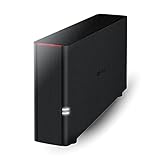
- Value NAS with RAID for centralized storage and backup for all your devices. Check out the LS 700 for enhanced features, cloud capabilities, macOS 26, and up to 7x faster performance than the LS 200.
- Connect the LinkStation to your router and enjoy shared network storage for your devices. The NAS is compatible with Windows and macOS*, and Buffalo's US-based support is on-hand 24/7 for installation walkthroughs. *Only for macOS 15 (Sequoia) and earlier. For macOS 26, check out our LS 700 series.
- Subscription-Free Personal Cloud – Store, back up, and manage all your videos, music, and photos and access them anytime without paying any monthly fees.
- Storage Purpose-Built for Data Security – A NAS designed to keep your data safe, the LS200 features a closed system to reduce vulnerabilities from 3rd party apps and SSL encryption for secure file transfers.
- Back Up Multiple Computers & Devices – NAS Navigator management utility and PC backup software included. NAS Navigator 2 for macOS 15 and earlier. You can set up automated backups of data on your computers.
When MultCloud is the better choice
Transfers between providers
MultCloud is the strongest fit when the main task is moving or synchronizing data between cloud services. A cloud-to-cloud job can copy a folder from one provider to another without first downloading the entire dataset to your computer, which is useful for migrations, consolidating accounts or maintaining a second cloud copy.
The cited independent comparison describes MultCloud as supporting a broader selection of services than odrive in that comparison. It also highlights file-management and preview features. Provider lists and transfer limits change, so confirm that both the source and destination are currently supported and that your plan allows the size, frequency and number of jobs you need.
Where odrive may still be preferable
The same comparison gives odrive an advantage for sharing and collaboration. If your daily work is opening files, sharing links and coordinating with people rather than running migrations, odrive’s unified access and collaboration-oriented workflow may feel more natural than a transfer-first dashboard.
What’s actually slowing this PC down?
Pick the symptom - the matching free tool is one click away.
Feature-by-feature decision guide
Provider breadth
Choose MultCloud when the deciding factor is the largest practical list of supported services. Choose odrive when the providers you already use are supported and you value a consistent browser, desktop and CLI experience. Choose CloudMounter when support for a particular mounted service, especially WebDAV, is more important than the total number of integrations.
Local-drive mounting
CloudMounter is the clearest choice for a Finder or File Explorer drive. odrive can expose cloud content through desktop integrations and placeholders, but its main distinction is progressive, on-demand synchronization rather than simply mounting every account as a virtual disk. MultCloud is primarily a web management and transfer tool, so do not select it expecting a conventional local drive.
Selective or placeholder sync
odrive’s Progressive Sync is the relevant option when you need a visible local namespace without downloading everything. Decide which folders must be available offline, then keep the rest online-only. A mounted-drive product may avoid a full mirror as well, but its caching behavior and offline guarantees are different; read the current documentation for the exact service and operating system.
Also popular on Amazon

- Entry-level NAS Home Storage: The UGREEN NAS DH4300 Plus is an entry-level 4-bay NAS that's ideal for home media and vast private storage you can access from anywhere and also supports Docker but not virtual machines. You can record, store, share happy moment with your families and friends, which is intuitive for users moving from cloud storage, or external drives to create your own private cloud, access files from any device.
- Smart Photo Backup & AI Album: Automatically back up photos and videos from your phone in real time and keep growing family memories organized with AI-powered photo albums. Semantic search, custom learning, and recognition of people, objects, pets, and similar photos help you quickly find the moments you want. Duplicate photo removal also helps keep your library organized—ideal for families and users with large photo collections.
- User-Friendly App & Easy Setup: Connect quickly via NFC, set up simply and share files fast on Windows, macOS, Android, iOS, web browsers, and smart TVs. You can access data remotely from any of your mixed devices. What's more, UGREEN NAS enclosure comes with beginner-friendly user manual and video instructions to ensure you can easily take full advantage of its features.
- More Cost-effective Storage Solution: Unlike cloud storage with recurring monthly fees, A UGREEN NAS enclosure requires only a one-time purchase for long-term use. For example, you only need to pay $629.99 for a NAS, while for cloud storage, you need to pay $719.88 per year, $1,439.76 for 2 years, $2,159.64 for 3 years, $7,198.80 for 10 years. You will save $6,568.81 over 10 years with UGREEN NAS! *NAS cost based on DH4300 Plus + 12TB HDD; cloud cost based on 12TB plan (e.g. $59.99/month).
- Your Data, You Control:No third-party clouds, no hidden access, UGREEN NAS provides a more secure and private data storage solution. It stores data locally on your private hard drives and does automatic backups. Thus, you can keep full control over it. The advanced encryption is TRUSTe certified in the United States and is awarded the first (and only) ETSI EN 303 645 certification mark for NAS products by TÜV SÜD Group.
Cloud-to-cloud transfer
MultCloud should be your first evaluation for scheduled or one-time transfers. Check whether transfers run server-side, how failed files are retried, whether timestamps and permissions are preserved, and whether the plan imposes task, data-volume or bandwidth limits. odrive can connect many services, but the available comparison positions MultCloud as the broader transfer-focused option.
Free tools Windows power users keep installed
One-click scans. No signup required.
Previews, sharing and collaboration
MultCloud’s comparison coverage includes file management and previews. odrive has the stronger stated advantage for sharing and collaboration. CloudMounter’s value is the operating-system file view, so preview behavior is largely determined by the local application and the mounted connection.
CLI and automation
odrive is the only option in this set specifically documented with CLI tools and sync agents. That matters for repeatable operations, but automation also increases the cost of a mistake. Use a test folder, least-privilege credentials and a dry run where available before pointing a script at an entire account.
How to choose in five practical steps
- List every provider you need. Include personal, work, backup, WebDAV and server accounts. Eliminate any product that cannot connect to a required source or destination.
- Define the dominant action. Select odrive for unified browsing and collaboration, CloudMounter for a local-drive experience, or MultCloud for transfers and migration.
- Measure local-storage constraints. If the dataset is larger than your computer’s free space, prioritize placeholders or remote mounting and identify folders that must be available offline.
- Check access surfaces. Confirm browser, desktop, macOS or Windows support, and CLI availability if you need scripts. Do not infer support for a platform from another product’s listing.
- Validate current commercial terms. Recheck free tiers, trial duration, per-user pricing, transfer quotas, provider limits, privacy terms and cancellation rules immediately before subscribing.
Setup checklist for a safe first connection
- Create or confirm a recovery method for each underlying cloud account before connecting it.
- Use the provider’s official sign-in or authorization flow; avoid copying passwords into an unverified third-party prompt.
- Connect one non-critical folder first and test listing, opening, upload, download, rename and delete behavior.
- Check whether a delete in the manager propagates to the original provider and whether a recycle bin can recover it.
- For placeholders or mounted drives, test offline behavior and applications that need random access to local files.
- For transfers, compare source and destination counts, inspect failed-file logs and verify timestamps, sharing links and permissions where those attributes matter.
- Remove unused connections and revoke tokens from the underlying provider when you stop using a manager.
Privacy and security questions to ask
A cloud manager may be able to read filenames, metadata and file contents in order to preview, index, transfer or synchronize them. The exact access model differs by provider and plan. Before connecting sensitive data, read the current privacy policy, security documentation, encryption description, data-retention terms and account-recovery process.
Prefer scoped permissions when the cloud provider offers them. Separate personal and business connections, require multi-factor authentication on the underlying accounts, and use team roles that prevent ordinary users from authorizing broad administrative access. A manager can simplify access, but it also creates a high-value account: protect its password, recovery email and API tokens as carefully as the storage accounts themselves.
Quick wins for a faster PC:
Scan for outdated or missing drivers - takes under a minuteDriver Scan →Clear out junk files and repair common Windows errorsFree Scan →Fix the driver behind crashes, sound loss and screen glitchesFind Drivers →Common failure modes and fixes
A connected account is visible but files will not open
First check whether the item is an online-only placeholder or a mounted remote file and confirm that the computer is online. Reauthenticate the provider, then test a small file. If only one folder fails, inspect its permissions or path length rather than disconnecting every account.
Also popular on Amazon

- Secure private cloud - Enjoy 100% data ownership and multi-platform access from anywhere
- Easy sharing and syncing - Safely access and share files and media from anywhere, and keep clients, colleagues and collaborators on the same page
- Automated Backup Protection - Set-and-forget backups for Macs, PCs and mobile devices to multiple destinations including cloud and external drives
- Home Security System - Record and monitor your property 24/7 with support for multiple IP cameras and remote viewing
- 2-Year Warranty - Reliable hardware backed by Synology's expert customer support team and ongoing software updates
A transfer stops partway through
Record the source, destination and failed filenames before restarting. Check quotas, expired authorization, illegal destination characters, provider throttling and plan limits. Restarting a job without comparing the destination can create duplicates; use the product’s resume or skip-existing behavior when available.
Local applications report that a mounted file is unavailable
Some applications require a stable local path, file locking or low-latency random access that a remote mount cannot guarantee. Copy the working set to a local folder, use an offline-sync option, or choose a workflow designed for remote files. Do not keep a live database on a mount unless the application and storage provider explicitly support it.
The computer fills with downloaded data
Review offline or cached-folder settings. With odrive, convert folders that do not need local copies back to placeholder status and clear existing local content only after confirming that the cloud copy is complete. Keep a local safety copy of irreplaceable data before changing sync rules.
Crashes, No Sound, or Screen Glitches?
Random freezes, missing sound and display glitches usually trace back to one bad driver. Find and replace yours safely.Free scan · under a minuteWindows Errors? Fix Them Before They Spread
Repair common Windows errors and clear accumulated junk for a smoother, more stable PC - no reinstall needed.Free scan · no reinstallPricing and availability: what to verify before paying
odrive’s documented Standard pricing is $20 per user per month or $200 per user per year, with a 30-day trial; Enterprise pricing is custom. The legacy $12.50 monthly personal rate is restricted to existing subscribers. The free consumer service ended on the announced March 31, 2026 date, so current personal availability must be confirmed directly.
No current price is established here for CloudMounter, and the MultCloud-versus-odrive comparison is not a current pricing authority. Treat any price shown on an older comparison page as historical until confirmed on the provider’s live plan page. For all three services, verify whether billing is per user, whether annual billing is prepaid, what happens after a trial, and which transfer, storage or provider limits apply.
Which one should you pick?
- Pick odrive if you want one place to browse several clouds, need browser and desktop access, value sharing and collaboration, or require CLI tools and on-demand placeholder syncing.
- Pick CloudMounter if your priority is seeing supported cloud services as local drives in Finder or File Explorer, particularly when WebDAV, Box, Backblaze B2 or OpenStack Swift support is relevant.
- Pick MultCloud if you are consolidating accounts, copying data between providers or prioritizing a broad provider list, file management and previews. Confirm current service support and plan limits before starting a migration.
The safest evaluation is a small, reversible pilot: connect one account, test the operations you actually perform, measure local disk use and validate recovery before importing a complete archive.
Quick Recap
Product prices and availability are accurate as of the date/time indicated and are subject to change. Any price and availability information displayed on Amazon at the time of purchase will apply.
Do these 3 things before closing this tab:
1Scan for outdated or missing drivers - takes under a minute2Repair Windows errors before they cause bigger problems3Fix the driver behind crashes, sound loss and screen glitches
