
Outdated Drivers Are Slowing You Down
One free scan finds every outdated or missing driver and matches the right update for your exact hardware.Free scan · exact hardware matchWindows Errors? Fix Them Before They Spread
Repair common Windows errors and clear accumulated junk for a smoother, more stable PC - no reinstall needed.Free scan · no reinstallLooking for a monitor with a built-in KVM switch? These displays can share one screen and the USB keyboard, mouse, and other peripherals connected to it between computers. The right choice depends on more than resolution: check how each monitor connects to both systems, how its USB ports switch, and whether it supplies enough power to charge your laptop.
The models below are candidates drawn from named review and manufacturer sources, not results of a single hands-on comparison. Availability and regional model suffixes can change; verify the exact SKU before buying.
What a monitor’s built-in KVM does
KVM stands for keyboard, video, and mouse. A monitor with KVM can switch its display input and route peripherals plugged into the monitor to the computer you are using. That can remove the need for a separate KVM box, but only when the monitor has both a video connection and the appropriate USB upstream connection to each computer.
USB-C docking and KVM are related but not interchangeable. USB-C may carry video, data, and power to a laptop; KVM is the function that switches shared peripherals between computers. Check the port diagram and setup instructions for the exact model, including whether the second computer needs a separate USB cable.
The Tool Desk
Outbyte PC Repair FREERepair Windows errors before they cause bigger problemsFix Now →Outbyte Driver Updater FREEFix the driver behind crashes, sound loss and screen glitchesFind Drivers →#1 Best Overall

- ULTRA WIDE IMMERSION: Immerse yourself in games, movies, or design projects. A 34” 1000R curved display surrounds you with a 21:9 aspect ratio.
- EXQUISITE COLORS BRING ENHANCED REALISM INTO VIEW: See a wider gamut of colors for stunning accuracy and detail. HDR10 provides nearly limitless hues and true-to-life color representation, with darker darks and brighter brights.
- THE PERFECT SOUND SOLUTION FOR YOUR WORK SPACE: Easily listen to content while you work, learn, and play without the need for additional peripherals. With built-in speakers, desk space is freed up by minimizing the connections.
- HARMONIOUSLY MASTER MULTIPLE SOURCES: A built-in KVM switch lets you connect and control two sources to your monitor at once, with just one keyboard and mouse. You choose: split screen, Picture in Picture, or Picture by Picture are all possible.
- CONNECT AND ADJUST TO MEET YOUR NEEDS: A USB-C port lets you power up your device and transmit data with just one cable, and a LAN port lets you connect to a LAN-less laptop for ethernet use.
Recommended monitors with built-in KVM
These recommendations cover different needs rather than a single universal winner. Specs and assessments below are attributed to the cited publisher or manufacturer; confirm product availability in your region.
| Monitor | Best fit | Documented highlights |
|---|---|---|
| KTC H27P6 | Value-oriented 27-inch 4K with gaming modes | DisplayNinja lists 27-inch 3840 × 2160 IPS, 160Hz at 4K or a separate 320Hz 1080p mode, USB-C DP Alt Mode with 90W power delivery, and built-in KVM. Its guide positions it as a value option; it is not independently tested here. DisplayNinja guide |
| Dell UltraSharp U2725QE | Premium 27-inch office and docking setup | RTINGS describes a 4K USB-C monitor with KVM, Thunderbolt 4 with 140W power delivery, a hub, and display daisy-chain options. RTINGS notes the less expensive ASUS ProArt PA279CRV lacks KVM, so do not infer KVM support from USB-C connectivity alone. RTINGS USB-C monitor recommendations |
| Dell UltraSharp U3226QER | Large 32-inch office display | DisplayNinja lists 32-inch 4K, 120Hz, IPS Black, KVM, Thunderbolt 4, and 140W power delivery. Check the exact SKU and regional availability. DisplayNinja guide |
| ASUS ProArt PA278CGRV | Creator and productivity workflows | ASUS specifies built-in Auto KVM and 96W USB-C power delivery. Compare its resolution and size with the 4K alternatives as well as its KVM features. ASUS product page |
| Philips 27B1U5601H/00 | Office docking with webcam and wired networking | Philips describes a MultiClient KVM for two PCs, an integrated 5MP camera and microphone, RJ45 networking, and USB-C docking. The cited product sheet dates to 2023; check whether this model is still sold where you live. Philips product sheet |
| Gigabyte MO34WQC2 | Gaming ultrawide | PC Gamer describes its built-in KVM as useful for switching between systems, while judging it a poor fit for professional color and resolution work. That is PC Gamer’s assessment, not a comparative test in this article. PC Gamer coverage |
| HP Series 7 Pro 734pm | Business ultrawide with conferencing hardware | TechRadar describes a 34-inch productivity monitor with KVM, Thunderbolt 4 at 100W, USB-C at 65W, and an integrated webcam. The cited coverage does not provide a full comparative test result. TechRadar review |
| Dell U4924DW | Super-ultrawide workspace | DisplayNinja lists a 49-inch 5120 × 1440 IPS Black panel with KVM, USB-C 90W power delivery, and picture-in-picture/picture-by-picture. Consider whether your desk can accommodate its width and whether one wide canvas suits your workflow. DisplayNinja guide |
How to choose the right KVM monitor
Match the display to your work
- Office and general productivity: Compare the Dell U2725QE, U3226QER, ASUS ProArt PA278CGRV, and Philips 27B1U5601H/00 based on size, resolution, charging, and the peripherals you need. The Philips is notable for its documented camera, microphone, and RJ45 port.
- Gaming: Check the resolution tied to each refresh-rate mode, not just the highest refresh-rate number. The KTC H27P6’s listed 160Hz 4K and 320Hz 1080p are separate modes. The Gigabyte MO34WQC2 is an ultrawide option, but PC Gamer does not recommend it for professional color or resolution work.
- Wide workspace: A 34-inch ultrawide or 49-inch super-ultrawide gives more horizontal room, but panel type, pixel density, desk width, and intended use still matter. The Dell U4924DW’s 5120 × 1440 resolution is spread across a 49-inch display.
Check charging and the full port layout
Power delivery varies substantially: the cited sources report 140W for the Dell U2725QE, 140W for the Dell U3226QER, 96W for the ASUS PA278CGRV, 90W for the KTC H27P6, and 90W for the Dell U4924DW. Those figures are model specifications reported by the cited sources, not a guarantee that every laptop will charge at that rate; check the manufacturer’s specifications and your laptop’s requirements. For the HP, TechRadar distinguishes 100W Thunderbolt 4 from 65W USB-C. The cited Philips passage describes USB-C charging but does not state a wattage.
Rank #2

- QUANTUM DOT SUPERSPEED IPS PANEL – The M27Q2 features a stunning 27-inch Superspeed IPS display with Quantum Dot Technology delivering OLED-class color vibrancy with 99% DCI-P3 color gamut coverage.
- COMPETITIVE EDGE WITH 200HZ REFRESH RATE AND 1MS RESPONSE TIME – Achieve a super-fast response time and smooth motion clarity with an 200Hz/OC 210Hz refresh rate and 1ms GTG response time. Whether you’re in high speed FPS battles or intense esports competitions, the M27Q2 ensures every frame is delivered with precision, giving you the edge when milliseconds matter.
- LIFE-LIKE COLORS EXPERIENCE – With 1000:1 contrast ratio, 99% Adobe RGB wide color gamut, and 8-bit color depth, you can experience richer, more lifelike colors for a cinema-grade visual experience.
- SUPPORT VESA DISPLAY HDR 400 – With VESA DisplayHDR 400, the M27Q2 ensures a more realistic and captivating gaming experience with accurate color and contrast reproduction.
- SUPPORT AMD FREESYNC PREMIUM & NVIDIA G-SYNC COMPATIBLE – With AMD FreeSync Premium and NVIDIA G-Sync compatibility, the M27Q2 provides an enhanced gaming experience by reducing screen tearing and stuttering.
Also check whether the monitor has the video inputs and USB upstream ports needed by your computers, plus any docking extras you need, such as Ethernet, a webcam, or daisy chaining. Feature combinations differ by model; a USB-C port alone does not establish KVM support.
Confirm how switching works
Some monitors offer automatic KVM switching; others require a manual choice or a USB-source assignment. ASUS specifies Auto KVM on the PA278CGRV, while the exact behavior and supported connections on other models should be confirmed in their manuals. A monitor’s KVM feature cannot switch peripherals correctly if the relevant computer-to-monitor USB path is missing or assigned to the wrong source.
Rank #3
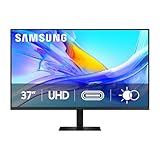
- Samsung’s 37” ViewFinity S8 Monitor with 4K UHD Resolution reveals crystal-clear excellence with higher pixel density.
- The additional 5 inches, compared to a 32” display, provides an ergonomic, expanded workspace to boost productivity.
- With 1.07 billion colors, HDR10 provides near-limitless hues and true-to-life color representation with deeper contrast for darker darks and brighter brights.
- A USB-C port allows up to 90W charging and data transfer at the same time, while a built-in LAN port provides seamless Ethernet connectivity for laptops.
- The built-in KVM switch enables you to choose split screen, Picture-in-Picture, or Picture-by-Picture for enhanced efficiency when multitasking.
How to connect and configure a monitor KVM
Connections and menu names vary by brand and model. BenQ’s instructions provide one concrete example, dated February 25, 2025:
- Connect the keyboard, mouse, and other shared USB peripherals to the monitor’s USB ports.
- Connect both computers to the monitor using their video inputs, such as USB-C, DisplayPort, or HDMI as supported by the monitor.
- Connect the required USB upstream path for each computer so the monitor can route peripherals to the active system.
- If the second video source is HDMI, BenQ’s instructions say to select that source’s USB connection manually in the monitor’s KVM menu. Follow your own monitor’s manual for the relevant menu and cable requirements.
- Switch the monitor to the other computer and check that both the picture and the attached keyboard and mouse move to that system.
BenQ’s setup guidance: BenQ KVM setup instructions.
Rank #4

- 【KVM Switch 2 In 1 Out】This KVM switch 1 monitors 2 computers supports sharing a set of mouse and keyboard; simply press the switch button to quickly switch between 2 PCs without having to plug and unplug HDMI and USB cables back and forth, keeping your desktop neat and tidy while increasing your productivity. It also saves you money and reduces the need for duplicate equipment. Note: Each computer and monitor must be equipped with an HDMI port for proper operation. The use of conversion cables or adapters may result in unstable/flickering transmission or failure to transmit images(The device will disconnect intermittently)
- 【Ultra HD 4k】The HDMI KVM switch supports resolutions up to 4K@60Hz, allowing images to be displayed more beautifully and realistically, and colours will be more vivid and dynamic, and backward compatible with 3840*2160@30Hz, 1920*1080P@60Hz, 1920*1080P@30Hz, etc. Note: KVM requires a high-quality HDMI 2.0 standard cable no longer than 3.3 feet in length, and ensure that your computer and monitor support 4K to ensure the transmission of video signals!
- 【Desktop Remote Wired Control】The monitor switch for two computers has two switching modes.1) You can switch directly by clicking the button on the body of the KVM switch.2) You can hide the KVM switch and use the desktop controller to switch between the two computers, which makes your desktop cleaner, saves a lot of space and is more convenient to use. Note: This KVM switch does not support hotkey switching
- 【Mouse Keyboard KVM Switch 】This USB KVM switch has 2 USB 2.0 ports with data transfer speed up to 480Mbps, which can recognise a wired keyboard and mouse or other USB 2.0 devices to move files and photos easily. Different LEDs (green PC1 / blue PC2) clearly show which computer is active. KVM switch is also hot-swappable, allowing you to connect devices without rebooting, ensuring flexibility and portability
- 【Stable Use & After-sales】Our KVM switches are made of high quality materials, lightweight and compact, low power consumption, excellent compatibility, no driver required; plug and play, no external power supply required. Note: For compatibility reasons this small KVM switch is not recommended for use with Mac devices. If you encounter any problems during use, you can send us an email via the order number. Within 24 months, we will replace the switch at no charge
What the recommendations do—and do not—establish
The roundup combines manufacturer specifications and assessments from DisplayNinja, RTINGS, PC Gamer, and TechRadar; it is not a uniform independent test of every monitor. Use the named reviews for their stated judgments and official product information to verify specifications. DisplayNinja’s maintained monitor list contained 450 listed models in its September 30, 2026 update, which is a catalog count—not a measure of the overall monitor market. Prices, stock, and regional SKUs are not established here and should be checked with the manufacturer or local retailers.
Quick Recap
Best Value

- KVM Switch 3 Monitors 2 Computers: This 2*Displayport + 1*HDMI KVM Switches allows you to switch effortlessly between two computers with one click — share 3 monitors and 4 USB 3.0 ports (keyboard, mouse, printer, webcam) without swapping cables. Space-saving KVM for home offices, content creators, and IT professionals. NOTE: Both computers must support triple-monitor output to use all 3 displays simultaneously. If either PC only supports 1 or 2 displays, the extra monitor(s) won’t activate
- Ultra HD 8K@60Hz/4K@240Hz Resolution: This USB KVM switch output features two DisplayPort 1.4 ports + one HDMI 2.1 port, each supporting up to 8K@60Hz resolution, and backward compatible with 8K@30Hz, 4K@240Hz/144Hz/120Hz/60Hz/30Hz. It also supports HDR10+, HDCP 2.3/1.4, VRR, FreeSync, and G-Sync, eliminating screen tearing and stuttering across three monitors, even at high frame rates. NOTE: If need to achieve 8K resolution, your computers and monitors both need to support 8K@60Hz resolution, and please make sure the length of your cables are within 2 meters 28AWG
- Two Switching Ways & Two Dispaly Modes: This KVM switch displayport HDMI supports button switching and desktop controller switching, freely switch between 2 computers. With the desktop controller, you can place this monitor switch for 2 computers outside your work area, making your desktop cleaner and tidier. Two Dispaly Modes, Mirror mode: Triple monitors output the same images, Extend mode: Triple monitors output different images. NOTE: Not support Keyboard shortcuts (hotkeys) toggles
- Wide Compatibility & Package List: This triple monitor KVM switch driver-free and plug and play, and supports Windows, and Linux systems. PACKAGE LIST: 1*KVM switch, 4*DP cables, 2*HDMI cables, 2*USB A cables, 1*power adapters, 1*desktop controller, 1*user guide
- NOTE: 1, To ensure normal usage, please make sure to connect the power supply via the power adapter. 2, To display content across three screens simultaneously, make sure each of your PC is equipped with 2 DisplayPort ports + 1 HDMI port. 3, Each computer at the input needs to be connected with 2* DP cables + 1* HDMI cable+1* USB cable. 4, Please make sure your PC supports 3 screens or above display function before purchasing. 5, If a signal converter or docking station is used, there may be compatibility issues. 6, NOT support EDID emulation
Product prices and availability are accurate as of the date/time indicated and are subject to change. Any price and availability information displayed on Amazon at the time of purchase will apply.

