
iTechGuides is reader-supported. When you buy through links on our site, we may earn an affiliate commission. As an Amazon Associate I earn from qualifying purchases. Learn more
Choose the platform before you choose the laptop. A Chromebook with confirmed Google Play support is the simplest route for installing ordinary Android apps. Choose a Windows or macOS laptop when you need Android Studio, repeatable emulator testing, several virtual devices, or a conventional desktop workflow.
For most buyers, 16 GB of RAM and an SSD are the practical starting point. Android Studio with an emulator needs more headroom: Google lists 16 GB as the minimum for Studio and Emulator and recommends 32 GB. The exact Chromebook model, Windows virtualization support, processor architecture, storage, and graphics capability matter more than a brand name.

Which laptop route fits your Android apps?
“Running Android apps” can mean three different things: installing mobile apps directly on ChromeOS, developing and testing apps in Android Studio, or using an Android emulator on a desktop operating system. Those jobs have different buying requirements, so there is no single best laptop for everyone.
Free tools Windows power users keep installed
One-click scans. No signup required.
ChromeOS with Google Play
ChromeOS is the most straightforward consumer option when the exact Chromebook has Google Play support. Apps install through the Google Play Store and run in the operating system rather than inside a separately configured development emulator. This is a good fit for messaging, streaming, productivity, education and other everyday apps.
#1 Best Overall
Support is not universal across Chromebooks. The Chromium Project documents Android-app support as device-specific and says that, unless a product is otherwise specified, devices launched in or after 2019 support Android apps. Treat that as a screening rule, not a guarantee: verify the exact model, hardware platform and ChromeOS channel before paying.
Windows or macOS for Android Studio
Use a Windows or macOS laptop when you need Android Studio, source-code tools, repeatable virtual-device profiles, debugging or a broader desktop workflow. Android Studio is a development environment, and its emulator can keep the processor, memory and storage busy for long periods. A 16 GB laptop may work for a light project; 32 GB is a more comfortable target when the IDE, emulator, browser tabs and other desktop applications are open together.
Do not buy Windows expecting the former built-in Android catalog
Microsoft Support states: “Starting March 5, 2025, Windows Subsystem for Android™ and the Amazon Appstore aren’t available in the Microsoft Store.” A new Windows 11 laptop therefore does not promise Microsoft’s former first-party Android-app distribution path. Existing or unofficial installations are outside that current supported distribution route. If your goal is ordinary app installation rather than development, a Chromebook with confirmed Play support is the clearer choice.
The Tool Desk
Outbyte PC Repair FREEClear out junk files and repair common Windows errorsFree Scan →Outbyte Driver Updater FREEFix the driver behind crashes, sound loss and screen glitchesFind Drivers →The hardware baseline to put on your shortlist
The following baseline separates ordinary app use from development and emulator work. The figures are vendor-published requirements, not independent performance tests.
| Component | Practical buying target | Why it matters |
|---|---|---|
| Memory | 16 GB for ordinary Android-app use; 32 GB for Android Studio plus emulator, multiple emulators or heavy multitasking | Microsoft lists 16 GB as recommended for its Windows mobile-app requirements. Google lists 16 GB for Studio and Emulator as a minimum and 32 GB as recommended. |
| Storage | SSD; 512 GB is a sensible starting capacity for development | Android Studio recommends an SSD with at least 32 GB of free space for the recommended setup. The operating system, SDK packages, virtual-device images, snapshots and personal files need additional room. |
| Processor architecture | x64 or ARM64, with a recent Intel Core or AMD Ryzen-class processor and virtualization support | Microsoft lists x64 or ARM64 for its Windows mobile-app path. Architecture affects application and emulator compatibility. |
| Virtualization | Intel VT-x or AMD-V enabled in BIOS/UEFI; Windows Hypervisor Platform available for Windows emulator acceleration | Hardware-assisted virtualization is required for a usable emulator experience. Firmware settings and Windows features must both expose it. |
| Graphics | Integrated graphics for light testing; at least 4 GB of GPU VRAM for Studio plus Emulator, with 8 GB recommended | Google specifies no GPU requirement for Studio alone, but gives 4 GB VRAM as the minimum and 8 GB as the recommended tier for Studio plus Emulator. |
| Display | 1920×1080 or better | Android Studio recommends a 1920×1080 display so code, device controls and panels remain usable without constant scrolling. |
| Cooling and power | A chassis with sustained cooling and access to its power adapter | Emulator workloads can sustain processor use. Vendor requirements do not establish a universal temperature, fan-noise or battery-life threshold, so those are model-specific review questions. |
How much RAM do you really need?
8 GB: only for a narrow, light use case
Eight gigabytes can be adequate for a Chromebook used for a modest number of Android apps, provided the model has confirmed Play support and you are not running development tools. It leaves less room for browser tabs, large documents and background services. Do not treat 8 GB as a sensible Android Studio target.
16 GB: the practical floor for flexibility
Sixteen gigabytes is the most defensible general recommendation. Microsoft marks 16 GB as recommended for Windows mobile apps, and Google lists 16 GB as the minimum for Android Studio and an emulator together. It supports one virtual device and normal desktop multitasking, but memory pressure can appear when you add several emulators, large projects, containers or many browser tabs.
Rank #2

- Wireless Bluetooth Printer: Portable thermal printer compatible with iPhone, Android phones, iPad and tablet computers via Bluetooth. For smartphones, please download the "Nada Print" App. You can also connect to laptops and computers for printing using a USB-C cable. (Note: Laptops and computers can only be connected via USB and require the installation of a driver first. Bluetooth connection is not supported.)
- No-ink printing: Only supports US Letter and A4 size thermal paper.(Doesn't support regular paper) The no-ink portable thermal printer uses direct thermal technology, requiring no ink, toner or ribbons, making it environmentally friendly, cost-effective and time-saving. The thermal printer package comes with a roll of US Letter thermal printing paper. Note: When installing the paper, remember to switch the paper size switch on APP
- Clear Print: NDYIN N80 portable thermal printer adopts high-definition printing technology, with a 203DPI resolution to provide you with clear printing results. This mobile printer is compatible with roll paper, folded paper and tattoo transfer paper, supporting printing from your mobile phone PDF, Word, pictures and web pages anytime and anywhere. It is recommended to use our NDYIN thermal paper to achieve good printing quality
- Portable wireless printer for travel: The thermal printer is equipped with a built-in 1500mAh rechargeable battery, which can print 160 sheets of 8.5" x 11" thermal paper after being fully charged. It weighs only 1.5 pounds and is compact in size. This ink-free portable printer can be easily carried in a backpack or briefcase! It is perfect for business travel, cars, small offices, construction sites, schools and homes. You can print documents, contracts, invoices and boarding passes anytime and anywhere
- The N80 thermal printer has a wide range of uses. The package includes the N80 printer, a roll of US Letter paper(7m/roll), a user manual, a guide card, a type-C soft cable and a type C adapter. Note: The charging adapter is not included. Special thermal paper is required for use; ordinary paper cannot be used. This ink-free portable thermal printer is suitable for various scenarios such as home, school, travel, office, and outdoor, meeting the printing needs of different groups of people. This tattoo template printer is also compatible with tattoo transfer paper, making it an ideal choice for tattoo art
32 GB: the development headroom
Choose 32 GB when Android Studio is central to your work, when you keep more than one virtual device open, or when the laptop will also run design, database, browser and communication tools. Google recommends 32 GB for Studio plus Emulator. If a laptop’s memory is soldered, buy the capacity you will need for its entire support life; upgradeable memory gives you a later expansion option, but only if the manufacturer documents a usable slot and maximum capacity.
Recommended Free Tools
Plan storage around the emulator, not just the operating system
An SSD is important for boot time, project indexing, SDK installation and virtual-device responsiveness. Google recommends an SSD with 32 GB or more of free space for the recommended Android Studio setup. “Free space” is not the same as the drive’s advertised capacity: Windows or macOS, recovery data, Android SDK platforms, system images, emulator snapshots, source trees and personal files consume the rest.
A 512 GB SSD is a practical starting point for a development-oriented purchase. It gives the operating system and tools room to grow without immediately forcing external storage. A smaller SSD can work for a Chromebook or a single-purpose test machine, but check whether the drive is replaceable before buying. If the listing does not state drive type, capacity or replaceability, regard that as an unresolved specification rather than assuming an SSD.
Check processor architecture and virtualization before checkout
Architecture
For Microsoft’s Windows mobile-app requirements, the listed architectures are x64 and ARM64. A listing should identify the processor architecture; do not infer it from a model name alone. Architecture affects which desktop tools, Android Studio components and emulator images are available, so confirm that your intended workflow supports the platform.
Firmware virtualization
Android Studio requires Intel VT-x or AMD-V virtualization enabled in BIOS or UEFI. On a Windows laptop, the firmware switch and the operating-system hypervisor features are separate checks. A processor may support virtualization while a business image, firmware default or security policy leaves it disabled.
Before buying, look for explicit virtualization support in the manufacturer’s specifications. After setup, enter the firmware configuration using the laptop maker’s documented key, locate the CPU or security section, and enable the Intel or AMD virtualization option if it is disabled. Names and menu locations vary, so do not follow a key sequence from a different model. In Windows, also verify that Virtual Machine Platform and Windows Hypervisor Platform are available in “Turn Windows features on or off” or through the system’s optional-feature controls.
Rank #3

- 2-in-1 Android Tablet - Our versatile tablet effortlessly transforms from a tablet to a portable laptop with the included mouse and keyboard, you can use it easily for productivity while on the move or switch to tablet mode to enjoy entertainment.
- Android 15 Tablet with GMS Certification - The tablet is powered by the latest Android 15 operating system. It offers an easy-to-use interface and access to a wide range of apps, games and services through Google Play Store. You can keep up with the latest features and experience a seamless and simple user experience.
- 10.1 Inch HD Screen - Immerse yourself in breathtaking visuals on the expansive 10.1 inch high definition IPS display. Featuring a resolution of 1280*800, every image and video bursts with vibrant hues and pristine clarity.
- 12GB RAM & 64GB ROM - Allow you to multitask and store important data, pictures and videos,you can even add a 1TB Micro SD card for more storage.
- Dual Cameras and more - ECOPAD android tablet features a 2MP front camera and an 8MP rear camera, supporting 2.4GHz WiFi / WiFi 6 and Bluetooth 5.0. It has a built-in 6000mAh lithium battery for reliable all-day performance.
Plan for the emulator-driver change
Google says the Android Emulator hypervisor driver will be sunset on December 31, 2026, and directs users to transition to Windows Hypervisor Platform by the end of 2026. For a Windows laptop you expect to keep for several years, WHP support is a more durable requirement than relying on the older driver. This does not change the need to enable hardware virtualization in firmware.
GPU, screen and thermal considerations
When integrated graphics are enough
Android Studio by itself has no stated GPU requirement in Google’s requirements. Integrated graphics can therefore suit code editing, Gradle builds and light app testing, especially when the emulator uses a modest device profile and you are not running other 3D software.
When a discrete GPU helps
GPU demand rises with 3D games, camera effects, graphics-heavy applications, high-resolution virtual devices and multiple emulators. Google’s stated tier for Studio plus Emulator is at least 4 GB of GPU VRAM, with 8 GB recommended. Those are requirements guidance, not a promise of a particular frame rate. A discrete GPU also increases weight, cost, heat and power draw, so buy one for a demonstrated graphics workload rather than as a default badge.
Display and sustained cooling
A 1920×1080 panel is Android Studio’s recommended resolution. Higher resolution can provide more workspace, but scaling and graphics load may change the practical benefit. Emulator sessions can sustain CPU use, so favor a laptop with a cooling design appropriate for long plugged-in sessions. There is no universal vendor threshold for temperature, fan noise or battery life; read reviews of the exact chassis and treat those measurements as model-specific.
Chromebook buying checklist
- Identify the exact model. Record the full model number, processor platform, RAM and storage rather than relying on a family name.
- Confirm Play support. On the Chromebook, open Settings and look under Apps for the Google Play Store option. If the option is absent, the device is not offering the standard Play Store route. A listing should also identify the ChromeOS channel and support status.
- Check the launch date rule carefully. Chromium says devices launched in or after 2019 support Android apps unless otherwise specified. Older devices need an explicit confirmation; newer devices still require model-level verification.
- Match memory to your workload. Choose at least 16 GB if you expect heavy browser use alongside Android apps. For Android Studio, apply Google’s 16 GB minimum and 32 GB recommendation instead of a Chromebook’s basic app-use specification.
- Check storage and update life. Confirm the SSD or flash capacity, whether it can be replaced, and the manufacturer’s stated support period. Android apps do not remove the need for ChromeOS system updates and local file space.
- Test the apps that matter. Android compatibility is not identical across hardware platforms. Check the app’s Play Store listing and, where possible, test the exact device before committing to a fleet or classroom purchase.
Windows buying checklist
- Start with the intended route. If you need Android Studio and an emulator, select a Windows laptop as a desktop development machine. If you only want a consumer Android-app catalog, remember that Microsoft’s former Windows Subsystem for Android and Amazon Appstore distribution has not been available in the Microsoft Store since March 5, 2025.
- Confirm Windows edition and architecture. The listing should state Windows 11 (or the version required by your tools), x64 or ARM64 architecture and the processor model.
- Verify memory and SSD capacity. Use 16 GB as the minimum flexible target and 32 GB for sustained Studio-and-emulator work. Prefer an SSD and look for at least 32 GB of free space after installation; 512 GB total capacity is a practical starting point for development.
- Check virtualization support. Confirm Intel VT-x or AMD-V in the processor or firmware specification. After purchase, enable it in BIOS/UEFI if necessary and make sure Windows Hypervisor Platform is available.
- Match graphics to the apps. Integrated graphics suit light testing. For 3D workloads, compare the GPU’s dedicated VRAM with Google’s 4 GB minimum and 8 GB recommendation for Studio plus Emulator.
- Read exact-model reviews. Look for sustained performance, fan behavior, temperatures, battery results and upgrade access. These are chassis-specific and are not established by the Android Studio requirements alone.
A useful shopping query is “Windows 11 laptop 16GB RAM SSD virtualization.” Treat it as a filter, then verify every specification in the product listing and manufacturer’s documentation. Search results can omit whether memory is upgradeable, whether virtualization is enabled by default, or whether the drive is replaceable.
macOS as an Android Studio option
A Mac laptop can be the right choice when you already use macOS for development and need Android Studio rather than a consumer Play Store experience. The same buying principles still apply: sufficient RAM, an SSD with room for SDKs and virtual devices, supported processor architecture and a display comfortable for the IDE. The Windows-specific checks for Virtual Machine Platform and WHP do not apply to macOS, so confirm the current Android Studio and emulator requirements for the particular Mac architecture before purchase.
Rank #4
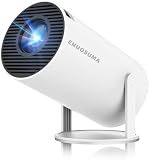
- 【Built-In Streaming Apps】Stream instantly, no extra devices needed,Eenjoy seamless streaming with popular apps like Prime Video, and YouTube built directly into the projector. No need for additional streaming sticks—simply connect to Wi-Fi and start watching your favorite movies and shows right away. Enjoy instant and uninterrupted entertainment from the comfort of your home.
- 【WIFI 6 & Bluetooth 5.4】Experience significantly reduced buffering with Wi-Fi 6 connectivity,stable streaming with Minimal Latency, maintaining consistently smooth playback for films and games. Seamlessly pair wireless speakers via Bluetooth or utilise the integrated stereo sound system for enhanced audio immersion. Ideal for cinematic viewing, gaming sessions or ceiling-mounted installations.
- 【Full HD 1080P & 4K Support 】Even Detail, Sharper Picture, Featuring an upgraded 2026 LED optical engine, this mini projector supports Full HD 1080P for a more uniform image with enhanced clarity and balanced brightness. With a 0.9:1 short-throw ratio, it supports a 30–200" display.
- 【Bright & Built-In Sound】With 200 ANSI lumens brightness and an 8000:1 contrast ratio, this mini projector provides sufficient brightness for casual movie watching or kids' shows. The integrated 5W SoundBase Speaker provides rich audio, completing your experience—no external speakers needed.
- 【Auto Keystone & 210°Rotation】This video projector has auto keystone correction to smoothly adjust the screen. The home projector has a 210°rotatable design, you can rotate the projector to adjust the projection angle,whether on a table, bedside, wall-mounted, or even the ceiling—providing flexible viewing options for any space,Adjust the focus through the focus wheels to quickly get the clearest picture.
Compare candidates with a workload-first table
| Use case | Platform to prioritize | Memory target | Storage target | Graphics and virtualization |
|---|---|---|---|---|
| Everyday Android apps with minimal setup | ChromeOS model with confirmed Google Play support | 16 GB for comfortable multitasking; less may work for light use | SSD or fast internal storage with room for apps and files | No dedicated GPU requirement; verify app compatibility on the exact model |
| Android Studio and one emulator | Windows or macOS laptop that meets current Studio requirements | 16 GB minimum; 32 GB preferred | SSD; at least 32 GB free for the recommended setup, with 512 GB total capacity as a practical starting point | Hardware virtualization required; integrated graphics can suit light testing |
| Several emulators, large projects and desktop multitasking | Windows or macOS workstation-class laptop | 32 GB recommended | Large, preferably replaceable SSD | Virtualization plus a GPU with adequate VRAM; Google recommends 8 GB for Studio plus Emulator |
| 3D-heavy Android apps or games | Windows or macOS model with stronger graphics and cooling | 16 GB minimum, 32 GB preferred when other tools remain open | SSD with space for multiple images and projects | Discrete GPU is useful; compare against Google’s 4 GB minimum and 8 GB recommended VRAM guidance |
A step-by-step buying process
- Write down the apps and tools. Separate ordinary Play Store use from Android Studio, emulator testing, 3D workloads and desktop multitasking. The most demanding task determines the laptop’s baseline.
- Choose the operating-system route. Pick ChromeOS only after confirming Google Play support for the exact model. Pick Windows or macOS when development tools or a conventional desktop environment are required.
- Set non-negotiable specifications. Put RAM, SSD capacity, architecture and virtualization support at the top of the comparison sheet. Add GPU VRAM and display resolution if you will emulate 3D or work in Android Studio daily.
- Check upgrade and support details. Record whether RAM and storage are soldered, the maximum supported memory, the drive interface, warranty terms and the device’s update-support period. “Upgradeable” without a documented maximum is not enough.
- Validate the exact listing. Confirm Windows 11 or ChromeOS, the processor model, 16 or 32 GB of RAM, SSD storage, x64 or ARM64 architecture and virtualization support. Do not substitute a similarly named configuration.
- Review sustained-use behavior. Read tests of the exact chassis for heat, fan noise, throttling, battery life and performance while plugged in. Android Studio requirements do not provide universal values for those characteristics.
- Install and verify before the return window closes. On ChromeOS, confirm the Play Store appears and install the apps you actually use. On Windows or macOS, install Android Studio, create the intended virtual device, check hardware acceleration and open a representative project.
Common buying mistakes and fixes
Assuming every Chromebook runs every Android app
Symptom: the listing says “Chromebook” but does not mention Google Play, or an important app is unavailable after purchase.
Fix: verify the exact model’s Play Store status and test critical apps. Android-app rollout depends on the device and hardware platform, not just the ChromeOS label.
Buying 8 GB for Android Studio
Symptom: the IDE, emulator and browser compete for memory, causing slow switching or aggressive tab and process cleanup.
Fix: move to 16 GB at minimum and 32 GB when multiple emulators or other development services will run together. If memory is soldered, choose the larger configuration at purchase.
Confusing advertised capacity with free space
Symptom: SDK images, snapshots and projects fill the drive soon after setup.
Quick wins for a faster PC:
Repair Windows errors before they cause bigger problemsFix Now →Fix the driver behind crashes, sound loss and screen glitchesFind Drivers →Fix: start with an SSD and plan around at least 32 GB of free space for the recommended Android Studio setup, plus room for the operating system and personal files. A 512 GB drive is a practical development starting point.
Best Value

- [Wireless Presentation]Wireless presentation remote with 10m range for flawless PowerPoint/Google Slides control
- [Multiple Application Scenarios]More than just a presentation remote, this multifunctional device doubles as your entertainment hub,ideal for browsing TikTok, reading Kindle books, and capturing photos or videos on the go
- [Ergonomic Design for Extended Use]At just 0.783 oz (22.2g), this ultra-light remote features a non-slip grip and wrist strap to reduce fatigue during long presentations. Its ambidextrous design fits comfortably in either hand
- [High Compatibility]Compatible with all major platforms iOS, Android, Windows, and macOS devices for flawless performance
- [Battery Life]Featuring a quick 90-minute charge and 500+ battery cycles, this air mouse ensures extended, reliable use
Leaving virtualization disabled
Symptom: the emulator reports that acceleration is unavailable or runs unacceptably slowly.
Fix: enable Intel VT-x or AMD-V in BIOS/UEFI, then verify the relevant Windows hypervisor features. On Windows, favor Windows Hypervisor Platform as Google’s longer-term direction because the Android Emulator hypervisor driver is scheduled for sunset on December 31, 2026.
Buying a discrete GPU without checking the workload
Symptom: the laptop is heavier, louder or more expensive, but Android Studio itself is not using the extra graphics power.
Do these 3 things before closing this tab:
1Repair Windows errors before they cause bigger problems2Fix the driver behind crashes, sound loss and screen glitches3Clear out junk files and repair common Windows errorsFix: reserve a discrete GPU for 3D apps, high-resolution or multiple-emulator work. Google specifies no GPU requirement for Studio alone; for Studio plus Emulator, compare the GPU’s VRAM with the stated 4 GB minimum and 8 GB recommendation.
Expecting Microsoft’s old Windows Android catalog
Symptom: a new Windows 11 purchase does not show the former Amazon Appstore route in the Microsoft Store.
Fix: use a Chromebook with confirmed Google Play support for straightforward consumer app installation, or plan a supported Android Studio/emulator workflow on Windows or macOS.
Final buying decision
Buy a confirmed-Play Chromebook when simplicity and ordinary Android apps are the priority. Buy a Windows or macOS laptop when Android Studio, emulator testing or desktop software is the priority. Across either route, 16 GB RAM and an SSD are the sensible baseline; 32 GB, ample free storage, enabled virtualization and stronger graphics become worthwhile as projects, emulators and 3D workloads grow. Verify the exact model’s support rather than relying on a platform label or a generic product-family specification.
Windows Errors? Fix Them Before They Spread
Repair common Windows errors and clear accumulated junk for a smoother, more stable PC - no reinstall needed.Free scan · no reinstallOutdated Drivers Are Slowing You Down
One free scan finds every outdated or missing driver and matches the right update for your exact hardware.Free scan · exact hardware matchQuick Recap
Product prices and availability are accurate as of the date/time indicated and are subject to change. Any price and availability information displayed on Amazon at the time of purchase will apply.

