
What’s actually slowing this PC down?
Pick the symptom - the matching free tool is one click away.
iTechGuides is reader-supported. When you buy through links on our site, we may earn an affiliate commission. As an Amazon Associate I earn from qualifying purchases. Learn more
The best laptop for Adobe Creative Suite power users in August 2026 is the 16-inch MacBook Pro with M5 Pro, at least 48GB of unified memory, and a 1TB SSD. Choose the ASUS ProArt P16 for Windows, NVIDIA graphics, or CUDA-dependent work; choose a ThinkPad P1 or Dell Precision when certification and enterprise support matter more than portability.
“Adobe Creative Suite” is now commonly called Adobe Creative Cloud. The right laptop depends on whether your workload is mainly Photoshop and Illustrator, or whether you routinely combine large Lightroom catalogs, 4K/6K Premiere Pro projects, After Effects compositions, Media Encoder exports, and several Adobe applications at once.
Key takeaways
- The 16-inch MacBook Pro with M5 Pro and at least 48GB of unified memory is the strongest balanced choice for a mixed Adobe power-user workflow in August 2026.
- The ASUS ProArt P16 is the strongest Windows creator alternative when NVIDIA graphics, OLED, CUDA-related tools, or Windows-only software are important.
- Choose 48–64GB of memory for serious After Effects, large Photoshop files, 4K/6K Premiere projects, and simultaneous Adobe applications; 16GB is better treated as a 2D-work minimum than a power-user target.
- Choose a 1TB SSD as a practical professional baseline and 2TB when video, local photo catalogs, or After Effects cache files will stay on the laptop.
- A high-end CPU alone does not make a suitable Adobe workstation: sustained cooling, GPU memory, display quality, storage, ports, and software compatibility can matter just as much.
Which is the best laptop for Adobe Creative Suite power users?
The 16-inch MacBook Pro with M5 Pro is the best overall laptop for Adobe Creative Suite power users because it balances cross-application performance, battery efficiency, display quality, acoustics, and sustained mobile use. A configuration with at least 48GB of unified memory and 1TB of SSD storage is the sensible starting point for a professional who regularly moves between Photoshop, Lightroom, Illustrator, Premiere Pro, and After Effects.
Apple’s current professional MacBook Pro generation uses M5 Pro and M5 Max chips and includes Thunderbolt 5 and a Liquid Retina XDR display. Apple advertises up to 24 hours of battery life for the generation announced on March 3, 2026; that is an Apple claim, not a measured Premiere Pro or After Effects runtime. Apple’s MacBook Pro announcement provides the current feature and battery details.
Popular on Amazon

- FOR CREATORS WITH A VISION. Amplify your creative voice with a collection of products that elevate every step of your workflow.
- FOR REVOLUTIONARY CONTENT. With up to 2000MB/s[2] read speeds, you can easily back up and access your content.
- PURSUE YOUR INSPIRATION. Embark on your creative journeys with up to three-meter drop protection[3] and IP65 water and dust resistance[4].
- ADOBE CREATIVE CLOUD. To empower content creators like you, SanDisk is gifting you one month of Adobe Creative Cloud[3].
The recommendation changes for specialist work. The M5 Max is better for unusually GPU-heavy video, effects, 3D, and media-engine workloads. The ASUS ProArt P16 is better for Windows users who need a dedicated NVIDIA GPU. Lenovo ThinkPad P1 and Dell Precision systems are better for enterprise procurement, professional graphics, ISV-oriented configurations, service contracts, and workstation support.
Quick recommendations by Adobe workload
Every product family below contains materially different configurations. The recommendation applies to the specified class and configuration, not automatically to every model carrying the same product name.
| Use case | Recommended laptop direction | Configuration target | Why it fits | Main limitation |
|---|---|---|---|---|
| Best overall mixed Adobe power user | 16-inch MacBook Pro with M5 Pro | 48GB unified memory, 1TB SSD or more | Strong cross-app performance, excellent display, battery efficiency, quiet operation, and large timeline workspace | macOS limitations, expensive memory and storage upgrades, and no NVIDIA CUDA |
| Maximum mobile Mac performance | 16-inch MacBook Pro with M5 Max | 64GB or more where the workload justifies it; 2TB SSD for video | More suitable for GPU-heavy effects, demanding video, 3D, and intense multitasking | High cost and diminishing returns for mainly 2D Adobe work |
| Best Windows creator laptop | ASUS ProArt P16 | High-end Ryzen AI or Intel processor, dedicated NVIDIA GPU, 32GB or more, OLED panel | Creator-focused design, OLED contrast, Windows compatibility, and NVIDIA graphics flexibility | Configuration-dependent fan noise, heat, battery life, and display behavior |
| Best premium Windows generalist | Dell XPS 14 or XPS 16 | At least 32GB RAM and a suitable dedicated GPU for sustained video | Refined design, strong displays, portability, and general-purpose performance | Not every configuration is appropriate for heavy rendering or workstation use |
| Best certified workstation route | Lenovo ThinkPad P1 or Dell Precision | Professional NVIDIA RTX graphics, 32–64GB or more, 1–2TB SSD | Business support, professional graphics options, serviceability, and workstation positioning | Higher weight, price, heat, and battery compromises |
| Best for mostly Photoshop and Illustrator | MacBook Pro, MacBook Air M5, or equivalent premium ultrabook | 24–32GB RAM and 1TB SSD | Responsive 2D performance without paying for a large discrete GPU | Thin integrated-graphics systems are poor choices for sustained After Effects or Premiere work |
| Best value strategy | Previous-generation high-memory MacBook Pro or discounted creator laptop | Prioritize 32–64GB memory, 1TB or 2TB SSD, and an appropriate GPU | More memory and storage can matter more than the newest processor branding | Check software support, battery health, warranty, and GPU generation |
This is an evidence-based buying guide assembled from current specifications and published testing, not a claim that every laptop listed was tested in the same laboratory. Product-family names should never substitute for checking the exact CPU, GPU, RAM, display, storage, and thermal configuration.
What does “Adobe Creative Suite” mean today?
Adobe Creative Suite is a common legacy or informal term; Adobe’s current subscription product family is Creative Cloud. Adobe requirements differ substantially between applications, so a laptop that feels excellent in Photoshop may be unsuitable for After Effects or long Premiere Pro exports.
| Application | What stresses the laptop | What to prioritize |
|---|---|---|
| Photoshop | Large documents, filters, transforms, high-resolution displays, scratch-disk activity | Fast CPU responsiveness, ample RAM, GPU acceleration, fast SSD, and accurate display |
| Lightroom | Large catalogs, RAW imports, previews, exports, and local photo storage | CPU responsiveness, memory, fast storage, display quality, and enough capacity for catalogs |
| Illustrator and InDesign | Large documents, many panels, complex vectors, typography, and multitasking | Fast CPU, sufficient RAM, high-resolution color-accurate display, and comfortable workspace |
| Premiere Pro | High-resolution timelines, GPU effects, color work, codecs, exports, and sustained cooling | High-performance CPU, dedicated GPU or strong Apple GPU, VRAM, media engines, fast project storage, and cooling |
| After Effects | RAM previews, complex compositions, effects, cache operations, and long renders | Large memory capacity, strong CPU, GPU acceleration where applicable, dedicated cache storage, and sustained thermals |
| Audition | Multitrack projects and effects, generally less demanding than video and motion graphics | Responsive CPU, adequate RAM, quiet operation, audio connectivity, and reliable drivers |
| Media Encoder | Background encoding while other Adobe applications remain open | CPU/GPU performance, hardware media engines, memory, cooling, and storage throughput |
Adobe’s minimum requirements describe whether an application can install and run, not whether a system will feel comfortable during professional multitasking. For example, Adobe’s Photoshop requirements for version 27.x and later, updated June 4, 2026, list 8GB of RAM as the minimum and 16GB or more as recommended. Photoshop also recommends a fast internal SSD and additional scratch-disk capacity for professional use.
Adobe’s Illustrator requirements for version 30.0 and later, updated April 9, 2026, recommend 16GB of RAM and a display of 1920×1080 or higher. Adobe’s After Effects requirements for the 26.x releases also list 16GB as a minimum, but 16GB is not a sensible target for a serious After Effects power user.
How much RAM does an Adobe power user need?
A serious mixed Adobe workflow should start at 32GB and preferably use 48–64GB. After Effects previews, large Photoshop documents, Lightroom catalogs, 4K/6K Premiere projects, and several open Adobe applications can consume memory long before a processor reaches its theoretical limit.
Do these 3 things before closing this tab:
1Fix the driver behind crashes, sound loss and screen glitches2Repair Windows errors before they cause bigger problems3Scan for outdated or missing drivers - takes under a minute| Memory | Suitable workload | Buying verdict |
|---|---|---|
| 16GB | Photoshop, Illustrator, InDesign, and light Premiere use, usually with limited multitasking | Usable minimum for 2D work; not a good power-user configuration |
| 24–32GB | Serious 2D work, Lightroom, moderate Premiere, and mixed Adobe use | Sensible entry point for a serious user |
| 48–64GB | After Effects, large Photoshop files, 4K/6K video, large catalogs, and simultaneous applications | Strong target for most cross-disciplinary professionals |
| 96GB or more | Heavy After Effects compositions, high-resolution video, large 3D scenes, or unusually intensive multitasking | Specialist capacity; worthwhile only when the workload can use it |
Apple’s unified memory is shared by the CPU and GPU. A Mac with 48GB of unified memory is therefore not directly equivalent to a Windows laptop with 48GB of system RAM plus a discrete GPU containing separate VRAM. The comparison must include total usable memory, GPU memory, application behavior, and the specific workload.
Modern MacBooks and many thin Windows laptops do not offer practical user-replaceable memory. Buying 16GB to reduce the initial cost can create an early replacement problem when After Effects, high-resolution video, or simultaneous Adobe applications become part of the workflow. Conversely, 64GB is unnecessary spending for someone whose work is almost entirely ordinary Photoshop, Illustrator, and InDesign documents.
How much storage is enough for Adobe Creative Cloud?
A professional Adobe laptop should have at least a 1TB SSD; video editors, After Effects users, and photographers who keep local catalogs should prefer 2TB. A 512GB drive can work only when projects, footage, catalogs, and archives are deliberately stored on fast external or network storage.
| Internal SSD | Best use | Limitation |
|---|---|---|
| 512GB | Applications and small active projects with external storage | Fills quickly with Creative Cloud apps, caches, previews, camera originals, and project files |
| 1TB | Practical baseline for a professional mobile Adobe laptop | May still require external media storage for video or large photo libraries |
| 2TB | Video editing, After Effects, local Lightroom catalogs, and frequent travel | Higher purchase cost; still not a replacement for backup |
| 4TB or more | A laptop that also acts as the primary project-storage machine | Expensive and still vulnerable to loss, failure, or theft without backup |
The internal SSD should hold the operating system, Adobe applications, active projects, and working cache space. A separate fast external SSD is useful for footage, proxies, archives, and scratch or cache workflows. Adobe identifies fast SSD storage and separate high-speed storage as useful for scratch-disk or cache operations in its Photoshop technical guidance.
Free tools Windows power users keep installed
One-click scans. No signup required.
Storage capacity is not the same as backup. Use a separate backup drive or managed network/cloud backup for irreplaceable photographs, project files, client deliverables, and catalogs. Keeping the only copy of a project on a large internal SSD is a workflow risk, not a storage solution.
What CPU should an Adobe power-user laptop have?
Choose a current high-performance Apple silicon, Intel Core Ultra, AMD Ryzen AI, or equivalent processor, but evaluate sustained performance rather than core count alone. Single-core responsiveness affects Photoshop, Illustrator, InDesign, and interface operations, while multi-core performance helps rendering, encoding, exports, and multitasking.
Premiere Pro also benefits from hardware media engines for supported codecs. Adobe’s Premiere Pro technical requirements, updated January 21, 2026, identify Apple silicon beginning with M1 Pro, M1 Max, or M1 Ultra-class chips, or newer, for the relevant professional configuration. Current After Effects requirements cover Apple silicon and modern Windows processors, but feature performance still varies by composition and effect.
“More cores” is not a universal Adobe performance answer. A slightly slower processor paired with 64GB of memory, a suitable GPU, fast storage, and effective cooling can produce a better real workflow than a faster processor paired with 16GB, integrated graphics, and a thin chassis that throttles during a long export.
How much GPU power and VRAM do Adobe users need?
GPU requirements depend heavily on the application. Photoshop and Illustrator can use GPU acceleration for particular filters, transforms, zooming, and display tasks, but most 2D users do not need a high-end discrete GPU. Premiere Pro, After Effects, 3D tools, color work, and GPU-accelerated effects benefit much more from dedicated graphics and adequate VRAM.
| Graphics class | Good fit | Do not choose it for |
|---|---|---|
| Integrated graphics | Photoshop, Illustrator, InDesign, Lightroom, and light video | Sustained Premiere Pro, complex After Effects, 3D, or heavy GPU effects |
| Apple GPU in M5 Pro | Mixed Adobe work, mobile video, and most professional Mac workflows | Windows-only software, CUDA-dependent tools, or unusually GPU-heavy specialist work |
| 6–8GB NVIDIA RTX-class VRAM | Serious mobile Premiere Pro and mixed Windows creative work | The most demanding high-resolution 3D or effects workloads |
| 8–16GB NVIDIA RTX-class VRAM | High-resolution footage, effects, 3D, and longer service life | Buyers who prioritize low weight, low noise, and long unplugged battery life |
| Professional RTX workstation GPU | ISV-oriented drivers, enterprise support, and professional workstation applications | Casual 2D users who do not need certification or business support |
Windows buyers should generally favor NVIDIA RTX configurations when CUDA or broad GPU-acceleration compatibility matters. NVIDIA is not universally faster in every Adobe task, and gaming performance is not the same as Adobe performance. Display quality, cooling, drivers, codec support, and application-specific acceleration still determine the result.
Also popular on Amazon
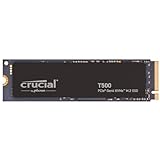
- PCIe 4.0 Performance: Up to 7,300MB/s read and 6,800MB/s write with up to 1.15M/1.44M IOPS for faster loads and multitasking
- Spacious 1TB Capacity: Store creative projects, games, and apps with Gen4 NVMe speed in a compact M.2 form factor
- Broad Compatibility: Installs easily in desktops, laptops, and workstations with PCIe Gen4 M.2 slots
- Ultimate Gaming & Content Creation: Load games up to 16% faster with Microsoft DirectStorage and boost creative apps by up to 42% for faster rendering and multitasking
- Trusted Micron Quality: Engineered for content creators and everyday gamers, with one month of free Adobe Creative Cloud access
Adobe’s Photoshop requirements recommend more GPU memory for higher-resolution displays. The requirement is especially relevant to users running 4K displays, multiple monitors, large canvases, or GPU-accelerated filters, but it does not mean every Photoshop user needs a workstation GPU.
Which laptop display is best for Photoshop, Lightroom, and video?
Prioritize color gamut, calibration, brightness, contrast, uniformity, and usable workspace—not just resolution or refresh rate. A 4K or OLED panel is not automatically color-accurate, and a high-refresh gaming display is not automatically suitable for color-critical production.
Recommended Free Tools
Look for strong coverage of the color space your work requires, including sRGB, Display P3, or Adobe RGB where relevant. Factory calibration and accurate color profiles matter, while HDR capability and contrast can improve video review. Matte panels reduce reflections; glossy OLED and mini-LED panels can provide more striking contrast but may be less comfortable in bright environments.
OLED panels can be excellent for creative work, but users who leave static Adobe interface elements visible for many hours should consider burn-in risk, the manufacturer’s panel-care features, warranty terms, and whether a separate reference display is available. For color-critical photography, design, or video, use a hardware colorimeter and validate the result on an external reference monitor instead of trusting the laptop panel alone.
A 16-inch display is preferable when Premiere timelines, After Effects panels, and large Photoshop documents occupy the screen simultaneously. A 14-inch model is easier to carry and can work well with a dock and external monitor.
Why does cooling matter more than peak specifications?
Cooling determines whether a laptop can maintain performance during long exports, renders, previews, and transcodes. Thin laptops can deliver excellent short bursts but reduce clock speeds when heat accumulates, while larger 16-inch and workstation-class systems generally have more room for sustained cooling.
The Tool Desk
Outbyte Driver Updater FREEScan for outdated or missing drivers - takes under a minuteDriver Scan →Outbyte PC Repair FREEClear out junk files and repair common Windows errorsFree Scan →Plugged-in performance can differ substantially from battery performance. High-performance Windows creator laptops may deliver more peak NVIDIA GPU performance than a MacBook Pro, but they can also become louder, hotter, heavier, and less efficient. Any laptop with a high-end CPU or GPU should be evaluated in the context of its chassis and power limits.
Sustained workload testing is more useful than a headline processor specification. Published laptop testing commonly includes PugetBench Premiere Pro, Photoshop benchmarks, HandBrake transcoding, and other long-running tasks rather than relying only on short synthetic bursts. Current video-editing laptop testing coverage illustrates why real editing and encoding workloads matter.
Which MacBook Pro configuration should you buy?
The 16-inch MacBook Pro with M5 Pro is the broadest recommendation for a mixed Adobe professional. Buy the M5 Max instead when GPU-heavy effects, high-resolution Premiere projects, 3D, media-engine capacity, or unusually intensive multitasking are central to the work.
16-inch MacBook Pro with M5 Pro: best overall
Buy it if: one quiet, mobile machine must handle Photoshop, Lightroom, Illustrator, Premiere Pro, After Effects, and general professional work without requiring Windows-only tools or NVIDIA CUDA.
Quick wins for a faster PC:
Fix the driver behind crashes, sound loss and screen glitchesFind Drivers →Clear out junk files and repair common Windows errorsFree Scan →Recommended configuration: at least 48GB of unified memory and 1TB of storage; choose 2TB when active video, photo catalogs, or cache files will remain local. The 16-inch chassis provides more workspace and is the better choice for timelines and panels than a smaller model.
Why it wins: M5 Pro provides the best balance in the dossier between performance, efficiency, display quality, acoustics, and portability. The Liquid Retina XDR display, Thunderbolt 5, Apple silicon support in current Adobe applications, and strong battery efficiency make the MacBook Pro a particularly coherent cross-app system.
Do not buy it if: your workflow requires CUDA, Windows-only software, replaceable memory, professional Windows drivers, or a specific plug-in and peripheral combination that has not been verified on macOS.
See Apple’s current MacBook Pro buying page for exact regional configurations and availability before publication or purchase.
16-inch MacBook Pro with M5 Max: best for extreme mobile workloads
Buy it if: After Effects, high-resolution Premiere Pro, GPU-heavy effects, 3D, or simultaneous rendering and editing can exploit additional GPU and media-engine capacity.
Why it fits: M5 Max is the specialist choice for maximum mobile Mac performance. The added capability is easier to justify when a professional is regularly waiting on previews, effects, exports, or high-resolution media rather than primarily editing 2D documents.
Do not buy it if: Photoshop, Illustrator, InDesign, or Lightroom make up nearly all of the work. M5 Max’s premium may not produce proportional gains in those workflows, making a higher-memory M5 Pro configuration the more rational choice.
Also popular on Amazon

- FOR CREATORS WITH A VISION. Amplify your creative voice with a collection of products that elevate every step of your workflow.
- SPACE TO CREATE. With up to 8TB[1] of storage, back up large projects and help preserve AI-generated content so you have access easily.
- MODEST SIZE, MIGHTY SPEEDS. Maximize your desk space while still accessing your content with up to 4x faster read speeds than a desktop HDD[4].
- READY TO BACK YOU UP. Your drive works perfectly with Apple Time Machine, or use the downloadable Acronis True Image software.[5]
- ADOBE CREATIVE CLOUD. To empower content creators like you, SanDisk is gifting you one month of Adobe Creative Cloud[3].
Which Windows laptop is best for Adobe Creative Cloud?
The ASUS ProArt P16 is the strongest Windows creator-laptop direction for Adobe power users who need OLED, dedicated NVIDIA graphics, Windows software compatibility, and a design-focused chassis. Performance varies significantly by the exact processor, GPU, memory, display, and storage configuration.
ASUS ProArt P16: best Windows creator laptop
Buy it if: Premiere Pro, After Effects, GPU-accelerated effects, 3D, CUDA-related tools, or Windows-only software are central to the workflow.
Recommended configuration: a high-end Ryzen AI or Intel processor, at least 32GB of RAM, a dedicated NVIDIA RTX GPU with 6–8GB of VRAM or more, and the OLED display configuration that meets the required color and brightness needs. Prefer 64GB and 2TB for intensive motion graphics and video.
Why it fits: The ProArt range combines creator-oriented design with OLED options and NVIDIA graphics flexibility. Independent coverage identifies the range as a leading Windows creator choice for Adobe Creative Cloud work. ASUS’s ProArt range shows the available product families and configurations.
Trade-offs: High-performance Windows components can bring more heat, fan noise, weight, and lower battery life under load than a MacBook Pro. Check the exact panel, GPU power limit, RAM capacity, and storage rather than buying a ProArt model by name alone.
Crashes, No Sound, or Screen Glitches?
Random freezes, missing sound and display glitches usually trace back to one bad driver. Find and replace yours safely.Free scan · under a minuteWindows Errors? Fix Them Before They Spread
Repair common Windows errors and clear accumulated junk for a smoother, more stable PC - no reinstall needed.Free scan · no reinstallDell XPS 14 or XPS 16: best premium Windows generalist
Buy it if: premium design, portability, display quality, and general productivity matter alongside Adobe work that is important but not always sustained at workstation intensity.
Recommended configuration: at least 32GB of RAM, 1TB of storage, and a dedicated GPU when Premiere Pro or After Effects is more than an occasional task. Choose the larger model when timeline workspace and cooling are priorities.
Why it fits: XPS laptops provide a polished Windows experience and high-end display options. However, an XPS configuration should not automatically be treated as a mobile workstation. A 2026 review unit with 32GB RAM and a 1TB SSD was capable of light creative work, but testing found mixed Adobe results against the MacBook Pro. The 2026 Dell XPS 14 review supports that more qualified assessment.
Do not buy it if: you need workstation-class drivers, maximum sustained GPU performance, professional certification, or long rendering sessions without carefully selecting the thermal and graphics configuration.
Do these 3 things before closing this tab:
1Repair Windows errors before they cause bigger problems2Scan for outdated or missing drivers - takes under a minute3Clear out junk files and repair common Windows errorsLenovo ThinkPad P1: best mobile workstation for many professional buyers
Buy it if: studio, agency, school, engineering, or corporate procurement requires business support, professional graphics, serviceability, workstation positioning, or ISV-oriented configurations.
Why it fits: ThinkPad P1 systems can be configured around professional NVIDIA RTX graphics and larger memory capacities. Workstation positioning can simplify IT deployment and support, even when a creator laptop offers better portability.
Trade-offs: Workstation hardware usually costs more and can be heavier, louder, warmer, and less battery-efficient than a MacBook Pro or thin creator laptop. Professional certification is a support and validation advantage, not proof that every workstation will always render faster.
Review the exact generation and configuration on Lenovo’s ThinkPad P-series page before making a purchase.
Dell Precision: best enterprise and workstation alternative
Buy it if: enterprise deployment, support contracts, professional graphics, and Adobe-oriented business recommendations matter more than minimum weight or maximum battery life.
Why it fits: Dell publishes workstation guidance for Premiere Pro and After Effects, and Precision systems offer professional GPU and business-support configurations. Dell’s Adobe Creative Cloud workstation recommendations provide a useful starting point for institutional buyers.
Trade-offs: Precision systems can be excessive for ordinary Photoshop and Illustrator work. Price, weight, heat, and battery compromises are easier to justify when the laptop is part of a managed professional environment.
Is the MacBook Air M5 enough for Adobe work?
The MacBook Air M5 is a good portable option for mostly Photoshop, Illustrator, InDesign, and Lightroom work, but the MacBook Air is not the right default for sustained After Effects, heavy Premiere Pro, or long export workloads.
Also popular on Amazon

- 💻 ✔️ EVERY ESSENTIAL SHORTCUT - With the SYNERLOGIC Reference Keyboard Shortcut Sticker, you have the most important shortcuts conveniently placed right in front of you. Easily learn new shortcuts and always be able to quickly lookup commands without the need to “Google” it.
- 💻 ✔️ Work FASTER and SMARTER - Quick tips at your fingertips! This tool makes it easy to learn how to use your computer much faster and makes your workflow increase exponentially. It’s perfect for any age or skill level, students or seniors, at home, or in the office.
- 💻 ✔️ QUALITY GUARANTEE - We stand behind our product! It’s made with outstanding military-grade durable vinyl and the professional design gives our stickers an OEM appearance. Our responsive and dedicated customer service team is here to promptly respond to your messages and resolve any issues you may have.
- 💻 ✔️ From BASIC to ADVANCED - Whether you are a seasoned computer professional or a beginner, the SYNERLOGIC Sticker will save you both time and frustration, guaranteed! You can easily reach a new level of computer proficiency using our convenient and affordable sticker.
- 💻 ✔️ Cross-platform compatibility. The sticker is specially designed to work for both PC and Mac computer keyboards.
Choose 24–32GB of memory and a 1TB SSD when the budget allows. Integrated graphics can be acceptable for 2D Adobe work and light video, but the fanless or thin design has less thermal headroom for sustained rendering than a MacBook Pro or larger Windows creator laptop.
The MacBook Air is most appropriate for a photographer, designer, student, or freelancer whose video and motion-graphics work is occasional. A power user who routinely keeps several Adobe applications open, creates RAM-heavy After Effects previews, or exports while continuing to work should step up to a MacBook Pro.
Independent reader supportYour contribution helps us test, update, and keep practical guides available for everyone.How do macOS and Windows compare for Adobe power users?
macOS is usually the better balanced mobile platform, while Windows offers broader GPU, upgrade, driver, and software flexibility. Neither platform is universally superior for every Adobe workflow.
| Decision factor | macOS and MacBook Pro | Windows creator or workstation laptop |
|---|---|---|
| Mixed Adobe performance | Strong balance across major Adobe applications on Apple silicon | Can be excellent, but depends heavily on CPU, GPU, power limits, drivers, and cooling |
| Battery efficiency | Generally a major strength of Apple silicon | Varies considerably; high-performance NVIDIA systems often sacrifice unplugged runtime |
| GPU flexibility | Apple integrated GPU; no NVIDIA CUDA option | Broad NVIDIA RTX and professional GPU selection |
| Display consistency | Professional MacBook Pro display is a strong default | Panel quality and calibration vary by exact configuration |
| Software compatibility | Verify macOS plug-ins, peripherals, scripts, codecs, and business tools | Better fit for Windows-only applications, CUDA tools, and many professional driver ecosystems |
| Upgradeability | Memory and storage are generally fixed at purchase | Some workstations are more serviceable; thin models may also be fixed |
| Workstation support | Less choice of ISV-oriented mobile workstations | ThinkPad P1 and Dell Precision provide stronger enterprise and workstation routes |
| Portability and acoustics | Strong combination of quiet operation, display, and efficiency | Creator and workstation systems can be heavier and louder under load |
Windows on Arm can provide attractive efficiency, but buyers must verify the exact Adobe release, plug-ins, extensions, camera and capture drivers, audio interfaces, printer drivers, font managers, color-management tools, and legacy scripts. Adobe’s Creative Cloud system requirements distinguish supported operating systems and application requirements; third-party compatibility should not be assumed.
What specifications should a mixed Adobe power user buy?
A mixed Adobe power user should buy at least 32GB of memory, preferably 48–64GB, a 1TB SSD, and a 14-inch-or-larger display. Windows buyers should add a dedicated NVIDIA GPU for serious Premiere Pro or After Effects work; Mac buyers should choose M5 Pro or better when sustained video and motion graphics are part of the workload.
| Component | Mostly Photoshop, Illustrator, InDesign, and Lightroom | Mixed Adobe power user | Premiere Pro and After Effects specialist |
|---|---|---|---|
| Processor | Current premium Apple silicon or modern high-end Windows processor | M5 Pro or modern high-performance Intel, AMD, or equivalent | M5 Pro/M5 Max or high-performance Windows CPU with strong sustained cooling |
| Memory | 24–32GB; 48GB for very large files and multitasking | 32GB minimum; 48–64GB preferred | 64GB preferred; 96GB or more for specialist compositions and scenes |
| Storage | 1TB | 1TB minimum; 2TB when video is regular | 2TB preferred, plus a fast external SSD for media and cache |
| GPU | Integrated graphics is acceptable | Apple Pro/Max GPU or dedicated NVIDIA GPU on Windows | At least 8GB VRAM where possible; M5 Max or professional RTX for demanding cases |
| Display | Color accuracy and resolution over gaming refresh rate | 14-inch minimum; 16-inch preferred for workspace | 16-inch class for timeline space, brightness, color, and cooling |
| Ports | Two high-speed USB-C/Thunderbolt ports and display support | Thunderbolt 4/5 or USB4, external-display support, and card-reader access | Fast external SSD, multiple displays, card reader, dock, and reliable power connectivity |
What ports and accessories belong in an Adobe workstation?
A laptop purchase should include the cost and convenience of the surrounding workflow. Look for Thunderbolt 4/5 or USB4, multiple high-speed USB-C ports, SD or microSD access, HDMI or DisplayPort support, fast external-SSD compatibility, and support for the number of external displays you actually use.
A USB-C-only laptop can still be excellent, but the buyer may need a dock, card reader, monitor adapter, Ethernet adapter, external SSD enclosure, and additional power supply. Check external-display support against the exact processor or chip; product-family descriptions are not enough.
- External SSD: Store footage, proxies, archives, catalogs, or cache files without filling the internal drive.
- Dock: Connect monitors, storage, Ethernet, keyboards, audio equipment, and card readers through one desk connection.
- Colorimeter: Measure and calibrate the display for color-critical photography, design, and video.
- External reference monitor: Provide a more controlled workspace when laptop-panel calibration or uniformity is insufficient.
- Backup drive or service: Protect camera originals, project files, catalogs, and client deliverables from drive failure or theft.
- Card reader and power accessories: Reduce friction for photographers and mobile editors working away from a desk.
Adobe’s official professional video and audio hardware guidance is useful when building a video-focused system, but accessories should be selected around the complete camera, monitor, audio, storage, and backup workflow.
The Tool Desk
Outbyte Driver Updater FREEFix the driver behind crashes, sound loss and screen glitchesFind Drivers →Outbyte PC Repair FREEClear out junk files and repair common Windows errorsFree Scan →Which configuration mistakes should Adobe power users avoid?
- Buying CPU branding instead of a complete system. A high-end processor paired with 16GB of memory, integrated graphics, a small SSD, and weak cooling may be worse for Adobe multitasking than a slightly slower processor in a better-balanced chassis.
- Buying the base MacBook configuration. A base model may be fine for Photoshop and Illustrator, but fixed memory becomes restrictive for After Effects, large Photoshop documents, multicamera Premiere projects, and simultaneous Adobe applications.
- Treating Adobe minimum requirements as professional recommendations. Adobe’s 16GB recommendations for Photoshop, Illustrator, and the 16GB After Effects minimum should not be confused with a comfortable power-user target.
- Ignoring scratch and cache storage. A nearly full SSD or a cache competing with the operating system and active project files can make a fast laptop feel slow.
- Choosing integrated graphics for GPU-heavy work. Integrated graphics are reasonable for 2D work but a poor default for sustained Premiere Pro, complex After Effects, 3D, and GPU-accelerated effects.
- Confusing resolution with color accuracy. A 4K or OLED display still needs suitable gamut, calibration, brightness uniformity, profiles, and an appropriate external-reference workflow.
- Choosing a gaming laptop automatically. Gaming laptops can offer strong NVIDIA performance per dollar, but they often compromise on display calibration, battery life, weight, noise, webcam quality, speakers, business support, and portability.
- Buying too little storage. Applications, media caches, previews, local catalogs, and project files consume space quickly; a 512GB laptop may require an immediate external-drive purchase for serious video.
- Assuming benchmark leadership equals workflow leadership. Premiere exports, After Effects previews, Photoshop filters, and Lightroom catalog operations stress different components. A result in one application does not establish universal superiority.
- Skipping external-monitor checks. A laptop can be excellent on its own but unsuitable for a studio if the exact chip cannot drive the desired number, resolution, or refresh rate of external displays.
How should you choose between memory, storage, and a faster chip?
For a power user, buy enough memory first, then enough storage for the active workflow, and only then spend extra on a faster chip or GPU. The correct trade-off is workload-dependent: After Effects often rewards memory and cache capacity, Premiere Pro rewards GPU, media engines, storage, and cooling, and 2D Adobe work rewards responsiveness and display quality more than a flagship discrete GPU.
| If the choice is between | Usually favor | Reason |
|---|---|---|
| 16GB and 32GB memory | 32GB | Adobe multitasking and large documents can exceed the comfort of 16GB |
| 32GB and 48–64GB memory | 48–64GB for power users | After Effects, 4K/6K video, large catalogs, and simultaneous apps benefit from headroom |
| 512GB and 1TB SSD | 1TB | Creative Cloud applications, active projects, caches, and previews consume capacity quickly |
| 1TB and 2TB SSD | 2TB for video or local catalogs | Video media and cache files are unusually storage-intensive |
| Newer chip and more memory | More memory when the current chip is already suitable | Fixed memory cannot generally be added later and prevents memory pressure |
| Faster GPU and better cooling | Better cooling for long renders | Peak GPU speed is less useful if the laptop throttles during sustained workloads |
What is the total cost of an Adobe laptop setup?
The total workflow cost includes more than the laptop. A professional setup may require Adobe Creative Cloud, an external SSD, a dock, a colorimeter, an external monitor, a backup drive, and suitable chargers or adapters.
Exact laptop prices were not reliably captured for this guide because prices change by configuration, retailer, promotion, tax, geography, and publication date. Check the exact RAM, SSD, GPU, display, and warranty configuration on the Apple MacBook Pro page, ASUS ProArt page, Dell XPS page, Lenovo ThinkPad P-series page, or Dell Precision page on the purchase date.
Adobe Creative Cloud is subscription-based, and plan type, geography, promotions, renewal status, and individual, student/teacher, or business eligibility can change the amount paid. Use Adobe’s official Creative Cloud plans page for current All Apps, single-app, student/teacher, individual, and business options rather than relying on an old third-party price.
Which laptop should each type of Adobe professional buy?
- 2D Adobe professional: Choose a premium MacBook Pro or MacBook Air M5 with 24–32GB of memory, a 1TB SSD, and a color-accurate display. Choose 48GB if very large files and multitasking are routine.
- Mixed Adobe freelancer: Choose the 16-inch MacBook Pro with M5 Pro, at least 48GB unified memory, and 1TB or 2TB storage. Choose the ASUS ProArt P16 instead when Windows or NVIDIA graphics is required.
- Video and motion-graphics specialist: Choose M5 Pro or M5 Max on Mac, or a high-performance Windows laptop with an NVIDIA RTX GPU, at least 64GB of RAM, 2TB storage, and a chassis designed for sustained cooling.
- Enterprise workstation buyer: Choose Lenovo ThinkPad P1 or Dell Precision with professional RTX graphics, appropriate memory, workstation support, and the required ISV-oriented configuration.
- Mobile photographer: Choose the MacBook Pro for the best balance of display, battery efficiency, acoustics, catalog responsiveness, and portability; add a fast external SSD and a real backup system.
The best value is rarely the most expensive model. For many Adobe professionals, a high-memory M5 Pro MacBook Pro or a properly configured discounted creator laptop is a better purchase than a flagship M5 Max or workstation whose extra GPU capacity the workload cannot use.
Frequently Asked Questions
Is 16GB RAM enough for Adobe Creative Cloud?
16GB of RAM is adequate for Photoshop, Illustrator, InDesign, and light Premiere Pro use, but 16GB is not a good target for an Adobe power user who runs After Effects, large Photoshop files, 4K/6K projects, or several Adobe applications simultaneously. Choose 32GB at minimum and preferably 48–64GB for sustained mixed workloads.
Is a MacBook Pro better than a Windows laptop for Adobe work?
A MacBook Pro is generally the better balanced mobile choice for battery efficiency, display quality, quiet operation, and mixed Adobe use. A Windows laptop is better when the workflow requires NVIDIA RTX graphics, CUDA-dependent tools, Windows-only software, broader hardware choice, or workstation drivers.
Do Adobe users need an NVIDIA GPU?
Adobe users mainly working in Photoshop, Illustrator, InDesign, and Lightroom do not usually need a high-end NVIDIA GPU. Premiere Pro, After Effects, 3D, GPU-accelerated effects, and CUDA-related tools benefit more from dedicated NVIDIA graphics and adequate VRAM.
Is 512GB storage enough for Adobe Premiere Pro?
A 512GB SSD can run Premiere Pro when footage and projects are stored externally, but 1TB is a more practical professional baseline and 2TB is preferable for active video, previews, caches, and local media. An external SSD and a separate backup remain useful even with a larger internal drive.
The Bottom Line
Bottom line: Buy the 16-inch MacBook Pro with M5 Pro, at least 48GB of unified memory, and 1TB of storage for the best all-around Adobe power-user experience in August 2026. Choose M5 Max for genuinely GPU-heavy mobile work, ASUS ProArt P16 for Windows and NVIDIA flexibility, and Lenovo ThinkPad P1 or Dell Precision for certified-workstation and enterprise requirements.

