
The Tool Desk
Outbyte Driver Updater FREEScan for outdated or missing drivers - takes under a minuteDriver Scan →Outbyte PC Repair FREERepair Windows errors before they cause bigger problemsFix Now →iTechGuides is reader-supported. When you buy through links on our site, we may earn an affiliate commission. As an Amazon Associate I earn from qualifying purchases. Learn more
The best laptop under $200 in January 2026 is usually a new Acer Chromebook 315 with a 15.6-inch Full HD display, Intel Celeron N4500, 4GB RAM, and 64GB storage, when that configuration costs no more than $200 before tax. Choose a refurbished Windows business laptop instead if you need traditional Windows desktop software.
There is no universal winner at this price. A Chromebook is generally the safer new purchase for browsing, school portals, documents, streaming, email, and video calls. A refurbished Lenovo ThinkPad, Dell Latitude, or HP EliteBook can be a better tool for Windows applications, but only when the exact processor, Windows 11 compatibility, SSD, battery condition, seller, warranty, and return policy are clear.
Prices in this article are a January 2026 shopping snapshot. Retail prices, stock, configurations, shipping, seller status, and return policies can change. “Under $200” means the advertised price before sales tax unless stated otherwise.
Do these 3 things before closing this tab:
1Scan for outdated or missing drivers - takes under a minute2Clear out junk files and repair common Windows errors3Fix the driver behind crashes, sound loss and screen glitchesKey takeaways
- The Acer Chromebook 315 was the strongest general new option, with a 15.6-inch Full HD display and observed prices of approximately $159 to $199 depending on configuration and retailer.
- The ASUS Chromebook CX15 offered a useful 128GB of storage for an observed $199, but its 4GB of RAM still limits heavy multitasking.
- A refurbished business laptop is usually the better direction for Windows desktop applications, provided the machine has a Windows 11-compatible processor, at least 8GB of RAM, and an SSD.
- Microsoft ended Windows 10 support on October 14, 2025, so a Windows 10-only laptop is a poor recommendation for a January 2026 purchase.
- Chromebook support depends on the exact model’s Automatic Update Expiration date, not simply the family name or purchase date.
What is the best laptop under $200 in January 2026?
The Acer Chromebook 315 is the best overall new laptop under $200 when the listing has the 15.6-inch Full HD, Intel Celeron N4500, 4GB RAM, and 64GB eMMC configuration. Google lists an Acer Chromebook 315 configuration from a $179 MSRP with a 1920×1080 display, 4GB RAM, 64GB storage, and advertised battery life of up to 10 hours; retailer pages captured prices as low as about $159 and as high as $199.
Popular on Amazon

- 256 GB SSD of storage.
- Multitasking is easy with 16GB of RAM
- Equipped with a blazing fast Core i5 2.00 GHz processor.
The Acer Chromebook 315 is a strong fit for Google Docs, school websites, email, streaming, casual browsing, and video meetings. The principal compromises are its 4GB of RAM and 64GB of local storage. Buyers who need Windows-only applications should skip the Chromebook category and search for a refurbished business laptop instead.
Google’s official Chromebook shopping information supports the Acer’s listed configuration and advertised battery figure, but advertised battery life is not an independent test. Google says actual battery results vary with configuration, applications, settings, network conditions, and usage. Google’s Acer Chromebook 315 listing and specifications should be treated as the reference for the configuration, while each retailer listing still needs to be checked separately.
Which laptops under $200 are worth considering?
The table compares the principal candidates identified in the January 2026 research snapshot. “Price observed in the source” does not guarantee that the same price or stock remains available.
Free tools Windows power users keep installed
One-click scans. No signup required.
| Model or category | Configuration observed or target | Price observed in the source | Best for | Main drawback | Support or buying caution |
|---|---|---|---|---|---|
| Acer Chromebook 315 | 15.6-inch Full HD; Intel Celeron N4500; 4GB RAM; 64GB eMMC | Approximately $159–$199 | General web use, schoolwork, streaming, and documents | 4GB RAM and 64GB storage are restrictive | Confirm the exact processor, screen, storage, and AUE date |
| ASUS Chromebook CX15 | 15.6-inch Full HD; Intel Processor N50; 4GB RAM; 128GB storage; ChromeOS | $199 observed | Users who need more local storage | Still limited to 4GB RAM | Verify the exact CX15 configuration and seller |
| Lenovo IdeaPad 3i Chromebook | 15.6-inch Full HD; Celeron processor; 4GB RAM; 64GB or 128GB storage | Approximately $179–$199 | Large-screen basic computing | Processor and storage vary by listing | Compare the exact SKU rather than the family name |
| HP Chromebook 14 | 14-inch; Celeron N4500; 4GB RAM; 128GB storage | $199.99 observed | A smaller Chromebook with more storage | Screen resolution and other details vary | Check whether the display is HD or Full HD |
| Refurbished business laptop | Target 8GB RAM; 256GB SSD; Windows 11-compatible processor | No single verified January 2026 price | Windows applications and stronger desktop capability | Battery, seller, warranty, and condition risk | Do not buy without a clear listing and return policy |
Best Buy and Walmart pages captured multiple Chromebook configurations at or below $200, including the Acer Chromebook 315, Lenovo IdeaPad 3i Chromebook, HP Chromebook 14, ASUS Chromebook models, refurbished Chromebooks, and an HP Chromebook with an N200 processor. Retail pages can combine different configurations under one product family, so the product title alone is not enough evidence.
Why is the Acer Chromebook 315 the best overall new choice?
The Acer Chromebook 315 combines the features that matter most for a budget browser-based computer: a large 15.6-inch display, Full HD resolution, ChromeOS, and a price that was observed below or at the $200 ceiling. The 1920×1080 screen provides more usable workspace and sharper text than the 1366×768 panels common on older inexpensive laptops.
The Intel Celeron N4500 and 4GB of RAM are appropriate for light workloads rather than demanding multitasking. The Acer should handle a few browser tabs, email, documents, online school portals, streaming, and ordinary video calls. The 4GB configuration can become uncomfortable when many tabs, a video meeting, large spreadsheets, Android apps, and background tasks are open at the same time.
The 64GB eMMC drive is the Acer’s largest practical limitation. ChromeOS can work well when documents and photos remain in cloud storage, but 64GB becomes restrictive if the owner downloads movies, stores a large photo library, installs Android applications, creates offline files, or uses a Linux development environment. A buyer who expects substantial local storage should compare the ASUS CX15’s 128GB configuration before choosing the Acer.
Google lists the Acer Chromebook 315 from a $179 MSRP, while retailer listings captured configurations at approximately $159 to $199. Those figures are prices observed in the source, not guaranteed current prices. A $199.99 listing can exceed a strict $200 checkout budget after sales tax.
Is the ASUS Chromebook CX15 better than the Acer Chromebook 315?
The ASUS Chromebook CX15 is better than the Acer Chromebook 315 for buyers who value local storage more than maximum multitasking capacity. The observed $199 configuration included a 15.6-inch Full HD display, Intel Processor N50, 4GB RAM, and 128GB storage, giving the ASUS twice the local capacity listed for the 64GB Acer configuration.
128GB provides more room for downloaded files, offline school documents, photos, and Android applications. Storage does not solve the ASUS’s 4GB RAM limitation, however. A buyer who routinely works with many browser tabs or uses video meetings alongside large web applications should prefer an 8GB model if one can be found within budget.
Because Walmart product pages can include marketplace listings and multiple configurations, inspect the “sold and shipped by” information, condition, charger, return window, warranty provider, processor, RAM, storage type, and display resolution before purchase. The $199 price is the price observed in the source, not a promise of current availability.
What is the best smaller laptop under $200?
The HP Chromebook 14 is the most relevant smaller-screen alternative in the research set when its listing has a 14-inch display, Celeron N4500 processor, 4GB RAM, and 128GB storage. The smaller chassis can be easier to carry than a 15.6-inch model, while 128GB is more comfortable than 64GB for local files.
Also popular on Amazon

- Intel Celeron N4120: 4 Cores & Threads, 1.1GHz Base Clock, Up to 2.6GHz Boost Clock, 4MB Cache, Intel UHD Graphics 600. The perfect combination of performance, power consumption, and value helps your device handle multitasking smoothly and reliably with four processing cores to divide up the work.
The HP Chromebook 14 needs more configuration checking than the Acer recommendation. The product family appears with different screen resolutions and hardware, so do not assume that every HP Chromebook 14 has a Full HD display. Confirm the exact screen resolution, storage type, processor, RAM, condition, seller, and support date.
Should you buy a refurbished Windows laptop instead?
A refurbished business laptop is often the best hardware strategy under $200 when the buyer needs Windows desktop programs. Older Lenovo ThinkPad, Dell Latitude, and HP EliteBook systems can provide a better keyboard, sturdier chassis, more ports, an SSD, and more memory than a new ultra-cheap Windows laptop.
Refurbished Windows hardware is not automatically a better purchase. The category includes machines with worn batteries, cosmetic damage, missing or non-original chargers, inaccurate specifications, short warranties, enterprise-management locks, Windows activation problems, and processors that cannot officially run Windows 11. A listing described only as “refurbished ThinkPad” is not specific enough to recommend.
Quick wins for a faster PC:
Fix the driver behind crashes, sound loss and screen glitchesFind Drivers →Clear out junk files and repair common Windows errorsFree Scan →For a January 2026 purchase, target a Windows 11-compatible processor, at least 8GB of RAM, a 256GB SSD, a 1080p display, a working battery, and a clear return policy with at least a short warranty. An 8th-generation Intel Core i5 or newer, or an equivalent Windows 11-compatible processor, is a useful target, but the exact processor model and Microsoft compatibility must be verified on the listing.
Microsoft ended Windows 10 support on October 14, 2025. Microsoft’s Windows end-of-support information is why a Windows 10-only machine should not be treated as a normal long-term recommendation in January 2026. A buyer can intentionally install another operating system, but that is a different project and should not be presented as a ready-to-use Windows purchase.
What can a $200 laptop realistically do?
A laptop under $200 can perform browser-based and routine personal-computing tasks, but it is not a general-purpose high-performance computer. A suitable sub-$200 machine can handle:
- Web browsing and research.
- Email and messaging.
- Google Docs, Sheets, and Slides.
- Microsoft 365 applications used online.
- Streaming video.
- Basic school assignments and school portals.
- Light writing and document work.
- Ordinary video meetings, provided the browser workload remains modest.
- Cloud-based applications.
Most sub-$200 laptops are poor choices for modern AAA PC games, intensive photo or video editing, engineering software, professional Adobe applications, large local databases, and other demanding desktop workloads. A Chromebook can support browser games, some Android games, and cloud gaming, but compatibility and performance vary.
Crashes, No Sound, or Screen Glitches?
Random freezes, missing sound and display glitches usually trace back to one bad driver. Find and replace yours safely.Free scan · under a minutePC Slower Than It Used to Be?
A free scan shows the junk files, broken settings and background clutter dragging Windows down - then fixes them in one click.Free scan · Windows 10 & 11Can a Chromebook work offline?
A Chromebook can work offline, but the owner must configure offline applications and files before the internet connection disappears. Google specifically supports offline-ready versions of Docs, Sheets, and Slides. Google’s Chromebook Help documentation explains the offline capabilities and ChromeOS workflow.
Before relying on a Chromebook for travel, school, or unreliable internet, turn off Wi-Fi and test the documents that matter. Offline access is not equivalent to having every desktop application locally installed. Web services that require a live connection will remain unavailable.
Can a Chromebook run Microsoft Office?
A Chromebook can access Microsoft 365 applications online, including Word, Excel, PowerPoint, OneNote, OneDrive, and Outlook, but online Microsoft 365 is not the same as the full traditional Windows desktop versions of Office.
Browser-based Microsoft 365 may be enough for ordinary documents, spreadsheets, presentations, and email. Buyers who depend on desktop add-ins, advanced Excel features, specialized macros, or other Windows-only utilities should choose Windows instead. Google’s Chromebook FAQ describes the supported Microsoft 365 online use without implying universal compatibility with Windows software.
How should you compare Chromebook and Windows laptops?
Choose the operating system according to the applications you actually need, not according to the lowest advertised price.
Also popular on Amazon
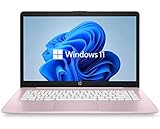
- 14" diagonal, 1366x768 resolution, HD BrightView LED, Glossy NON-TOUCH Display
| If you mainly need… | Choose… | Why |
|---|---|---|
| Web browsing, email, school portals, and Google Docs | New Chromebook | ChromeOS is generally better suited to light browser work at this price |
| Full desktop Office, specialized applications, or Windows utilities | Refurbished Windows laptop | Windows has broader conventional desktop-software compatibility |
| The best hardware value | Refurbished business laptop | Business models are more likely to offer 8GB RAM, an SSD, better ports, and a stronger chassis |
| A new device with simple setup and maintenance | Chromebook | ChromeOS is designed around cloud services and built-in security layers |
| Offline-heavy work | Windows, or a carefully configured Chromebook | Windows offers broader local software support; Chromebook offline use must be prepared in advance |
| Modern AAA PC gaming | Neither typical sub-$200 option | The budget is generally insufficient for demanding local PC gaming |
Google describes ChromeOS as a lightweight operating system with cloud storage, built-in Google services, and multiple security layers. Those design choices make a Chromebook practical for the right workload, but a Chromebook is not a universal replacement for a Windows computer. ChromeOS security should not be described as an absolute guarantee that a device can never be infected.
Which specifications matter most under $200?
Prioritize the operating system, processor generation, RAM, storage type and capacity, display, battery condition, return policy, and ports in that order. A cheap laptop with a larger storage number is not necessarily better if the storage is slow, the operating system is unsupported, or the machine cannot run the required applications.
| Priority | What to check | Practical target |
|---|---|---|
| 1. Operating system | ChromeOS or Windows 11, according to required applications | Do not buy a Chromebook for Windows-only software |
| 2. Processor | Exact model and generation, not just “Intel” or “Celeron” | Chromebook: N4500, newer Intel N-series, MediaTek Kompanio, or similar entry-level chip; Windows: Windows 11-compatible processor |
| 3. RAM | Installed memory and whether it can be upgraded | 4GB minimum for a Chromebook; 8GB preferred and the Windows target |
| 4. Storage | Capacity and whether the device uses an SSD, eMMC, or UFS | 64GB minimum Chromebook; 128GB preferred; 256GB SSD preferred for Windows |
| 5. Display | Resolution, size, brightness, and touchscreen status | 1080p preferred; verify the exact panel |
| 6. Battery | Health disclosure, charging, and warranty coverage | Especially important for refurbished systems |
| 7. Seller protection | Return window, warranty, condition grade, and charger | Prefer a clear return policy and at least a short warranty |
| 8. Ports and keyboard | USB ports, USB-C charging, headphone jack, keyboard, and touchpad | Check the exact listing and inspect immediately after delivery |
Do not treat a retailer’s use of the term “SSD” as conclusive. An NVMe or SATA SSD is generally faster and more serviceable than eMMC or UFS storage. eMMC and UFS are commonly soldered and more limited. Cloud storage is not a replacement for local storage when files must be available without internet access.
Is 4GB of RAM enough?
4GB of RAM is enough conditionally for one or two common browser tasks, documents, email, and streaming. 4GB of RAM is generally not enough for many tabs, simultaneous video meetings, large spreadsheets, several Android applications, photo editing, or sustained multitasking.
Treat 4GB as the floor rather than a selling point. Prefer 8GB whenever the price difference is modest. A new Windows laptop with 4GB RAM and eMMC storage should not automatically outrank a refurbished business laptop with 8GB RAM and an SSD; that conclusion is a hardware trade-off, not a verified benchmark result.
Is 64GB of storage enough?
64GB can be workable on ChromeOS when most files remain in the cloud and the owner does not install many applications. 64GB is restrictive for downloaded movies, large Android apps, local photos and videos, offline school files, Linux development environments, and multiple user profiles.
The ASUS Chromebook CX15’s observed 128GB configuration therefore has a meaningful storage advantage over Acer and Lenovo configurations with 64GB. Storage capacity still must be weighed against RAM, processor, display, update support, and seller protection.
Recommended Free Tools
How long will a Chromebook receive updates?
Check the exact Chromebook’s Automatic Update Expiration date instead of estimating support from the processor name or purchase date. Google says Chromebook models released in 2021 or later receive 10 years of updates, while the precise end date remains specific to the device model.
On the Chromebook, use this path:
- Select the time in the lower-right corner.
- Open Settings.
- Select About ChromeOS.
- Select Additional details.
- Under Update schedule, find the date after “This device will get automatic updates until.”
Google’s Chromebook update-support instructions provide the verification path. Extremely cheap refurbished Chromebooks priced around $50 to $75 can still be usable for light browsing, but an old or expired AUE date can make the low price poor value.
What should students, parents, travelers, and streaming users buy?
Students: Choose a 14-inch or 15.6-inch Chromebook with a Full HD display, at least 64GB of storage, 4GB RAM minimum, and preferably 8GB RAM. Confirm that the AUE date extends beyond the expected school-use period.
Children: A smaller Chromebook or refurbished 2-in-1 may be easier to carry. Inspect the hinge, touchscreen, keyboard, and screen condition carefully, especially when buying refurbished.
Streaming: Prefer a Full HD display. Choose 15.6 inches if screen size matters more than portability, and choose 128GB storage if offline downloads are expected. Avoid old 11.6-inch 1366×768 models unless the budget is extremely strict.
Also popular on Amazon
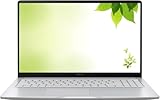
- Intel Processor Up to 2.80GHz, 4GB DDR4, 128GB Storage
- 15" FHD IPS Display, Intel UHD Graphics
- 1x USB Type C, 1 x USB Type A, 1x Headphone/Microphone Combo Jack, HDMI
- Fast WiFi and Bluetooth, Integrated Webcam
- Chrome OS, AC Charger Included, Pastel Silver
Microsoft Office or Windows-only programs: Do not choose a Chromebook merely because it is cheaper. Search for a refurbished Windows 11-compatible business laptop with 8GB RAM and an SSD.
Travel: Prioritize battery health, weight, USB-C charging if available, a comfortable keyboard, offline document access, and a reliable return policy. A claimed battery-runtime number is not a substitute for a battery-health disclosure on a refurbished listing.
Gaming: Most laptops under $200 are not suitable for modern AAA PC games. Browser games, selected Android games, and cloud gaming may be possible, but compatibility and performance vary.
What’s actually slowing this PC down?
Pick the symptom - the matching free tool is one click away.
What should you avoid when buying a laptop under $200?
- Chromebooks with 16GB or 32GB storage: These can be usable only for exceptionally light cloud-based work and are poor choices for most long-term buyers.
- Windows laptops with 4GB RAM and no SSD: Low memory combined with slow eMMC storage can create a frustrating Windows experience.
- Windows 10-only devices: Windows 10 support ended on October 14, 2025.
- Unclear marketplace listings: Check the seller, condition, charger, warranty, return window, and whether the device is enterprise-managed.
- Expired or nearly expired Chromebook support: Use the exact AUE date rather than relying on the model family or a retailer’s generic description.
- “SSD” claims without a storage type: Confirm whether the drive is NVMe, SATA SSD, eMMC, or UFS.
- Old editorial recommendations without support verification: Some established lists still mention an HP Chromebook 11 with a Celeron N3060, 4GB RAM, and 16GB storage. That is historical context, not an automatic January 2026 recommendation. TechRadar’s under-$200 laptop coverage should be checked cautiously for dated models.
How can you inspect a laptop before keeping it?
Use the following inspection checklist as soon as the laptop arrives, before the return period expires:
- Compare the delivered processor, RAM, storage, display resolution, touchscreen status, and operating system with the listing.
- On a Chromebook, open Settings → About ChromeOS → Additional details and verify the automatic-update date.
- Test Wi-Fi, webcam, speakers, microphone, keyboard, touchpad, USB ports, headphone jack, charging, sleep, and wake behavior.
- Confirm that the charger is included, charges reliably, and is appropriate for the laptop.
- Check the screen for damage, dead pixels, excessive brightness variation, and the resolution promised by the listing.
- On a refurbished Windows laptop, verify Windows activation, updates, battery behavior, storage health if disclosed, and the absence of an enterprise or BIOS management lock.
- Turn off Wi-Fi and test the documents or applications needed for offline work.
- Return the laptop promptly if the configuration, condition, support status, or seller-provided accessories do not match the listing.
How should you score competing laptops?
A weighted score is more reliable than selecting the lowest price. Score each candidate against the intended workload using these weights:
| Criterion | Weight | What a high score means |
|---|---|---|
| Real-world suitability | 25% | The operating system and hardware match the buyer’s actual applications |
| Processor and responsiveness | 20% | The exact processor is appropriate for the workload and is not an unsupported legacy part |
| RAM | 15% | 8GB or more, or 4GB only when the workload is genuinely light |
| Storage capacity and type | 15% | 128GB or more for Chromebook use, or a 256GB SSD for Windows |
| Display | 10% | Full HD resolution and a suitable size for the buyer |
| Battery or battery warranty | 5% | Battery health is disclosed or covered by a usable return policy |
| Update or support life | 5% | Chromebook AUE or Windows support extends through the expected ownership period |
| Return policy and warranty | 5% | Seller identity, return window, warranty, and condition are clear |
Do not award extra points for inflated storage claims that treat cloud storage as a substitute for local capacity. A laptop’s value depends on the complete configuration and the buyer’s workload.
Final recommendation
Buy the Acer Chromebook 315 if the exact Full HD/N4500/4GB/64GB configuration is priced at or below $200 before tax and your work is primarily browser-based. Choose the ASUS Chromebook CX15 if its 128GB configuration is available at the observed $199 price and local storage matters more than multitasking.
Choose a refurbished Lenovo ThinkPad, Dell Latitude, or HP EliteBook only when the exact listing provides a Windows 11-compatible processor, 8GB RAM, a 256GB SSD, usable battery information, a clear seller identity, and meaningful return or warranty protection. A very low-cost new Windows laptop is acceptable only when its limitations—especially 4GB RAM, eMMC storage, and weak upgradeability—fit the buyer’s expectations.
Frequently Asked Questions
What is the best laptop under $200 in January 2026?
The Acer Chromebook 315 is the best overall new choice when the listing has a 15.6-inch Full HD display, Intel Celeron N4500, 4GB RAM, and 64GB storage at or below $200 before tax. Buyers who need Windows desktop applications should choose a properly verified refurbished Windows business laptop instead.
Is a Chromebook or Windows laptop better under $200?
A Chromebook is usually better for browsing, school portals, Google Docs, email, streaming, and simple setup. A refurbished Windows laptop is better for full desktop Office, specialized applications, and Windows-only utilities, provided the laptop supports Windows 11 and has at least 8GB RAM and an SSD.
Is 4GB RAM enough for a laptop under $200?
4GB RAM is sufficient for light browsing, documents, email, and streaming, but it is not a good choice for many browser tabs, simultaneous video calls, large spreadsheets, Android applications, or demanding multitasking. Treat 4GB as the minimum and prefer 8GB when possible.
Free tools Windows power users keep installed
One-click scans. No signup required.
Can a Chromebook run Microsoft Office?
A Chromebook can run Microsoft 365 applications online, including Word, Excel, PowerPoint, OneNote, OneDrive, and Outlook. A Chromebook does not provide every feature of the traditional Windows desktop versions, so users who depend on desktop add-ins, advanced macros, or Windows-only software should buy Windows.
How do you check whether a Chromebook is still supported?
On the Chromebook, select the time, open Settings, select About ChromeOS, select Additional details, and look under Update schedule for the date after “This device will get automatic updates until.” The exact Automatic Update Expiration date is more reliable than the model family name or purchase date.
The Bottom Line
Bottom line: For most buyers, the Acer Chromebook 315 is the safest new laptop under $200 in the January 2026 snapshot, provided the exact Full HD configuration is available at the advertised price. The ASUS Chromebook CX15 is the storage-focused alternative. For Windows software, spend the same budget on a carefully inspected refurbished business laptop rather than a new 4GB Windows model.

