
Quick wins for a faster PC:
Repair Windows errors before they cause bigger problemsFix Now →Fix the driver behind crashes, sound loss and screen glitchesFind Drivers →iTechGuides is reader-supported. When you buy through links on our site, we may earn an affiliate commission. As an Amazon Associate I earn from qualifying purchases. Learn more
Best overall premium attached system: Xebec Snap. Best for maximum attached screen area: Mobile Pixels Trio 3 Pro. Best flexible alternative: a standalone 15.6-inch-class USB-C portable monitor such as Plugable’s portable display. Best for a vertical workspace: Mobile Pixels Duex Float. The right choice depends less on the number of panels than on USB-C video support, mounting stability, power, and whether you truly need the display attached to the laptop.
Buying note: This guide is framed around 2025 buying decisions. Prices, stock, warranties, included cables, operating-system support, and retailer listings can change, so verify those details immediately before ordering. The recommendations below are based on manufacturer specifications and independent buying-guide and review evidence, not hands-on testing.
Quick verdict
A laptop screen extender is worth buying when you want additional displays that travel with the computer. For a polished premium setup, choose Xebec Snap. For the largest attached workspace, choose Mobile Pixels Trio 3 Pro. If you want to place the second display independently, avoid loading the laptop lid, or connect it to several kinds of devices, a standalone portable monitor for laptops is usually the more flexible choice. For a narrow desk or vertical workflow, look at the Mobile Pixels Duex Float family.
Recommended Free Tools
The most important distinction is form factor. An attached extender mounts to or travels with the laptop; a portable monitor normally sits beside it on a kickstand or separate stand. Neither design is universally better. Attachment gives you a more integrated, aligned workstation, while a standalone display is generally easier to position, share between devices, and use without putting extra leverage on the laptop hinge.
Best laptop screen extenders at a glance
| Pick | Form factor | Added display area | Best for | Main trade-off |
|---|---|---|---|---|
| Xebec Snap | Attached modular system | One or two 13.3-inch Full HD screens, depending on configuration | Premium laptop-mounted workstations, portrait use, and presentations | Premium cost, extra weight, and dependence on the Snap Bracket ecosystem |
| Mobile Pixels Trio 3 Pro | Attached dual-screen system | Two 14.1-inch panels listed as 1400p QHD | Spreadsheets, coding, research, communications, and maximum attached screen area | Bulk, battery draw, stability demands, and more demanding compatibility checks |
| SideTrak | Attached single-screen family | One additional display, model dependent | People who want an attached dual-screen laptop without moving to a triple-screen setup | Exact size range, mounting method, ports, and availability vary by model |
| Mobile Pixels Duex Float | Stacked external display | One display positioned above the laptop, model dependent | Vertical documents, chat, dashboards, and desks with little side-to-side room | Less natural for some workflows; Float-specific compatibility must be checked |
| Plugable 15.6-inch USB-C Portable Monitor | Standalone portable monitor | One 15.6-inch panel | Flexible placement, multiple host devices, and avoiding laptop-lid weight | Needs its own support arrangement and does not remain physically aligned with the laptop |
There is no meaningful universal price winner in this category without checking current listings. Attached multi-screen products are typically more specialized than a conventional portable display, while a standalone monitor can offer better flexibility per dollar. Compare the current price, return policy, warranty, included cables, and exact model number rather than relying on an old “cheapest” ranking.
Popular on Amazon

- 【200% Productivity Increased】Turn your laptop into a double productivity workstation with this laptop screen extender, which supports extend, mirror, and portrait modes. It can effectively reduce constant tab switching and allow you to manage multiple tasks simultaneously. With this dual monitor extender, you can keep your main task on one display while handling online meetings,data analysis, watching movies, or referencing materials on the other, no need to switch back and forth. Easy and efficient to handle different multitasking needs. Build your workstation in seconds, stay focused, and boost productivity by up to 200%, especially for remote workers and frequent travelers.
- 【1.87lbs Ultra-Portable Design】Designed as an ultra-portable & ultra-thin, only 1.87lbs and 0.27“ thin, making this portable monitor for laptop ultra-light, ultra-portable, and more stable. It is much lighter than your laptops and the previous 14-inch laptop monitor extender. It's widely fit for all 14-inch to 17.3-inch laptops. The ultra-light and portable design allows you to easily take it with you and build your workstation as you want. Efficiency improves your airport, business trips, and travel productivity; it is an ideal choice for those who frequently travel, remote workers, students, and programmers.
- 【Effortless Setup, No Driver Required】Our portable laptop monitor features an effortless connection, no driver required, only need one second to set up. If your laptop has a full-function USB-C port, connect the screen and your laptop with the USB-C cables directly. If your laptop does not have full-function USB-C ports, you can easily connect the screen to your laptop using an HDMI and a USB-A cable. All the necessary cables are included in the package. Simple and seamless connection.
- 【1080P IPS Display & 226° Adjustable View】 Equipment 1080P High FHD IPS and 300 nits of brightness, with this extra screen for laptop, enjoy a clear, vivid, rich-color, realistic visual experience. The 0-226° adjustable angle design allows you to adjust the viewing angle freely according to your needs, preferred angle, lighting, and weather conditions. Enjoy a clear, vivid, and wide viewing, which not only offer eyes care but also provides a comfortable, efficient workstation anytime, anywhere.
- 【Wide Compatibility & Worry-free Support】The screen extender monitor portable and made with upgraded high-quality materials, featuring certifications for QC, FCC, CE, and RoHS. It is widely fit for 14-17.3" laptops, and seamlessly compatible with multiple devices, including Windows, macOS, ChromeOS, Linux, and Android systems. We offer a 1-year warranty, 30 days of free returns, and a 24-hour responsive support team. Contact us when you need—we'll provide timely, professional assistance to ensure a smooth, worry-free experience.
1. Xebec Snap: best premium attached system
Xebec Snap is the strongest choice for someone who wants an integrated, laptop-mounted workstation rather than a loose monitor beside the computer. Xebec says its universal Snap Bracket works with any laptop and does not use magnets, adhesives, or conventional clips. The Snap system is built around that bracket, with official configurations that provide either a dual-screen or tri-screen arrangement.
The screens are listed as 13.3-inch Full HD panels. They can be used in portrait or landscape orientation, and Xebec documents a 270-degree presentation rotation. Embedded USB-C cables and modular accessories, including options such as a light or phone charger, make the system more coherent than combining a generic monitor with a collection of unrelated mounts.
Why it stands out: the bracket, cables, rotation options, and accessories are designed as one system. That makes it appealing for professionals who frequently move between a desk, meeting room, and home office and want the displays to travel with the laptop.
Important limitation: the Snap Screen requires the Snap Bracket. Xebec’s support material does not position it as a generic monitor that can be attached to arbitrary stands or used with any spare cable. Pass-through charging is also documented as part of the bracket system, so confirm the exact configuration and power path before buying.
Choose Xebec Snap if: you value a polished mounting system, need portrait and presentation modes, and are willing to pay for an integrated ecosystem.
Think twice if: your laptop lid is unusually thin or flexible, you frequently work on a lap or airplane tray, or you want a display that can be detached and used independently with other devices.
Free tools Windows power users keep installed
One-click scans. No signup required.
2. Mobile Pixels Trio 3 Pro: best for maximum attached screen area
Mobile Pixels Trio 3 Pro is designed for the reader who wants a three-screen workstation while traveling. It adds two 14.1-inch displays, with the product listing specifying 1400p QHD panels. Mobile Pixels lists a single USB-C cable setup, two USB-C ports, 65W pass-through charging, a redesigned integrated kickstand, and compatibility with Windows and macOS.
The extra screen area is particularly useful when a workflow involves several persistent windows: a spreadsheet beside a browser and messaging app, code beside documentation and a terminal, or research material beside notes. The documented viewing modes include landscape, collaboration, portrait, and presentation arrangements.
Why it stands out: it provides more attached workspace than a single-screen extender without requiring a separate monitor stand. Its kickstand is especially important because two attached displays create substantially more weight and leverage than one portable panel.
Compatibility warning: “one USB-C cable” does not mean one cable will work with every laptop. The host USB-C port must support the required display signaling and power behavior, and the laptop must physically support the attachment. Check the laptop’s screen size, lid construction, hinge strength, port location, operating system, charging requirement, and the current Trio 3 Pro compatibility information.
Also popular on Amazon

- Increase Efficiency Up to 200% & Save Time:KEFEYA travel monitor for laptop screen extender supports you to open multiple windows at the same time, work, video conference, watch movies, or play games on different screens by not having to switch back and forth on a single laptop screen continuously, increase your efficient by up to 200 %. Perfect for people who work on the go,remote workers, watch a movie,IT professionals, Players, Stock traders, Programmers, game players.
- 1080P FHD IPS Panel for Great Image Quality: 14" full HD external laptop portable monitor extender is configured with 1920x1080 resolution, 16:9 aspect ration, 60Hz refresh rate, 300nit brightness, 72% NTSC color gamut for great image quality. Full HD technology brings you a more vibrant color, and can adjust brightness, contrast, backlight, and other parameters independently, providing you with a bright, vivid, and immersive viewing experience, and friendly eye protection, relieving fatigue.
- Plug & Play Without Driver :Portable dual monitor for laptop comes with every cable needed(1* Type-C Cable, 1* USB-C to USB-A Cable, 1* HDMI Cable). You just need to connect the travel monitor for laptop via Type-C, HDMI and USB-A directly without any additional driver download. Please Note: when use the HDMI cable, please connect one extra USB-A to USB-C cable to the same screen extender to power supply.
- Multiple Display Mode & 180°Rotation:This second screen for laptop portable provides multiple display modes [Mirror mode/extension mode/landsape and portrait mode], attachable monitor for laptop can also 180° rotating allowing you to customize the viewing experience according to your preferences. And share your screen effortlessly with clients or colleagues, enhancing communication efficiency during collaborations.
- Wide Compatibility & Reliable Service:The monitor extension for laptop portable monitor supports a wide range of devices and operating systems, including Intel, AMD, ARM, Android, Windows, Mac,M1,M2, M3, Chrome, Linux, Type-C phones, PS4, Xbox, Switch, M1 Pro/Max, M2 Pro/Max, and other processors. Sincere and fast customer service at any time to serve you, quickly help you solve the problem.
The advertised 65W pass-through figure is a product specification, not a guarantee that every laptop will receive 65W of usable charging while the screens are active. The laptop may negotiate a lower rate, and the displays themselves consume power.
Choose Trio 3 Pro if: your work benefits from two additional screens and you can accept the extra bulk, power consumption, and stability requirements.
Choose something else if: you mostly need one document or chat window, have a fragile hinge, or regularly use the laptop on unstable surfaces.
3. SideTrak: an attached dual-screen alternative
SideTrak’s portable-monitor family takes the simpler attached dual-screen approach: one additional display travels with the laptop. Its documentation describes a swivel-oriented design and freestanding support behavior, which can be useful when the screen needs to move around the back or side of the laptop rather than remain fixed in one position.
SideTrak is best treated as a product family rather than one specification. Before ordering, confirm the exact model’s supported laptop-size range, mounting system, connection method, included accessories, warranty, and current availability. Retailer pages may show different variants, and specifications should not be transferred from one SideTrak model to another.
Best for: readers who want one attached companion screen and prefer a less elaborate setup than a triple-screen system.
Watch out for: physical fit and cable routing. A display can be electrically compatible but awkward to mount if the laptop’s lid, hinge, ports, or bezel shape do not cooperate.
4. Mobile Pixels Duex Float: best for a stacked layout
Mobile Pixels Duex Float takes a different approach by placing the additional screen above the laptop display. This stacked arrangement creates a vertical workspace rather than extending the laptop sideways. It can suit a long document, chat feed, monitoring dashboard, spreadsheet, or reference window when desk width is limited.
A stacked screen is not automatically more ergonomic. Some users find it natural to keep a reference window above the main display; others prefer side-by-side windows because the eyes and head move less horizontally and vertically. Consider the software you use, the height of the laptop screen, and whether the upper display can be positioned without forcing your neck into an uncomfortable angle.
Mobile Pixels distinguishes Duex-series accessories from Float-series products. Do not assume that a stand, cable, riser, or mounting accessory listed for one part of the catalog works with every other Duex or Float model. Verify the exact Float model, laptop-size requirements, stand, and cable before purchase.
Also popular on Amazon

- 【Ultra-thin & Ultra-light】This Triple laptop screen extender features a lightweight body—just 0.3 inches thin and 3.0 lbs, lighter than a standard coffee bottle. Compact and travel-ready, it’s the ideal laptop screen extender for remote work, business trips, students, and digital nomads who need extra screen space without added bulk.
- 【Triple-screen efficiency】Transform your setup into a powerful triple-screen workstation. This Triple laptop monitor extender supports extended, mirrored, and portrait display modes, letting you multitask across apps, dashboards, or creative tools without constant window switching. Perfect for traders, developers, designers, and remote workers seeking maximum productivity on the go.
- 【Crystal-clear FHD display】Enjoy sharp, vibrant visuals on the 14-inch IPS panel with 1920×1080 full HD resolution, 300-nit brightness, and 100% sRGB color accuracy. Anti-glare coating and eye-care technology reduce eye strain during long sessions, while the 178° wide viewing angle ensures clear visibility from any position—ideal for creators, gamers, and outdoor use.
- 【Upgraded stable & adjustable stand】The reinforced plastic stand offers multi-level height adjustment and smooth 180° horizontal rotation, fitting laptops from 13" to 17.3". Engineered for zero wobble, it delivers reliable stability for presentations, collaborative work, or ergonomic desk setups at home, in cafes, or on the road. The laptop extender features reinforced springs, non-slip pads, and a rear stand to securely hold laptops ranging from 13 to 17.3 inches.
- 【Plug and play without driver】No software or drivers needed! This portable dual monitor for laptop includes all essential cables (USB-C ×2, USB-C to USB-A, HDMI) for instant connectivity. Compatible with Windows, macOS, ChromeOS, Android, Linux, and gaming consoles. ⚠️ If you experience screen flickering or low brightness, connect a 5V/3A (or higher) power adapter directly to the monitor’s dedicated power port.
Choose Duex Float if: your desk is narrow or your work naturally benefits from a screen above the laptop.
Choose a side-mounted or standalone display if: you work mainly with wide spreadsheets, timelines, video-editing interfaces, or other layouts that are easier to scan horizontally.
Do these 3 things before closing this tab:
1Scan for outdated or missing drivers - takes under a minute2Repair Windows errors before they cause bigger problems3Fix the driver behind crashes, sound loss and screen glitches5. A standalone portable monitor: the flexible alternative
A standalone display is often the best conventional second-screen route, even when the search begins with the phrase “laptop screen extender.” It sits beside the laptop or on its own stand instead of attaching to the lid. That makes it easier to position, remove, share with another computer, and use with a tablet or phone when the monitor supports that host device.
A TechRadar review of Plugable’s 15.6-inch USB-C Portable Monitor highlights a lightweight design, 100W USB-C pass-through charging, compatibility with Mac, Windows, iPad, and Android, and integrated USB hub ports. The same review notes that its listed 300-nit brightness may be limiting in direct sunlight. Those are useful examples of the trade-off: a standalone display may be more versatile, but panel brightness, stand design, and cable requirements matter as much as screen size.
Portable monitors commonly use USB-C and HDMI or mini-HDMI. Do not assume that every USB-C port carries video: some provide power or data only. Also check whether the monitor’s case doubles as a stable kickstand or whether you need a separate portable monitor stand.
Choose a standalone portable monitor for laptops if: you want independent placement, use several host devices, need a larger panel, want to avoid adding weight to the laptop lid, or work on a desk where a separate stand is practical.
The Tool Desk
Outbyte Driver Updater FREEScan for outdated or missing drivers - takes under a minuteDriver Scan →Outbyte PC Repair FREERepair Windows errors before they cause bigger problemsFix Now →Choose an attached extender instead if: you move frequently and want the second screen to remain aligned with the laptop without packing a separate stand.
Attached extender or standalone monitor?
| Question | Attached extender | Standalone portable monitor |
|---|---|---|
| Does it travel as one workstation? | Usually yes; the display mounts to or travels with the laptop. | Not by default; monitor, laptop, cables, and stand may be separate. |
| Can it be positioned independently? | Limited by the mount, hinge, and laptop position. | Usually much easier to place, angle, or share. |
| Does it add stress or leverage? | Yes. Weight and leverage make hinge, lid, and surface stability important. | No weight is placed on the laptop lid, though the stand still needs support. |
| Is it suitable for multiple host devices? | Sometimes, but connection and mounting ecosystems vary. | Often better suited, especially when it includes USB-C and HDMI or mini-HDMI. |
| What is the main convenience? | Aligned, compact, laptop-integrated screen expansion. | Flexible placement and broader use outside the laptop. |
How to choose the right laptop screen extender
1. Start with the physical design, not the number of screens
Decide whether you actually need a screen attached to the laptop. An attached dual-screen laptop monitor is convenient for travel, but it adds weight to the computer and can make the setup harder to use on a lap, a soft surface, or a cramped airplane tray. A standalone display is usually the safer choice when stability, independent positioning, or cross-device use matters more than an all-in-one travel package.
For attached systems, check the laptop display size, lid thickness, bezel shape, hinge behavior, port layout, and overall rigidity. A manufacturer may describe a bracket as universal, but an unusually thin, flexible, oversized, or port-limited laptop can still be a poor practical fit.
2. Confirm that USB-C carries video
A USB-C connector is not, by itself, a promise of display output. For a one-cable USB-C monitor connection, the laptop commonly needs DisplayPort Alt Mode or another supported video-output standard. Look up the exact laptop model’s port specifications rather than relying only on the connector’s shape or a generic USB-C symbol.
Windows Errors? Fix Them Before They Spread
Repair common Windows errors and clear accumulated junk for a smoother, more stable PC - no reinstall needed.Free scan · no reinstallCrashes, No Sound, or Screen Glitches?
Random freezes, missing sound and display glitches usually trace back to one bad driver. Find and replace yours safely.Free scan · under a minuteAlso popular on Amazon
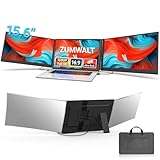
- 【Fewer Cables, Simplify Connections】Our laptop screen extender uses upgraded internals, minimizes cables and simplifies the connection process, making setup easier. Unlike traditional extenders with messy cables and compatibility issues, you only need 2 USB-C to USB-C cables (when your device supports full functionality) to connect effortlessly to your laptop. Say goodbye to compatibility worries, messy wires and complex setups, enjoy a clean desk, save space, quick setup of a triple-screen.
- 【Triple-Screen Boost for 300% Efficiency】Transform your workflow with the ZUMWALT P7 portable monitor for laptop that instantly expands your laptop into a triple-screen setup. Designed for multitasking. Expand your screen space to work on multiple applications simultaneously—Break free from tab switching. Enjoy up to 300% efficiency boost. This triple portable laptop monitor designed for on-the-go professionals who need more space without more clutter. Elevate your efficiency anywhere.
- 【Ultra-Slim Aluminum Shell, Stylish Durable Portable】The laptop screen extender monitor portable features a high-grade aluminum alloy shell that combines lightweight durability with sleek aesthetics. Incredibly lightweight at just 4 lbs (1.8 kg), its ultra-slim profile and included leather carry bag enhance convenience, making it perfect for on-the-go productivity. No top Baffle or clip, easy to remove and install. Designed to reduce stress on your laptop’s hinge.
- 【Widely Compatible】The portable dual screen extender is suitable for 13" to 17.3" laptops. It's compatible with mainstream systems such as Mac, Windows, Chrome, and Switch. Note: If your laptop has no full-featured USB-C port or M1/M2/M3 MacBooks, you need to use an additional H5-T cable. Connect via H5-T + HDMI + USB-A cable ( to external power, driver installation required). If you're not sure the compatibility or need H5 cable, please check with us before placing an order.
- 【15.6" FHD 1080P Larger Screen, Visual Excellence】Our laptop monitor extender featuring two 15.6" 1080P Ultra Slim FHD displays, provides a larger display area and a stylish appearance. Enjoy stunning visuals with 280 nits brightness and a 178° wide viewing angle. Perfect for triple-screen immersive visual in work or entertainment—Experience vibrant, true-to-life colors. This portable laptop monitor is designed for seamless collaboration and professionals multitasking on the go.
Check all of the following:
- Whether the USB-C port supports DisplayPort Alt Mode or another video-output mode.
- Whether the port can provide enough power for the attached display.
- Whether the laptop has a compatible HDMI or mini-HDMI output as a fallback.
- Whether a dock or hub in the proposed setup supports video rather than power and data only.
- Whether the laptop’s operating system is listed as supported by the exact monitor model.
If the USB-C port is power-only, a USB-C-to-USB-C cable will not turn it into a video port. An HDMI connection may solve the video path, but it may require a separate power cable and may not support the same one-cable convenience.
3. Find out whether the product uses native video or software graphics
Native USB-C video and HDMI send a display signal through the computer’s existing graphics output. Other USB graphics solutions use DisplayLink or similar technology to add displays through USB. Plugable documents USB graphics adapters that can provide HDMI, DisplayPort, DVI, or VGA outputs and explains that DisplayLink or Silicon Motion technology can enable additional screens beyond a laptop’s native outputs.
Software-assisted graphics can be useful when native outputs are insufficient, but it introduces additional variables:
- A driver may need to be installed and kept compatible with the operating system.
- Company security policies may block driver installation or USB graphics devices.
- Performance can depend on the laptop’s CPU, graphics hardware, USB connection, and workload.
- Operating-system updates can require a driver update before the display works again.
- Protected video, games, 3D applications, and high-refresh workloads may behave differently from ordinary office applications.
Ask the seller or manufacturer whether the exact model uses native video, HDMI, DisplayLink, another USB graphics driver, or a combination. Do not assume that two products with USB-C ports have the same setup process.
4. Treat pass-through charging as a specification to verify
Displays powered from the laptop can reduce battery life, especially when using two attached panels. Pass-through charging can reduce cable clutter and help keep the laptop charged, but the advertised wattage is not the same as a guarantee of delivered charging power for every host computer.
For comparison, Mobile Pixels lists 65W pass-through charging for Trio 3 Pro, while the reviewed Plugable portable monitor lists 100W pass-through charging. The laptop may negotiate less than that figure, the monitor may consume part of the available power, and the charger itself must be powerful enough to support the entire chain.
Before buying, verify:
- The pass-through wattage supported by the monitor or extender.
- The wattage your laptop normally requires under load.
- Whether the charger plugs into the display, laptop, hub, or a dedicated power input.
- Whether the included cable supports charging and data/video as required.
- Whether the setup still works if the laptop is running from battery.
5. Compare screen size, resolution, and scaling
Screen size should be compared with the laptop, not judged alone. A 13.3-inch extender may align neatly with a smaller laptop and keep the travel burden manageable. A 14.1- to 16-inch panel can provide more usable workspace but may increase weight, width, and mounting stress.
Resolution also affects text size and operating-system scaling. Xebec Snap’s listed 13.3-inch Full HD panels and Trio 3 Pro’s listed 14.1-inch 1400p/QHD panels target different balances of portability, workspace, and pixel density. A higher resolution can produce sharper text, but it may require scaling that reduces the amount of content visible at once. Match the expected resolution and scaling behavior to your laptop rather than choosing the largest number in isolation.
What’s actually slowing this PC down?
Pick the symptom - the matching free tool is one click away.
6. Choose the orientation that matches the work
- Portrait: useful for long documents, code, chat, email, reading, and tall web pages.
- Landscape: generally better for timelines, spreadsheets, video interfaces, and wide side-by-side windows.
- Presentation mode: useful when another person needs to view the screen or when the display must rotate away from the main user.
- Stacked: useful for a dashboard, reference document, or chat window above the main screen, but not ideal for every neck and desk position.
Xebec documents portrait, landscape, and presentation modes for Snap. Mobile Pixels lists landscape, collaboration, portrait, and presentation modes for Trio 3 Pro. Those modes are meaningful differences, not merely marketing labels, so consider your most common window layout before choosing a mount.
7. Account for stability and travel burden
A two-screen attachment puts more leverage on the setup than a single portable display. Use attached systems on a stable, firm surface whenever possible. Trio 3 Pro’s integrated kickstand is intended to support its redesigned design, but it does not remove the need to check the laptop and surface combination. A standalone monitor may be better for a lap, sofa, soft bed table, or uneven tray.
Also popular on Amazon
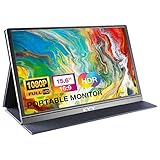
- [ FHD 1080P PORTABLE MONITOR ]: KYY using a 15.6''(8.8"x14.2") advanced IPS screen with 178° wide viewing angle, Delivers 1920*1080 breathtaking viewing quality and HDR technology, KYY portable gaming monitor has excellent color rendering ability, provide you the clearer, smooth, excellent performance in gaming/multimedia. It can effectively reduce blue light radiation damage, no flickering, eye-care, and make it easier to watch for a long time
- [ WIDE COMPATIBILITY ]: KYY portable monitor for laptop equipped with 2 Full Function Type-C ports and Mini-HDMI port, easy access to your favorite devices with 1 cable solution as long as your device support Thunderbolt 3 or 3.1 USB-Type-C, compatible with most laptop, smartphone, PC, PS4, XBOX and more.
- [ ULTRA-SLIM PORTABLE DISPLAY ]: KYY USB C portable monitor features a 0.3inch ultra-slim profile(1.7lb), it is easy to slides into your bag, allows you to carry it everywhere, ideal for a simple on-the-go dual-monitor setup or extend your phone screen for movies or games. No driver needed and equipped with 3.5mm audio inputs and 2 built-in stereo speakers to enhance entertainment experience
- [ DURABLE SMART COVER ]: Comes with a scratch-proof smart cover made of durable PU leather exterior, doubles as a stand, provides comprehensive protection and frameless magnetic design for this portable computer monitor. There are two grooves in the cover base to give at least some choice of viewing angle for your comfort for less cumbersome installation
- [ LIGHTWEIGHT BUT POWERFUL ]: KYY portable external monitor can work in both landscape and portrait mode, can be used as a gaming monitor, screen extender for laptop or phone. It has a unique designed Premium gray metal appearance, 2 built-in speakers to play audio, a friendly menu control wheel for setting, and 24/7 professional support team
For travel, consider the complete package rather than the monitor alone: bracket or case, cables, charger, stand, privacy filter, and any hub. A lighter single display that can be positioned comfortably may be more useful than a heavier triple-screen system that remains in a bag because it is inconvenient to deploy.
Independent reader supportYour contribution helps us test, update, and keep practical guides available for everyone.Recommended buying paths by user
- Professional who wants a polished attached workstation: Xebec Snap, provided the dedicated Snap Bracket and laptop fit are confirmed.
- Spreadsheet-heavy, coding, research, or communications workflow: Mobile Pixels Trio 3 Pro if the laptop can support the physical and electrical requirements.
- One extra screen with a simpler attached concept: the appropriate SideTrak model after checking its exact specifications.
- Narrow desk or vertical dashboard workflow: Mobile Pixels Duex Float, with Float-specific accessory and size checks.
- Multiple devices, independent placement, or less hinge stress: a standalone portable monitor for laptops.
- Budget-conscious buyer who does not need laptop-mounted alignment: start with a conventional standalone portable monitor and add a compatible stand only if the included case is not stable enough.
Accessories that may be useful
Accessories should be treated as compatibility-dependent rather than universal add-ons. Potentially useful categories include:
- USB-C cables: verify that the cable supports the required video, data, and power functions; charging-only cables are not suitable for a video connection.
- USB-C hubs and docks: useful when the laptop has limited ports, but confirm that the hub supports the display standard and number of screens required.
- USB graphics or DisplayLink adapters: an option when native display outputs are insufficient, with the driver and operating-system caveats described above.
- Portable monitor stands or risers: useful for standalone displays and for improving eye level, provided the stand supports the monitor’s weight and mounting pattern.
- Privacy filters: appropriate for travel and shared offices, but the filter must match the exact screen dimensions and orientation.
Mobile Pixels lists monitor risers, kickstands, privacy filters, and related accessories, while Plugable documents USB graphics adapters. Check the exact product family before assuming an accessory is compatible.
Troubleshooting: when the external display is not detected
- Check the physical connection. Reseat both ends of the cable, confirm the monitor is powered on, and select the correct HDMI or USB-C input on the display.
- Connect directly to the laptop. Temporarily remove a hub, dock, or adapter. This identifies whether the problem is the display or an intermediate device.
- Verify the USB-C port. Confirm from the laptop manufacturer’s specifications that the port supports DisplayPort Alt Mode or the required USB graphics technology.
- Check the operating-system display panel. In Windows, open Settings > System > Display and use the display arrangement and detection controls. In macOS, open System Settings > Displays and review the connected displays; the detection option may be revealed while holding the Option key, depending on the macOS version.
- Install the correct driver when required. A native USB-C or HDMI display should not normally require a DisplayLink driver, while a DisplayLink-based adapter does. Use the monitor or adapter manufacturer’s current driver and instructions.
- Test one screen at a time. Multi-screen systems can fail because the laptop, cable, charger, or graphics path cannot support the combined load. Test each display separately, then add the second one.
- Check power delivery. Use the recommended charger and connect pass-through power exactly as the product documentation specifies. A display may appear intermittently when the laptop cannot supply enough power.
- Update official graphics and system drivers. Start with the laptop manufacturer, GPU manufacturer, operating-system, and display-adapter support pages. Avoid installing unrelated driver packages as the first step.
What not to assume
- USB-C does not automatically mean video. The port must support the required display mode.
- More screens do not automatically mean more productivity. The benefit depends on the workflow, eyesight, window-management habits, desk geometry, and battery or power availability.
- A universal bracket is not a universal practical fit. Lid thickness, hinge strength, port placement, and laptop flexibility still matter.
- Pass-through charging is not unlimited charging. The advertised wattage must be interpreted alongside the laptop’s own charging requirement and the display’s power draw.
- Every Mobile Pixels accessory is not interchangeable. Duex and Float product families require model-specific checks.
- A portable monitor is not automatically an attached extender. It may be marketed as a laptop second screen, but it normally sits separately and has different stability and travel characteristics.
Final purchase checklist
- Confirm the exact model number, not just the product family.
- Check the laptop’s screen size, lid thickness, hinge construction, and port layout.
- Verify USB-C DisplayPort Alt Mode if the setup depends on USB-C video.
- Identify whether the product uses native video, HDMI, DisplayLink, or another software graphics method.
- Confirm Windows and macOS support for the current model and current operating-system versions.
- Calculate the likely battery impact and verify pass-through charging wattage.
- Check whether the required bracket, stand, cable, charger, or driver is included.
- Decide whether portrait, landscape, presentation, or stacked operation is genuinely useful for your work.
- Assess the complete travel weight and stability on the surfaces where you will use it.
- Review the current price, stock status, warranty, return window, and retailer listing before ordering.
Frequently Asked Questions
Will a laptop screen extender work with any USB-C laptop?
Not necessarily. A USB-C connector may support charging and data but not video. Check whether the laptop’s specific port supports DisplayPort Alt Mode or the display’s required USB graphics technology. If it does not, a compatible HDMI or mini-HDMI path may be needed.
Is a portable monitor the same as a laptop screen extender?
An attached extender mounts to or travels with the laptop, keeping the screens aligned as one workstation. A standalone portable monitor normally sits beside the laptop or on its own stand. Standalone models are easier to position and share between devices, while attached systems are more convenient for integrated travel setups.
What is the best laptop extender for three screens?
For the biggest attached workspace, Mobile Pixels Trio 3 Pro is the leading choice in this guide because it adds two listed 14.1-inch 1400p/QHD displays. It also requires more attention to hinge strength, surface stability, port capability, charging, and travel bulk than a single-screen extender.
Do laptop screen extenders drain the battery?
Yes. Displays powered from the laptop can reduce battery life, and two attached panels generally demand more power than one. Pass-through charging can help keep the laptop powered, but advertised figures such as 65W or 100W do not guarantee that every laptop will receive that exact usable charging rate.
Are stacked laptop screen extenders better than side-by-side models?
A stacked screen can be useful for documents, chat, dashboards, and other vertical content, especially when desk width is limited. However, side-by-side screens are often more natural for wide spreadsheets, timelines, and broad application layouts. The best arrangement depends on the user’s workflow and desk ergonomics.
How do I fix a laptop extender that is not detected?
Start by connecting the display directly to the laptop, checking the monitor input, confirming USB-C video support, and testing one screen at a time. Then inspect Windows Settings > System > Display or macOS System Settings > Displays. If the product uses DisplayLink or another USB graphics technology, install the current manufacturer’s driver. Official laptop, GPU, monitor, and operating-system support should be the first driver resource.
Free tools Windows power users keep installed
One-click scans. No signup required.
The Bottom Line
Bottom line: Choose Xebec Snap for a premium, modular attached setup; Mobile Pixels Trio 3 Pro for the largest attached three-screen workspace; Duex Float for a vertical layout; and a standalone portable monitor when flexibility, independent positioning, or reduced hinge stress matters most. Verify USB-C video support, mounting fit, power requirements, drivers, and the exact current model before buying.

