
iTechGuides is reader-supported. When you buy through links on our site, we may earn an affiliate commission. As an Amazon Associate I earn from qualifying purchases. Learn more
There is no single best preset for every 3D multiplayer game or computer. The right setup is a deliberate balance: keep enough resolution, lighting and texture detail to read the scene; reduce the settings that consume frame time; use a field of view that is comfortable for you; make the microphone transmit only when intended; and review both the game’s safety controls and the platform account’s privacy permissions.
Start with the game’s recommended or default preset, change one setting at a time, and test in the same type of match or area in which you normally play. Menu names differ among games and platforms, so treat examples from Halo Infinite, VRChat, Roblox and New World as illustrations rather than universal paths.
Start with a repeatable baseline
Before changing individual options, record your current resolution, frame-rate cap, graphics preset, field of view, audio devices and chat mode. A screenshot or short note prevents a setting experiment from becoming guesswork. Close unnecessary applications, let the game finish shader compilation or asset streaming, and test after you have entered an actual match or a busy shared area; a quiet menu often uses much less hardware than gameplay.
Use the monitor’s native resolution as the starting point when your system can maintain a stable frame rate. If it cannot, lower resolution scale before abandoning clarity everywhere else. Keep an eye on frame-time consistency, not only the highest frame-per-second number. A slightly lower but steady frame rate usually feels better than a high average with severe spikes.
Popular on Amazon

- Immersive 7.1 Surround Sound: This gaming headset delivering stereo surround sound for realistic audio. Whether you're in a high-speed FPS battle or losing yourself RPG adventures, this Ps5 headset provides crisp treble, punchy bass, and precise directional cues, giving you a competitive edge
- Great Humanized Design: Comfortable and breathable permeability protein over-ear pads perfectly on your head, adjustable headband distributes pressure evenly, you’ll enjoy lasting comfort during hours of gaming and suitable for all gaming players of all ages
- Sensitivity Noise-Cancelling Microphone: 360° omnidirectionally rotatable sensitive microphone, premium noise cancellation, sound localisation, your voice comes through loud and natural, ensuring your teammates catch every callout, even in chaotic battle scenes.
- Universal Compatibility: This gaming headphone support for PC, Ps5, Ps4, Xbox one, Xbox Series X/S, Switch, Laptop, Mobile Phone and other devices with 3.5mm jack.Note 1: When you use headset on your PC, be sure to connect the "1-to-2 3.5mm audio jack splitter cable" (Red-Mic, Green-audio). (Please note you need an extra Microsoft Adapter when connect with an old version Xbox One controller)
- Cool style gaming experience: Colorful RGB lights create a gorgeous gaming atmosphere, adding excitement to every match. Heightening immersion for FPS, MOBA, and action titles. These eye-catching lights give your setup a gamer-ready look while maintaining focus on performance. (*Note: The USB connector is for LED lighting only)
Graphics settings: choose the trade-off you actually need
Graphics options affect different bottlenecks. Resolution scale changes how many pixels the game renders; shadows and lighting add scene calculations; textures mostly consume video memory; effects can create short frame-time spikes; and field of view changes how much of the world is drawn. The table below is a decision aid, not a promise that every title implements its sliders the same way.
| Setting | What increasing it usually does | When to lower it | What to watch for |
|---|---|---|---|
| Resolution or resolution scale | Produces a sharper image and more fine detail, at a substantial rendering cost. | When the game misses your frame-rate target even after less expensive visual changes. | Text, distant targets and thin edges become softer. Halo Infinite’s official guide specifically notes that a scale below 100% can improve performance. |
| Field of view (FOV) | Shows more of the scene horizontally and can make movement feel less zoomed in. | When performance is limited or a wide view causes discomfort. | A wider angle can cost performance. Halo Infinite’s guide says a lower FOV can help with motion sickness; this is a title-specific documented trade-off, not a guaranteed medical solution. |
| Shadows | Adds depth and contact cues but requires additional rendering work. | When frame time is high in areas with many lights or objects. | Very low shadows can remove useful visual cues, so check readability in dark and busy scenes. |
| Lighting, reflections and ambient effects | Improves realism, reflections and indirect-light detail. | When dense scenes produce stutter or large frame-time spikes. | Some effects are inexpensive on one graphics card and expensive on another; test rather than assuming. |
| Textures | Increases surface detail and can make objects easier to distinguish. | When video memory is nearly full, causing hitching or texture pop-in. | Lowering textures may reduce visual clarity without greatly improving average frame rate if the bottleneck is the processor. |
| Post-processing and effects | Adds bloom, depth-of-field, particles, motion blur and similar finishing effects. | When effects obscure targets, cause discomfort or create spikes during explosions and crowded fights. | Disable motion blur first if you need a clearer view while turning; keep other effects only if they improve your experience. |
Resolution scale: the first performance lever to test
Resolution scale renders the game internally at a percentage of the selected output resolution and then displays the result at the monitor’s resolution. A value below 100 percent can be an effective way to gain performance while preserving the game’s interface size. Halo Infinite’s official graphics guidance documents this benefit, but the exact image quality and available slider range are game-specific.
Lower the scale in small steps, play the same demanding section, and stop when distant targets or text become difficult to read. If the game offers dynamic resolution, set a frame-rate target and evaluate whether the image changes distract you. A fixed scale is easier to compare; dynamic scaling can maintain responsiveness when the scene load changes.
The Tool Desk
Outbyte Driver Updater FREEFix the driver behind crashes, sound loss and screen glitchesFind Drivers →Outbyte PC Repair FREEClear out junk files and repair common Windows errorsFree Scan →Field of view: visibility, comfort and workload
A higher FOV reveals more to the sides, which can help you notice nearby activity without turning as far. It also draws a wider view and may increase rendering work. A lower FOV can reduce the apparent speed of motion for some players and, according to Halo Infinite’s guide, may help with motion sickness. Because comfort is individual, test several values in a private area before using one in a long session.
Do not compare FOV numbers between games as if they were identical. Some titles use horizontal FOV, others use vertical FOV, and aspect ratio changes the result. Record the value together with the game and display aspect ratio so you can reproduce a comfortable setup.
Shadows, lighting and effects: spend the budget where it matters
Reduce shadows and expensive lighting before cutting textures if your image is sharp but frame time is high. Shadows often become costly when a scene contains many dynamic lights or characters. Reflections, volumetric lighting, ambient occlusion, particle density and screen-space effects can each behave differently; change one at a time and inspect both a quiet scene and a crowded fight.
Also popular on Amazon

- Enjoy expansive cinematic sound. Big 50 mm audio drivers deliver an incredible sound experience
- Hear Enemies From All Sides. DTS Headphone:X 2.0 surround sound(1) lets you hear enemies sneaking behind you, special ability cues, and immersive environments. It’s positional clarity that can make the difference between victory and defeat. Experience three-dimensional audio that goes beyond 7.1 channels to make you feel like you’re right in the middle of the action. (1) DTS Headphone:X 2.0 requires Logitech G HUB Software.
- Be Heard Loud and Clear. The big 6 mm boom mic makes sure you’re heard by gaming partners and mutes when flipped up.
- Use One Headset For Most Game Platforms. Your headphones work with your PC or Mac via USB DAC or 3.5 mm cable, mobile devices with 3.5 mm cable or with gaming consoles including PlayStationⓇ 5 and PlayStationⓇ 4 (USB wireless stereo sound only), Nintendo Switch (wireless stereo sound when docked)
- Game for Hours in Comfort. Everything about these headphones is about comfort: The deluxe lightweight leatherette ear cups and headband are made to keep pressure off your ears. Ear cups rotate up to 90 degrees for convenience.
Motion blur, depth of field and heavy bloom are presentation choices rather than requirements for competitive visibility. Turn them down if they hide silhouettes, make panning uncomfortable or reduce text clarity. Keep an effect only when you can identify a benefit that matters to you.
Windows Errors? Fix Them Before They Spread
Repair common Windows errors and clear accumulated junk for a smoother, more stable PC - no reinstall needed.Free scan · no reinstallCrashes, No Sound, or Screen Glitches?
Random freezes, missing sound and display glitches usually trace back to one bad driver. Find and replace yours safely.Free scan · under a minuteBrightness, contrast and color
Calibrate brightness and contrast for your display and room instead of copying a universal number. A bright room may require a different setting from a dark room, and excessive brightness can wash out shadow detail. Use the game’s calibration image if it provides one, then check black areas, bright skyboxes and readable interface text during real play.
Do not use brightness as a substitute for a proper display mode. If a monitor’s own contrast, HDR mode or black-level setting is mismatched, raising the in-game slider can make the entire image gray without revealing useful detail. Change one layer at a time and return to the calibration screen after a display-mode change.
Accessibility options that improve playability
Look beyond the main graphics preset. Depending on the title, accessibility menus can include reduced motion, a readable chat background, enlarged text, speech-to-text, mono audio and separate volume controls. New World Support documents these as examples of options available in that game. Their presence and labels vary, but the principle is general: choose the control that removes a specific barrier instead of lowering every visual setting.
- Use reduced-motion or camera-motion controls when animation causes discomfort.
- Increase chat size or add a background when messages disappear into the scene.
- Try mono audio or independent channel sliders when you cannot reliably distinguish directional sound.
- Enable speech-to-text when listening is difficult, and check whether the game lets you hide or resize its transcript.
A one-change testing method
- Set the recommended or default preset and note the frame rate, frame-time behavior and visual problems.
- Choose one suspected bottleneck, such as resolution scale, shadows or effects.
- Change it by one step, load the same map or practice area, and play for several minutes.
- Check both an ordinary scene and a worst-case scene with many players, lights or particles.
- Keep the change only if it improves the problem without making targets, text or comfort worse.
- Record the value before testing the next setting.
This process is slower than applying a random “low” preset, but it tells you which compromise you are making and makes recovery easy.
Do these 3 things before closing this tab:
1Scan for outdated or missing drivers - takes under a minute2Repair Windows errors before they cause bigger problems3Fix the driver behind crashes, sound loss and screen glitchesVoice chat: control what is transmitted and who can hear it
Voice settings exist at two levels. The game can select an input device, choose an activation mode and control lobby or match chat. The platform can separately allow or deny communication, including cross-network communication. A game toggle cannot grant a permission that the platform account has denied.
Also popular on Amazon

- JBL QUANTUMSOUND SIGNATURE: From the faintest footsteps to the loudest explosion, this wired gaming headset puts you at the center of every scene—immersive, accurate audio that turns every match into a competitive edge.
- DETACHABLE DIRECTIONAL MICROPHONE: Rally your squad without repeating yourself. The voice-focus directional microphone detaches when you're flying solo and includes a mute option—because this mic headset knows when to talk and when to stay quiet.
- MEMORY FOAM COMFORT: Marathon sessions hit different in these over-ear headphones—lightweight build, breathable fabric ear cushions, and memory foam padding keep you locked in without the fatigue. Game longer. Complain less.
- SPATIAL SOUND COMPATIBILITY: Hear exactly where sound is coming from. This wired headset is fully compatible with Windows Sonic spatial sound on Windows 10 PCs and Xbox ONE—so the game world feels like it's happening around you.
- CROSS-PLATFORM READY: One 3.5mm jack, every platform—PC, PlayStation, Xbox, Nintendo Switch, Mobile, Mac, and VR. This cross-platform gaming headset goes wherever the game is.*
| Mode | Convenience | Control and common use |
|---|---|---|
| Open microphone | Highest convenience; no button is required. | Transmits whenever the game’s threshold detects sound. Use only when your room is quiet and you are comfortable with continuous transmission. |
| Push-to-talk | Requires holding a key or button. | Best control over exactly when speech is sent. Bind a key you can reach without losing movement or aim. |
| Toggle-to-talk | One press starts and another stops transmission. | Useful when holding a key is difficult, but check the on-screen indicator so you do not leave the microphone live accidentally. |
| Voice disabled | No voice interaction. | Use when you do not want to participate or when a child account or household rule requires voice to be off. Some services still offer text or other communication separately. |
Select the right microphone and output
Open the game’s audio or voice-chat menu and select the intended microphone rather than relying on “default.” Select the headphones or speakers you actually monitor. Speak while watching the input meter, if available, and confirm that your voice reaches a friend or a private test channel before joining a public match.
A gaming headset with a microphone is optional, not a requirement. Existing headphones and a separate microphone can work just as well when their plugs, operating-system permissions and selected devices are correct. Steam Support recommends checking the microphone and headphones and bypassing intermediary hardware during troubleshooting; that advice is specific to Steam’s support process, but the isolation method is useful elsewhere.
Set activation and transmission thresholds
For an open microphone, adjust the voice-activation threshold while producing normal speech and the quiet background sounds that occur in your room. Steam Support warns that a threshold set too high can cut off parts of speech, while a low threshold can transmit background noise. The exact slider name and scale differ by game.
Free tools Windows power users keep installed
One-click scans. No signup required.
If you use push-to-talk or toggle-to-talk, still check the input meter and the transmission indicator. A hot microphone can expose keyboard noise, conversations or household sounds even when you did not intend to speak. Rebind the activation control if it conflicts with movement, crouch, inventory or an accessibility switch.
Lobby, match and party chat
Some games separate pre-match lobby chat, team or match chat, party chat and proximity chat. Disable the channel you do not need rather than disabling every audio cue. If you want to coordinate only with people you know, use the party or friends channel where the game offers one and leave public channels muted.
Per-player mute is the fastest response to one disruptive speaker. Use report or block controls when the behavior violates the service rules, and save evidence only when the platform’s reporting process asks for it. Labels and retention of reports differ by service.
Also popular on Amazon
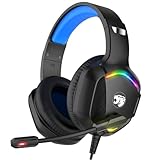
- 【Multi-platform Compatible】 Gaming headset with microphone for PC, PS4, PS5, Xbox One Series X/S (older version requires adapter), Nintendo 3DS, Switch, Laptop, PSP, Tablet, iPad, Computer, Mobile Phone, 3.5mm jack device.
- 【Surrounding Stereo Subwoofer】 Gaming headset with high power 50mm neodymium magnet drivers, greatly enhance the expressiveness and sense of depth of voice playback details, powerful sound quality provide you immersive gaming experience.
- 【Noise Isolating Microphone】Headset integrated onmi-directional microphone can transmit high quality communication with its premium noise isolating function, which enables you to clearly deliver or receive messages while you are in a gamer.
- 【Humanised Design】 Soft and skin-friendly ear cushions, flexible headband with thickening pads, headset weight is only 0.77lb, lightweight and comfortable design provides you with a long-lasting excellent gaming experience.
- 【Professional Gaming Headset】Gaming headphones with 6.5ft high tensile strength, anti-tangle braided cable, rotary volume control and button microphone mute.
Privacy and safety: review the game and the platform
Use a two-layer review. First inspect the game’s communication, invitation and content controls. Then open the console, PC or account privacy page and check who may communicate, see activity, join multiplayer sessions, send invitations or view the profile. The platform layer may override an in-game setting.
Quick wins for a faster PC:
Fix the driver behind crashes, sound loss and screen glitchesFind Drivers →Clear out junk files and repair common Windows errorsFree Scan →Scan for outdated or missing drivers - takes under a minuteDriver Scan →Game-level controls to look for
- Voice-chat enable or disable, input device and activation mode.
- Separate lobby, match, party, proximity or cross-play communication choices.
- Per-player mute, block and report commands.
- Invitation restrictions, friend-only sessions or private instances.
- Avatar, visual-effect or user-content filters.
- Chat visibility, text filtering and speech-to-text options.
VRChat documents muting a user, blocking, hiding avatar features and using Personal Space. Its guidance also cautions that blocking does not necessarily prevent a blocked person from interacting with the shared world in ways the player may still perceive. Treat blocking as an important exposure-reduction tool, not a guarantee that every shared-world interaction disappears.
Platform permissions and cross-network communication
Open the platform account’s privacy and online-safety settings after changing the game. Look for separate entries for voice, text, multiplayer, invitations, profile visibility and activity sharing. On a family-managed account, a parent or family manager may control some of these options.
Microsoft’s Xbox GDK policy, version 1.3 dated March 1, 2025, states that titles must not allow Xbox-network communication when the user’s privacy settings disallow it. The policy also requires muting non-Xbox-network players for the duration of cross-network communication sessions. This is why an in-game “voice on” choice cannot override a platform-level denial, and why cross-network sessions may behave differently from same-network sessions.
Children’s accounts and age-based communication
Do not assume that an adult account’s menu applies to a child account. Roblox documents age-related differences in filtering and communication eligibility, and family controls on other platforms can similarly limit messaging, voice, multiplayer or invitations. Check the account’s date-of-birth category, family-manager settings and communication permissions directly. If a setting is unavailable, it may be intentionally restricted rather than broken.
Mute, block, report and filter: choose the right response
| Tool | What it addresses immediately | Limitation to remember |
|---|---|---|
| Mute | Stops or reduces one person’s audio for you. | It normally does not stop that person from seeing or contacting others. |
| Block | Reduces direct interaction or contact where the service supports it. | VRChat’s documentation notes that shared-world interaction may still be perceptible in some circumstances. |
| Report | Sends a rule or safety concern to the service’s moderation process. | It is not an instant audio filter; use mute or block for immediate relief. |
| Avatar or content filtering | Hides selected visual features or user-generated content. | Availability and scope differ by game, and filtering may not remove the user from the world. |
| Restricted invitations or communication | Reduces who can enter sessions, message or invite you. | It can also prevent legitimate friends from reaching you until you add an exception. |
Read the voice-service notice before consenting
“Voice chat” can involve recording, automated moderation, human review, model training or retention. Those practices are not universal, so read the actual notice shown by the game or voice provider instead of assuming that every service handles audio the same way.
Also popular on Amazon

- 【Multi-Platform Compatible】Support PlayStation 4, PlayStation 5, Xbox, Xbox Series X|S, Xbox One, PC, Nintendo 3DS, Laptop, PSP, Tablet, iPad, Computer, Mobile Phone. Please note you need an extra Microsoft Adapter (Not Included) when connect with an old version Xbox One controller.
- 【7.1 Surround Sound】Clear sound operating strong brass, splendid ambient noise isolation and high precision 40mm magnetic neodymium driver, acoustic positioning precision enhance the sensitivity of the speaker unit, bringing you vivid sound field, sound clarity, shock feeling sound. Perfect for various games like Halo 5 Guardians, Metal Gear Solid, Call of Duty, Star Wars Battlefront, Overwatch, World of Warcraft Legion, etc.
- 【Noise Isolating Microphone】Headset integrated onmi-directional microphone can transmits high quality communication with its premium noise-concellng feature, can pick up sounds with great sensitivity and remove the noise, which enables you clearly deliver or receive messages while you are in a game. Long flexible mic design very convenient to adjust angle of the microphone.
- 【Great Humanized Design】Superior comfortable and good air permeability protein over-ear pads, muti-points headbeam, acord with human body engineering specification can reduce hearing impairment and heat sweat.Skin friendly leather material for a longer period of wearing. Glaring LED lights desigend on the earcups to highlight game atmosphere.
- 【Effortlessly Volume Control】High tensile strength, anti-winding braided USB cable with rotary volume controller and key microphone mute effectively prevents the 49-inches long cable from twining and allows you to control the volume easily and mute the mic as effortless volume control one key mute.
Unity’s Safe Voice consent notice says that, in its described implementation, voice and player ID may be recorded and monitored for moderation and model training. It states that identifiable data is retained for 12 months for model training. That is a Unity Safe Voice term, with no publication year stated on the reviewed page; it is not a general retention period for multiplayer games.
The same notice says: “If you choose to not turn on voice chat now, or choose to turn it off later, you can still participate in the game, but you will be unable to communicate using our voice chat.” The statement applies to that Safe Voice implementation. Before enabling a service, identify what is collected, why it is processed, who can review it, how long it is retained and whether turning voice off changes access to the rest of the game.
Practical starting profiles
These profiles are starting points, not universal presets. Apply them only after confirming that the game offers the named controls.
Balanced clarity
- Begin with the recommended preset and native output resolution.
- Keep textures at a level your video memory can handle without hitching.
- Reduce shadows or expensive lighting one step if frame time is unstable.
- Keep FOV at the default until you test comfort and visibility.
- Use push-to-talk, with party or friends chat enabled and unwanted public channels muted.
- Review platform permissions before enabling cross-network communication.
Performance-first
- Lower resolution scale gradually; Halo Infinite’s guide documents values below 100 percent as a performance option.
- Reduce shadows, reflections, volumetric lighting and particle effects that create spikes.
- Keep the interface and text at a readable size even if world detail is reduced.
- Use a stable frame-rate cap if an uncapped mode causes heat, noise or uneven frame time.
- Prefer push-to-talk or disabled voice when background noise makes open mic impractical.
Comfort-first
- Test a lower FOV if a wide view feels uncomfortable; Halo’s guidance identifies lower FOV as a possible motion-sickness aid.
- Disable motion blur and reduce camera-motion effects if they obscure the scene or cause discomfort.
- Adjust brightness and contrast for the actual room and display.
- Enable enlarged text, readable chat backgrounds, mono audio or speech-to-text when useful.
- Use toggle-to-talk or push-to-talk so unexpected sounds are not transmitted.
Privacy-first
- Disable voice chat until you have read the service’s consent and retention notice.
- Set communication, invitations and activity visibility to friends or restricted options where available.
- Keep public lobby or proximity channels off and use a private party channel.
- Mute or block disruptive users immediately; report conduct that violates the game’s rules.
- Recheck platform and family-account permissions after game updates or account changes.
Troubleshoot the common failures in order
The game is blurry or hard to read
- Confirm the output resolution and monitor input are correct.
- Check resolution scale, dynamic-resolution targets and any sharpening option.
- Restore the default preset, then lower only shadows or effects to see whether performance—not resolution—is the real issue.
- Check display scaling, HDR and black-level settings outside the game.
- Retest text, distant objects and dark scenes after each change.
Frame rate is low or uneven
- Test a repeatable busy scene rather than the main menu.
- Lower resolution scale slightly and retest.
- Reduce shadows, lighting, reflections and particle effects one at a time.
- Check whether video memory is full; if it is, reduce textures and look for texture streaming options.
- Use a stable frame-rate cap if uncapped rendering produces spikes.
Other players cannot hear you
- Confirm the game selected the intended microphone, not an inactive webcam or controller mic.
- Check operating-system microphone permission and the platform’s communication permission.
- Verify that push-to-talk or toggle-to-talk is not bound to the wrong key.
- Speak while watching the input meter and lower an excessively high transmission threshold.
- Test without an intermediary adapter, dock or virtual audio device, following the isolation approach recommended by Steam Support.
- Check whether you are in a lobby, match, party or cross-network channel that has separate permissions.
You hear noise or cut-off words
- For open mic, raise the threshold only until ordinary background noise stops transmitting.
- If words are clipped, lower the threshold; Steam Support specifically warns that a setting that is too high can cut off speech.
- Move the microphone closer or use its hardware mute and gain controls if available.
- Check the selected output device and headset connection so you are not monitoring the wrong channel.
A person is still visible after blocking
Check what the game’s block function promises. In VRChat, the documented limitation is that a blocked user may still interact with the shared world in ways the player perceives. Use the game’s avatar or content filters, Personal Space or instance controls when available, and report rule-breaking behavior through the supported process.
Keep the setup understandable over time
Save a short configuration note with your resolution, scale, FOV, frame-rate cap, microphone, activation mode and privacy choices. Revisit it after a major game update, a graphics-driver change, a new monitor or a platform-account change. Updates can rename menus, add channels or reset defaults, and official support pages may describe different labels from the current build.
The most reliable arrangement is the one you can explain: which setting protects frame time, which control determines when the microphone transmits, and which account permission limits contact. When a problem appears, change the smallest number of variables necessary, test in the same type of scene, and restore the last known-good value if the result is worse.
Quick Recap
Product prices and availability are accurate as of the date/time indicated and are subject to change. Any price and availability information displayed on Amazon at the time of purchase will apply.
What’s actually slowing this PC down?
Pick the symptom - the matching free tool is one click away.

