
iTechGuides is reader-supported. When you buy through links on our site, we may earn an affiliate commission. As an Amazon Associate I earn from qualifying purchases. Learn more
Start with the High preset, then tune in this order: output resolution and upscaling, ray tracing, shadows, textures, geometry and view distance, then post-processing. Test every change on the same demanding outdoor route, not in a menu or empty building. The right result is the highest image quality that keeps frame times consistent on your particular GPU, CPU, monitor refresh rate and game engine.
For most systems, the largest performance gains come from rendering fewer pixels with a built-in quality upscaler, disabling path tracing, and reducing shadows or other lighting effects before sacrificing texture detail. A frame-rate cap and variable-refresh display then turn a high average FPS into a steadier experience.
What “smooth” performance actually means
A high average FPS alone does not guarantee smooth play. Open-world games stream assets, simulate crowds and traffic, compile shaders and change from quiet interiors to busy outdoor scenes. Those events can create frame-time spikes even when the FPS counter looks healthy.
The Tool Desk
Outbyte Driver Updater FREEFix the driver behind crashes, sound loss and screen glitchesFind Drivers →Outbyte PC Repair FREERepair Windows errors before they cause bigger problemsFix Now →- Average FPS tells you the general rendering rate.
- Frame-time consistency reveals hitching. A stable 60 FPS means frames arrive about every 16.7 milliseconds; occasional 40–50 ms frames feel like stutter.
- GPU and CPU utilization identifies the limiter. A GPU near full utilization is usually graphics-bound. Low GPU usage with long frame times often points to a CPU-heavy game setting, background process or streaming bottleneck.
- Refresh rate and variable refresh determine how much of the rendered output your display can show cleanly. A 144 Hz panel can display up to 144 refreshes per second, but it cannot make a game with irregular frame delivery look perfectly even.
Choose a practical target before changing settings. For a 60 Hz display, a locked 60 FPS is often preferable to an uncapped 65–90 FPS that repeatedly falls through the refresh cycle. On a 144 Hz or 165 Hz display, a stable 90, 120 or 144 FPS target may make more sense than chasing a fluctuating peak.
Popular on Amazon

- QHD Resolution (2560 x 1440) has 1.7 times the pixel density of Full HD for incredibly detailed pinsharp images
- HDR10 provides brighter highlights and nuanced shadow for added depth - making every scene feel more vivid and realistic
- The 180Hz refresh rate minimizes lag for gameplay with ultra-smooth action. Plus, the 1ms response time helps capture your moves in real-time, allowing you to react fast for gaming precision
- AMD FreeSync reduces choppiness, screen lag and image tearing, ensuring that your fast-paced, complex in-game action is stable with minimal stutter
- Ergonomic stand allows for tilt, pivot and height adjustments to maximize gaming comfort
Establish a repeatable baseline
Use the game’s built-in benchmark when it has one. Otherwise, create a repeatable route: the same save, settlement, driving section, forest or city intersection, with the camera movement and weather as similar as possible. Busy outdoor areas expose streaming, foliage and crowd costs that an indoor test hides.
- Select the High preset.
- Disable path tracing and start with ray tracing disabled unless you already know your hardware has headroom.
- Use native output resolution or the upscaler’s Quality mode.
- Record average FPS, the lowest observed section and frame-time consistency. A short repeatable run is more useful than a single number from a menu.
- Change one setting or one related group at a time, rerun the same route and keep the change only if it improves your target without an unacceptable image-quality loss.
Do not compare one setting in a quiet interior with another in a crowded market. Open-world engines can shift between GPU, CPU and streaming limits from one district to the next.
Resolution and upscaling: the first performance lever
Output resolution has a first-order effect on GPU work. MSI categorizes resolution as a “Very High” performance-impact setting. NVIDIA’s 2019 performance guide for Control notes that 2560×1440 renders 77% more pixels than 1920×1080. The same principle applies to 4K: every increase in pixel count gives the GPU more shading, lighting and post-processing work.
| Rendering choice | Image stability | GPU load | When to choose it |
|---|---|---|---|
| Native resolution | Highest fine-detail clarity when the game’s anti-aliasing is good | Highest | You already meet the frame-time target with headroom |
| Built-in upscaler, Quality | Usually close to native at normal viewing distance; may show reconstruction artifacts in motion | Lower | Best starting point for demanding scenes |
| Built-in upscaler, Balanced or Performance | More shimmer, softness or ghosting, especially on foliage and thin geometry | Much lower | Use only when Quality mode cannot meet the target |
| Driver-level upscaling | Depends on the game’s HUD scaling and sharpening behavior | Lower | Fallback when integrated upscaling is unavailable |
Use the game’s own DLSS, FSR or XeSS implementation in Quality mode first. If the frame-time target is still missed, step down one mode before lowering many unrelated settings. This preserves more geometry and lighting detail than reducing the entire preset.
NVIDIA describes DLSS Super Resolution as reconstructing a higher-resolution image from a lower-resolution input. In NVIDIA’s Control testing under heavy GPU load, its reported gains reached up to 89% in a high-fidelity mode and up to 197% in lower-resolution performance modes. Those figures are title- and hardware-specific results from that 2019 guide, not universal guarantees. A game with a different engine, anti-aliasing method or CPU limit can show much smaller gains.
How to select a mode
- Set the display output to the monitor’s native resolution.
- Enable the integrated upscaler and choose Quality.
- Check distant signs, foliage, hair, fences and moving characters for shimmer or ghost trails.
- If GPU usage remains near 100% and frame times miss the target, try Balanced. Use Performance mainly at 4K or when a lower internal resolution is unavoidable.
- Adjust the game’s sharpening control sparingly. Excessive sharpening can make reconstruction noise more visible.
Ray tracing and path tracing
Ray-traced reflections, shadows and global illumination can improve contact detail and lighting accuracy, but they add substantial frame-time cost. Path tracing traces far more of the scene and is normally the most expensive lighting option. Leave path tracing off until rasterized settings and upscaling already meet your target.
Also popular on Amazon

- 100% sRGB Color Gamut: With 100% sRGB, our display reveals an astonishing brightness and variance in red, green, and blue color across a wide gamut, providing a more defined and naturalistic display of color in every image.
- DP & HDMI Ports: Two HDMI ports and one DisplayPort port provide up to 100Hz refresh rate, refining picture clarity in all action-packed gaming sequences and graphic design projects. Audio In and a Headphone Jack provide diverse audio options.
- Blue Light Shift: Blue Light Shift reduces blue light, allowing you to comfortably work, watch, or play applications without straining your eyes.
- Built-in Speakers: Perfectly suited to work & gaming settings, built-in speakers deliver robust & smooth audio while saving space on your desk.
- FPS-RTS Game Modes: FPS and RTS are Sceptre's custom set display settings built for an enhanced gaming experience. FPS (First Person Shooter), RTS (Real-Time Strategy).
| Lighting option | Visual benefit | Performance cost | Recommended starting point |
|---|---|---|---|
| Raster lighting | Fast, often well-tuned for the game’s art direction | Lowest | Default for a stable baseline |
| Selective ray tracing | More accurate reflections, shadows or ambient lighting in supported effects | High and effect-dependent | Enable one effect at a time after meeting the FPS target |
| Path tracing | Most complete ray-traced lighting model | Highest; can require aggressive upscaling and frame generation | Use only with substantial GPU headroom and compatible hardware |
If you want ray tracing, start with the lowest or medium RT preset and enable only the effect that matters most in that game. Reflections may be obvious in a rainy city; RT shadows may matter more in a game built around sunlit foliage. Lowering RT quality is usually more effective than dropping textures.
NVIDIA’s DLSS Ray Reconstruction is designed to improve denoising in ray-traced images. Frame-generation plug-ins can add generated frames where the game and hardware support them, but generated frames do not remove the underlying input-frame and CPU costs. Check controls and motion clarity at your target refresh rate rather than treating a larger counter value as automatically smoother.
Shadows, textures and material quality
Lower shadows before textures when GPU-bound
Shadow quality is a practical performance adjustment because it changes shadow-map resolution, filtering and the number of shadow-casting lights. Moving from High to Medium often removes a large amount of GPU work while retaining the game’s main surface detail. The trade-off is softer or less precise contact shadows, especially under small objects and foliage.
Keep textures high when VRAM allows
Textures primarily consume video memory and storage bandwidth rather than the same compute budget as lighting. If the game does not report VRAM pressure, keep textures on High and reduce shadows, volumetrics or reflections first. Lower textures when you see texture pop-in, delayed material loading, severe hitching while turning the camera or a warning that the texture budget is exceeded.
Texture quality can be changed independently from resolution. A 1080p output with High textures may look more detailed at close range than a higher output with blurry texture streaming, provided the GPU has enough VRAM for the selected pack.
Recommended Free Tools
Volumetrics and reflections
Fog, clouds, smoke and volumetric lighting can be expensive because they are evaluated across large portions of the screen. Reflections can also multiply work in scenes with water, glass or wet roads. After upscaling and shadows, reduce volumetric quality or reflection quality if a specific weather or urban scene causes the GPU frame time to spike.
Also popular on Amazon
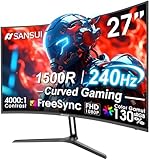
- 27” 240Hz 1500R Curved FHD 1080P Gaming Monitor for Game Play.
- Prioritizes Gaming Performance: Up to 240Hz high refresh rate, more immersive 1500R Curvature, FreeSync, MPRT 1ms Response Time, Black Level adjustment(shadow booster), Game Modes Preset, Crosshair.
- Cinematic Color Accuracy: 130% sRGB & DCI-P3 95% color gamut, 4000:1 contrast ratio, 300nits brightness, HDR, Anti-flicker; Anti-Glare.
- Plug & Play Design: HDMI & DP1.4 & Audio Jack(No built-in speakers), durable metal stand, tilt -5°~15, VESA 100*100mm compatible.
- Warranty: Money-back and free replacement within 30 days, 1-year quality warranty and lifetime technical support. Pls contact SANSUI service support first if any product problem.
Geometry, view distance and open-world streaming
Open worlds expose costs that small indoor scenes do not. Geometry quality, level-of-detail distance, foliage distance and object draw distance determine how much detail remains visible far from the camera. They can also increase asset streaming and CPU submission work as you move rapidly through the world.
NVIDIA notes that draw distance had little effect in the indoor environments of its Control testing. That result should not be generalized to a large outdoor game. Test distance settings while driving, flying or crossing a dense landscape, where the engine must load new terrain and objects continuously.
Adjust distance settings without making the world look empty
- Leave geometry and view distance at High for the baseline.
- Repeat your demanding outdoor route while watching for traversal stutter and frame-time spikes.
- Lower foliage, object or LOD distance one step if distant detail is not worth the spikes.
- Keep the setting as high as your target permits; reducing it too far can make buildings, trees or pedestrians pop into view.
- If stutter remains despite lower distance, test texture streaming, shader compilation and background applications rather than continuing to reduce geometry.
Find CPU limits in crowd, simulation and foliage settings
When GPU usage is well below full load but frame times remain high, lowering resolution may do little. Look for settings that increase the number of game objects the CPU must simulate or submit: crowd density, traffic, pedestrian variety, physics, foliage distance, animation quality and world simulation distance. Names vary by title, so use the in-game descriptions.
Quick wins for a faster PC:
Fix the driver behind crashes, sound loss and screen glitchesFind Drivers →Repair Windows errors before they cause bigger problemsFix Now →Scan for outdated or missing drivers - takes under a minuteDriver Scan →Close browser tabs, launchers and recording tools that consume CPU time. A CPU-limited game may show one or two saturated CPU threads while total CPU usage appears moderate. In that case, a lower graphics preset cannot fix the bottleneck; reduce CPU-heavy controls or cap the frame rate to a level the processor can sustain consistently.
Post-processing and motion clarity
Post effects generally have a lower performance impact than resolution and lighting. Motion blur, film grain, chromatic aberration and depth of field are primarily comfort and clarity choices. Turn off motion blur if it makes camera movement uncomfortable or hides detail; leave other effects enabled or disabled according to preference unless your benchmark shows a measurable cost.
Screen-space ambient occlusion, contact shadows and some anti-aliasing options can vary widely by engine. If a post-processing control is unusually expensive in a particular game, test it directly instead of assuming its category predicts its cost.
Also popular on Amazon

- Smooth motion: 240Hz refresh rate and fast 0.5ms response time provide crisp visuals and fluid movement with less input lag.
- Seamless gaming: FreeSync Premium and HDMI VRR eliminate tearing for smooth, responsive PC and console gameplay.
- Fast IPS: Faster 0.5ms response with excellent color accuracy across wide IPS viewing angles.
- Rich color: 99% sRGB color coverage delivers vivid, detailed imagery with strong accuracy.
- Eye comfort: TÜV Rheinland 3‑star certified display lowers blue light while preserving color quality.
DLSS, FSR, XeSS and AMD Radeon Super Resolution
Integrated upscalers
DLSS, FSR and XeSS are game-integrated options. Their quality depends on the game’s implementation, motion vectors and anti-aliasing pipeline, so compare moving foliage, thin wires and particles rather than a static wall. Prefer the integrated option offered by the game and select Quality before reducing the mode.
AMD Radeon Super Resolution
AMD positions Radeon Super Resolution (RSR) as a driver-level fallback for games that lack integrated upscaling. AMD’s documentation says RSR requires Windows 10 or Windows 11 and a discrete Radeon RX 5000-series or newer GPU. It works by having the game render below the display’s native resolution, so set the game to a lower resolution and let the driver upscale it. Because it is driver-level, HUD scaling and sharpening can be less consistent than with a game-integrated implementation.
NVIDIA-specific features
DLSS Super Resolution, DLSS Ray Reconstruction and frame generation require support from both the game and compatible hardware. Check the title’s options and hardware requirements; do not assume that every GeForce card or every game exposes every DLSS feature.
AMD driver defaults and shader cache
AMD says its default driver settings generally provide a good balance of visual quality and FPS. Its shader cache stores compiled shaders so repeated work does not have to be performed every time, which can reduce recurring CPU work and traversal hitching after shaders have been compiled. AMD also documents tessellation limits as a possible FPS aid in games that use heavy tessellation; apply such a limit only when testing shows that the title benefits, because it can reduce surface detail.
Independent reader supportYour contribution helps us test, update, and keep practical guides available for everyone.Frame caps, V-Sync and variable refresh
Frame pacing is a display-and-cap problem as well as an FPS problem. Uncapped output can create tearing when the game presents a frame during a monitor refresh, while a cap that is higher than the system can sustain produces repeated drops and uneven delivery.
Do these 3 things before closing this tab:
1Fix the driver behind crashes, sound loss and screen glitches2Clear out junk files and repair common Windows errors3Scan for outdated or missing drivers - takes under a minute| Approach | Latency and power | Variable-refresh behavior | Use it when |
|---|---|---|---|
| Uncapped | Can minimize queueing latency but uses more power and may fluctuate sharply | May exceed the display’s supported range and tear | You are measuring maximum performance or have a display and game combination that handles it well |
| Fixed FPS cap | Usually lowers power and stabilizes frame times | Keep the cap below the variable-refresh ceiling | You want predictable delivery at 60, 90, 120 or another sustainable target |
| Variable refresh with a cap | Balances latency, power and consistency | Frames remain inside the monitor’s supported range | The best general choice for a compatible gaming monitor |
Set the cap a few frames below the display’s maximum variable-refresh rate so brief spikes do not push output beyond the supported window. AMD documents Frame Rate Target Control (FRTC) as a way to keep output inside a FreeSync monitor’s range. The exact cap depends on the monitor’s published range and the game’s stability; verify the result with the same demanding route.
Also popular on Amazon

- Incredible Images: The Acer KB272 G0bi 27" monitor with 1920 x 1080 Full HD resolution in a 16:9 aspect ratio presents stunning, high-quality images with excellent detail.
- Adaptive-Sync Support: Get fast refresh rates thanks to the Adaptive-Sync Support (FreeSync Compatible) product that matches the refresh rate of your monitor with your graphics card. The result is a smooth, tear-free experience in gaming and video playback applications.
- Responsive!!: Fast response time of 1ms enhances the experience. No matter the fast-moving action or any dramatic transitions will be all rendered smoothly without the annoying effects of smearing or ghosting. A 120Hz refresh rate speeds up the frames per second to deliver smooth 2D motion scenes in gaming and video.
- 27" Full HD (1920 x 1080) Widescreen IPS Monitor | Adaptive-Sync Support (FreeSync Compatible)
- Refresh Rate: Up to 120Hz | Response Time: 1ms VRB | Brightness: 250 nits | Pixel Pitch: 0.311mm
Windows 11 and driver settings that affect consistency
- Open Settings > System > Display > Graphics.
- Under the game’s entry, choose Options and select High performance when the system has more than one GPU and the discrete GPU is appropriate.
- Enable Optimizations for windowed games if you play in borderless or windowed mode and the option is available.
- Restart the game after changing the GPU preference or windowed-game optimization.
- Keep the graphics driver current enough to support the game’s required features, but avoid changing several driver-level overrides while diagnosing one title.
On laptops, confirm that the system is plugged in and using its performance power mode. Thermal throttling can look like a graphics-setting problem because FPS falls after several minutes rather than immediately.
A practical order for lowering settings
Use this sequence when the High baseline misses your target:
- Keep native output resolution if possible; otherwise enable the upscaler’s Quality mode.
- Disable path tracing and reduce ray-traced effects to Low or Off.
- Lower shadows one step.
- Reduce volumetrics, reflections and other lighting-heavy effects that spike in the test route.
- Move the upscaler from Quality to Balanced only if the GPU is still the limiter.
- Lower geometry, foliage or view distance enough to remove traversal spikes.
- Reduce textures only when VRAM usage or texture streaming is the problem.
- Address CPU-heavy crowd, traffic, simulation or foliage controls when the GPU is not busy.
- Disable motion blur or other clarity-reducing post effects according to preference.
- Apply an FPS cap below the monitor’s variable-refresh ceiling and retest.
This order protects close-up texture detail and world density while targeting the settings most likely to dominate GPU or frame-time cost.
Free tools Windows power users keep installed
One-click scans. No signup required.
Common symptoms and targeted fixes
| Symptom | Likely cause | First test |
|---|---|---|
| Low FPS with GPU near 100% | Resolution, lighting, shadows or volumetrics are GPU-bound | Enable Quality upscaling, then lower RT, shadows or volumetrics |
| Low FPS with GPU well below 100% | CPU-heavy simulation, crowd density, background work or a frame cap | Lower crowd/traffic settings and close background applications |
| Brief hitch while entering new areas | Asset streaming, shader compilation or distance-related workload | Test geometry/streaming settings, allow shader cache to build and monitor storage activity |
| Textures pop in or look blurry | Insufficient VRAM budget or aggressive streaming | Lower texture quality or texture-streaming distance; keep other settings unchanged |
| Tearing | Frames presented outside the display’s refresh timing | Enable variable refresh and cap FPS below its ceiling |
| Image feels smeared or shimmers | Upscaler mode, motion blur or reconstruction artifacts | Return to Quality mode, reduce sharpening and disable motion blur |
| Performance degrades after several minutes | Thermal or power throttling | Check temperatures, airflow and laptop power mode |
Recommended starting profiles by display target
1080p
Begin at native 1920×1080 with High settings. Use Quality upscaling only when the GPU cannot hold the chosen cap. Keep textures high if VRAM permits, and focus reductions on shadows, volumetrics and ray tracing. At this resolution, CPU limits are more likely to appear because the GPU has fewer pixels to process.
1440p
Start at native 2560×1440 or the upscaler’s Quality mode. Because this output renders 77% more pixels than 1920×1080 according to NVIDIA’s Control guide, a 1440p system often benefits noticeably from upscaling before broad preset reductions. Test RT and shadow settings in the busiest outdoor section.
4K
Use Quality upscaling as the initial assumption rather than a last resort. Disable path tracing, then tune ray tracing, shadows and volumetrics. Performance modes may be necessary for a high-refresh target, but inspect foliage, hair and thin geometry carefully for reconstruction artifacts.
How to validate the final settings
- Run the same demanding route for long enough to include traversal and combat, not just a static view.
- Confirm that the GPU or CPU limit matches the setting you changed.
- Watch frame-time consistency while entering new areas and turning the camera quickly.
- Verify that the FPS cap stays within the monitor’s variable-refresh range.
- Recheck after a major game or driver update; patches can change shader compilation, streaming and upscaler behavior.
The best settings are not the ones with the highest preset label. They are the combination that keeps your chosen frame-time target during the game’s hardest outdoor moments while preserving the details you notice most.
What’s actually slowing this PC down?
Pick the symptom - the matching free tool is one click away.
Quick Recap
Product prices and availability are accurate as of the date/time indicated and are subject to change. Any price and availability information displayed on Amazon at the time of purchase will apply.

