
iTechGuides is reader-supported. When you buy through links on our site, we may earn an affiliate commission. As an Amazon Associate I earn from qualifying purchases. Learn more
For the broadest free toolkit, start with Microsoft PowerToys. It combines Keyboard Manager for remapping keys and shortcuts, Mouse Utilities for finding and highlighting the pointer, and Mouse Without Borders for controlling multiple PCs. If you only need different mouse-button actions in different applications, X-Mouse Button Control is the more focused option. For pointer speed, button order, ClickLock, and pointer-visibility settings, Windows already includes the necessary controls, so install nothing until you have checked them.
Quick answer: which tool fits your task?
There is no evidence of a controlled head-to-head test that proves one utility is universally faster, more reliable, or easier than another. The practical choice depends on the job you need to do, the Windows build and processor architecture you use, and whether an existing setting already solves it.
| Your task | Best starting point | What it provides |
|---|---|---|
| Change pointer speed, pointer appearance, primary button, ClickLock, or show the pointer when pressing Ctrl | Windows mouse settings | Built-in pointer and button controls documented by Microsoft Support; no additional program is required. |
| Remap keyboard keys or keyboard shortcuts | PowerToys Keyboard Manager | Key and shortcut remapping inside Microsoft’s free, open-source PowerToys suite. |
| Find the pointer, highlight clicks, jump the cursor to a screen location, or display cursor crosshairs | PowerToys Mouse Utilities | Find My Mouse, Mouse Highlighter, Mouse Jump, and Mouse Pointer Crosshairs. |
| Assign different actions to mouse buttons in different applications | X-Mouse Button Control | Mouse-button reassignment with application profiles and up to 10 configurable layers per profile, according to its publisher. |
| Use one keyboard and mouse with several Windows PCs | PowerToys Mouse Without Borders | A PowerToys utility for controlling multiple computers from one keyboard and mouse. |
Check Windows’ built-in mouse controls first
Basic pointer changes do not require a third-party utility. Microsoft Support documents settings for pointer speed, pointer size and appearance, the primary mouse button, ClickLock, and showing the pointer’s location when you press Ctrl. These controls are the least complicated place to start because they are part of Windows and do not add another process or configuration layer.
Recommended Free Tools
Windows 11 path
- Open Settings.
- Select Bluetooth & devices, then Mouse.
- Adjust the pointer speed and the primary-button setting in the page’s mouse options.
- For additional behavior, open the link for Additional mouse settings. Use the Buttons, Pointers, and Pointer Options tabs for ClickLock, pointer appearance, and pointer-location behavior.
Windows 10 path and support status
On Windows 10, open Settings > Devices > Mouse, then use Additional mouse options for the classic dialog and its extra tabs. Microsoft states that Windows 10 support ended on October 14, 2025. That date concerns Microsoft’s standard support and security-update status; it does not by itself prove that every utility stops launching. Treat a Windows 10 installation as a compatibility question, verify the current release notes for any tool, and plan an operating-system upgrade rather than assuming continuing standard support.
Popular on Amazon

- 🎮𝐀𝐥𝐥-𝐢𝐧-𝐎𝐧𝐞 𝐆𝐚𝐦𝐢𝐧𝐠 & 𝐎𝐟𝐟𝐢𝐜𝐞 𝐂𝐨𝐦𝐛𝐨 - 𝐔𝐧𝐛𝐞𝐚𝐭𝐚𝐛𝐥𝐞 𝐕𝐚𝐥𝐮𝐞: Experience premium features without the premium price. This complete wired set includes a full-size RGB backlit keyboard AND a high-precision gaming mouse, offering everything you need for gaming, work, or study. Perfect for first-time gamers, students, and budget-conscious users seeking a durable and responsive upgrade from basic peripherals.
- ✨𝐅𝐮𝐥𝐥𝐲 𝐂𝐮𝐬𝐭𝐨𝐦𝐢𝐳𝐚𝐛𝐥𝐞 𝐑𝐆𝐁 & 𝐌𝐚𝐜𝐫𝐨𝐬 - 𝐘𝐨𝐮𝐫 𝐂𝐨𝐧𝐭𝐫𝐨𝐥, 𝐘𝐨𝐮𝐫 𝐒𝐭𝐲𝐥𝐞: Dive into your gameplay with dynamic lighting. The keyboard features 6 vibrant backlight modes, and the mouse boasts 10 lighting effects. Easily customize colors, brightness, and patterns using the intuitive software (downloadable at redragon.com). Record complex command sequences with the 5 dedicated macro keys for a competitive edge in any game.
- 🔇𝐐𝐮𝐢𝐞𝐭, 𝐂𝐨𝐦𝐟𝐨𝐫𝐭𝐚𝐛𝐥𝐞 & 𝐑𝐞𝐬𝐩𝐨𝐧𝐬𝐢𝐯𝐞 𝐓𝐲𝐩𝐢𝐧𝐠 𝐄𝐱𝐩𝐞𝐫𝐢𝐞𝐧𝐜𝐞: Designed for marathon sessions. The soft-touch membrane keys provide satisfying feedback while remaining remarkably quiet—ideal for shared spaces, late-night gaming, or office use. The included ergonomic wrist rest reduces fatigue, and the anti-ghosting keyboard ensures every key press is registered instantly, even during intense action.
- ⚙️𝐏𝐥𝐮𝐠, 𝐏𝐥𝐚𝐲, 𝐚𝐧𝐝 𝐏𝐞𝐫𝐬𝐨𝐧𝐚𝐥𝐢𝐳𝐞 - 𝐄𝐚𝐬𝐲 𝐒𝐞𝐭𝐮𝐩, 𝐋𝐚𝐬𝐭𝐢𝐧𝐠 𝐒𝐞𝐭𝐭𝐢𝐧𝐠𝐬: Get straight to the fun with true plug-and-play compatibility for Windows 10/11. Your personalized lighting and DPI settings are saved directly to the hardware, meaning they stay the way you set them, even after restarting your PC. Adjust the mouse sensitivity on-the-fly (800-7200 DPI) with a dedicated button for precision in any task.
- ✅𝐑𝐞𝐥𝐢𝐚𝐛𝐥𝐞 𝐏𝐞𝐫𝐟𝐨𝐫𝐦𝐚𝐧𝐜𝐞 & 𝐄𝐧𝐡𝐚𝐧𝐜𝐞𝐝 𝐂𝐨𝐦𝐩𝐚𝐭𝐢𝐛𝐢𝐥𝐢𝐭𝐲: Built to last and work seamlessly. We’ve listened to feedback to ensure reliable performance. This combo is rigorously tested for durability and offers wide compatibility with major PCs and laptops. It’s the trusted, feature-packed kit that delivers excitement for young gamers and reliable functionality for everyday users.
What these settings cannot do
Windows’ built-in page handles general pointer and button behavior. It is not the documented replacement for a key-and-shortcut remapper, per-application mouse profiles, pointer-highlighting effects, or cross-PC input sharing. If one of those is your requirement, move to the matching utility instead of installing several unrelated programs.
PowerToys: the broadest documented free toolkit
Microsoft describes PowerToys as “a set of free, open-source utilities designed to help power users and developers get more out of Windows.” Microsoft’s developer overview counted more than 30 tools in the suite in September 2026, with the number rounded down and applying to the entire suite—not just mouse and keyboard features. For this topic, the important modules are Keyboard Manager, Mouse Utilities, and Mouse Without Borders.
Compatibility before installation
Microsoft’s current overview specifies Windows 11 and Windows 10 version 2004 or later, on x64 and Arm64 PCs. Hardware peripherals can still behave differently across Windows builds, architectures, drivers, and device firmware, so regard those requirements as a baseline rather than a guarantee for every mouse or keyboard.
The overview provides three installation routes: Microsoft Store, WinGet, and the latest release from the project’s GitHub repository. Choose one current route, then check the release information and the utility’s own documentation at installation time. Avoid mixing an old manually installed copy with a newer package manager version unless you have removed the earlier installation and know which copy is running.
Keyboard Manager: remap keys and shortcuts
Keyboard Manager is the PowerToys module Microsoft documents for changing what a physical key or a keyboard shortcut does. It is appropriate when you want a consistent replacement—such as assigning a rarely used key to another key—or when a shortcut is awkward to press and you want an alternative combination.
Also popular on Amazon

- Smooth & Responsive Keystrokes - Experience quiet, responsive typing that's perfect for everyday productivity and extended gaming sessions
- Dedicated Volume Scroll Wheel - Adjust audio on the fly with a smooth, responsive scroll wheel
- Durable Mouse Switches - Years of gaming with switches rated for over 20 Million clicks
- Precise Optical Mouse Sensor - Up to 12,800 DPI to deliver accurate tracking
- RGB LED - Lighten the mood by playing with predefined effects for the preferred vibe on the keyboard and mouse
- Install and open PowerToys, then select Keyboard Manager in the left navigation.
- Open the remapping control for Remap a key when one key should produce another key, or Remap a shortcut when a key combination should produce a different key or combination.
- Add a mapping, choose the physical key or shortcut in the left-hand column, and select the output key or shortcut in the right-hand column.
- Save the mapping and test it in the application where you need it. Keep a written note of each change so you can reverse it if a program’s normal shortcut becomes inaccessible.
- If the result is not what you expect, return to the same remapping list, disable or delete the individual entry, and test again with only one mapping enabled.
Keyboard Manager is a remapper, not a complete macro-development environment. Keep the change set small when troubleshooting, and consult Microsoft’s current Keyboard Manager documentation for behavior that may vary by Windows release or application.
Mouse Utilities: visibility and cursor-location tools
Mouse Utilities groups four relevant pointer features:
Quick wins for a faster PC:
Fix the driver behind crashes, sound loss and screen glitchesFind Drivers →Repair Windows errors before they cause bigger problemsFix Now →Scan for outdated or missing drivers - takes under a minuteDriver Scan →- Find My Mouse helps you locate the pointer when it is lost among windows.
- Mouse Highlighter makes clicks visually conspicuous, useful for demonstrations, screen recordings, and teaching.
- Mouse Jump lets you jump the pointer to a selected screen location instead of moving it across the entire display.
- Mouse Pointer Crosshairs displays crosshairs aligned with the cursor, which can help when tracking a precise row, column, or coordinate.
Open PowerToys > Mouse Utilities, enable the feature you need, and review its displayed activation shortcut and options. Do not assume every feature has identical defaults across releases; Microsoft’s Mouse Utilities documentation is the authority for the current shortcut and setting names. Enable one feature at a time so that overlapping visual effects do not make it harder to identify which tool is active.
Mouse Without Borders: one input set for multiple PCs
Mouse Without Borders is listed by Microsoft as a PowerToys utility for controlling multiple computers from one keyboard and mouse. It solves a different problem from button remapping: the goal is moving input between computers, not changing what a button means inside one application. Configure it only when you actually have multiple PCs to control, and follow the current utility documentation for pairing and network requirements.
PowerToys diagnostics and privacy
The PowerToys repository notes that the application logs basic diagnostic data and links to its privacy documentation. That statement does not establish what every utility does in every release or justify a broader privacy conclusion. If your organization restricts diagnostic collection, read the current privacy policy and enterprise guidance before deployment, then apply the available settings required by your policy.
Also popular on Amazon

- 【RGB Gaming Keyboard and Mouse】The gaming keyboard has 6 RGB lighting modes to choose from & the gaming mouse has 8 lighting effects to switch between, and the keyboard and mouse set can be adjusted for speed and brightness to suit your preference. Whether it's a single light, changing light effects or no light at all, the Redragon gaming keyboard and mouse will meet your needs!
- 【DPI Adjustable Gaming Mouse】You can adjust the DPI up to 5000 via the DPI button, or adjust it up to 10000 via the software driver to easily meet your different needs in gaming or work. (The software also supports adjusting the mouse polling rate up to 1000Hz)
- 【Professional Customised Software Support】S107RGB gaming keyboard and mouse is equipped with professional Redragon customization software support, where you can freely adjust the Macro, DPI, Report rate, and RGB lighting effects and customize the buttons to meet your customization needs (redragon.com)
- 【Efficient & Convenient】This gaming keyboard and mouse combo is equipped with 12 Multimedia Function Keys, simple and convenient to operate. It not only improves efficiency but also makes your gaming process more convenient and faster
- 【Comfortable Gaming】The keyboard's foldable stand, skin-friendly coating, and floating Keycaps increase typing comfort. This keyboard and mouse are dedicated to providing an efficient gaming experience while ensuring maximum comfort
X-Mouse Button Control for application-specific mouse mappings
X-Mouse Button Control is a focused Windows tool for reassigning mouse buttons. Its publisher describes per-application profiles and up to 10 layers per profile. That makes it a candidate when the same physical button should perform one action in a browser, another in an editor, and another in a game or productivity program. It should not be presented as a full keyboard-customization suite: the documented fit here is mouse-button reassignment.
What’s actually slowing this PC down?
Pick the symptom - the matching free tool is one click away.
When its profile model is useful
- Use a global profile when the same button behavior should apply everywhere.
- Use an application profile when a specific program needs different button actions.
- Use layers when you want several sets of actions within one application profile and can switch between those sets.
A careful setup sequence
- Install the current release from the publisher and open its configuration window.
- Create or select a profile for the application that needs custom behavior.
- Assign an action to each mouse button you want to change, leaving untouched buttons at their normal behavior.
- If the profile supports layers for your use case, configure one layer first and add another only after the first has been tested.
- Save the profile, launch the target application, and test every changed button in a low-risk document or window.
- If the mapping appears globally when it should be application-specific, check that the correct executable/profile is selected and temporarily disable other profiles or layers.
The publisher’s feature description establishes profiles and layers, but not a universal claim about performance, support for every peripheral, or identical behavior in every elevated or protected application. Validate the exact program and device combination you rely on.
Choose by the change you want to make
You only need a faster or more visible pointer
Use Windows mouse settings for speed, primary-button order, pointer appearance, ClickLock, and Ctrl-based pointer location. Add Mouse Utilities only when you specifically need click highlighting, a cursor jump, crosshairs, or the stronger pointer-finding behavior.
You need Caps Lock, a function key, or a shortcut to do something else
Use PowerToys Keyboard Manager. Keep the remap documented, test it in every application that matters, and retain a way to open PowerToys or reverse the mapping if a changed key is needed for recovery.
You need thumb buttons to change by application
Start with X-Mouse Button Control because application profiles and layers are its documented focus. PowerToys is the better starting point when mouse changes are only one part of a larger keyboard-and-pointer toolkit and you do not need the profile model.
Free tools Windows power users keep installed
One-click scans. No signup required.
Also popular on Amazon
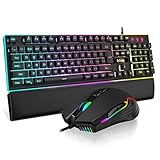
- 【Professional Gaming Keyboard】The 104-key full-size keyboard has a standard layout with F-keys (function keys) and a numeric keypad, and 26 Anti-Ghosting keys allow you to press multiple keys simultaneously. The quality of the built-in steel plate of the keyboard is very strong and durable.
- 【Professional gaming mouse】The mouse uses high-precision optical sensor, sensitivity is 7200DPI, 12000fps scan rate, 1000Hz tour detection rate, can withstand 40G acceleration and 400IPS tracking speed, can meet your fast browsing and game requirements.
- 【Upgraded RGB Lighting Gaming Combo】All the keys of the keyboard, the light bar on the bottom side of the keyboard, and the RGB lights on the side of the mouse will glow. Your fingertips dance on the designed floating keycaps and click on the hyper-responsive mouse, accompanied by rainbow-like RGB lighting, allowing you to instantly enter the cool game state.
- 【Perfect Ergonomic Computer Game Combo】The adjustable tripod keyboard makes your keys easier. The anti-slip material mouse that is more suitable for the hand can reduce your hand fatigue.Soft leather wrist rest made from smooth faux leather and memory foam for extra relaxation while gaming.
- 【High-quality Game Combination】The curved ABS keycaps are exquisite in workmanship, the built-in steel plate of the keyboard base is sturdy and resistant to falling, the non-slip ABS material mouse has a better grip, and the soft leather wrist-rest filled with memory foam is more textured. High quality allows you to choose worry-free.
You work across two or more PCs
Choose Mouse Without Borders within PowerToys. It is intended for sharing one keyboard and mouse across multiple computers, whereas Keyboard Manager and X-Mouse Button Control primarily alter mappings on an individual Windows installation.
Independent reader supportYour contribution helps us test, update, and keep practical guides available for everyone.Practical configuration examples
Example: make an awkward shortcut easier
Suppose a shortcut requires a key combination that is uncomfortable to reach. In Keyboard Manager, create a shortcut remap from a combination you can press comfortably to the required combination, save it, and test it in the target program. If the program also uses the new combination for an unrelated command, choose a different source shortcut rather than layering another remap on top.
Example: make pointer movement visible in a presentation
Enable Mouse Highlighter in Mouse Utilities, note its activation shortcut, and test the highlight against the presentation background before going live. Disable it afterward if you do not want click indicators during normal work.
Example: assign a different thumb-button action in one editor
Create an X-Mouse Button Control profile for the editor, assign the thumb button to the desired action, and leave the global profile unchanged. Open a second application to confirm that the ordinary action remains there. If both programs receive the custom action, recheck profile matching and layer selection.
The Tool Desk
Outbyte PC Repair FREERepair Windows errors before they cause bigger problemsFix Now →Outbyte Driver Updater FREEScan for outdated or missing drivers - takes under a minuteDriver Scan →Example: locate a pointer on a multi-monitor desktop
Use Find My Mouse when you regularly lose the cursor among displays. If you need a persistent alignment aid rather than a one-time location effect, try Mouse Pointer Crosshairs instead; they address different visibility needs.
Also popular on Amazon

- MOUSE: HERO Gaming Sensor: Next generation HERO mouse sensor delivers precision tracking up to 25600 DPI with zero smoothing, filtering or acceleration
- MOUSE: 11 programmable buttons and dual mode hyper-fast scroll wheel: The Logitech wired gaming mouse gives you fully customizable control over your gameplay
- MOUSE: LIGHTSYNC technology: It provides fully customizable RGB lighting that can also synchronize with your gaming (requires Logitech Gaming Software)
- KEYBOARD: Take your gaming skills to the next level: Logitech G413 SE is a full-size keyboard with gaming-first features and the durability and performance necessary to compete
- KEYBOARD: PBT keycaps: Heat- and wear-resistant, this computer gaming keyboard features the most durable material used in keycap design
Compatibility, maintenance, and failure handling
Verify the operating environment
- Confirm whether the PC is running Windows 11 or Windows 10 version 2004 or later before installing PowerToys.
- Confirm whether the machine is x64 or Arm64; those are the architectures specified in Microsoft’s overview.
- Check the current release notes rather than relying on an old installer, especially after a Windows feature update.
- Identify whether the issue is a Windows setting, a PowerToys module, or an X-Mouse profile before changing another layer.
If a remap does nothing
- Open the utility and confirm the mapping is enabled and saved.
- Test the mapping in a simple text field or desktop window to separate a general configuration problem from an application-specific one.
- Disable other mappings, profiles, and layers temporarily so only one transformation is active.
- Check the utility’s current documentation and release notes for your Windows build and architecture.
- Remove the mapping and recreate it if you cannot identify which entry is taking precedence.
If the wrong application receives a mouse profile
Check the profile’s application match, confirm that the intended executable is selected, and verify that no global profile or active layer is overriding it. Test with one application open at a time before adding additional profiles.
If you are deploying on Windows 10
Remember that Microsoft’s stated end-of-support date was October 14, 2025. Verify both the utility’s current compatibility information and your organization’s operating-system policy. Do not describe Windows 10 as receiving standard free security support after that date.
Why AutoHotkey is not a verified pick in this guide
An official AutoHotkey v2 download index was located, but the available material did not establish enough current feature scope for the mouse-and-keyboard comparison here. It would be misleading to label it a best choice or describe capabilities that have not been verified for this guide. Readers who already use it should consult its current official documentation; readers choosing from the documented options above can match a tool directly to the task without relying on an unresolved feature claim.
Bottom-line selection
Install nothing for basic pointer behavior: Windows settings cover those adjustments. Choose PowerToys when you want one free, open-source suite that combines keyboard remapping, pointer utilities, and optional multi-PC control. Choose X-Mouse Button Control when application-specific mouse-button profiles and layers are the central requirement. In every case, verify the current Windows and architecture requirements, test one change at a time, and consult the publisher’s current documentation before relying on a mapping in important work.

