
The Tool Desk
Outbyte Driver Updater FREEScan for outdated or missing drivers - takes under a minuteDriver Scan →Outbyte PC Repair FREEClear out junk files and repair common Windows errorsFree Scan →iTechGuides is reader-supported. When you buy through links on our site, we may earn an affiliate commission. As an Amazon Associate I earn from qualifying purchases. Learn more
For most PCs, start with Fullscreen, your monitor’s native resolution, VSync Off, Unlimited frame rate, the Performance renderer, View Distance Near, Textures Low, Meshes Low, and 3D Resolution 100%. Turn on Show FPS, then lower 3D Resolution in 10% steps only if your target frame rate is unstable. Fortnite v37.00 replaced the old DirectX 11 Performance Mode with an enhanced DirectX 12 Performance Renderer, but the fastest option still depends on your CPU, GPU, cooling and display.
Recommended Fortnite settings for higher FPS
Open Settings from the Fortnite menu, select the Video tab, and change the options below. This is a practical starting point for PC players who want high and consistent frame rates rather than maximum image quality.
| Setting | Recommended value | Why |
|---|---|---|
| Window Mode | Fullscreen | Gives the game direct control of the display and avoids desktop-compositing overhead. |
| Resolution | Your monitor’s native resolution | Preserves correct scaling and text clarity. Higher resolutions render more pixels and reduce FPS. |
| Frame Rate Limit | Unlimited | Lets the system render as many frames as it can. Use a cap at your monitor’s refresh rate if tearing appears. |
| VSync | Off | Usually lowers input latency. A compatible variable-refresh display can handle tearing instead. |
| Rendering Mode | Performance | Uses Fortnite’s enhanced DirectX 12 Performance Renderer in v37.00 and prioritizes frame rate over visual detail. |
| View Distance | Near | Epic says players remain clear at this distance while reducing the amount of distant geometry. |
| Textures | Low | Reduces texture-memory use and GPU workload. |
| Meshes | Low | Reduces object detail and can free performance on slower systems. |
| 3D Resolution | 100% initially | Maintains native internal detail. Reduce it only when your measured FPS target is not stable. |
| Show FPS | On | Provides an objective reading while you test changes. |
| NVIDIA Reflex Low Latency | On + Boost, for NVIDIA GPUs | Reduces the render queue and can improve responsiveness when supported by the GPU. |
Competitive modes use a 16:9 aspect ratio. If your monitor has another ratio, black side bars can be normal rather than a graphics fault. Do not stretch the image or change scaling just to remove the bars if accurate player proportions matter.
Do these 3 things before closing this tab:
1Fix the driver behind crashes, sound loss and screen glitches2Repair Windows errors before they cause bigger problems3Scan for outdated or missing drivers - takes under a minuteNative resolution and 100% 3D Resolution are separate controls. The first defines the output sent to the monitor; the second controls the internal scene resolution. Keeping the output native while lowering internal resolution gives you a controlled way to reduce GPU work without making desktop text or the interface look incorrectly scaled.
Popular on Amazon

- 【INTEGRATED SPEAKERS】Whether you're at work or in the midst of an intense gaming session, our built-in speakers provide rich and seamless audio, all while keeping your desk clutter-free.
- 【EASY ON THE EYES】 Protect your eyes and enhance your comfort with Blue-Light Shift technology. This feature reduces harmful blue light emissions from your screen, helping to alleviate eye strain during long hours of use and promoting healthier viewing habits.
- 【WIDEN YOUR PERSPECTIVE】Our sleek minimal bezel design ensures undivided attention. The nearly bezel-free display seamlessly connects in a dual monitor arrangement, delivering an unobstructed view that lets you focus on more at once, completely distraction-free.
What changed in Fortnite v37.00
Epic’s v37.00 release notes describe the enhanced DirectX 12 Performance Renderer as a replacement for the existing DirectX 11 Performance Mode. Epic says the new renderer is intended to provide a performance increase and improved stability on certain configurations. “Certain” is important: the update does not establish one universal FPS result for every processor and graphics card.
Epic’s support documentation still presents Performance as the lower-fidelity choice and as a fallback when DirectX 12 causes crashes or black screens. After changing renderers, allow the game to rebuild shaders and test an actual match or repeatable route before deciding whether the change helped. A first launch can hitch while caches are created; that is different from a sustained frame-time problem.
A renderer change can alter both average FPS and the consistency of individual frames. A mode that shows a higher counter in an empty area may still feel worse if it produces frequent spikes during fights. Compare average performance, 1% lows or obvious hitching, input response, distant-player clarity, and CPU and GPU utilization under the same conditions.
How to apply and tune the settings
1. Set the display path first
- Open Settings and choose Video.
- Set Window Mode to Fullscreen.
- Choose the monitor’s native resolution. Do not lower desktop or in-game resolution as a first step; internal 3D Resolution is the more controlled performance adjustment.
- Turn Show FPS on so every later change has a measurable result.
If Windows offers more than one connected display, confirm that Fortnite is using the panel you intend to play on. A high-refresh monitor cannot help if the game is outputting to a slower screen.
2. Remove synchronization limits
Set VSync to Off for the lowest typical input latency. Leave Frame Rate Limit at Unlimited while diagnosing performance. If tearing is distracting, cap the game at the display’s refresh rate instead. FreeSync or G-Sync can control tearing on compatible monitor and GPU combinations; they do not create additional rendered frames.
Unlimited is a testing value, not a requirement for every player. A cap at the monitor’s refresh rate can reduce unnecessary heat, fan noise and power use when the system is rendering many more frames than the panel can show. Choose the behavior that gives you stable frame times and acceptable latency.
3. Select the Performance renderer
In Rendering Mode, select Performance. On v37.00 this label refers to the enhanced DirectX 12 Performance Renderer rather than the previous DirectX 11 implementation. Restart Fortnite if prompted. If the game becomes unstable, use the fallback renderer documented by Epic support and retest after updating the graphics driver.
4. Reduce the expensive quality controls
Set View Distance to Near, Textures to Low, and Meshes to Low. Near view distance is intended to keep players readable, while low meshes remove fine object detail that costs performance. If you raise a setting later, change one option at a time so you know which trade-off you accepted.
View Distance is not a substitute for good awareness: Near is Epic’s practical low-cost setting, but objects farther away can be represented with less detail. If long-distance clarity is more important to you than maximum FPS, test a higher value only after establishing a stable baseline.
Also popular on Amazon

- QHD Resolution (2560 x 1440) has 1.7 times the pixel density of Full HD for incredibly detailed pinsharp images
- HDR10 provides brighter highlights and nuanced shadow for added depth - making every scene feel more vivid and realistic
- The 180Hz refresh rate minimizes lag for gameplay with ultra-smooth action. Plus, the 1ms response time helps capture your moves in real-time, allowing you to react fast for gaming precision
- AMD FreeSync reduces choppiness, screen lag and image tearing, ensuring that your fast-paced, complex in-game action is stable with minimal stutter
- Ergonomic stand allows for tilt, pivot and height adjustments to maximize gaming comfort
5. Tune internal resolution last
Start at 100% 3D Resolution. If FPS still falls below your target, lower it by 10 percentage points, play the same test route, and check the FPS counter. Repeat only while the improvement is worth the loss in sharpness. Resolution has a direct GPU cost: a higher in-game resolution makes the GPU render more pixels, so frame rate falls as pixel workload rises.
Do not make a large resolution change and several quality changes together. Smaller steps show whether the GPU was actually the limiting component and preserve as much image clarity as possible.
6. Configure latency features
On a supported NVIDIA graphics card, set Reflex Low Latency to On + Boost. Boost can keep the GPU in a higher-power state; use it when responsiveness matters more than power consumption or fan noise. On other GPU brands, use the available in-game latency controls without assuming that an NVIDIA-specific option applies.
How to tell whether the GPU or CPU is limiting FPS
Use the same route or match conditions while watching utilization and frame-time behavior. If the GPU is close to full utilization and lowering 3D Resolution produces a meaningful FPS increase, the graphics processor is likely the limit. Keep the output resolution native and reduce internal resolution gradually.
If the GPU has spare capacity but FPS and 1% lows remain low, the CPU, background software or game-thread workload may be limiting performance. In that case, lowering resolution may change little. Close competing programs, keep View Distance at Near, and check temperatures and clock behavior. A CPU bottleneck cannot be fixed by buying a higher-refresh monitor.
These are observations rather than guarantees. Fortnite’s workload changes between the lobby, an empty island and a busy match, so use more than one test and judge sustained play rather than a single instant.
Performance Mode, fallback rendering and higher-fidelity DX12
The correct choice is the one that produces stable frame times on your hardware, not the mode with the most impressive name. Compare the available modes using the same match conditions and route.
| Rendering choice | Best fit | Trade-offs to check | What Epic establishes |
|---|---|---|---|
| Performance (enhanced DX12 in v37.00) | Low-FPS systems and players prioritizing competitive responsiveness | Lower visual fidelity, possible shader-compilation hitches after switching, and image softness if 3D Resolution is reduced | Intended to improve performance and stability on some configurations; no universal FPS guarantee. |
| Legacy or fallback renderer | Systems that crash, show a black screen, or behave poorly with the new renderer | May not benefit from the v37.00 renderer improvements and can have a different frame-time pattern | Epic support documents a fallback when DX12 causes crashes or black screens. |
| Higher-fidelity DX12 mode | PCs with enough GPU headroom for visual quality | Lower average FPS, lower 1% lows, higher GPU load and potentially more input latency when the GPU is saturated | Epic’s documentation supports a performance-versus-fidelity trade-off, not a single winner for every PC. |
Record average FPS, 1% lows or visible hitching, input response, long-distance clarity, GPU and CPU utilization, and shader behavior after a renderer change. Also check whether your monitor can display the resulting frame rate. A system producing 240 FPS gains little visible benefit on a 60 Hz panel unless latency is your priority.
Measure changes without fooling yourself
- Use Show FPS and compare the same game mode, map area or repeatable movement route.
- Allow a renderer change to complete its initial shader work before judging ordinary play.
- Test during an actual match or repeatable route rather than relying on a lobby number.
- Watch for frame-time spikes and 1% lows, not only the highest number on the counter.
- Change one setting at a time and keep a note of the previous value so you can undo a regression.
Epic’s published examples show why results cannot be generalized. At 720p, one older hardware example rose from 24 FPS to 61 FPS when moving from low-scalability settings to Performance Mode; another rose from 18 FPS to 45 FPS under the same comparison. Those are Epic Player Support examples, not promises for your CPU or GPU. Epic explicitly cautions that the steps may improve performance only slightly or not at all on other hardware.
Also popular on Amazon

- Smooth motion: 240Hz refresh rate and fast 0.5ms response time provide crisp visuals and fluid movement with less input lag.
- Seamless gaming: FreeSync Premium and HDMI VRR eliminate tearing for smooth, responsive PC and console gameplay.
- Fast IPS: Faster 0.5ms response with excellent color accuracy across wide IPS viewing angles.
- Rich color: 99% sRGB color coverage delivers vivid, detailed imagery with strong accuracy.
- Eye comfort: TÜV Rheinland 3‑star certified display lowers blue light while preserving color quality.
Run a second test after the system has warmed up. A result that looks good for five minutes but declines later can indicate thermal throttling or airflow trouble rather than a graphics preset problem. Keep the test conditions, driver version and renderer noted when comparing results after future patches.
Quick wins for a faster PC:
Fix the driver behind crashes, sound loss and screen glitchesFind Drivers →Clear out junk files and repair common Windows errorsFree Scan →Scan for outdated or missing drivers - takes under a minuteDriver Scan →Fix an FPS drop or stutter after the update
Work through these checks in order. They address both a real rendering regression and the common system issues that become visible after a major patch.
- Check requirements and verify files. Confirm that the PC still meets Fortnite’s current requirements. In the Epic Games Launcher, open your Fortnite library entry, select the game’s options menu, and choose Verify. Damaged or incomplete files can cause crashes, missing assets and inconsistent performance.
- Update the graphics driver. Epic identifies outdated drivers as a common cause of visual problems and recommends current drivers for the best Fortnite experience. Restart Windows after installation if the driver installer requests it.
- Force the dedicated GPU on a laptop. Hybrid laptops can launch a game on integrated graphics. In NVIDIA Control Panel or AMD Radeon settings, add Fortnite and select the dedicated, high-performance GPU. Apply the profile, restart the game, and confirm GPU usage while playing.
- Close competing programs. Quit browsers with video tabs, recording tools, overlays, launchers and other CPU- or GPU-heavy applications. Background load can reduce both average FPS and 1% lows.
- Check heat and airflow. If performance is acceptable for the first few minutes and then degrades, inspect vents and fans, remove dust, and make sure the laptop or desktop has unobstructed airflow. Overheating can trigger clock-speed reductions that look like a game setting problem.
- Repair settings that revert. Exit Fortnite. Browse to
%localappdata%FortniteGameSavedConfigWindowsClientGameUserSettings.ini, open the file’s Properties, and clear the Read-only attribute if it is enabled. Reopen the game and save the video settings again. - Rebuild your test. After the repair, use the baseline table, enable Show FPS, and repeat the same route. Do not stack several unmeasured changes at once.
On a laptop, also test while connected to the charger and using the manufacturer’s performance power profile. A battery-saving mode can limit clocks even when the game settings are correct. Keep the vents clear and avoid placing the machine on soft surfaces that block intake airflow.
Remove high-resolution textures when storage or hitching is a problem
Epic support says players using Performance Mode can remove high-resolution textures from the installation. The current support page says this saves more than 15 GB of storage. In the Epic Games Launcher, open Fortnite’s installation options and disable the high-resolution texture component, then let the launcher apply the change. This is useful when the drive is nearly full or an older system struggles with texture streaming; it also reduces visual detail.
Removing the package does not increase the number of frames a fully saturated GPU can render by itself. Its main benefits are reclaiming drive space and reducing the texture workload associated with streaming on systems that struggle with it. Re-enable the component only if you prefer the higher-resolution surfaces and have enough storage.
Free tools Windows power users keep installed
One-click scans. No signup required.
Hardware choices that affect smoothness
Refresh-rate monitor
Epic recommends a gaming monitor at 120 Hz, 144 Hz or higher so the display can take advantage of high FPS. A 144 Hz gaming monitor is a direct match for a system that can sustain close to 144 frames per second. The monitor does not create additional rendered FPS: if the PC produces 80 FPS, a 144 Hz panel cannot turn that into 144 FPS.
Before buying, match the monitor’s refresh rate and variable-refresh support to the frame rates your PC can actually sustain. A higher refresh panel is most useful when the computer can deliver correspondingly high and consistent frames; it is not a replacement for driver, thermal or settings work.
Solid-state storage
Installing Windows and Fortnite on an SSD increases read and write speed and reduces loading time. Epic’s low-FPS guidance also links SSD storage with fewer hitches on older systems. Storage cannot repair a GPU that is already fully loaded, but it can reduce asset-streaming delays and shorten recovery after updates.
Check free space before moving the installation. A faster drive helps only when Fortnite and the operating system are actually installed on it, and the interface must be compatible with the computer. Choose capacity based on the rest of your installed software rather than assuming a particular model is required.
Also popular on Amazon
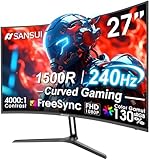
- 27” 240Hz 1500R Curved FHD 1080P Gaming Monitor for Game Play.
- Prioritizes Gaming Performance: Up to 240Hz high refresh rate, more immersive 1500R Curvature, FreeSync, MPRT 1ms Response Time, Black Level adjustment(shadow booster), Game Modes Preset, Crosshair.
- Cinematic Color Accuracy: 130% sRGB & DCI-P3 95% color gamut, 4000:1 contrast ratio, 300nits brightness, HDR, Anti-flicker; Anti-Glare.
- Plug & Play Design: HDMI & DP1.4 & Audio Jack(No built-in speakers), durable metal stand, tilt -5°~15, VESA 100*100mm compatible.
- Warranty: Money-back and free replacement within 30 days, 1-year quality warranty and lifetime technical support. Pls contact SANSUI service support first if any product problem.
Memory
Epic says 6 GB of RAM or higher helps older machines fit the game in memory and reduce hitches and stutters. Before buying a desktop RAM upgrade kit, check the motherboard’s supported memory type, capacity, slot count and speed. Laptop memory may be soldered or require a specific module.
Install matched, compatible modules when the motherboard requires them, and confirm the system recognizes the full capacity afterward. More memory cannot compensate for an unsupported graphics driver or overheating, so treat it as one part of the troubleshooting sequence.
Dedicated graphics
A dedicated GPU is not required for Performance Mode, according to Epic, but it helps balance system load and generally produces a smoother experience than relying solely on integrated graphics. The useful upgrade depends on the rest of the system: a faster GPU cannot remove a CPU bottleneck, overheating or insufficient memory.
When considering any future GPU purchase, check power, case clearance, motherboard compatibility and driver support. Do not choose solely by the advertised maximum FPS; the game, resolution and CPU determine the result.
Recommended Free Tools
Common mistakes that make FPS worse
- Lowering every setting immediately: keep native resolution and 100% 3D Resolution first so you can identify the actual bottleneck.
- Assuming Unlimited is always best: unlimited FPS can increase heat and power use. Cap at the monitor’s refresh rate when tearing or excessive temperature is a problem.
- Judging from the lobby: lobby FPS does not represent a busy match. Use a repeatable in-game test.
- Switching renderers during a tournament: renderer changes can trigger shader compilation and unfamiliar frame-time behavior. Test them before an important session.
- Blaming the patch for a hardware limit: verify files, drivers, GPU selection, background load and temperatures before concluding that v37.00 is slower on your PC.
- Expecting a monitor upgrade to add FPS: refresh rate determines how many frames the panel can show; rendering performance still comes from the PC.
- Ignoring aspect-ratio behavior: black side bars on a non-16:9 display can be expected in competitive modes and are not automatically a performance defect.
- Changing several variables at once: without a controlled comparison, you cannot tell whether a renderer, resolution or background process caused the improvement.
A practical decision sequence
- Apply the baseline settings in the first table.
- Play a repeatable route with Show FPS enabled and note average behavior, low dips and hitching.
- If the GPU is the limit, lower 3D Resolution in 10% steps; if the CPU is the limit, keep resolution unchanged and reduce background load and view distance.
- If the enhanced Performance renderer is stable and improves frame time, keep it. If it produces crashes or black screens, use Epic’s documented fallback and update the driver.
- If performance decays during a session, address heat and airflow rather than lowering every quality option.
- Only after software and thermal checks should you consider SSD, RAM, monitor or GPU upgrades.
Use the same order after a future major update. Renderer names and defaults can change, and a setting that was optimal on one driver may need to be retested after another. Save a screenshot or note of the working configuration so you can restore it quickly if Fortnite resets the file.
What to expect from the v37.00 recommendations
The baseline is designed to maximize the chance of stable, readable gameplay, not to promise a particular number. Epic’s own support examples demonstrate large gains on some older laptops, while its guidance also says results can improve only slightly or not change on different hardware. Recheck the Video settings after future major Fortnite updates: renderer names, defaults and compatibility can change.
Frequently Asked Questions
Should I use Performance Mode or DirectX 12 after v37.00?
Choose Performance first when FPS and frame-time stability matter most. In v37.00, Performance is the enhanced DirectX 12 Performance Renderer. If it causes crashes or a black screen, update the driver and use Epic’s documented fallback renderer, then compare the same route again.
Why did my Fortnite FPS drop after the patch?
A renderer change, shader compilation, outdated drivers, damaged files, background programs, a laptop using integrated graphics, or overheating can all look like a patch-related drop. Verify files, update the driver, select the dedicated GPU, check airflow and retest with Show FPS enabled.
What’s actually slowing this PC down?
Pick the symptom - the matching free tool is one click away.
What is the best 3D Resolution for competitive Fortnite?
Start at 100% with native output resolution. If the target FPS is not stable, lower 3D Resolution in 10% steps and test each change. Lower resolution reduces GPU pixel work but also makes the image softer.
Also popular on Amazon
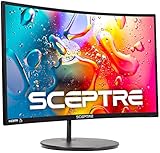
- 1800R curve monitor the curved display delivers a revolutionary visual experience with a leading 1800R screen curvature as the images appear to wrap around you for an in depth, immersive experience
- Hdmi, VGA & PC audio in ports
- High refresh rate 75Hz.Brightness (cd/m²):250 cd/m2
- Vesa wall mount ready; Lamp Life: 30,000+ Hours
- Windows 10 Sceptre Monitors are fully compatible with Windows 10, the most recent operating System available on PCs.Brightness: 220 cd/M2
Should I cap Fortnite FPS or leave it Unlimited?
Use Unlimited while diagnosing the system. If tearing, heat or power use is excessive, cap at the monitor’s refresh rate. FreeSync or G-Sync can manage tearing on compatible displays, but neither creates additional rendered frames.
How much FPS improvement will Performance Mode give me?
There is no universal result. Epic examples at 720p rose from 24 to 61 FPS and from 18 to 45 FPS on two older systems, while Epic also warns that other hardware may improve only slightly or not at all.
Why does Fortnite stutter after switching renderers?
The new renderer may compile shaders and build caches on early launches. Test an actual match after that initial work. Persistent hitching points to drivers, files, heat, background load, storage or hardware limits rather than ordinary first-run compilation.
PC Slower Than It Used to Be?
A free scan shows the junk files, broken settings and background clutter dragging Windows down - then fixes them in one click.Free scan · Windows 10 & 11Crashes, No Sound, or Screen Glitches?
Random freezes, missing sound and display glitches usually trace back to one bad driver. Find and replace yours safely.Free scan · under a minuteDoes a 144Hz monitor increase Fortnite FPS?
No. A 144Hz monitor can display up to 144 refreshes per second, but the PC must render those frames. It is most useful when your system can sustain high FPS; it cannot fix a CPU, GPU, memory or thermal bottleneck.
Can removing Fortnite high-resolution textures help performance?
Performance Mode users can remove the high-resolution texture package. Epic’s current support page says this saves more than 15 GB. It mainly helps storage pressure and texture-streaming workloads, while reducing visual detail.
How much RAM does Fortnite need for fewer hitches?
Epic says 6 GB of RAM or higher helps older machines fit the game in memory and reduce hitches and stutters. Check your motherboard or laptop specifications before buying a compatible upgrade.
Why do my Fortnite settings reset every launch?
Exit the game and clear the Read-only attribute on %localappdata%FortniteGameSavedConfigWindowsClientGameUserSettings.ini. Reopen Fortnite and save the video settings again.
Recommended Free Tools
The Bottom Line
Use Fullscreen, native resolution, VSync Off, Performance rendering, Near view distance, Low textures and meshes, and 100% 3D Resolution as your v37.00 baseline. Measure in a real match, lower internal resolution gradually only when necessary, and fix drivers, files, GPU selection, background load and heat before buying hardware. Performance Mode can deliver major gains on some older PCs, but Epic publishes no universal FPS guarantee.

