
iTechGuides is reader-supported. When you buy through links on our site, we may earn an affiliate commission. As an Amazon Associate I earn from qualifying purchases. Learn more
The best BGMI sensitivity is not a universal code or a “zero-recoil” trick. It is a control setup that matches your device, frame rate, finger layout and whether you use the gyroscope. The values below are practical starting points for BGMI 4.5.0, released on July 16, 2026.
BGMI calls the relevant setting ADS Sensitivity in the menu. ADS means Aim Down Sight, but it is separate from Camera Sensitivity, Gyroscope Sensitivity and ADS Gyroscope Sensitivity.
Where to change BGMI sensitivity
- From the lobby, tap the Settings gear icon in the lower-right corner.
- Open Sensitivity.
- Choose the section you want to edit: Camera Sensitivity, ADS Sensitivity, Camera Sensitivity (Free Look), Gyroscope Sensitivity or ADS Gyroscope Sensitivity.
- If your client provides it, open Advanced Settings to check weapon-specific sensitivity values.
Menu labels can vary slightly between client builds. In particular, the advanced and sensitivity-code screens are not identical on every installation.
Do these 3 things before closing this tab:
1Fix the driver behind crashes, sound loss and screen glitches2Clear out junk files and repair common Windows errors3Scan for outdated or missing drivers - takes under a minuteWhat each BGMI sensitivity setting does
| Setting | What it controls | When you feel it |
|---|---|---|
| Camera Sensitivity | Camera movement when swiping without firing | Turning, tracking and moving your crosshair before shooting |
| ADS Sensitivity | Camera movement when swiping while firing | Dragging down or adjusting aim during a spray |
| Gyroscope Sensitivity | Camera movement caused by tilting or rotating the device | Fine aim and recoil input when the gyroscope is active |
| ADS Gyroscope Sensitivity | Gyroscope response while firing | Gyro-based adjustments during a spray |
| Camera Sensitivity (Free Look) | Looking around with the free-look camera | Character, vehicle and parachute views |
Camera and ADS are not interchangeable. Camera Sensitivity applies when you swipe without firing; ADS Sensitivity applies while firing. Neither setting removes weapon recoil. They only change how much the camera responds to your finger movement.
Popular on Amazon

- 🎮 Improve every move with responsive finger sleeve support. Perfect for touchscreen gaming on mobile and tablet. A must-have for serious gaming accessories fans
- 🕹️ These finger sleeves for gaming offer better grip, faster reaction time, and smooth glide. Designed for high-performance mobile gamers who demand precision and comfort
- 🌟 Made from breathable, silver-infused fabric for long sessions without sweat or slip. These thumb sleeves are durable, comfortable, and ideal for any mobile gaming setup
- 🔥 Whether it’s swiping or aiming, each gaming finger glove gives you full control and smooth touch response on any screen. Works great with phones, tablets, or handheld consoles
- 🎁 The perfect gift for any mobile gamer — these high-quality finger sleeves combine comfort, precision, and style. Great for birthdays, Christmas, or gaming accessory bundles
Recommended non-gyro sensitivity starting points
Use these as a starting range if you do not use the gyroscope. They are community recommendations, not official BGMI values or a guaranteed preset.
| Camera row | Starting range |
|---|---|
| TPP No Scope | 130–150% |
| FPP No Scope | 110–130% |
| Red Dot, Holographic, Aim Assist | 60–75% |
| 2x Scope | 45–60% |
| 3x Scope, Win94 | 28–35% |
| 4x Scope, VSS | 22–30% |
| 6x Scope | 18–25% |
| 8x Scope | 10–15% |
Start near the middle of each range rather than changing every value repeatedly. For example, try 140% for TPP No Scope, 68% for Red Dot and 32% for 3x, then test in Training Grounds.
Recommended gyroscope sensitivity starting points
These ranges are suitable for testing with a gyro setup. High values can make small wrist movements produce large crosshair movement, so begin conservatively if you are new to gyro.
| Gyroscope row | Starting range |
|---|---|
| TPP No Scope | 300–400% |
| FPP No Scope | 300–400% |
| Red Dot, Holographic, Aim Assist | 300–400% |
| 2x Scope | 300–380% |
| 3x Scope, Win94 | 220–300% |
| 4x Scope, VSS | 180–250% |
| 6x Scope | 120–160% |
| 8x Scope | 70–100% |
Gyroscope values usually decrease as magnification increases because a small physical movement is magnified more strongly through a high-power scope. That is a useful starting principle, not a rule that every player must follow.
Always On or scope-only gyro?
BGMI supports gyro configurations in which the gyroscope is active only while aiming and configurations commonly described as Always On. The mode determines when device movement affects your camera; changing the percentage alone does not switch the mode.
Also popular on Amazon

- 【High-Quality Material】Made of flexible, breathable, lightweight, and comfortable superconducting nanofiber material, these finger sleeves are as soft as a pillow, and you will feel like you don’t have anything on your fingers while wearing them
- 【Ultra-Thin& Breathable & Anti-Sweat】The thickness is reduced by 30% on the basis of the traditional design. And the thickness of our sleeves is only 0.15 mm. We have improved the thickness of the Sleeves to bring you a highly sensitive operation and comfortable gaming experience.Due to the ultra-thin and breathable feature, even sweat can be absorbed quickly and sweaty sleeves can dry quickly without affecting your operation.
- 【High Sensitivity】High-Quality superconducting 24-needle nanofiber threads are used to improve sensitivity including covering fingertips, finger abdomen ,finger sides. Compared with other cheap copper fiber, carbon fiber,or traditional 18-needle fiber sleeve, touch sensitivity of Nuozme sleeves are far improved. Finger slides pretty smooth on the screen while wearing them and screen latency is greatly reduced than bare hands.
- 【Wide Applications】Nuozme elastic finger sleeves can be adjusted and fit most people's 5 fingers size.Compatible with All touchscreen Devices, No seam, comfortable for gaming.Also perfect for finger protection.
- 【Package Include 】30 PCS (Blue edge*10, Red edge*10, Yellow edge*10) 【Material】High-Quality Superconducting Nanofibers 【Friendly Reminder】If there is a thread, please cut it with scissors instead of pulling it.
Always On can help players who use gyro for hip-fire tracking, quick turns and recoil control. Scope-only gyro can feel less distracting if you are learning the feature or prefer finger aiming outside ADS. Test both modes for several matches before changing sensitivity values.
How to tune sensitivity instead of copying a “best” code
- Back up your current settings. Take screenshots or use the available cloud-upload option before making major changes.
- Choose one control method. Decide whether you are testing non-gyro, scope-only gyro or Always On gyro.
- Test TPP No Scope first. Track a moving target and perform a quick 180-degree turn. Lower the value if you regularly overshoot; raise it if turning feels slow.
- Test Red Dot and 2x. Fire short bursts at a close target. Adjust Camera or ADS values in small steps, such as 5–10 percentage points.
- Test 3x and 4x sprays. Use the same weapon and attachments for each comparison. Do not change sensitivity, layout and graphics simultaneously.
- Adjust gyro separately. If the crosshair moves too far from a small tilt, reduce the corresponding gyro row. If recoil corrections feel slow, increase it gradually.
- Play real matches before finalising. Training Grounds can reveal basic problems, but movement, peeking and pressure affect how a setting feels in a match.
Change one group at a time. If a Red Dot spray is difficult, first identify whether the problem occurs when swiping, tilting, or both. That tells you whether to adjust ADS Sensitivity, ADS Gyroscope Sensitivity or both.
Check weapon-specific sensitivity before troubleshooting
BGMI supports customized sensitivity for individual firearms. A customized weapon value is intended to apply when that firearm is used, so a general Camera, ADS or Gyroscope change may appear ineffective.
Open Advanced Settings, if it is available on your client, and inspect the weapon-specific entries. This is particularly important after importing someone else’s settings. A copied configuration may include overrides that are not obvious in the main sensitivity tables.
Also note the full scope row names in the interface:
Also popular on Amazon
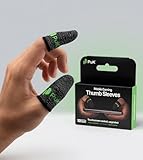
- BUILT FOR MOBILE GAMING - PuK's ultra-light finger sleeves for gaming slide on easily and help you aim, swipe, and react more consistently in popular touch-based games like Call of Duty, PUBG, Fortnite, and more
- SWEAT & FRICTION CONTROL - Our thumb gloves for gaming have a breathable material that helps absorb moisture and reduce drag, so your finger gloves for gaming glide smoothly across the screen even during intense, fast-paced gaming sessions
- LIGHTWEIGHT & COMFORTABLE FIT - The ultra-thin, flexible fabric of PuK's thumb covers for gaming allows comfortable wear for high-intensity play without bulk, stiffness, or restricted movement
- SMOOTH TOUCHSCREEN RESPONSE - Designed to maintain reliable touch sensitivity, these finger gaming sleeves help ensure accurate inputs across phones and tablets. Our gaming thumb grips are optimized for FPS and Battle Royale-type games
- MORE VALUE, MORE PLAY - With 10 mobile gaming finger sleeves included, you can rotate, replace, or share as needed, making this pack of gaming finger gloves perfect for frequent gamers who want backups ready without constantly reordering
- TPP No Scope
- FPP No Scope
- Red Dot, Holographic, Aim Assist
- 2x Scope
- 3x Scope, Win94
- 4x Scope, VSS
- 6x Scope
- 8x Scope
Does 90 FPS require different sensitivity?
Not automatically. A higher frame-rate setting can make aiming feel smoother and may change perceived input timing, but it does not create a universally correct sensitivity value.
On a supported device, BGMI’s official path for 90 FPS is Settings → Graphics & Audio → Smooth → 90FPS. The 90 FPS button appears only when the device and client support the option, and the device’s own refresh-rate setting may also need adjustment.
After changing frame rate, retest your main scope rows. Keep the same sensitivity initially and change it only if your tracking or recoil corrections consistently feel different.
How to import a BGMI sensitivity code
The labels differ between builds, but current guides describe a workflow similar to this:
- Open Settings → Sensitivity.
- Open Cloud Management or Layout Management, depending on the client.
- Choose Search Method, Use Code or the equivalent share/import option.
- Enter the complete code without missing digits or adding spaces.
- Tap Search.
- Preview the result and tap Apply if the code is accepted.
Upload or screenshot your existing settings first. Applying a code can overwrite your current configuration. A creator’s code is a community code unless BGMI or KRAFTON publishes it through an official channel.
PC Slower Than It Used to Be?
A free scan shows the junk files, broken settings and background clutter dragging Windows down - then fixes them in one click.Free scan · Windows 10 & 11Outdated Drivers Are Slowing You Down
One free scan finds every outdated or missing driver and matches the right update for your exact hardware.Free scan · exact hardware matchAlso popular on Amazon

- 🎮 Improve every move with responsive finger sleeve support. Perfect for touchscreen gaming on mobile and tablet. A must-have for serious gaming accessories fans
- 🕹️ These finger sleeves for gaming offer better grip, faster reaction time, and smooth glide. Designed for high-performance mobile gamers who demand precision and comfort
- 🌟 Made from breathable, silver-infused fabric for long sessions without sweat or slip. These thumb sleeves are durable, comfortable, and ideal for any mobile gaming setup
- 🔥 Whether it’s swiping or aiming, each gaming finger glove gives you full control and smooth touch response on any screen. Works great with phones, tablets, or handheld consoles
- 🎁 The perfect gift for any mobile gamer — these high-quality finger sleeves combine comfort, precision, and style. Great for birthdays, Christmas, or gaming accessory bundles
Why a sensitivity code may fail
| Problem | What to check |
|---|---|
| Invalid or expired code | Try a newer code from the same source or enter it again carefully. |
| Wrong or incomplete code | Check every digit, punctuation mark and copied character. |
| Version or layout mismatch | Confirm that the imported result matches your current client and inspect the resulting rows manually. |
| Unexpected weapon behaviour | Check Advanced Settings for a weapon-specific override. |
| Existing settings disappeared | Restore your cloud backup or screenshots rather than guessing the old values. |
What to do if sensitivity changes after an update
Players have reported resets, disappearing values or linked-looking behaviour involving ADS Gyroscope Sensitivity and advanced settings after recent updates. These reports should not be treated as confirmation that every BGMI installation has the same bug, but they are a reason to verify your settings after updating.
- Confirm the installed BGMI version.
- Open both Gyroscope Sensitivity and ADS Gyroscope Sensitivity and compare them with your backup.
- Inspect Advanced Settings for weapon-specific values.
- Test the affected weapon and scope in Training Grounds.
- If the client shows broader problems, restore a backup or use Routine Repair from the login screen.
BGMI’s v4.3 client patch notice also documented a gyroscope-sensitivity text-rendering issue in which selected or unselected tabs and related text could appear black. A visual display problem and an actual sensitivity reset are different issues, so verify the numbers rather than relying only on the colour or selected-state appearance.
Independent reader supportYour contribution helps us test, update, and keep practical guides available for everyone.Common sensitivity mistakes
- Expecting zero recoil: sensitivity changes camera response; it does not remove weapon recoil.
- Using 300% gyro because it is popular: published recommendations vary by scope, device and player.
- Changing all rows at once: you will not know which adjustment improved or damaged your aim.
- Ignoring ADS Gyroscope Sensitivity: it can be separate from ordinary Gyroscope Sensitivity while firing.
- Copying a professional player’s values: screen size, touch response, frame rate, layout and grip can make the same numbers feel different.
- Testing only one weapon: advanced weapon-specific sensitivity can make behaviour vary between firearms.
FAQ
What is the best BGMI sensitivity?
There is no objectively best value for every player. Use the published ranges as starting points, then tune each scope for your device, frame rate, control layout and gyro preference.
Is ADS the same as Aim Down Sight Sensitivity?
ADS means Aim Down Sight. In BGMI, the menu normally labels this setting as ADS Sensitivity. It controls camera movement from swiping while firing.
What’s actually slowing this PC down?
Pick the symptom - the matching free tool is one click away.
Does higher sensitivity give zero recoil?
No. Sensitivity changes the relationship between your finger or device movement and camera movement. Weapon recoil remains part of the game system.
Also popular on Amazon

- 🎮 Improve every move with responsive finger sleeve support. Perfect for touchscreen gaming on mobile and tablet. A must-have for serious gaming accessories fans
- 🕹️ These finger sleeves for gaming offer better grip, faster reaction time, and smooth glide. Designed for high-performance mobile gamers who demand precision and comfort
- 🌟 Made from breathable, silver-infused fabric for long sessions without sweat or slip. These thumb sleeves are durable, comfortable, and ideal for any mobile gaming setup
- 🔥 Whether it’s swiping or aiming, each gaming finger glove gives you full control and smooth touch response on any screen. Works great with phones, tablets, or handheld consoles
- 🎁 The perfect gift for any mobile gamer — these high-quality finger sleeves combine comfort, precision, and style. Great for birthdays, Christmas, or gaming accessory bundles
Should I use Always On gyroscope?
Use Always On if you want device movement to control aim outside and during aiming. Scope-only gyro may be easier to learn. Neither mode is universally better.
Why does my sensitivity feel different after importing a code?
The code may use a different layout or game version, or it may contain weapon-specific overrides. Check the general sections and Advanced Settings after importing.
What should I change if I overshoot targets?
Reduce the relevant sensitivity in small steps. For finger movement without firing, adjust Camera Sensitivity; during a swipe while firing, check ADS Sensitivity; for device movement, adjust the corresponding Gyroscope value.
Free tools Windows power users keep installed
One-click scans. No signup required.
Where is the 90 FPS setting in BGMI?
If supported by your device, open Settings → Graphics & Audio → Smooth → 90FPS. The option may not appear on unsupported devices.
The Bottom Line
Start with the ranges rather than a claimed universal code, test one scope group at a time, and keep a backup before importing or updating. For gyro players, check Gyroscope Sensitivity and ADS Gyroscope Sensitivity separately; for everyone, inspect Advanced Settings because a weapon-specific value can override the general behaviour.


Infinix smart 9 BGMI SENCETIYTY