
There is no single best automated accessibility testing tool for every team. Choose based on what you are testing—web pages, whole sites, mobile apps, documents, or source code—and where checks belong in your workflow. Browser extensions and DevTools are practical for quick feedback; test-framework and command-line integrations suit repeatable checks in CI; site scanners and APIs can help with broader coverage. None can prove on its own that a page is accessible or fully conforms to WCAG.
How to choose an automated accessibility testing tool
Start with the page or product, the testing stage, and the decisions you need the tool to support. W3C’s tool-selection guidance recommends considering the content type and scope, standards coverage, workflow, browser and operating-system compatibility, reporting, licensing, and the accessibility of the tool itself.


- Content: Does it evaluate websites only, or also mobile apps, documents, or source code?
- Scope and access: Can it check one rendered page, crawl many URLs, or reach password-protected and intranet pages?
- Workflow: Is the feedback needed in a browser, during authoring, in acceptance tests, or in CI?
- Standards and rules: Which WCAG version, level, and rule tags does it run? A WCAG label does not mean every criterion can be checked automatically.
- Review support: Does it help people understand findings and perform manual checks, or only report rule matches?
- Environment: Confirm browser, operating system, language, licensing, report format, and whether the tool itself is usable by your team.
Before adopting a tool, test it against the states and pages that matter to your users. Check current vendor documentation for versions, browser support, rule tags, scope, and paid-tier limits; these details can change.
Recommended tools by workflow
| Tool | Best fit | What to know |
|---|---|---|
| WAVE browser extensions | Inspecting a rendered page, including content behind a login or generated by scripts | WebAIM says its extensions evaluate content after scripting and may provide more complete script support than its online service in some cases. Findings can vary with browser, location, cookies or session, time, and execution version. WAVE does not certify accessibility; people must assess contextual questions such as whether alternative text is appropriate. |
| WAVE Stand-alone API and Testing Engine | Scheduled audits, CI, and reporting integrations | WebAIM documents API and stand-alone engine uses for automated testing workflows. Confirm whether its access model and integration fit your scope. |
| axe DevTools / axe-core | Browser-based review or automated acceptance tests | The UK Department for Work and Pensions (DWP) manual describes axe DevTools as a browser extension for Chrome, Edge, and Firefox, but not Safari, in the cited guidance. It reports full-page scans and severity labels, while warning that findings require verification. DWP describes axe-core as usable in acceptance tests and across multiple pages when paired with Pa11y or Selenium. Check current compatibility and tiers. |
| Playwright with axe | Repeatable checks against application states in test automation | Playwright documents running axe checks on a page and filtering rules by WCAG tags. This helps test states your scripts reach; it does not cover every possible violation. |
| Lighthouse and Chrome DevTools | Quick checks and inspection of accessibility properties in Chrome | Chrome documents Lighthouse audits for markup and contrast, plus inspection of the accessibility tree, ARIA attributes, and computed properties. Lighthouse and axe share an engine lineage according to Chrome documentation, so running both should not automatically be treated as independent rule coverage. |
| W3C evaluation-tool directory | Finding candidate tools across content types and workflows | The directory filters tools for websites, mobile apps, documents, source code, browser plug-ins, desktop and mobile applications, online services, and command-line or CI use. It is a discovery resource, not a controlled ranking; verify capabilities with vendors. |
| ARC Toolkit | A complementary checker in a multi-tool review | DWP guidance says ARC Toolkit can find different issues from axe DevTools and WAVE. That supports using checker diversity where useful, not a claim that it ranks above either tool. |
| Pa11y | Acceptance testing with a headless browser | DWP describes Pa11y as an acceptance-test tool with a headless browser and integration with axe-core. Consider it when checks need to run repeatedly in a test workflow. |
For a quick rendered-page check, begin with a browser extension or DevTools. For CI, favor a framework or command-line setup that exercises real application states. For broad site coverage, compare crawler scope, access to restricted pages, reports, and API or CI options. The W3C directory can help identify candidates, but the right choice depends on your environment and requirements.
What’s actually slowing this PC down?
Pick the symptom - the matching free tool is one click away.
#1 Best Overall

- 【Standard & Realistic Simulation】: Engineered in strict accordance with electrical safety standards, this movable test finger accurately replicates the natural joint movements and contact patterns of a human finger. It is designed to assess the reach of hazardous components in industrial equipment
- 【180° Adjustable & Lockable】: The probe features an articulated joint mechanism that allows 180° of smooth, human-like articulation. An integrated locking securely maintains any preset angle during testing, while supporting simulated contact forces of up to 30N
- 【Robust Construction】: Built for repeated use, the probe incorporates heat-treated, high-strength articulated joints for enhanced structural integrity. It combines a steel probe tip with a rugged polyethylene handle, ensuring reliable performance
- 【Precision Dimensions】: With a total length of 234mm and specifically configured articulated segments (30/30/40mm), the probe offers a standardized effective test length of 97mm. Its 78mm wide baffle enables accurate and repeatable clearance assessments
- 【Wide Application】: This test finger is widely used to validate the effectiveness of protective barriers, enclosures on machinery, household appliances. It helps prevent accidental contact with energized circuits or hazardous parts, significantly reducing risks
What automated checks can and cannot establish
Automated tools are useful for rule-based problems such as detectable markup issues, labels, and some contrast checks. They can identify problems worth investigating and help catch regressions when run consistently. They cannot independently judge every issue that depends on meaning, context, or actual interaction.
WebAIM’s WAVE documentation puts the boundary plainly: “Only humans can determine whether a web page is accessible.” Playwright likewise notes that automated testing cannot detect all types of WCAG violations. A report with no findings is not proof of accessibility, a WCAG conformance determination, or certification.
DWP’s guidance attributes a figure of around 30 to 40 percent of 142 known accessibility issues to a “GDS audit of automated tools.” The DWP page does not state the underlying audit year. This is an attributed audit result, not a universal detection rate for every tool, site, or current version.
A practical accessibility testing workflow
- Run automated checks early. Add checks during development and repeat them in a predictable place in the build or test workflow.
- Test meaningful states. In acceptance tests, exercise application routes, forms, dialogs, menus, and other dynamic states before running the checker. A tool can only inspect the content and state it reaches.
- Triage in context. Review findings against the actual page and user task. Verify flagged issues instead of treating every report as a confirmed defect.
- Use a second checker selectively. Tools have different rules and findings. DWP recommends multiple checkers as complementary; diversity is useful, but it does not make the combined result a complete conformance test.
- Manually test interaction and meaning. Navigate using only a keyboard; use a screen reader; check focus behavior and content order; confirm that alternative text communicates the image’s purpose; and test dynamic updates and states.
- Track fixes and regressions. Retest after changes and keep manual review in the release process. A clean scan should never be the only release criterion.
Adding checks to CI with Playwright
For an existing Playwright project, the documented approach is to run axe checks against the page or state your test has reached, then filter by the WCAG tags relevant to your target. The exact setup depends on your project and the axe integration you select; use the current Playwright accessibility-testing documentation for package installation and runnable examples.
Do these 3 things before closing this tab:
1Clear out junk files and repair common Windows errors2Scan for outdated or missing drivers - takes under a minute3Repair Windows errors before they cause bigger problemsRank #3
Keep the check focused on a real application state rather than assuming a single landing-page scan covers the site. Treat the automated result as one test signal: failures need triage, and passing checks do not replace keyboard, screen-reader, and contextual review.
Using Chrome DevTools for a rendered-page review
In Chrome, use Lighthouse for its accessibility audits, then inspect the accessibility tree, ARIA attributes, and computed properties in DevTools when you need to understand how content is exposed. Chrome’s documentation distinguishes these automated or inspectable signals from the keyboard and screen-reader experience: those need to be tried by a person. See the Chrome accessibility features reference for current DevTools guidance.
Rank #4
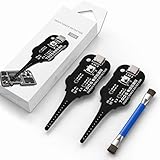
- Precise Coil Testing: With the ability to conduct simple fault checks and precise coil testing, this tool provides accurate measurements, locates damaged parts, and delivers dependable consistent readings
- Fast Fault Detection: Enables rapid identification of issues through dependable results and fast fault detection, fitting various common motherboard models for efficient use
- Wide to Application: Assures broad compatibility across major brands and devices, adapting effectively to repair needs while cutting down on unnecessary tool switching interruptions
- Ease of Use: Effortless to use with a clear concentrate on accessibility, this motherboard coil tester supports users of any experience level through its straightforward design and approachable step-by-step guidance
- Easy to Carry: Combining convenient storage and compact portability, this tester is crafted to fit easily into any tool kit and travel anywhere without adding bulk or complexity during usage
Or skip the browser setup
ScreenshotNeo is a website screenshot API and MCP server, not an accessibility checker; it can complement visual review but cannot establish WCAG accessibility. Its API can return a screenshot with one GET request:
Quick Recap
Best Value

- Range is from 0-35 Pounds
- MEET ADA REQUIREMENTS
- Use Plastic Protective Tube. ASIN: B004C3WZBS
- +/- 5% tolerance
- MEET ADA REQUIREMENTS The Americans with Disabilities Act requires that both interior and exterior doors of a building be handicapped accessible
curl -G "https://api.screenshotneo.com/v1/shot" -d access_key=YOUR_API_KEY --data-urlencode url=https://stripe.com -o shot.webpSee the ScreenshotNeo API documentation. ScreenshotNeo accepts cookie or consent banners and removes more than 60 known consent platforms, newsletter popups, and chat widgets before capture; each step can be turned off. Bot checks/CAPTCHAs, blank pages, timeouts, failed loads, and cache hits are not billed, and response headers identify the page verdict and billing status. Its MCP server gives AI agents tools for screenshots, page information, and PDF capture. The Free plan includes 1,000 screenshots a month with no card; paid plans start at $5 for 3,000. Learn more at ScreenshotNeo, or sign up for 1,000 free screenshots a month, with no card.
Free tools Windows power users keep installed
One-click scans. No signup required.
Product prices and availability are accurate as of the date/time indicated and are subject to change. Any price and availability information displayed on Amazon at the time of purchase will apply.

