
On a standard ASUS P4S8X running Windows 98 Second Edition, “PCI Universal Serial Bus” normally identifies the motherboard’s SiS USB 2.0 (EHCI) controller. SiS and ASUS did not list an official Windows 98SE driver for that controller. The dependable fix is to disable only USB 2.0 Function in BIOS, leaving the ordinary USB controller enabled so Windows 98SE can use USB 1.1. If the warning remains, investigate a separate PCI USB card or a genuine resource conflict.
What the “PCI Universal Serial Bus” entry represents
Windows 98SE sometimes shows a host controller by its generic PCI class name instead of a chipset name. On the P4S8X, the documented historical case points to the onboard SiS USB 2.0 EHCI controller, not to a keyboard, mouse, hub, or missing driver for ordinary USB 1.1. A contemporaneous discussion reproducing an ASUS FAQ identified the entry as onboard USB 2.0 and stated that SiS supplied no Windows 98/ME driver: AnandTech discussion.
The same label can also be produced by an add-in PCI USB card. Treat the onboard controller as the likely cause, not an absolute identification, until you check the hardware.
- Universal Serial Bus controllers: the Windows 98SE-recognized USB 1.1 host-controller entries.
- USB Root Hub: a hub attached to a host controller.
- PCI Universal Serial Bus: usually the unconfigured high-speed host controller in this P4S8X scenario.
- USB peripherals: devices such as a mouse, keyboard, printer, or flash drive; they are not the host controller itself.
Why Windows 98SE reports an error
Windows 98SE has built-in or chipset-provided support for common USB 1.1 OHCI/UHCI controllers. That support does not include every later USB 2.0 EHCI implementation. ASUS’s surviving P4S8X download listing includes a SiS USB 2.0 package for Windows 2000 and Windows XP, but not Windows 98SE or Windows ME: ASUS P4S8X downloads. The page does list other Windows 98SE components, so the omission is specific to USB 2.0 rather than proof that the board had no Windows 98 support.
#1 Best Overall

- AMD AM4 Socket and PCIe 4.0: The perfect pairing for 3rd Gen AMD Ryzen CPUs
- Ultrafast Connectivity: 1x PCIe 4.0 x16 SafeSlot, WiFi 6 (802.11ax), 1Gb LAN, dual M.2 slots (NVMe SSD)—one with PCIe 4.0 x4 connectivity, USB 3.2 Gen 2 Type-A , HDMI 2.1 (4K at 60HZ), D-Sub & DVI
- Comprehensive Cooling: VRM heatsink, PCH heatsink, hybrid fan headers and Fan Xpert 2 utility
- 5X Protection III: all-round protection with LANGuard, DRAM overcurrent protection, overvoltage protection, SafeSlot Core safeguards and stainless-steel back I/O
- Boosted Memory Performance: ASUS OptiMem proprietary trace layout allows memory kits to operate at higher frequencies with lower voltages to maximize system performance.
A yellow exclamation mark under Other devices, especially Code 28 (drivers not installed), is consistent with an unsupported EHCI driver. USB 1.1 devices may still work in that state. A conflict is a different diagnosis:
- Code 12: Windows cannot allocate sufficient resources.
- Code 9 or another configuration error: the device or its resources could not be configured.
- A Resources page showing a conflicting IRQ, I/O range, or memory range.
- Freezes when USB is initialized, particularly after installing an add-in PCI card.
Do not infer an IRQ problem merely from the word “conflist.” Confirm it with the status and Resources pages.
Rank #2
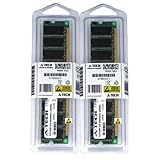
- 2GB KIT (2 x 1GB) DIMM DDR NON-ECC PC2700 333MHz RAM Memory
- Genuine A-Tech Memory
- Lifetime Warranty
- Designed For ASUS ASmobile Motherboard. (See Compatibility List Below)
Recommended fix: disable the unsupported USB 2.0 controller
The P4S8X manual documents a BIOS control named USB 2.0 Function under Onboard PCI Devices Control. Its choices are Enabled and Disabled; the manual says to disable it when USB 2.0 is not required: P4S8X English manual (E1120).
- Back up important files and, if possible, prepare a Windows 98 startup disk.
- In Windows, open Control Panel > System > Device Manager. Record the exact label and error code.
- Restart and press Delete during POST to enter BIOS Setup.
- Open the menu containing Onboard PCI Devices Control. Names can vary slightly by BIOS revision.
- Set USB 2.0 Function to Disabled.
- Leave the separate USB Function or USB-controller setting enabled.
- Save and exit, then let Windows 98SE redetect the remaining USB hardware.
- Restart once more and test a basic USB keyboard, mouse, joystick, or printer.
Keep Legacy USB support enabled if you need a USB keyboard in BIOS or DOS utilities. If it causes a hang, test with it disabled, but do not initially turn off every USB option.
Rank #3

- Boost Your System’s Performance: Increase available memory for smoother multitasking, improved responsiveness and better performance when running memory-intensive applications.
- Matched Specifically to Your Machine: OFFTEK selects the correct memory configuration for the computer shown in this listing, removing the uncertainty from choosing a compatible upgrade.
- We Do the Technical Checking for You: There is no need to compare memory speeds, voltages, form factors or other technical details, as the upgrade has been matched to the machine’s supported requirements.
- Extend the Life of Your Computer: Increasing the available memory can help your existing machine remain productive for longer, offering a cost-effective alternative to replacing the complete system.
- Quick and Straightforward Upgrade: Memory is normally simple to install and requires no software installation; shut down and disconnect the machine before fitting and follow the manufacturer’s instructions.
What should work after the change
The EHCI warning should disappear or become inactive, while the USB 1.1 controller and root hubs remain. Devices operate at USB 1.1 speed, so high-speed USB 2.0 transfers are intentionally unavailable. Test with a simple input device first.
Host-controller support and USB storage support are separate layers. A flash drive, card reader, or external disk may still require a Windows 9x mass-storage driver even after USB 1.1 is functioning. Disabling USB 2.0 does not make every storage device plug-and-play.
Rank #4
- Boost Your System’s Performance: Increase available memory for smoother multitasking, improved responsiveness and better performance when running memory-intensive applications.
- Matched Specifically to Your Machine: OFFTEK selects the correct memory configuration for the computer shown in this listing, removing the uncertainty from choosing a compatible upgrade.
- We Do the Technical Checking for You: There is no need to compare memory speeds, voltages, form factors or other technical details, as the upgrade has been matched to the machine’s supported requirements.
- Extend the Life of Your Computer: Increasing the available memory can help your existing machine remain productive for longer, offering a cost-effective alternative to replacing the complete system.
- Quick and Straightforward Upgrade: Memory is normally simple to install and requires no software installation; shut down and disconnect the machine before fitting and follow the manufacturer’s instructions.
When it is actually a PCI card or resource conflict
Remove an add-in USB card to identify it
- Shut down, unplug the computer, and remove any additional PCI USB card.
- Boot Windows 98SE and check Device Manager.
- If “PCI Universal Serial Bus” disappears, the card—not the onboard controller—was the device.
- Identify the card chipset (for example NEC/Renesas, VIA, or ALi) and install only a driver that explicitly supports Windows 98SE.
If the card must remain installed, try another PCI slot and remove unnecessary cards while testing. The closely related P4S8X-X manual warns that PCI slots and onboard controllers share interrupt-routing paths and that cards lacking proper shared-IRQ support can become unstable: P4S8X-X manual. This is general slot-sharing guidance from the related model, not a slot-by-slot map for the original P4S8X.
Inspect the device in Windows 98SE
Open Control Panel > System > Device Manager, select the entry, choose Properties, and review Resources and Details when available. Record the manufacturer, IRQ, I/O range, and memory range. Removing the device in Device Manager and rebooting can show whether the same physical controller is redetected; it does not supply a missing driver.
What’s actually slowing this PC down?
Pick the symptom - the matching free tool is one click away.
Best Value
- Boost Your System’s Performance: Increase available memory for smoother multitasking, improved responsiveness and better performance when running memory-intensive applications.
- Matched Specifically to Your Machine: OFFTEK selects the correct memory configuration for the computer shown in this listing, removing the uncertainty from choosing a compatible upgrade.
- We Do the Technical Checking for You: There is no need to compare memory speeds, voltages, form factors or other technical details, as the upgrade has been matched to the machine’s supported requirements.
- Extend the Life of Your Computer: Increasing the available memory can help your existing machine remain productive for longer, offering a cost-effective alternative to replacing the complete system.
- Quick and Straightforward Upgrade: Memory is normally simple to install and requires no software installation; shut down and disconnect the machine before fitting and follow the manufacturer’s instructions.
Drivers you should not install
- Do not install ASUS’s SiS USB 2.0 package intended for Windows 2000/XP on Windows 98SE.
- Do not use random “universal USB” sites or driver-updater utilities.
- Do not substitute a package for the similarly named P4S8X-X or P4S8X-MX without verifying the exact board.
- Do not assume AGP, IDE, LAN, audio, or chipset packages contain an EHCI driver.
Use the official Windows 98SE chipset, AGP, IDE, LAN, and audio packages that match the P4S8X where applicable; none replaces the absent official USB 2.0 driver.
Alternative approaches
| Goal | Practical path | Trade-off |
|---|---|---|
| Remove the warning while keeping Windows 98SE | Disable onboard USB 2.0 and use USB 1.1 | No USB 2.0 speed; storage may need a separate driver |
| Use reliable USB 2.0 | Move to Windows 2000 or Windows XP, for which ASUS lists the SiS package | No longer a pure Windows 98SE installation |
| Keep Windows 98SE but add faster USB | Use a PCI USB card with verified Windows 98SE drivers | Chipset, BIOS, and shared-IRQ compatibility vary |
| Experiment with community support | Try a Windows 9x Native USB package for the exact controller | Unofficial, version-sensitive, and potentially difficult to remove |
Community packages can support some controllers, but reports describe controller-specific installation and recovery procedures; they are an advanced experiment rather than ASUS/SiS support: VOGONS discussion.
Quick Recap
Decision guide
- For DOS and Windows 9x games, or basic input devices, disable USB 2.0 and retain USB 1.1.
- For dependable high-speed USB, use an operating system with an official P4S8X EHCI driver, such as Windows 2000 or XP.
- For a separate card, verify its exact Windows 98SE driver before changing BIOS settings.
- For Code 12 or a clearly reported resource overlap, troubleshoot PCI cards and IRQ sharing instead of repeatedly reinstalling USB drivers.
Product prices and availability are accurate as of the date/time indicated and are subject to change. Any price and availability information displayed on Amazon at the time of purchase will apply.

